How to Turn Album Cover Art Into a 10s Promo Teaser With Seedance
This step-by-step tutorial teaches independent musicians and MV creators how to use Seedance’s reference-based image to video tool to turn static album cover art into a polished 10-second promo teaser for TikTok, Instagram Reels, and pre-save campaigns. It covers cover art prep, prompt engineering for style consistency, motion control settings, and platform-specific export tips to avoid common AI video glitches like color drift and warped details. Readers can create a brand-aligned teaser in under 15 minutes without filming or professional editing software.
Table of contents
Why your album cover makes the perfect promo teaser base
You have a polished album cover, but you need a 10-second promo teaser for TikTok or Instagram Reels to drive pre-saves — and you don’t have a video crew, B-roll, or advanced editing skills. If you’ve tried using a generic AI video generator for promo clips before, you’ve probably run into a common problem: the output looks nothing like your album art, with clashing colors, off-brand motifs, and warped details that make your promo feel unprofessional.
Seedance’s reference-locked workflow fixes this by using your cover as a strict style and composition anchor, so your teaser feels like a natural, dynamic extension of your artwork. In 4 simple steps, you can make a scroll-stopping 10-second teaser in under 15 minutes, no filming required.
Step 1 — Prep your album cover for Seedance input
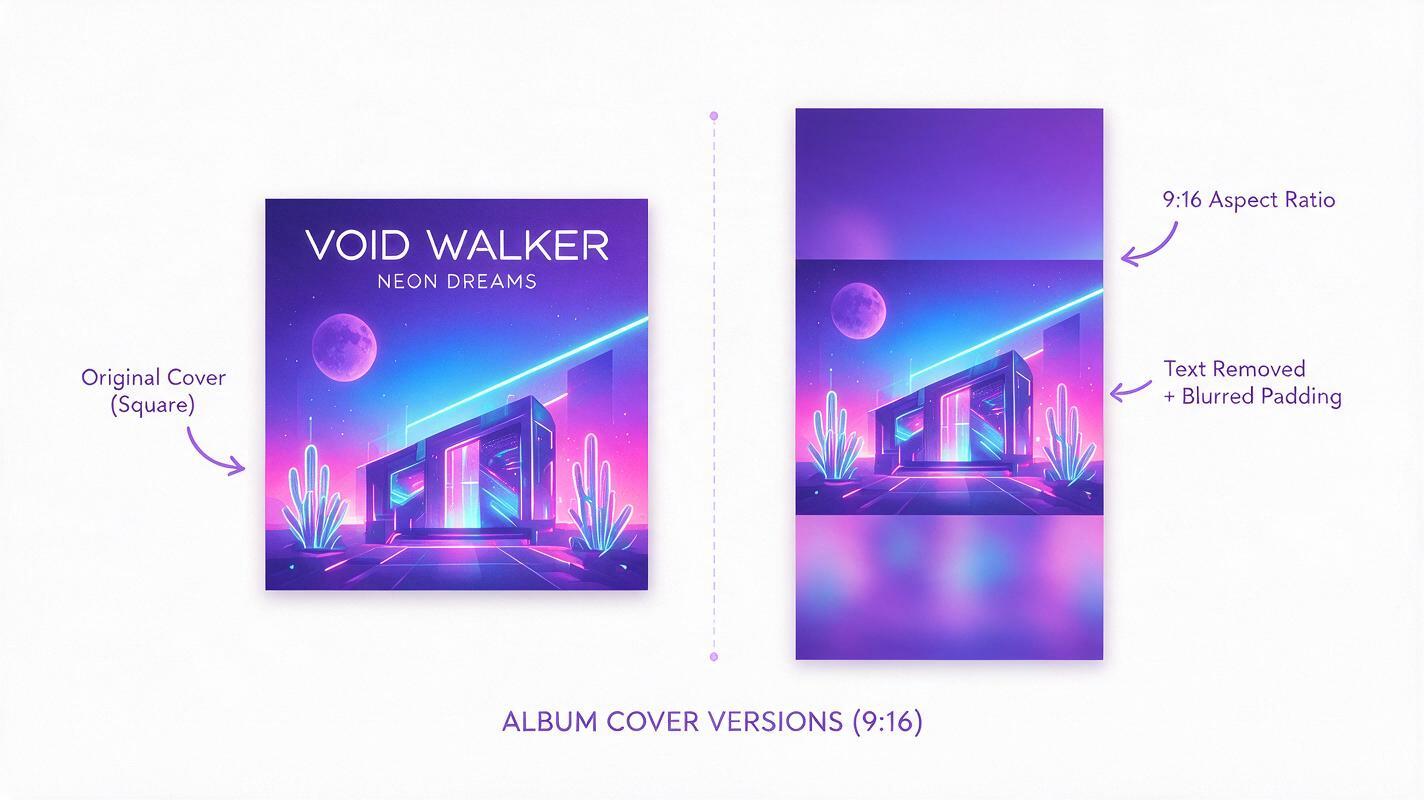
Before you upload anything, take 2 minutes to prep your cover file to avoid blurry outputs and text warping. Small tweaks here make a huge difference in final quality.
- Resolution and format: Export your cover as a high-quality PNG or JPG (minimum 1MB, no compression artifacts). Seedance works best with 1024x1024 or 1920x1080 inputs.
- Remove text first: Delete all artist names, song titles, and logo text from your cover file. AI video tools almost always warp text during generation, so it’s far better to overlay custom promo text in a free editor like CapCut after.
- Frame your focal point: Make sure your cover’s core element (a portrait, key object, or central scene) takes up 40-60% of the frame and is centered. This helps Seedance prioritize the most important visual and avoid drifting to irrelevant details.
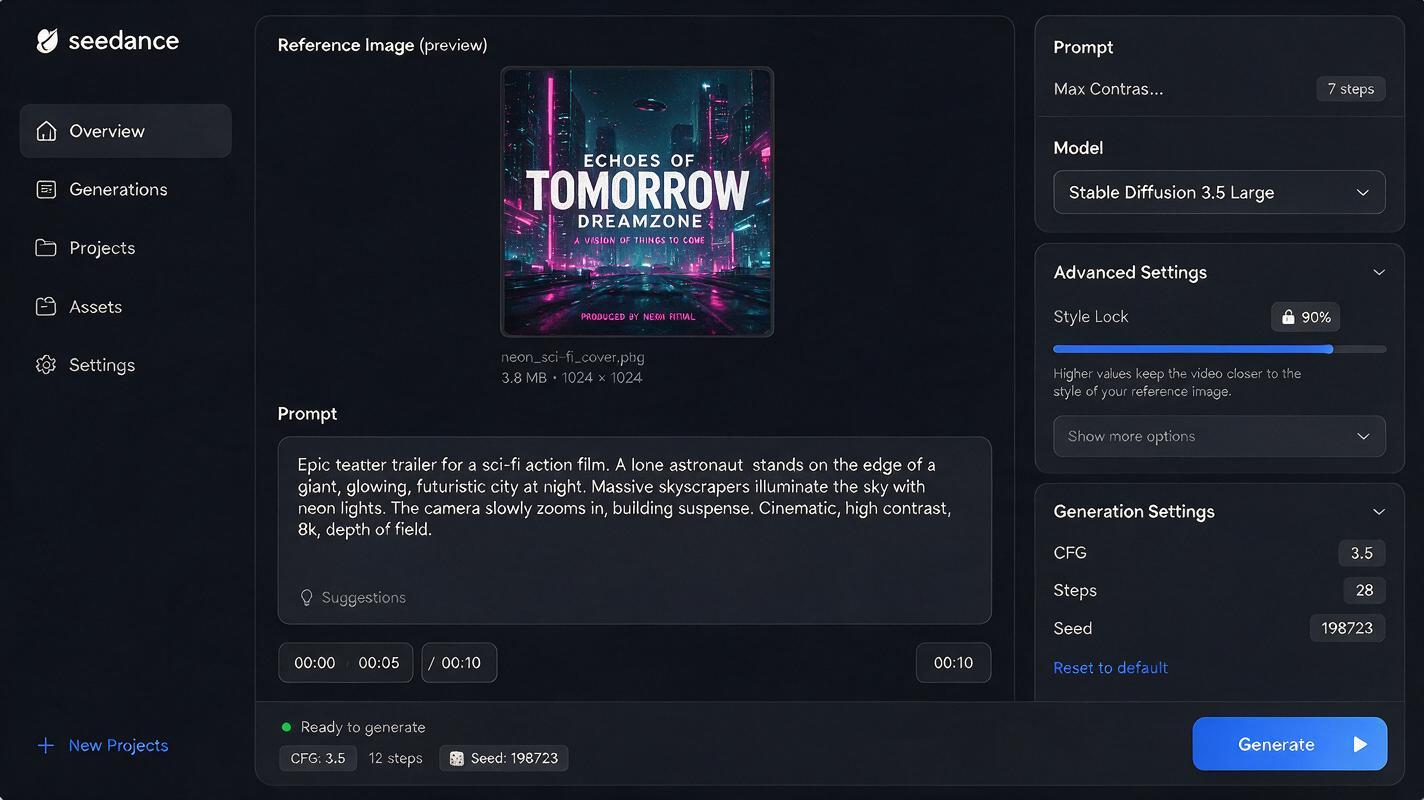
Upload your exported cover file to Seedance’s image to video tool, making sure to select the “Reference Style Lock” toggle in the input panel. This is the single most important setting for keeping your teaser aligned with your cover’s aesthetic.
Step 2 — Write a prompt that locks in cover style consistency
The biggest mistake artists make with AI video prompts is describing a totally new scene, instead of building on their existing cover. For a brand-aligned teaser, 80% of your prompt should focus on matching the reference image, and only 20% should add intentional motion or narrative beats.
Use this reusable prompt template for album cover teasers, swapping in your own cover details:
10-second slow cinematic push-in on [core cover element, e.g. "a neon-lit astronaut holding a cracked vinyl record"], matching the exact color palette, art style, composition, and lighting of the reference image. Subtle intentional motion: [specific small movement, e.g. "astronaut’s helmet visor glows brighter, tiny asteroids drift slowly in the background, ambient neon light flickers softly"]. No text, no camera shake, smooth steady motion, 24fps, cinematic grading, style identical to reference image.Pair it with this negative prompt to block common glitches:
text, watermark, blurry, distorted faces, warped objects, jarring motion, camera shake, extra limbs, color shift, style change, messy backgroundPro tip: If your cover has a unique art style (e.g. watercolor, pixel art, 90s anime), name it explicitly in the prompt. This reinforces the style lock and reduces drift even further.
Step 3 — Adjust motion settings for a 10-second teaser arc
A good promo teaser has a slow, intentional arc that builds curiosity without overwhelming the viewer. Seedance’s motion controls let you fine-tune the speed, camera movement, and style adherence to get exactly the right vibe.
Use these recommended settings for 10-second album cover teasers:
| Setting | Recommended value | Why it works |
|---|---|---|
| Duration | 10 seconds | Perfect length for TikTok/Reels, short enough to hold attention, long enough to build mood |
| Motion strength | 30-40% | Subtle enough to avoid style drift, dynamic enough to feel alive |
| Camera movement | Slow push-in | Draws viewers into the cover’s world without cropping key details |
| Style lock strength | 85-90% | Forces the model to match the reference’s color, style, and composition |
Troubleshooting: If your output has noticeable color drift, turn style lock strength up to 95%. If the motion feels too static, bump motion strength to 45% — but never go above 50%, as this will cause warping and style breakdown.
Step 4 — Export and trim for social media platforms
Once you’re happy with your generated clip, export it in the highest available resolution (1080p is ideal for all social platforms). Then, tailor it to your target platform with a free editor like CapCut or Canva:
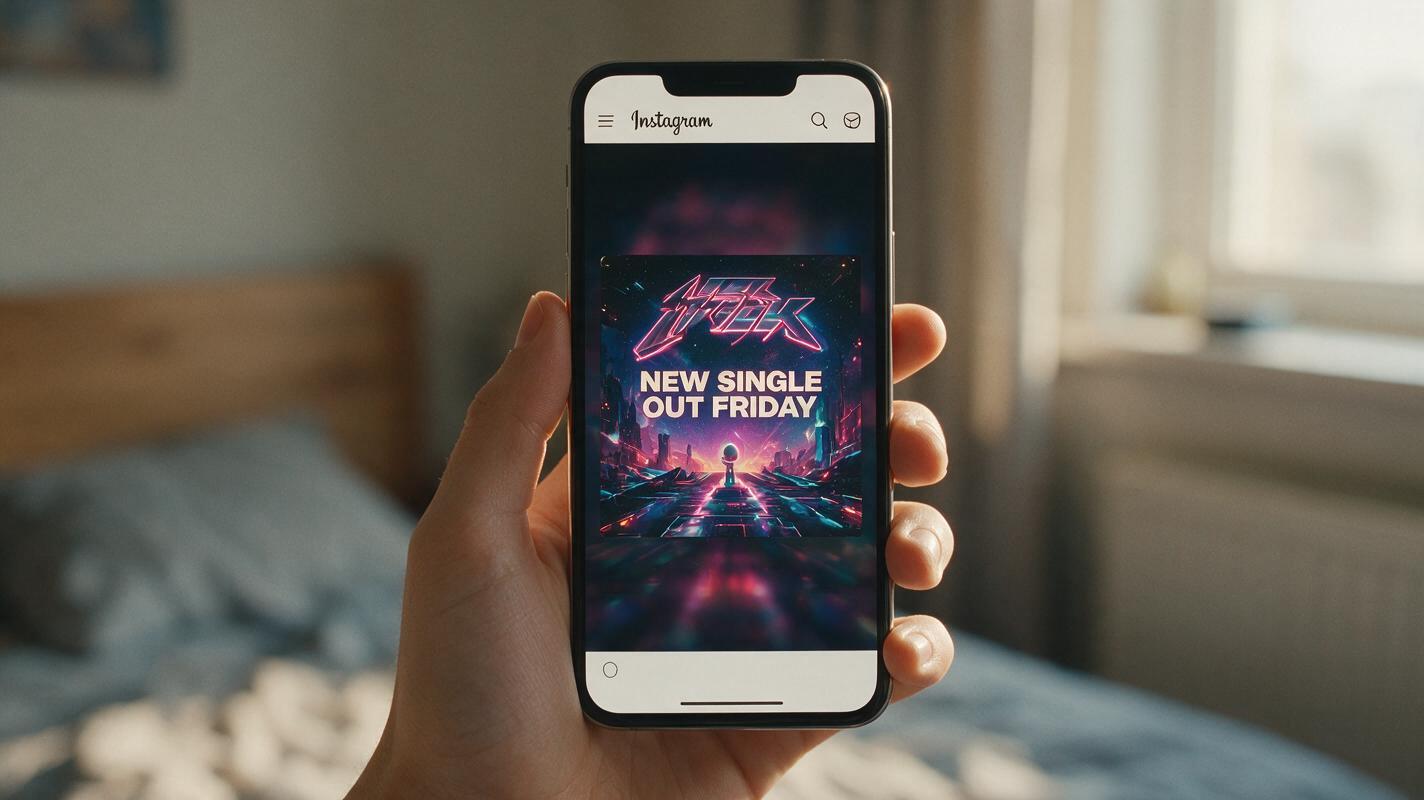
- TikTok / Instagram Reels (9:16): If you started with a square cover, add a blurred copy of the cover as top/bottom padding to fill the 9:16 frame. Overlay your artist name, single title, and a pre-save call-to-action in a bold, readable font.
- YouTube Shorts (9:16): Use the same 9:16 edit, but add a 1-second end card with your channel subscribe button to drive followers.
- Spotify pre-save ads (1:1): Crop the clip to square, keep text minimal, and make sure your core cover element stays centered for mobile viewers.
- Instagram Stories (9:16): Add a link sticker to your pre-save page, and use a subtle text animation to draw attention to the link.
Finish with a 0.5-second fade-in and 1-second fade-out to make the teaser feel polished and professional, even with no editing experience.
Final checklist
- Export your cover as a high-res PNG/JPG with all text removed
- Upload to Seedance and enable Reference Style Lock at 85% or higher
- Write a prompt that’s 80% reference match, 20% intentional motion
- Set duration to 10s, motion strength to 30-40%, camera to slow push-in
- Add a negative prompt to block text, warping, and color shift
- Trim and overlay text for your target social platform
- Add fade-in/fade-out for a polished finish
Keywords
seedance, album promo teaser, album cover animation, ai video generator, image to video, music artist promo, social media music promo