How to Maintain Character Consistency Across AI Video Generation Modes
Learn to keep a single AI character consistent across text to video, image to video, and motion transfer workflows with a repeatable, model-agnostic framework. This guide uses a shared master reference portrait, standardized prompt templates, and locked generation settings to eliminate facial drift and style mismatches when switching between generation modes on MagicBoat. You’ll also get model-specific tips for Seedance and Kling to fine-tune results.
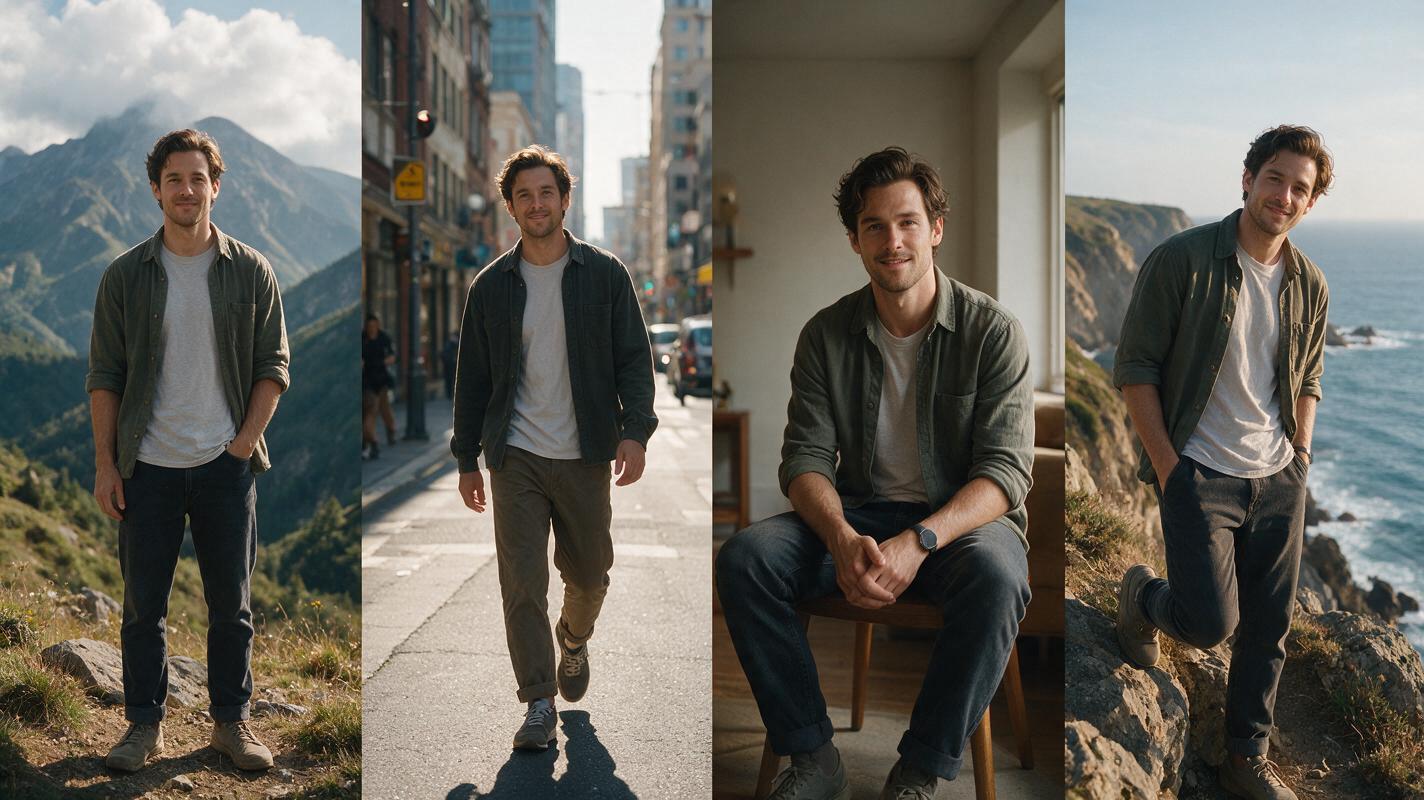
Table of contents
TL;DR
You can keep a single AI character consistent across text to video, image to video, and motion transfer workflows by using a shared master reference portrait, a standardized identity prompt template, and locked generation baselines. This 4-step framework works for both Seedance and Kling models, and fixes any remaining drift with a quick face swap pass. The entire workflow can be tested for free on MagicBoat without switching between separate tools.
Why Cross-Mode Character Consistency Breaks
If you’ve ever used multiple AI video generation modes for the same project, you’ve probably run into this problem: the character you designed in a text-to-video clip looks completely different when you animate them via image to video, and unrecognizable when you use motion transfer for an action scene.
Concrete symptoms include: mismatched hair color or texture between clips, shifted facial structure (jawline, eye shape, nose size), changes in height or body type, and even style drift (e.g. a photorealistic character turning semi-cartoonish in motion transfer). These issues happen because each generation mode has different model biases, prioritizes different input signals, and lacks a shared identity anchor unless you explicitly add one.
Many creators try to fix this by tweaking individual prompts, but that’s a band-aid solution. Without a centralized identity reference, you’ll spend hours re-generating clips and still end up with inconsistent results.
3 Ways to Maintain Character Consistency Across Generation Modes
We’ll cover three complementary approaches in this guide, ordered from most reliable to fallback-only:
- Reference-anchored generation: Use a single master character portrait as a reference for every mode, so all models have the same identity target. This is the most consistent method.
- Standardized prompt engineering: Build a reusable identity prompt block that you copy into every generation, regardless of mode or scene. Works well if you don’t have a reference image, but is less precise.
- Post-generation face swap: A universal fallback for fixing residual facial drift in any clip, after you’ve generated the motion you want.
How MagicBoat Handles Cross-Mode Character Consistency
MagicBoat’s integrated platform solves the biggest pain point of cross-mode workflows: you don’t have to switch between separate tools, upload your reference to 5 different sites, or manage multiple subscriptions. Every tool you need — image generation for your master reference, text to video, image to video, motion transfer, and face swap — lives in the same workspace.
You can also test both Seedance and Kling side by side for each generation mode, using the exact same reference and prompt, to see which model delivers the best identity adherence for your character. This makes it easy to iterate without reconfiguring your entire workflow every time.
Step 1 — Create your master character reference portrait
The foundation of cross-mode consistency is a single, high-quality master reference portrait that captures all of your character’s fixed identity traits. This image will be your north star for every generation, regardless of mode.
Generate your reference using an image model (Flux 1.1 Pro or Seedream 4.0 on MagicBoat) with these guidelines:
- Front-facing or 3/4 angle, neutral expression
- Soft, even lighting (no harsh shadows that obscure facial features)
- Plain, uncluttered background
- Plain clothing (if your character has a signature outfit, you can add it, but keep it simple)
- High detail, 4k resolution
Use this sample prompt as a starting point, replacing the traits with your character’s:
photorealistic portrait of 28-year-old non-binary barista Riley, short messy auburn hair, silver nose ring, warm brown eyes, light freckles across nose, average height, slim build, plain white t-shirt, neutral expression, soft studio lighting, plain light gray background, high detail, 4kCritical: Lock the seed number and write it down — you’ll reuse this base seed for later generations to keep facial structure consistent. Save the final portrait as your master reference file.
Expected result: A sharp, clear image where every key identity trait is visible and unobscured. No blurriness, no hair covering half the face, no extreme angles.
Step 2 — Build a standardized character prompt template
The next step is to create a reusable identity prompt block that you will copy-paste into every generation prompt, no matter the mode or scene. This ensures all models get the same core identity description, even when the rest of the prompt changes.
Split your prompt into two distinct parts:
- Fixed identity block (never changes): All permanent traits — name, age, body type, facial features, hair, scars, tattoos, etc.
- Variable scene block (changes per clip): Clothing, action, environment, camera movement, lighting, style.
Example identity block for Riley:
Riley, 28-year-old non-binary barista, short messy auburn hair, silver nose ring, warm brown eyes, light freckles across nose, average height, slim buildExample full prompt for a cafe scene:
[IDENTITY BLOCK] wearing a blue denim apron, wiping a ceramic coffee mug, standing behind a sunlit cafe counter, potted succulents in background, slow pan left, cinematic lighting, 4kFor seedance prompts, place the identity block at the very start of the prompt — Seedance prioritizes the first 20 words of a prompt more heavily. For kling prompts, include the identity block in both the main prompt field and the character reference description (if available) for extra adherence.
Step 3 — Adapt the workflow for each generation mode
Now you’ll apply your master reference and identity template to each generation mode. Each mode uses the reference slightly differently, so follow these mode-specific guidelines:
Text to Video
Paste your full prompt (identity block + scene block) into the text to video field, then upload your master reference portrait as a character reference image. Set the reference weight to 0.7–0.8 (higher = more identity adherence, lower = more creative freedom for motion). Use the same base seed from your master reference, changing only the last 2 digits if you need to adjust motion variation.
Image to Video
First generate a key frame of your character in the new scene using the same identity prompt and base seed in the image generation tool. Verify that the character matches your master reference, then upload the key frame to the image to video tool. Upload your master reference as a secondary character reference to lock in identity during animation.
Motion Transfer
For action-heavy scenes where text to video struggles with consistency, use motion transfer instead. Upload your master reference portrait (or a generated full-body shot of your character) as the target character, then upload a source video of the motion you want to transfer. Set identity adherence to high to preserve your character’s face and features during the motion map.
Expected result: Clips from all three modes have matching facial structure, hair, and body type, with only minor differences that are barely noticeable to viewers.
Step 4 — Correct residual drift with face swap
Even with a strong reference and standardized prompts, you may still see minor facial drift in some clips — especially in fast motion, extreme side angles, or models that prioritize motion over identity. Instead of re-generating the entire clip (and losing good motion), use a face swap pass to fix only the identity.
On MagicBoat, upload the clip with drift as the target video, and your master reference portrait as the identity source. The tool will preserve the original motion, lighting, and angle, while replacing the character’s face with your reference’s identity. This works for clips from any generation mode, making it a universal fallback.
Advanced Tips for Cross-Mode Consistency
- Keep the same style preset across projects: If you’re using a cinematic, anime, or vintage style, add the style description to your fixed identity block and apply the same style weight to every mode. This prevents style drift between clips.
- Alternative: Use motion transfer for all action scenes: If text to video consistently produces identity drift during fast movement, generate your action clips via motion transfer instead. You’ll get more reliable motion and better character consistency, since the target identity is explicitly set.
- Build a 3-angle reference sheet: For projects with lots of side or profile shots, generate 3 reference images (front, 3/4, profile) using the same seed and identity prompt. Upload the matching angle reference for each clip to reduce drift in non-frontal shots.
What the Workflow Costs
The entire cross-mode consistency workflow can be tested for free using MagicBoat’s signup credits, which include access to all image and video generation tools, motion transfer, and face swap. For larger projects, pay-as-you-go credits are available with no monthly subscription required.
Where It Falls Short
This workflow is highly reliable, but it has real limitations you should know about upfront:
- Extreme fast motion or full-body action shots can still cause minor body type drift, even with a reference. Face swap only fixes facial identity, not body shape.
- Some models prioritize motion smoothness over reference adherence, so you may need to tweak reference weight settings to find the right balance.
- Highly stylized characters (e.g. 2D anime, pixel art) may see more style drift across modes, as different models interpret stylistic prompts differently.
- Motion transfer works best with front-facing or 3/4 angle references; full profile references may produce distorted facial results.
FAQ
Can I use this workflow for both photorealistic and stylized characters?
Yes — just make sure your master reference matches your desired art style, and add the style description to your fixed identity prompt block. For anime or cartoon characters, use a model that excels at stylized output (like Seedance for anime) for your master reference.
Do I need to use the exact same seed for every generation?
No, but using the same base seed (with small adjustments to the last 2–3 digits for motion variation) helps maintain consistent facial structure, especially for text-only generations. If you’re using a reference image, the seed is less critical — the reference will do most of the identity work.
Which model is better for cross-mode consistency: Seedance or Kling?
Kling generally has stronger reference image adherence for both text to video and image to video, making it a good pick if identity consistency is your top priority. Seedance produces smoother, more natural motion, which is better for dynamic scenes. Test both with your character to find the right balance.
Can I use a real photo of a person as my master reference?
Yes, as long as you have the legal right to use that person’s likeness. The workflow works exactly the same way with real photos or AI-generated references — just make sure the photo is clear, well-lit, and shows all key identity traits.
How do I keep clothing consistent across modes too?
Add your character’s signature clothing details to your fixed identity prompt block, or generate your master reference wearing the signature outfit. Upload the full-body reference as a character reference for all generations to lock in both identity and clothing.
Ready to Test the Workflow?
Create your first consistent cross-mode ai video for free on MagicBoat — no separate subscriptions, no repeated reference uploads, no tool switching required.
Final Checklist
- Create a high-quality master reference portrait with all fixed identity traits, locked seed, and plain background
- Write a reusable identity prompt block that you copy into every generation prompt
- Upload the master reference as a character reference for every generation mode
- Use the same base seed (with minor adjustments) across all image and video generations
- Run a face swap pass on any clips with residual facial drift instead of re-generating
- Test both Seedance and Kling to find the best balance of motion quality and identity consistency
Keywords
character consistency, ai video tutorial, text to video, image to video, motion transfer, prompt engineering, seedance prompts, kling prompts