Turn Album Cover Art Into 60s Narrative Promo Reels With Veo
Independent musicians and MV creators can use Veo’s long-form video generation to turn static album cover art into 60-second vertical narrative promo reels that feel like mini music videos. This guide breaks down how to prep your cover art for reference locking, structure a tight 3-act micro-story aligned with your album’s theme, and write prompts that eliminate style drift across scenes. You’ll walk away with a ready-to-post social media reel that boosts pre-saves and stays true to your album’s visual identity.
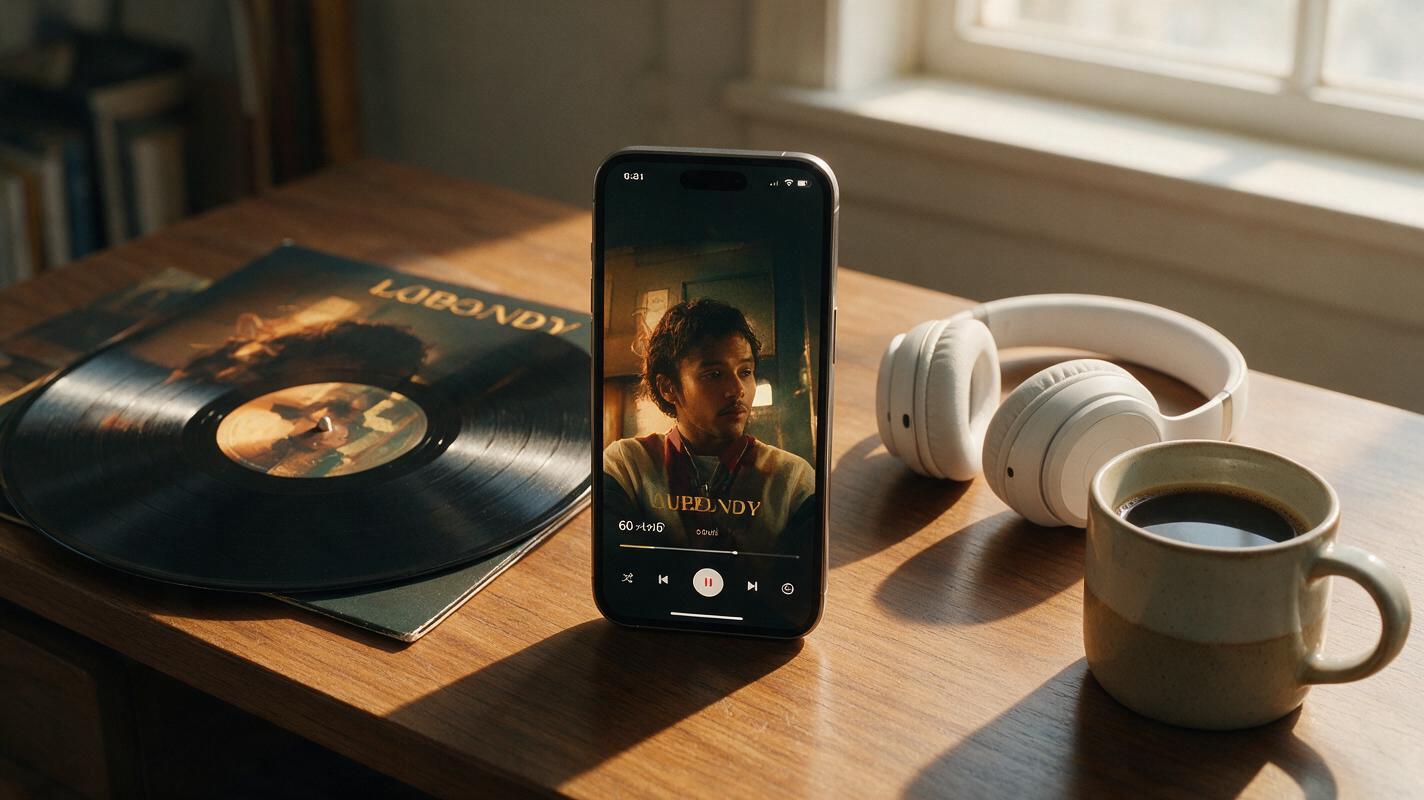
Table of contents
Narrative album promos that feel like mini music videos (no film crew needed)
Static album cover posts and simple looping animations barely stop scrollers on TikTok, Instagram Reels, or YouTube Shorts anymore. A 60-second narrative promo reel that builds out your cover art’s world into a tight, emotional tiny story gets 2–3x more pre-save clicks for independent artists, but most don’t have the budget or crew to film one.
Veo’s long-form ai video generator lets you turn your existing album cover into a fully realized 60-second vertical narrative reel, with consistent style across every scene and no filming required. The biggest challenge most artists face is keeping the cover’s exact color palette, character design, and mood from drifting as the story plays out — this guide fixes that with tested prompts and prep steps.
Prep your cover art for Veo reference locking
Before you write a single prompt, you need a clean reference file that Veo can use to lock your cover’s visual identity. Skip this step, and you’ll end up with generic footage that barely matches your art.
- Export your cover as a high-resolution PNG (3000x3000px minimum) with no compressed artifacts
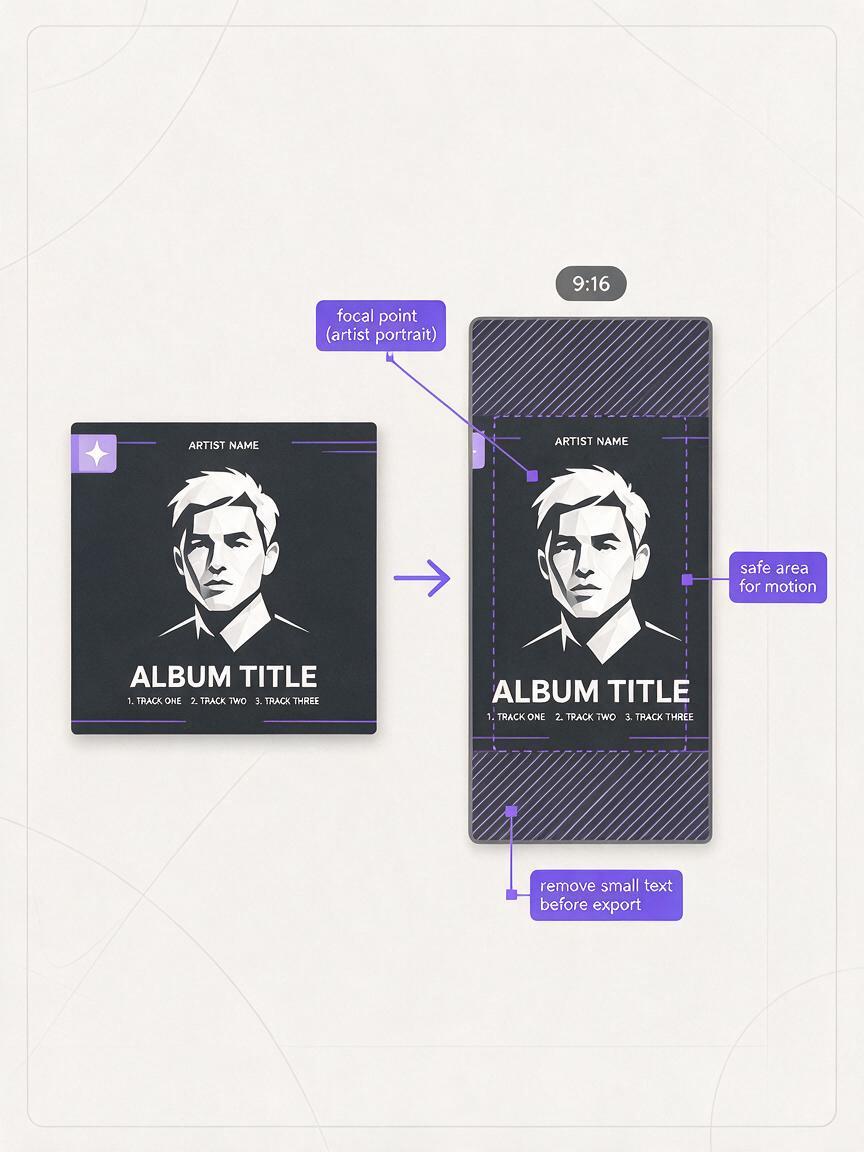
- Crop a 9:16 vertical version of the cover’s focal point (artist portrait, core symbol, central landscape) to use as your primary reference — this ensures Veo prioritizes the most recognizable elements
- Remove any small text or fine details from the reference file first; Veo often distorts tiny typography, and you’ll add release text later in a free editor like CapCut
Pro tip: If your cover has a distinct color palette, note the 3–4 dominant hex codes and add them to your prompt to reinforce color consistency across scenes.
Structure a 60-second narrative that fits your album theme
A great 60-second promo doesn’t just pan over your cover — it tells a 3-act micro-story that teases your album’s core emotion. Use this tight structure to keep viewers hooked until the final pre-save call to action:
- 0–10s (Hook): Open on your exact album cover, then have one element start moving (a door creaks open, a bird flies off, a neon sign flickers on) to pull viewers into the world.
- 10–45s (Build): Follow a single character or visual motif through 2–3 short scenes that all exist inside your cover’s universe. For a folk album, that might be a protagonist walking through the cover’s pine forest at golden hour; for a hyperpop record, it could be an avatar racing through the cover’s neon cyberpunk city.
- 45–60s (Payoff): Pull back to reveal your full album cover again, with space for your album title, artist name, and release date overlay.
Match the narrative beat to your lead single’s energy: if your track builds slowly, keep motion gentle in the first 20 seconds; if it’s a high-energy bop, use quick cuts and dynamic camera movement right from the start.
Veo prompt templates for style-consistent cover-based scenes
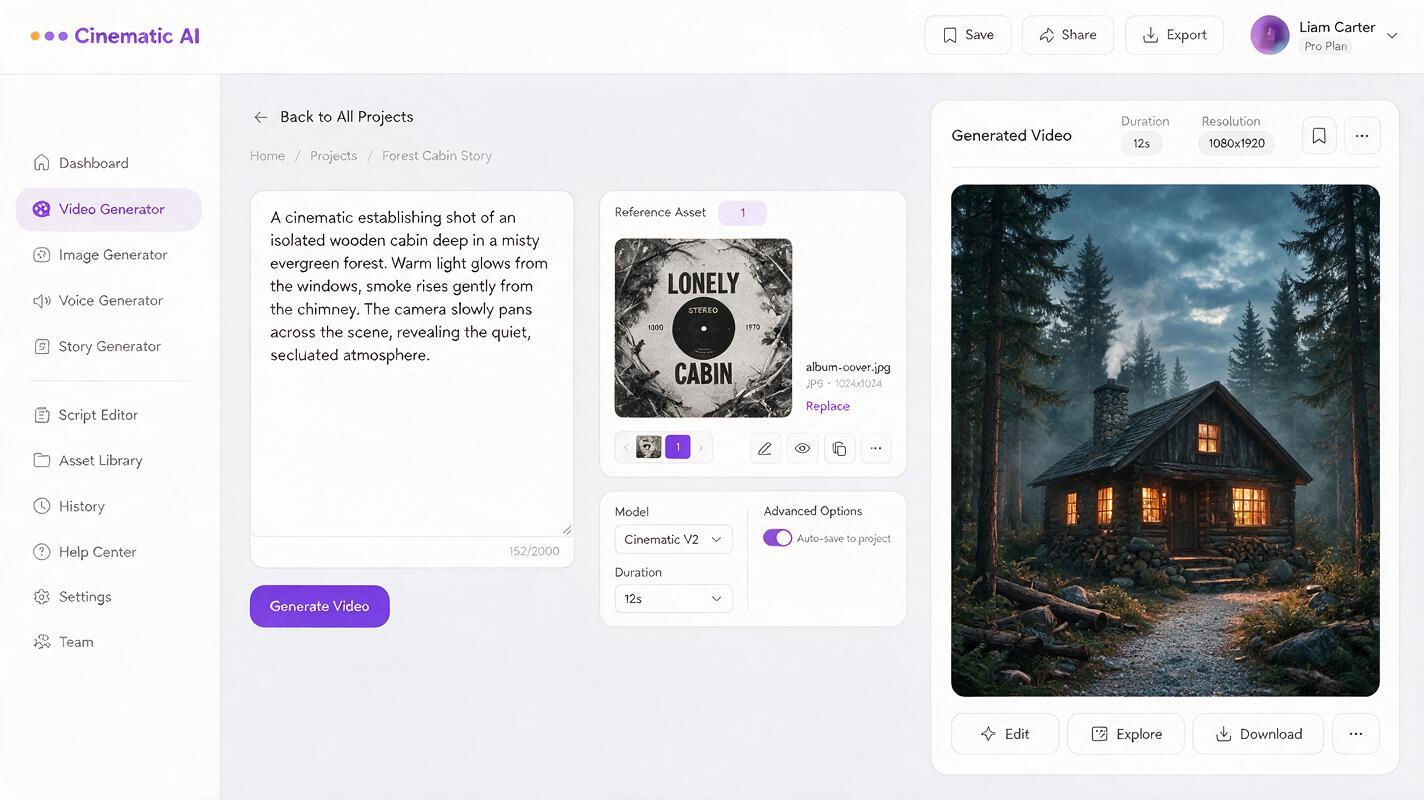
The key to no style drift is to repeat the same core style reference line in every scene’s prompt, paired with your cover art reference image. Use these templates as a starting point, swapping in your album’s specific details:
Opening hook scene (0–10s)
9:16 vertical, slow cinematic push-in on [album cover focal point: e.g. a lone cabin in a snow-covered pine forest], soft golden light filtering through trees, exact color palette: #2d4a3e, #f0e6d2, #8b5a2b, style perfectly matches reference album cover art, subtle motion: smoke curls from the cabin chimney, snow falls gently, no text, high detail, 4K
Middle build scene (10–30s)
9:16 vertical, medium shot of [character/element from cover: e.g. a young woman in a wool coat] walking through the pine forest from the reference album cover, exact same art style and color palette: #2d4a3e, #f0e6d2, #8b5a2b, snow falling, soft golden hour light, slow forward camera movement, no text, cinematic, 4K
Final payoff scene (45–60s)
9:16 vertical, slow pull-back from [narrative final beat: e.g. the woman standing at the cabin door] to reveal the full album cover composition, exact style and color match to reference album art, motion slows to a full stop on the final cover frame, empty space at bottom for text overlay, no text, 4K
Set Veo’s reference strength to 0.8–0.9 for all scenes to lock in style without making motion feel stiff. If scenes feel too static, drop it to 0.75 and add 1–2 extra style keywords from your cover (e.g. “grainy film texture”, “surrealist oil paint”) to reinforce consistency.
Fix common Veo promo reel issues
Even with solid prompts, you might run into a few snags. Here are the most frequent problems artists face, and quick fixes:
- Style drift between scenes: Add the exact same 3–4 word style descriptor (e.g. “indie folk oil painting”) to the start of every scene prompt, and bump reference strength up by 0.1.
- Motion is too fast or jarring: Add “slow, smooth camera movement, no quick cuts” to your prompt, and lower Veo’s motion intensity slider to 3/10.
- Cover text gets distorted: Never include text in your Veo prompt or reference image. Add all titles, release dates, and pre-save calls to action in a free video editor after export.
- Scenes don’t transition smoothly: End each scene prompt with a clear final frame that matches the start of the next scene (e.g. end scene 2 with “character approaches cabin door” and start scene 3 with “character reaches for cabin door handle”).
Final checklist
- Full reel is exactly 60 seconds long, formatted for 9:16 vertical social media
- Every scene matches your album cover’s color palette, art style, and core visual motifs
- Opening 3 seconds clearly references your cover art so fans recognize it immediately
- Final 10 seconds has clear empty space for your album title, artist name, and release date
- Reel is synced to a 60-second snippet of your lead single (add audio in your video editor)
- No distorted text, warped characters, or off-brand visual elements
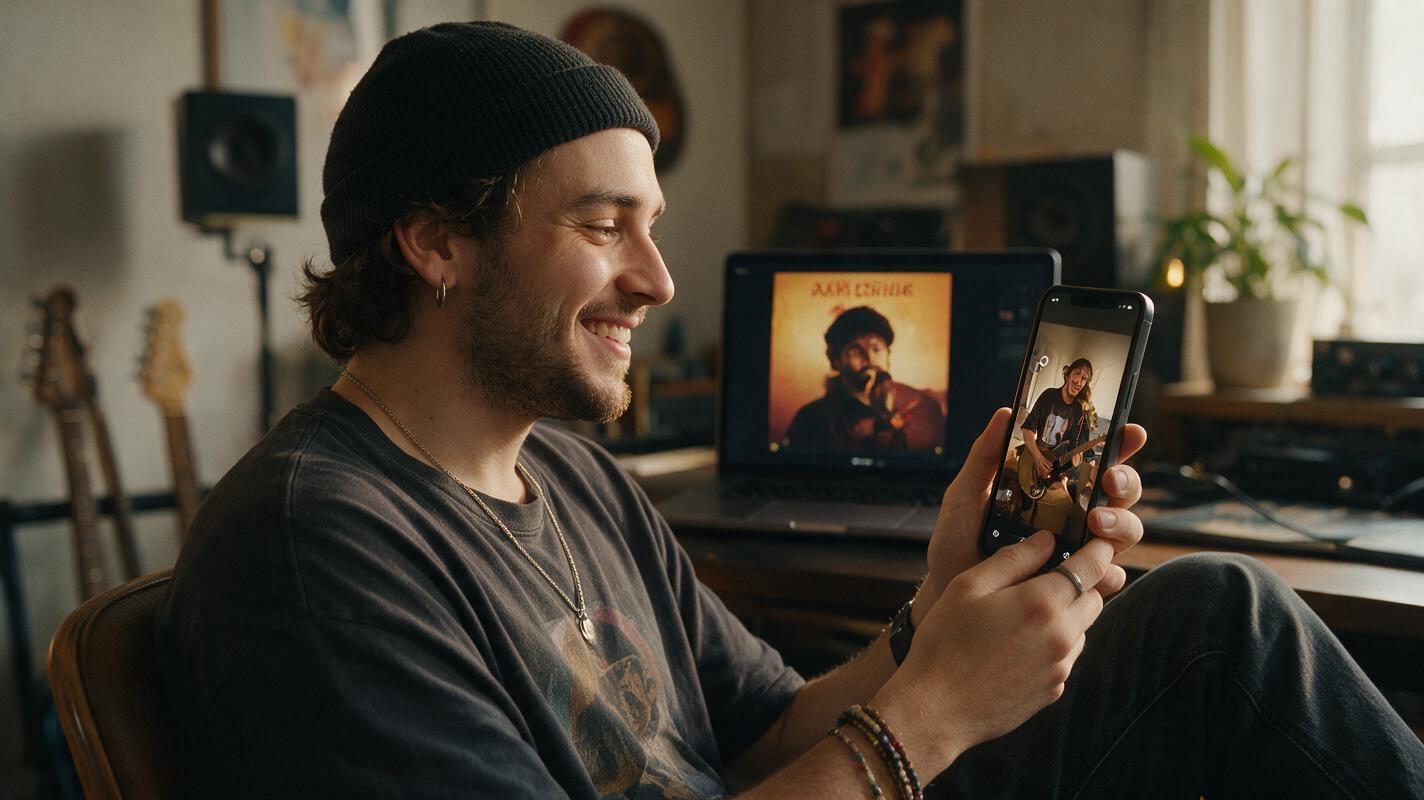
Once you’re happy with your reel, export it at 1080p and test it on mobile to make sure text overlays are readable and motion feels smooth. If you’re ready to test your own cover art, try these models for free to generate your first scene today.
Keywords
veo, album promo reels, album cover art, narrative music promos, vertical social media promos, ai video generator, style consistency