Why AI 360 Packaging Spins Warp Brand Marks (and 3 Fixes With PixVerse)
AI 360-degree packaging spins are a fast way to bring static renders to life for e-commerce and social media, but most warp logos, text, and box structure. This article explains why these distortions happen and shares three actionable fixes using PixVerse, from source prep to reference-locked prompting and hybrid compositing, for brand and packaging designers.
Table of contents
Why AI 360 packaging spins ruin brand consistency
AI 360-degree packaging spins take 10 seconds to generate—but 90% of them warp your logo, smudge product text, or bend the box structure beyond brand guidelines.
Brand and packaging designers spend hours refining static packaging renders, nailing dieline alignment, logo placement, and exact brand colors. When clients ask for 360-degree spin videos for e-commerce product pages, Instagram Reels, or client presentations, building them in 3D software can take half a day—especially if you only have a 2D render to work from.
AI image to video tools like PixVerse promise to turn a single static packaging render into a smooth spin in seconds, but most outputs come with brand-damaging flaws that make them unusable for client work. This article breaks down why those distortions happen and shares three actionable fixes to get clean, on-brand 360 packaging spins with PixVerse, no advanced 3D skills required.
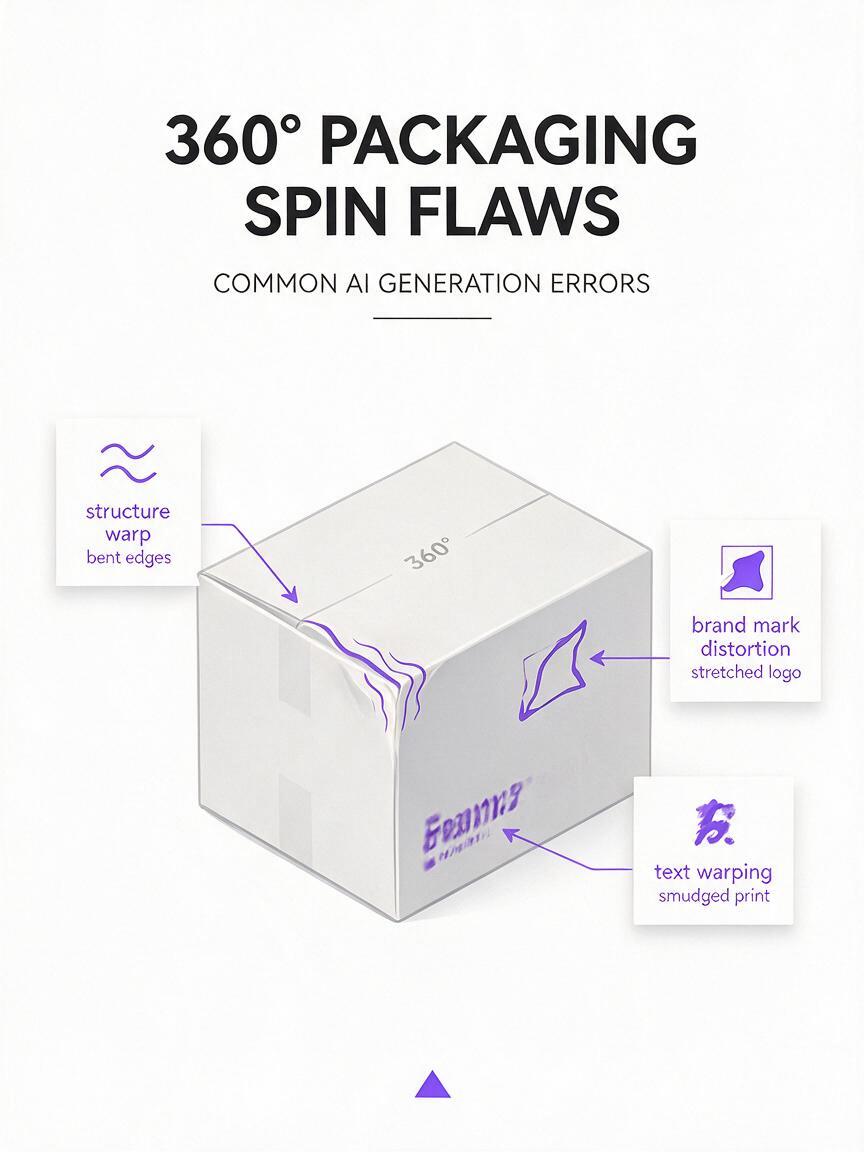
Common causes of packaging spin distortion
Most AI-generated packaging spins fail brand consistency checks for three core reasons, all tied to how image-to-video models interpret static 2D renders:
- No 3D structure awareness: AI models treat the packaging as a flat texture, not a rigid 3D object with fixed panels and edges. When the model "rotates" the box, it bends and warps the flat image instead of preserving structural integrity.
- Brand elements as disposable texture: Logos, product names, and regulatory text are not recognized as critical, fixed assets. The model warps them like any other graphic detail instead of keeping them crisp, proportionate, and aligned to panel edges.
- Uncontrolled camera motion: Default image-to-video settings often add random tilt, zoom, or uneven rotation speed. These perspective shifts throw off brand element proportions and make the spin feel unprofessional.
Prep your source render for zero-distortion spins
The foundation of a clean, on-brand 360 spin is a well-prepared source render. Skipping this step is the number one cause of warped edges and distorted logos, even with the best prompting.
Follow these rules when creating your source image:
- Use a straight-on front view with near-orthographic perspective to avoid initial depth distortion that gets amplified during rotation.
- Ensure all high-priority brand elements (primary logo, product name, key marketing claims) are fully visible on the front panel, with at least 10% margin from all edges.
- Export at 1024x1024 resolution or higher, with sharp edges and no compression blur.
- Use even, soft studio lighting with no harsh shadows, glossy reflections, or gradient backgrounds that could confuse the model's edge detection.
- Add a 1–2px white border around the entire packaging silhouette to help the AI clearly distinguish the box from the background.
Pro tip: For best results, remove small text (ingredient lists, fine print, barcodes) from your source render before generating. You can add these back in post-production for perfect legibility, without relying on the AI to render them accurately.

Lock structure and brand elements with reference prompting
PixVerse's image-to-video mode includes reference weight and camera control settings that let you lock in your source render's structure, colors, and brand details far better than default settings. The key is to prioritize structural rigidity and controlled motion over dynamic flair.
Use this reusable prompt template for rigid packaging types (boxes, jars, bottles, tubes):
360-degree slow uniform spin of a rigid [packaging type], rotation around vertical axis only, no tilting or zooming, perfectly straight edges, crisp undistorted logo and text on all visible panels, exact brand color accuracy, smooth motion, clean white studio background, photorealistic packaging render, no distortion, no warpingPair it with this negative prompt to eliminate common flaws:
warped edges, stretched logo, blurry text, bent box, distorted structure, tilting camera, zooming, harsh shadows, reflections, background clutter, flickering, texture glitchesAdjust these key settings in PixVerse before generating:
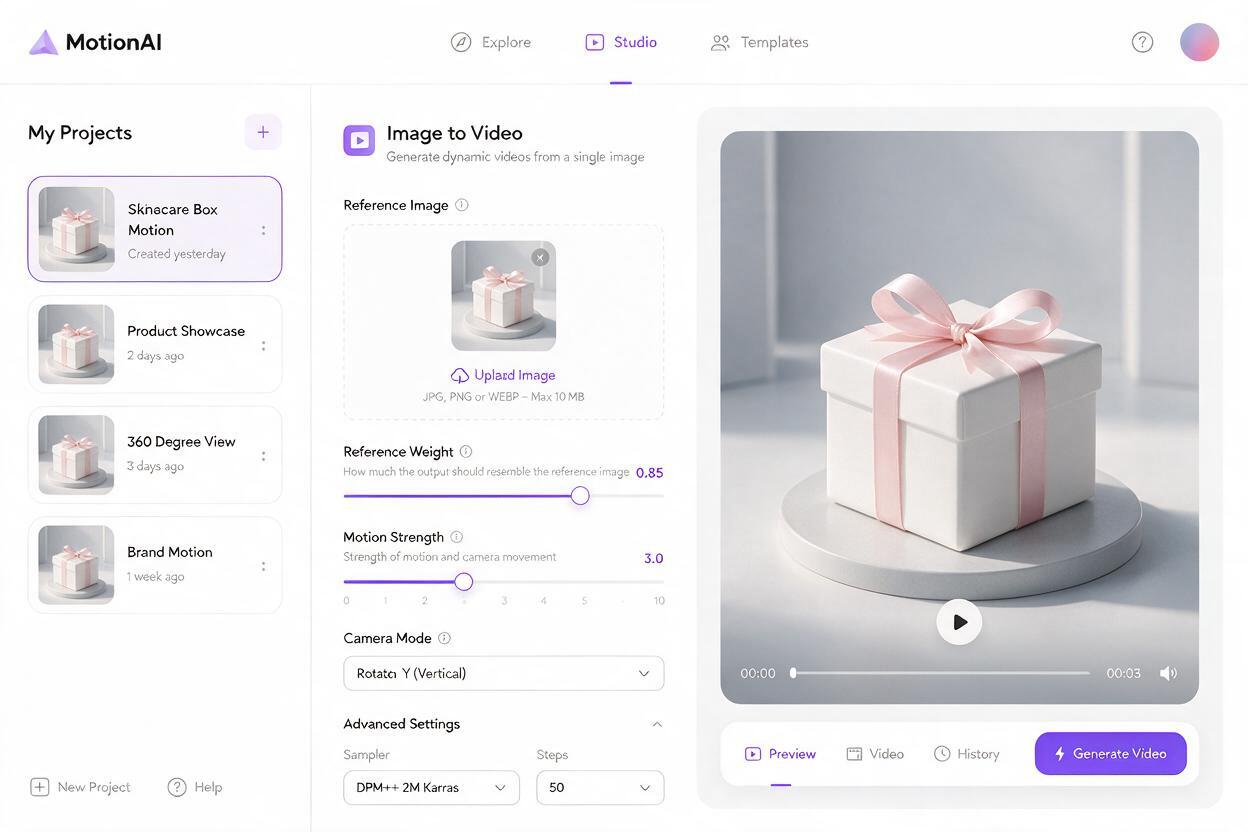
- Reference weight: 0.8–0.9 (0.85 is the sweet spot for balancing faithfulness to your source render and smooth, natural motion)
- Motion strength: 3–4 (low motion keeps the spin slow and controlled, reducing the chance of structural warping)
- Camera control: Set to "rotate Y" (vertical rotation only) to eliminate unwanted tilt, pan, or zoom
This prompt structure works for most rigid packaging types, from cereal boxes to cosmetic jars to skincare bottles. Test it with your own packaging renders when you try these models for free.
Composite critical brand elements for 100% accuracy
For high-stakes client deliverables where even minor logo distortion is unacceptable, the most reliable method is hybrid compositing: generate a base spin with the AI, then layer your vector brand assets on top in post-production.
This approach adds 10–15 minutes of work but guarantees perfect brand consistency, every time. Here's how to do it:
- First, generate the base spin using a source render with all logos, product names, and key text removed. This avoids overlapping distorted AI elements with your clean vector assets.
- Export vector versions of all brand assets for each visible panel (front, side, top if applicable) in the exact colors and sizes from your brand guide.
- Use motion tracking in your editing tool (After Effects, CapCut, Premiere Pro, or DaVinci Resolve) to attach each vector layer to its corresponding panel as the box spins.
- Adjust opacity, add subtle shadows, and match lighting to the generated spin for a seamless, natural look.
This method also lets you update text or swap logos without re-generating the entire spin, making it perfect for multi-product lines or limited-edition campaign updates.
Final quality checklist for on-brand 360 spins
Use this checklist to validate every spin before sending it to a client or publishing it:
- Box edges remain straight and rigid throughout the entire spin, with no bending, bulging, or warping
- Logo proportions stay consistent across all visible panels, with no stretching, skewing, or blurring
- All text is legible and matches the brand's approved typography (or is perfectly crisp if composited)
- Brand colors match the approved palette across every frame, with no hue shifts, fading, or saturation changes
- Rotation is smooth and uniform, with no sudden jumps, tilts, or unexpected zooming
- Background and lighting stay consistent, with no flickering, random objects, or texture glitches
- The spin loops cleanly if intended for social media, website banners, or product page auto-play use
Keywords
ai packaging design, 360 packaging spin, pixverse, image to video, brand consistency, packaging animation, product spin video