AI Avatar Video Generator: Turn SOPs Into Training Clips
Learn how to convert a written standard operating procedure into a concise AI avatar training video. This practical workflow covers script editing, avatar references, scene generation, lip sync, enhancement, and matched-frame quality checks.

Table of contents
Turn a dense SOP into training people can actually watch
An AI avatar video generator can convert a written procedure into short, repeatable training clips without requiring a presenter to record every revision.
The strongest workflow is not simply pasting an entire document into a one-click template. It separates the SOP into spoken scenes, creates a stable presenter reference, generates restrained motion, synchronizes the voice, and checks every shot against the source instructions.
Practical scenario: This tutorial turns a warehouse packing SOP into a two-minute onboarding video presented by one recurring virtual instructor.
Cover visual prompt:
Photorealistic editorial photograph of a professional female training presenter standing beside a clean warehouse packing station with plain cartons, tape dispenser and safety gloves, printed procedure pages without readable text arranged on a nearby table, natural window light mixed with soft industrial lighting, realistic workplace details, calm instructional mood, no logos, no interface elements, no brand marks, landscape 16:9, MANDATORY CAMERA: eye-level medium-wide shot with the presenter on the left and the packing station clearly visible on the right, 35mm documentary lens.Step 1 — Convert the SOP into spoken scenes
Start by removing language that works on paper but sounds unnatural when spoken. Keep mandatory safety instructions, measurements, warnings, and escalation rules unchanged. Rewrite only the connective language.
A useful scene should contain one action, one visual focus, and no more than a few sentences of narration. For the packing example, separate the process into preparation, item inspection, protective wrapping, carton sealing, label placement, and exception handling.
Use this prompt to create a first draft:
Rewrite the SOP below as a concise employee training script. Preserve every safety warning, measurement, required check and escalation rule. Divide the script into scenes. For each scene, provide: narration, presenter action, supporting visual and on-screen text suggestion. Use clear spoken English and do not add procedures that are absent from the source document.

SOP:
[PASTE VERIFIED PROCEDURE HERE]
Have the process owner review the result before generating video. An articulate avatar cannot make an incorrect procedure safe.
Step 2 — Build a reusable avatar reference
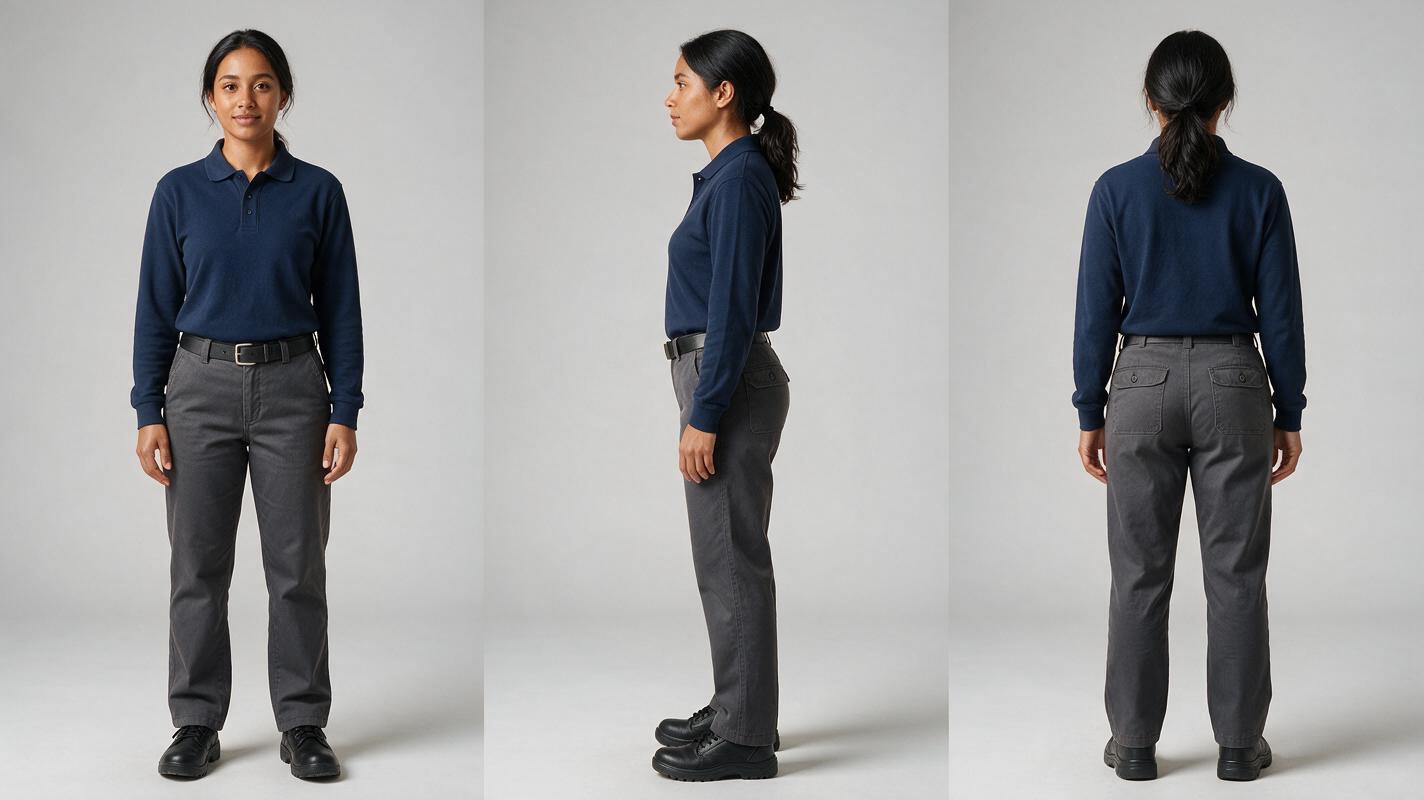
A stable reference sheet reduces changes in facial structure, hairstyle, clothing, and body proportions between scenes. Use one simple outfit with a clean silhouette. Avoid small patterns, reflective jewelry, loose accessories, and hands covering the face.
If the presenter will appear in several locations, create the character on a neutral background before placing that character into individual scenes. A consistent reference is more useful than repeatedly describing the same person from memory.
Photorealistic three-panel character reference sheet showing the same fictional female workplace trainer in front view, exact side profile and back view, early thirties, oval face, warm brown skin, dark brown eyes, shoulder-length black hair tied in a low ponytail, navy long-sleeve polo shirt, charcoal work trousers and plain black safety shoes, identical clothing and proportions in every panel, relaxed neutral posture with arms visible, neutral light-gray seamless studio background, soft even lighting, no text, no logos, no interface elements, landscape 16:9, MANDATORY CAMERA: full-body eye-level orthographic-style views with equal spacing and no perspective exaggeration.Save a short identity description alongside the sheet. Reuse both without changing adjectives between shots. If a visual detail is not important to the training outcome, leave it out rather than introducing more opportunities for drift.
Step 3 — Generate restrained presenter and workplace shots
Training footage benefits from controlled motion. Ask for a steady posture, modest hand gestures, natural blinking, and a locked or slowly moving camera. Dramatic camera moves can distract from instructions and make continuity harder to maintain.
MagicBoat can connect still-image development with image to video generation, which is useful when you want a custom presenter and purpose-built workplace scenes rather than a stock talking-head template. Its multi-model environment also lets you compare outputs without rebuilding the project concept in separate workflows.
Generate visual demonstrations separately from the presenter whenever precision matters. For example, use a close shot of real hands sealing a carton instead of asking the avatar to perform a complex finger-level action while speaking.
Cinematic editorial-realism image of the established female workplace trainer standing at a lived-in warehouse packing bench, open plain carton, recyclable protective paper, tape dispenser and safety gloves arranged in practical working positions, shelves and shipping materials softly visible in the background, realistic industrial lighting with gentle daylight, natural posture and restrained instructional hand gesture, no readable text, no logos, no interface elements, landscape 16:9, MANDATORY CAMERA: true three-quarter medium-wide view from chest height, presenter positioned in the left third and the complete packing action visible in the right two-thirds, 40mm lens.A motion prompt for this scene can remain short:
The trainer maintains identity, clothing and body proportions from the reference image. She makes one small open-palm gesture toward the carton, then returns both hands to a relaxed position. Natural blinking and subtle breathing only. Locked camera, stable background, no new objects, no duplicated fingers, no exaggerated expression.
Step 4 — Add narration and lip sync
Record or generate narration only after the script is approved. Keep each audio segment aligned with one scene so revisions do not force you to rebuild the entire video.
For presenter shots, use ai lipsync after the visual composition is stable. Favor a front or gentle three-quarter face angle, unobstructed lips, even facial lighting, and modest head movement. Cut to process footage when the narration contains long technical explanations; the avatar does not need to remain visible continuously.
Check pronunciation manually for product names, abbreviations, measurements, and location-specific terminology. If a generated voice misreads an important term, adjust the phonetic spelling or replace that line with an approved human recording.
| Shot type | Best use | Main risk |
|---|---|---|
| Front-facing avatar | Welcome, warnings, summaries | Unnatural mouth shapes on difficult terms |
| Three-quarter avatar | Introducing equipment beside the presenter | Face drift during larger head turns |
| Process close-up | Hand placement and physical actions | Showing a procedure that differs from the SOP |
| Location wide shot | Orientation and work-area context | Background details distracting from the lesson |
Step 5 — Apply enhancement without changing the lesson
Use enhancement conservatively. Light denoising, restrained sharpening, color matching, and loudness normalization can help scenes feel cohesive. Aggressive processing may alter facial texture, uniform details, package edges, or small safety equipment.
Create one finishing preset only after reviewing a representative sample: a presenter close-up, a workplace wide shot, a process detail, and the darkest scene. A preset approved on one attractive frame may fail on skin, hands, or moving edges elsewhere.
- Match color first: Bring scenes into the same neutral range before sharpening.
- Inspect movement: Review hands, lips, hair, carton edges, and background lines frame by frame.
- Protect source truth: Enhancement should clarify existing information, not generate missing labels or equipment.
- Export a review copy: Add scene identifiers during internal review, then remove them from the delivery version.
Step 6 — Create matched-frame before-and-after evidence
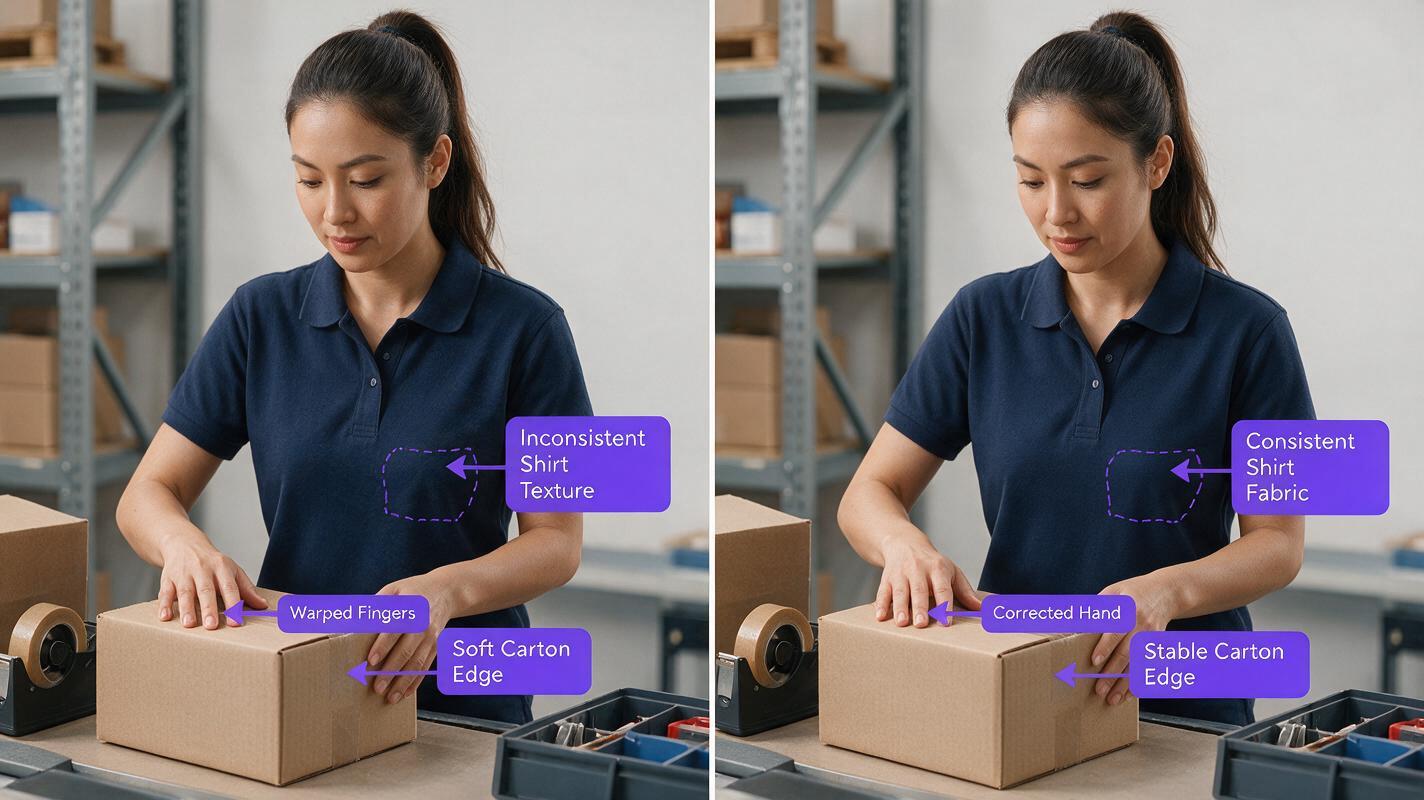
Quality approval should use the same frame, crop, and display size on both sides. Do not compare an unflattering source frame with a different polished frame. For each representative scene, capture the raw generation and final export at the identical timestamp.
Photorealistic split-frame comparison of the same fictional female workplace trainer at the same warehouse packing bench and identical timestamp, left half showing subtle generation problems including slightly warped fingers, softened carton edges and inconsistent shirt texture, right half showing corrected natural hands, stable carton geometry and consistent navy fabric while preserving the same face, pose, lighting and composition, no text, no labels, no logos, no interface elements, landscape 16:9, MANDATORY CAMERA: perfectly matched eye-level medium shot on both halves with a clean vertical division and identical 50mm perspective.Record observations rather than vague ratings:
| Inspection area | Raw frame | Approved frame |
|---|---|---|
| Identity | Note any change in face shape or hair | Confirm it matches the reference sheet |
| Lips | Note closure, stretching, or timing errors | Confirm readable synchronization at normal speed |
| Hands | Note duplication or warped fingers | Confirm natural anatomy throughout the gesture |
| Workplace objects | Note shifting edges or added equipment | Confirm objects remain stable and procedure-accurate |
| Finish | Note noise, flicker, or color mismatch | Confirm corrections do not erase real texture |
Step 7 — Choose the tool around the delivery format
Different ai video tools solve different parts of this assignment. Template-led avatar platforms are efficient for slide-like business presentations, while a custom scene workflow gives you more control over locations, demonstrations, and the visual identity of the instructor.
| Tool | Practical fit | Verify before production |
|---|---|---|
| MagicBoat | Custom avatar images, generated scenes, animation, dubbing and lip sync in a connected multi-model workflow | Confirm the chosen model and output settings suit the required shot |
| HeyGen | Presenter-led business videos and avatar-based localization workflows | Check current plan limits, avatar rights and export terms |
| Synthesia | Structured workplace learning and presentation-style avatar videos | Check available avatars, collaboration options and licensing |
| D-ID | Talking-person videos generated from visual and audio inputs | Check consent requirements, plan terms and output controls |
Product features, usage allowances, and commercial terms can change. Review each provider's current documentation before committing a training library to one platform.
If you want to build a custom presenter, compare animation models, and assemble the visual portion of the lesson in one place, try these models for free.
FAQ
Can an AI avatar replace a subject-matter expert?
No. The avatar presents approved information; it should not invent, interpret, or authorize operational procedures. A qualified owner must review the script and final video.
How long should each training scene be?
Keep each scene focused on one action or idea. Short scene-level files are easier to regenerate when a sentence, visual, or procedure changes.
Should the avatar demonstrate physical tasks?
Use the avatar for explanation and simple gestures. For precise hand placement, machinery, safety equipment, or regulated procedures, use verified process footage or carefully reviewed close-ups.
How can one avatar remain consistent across a training series?
Reuse the same three-view reference sheet, identity description, wardrobe, voice settings, lighting language, and approved camera angles. Change locations and props only when the lesson requires them.
Can the same video be localized?
Yes, but every localized version needs review for pronunciation, timing, terminology, cultural context, and on-screen instructions. Translation alone does not establish procedural accuracy.
Sources
Final checklist
- The process owner approved the scene-level script.
- Every warning, measurement, and escalation rule matches the SOP.
- The avatar matches one locked reference sheet across all scenes.
- Complex physical actions use verified process visuals.
- Names, abbreviations, and measurements are pronounced correctly.
- Hands, lips, hair, clothing, and background objects remain stable.
- Enhancement improves clarity without inventing operational details.
- Matched raw and final frames are stored with review notes.
- Commercial rights and consent requirements have been checked.
Keywords
ai avatar video generator, ai video tools, animate image to video, ai video enhancer, enhance videos with ai, ai video presets, make videos in one click