AI Avatar Video Generator: Make Consistent FAQ Clips From One Photo
Learn how to use an AI avatar video generator to create consistent, professional FAQ clips for your small business website using just one reference photo. This step-by-step guide covers avatar prep, natural gesture animation with motion mimic, clean background swaps with video matting, and preset-based brand consistency. You’ll walk away with a repeatable workflow that cuts down filming time while keeping your brand voice and visual style consistent.
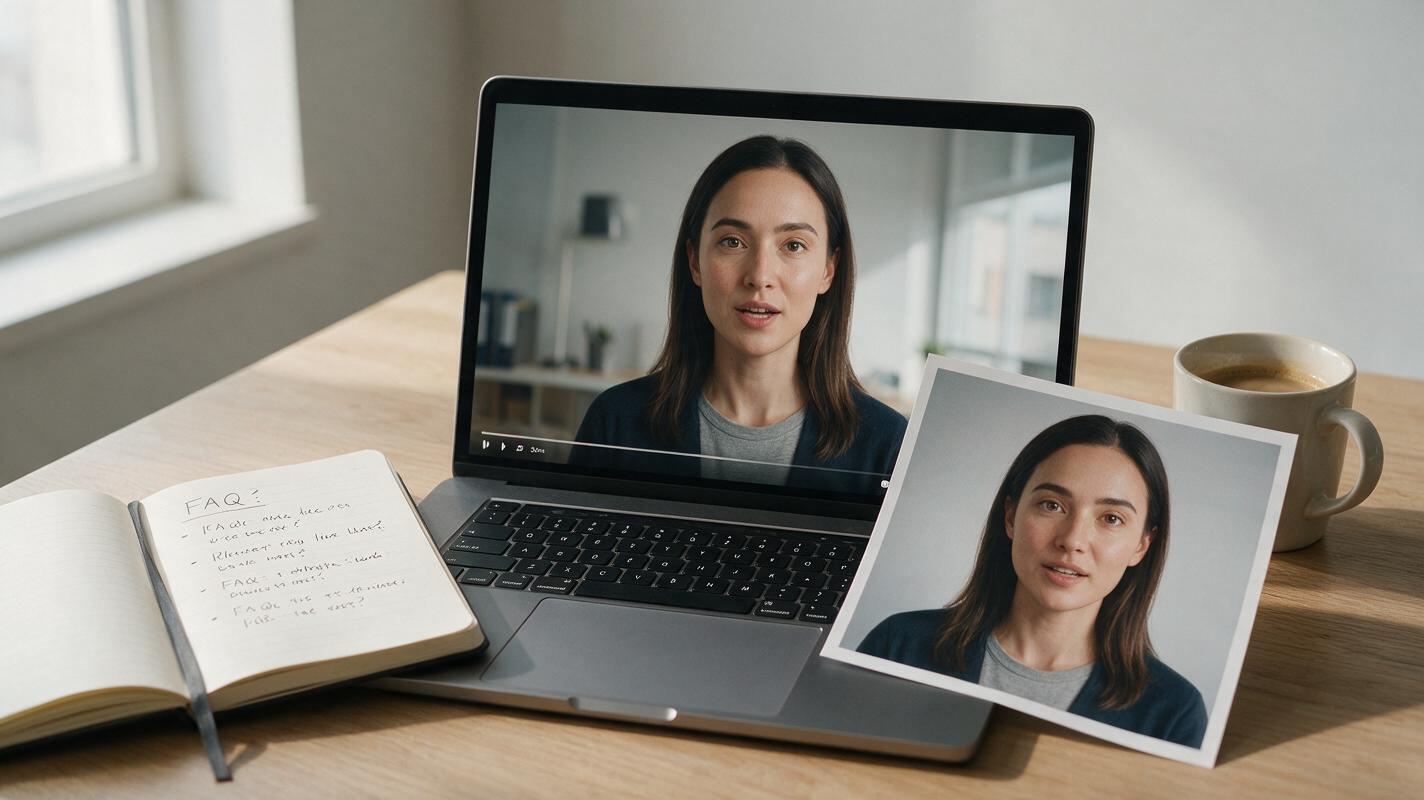
Table of contents
Why use an AI avatar video generator for FAQ clips?
If you’re a solopreneur, freelance consultant, or small brand owner, you’ve probably felt the friction of filming short FAQ videos for your website. You need consistent lighting, a clean background, and time to reshoot when you stumble over words — all for 30-second clips that answer the same 10 questions over and over. An AI avatar video generator solves this by letting you create professional, on-brand FAQ clips from a single reference photo, with natural gestures and consistent branding every time.
For instance, if you’re a business coach who gets asked “How do I book a discovery call?” 15 times a week, a 30-second avatar FAQ clip can answer that question automatically, while still feeling personal and aligned with your brand. This workflow uses animate image to video to bring your static photo to life, motion mimic to add natural, human-like gestures, video matting to swap in branded backgrounds, and AI video enhancement to polish the final output. You can try these models for free to test the process before scaling to your full FAQ library.
Step 1 — Prep your reference avatar photo for consistency
The reference photo is the foundation of every FAQ clip, so even small details (like a stray hair or a shadow on your cheek) will show up in every generated video. Taking 10 minutes to prep your reference photo now saves you hours of fixing inconsistencies later. The goal is a clean, neutral image that works for every FAQ topic, from pricing questions to onboarding steps.
Your reference photo should meet these criteria to ensure consistent results:
- Cropped to chest-up (head, shoulders, and upper torso) so gestures are visible but the frame stays tight for FAQ clips
- Even, soft front-facing lighting with no harsh shadows under the eyes or chin
- Neutral slight smile — avoid wide grins or serious frowns to keep emotional range flexible
- No distracting accessories (hats, large earrings, branded clothing) that you don’t want in every clip
- Plain, solid background to make later matting easier
If you don’t have a high-quality reference photo, you can generate a consistent custom avatar with a text prompt. Use this copyable prompt to get a usable reference in one try:
Photorealistic chest-up portrait of a freelance business consultant, mid-30s, neutral slight smile, soft front lighting, plain off-white background, no accessories, sharp focus on eyes, 4K resolution
MANDATORY CAMERA: straight-on eye level, 50mm lens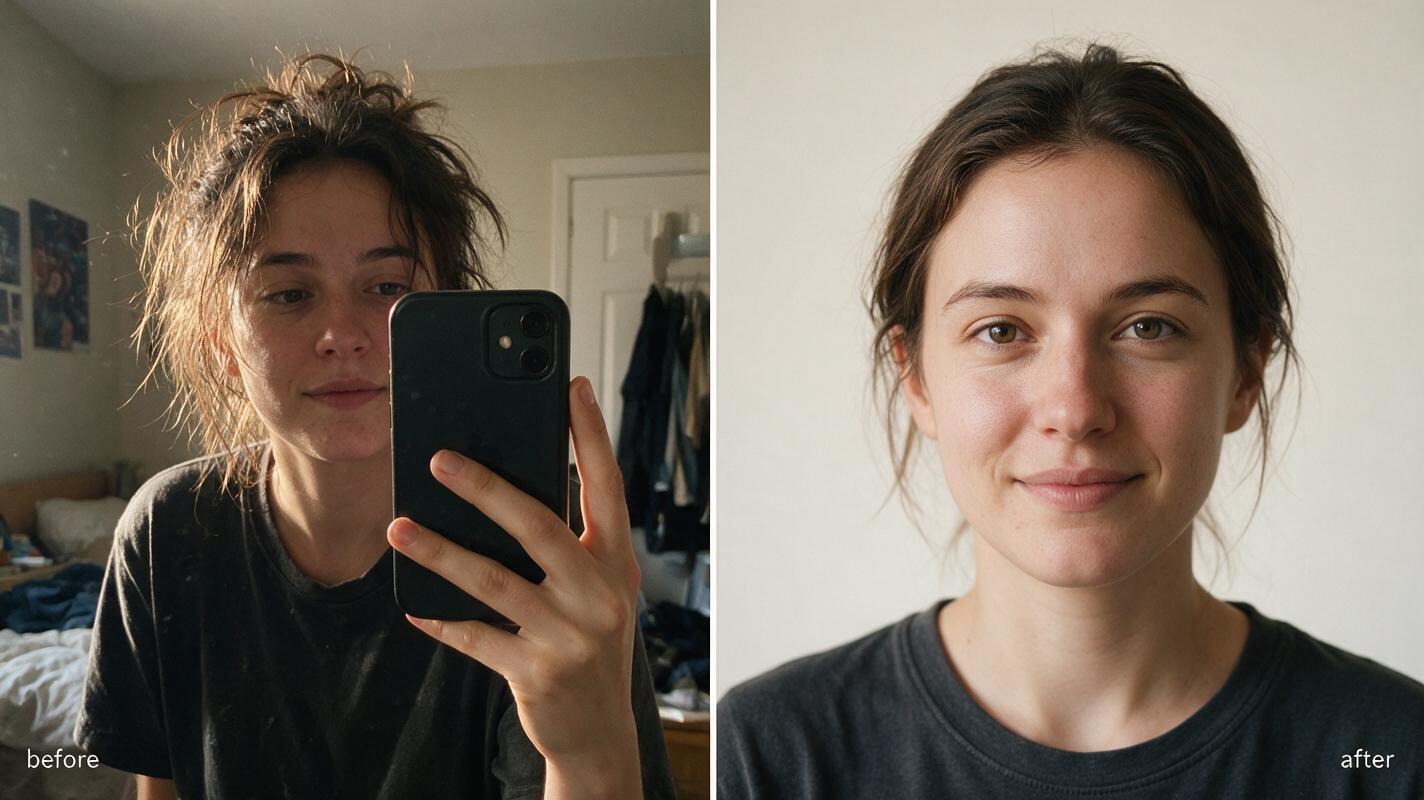
Step 2 — Animate your static avatar with natural motion mimic
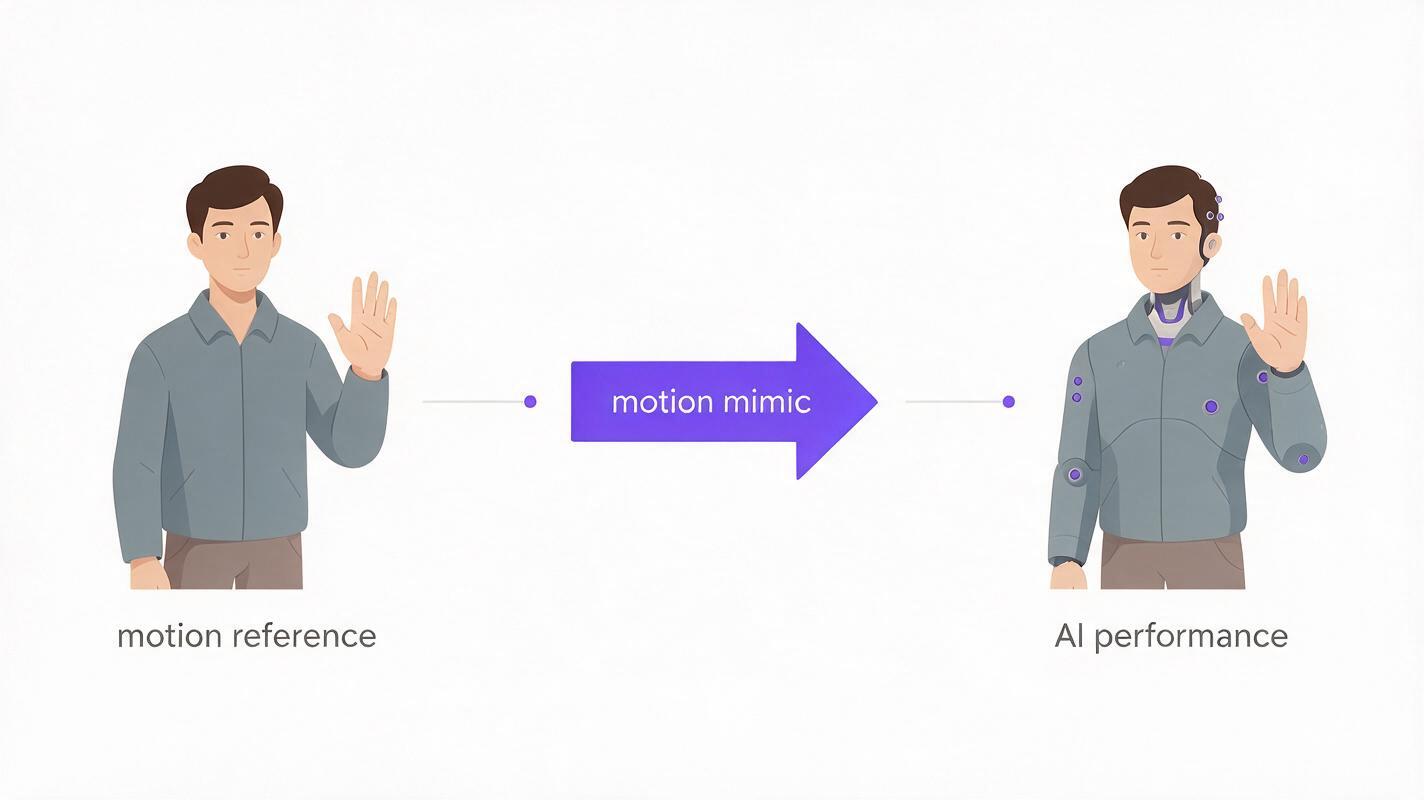
Stiff, motionless avatars feel robotic and unengaging — that’s where motion mimic comes in. This feature transfers natural human gestures from a short reference video to your AI avatar, so it nods, makes small hand gestures, and shifts posture just like a real person would while answering a question.
A high-quality ai video generator will let you upload both your avatar photo and a short motion reference clip. You don’t need a full performance — a 10-second clip of you (or a performer you have legal rights to) making slow, deliberate gestures works perfectly for FAQ content. Film your reference in the same chest-up framing as your avatar photo to ensure gestures align correctly.
Use this copyable prompt to guide the animation output and preserve avatar consistency:
Animate the reference avatar photo to deliver a 30-second FAQ answer, natural slow hand gestures, occasional nodding, steady eye contact with camera, no sudden movements, consistent facial features and clothing
MANDATORY: preserve exact face and clothing from reference image, motion mimic from uploaded gesture reference
Start with a motion intensity setting of 30-40% for FAQ clips. Higher intensity can lead to distorted hands, facial drift, or over-exaggerated gestures that distract from your message. Test a 5-second clip first to check for consistency before generating the full 30-second video.
Step 3 — Swap backgrounds and clean edges with video matting
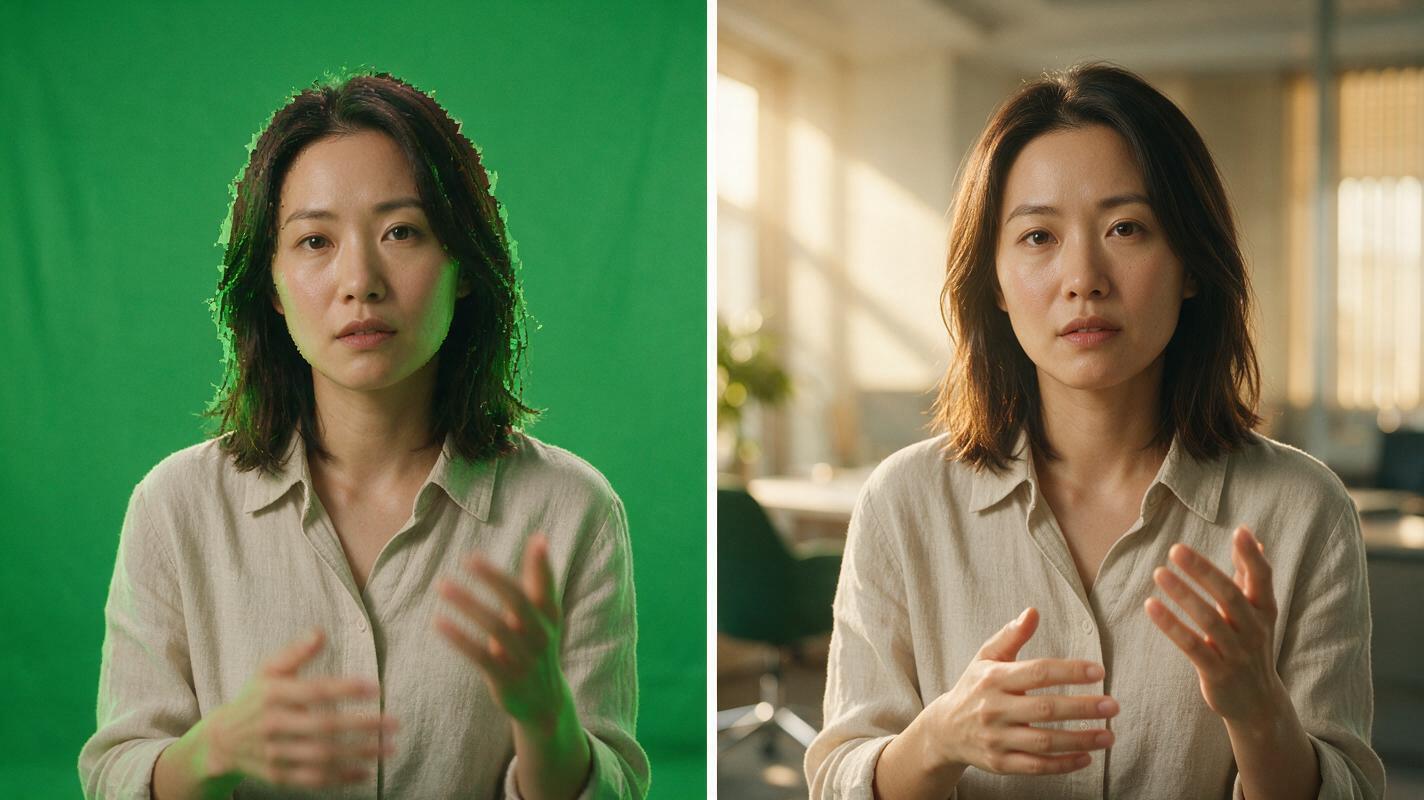
Most AI avatar clips come with a plain or green screen background, so you’ll need video matting to cut out the avatar cleanly and place it on a branded background that matches your website. The biggest challenge here is fine hair edges and motion blur around gesturing hands — look for a matting tool that handles temporal consistency to avoid flickering edges frame to frame.
For professional-looking results, follow these matting best practices:
- Use soft edge feathering (1-2 pixels) to avoid a harsh “cutout” look against your new background
- Match the lighting direction of your new background to the lighting of your avatar reference (e.g., left-side key light for both)
- Test a 2-second clip first to check for edge flicker or haloing before generating the full clip
- Choose a low-distraction background: soft office bokeh, a subtle brand gradient, or a plain colored wall that matches your website’s color scheme
Avoid busy backgrounds with lots of text or moving elements — they pull focus away from the avatar and your FAQ answer.
Step 4 — Polish output and lock in consistency with AI video presets
After matting, use an ai video enhancer to polish the final clip. This step fixes soft edges around the avatar’s face and hands, reduces minor generation artifacts, and adjusts brightness and contrast to match your brand’s visual style. Be careful not to over-enhance: too much sharpening can create unnatural edges, and too much denoising can make the avatar’s skin look waxy and plastic.
Pro tip: Once you have one perfect FAQ clip, save all your settings (background, color grade, motion intensity, audio level, and enhancement settings) as an AI video preset. This lets you generate all future FAQ clips with identical branding in one click, no manual adjustments needed.
Name your preset clearly (e.g., “FAQ Avatar v1”) so you can find it quickly when generating new clips. Update the preset only if you make a deliberate brand change, to keep all your FAQ content consistent over time. Pair your final clip with a clear voiceover — you can record your own or use a TTS tool that matches your brand voice — and sync lip movements if needed for a more natural feel.
FAQ
Can I use my own face for the AI avatar?
Yes, as long as you have the rights to use your likeness. Using your own photo ensures the avatar matches your personal brand, and you won’t run into copyright or permission issues. For team FAQs, you can create separate avatars for each team member using their own reference photos.
How long does each FAQ clip take to generate?
Most 30-second avatar FAQ clips take 2-5 minutes to generate, depending on the tool and settings you use. Once you have a saved preset, you can generate a new clip in roughly the same amount of time it takes to type or record the voiceover script, making it easy to expand your FAQ library as new questions come up.
Will my avatar look the same in every clip?
If you use the same reference photo and apply the same saved AI video preset, your avatar will stay consistent across all clips. Avoid changing the reference photo, motion intensity, or enhancement settings unless you’re updating your brand, as even small tweaks can create noticeable differences between clips.
Final checklist
- Reference avatar photo is chest-up, with even lighting, neutral expression, and no distracting accessories
- Motion mimic intensity is set to 30-40% for natural, professional gestures
- Video matting edges are clean, with no flicker or haloing, and lighting matches the new background
- All settings are saved as an AI video preset for consistent future clips
- Final clip is polished with AI video enhancement to fix softness or minor artifacts
- Audio is clear and lip sync is accurate (if using voiceover)
Keywords
ai avatar video generator, motion mimic, video matting, ai video enhancer, ai video presets, animate image to video