Why AI Campaign Graphics Drift Across Aspect Ratios (3 Fixes With Seedream 4.5)
AI-generated campaign graphics often suffer from layout drift when adapted to different aspect ratios, with logos shifting, key elements disappearing, and brand colors falling out of alignment. This article breaks down three actionable fixes using Seedream 4.5 to create consistent, on-brand campaign visuals across every required format, from billboards to social media stories. It includes reusable prompt templates and a quality checklist to catch drift before assets go to clients.
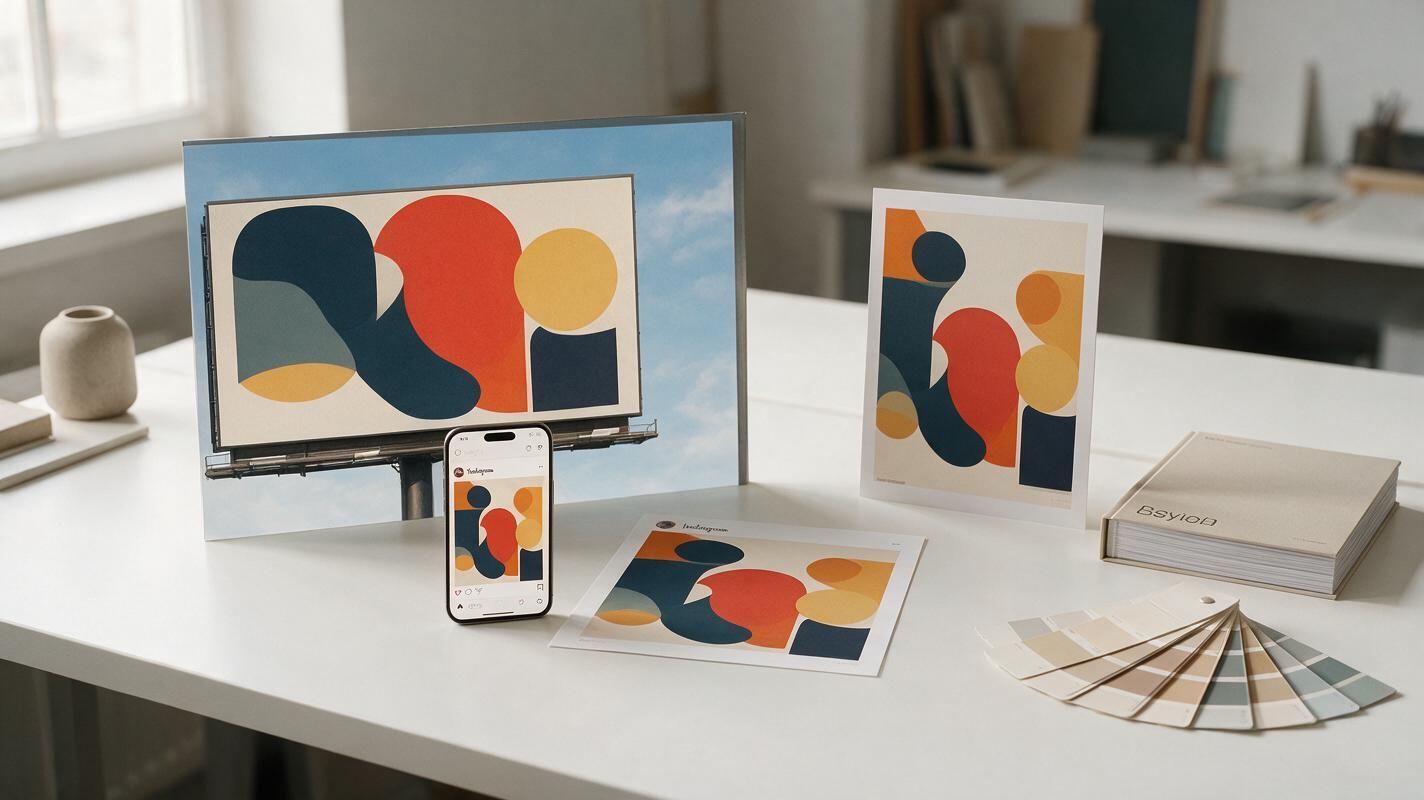
Table of contents
The problem with cross-format AI campaign graphics
If you’ve ever generated a perfect 16:9 campaign key visual only to watch the AI rearrange every element when you switch to 9:16 Stories, you know how frustrating layout drift can be for brand designers.
Brand teams routinely need 5–10 different aspect ratios for every campaign: billboards, print posters, Instagram feed posts, Stories, TikTok, email headers, display ads, and more. Manually adapting each format from a master key visual takes hours of repetitive work, but AI-generated variants often introduce more problems than they solve. Logos shift to the wrong corner, product shots get cut off, headline safe zones disappear, and brand colors shift slightly between sizes—creating more rework than a manual workflow and risking inconsistent brand messaging across channels.
Seedream 4.5 is a powerful ai image generator built for brand-focused creative work, with fine-tuned controls for reference adherence and layout consistency that make cross-format asset generation far more reliable. With the right prompting strategy, you can generate a full set of on-brand campaign graphics in every required size in a fraction of the time it takes to build them manually.
Lock your core brand elements with a reference sheet
Layout drift across aspect ratios happens because AI models treat each new canvas size as a fresh generation task, not an adaptation of an existing design. Without fixed guardrails, the model rebalances composition to fit the new dimensions, moving or resizing critical brand assets to create what it sees as a “better” layout for that ratio.
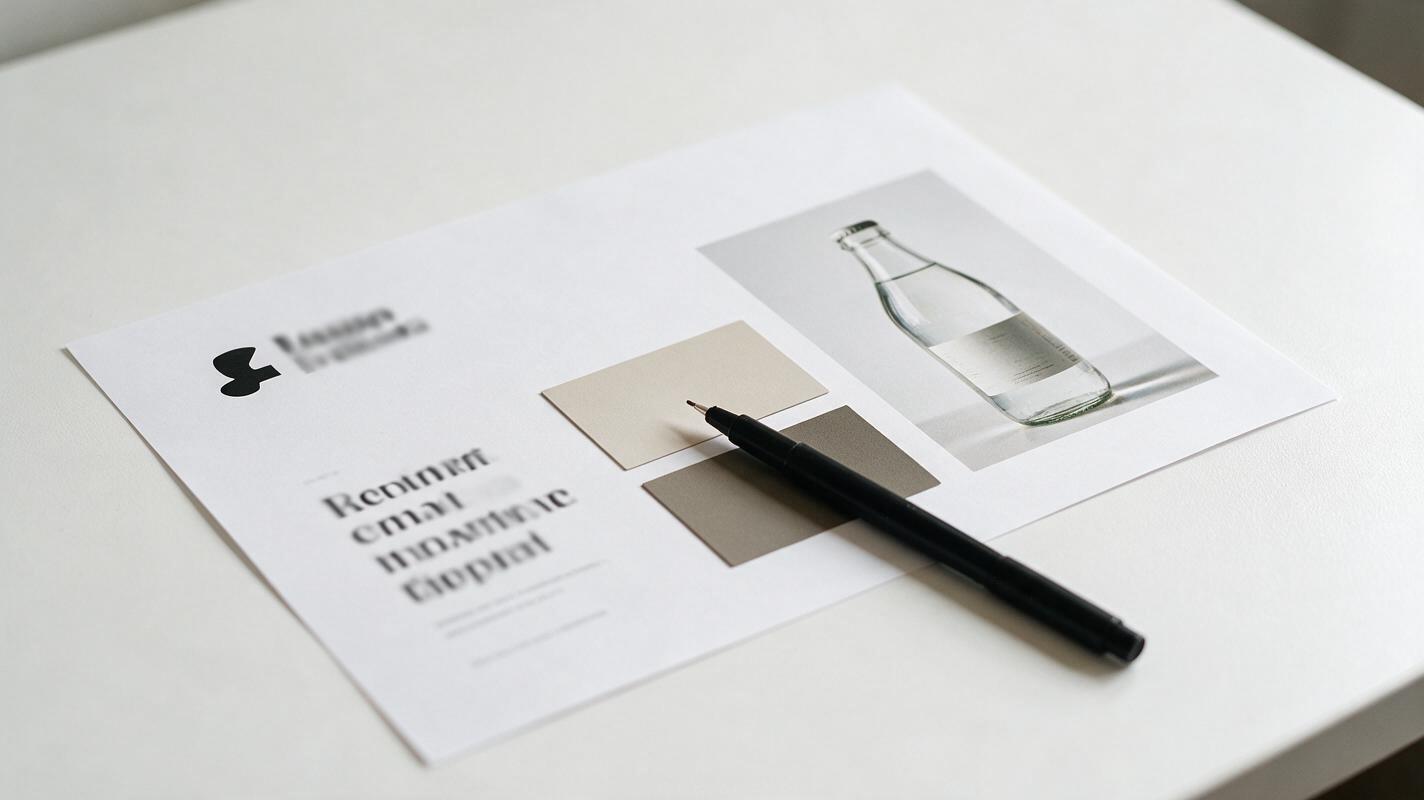
The most effective fix is to create a single reference sheet that includes all non-negotiable brand elements for the campaign, arranged in a clear visual hierarchy. This sheet should include your approved logo lockup, primary product or hero visual, core brand color swatches, headline typography sample, and any key graphic motifs that must appear in every variant. Upload this sheet as a reference image in Seedream 4.5 with a reference weight between 0.7 and 0.85—high enough to preserve brand elements, low enough to let the model adjust negative space and layout for each aspect ratio.
Use this base prompt template for every format, swapping only the aspect ratio and layout instructions:
Campaign key visual for [brand name] [campaign name], [core concept: e.g., iced coffee summer splash],
preserve exact logo lockup, product bottle, and color palette from reference image,
[aspect ratio-specific layout instruction: e.g., product centered upper half, headline below product, logo bottom center],
soft natural lighting, clean minimal background, sharp focus, high resolution, on-brand
--ar 9:16 --ref-weight 0.8
Pro tip: For tight, predictable layouts, add a faint 12-column grid overlay to your reference sheet marking safe zones for logos, headlines, and product shots. The model will pick up on the grid structure and align elements to it, even across drastically different aspect ratios.
Use aspect ratio-specific layout prompts instead of resizing
A common mistake designers make is generating a key visual in one size, then simply changing the --ar flag and reusing the same prompt to get other formats. This never works well: the model doesn’t “resize” the existing design—it reinterprets the entire prompt for the new canvas, rearranging elements to fit its default composition rules for that ratio.
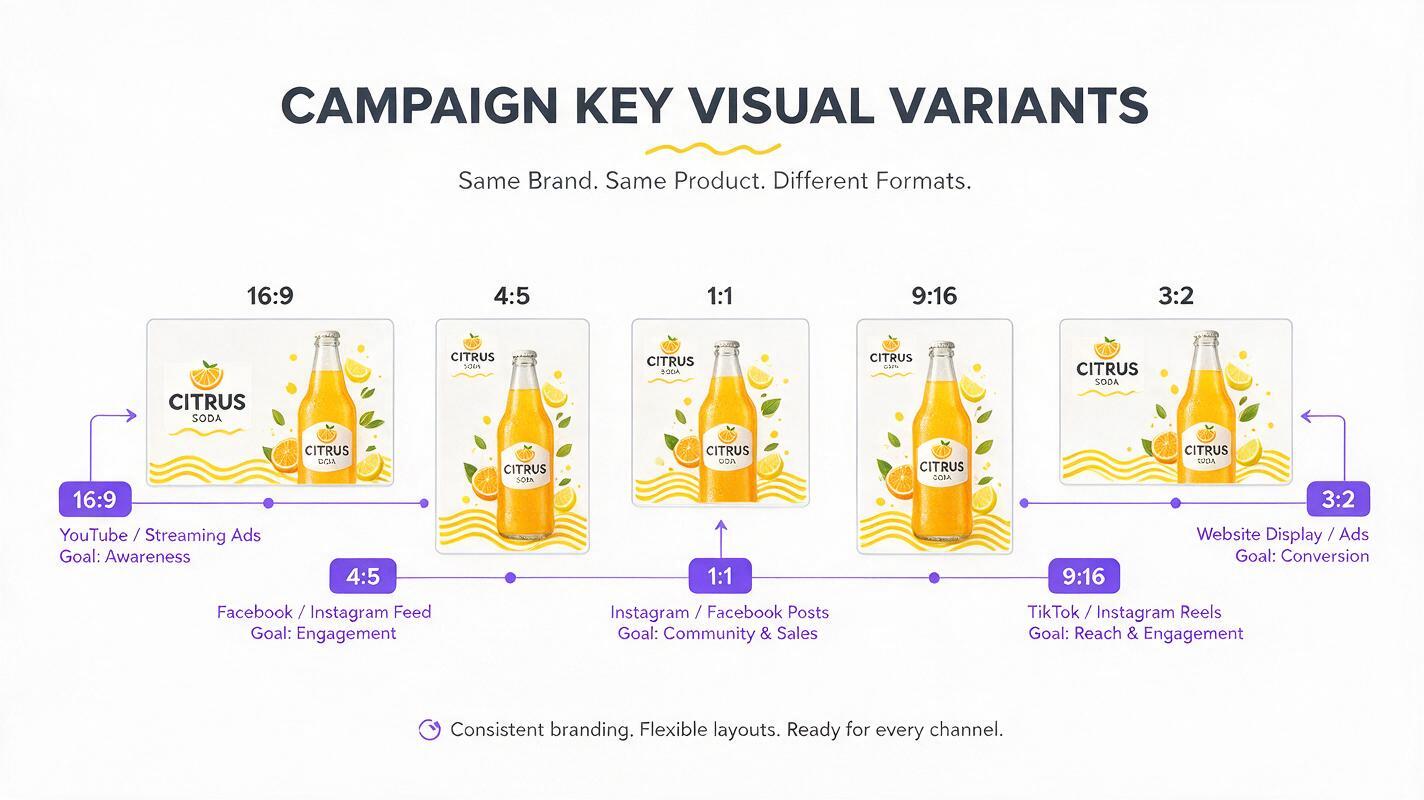
Instead, write explicit layout instructions tailored to each aspect ratio, describing exactly where critical elements should sit on the new canvas. This removes the model’s guesswork and ensures consistent placement of logos, product shots, and copy zones across every format. Match the layout to the use case: for example, a 16:9 billboard works well with a side-by-side layout, while a 9:16 Story needs a stacked vertical layout to fit mobile viewing habits.
| Aspect Ratio | Common Use Case | Recommended Layout Instruction |
|---|---|---|
| 16:9 | Billboards, YouTube ads, desktop banners | Product left third, headline right two-thirds, logo bottom right corner |
| 4:5 | Instagram feed posts, Pinterest pins | Product centered upper half, headline below product, logo bottom center |
| 1:1 | Social squares, carousel posts, display ads | Product centered, headline wrapped top, logo bottom left corner |
| 9:16 | Instagram Stories, TikTok, Reels, mobile ads | Product top third, headline middle third, CTA zone bottom third, logo bottom center |
| 3:2 | Print posters, flyers, event signage | Hero visual full bleed top half, headline lower third, logo bottom right corner |
Pair these layout instructions with your reference sheet and consistent base prompt to keep style, color, and brand elements identical across every size, while adapting the composition intentionally for each format.
Refine edges with targeted inpainting for zero drift
Even with strong references and explicit layout prompts, you may still spot small instances of drift in final outputs: a slightly stretched logo, a product label cut off at the edge, or a subtle color shift in the background. Regenerating the entire image to fix one small issue often introduces new drift elsewhere, wasting time and forcing you to start over.
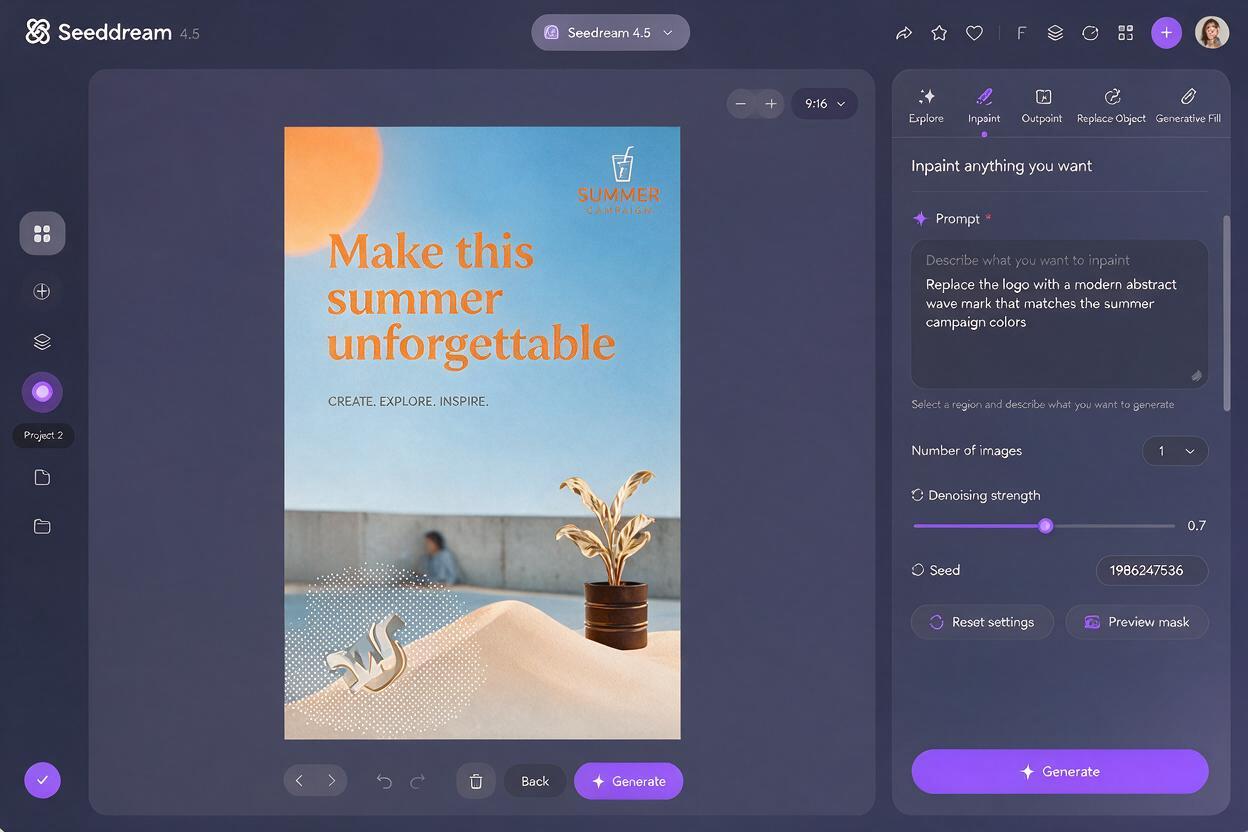
Instead, use Seedream 4.5’s built-in inpainting tool to fix only the problematic area. Mask the drifted section (for example, a warped logo in the bottom corner) and use a targeted prompt that references the exact brand asset from your reference sheet. Keep the inpainting strength between 0.3 and 0.5 to ensure the surrounding layout, lighting, and background stay completely intact while the fixed element blends seamlessly.
Use this targeted inpainting prompt for logo or product fixes:
Exact match of [brand name] primary logo lockup from reference image,
no distortion, pixel-perfect edges, match surrounding background color and lighting,
align to bottom left corner, same relative size as original layout
This targeted fix takes 30 seconds or less per asset, compared to 10+ minutes of full regenerations. It also ensures your final assets are 100% on-brand, with no last-minute drift slipping through to client deliverables.
Final checklist for cross-format campaign consistency
- Reference sheet includes all non-negotiable brand elements (logo, product, colors, typography) with clear hierarchy
- Reference weight set between 0.7–0.85 to balance brand preservation and layout flexibility
- Each aspect ratio has explicit, use case-specific layout instructions for core elements
- All variants use the same base prompt for style, lighting, and core concept
- Targeted inpainting used to fix small drift without full image regenerations
- Final assets cross-checked against brand style guide for color, logo, and typography accuracy
If you’re ready to test these prompts with your own brand assets, try these models for free to generate consistent cross-format campaign graphics in minutes.
Keywords
campaign graphics, aspect ratio drift, seedream 4.5, ai image generator, brand consistency, multi-format design, campaign key visual