AI Makeup Generator Tutorial: Change the Look, Not the Face
Learn how to generate realistic makeup variations while preserving facial identity, skin texture and lighting. This practical workflow includes model-selection criteria, reusable prompts, comparison methods and fixes for the most common AI beauty editing failures.
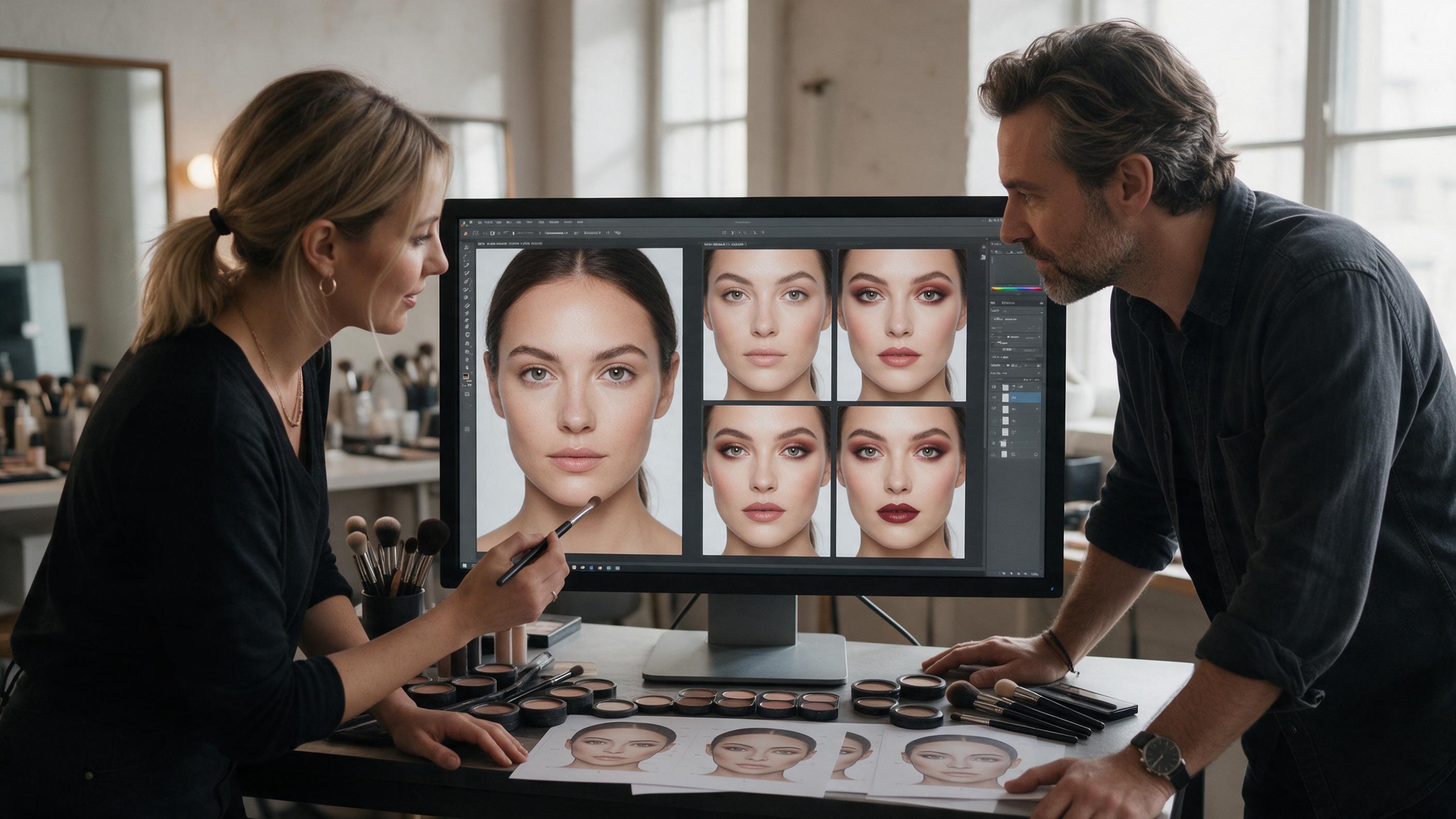
Table of contents
Create New Makeup Looks Without Losing the Original Face
The best AI makeup edit should look like the same person after a skilled makeup application—not a newly generated model.
If an AI makeup generator changes the eyes, reshapes the nose, smooths away every pore or shifts the model’s skin tone, the image is difficult to use in a beauty campaign. The solution is a reference-based editing workflow that treats identity, skin and lighting as protected elements while changing only the requested cosmetic details.
This tutorial shows how to prepare a portrait, write a controlled edit prompt, compare models and troubleshoot results for lipstick, eyeshadow, blush, liner and full-face concepts.
Important: Use portraits you own or have permission to edit. Present generated looks as creative concepts, not as evidence of a product’s performance on real skin.
Step 1 — Start With a Portrait That Can Survive the Edit
A weak source image forces the model to invent information. Start with a sharp, evenly exposed portrait where the important makeup areas are visible.
- Use sufficient resolution: eyelashes, lip edges and natural skin detail should remain readable.
- Prefer soft directional light: extreme colored lighting makes cosmetic shades difficult to judge.
- Avoid heavy filters: existing smoothing can become waxy after another editing pass.
- Keep the face unobstructed: hair across the eyes, hands over the lips and deep shadows increase reconstruction errors.
- Choose a useful crop: a head-and-shoulders beauty portrait usually gives the editor enough facial and lighting context.
Do not retouch the portrait into perfection before generating. Natural pores, fine lines and small tonal variations act as identity anchors. Preserve the original file so every variation can be compared against the same baseline.
Step 2 — Define What Must Change and What Must Stay Fixed
Make two lists before opening an AI image generator. The first describes the cosmetic change; the second establishes the elements that must remain untouched.
| Edit | Change | Protect |
|---|---|---|
| Lip variation | Color, finish and edge definition | Lip shape, teeth, expression and surrounding skin |
| Eye look | Shadow placement, liner and mascara intensity | Eye shape, iris color, brows and gaze |
| Complexion look | Blush, highlight and cosmetic finish | Skin tone, facial structure, freckles and pores |
| Full-face concept | Coordinated lip, eye and cheek treatment | Identity, pose, hairstyle, wardrobe and background |
Narrow instructions are easier to control than broad requests such as “make her glamorous.” A specific brief—“muted berry satin lipstick with softly diffused edges”—reduces the chance that the model will also alter hair, jewelry or facial proportions.
Step 3 — Write a Localized Makeup Editing Prompt
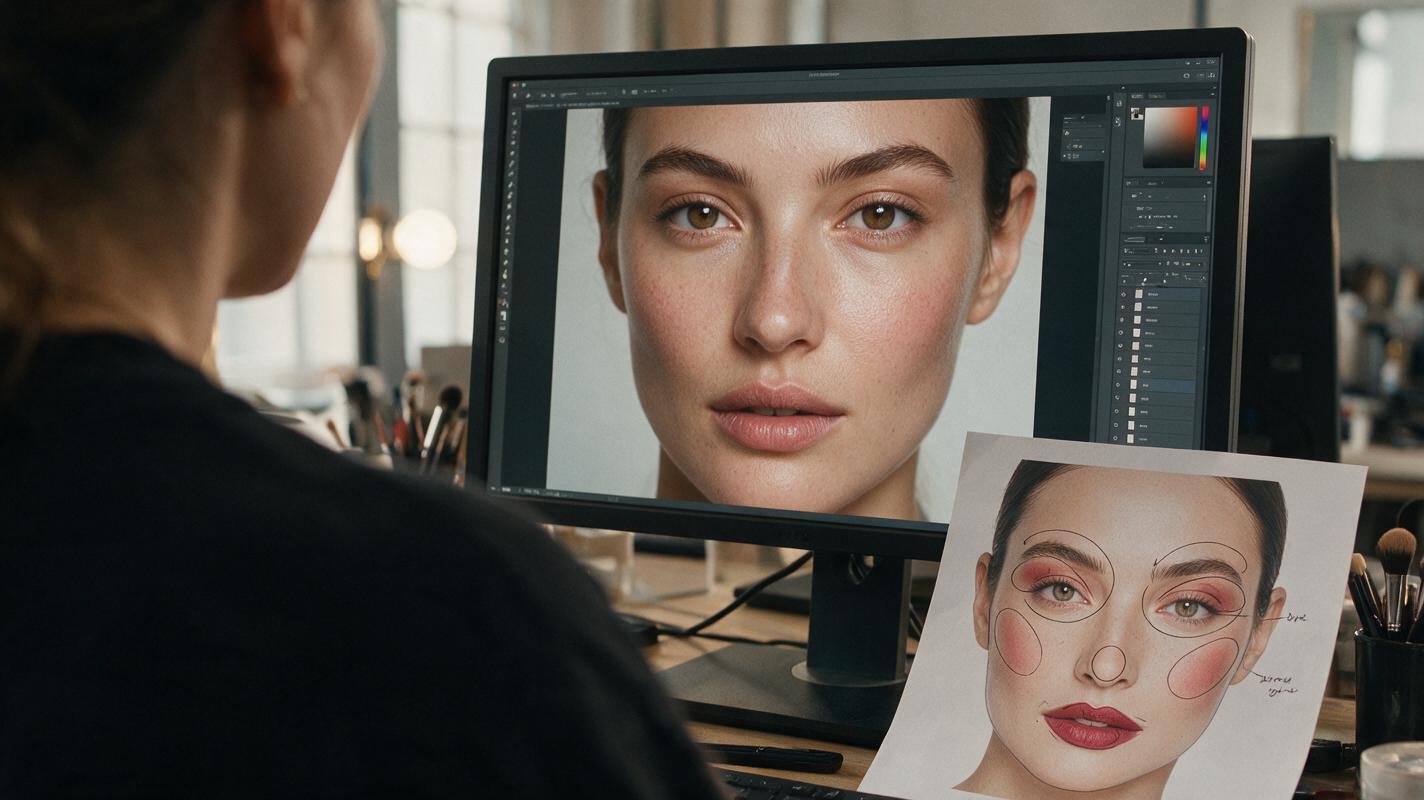
A reliable prompt can be organized into five parts: task, location, appearance, preservation rules and realism rules. Lead with editing language rather than asking the model to create a new portrait.
Edit the supplied portrait, keeping the person clearly identical to the reference.
Change only the makeup: apply muted rose satin lipstick, a soft taupe wash across the upper eyelids, a thin brown wing close to the lash line, and restrained neutral-rose blush.
Preserve the exact facial structure, eye shape, nose, lips, eyebrows, expression, gaze, hairstyle, skin tone, lighting, camera angle, clothing and background.
Retain natural pores, fine lines, freckles and realistic under-eye texture.
The cosmetics should follow the facial anatomy with clean but believable blending.
Do not beautify, reshape, age, de-age or globally smooth the face.
For a single-product variation, shorten the change request and strengthen the protected area:
Edit only the lipstick in the supplied portrait.
Apply a deep plum cream lipstick with medium shine and precise coverage that follows the existing lip boundary.
Keep the original lip shape, mouth position, teeth, surrounding skin texture and all other makeup completely unchanged.
Preserve identity, skin tone, lighting and background exactly.
Words such as “only,” “preserve” and “unchanged” help define the edit boundary. However, repeating “exact” too many times cannot rescue an unsuitable input or an editor that tends to regenerate the entire frame.
Step 4 — Compare GPT Image, Nano Banana Pro and Seedream
Model names and interfaces evolve, so avoid choosing an AI beauty generator from a feature list alone. Run the same portrait and prompt through available reference-based editors, then compare the outputs at full size.
| Model family to test | What to evaluate | Useful test |
|---|---|---|
| GPT Image | Instruction adherence and whether unrelated areas remain stable | Request a lipstick-only edit and inspect the eyes, brows and jawline |
| Nano Banana Pro | Reference fidelity across several coordinated changes | Apply one full-face brief, then compare facial landmarks with the input |
| Seedream | Editorial finish, texture handling and cosmetic material appearance | Compare matte, satin and gloss versions using identical framing |
The most attractive result is not automatically the most useful. For branded beauty creative, a slightly less dramatic image that protects identity and realistic texture is usually easier to approve than a polished result with a different face.
Score each candidate from one to five in these categories:
- Identity: Does the face still match the source?
- Edit isolation: Did only the requested makeup change?
- Application logic: Does liner follow the lash line and blush follow facial volume?
- Texture: Are pores and fine details visible rather than painted over?
- Shade credibility: Does the cosmetic color respond naturally to light and skin?
Use the highest-scoring editor for the specific task rather than declaring one model the winner for every beauty image.
Step 5 — Generate a Controlled Makeup Shade Matrix
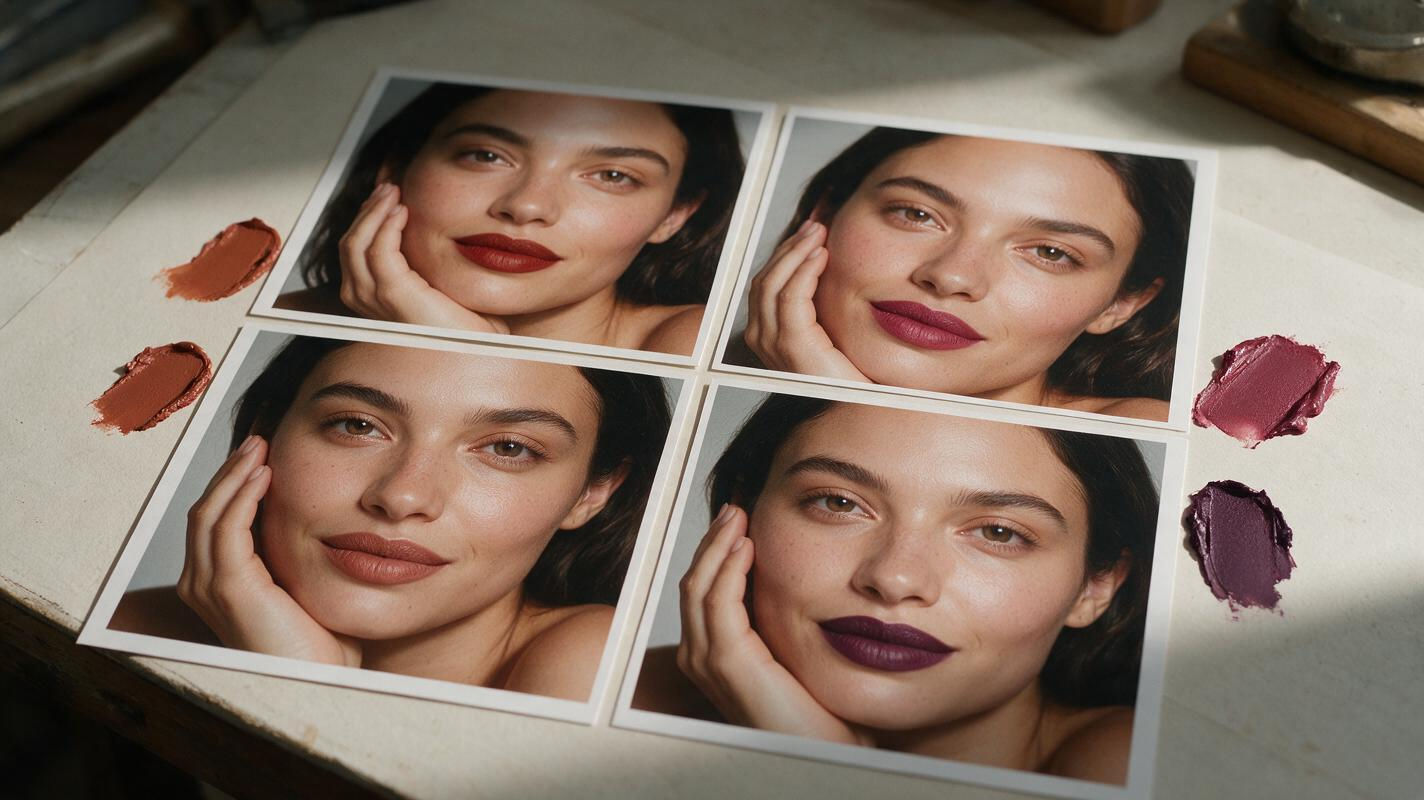
Random generations make comparison difficult. Build a planned matrix in which only one variable changes at a time. This is useful for mood boards, shade-family exploration and campaign previsualization.
| Version | Lip | Eye | Cheek |
|---|---|---|---|
| A | Warm terracotta satin | Original | Original |
| B | Cool berry satin | Original | Original |
| C | Neutral rose satin | Original | Original |
| D | Original | Soft bronze shimmer | Original |
Begin each version from the original portrait, not from the previous AI result. Editing an edit compounds changes: skin becomes smoother, features drift and colors contaminate neighboring areas.
Keep a simple record containing the source filename, model, prompt, output and approval notes. When a variation works, duplicate its prompt and replace only the shade or finish phrase. You can test this prompt yourself to build a consistent set for internal review.
Step 6 — Troubleshoot Common AI Makeup Failures
The face looks like a different person
Reduce the scope. Remove cinematic styling, beauty adjectives and camera directions. Ask for one localized cosmetic change, and explicitly preserve facial landmarks, expression and asymmetry.
The skin becomes plastic
Delete phrases such as “flawless skin,” “perfect complexion” and “luxury retouching.” Add concrete texture instructions: natural pores, fine lines, vellus hair, freckles and realistic tonal variation. If the entire frame is already over-smoothed, return to the source rather than correcting the generated image.
Lipstick spills beyond the lip line
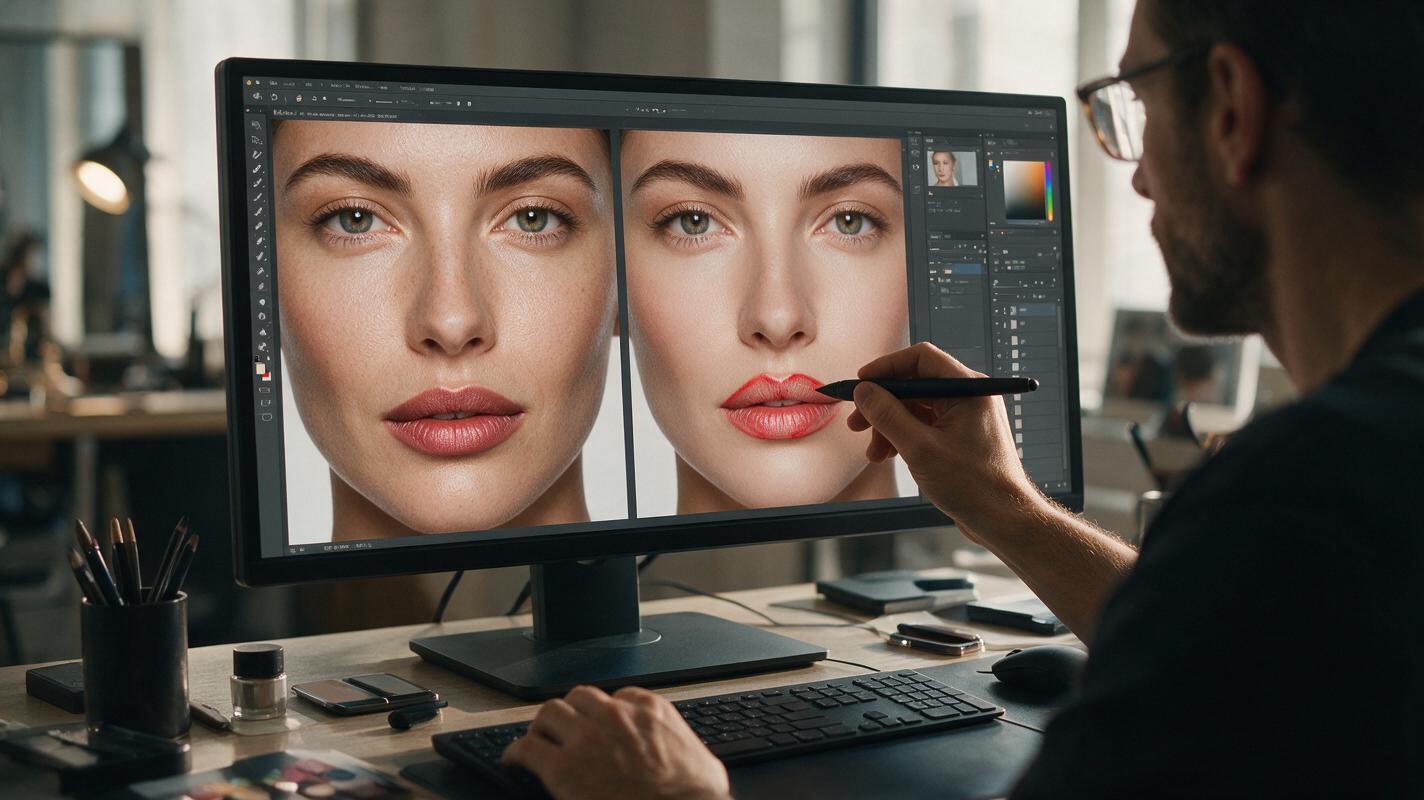
Specify that coverage must follow the existing vermilion border and preserve the original lip geometry. Gloss is especially challenging because highlights can resemble changed anatomy. Test a cream or satin finish first, then introduce stronger shine.
Eyeshadow changes the eye shape
Describe placement anatomically: upper mobile lid, crease, outer corner or lower lash line. Protect iris color, eyelid structure, gaze and eyebrow shape. Avoid ambiguous requests such as “bigger, more dramatic eyes.”
Colors look pasted on
Ask for pigment that interacts with the existing light, skin texture and facial curvature. Makeup should show subtle variation across highlights and shadows rather than appearing as a flat digital overlay.
Every output changes the crop or background
Remove composition language and state that framing, camera position, background and lighting must remain unchanged. If the tool provides edit-strength or reference controls, test conservative settings before increasing transformation.
When correction prompts keep producing new errors, stop patching the output. Restart from the original portrait with a shorter, more localized instruction.
Step 7 — Turn the Approved Look Into Campaign Creative
Once the still passes identity and texture checks, create deliverables without asking the model to redesign the face again. Crop platform variants from a high-resolution master where possible, and leave practical negative space for product, headline and legal copy.
For motion, use the approved portrait as the starting frame in an image to video workflow. Keep movement subtle: a small head turn, natural blink, controlled breath or slight light shift. Dramatic talking, rapid camera moves and large expressions can distort eyeliner, teeth and lip boundaries.
Create a restrained beauty close-up from this approved still.
The subject makes one natural blink and a very slight head turn toward the light.
Maintain the exact identity, makeup placement, skin texture, hairstyle, wardrobe and background.
Keep the camera stable and preserve the lipstick edge and eye makeup throughout.
No talking, face reshaping, beauty filter, added accessories or product packaging.
Do not use a generated concept as an unsupported product-performance demonstration. If a campaign needs an application result or wear claim, use properly produced and substantiated material. AI variations are best positioned as art direction, look exploration or clearly identified synthetic creative.
Final Checklist
- Start with a sharp, licensed portrait that retains natural skin detail.
- Define the requested makeup change separately from protected features.
- Edit one area at a time before attempting a coordinated full-face look.
- Compare models using the same source, prompt and review criteria.
- Restart every shade variation from the original portrait.
- Reject outputs with identity drift, anatomical errors or plastic texture.
- Review lips, eyes, brows, hairline, teeth and skin at full resolution.
- Label AI creative appropriately and avoid unsupported product claims.
Keywords
AI makeup generator, AI beauty generator, makeup look generator, beauty campaign AI, GPT Image, Nano Banana Pro, Seedream, beauty product image