Why AI Product Renders Look Like They’re Floating
A product can have convincing materials and still look pasted onto the table. This guide shows industrial designers how to diagnose and correct contact, perspective, and shadow problems in AI-assisted product renders without changing the approved design.
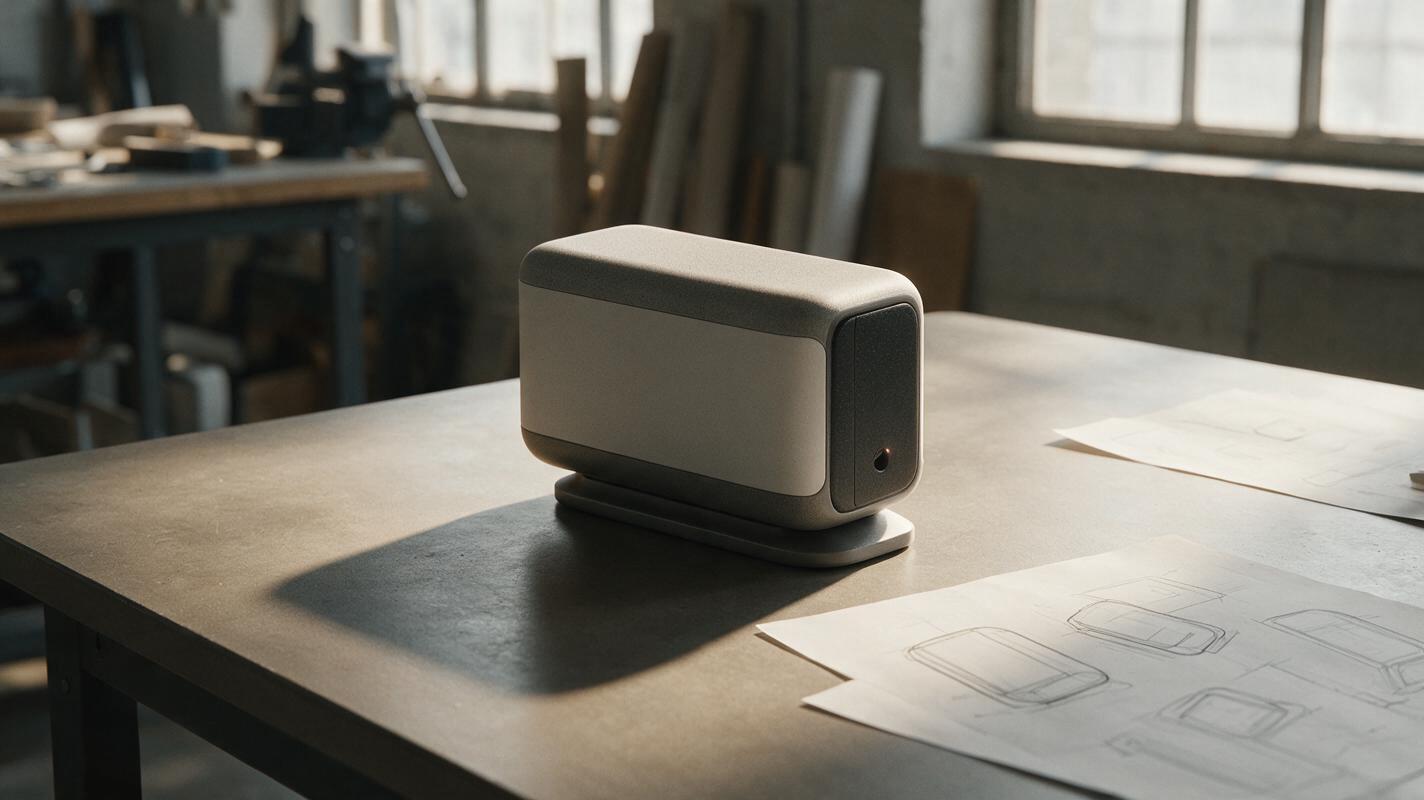
Table of contents
A convincing product still needs a believable place to sit
A tabletop product render can look strangely weightless even when the housing, materials, and lighting seem polished. Usually the problem is at the point of contact: the shadow is detached, the visible base does not meet the surface, or the camera angle makes the product and tabletop disagree. You can correct those cues without asking AI to redesign the product.
For industrial-design reviews, that distinction matters. A grounding edit should improve the presentation of an approved concept—not quietly add feet, change the base profile, or suggest that a prototype has been physically tested.
Find the cue that makes the product float
Before regenerating an image, inspect the boundary between the product and the supporting surface at full resolution. Do not assume that a darker shadow alone will solve the problem.
| What you see | Likely cause | Better correction |
|---|---|---|
| A bright gap runs under the entire base | The product or its mask sits above the tabletop | Check the intended contact line and lower the image layer or revise the local composite |
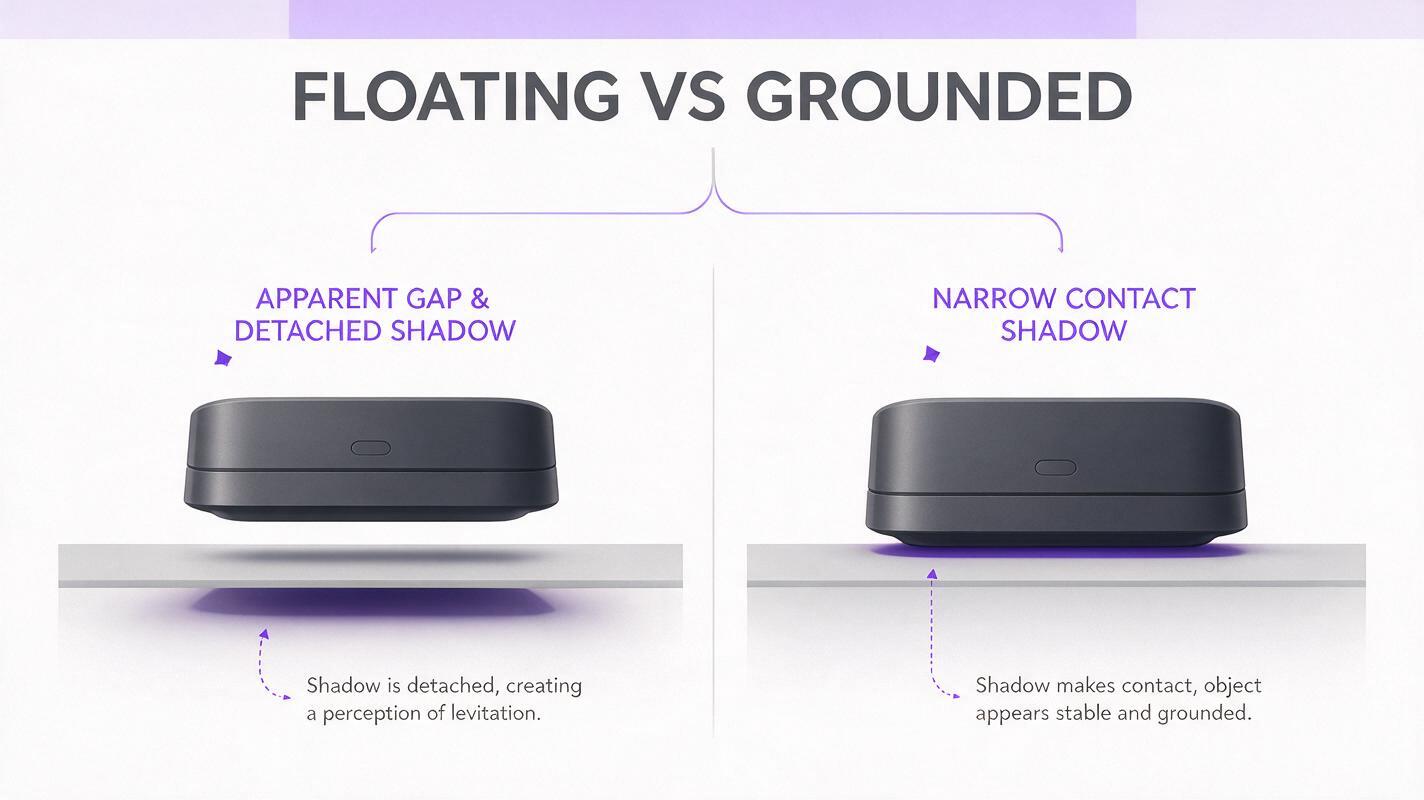
| The shadow begins well away from the base | The shadow reads as a cast shadow with no contact shadow | Add a narrow, soft contact shadow only where the object meets the surface |
| One side touches while the other hovers | The base edge and tabletop perspective disagree | Check the camera view and surface plane before editing the shadow |
| The product looks pasted onto the scene | Light direction, shadow softness, or reflection differs from the background | Match the scene lighting; preserve the product’s approved shape |
A cast shadow can extend across the table; a contact shadow is the darker, tighter cue immediately beneath the touching area. Both can be present, but neither should imply a support point that the design does not have.
Define the actual contact before changing the image
Use the approved render, a CAD view, or a photograph of the physical mockup to identify which parts of the base should touch the surface. For a desktop speaker, that might be a continuous lower rim. For a device with specified feet, it might be several discrete points. If the underside has not been designed, do not invent feet to make the scene easier to render.
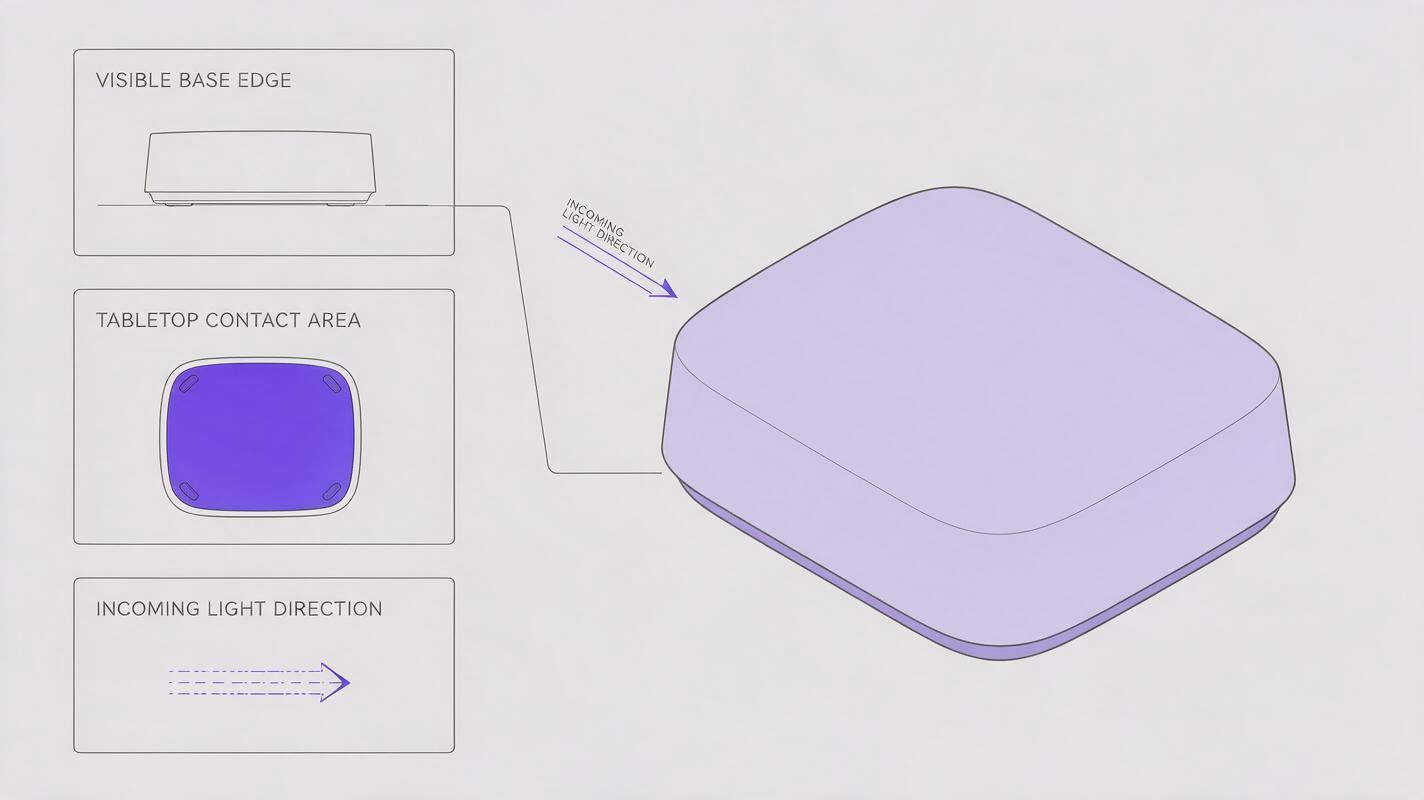
Mark three things on a copy of the source image: the visible base edge, the expected contact area, and the direction of the main light. These annotations are more useful than a broad instruction to “make it realistic.” They tell you whether the fix belongs in compositing, image editing, or the camera setup.
Design-review boundary: A plausible shadow helps people read the concept. It does not verify the product’s stability, weight distribution, or manufactured geometry.
Edit the tabletop, not the housing
Seedream 4.5 is a practical option for a reference-led image edit when you need to refine the presentation around an existing product render. In an ai image generator, supply the approved image as the visual reference where the interface supports it, and keep the requested change local to the surface and shadow. If a selection or mask is available, exclude the housing, controls, seams, and base edge from the editable area.
Try a prompt that states the physical relationship rather than relying on adjectives such as “premium” or “photorealistic”:
Use the supplied product render as the fixed design reference. Keep the product silhouette, visible base profile, materials, controls, seams, camera view, and scale unchanged. Place the existing base in direct contact with the matte tabletop. Add a narrow, soft contact shadow only beneath the documented contact area, plus a subtle cast shadow consistent with the light coming from the upper left. Preserve the tabletop perspective. Do not add feet, stands, hardware, reflections, or new product details.Generate a small set of candidates and compare the contact region, not just the overall appeal of each image. If every candidate changes the base, stop prompting for a full-scene revision. Composite a controlled shadow beneath the approved render instead.
Know when a manual shadow is the safer fix
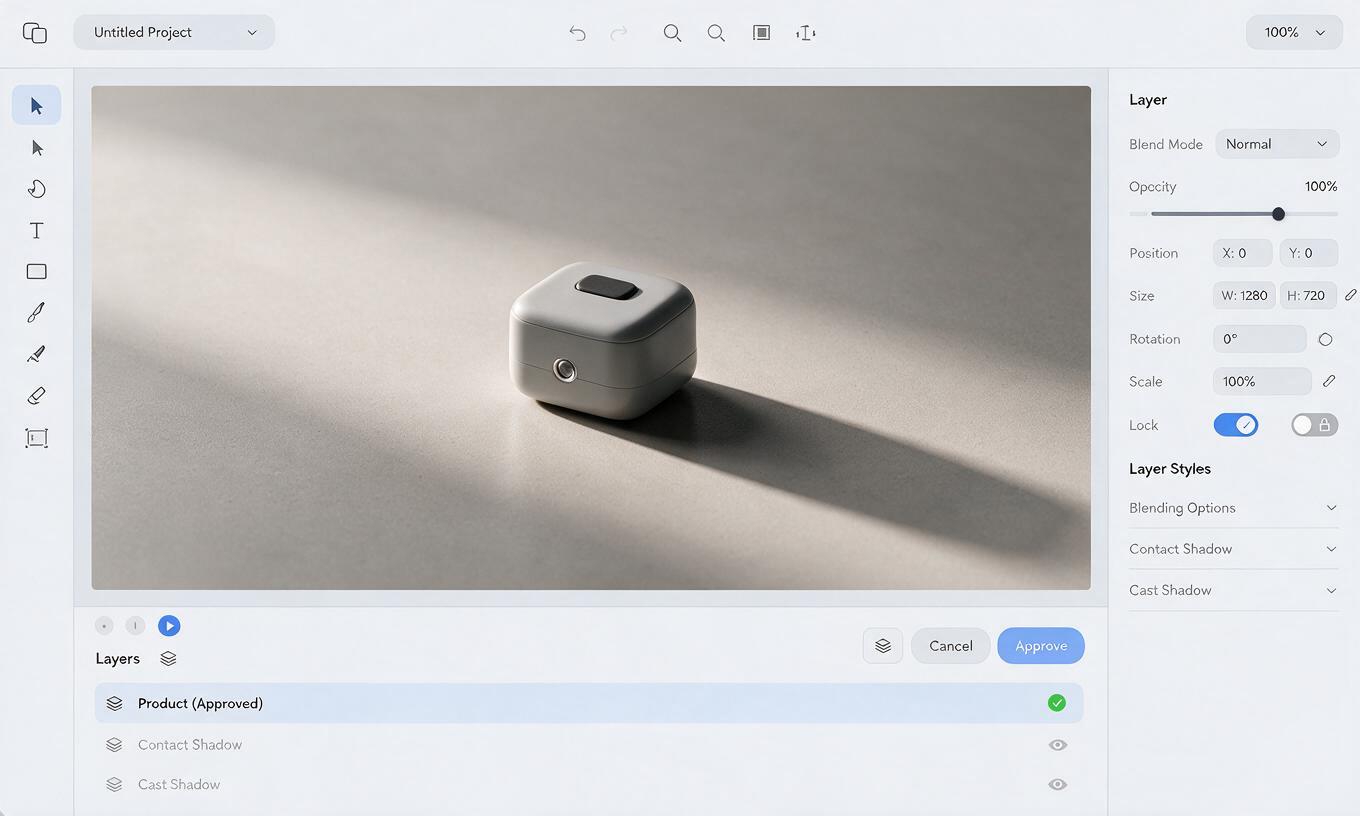
For a product whose geometry is already approved, a local composite is often more predictable than another complete generation. Keep the product on its own layer. Beneath it, place a soft-edged shadow that follows the documented contact area; then add a lighter, broader cast shadow only if the scene lighting calls for one. Avoid a uniformly dark oval: it can make a flat-bottomed object look as though it is resting on an invisible pedestal.
Check the result both zoomed in and at the size it will appear on the presentation board. At high zoom, look for halos around the base and shadows crossing in front of the product. At presentation size, ask whether the object reads as resting on the table without the shadow drawing attention to itself.
Reject fixes that create a new design claim
A render may feel more grounded after AI adds rubber pads, a wider plinth, or a recessed bottom. Those additions are not harmless lighting corrections: they change what reviewers may believe has been designed. Compare each candidate against the approved source and reject it if the base profile, visible seam, or apparent product height has shifted.
Also check whether the background has introduced a reflective tabletop. A reflection can help communicate a glossy surface, but it should agree with the product’s position and should not reveal an imagined underside. When that cannot be controlled, a matte surface is usually a clearer presentation choice.
Final checklist
- The visible base meets the tabletop at the intended contact area.
- The contact shadow starts at that area rather than floating beside it.
- Cast-shadow direction and softness agree with the scene’s light.
- The product silhouette, base geometry, materials, and camera view match the approved source.
- No new feet, stands, underside details, or performance claims have appeared.
If the geometry is sound and only the grounding cue needs work, keep the next revision local. You can test this prompt yourself with an approved render, then judge the result against the original before using it in a review.
Keywords
ai product rendering, product visualization, floating product render, contact shadow, industrial design ai, product design prompts