Why AI Product Videos Warp Your Design—and How to Fix the Motion
A product animation can look polished until a button moves, a port disappears, or the silhouette changes between frames. This guide uses a restrained Seedance image-to-video approach to create short concept clips while making design fidelity the main review criterion.
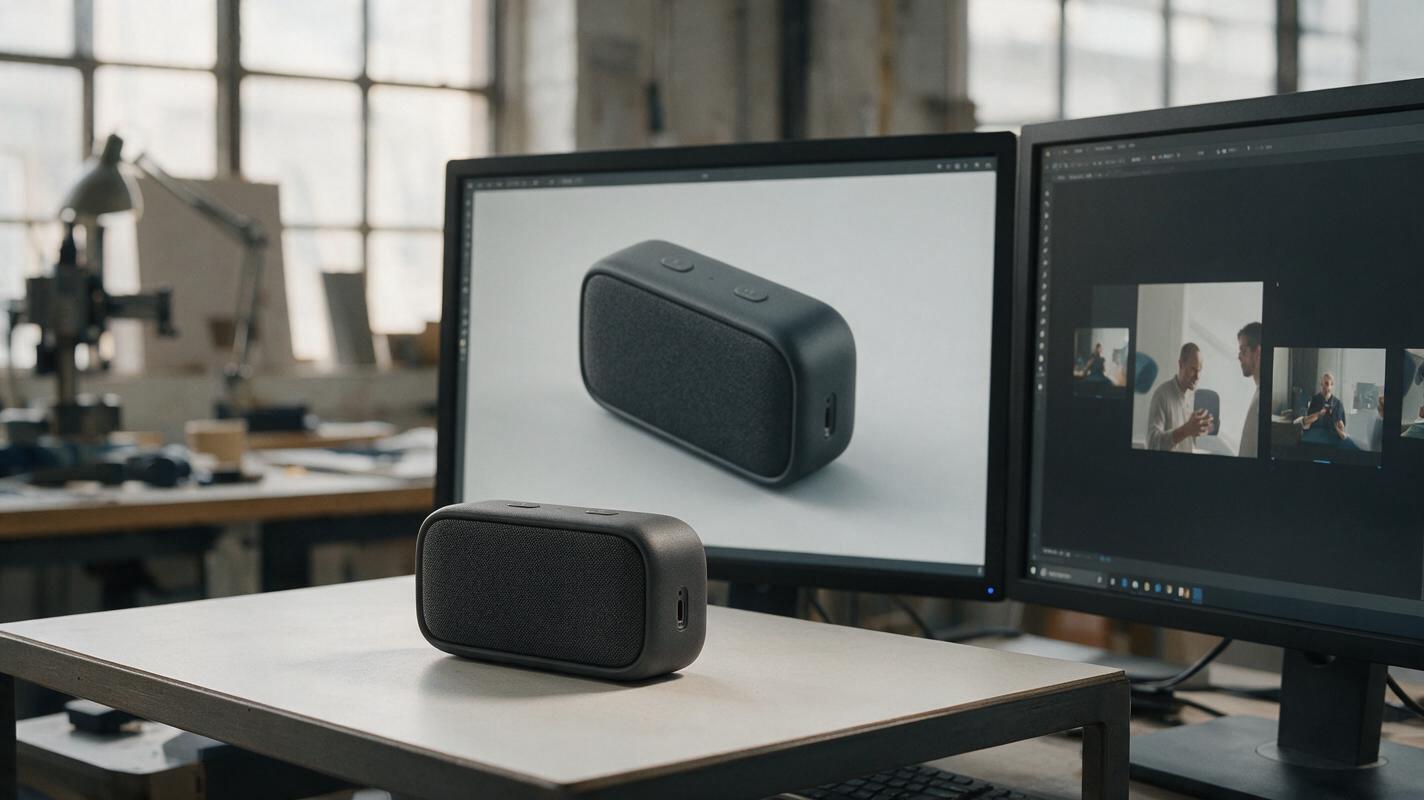
Table of contents
Make the product move without redesigning it
A still concept render can communicate a product precisely; an AI-generated clip may quietly change it. A button shifts, a grille pattern ripples, or a charging port vanishes as the camera moves. For a design review, those changes matter more than cinematic polish. The safer approach is to animate a well-defined reference with minimal motion, then inspect the result as a sequence of design images—not just as a video.
This article focuses on a short product-presentation clip made from one approved image in Seedance. The goal is a credible moment of motion for a concept deck or pitch, not a mechanically accurate 360-degree turntable or proof of an engineered product.
Why the product changes between frames
An image-to-video model must infer motion and surfaces from the pixels it receives. A front three-quarter render shows some geometry clearly but leaves the back, underside, and hidden edges unknown. Ask for a full rotation and the model has to invent those surfaces. Even a smaller move can cause instability when fine details are ambiguous.
The risk rises when the reference contains tiny labels, repeated perforations, sharp seams, or a dark button against a dark housing. The model may treat a functional detail as texture rather than as a fixed part. More dramatic instructions—fast orbits, assembling components, opening panels—add further opportunities to redraw the design.
Practical rule: If the animation reveals a surface that is not documented in the source image, treat that surface as an interpretation, not an approved design.
Choose motion that the reference can support
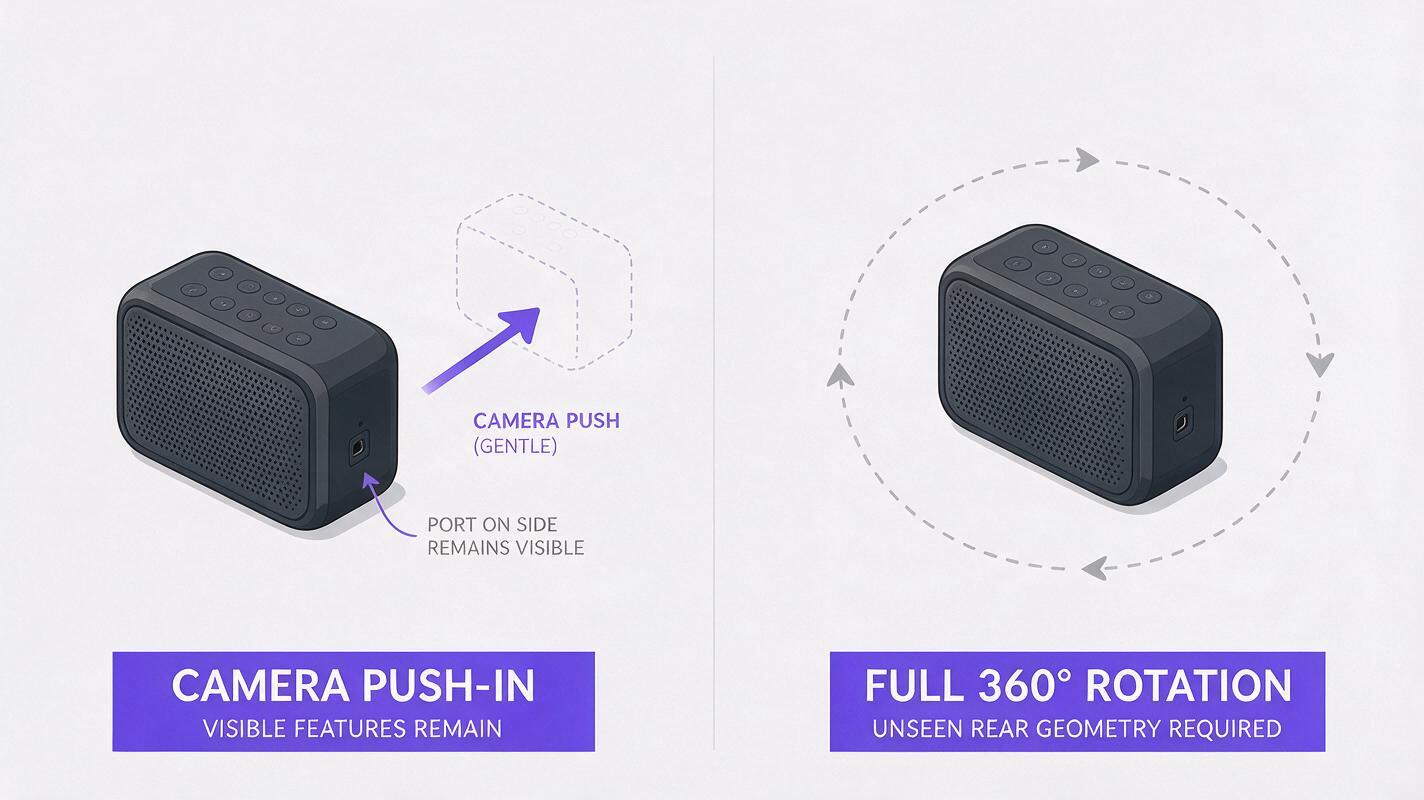
For an approved front three-quarter product image, begin with motion that does not demand new geometry. A gentle camera push, a slight lateral drift, or a controlled lighting change can make a still feel alive while keeping the visible features in view. Keep the product largely fixed and let the environment provide the movement.
| Motion request | Design risk | Better use |
|---|---|---|
| Subtle push-in with a stable camera angle | Low, though small details still need checking | Hero clip for a presentation slide |
| Slow lateral camera drift | Moderate if it exposes a new edge | Adding depth to a documented three-quarter view |
| Product spins through a full rotation | High when only one view is supplied | Use only with validated views or a controlled 3D render |
| Panels open or parts separate | High without component references | Engineering visualization built from specified geometry |
If the brief truly requires a rear view, an opening mechanism, or a precise turntable, supply validated views or use CAD-based animation. Prompt wording cannot recover geometry the source never showed.
Prepare a reference that makes details easy to keep
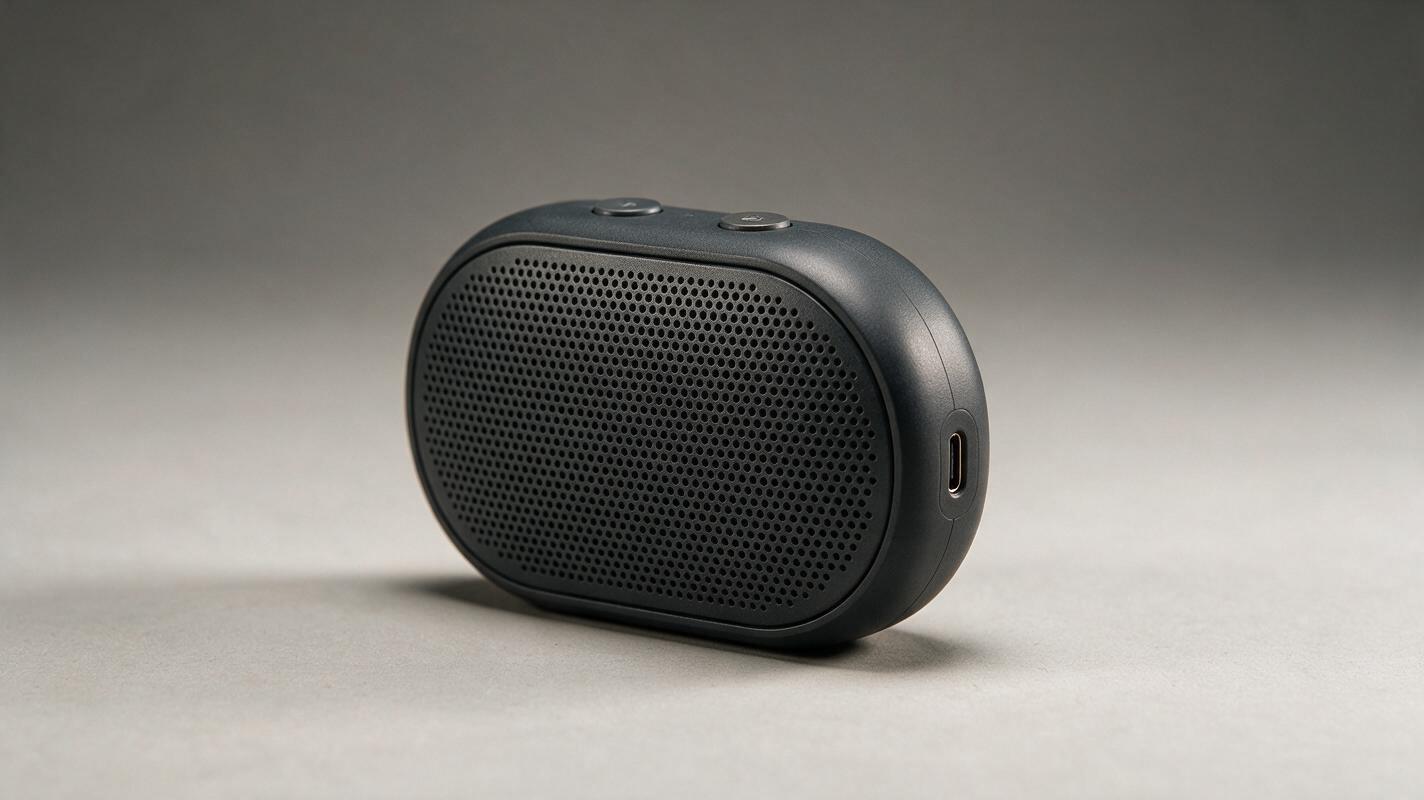
Use a clean, high-resolution image of one product against a simple background. Leave breathing room around the silhouette so a small camera move does not crop an edge. Check that the features you intend to preserve are visible and legible at the clip’s final viewing size.
For a concrete example, imagine a compact charcoal portable speaker shown from the front-right: a chamfered oval body, two buttons on top, a perforated front grille, and a USB-C port on the visible right edge. Those details form a useful continuity checklist because their count and placement can be compared from frame to frame.
Avoid mixing several candidate colorways or conflicting views into one starting image. If the image itself contains an uncertain seam or malformed port, correct the still before animating it. A video model should not be asked to decide which design detail is intentional.
Prompt for restrained motion in Seedance
Load the approved still into Seedance’s image to video workflow and ask for one short shot. Describe the subject and its fixed features first, then specify the motion. Keep the camera instruction narrow enough that the product stays within the documented view.
Use the supplied product image as the design reference. Create a short, calm studio presentation clip of the same compact charcoal portable speaker. Preserve the chamfered oval silhouette, exactly two top buttons, the front perforated grille, and the USB-C port on the visible right edge. Keep the product stationary and maintain the front-right three-quarter view. Add only a very gentle camera push-in and a soft shift of the studio reflection across the housing. Keep the background neutral. No rotation, no opening panels, no added controls, no changing seams, no morphing grille, and no new text or logos.The preservation language is useful, but it is not a lock. Generate a short test before committing to a longer presentation sequence. If your interface offers duration or motion controls, start with a brief, low-motion result rather than assuming a particular setting will guarantee consistency.
Need a more energetic clip? Increase one variable at a time. For example, retain the same viewing angle but allow a slightly stronger light sweep. Do not add a camera orbit, moving hand, and animated interface together; if the result fails, you will not know which request caused the drift.
Inspect the clip as a design review
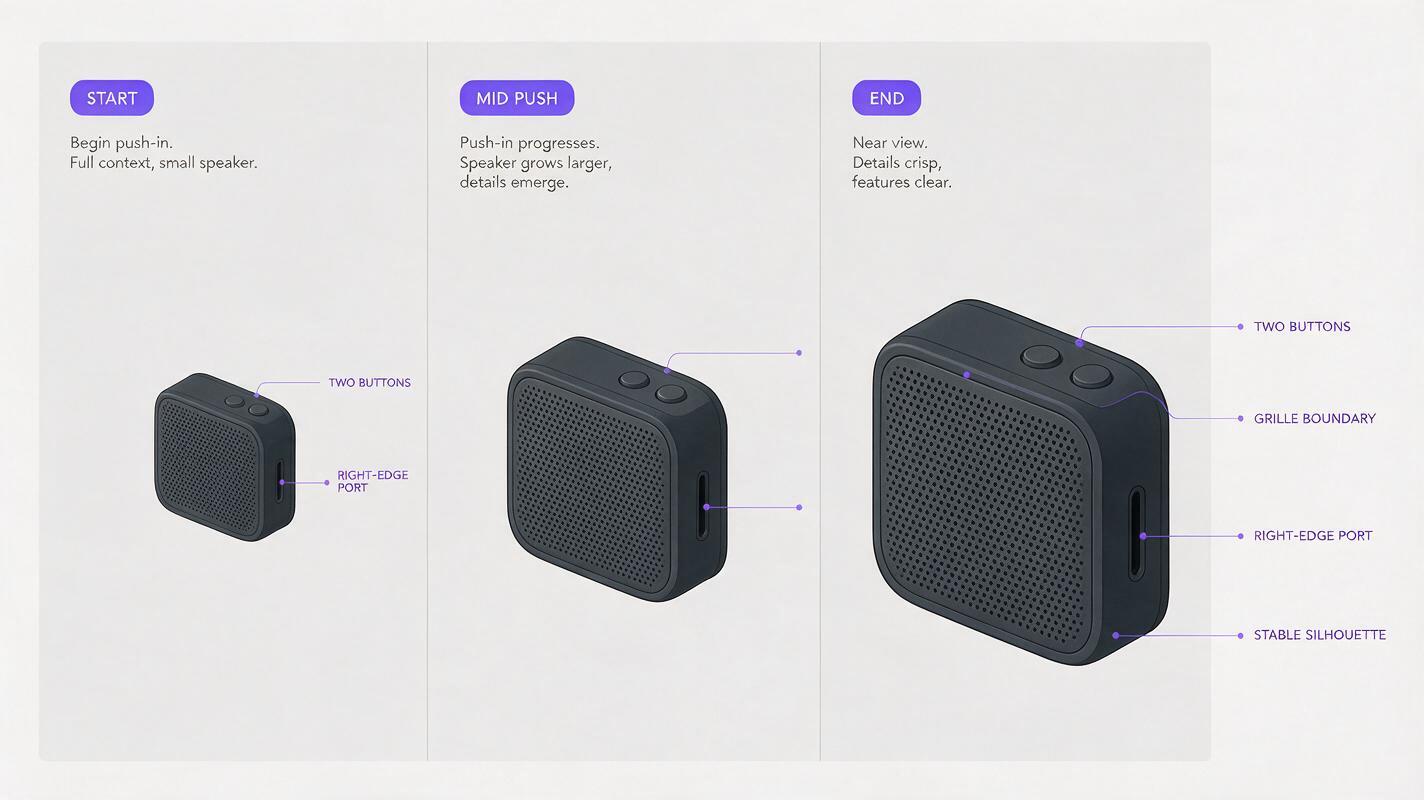
Play the result once for overall feel, then pause at the beginning, middle, and end. Check the same features in each frame. On the example speaker, count the top buttons, trace the outer contour, compare the grille’s boundary, and confirm the right-edge port remains where it belongs.
- Silhouette: Does the housing retain its proportions and chamfered ends?
- Parts: Are the buttons, openings, feet, and seams unchanged?
- Surface: Does a highlight move across the material without turning it into another finish?
- Motion: Does the clip suggest depth without exposing invented surfaces?
- Presentation: Is there a clean frame that can serve as a thumbnail or slide still?
For important reviews, extract more than three frames and compare them side by side at the same apparent product size. A fast playback can hide a one-frame port disappearance or a grille that crawls across the housing.
Fix the failure you can actually see
If buttons or ports move, crop less aggressively and use a closer, clearer source image. Reduce camera travel and explicitly identify each visible feature in the prompt. If the detail remains unstable, present that view as a still instead.
If the silhouette breathes or bends, remove orbit language and ask for a stationary product with motion confined to lighting or a very small camera push. A dramatic perspective shift is rarely worth a changing enclosure.
If the grille flickers, try a source image where the perforations are more legible, then shorten the shot. Fine repetitive patterns can remain difficult; choose a calmer clip rather than claiming the texture is accurate.
If a new rear surface appears, the camera has moved beyond the evidence in the reference. Return to the documented view, or create the requested angle from validated design assets before attempting animation.
Once a clip passes those checks, it can support a concept presentation as an atmospheric visualization. Label it accordingly if viewers might mistake it for a verified prototype or a geometry-accurate mechanical animation. Ready to compare a restrained result against your own reference? Test this prompt yourself with one approved product image and review every visible feature before sharing the clip.
Final checklist
- Start from one clear, approved product image.
- Choose motion that does not require unknown geometry.
- Name the visible features that must remain fixed.
- Generate a short test and inspect frames, not just playback.
- Use CAD or validated additional views when accuracy beyond the reference matters.
Keywords
ai product animation, product design video, seedance image to video, product visualization, design consistency, industrial design ai