How to Make an AI Story Video From a Script With Consistent Art Style
Tired of AI-generated story videos where character designs and art styles shift randomly between clips? This step-by-step workflow walks you through turning a short narrative script into a polished, narrated AI story video with a unified visual style, using AI storyboard generation and controlled clip rendering. You’ll get copyable prompts, style-locking tips, and a final checklist to ensure every frame feels cohesive.
Table of contents
The #1 Problem With AI Story Videos (And How to Fix It)
If you’ve ever tried to create AI video from script, you’ve probably run into the same frustration: one clip has a cozy watercolor style, the next looks like a 3D video game, and your main character’s hair color changes every other scene. Inconsistent art style doesn’t just look unprofessional — it pulls viewers out of the story you’re trying to tell.
This workflow solves that problem by locking your visual style early in the AI storyboard phase, then carrying that exact style through every clip you generate. It’s built for narrated story videos (1–3 minutes, perfect for YouTube storytelling channels, personal projects, or educational content) and uses a clear, repeatable process that works with any script-to-video AI tool.
Step 1 — Prep your script for a narrated story video
Before you generate any visuals, you need to adapt your script for a voiceover-led story video and define your master style rulebook. This step eliminates 80% of style inconsistencies before they happen.
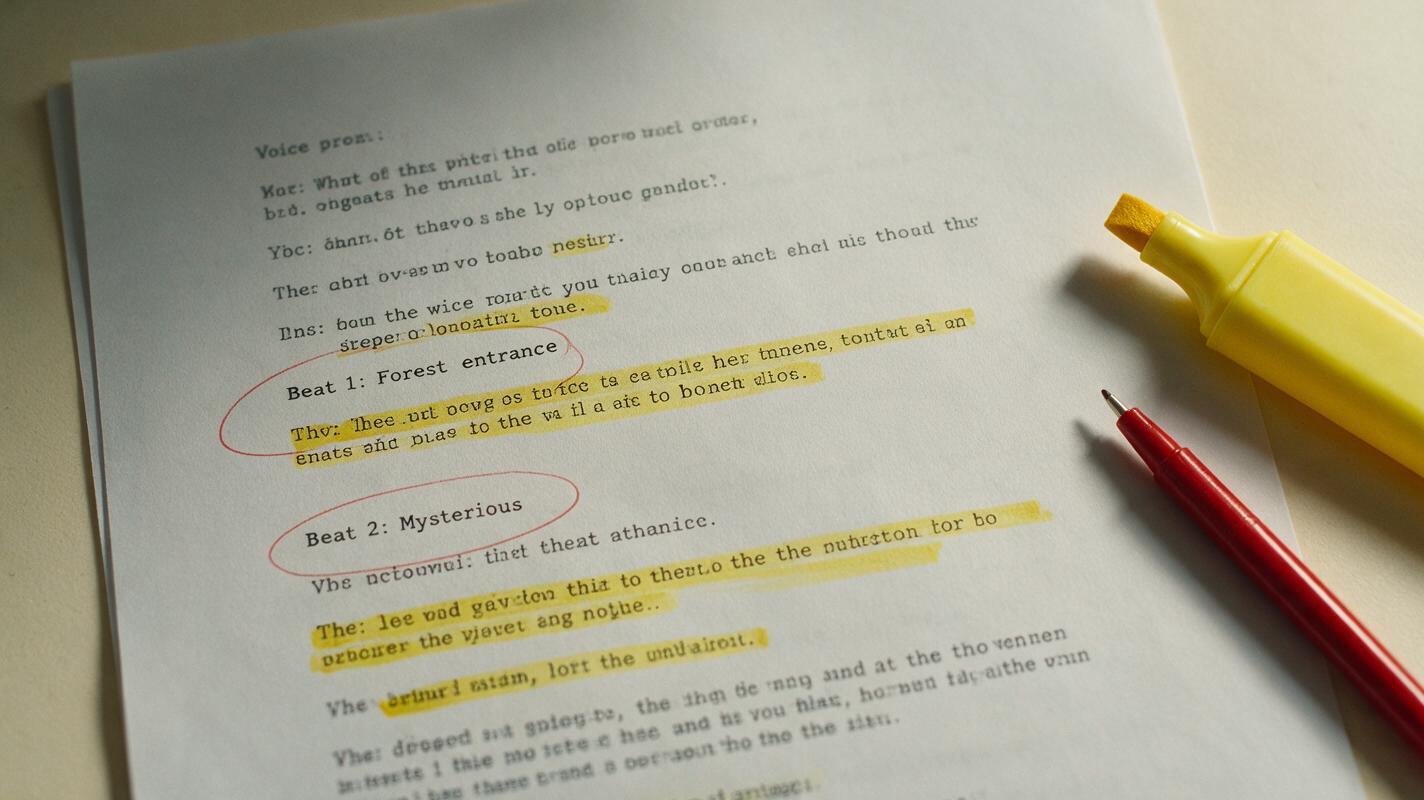
Start with a 1–2 page short script (roughly 150–300 words of voiceover, equal to 1–2 minutes of runtime). Go through and mark two things for every paragraph of voiceover:
- Visual beat: The specific action or scene that should play on screen while that line of voiceover runs
- Pacing note: How long the clip should last (match it to the length of the voiceover line)
Next, write your master style prompt — a single, detailed paragraph that defines every element of your visual style, including medium, color palette, lighting, character design, and mood. Be specific enough that an AI could reproduce the style 10 times in a row without deviation.
Copyable master style prompt example (fantasy story):
Soft watercolor illustration style, muted forest green and warm gold color palette, soft diffused daylight through tree canopy, main character is a 12-year-old girl with braided auburn hair wearing a faded blue wool cloak, no harsh outlines, dreamy nostalgic mood, hand-painted texture, 16:9 aspect ratioPro tip: Avoid vague terms like "cinematic" or "beautiful" — they mean different things to different AI models. Stick to concrete, measurable details: medium, specific colors, lighting type, character features, texture.
Step 2 — Generate a style-locked AI storyboard from your script
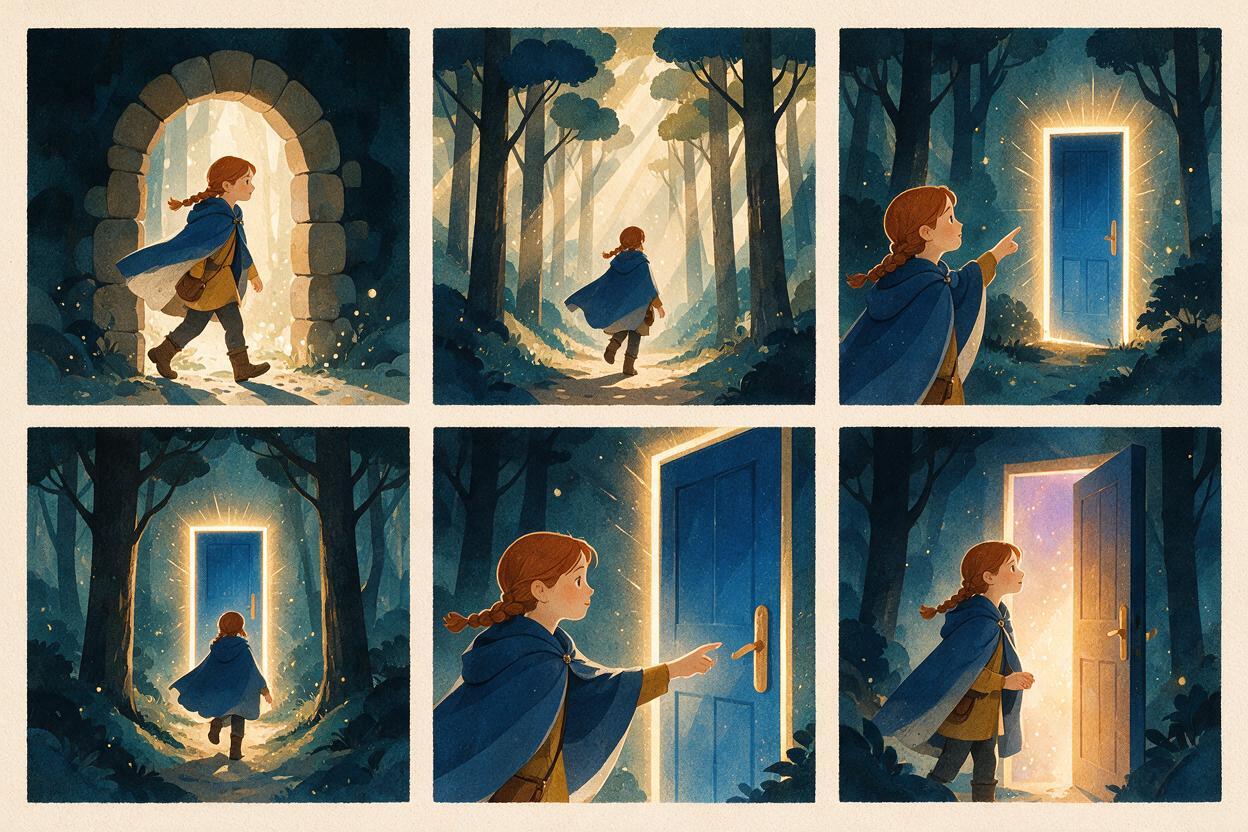
Now you’ll use an AI storyboard generator to turn your marked script beats and master style prompt into a full storyboard. This is your style blueprint — every clip you generate later will match the look of these storyboard frames.
Feed your list of visual beats into the storyboard tool, along with your full master style prompt pasted into the style or negative prompt field. For best results, include the master style prompt with every beat, not just once at the top of the project — this ensures the AI doesn’t drift from the style for later frames.
Copyable storyboard beat prompt example:
Beat 1: The cloaked girl steps through a mossy stone archway into an ancient forest. [INSERT FULL MASTER STYLE PROMPT HERE]Once you have a first draft of the storyboard, go through every frame and check for consistency: same character design, same art medium, same color palette, same lighting. Rewrite prompts for any frames that don’t match, and regenerate until every single frame fits the style.
For even more reliable style consistency across all storyboard frames, you can use a script-to-video platform that syncs your master style prompt to every beat automatically. Try it here to turn your script into a style-unified storyboard in minutes.
Step 3 — Render clips with storyboard style reference locking
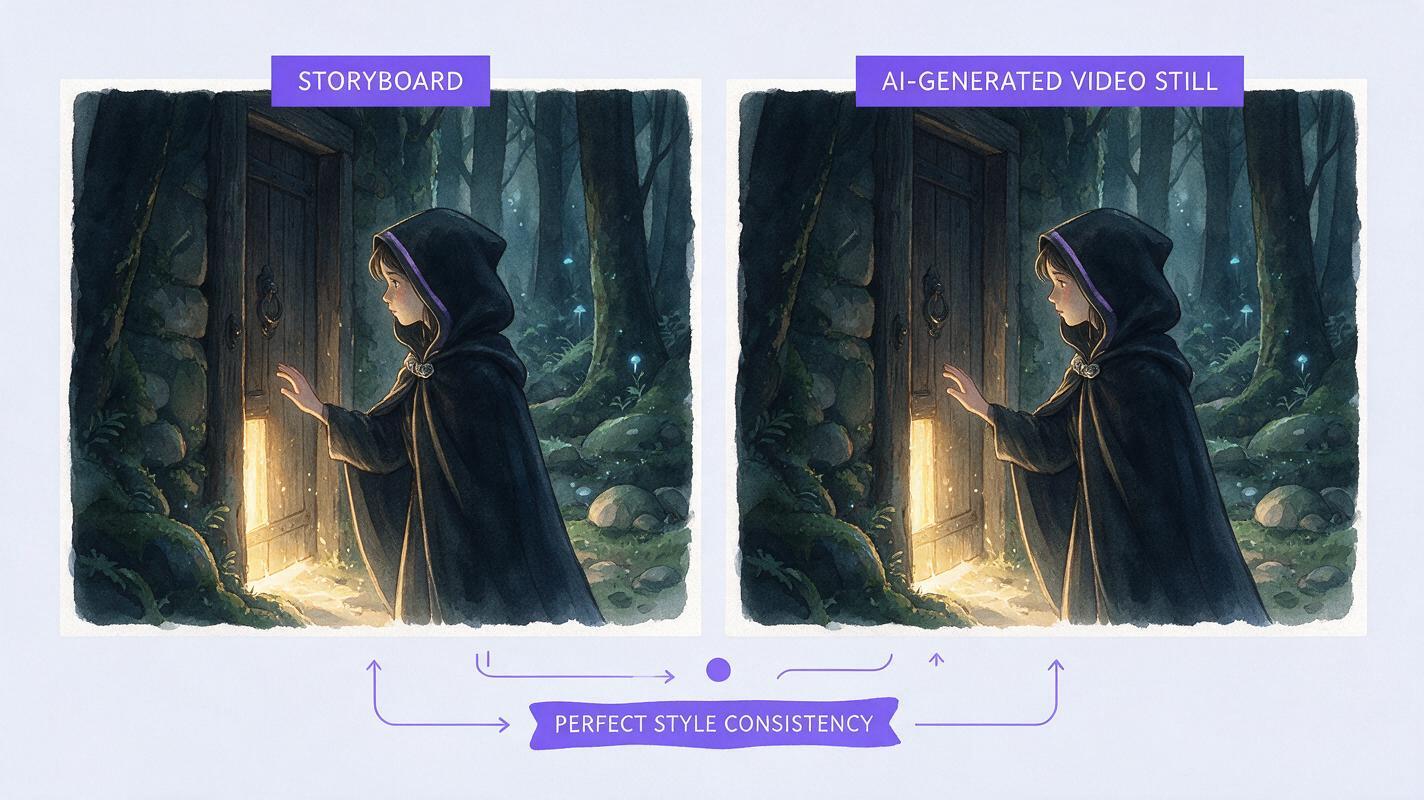
With your style-approved storyboard in hand, you’re ready to generate your AI clips. The key to consistency here is to use each storyboard frame as a style and composition reference for the corresponding clip, instead of writing a new prompt from scratch.
For each beat, upload the matching storyboard frame as an image reference (sometimes called an image prompt or style reference) in your AI clip maker tool. Set the style reference weight to 70–80% — high enough to preserve the art style and character design, but low enough to let the AI add natural motion.
Copyable clip generation prompt example (paired with storyboard reference image):
Slow pan right across the mossy stone archway as the cloaked girl steps through it, leaves drifting gently in the breeze, soft watercolor style matches reference image, 16:9, 5 second clip, smooth motionKeep your text prompts short and focused only on motion — don’t redefine the style or character, since that’s already covered by the reference image. If a clip still doesn’t match the style, bump up the reference weight by 10% and regenerate.
Step 4 — Assemble your final story video with voiceover
Once all your clips are rendered, it’s time to put everything together into a polished story video. Start by importing your voiceover track into your editing tool, then lay each clip under its corresponding line of voiceover, trimming or extending clips to match the pacing you planned earlier.
Use short crossfade transitions (0.5–1 second) between clips to smooth over any minor style differences that slipped through. Add subtle ambient sound effects (forest wind, bird calls, etc.) that match your scene to make the story feel more immersive.
For a final consistency check, watch the full video all the way through without sound — if you can easily follow the story and every frame feels like it’s from the same project, you’re ready to export.
Final consistency checklist
- Master style prompt includes concrete, specific details (medium, colors, lighting, character features)
- Every storyboard frame matches the master style and has consistent character design
- Each clip uses its corresponding storyboard frame as a style reference
- Clip pacing matches voiceover line length
- Transitions and sound effects smooth any minor visual gaps
Keywords
create ai video from script, ai story video generator, script to video ai, ai storyboard generator, ai clip maker, turn a script into an ai storyboard, ai movie maker