AI Talking Baby Podcast Generator: Create Baby Video Clips From a Photo
Learn how to use an AI talking baby podcast generator to turn a single baby photo into a charming, lip-synced video clip perfect for family podcasts, social media, or digital keepsakes. This practical guide covers reference photo prep, baby voice generation, motion mimic, and gentle AI enhancement tips for natural-looking results. No advanced editing skills are required to create fun, shareable baby content in minutes.
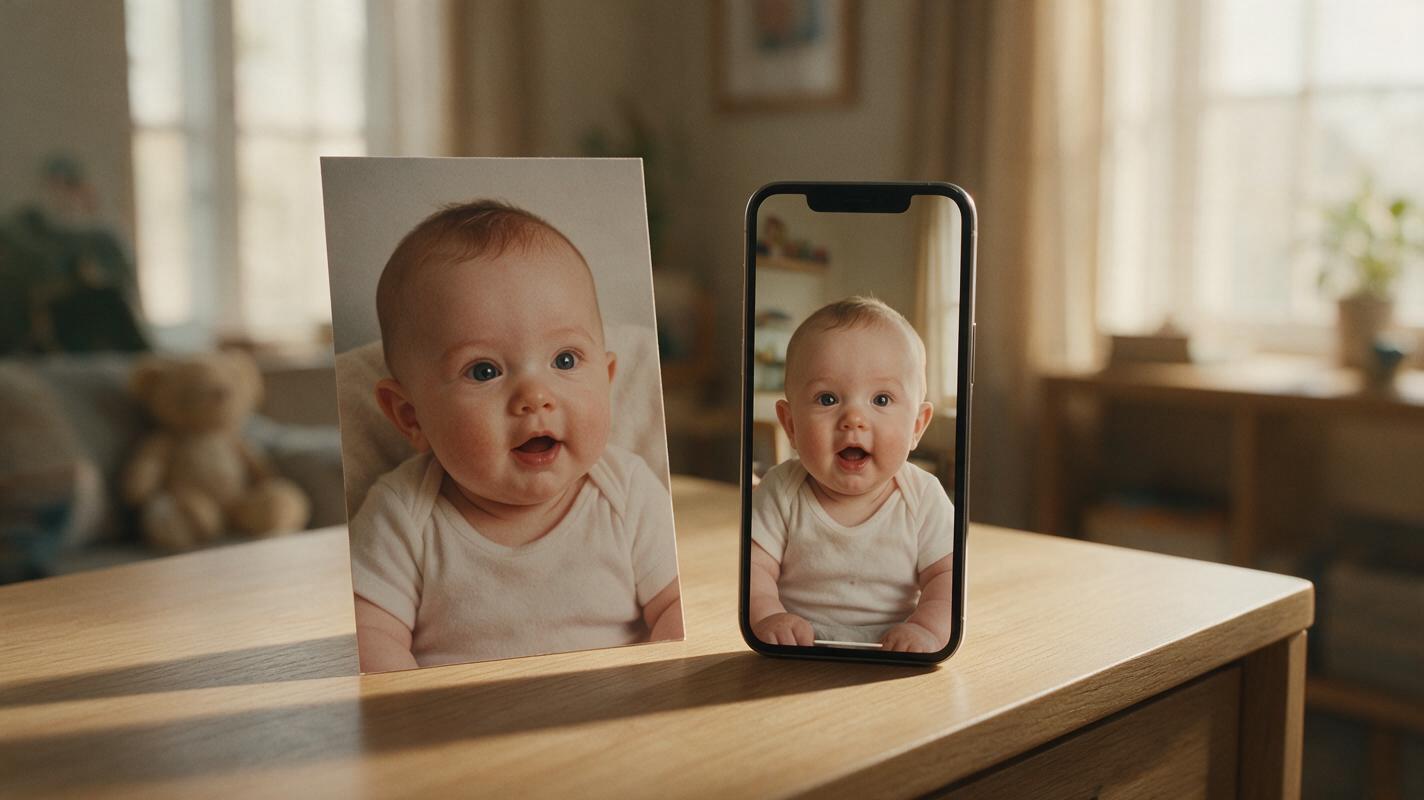
Table of contents
What Is an AI Talking Baby Podcast Generator?
An AI talking baby podcast generator combines AI avatar, lip sync, and voice generation tools to turn a single static baby photo into a short, believable video where the baby appears to speak. These tools are perfect for creating fun family podcast segments, social media reels, or digital keepsakes — no filming, voice acting, or advanced editing skills required.
While results are playful (not hyper-realistic), following a structured workflow helps you avoid uncanny valley effects and get natural, charming clips that feel true to the baby’s personality. You can try magicboat free to test all the tools needed for this workflow in one platform, from voice generation to lip sync and video enhancement.
Step 1 — Prep Your Baby Reference Photo for Natural Results
The quality of your reference photo is the single biggest factor in how natural your final clip will look. Poor input photos lead to misaligned lips, distorted features, or stiff animation that feels unnatural.
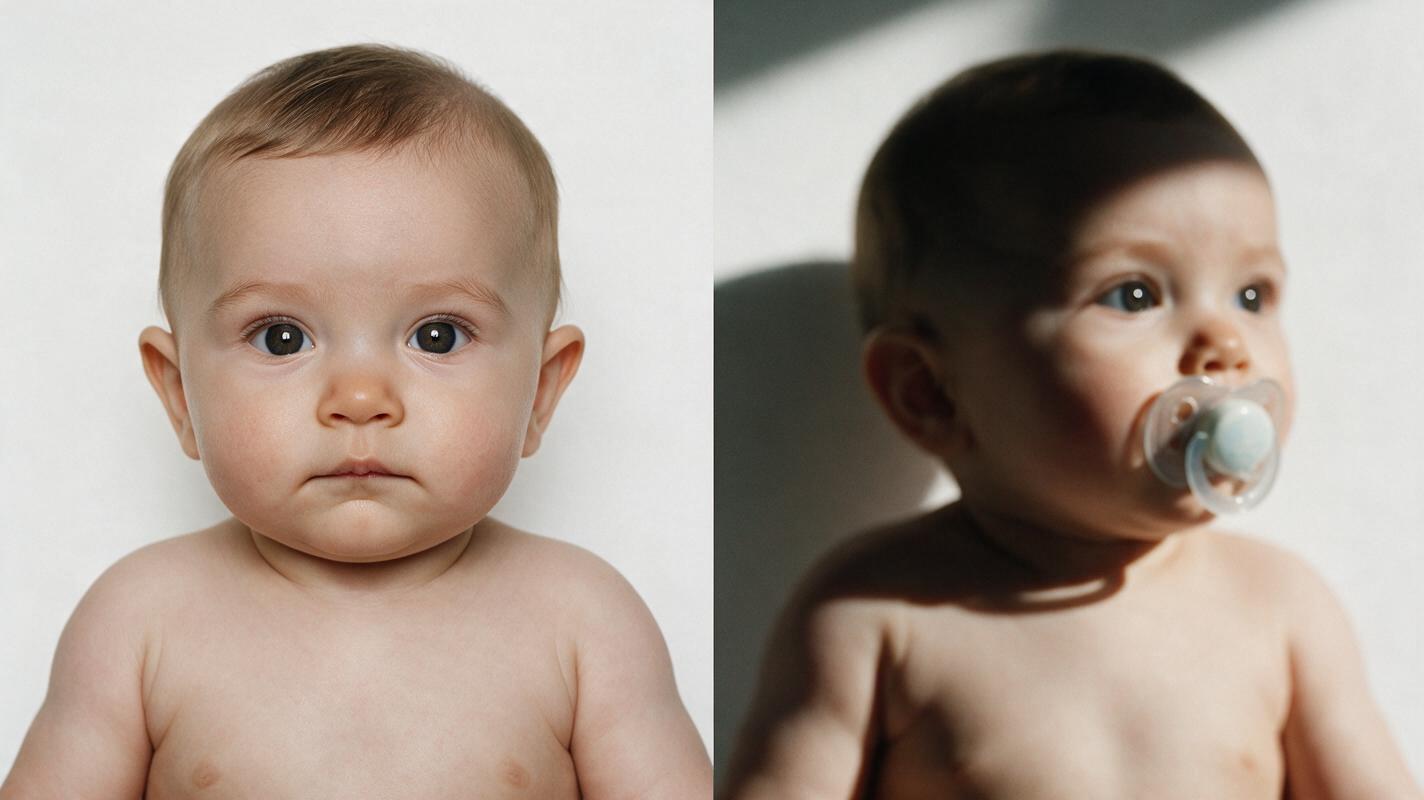
Good reference photo requirements:
- Front-facing, chest-up shot of the baby, with their entire face clearly visible
- Mouth closed or only slightly open (no wide grins, pacifiers, or hands covering the mouth)
- Even, soft lighting (no harsh shadows across the face or overexposed skin)
- High resolution, no blurriness or pixelation
Pro tip: Avoid photos with hats, headbands, or other accessories that partially cover the baby’s forehead or cheeks — these can confuse the face-tracking system and cause jittery animation.
Step 2 — Generate a Realistic Baby Voice for Your Clip
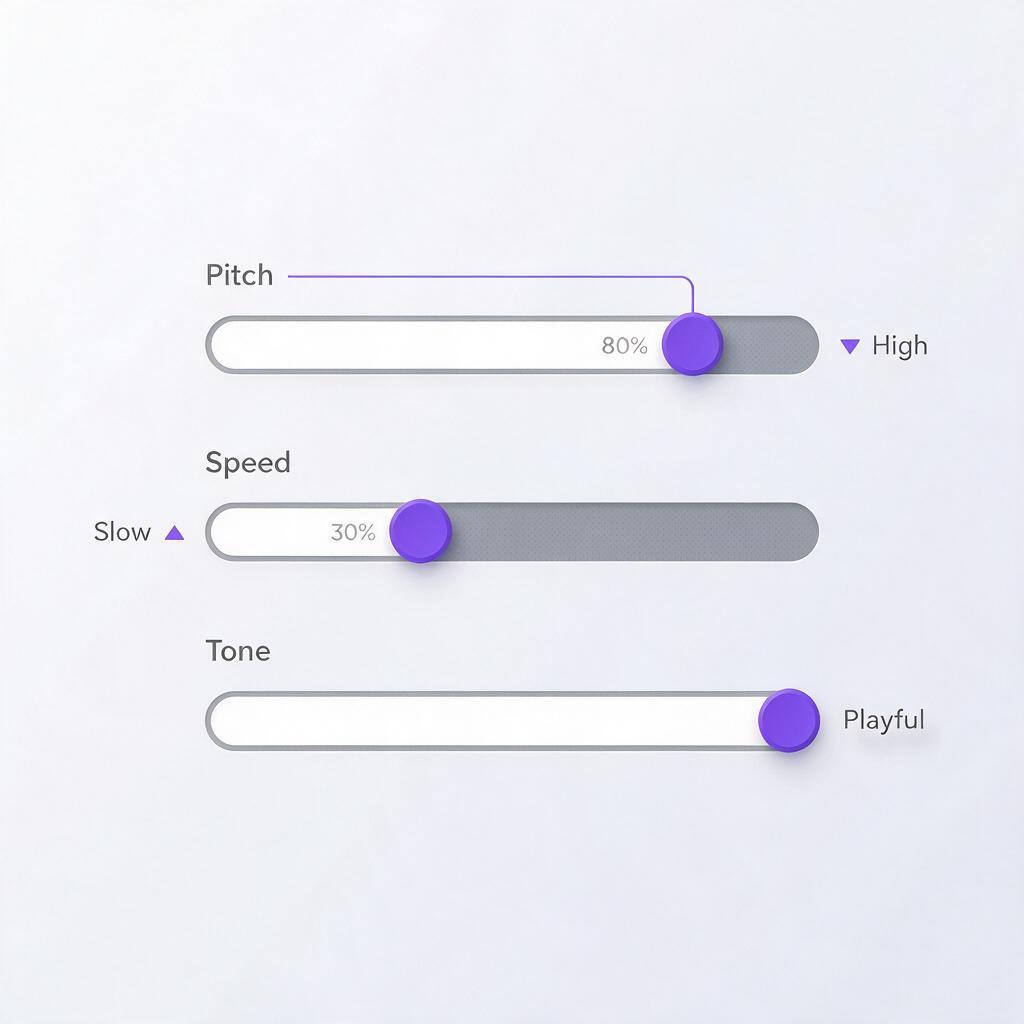
Next, create the audio track your baby will “speak” along to. A high-quality ai voice generator will let you adjust pitch, speed, and tone to match a baby’s playful, slow cadence, even if it doesn’t have a dedicated “baby” voice preset.
Start with a child or toddler voice preset, then tweak the settings to sound softer and more baby-like. For best results, keep scripts short (10-20 seconds) — babies don’t speak in long sentences, and shorter clips reduce the chance of noticeable lip sync errors.
Copyable voice prompt for a baby clip:
Soft, high-pitched toddler voice, slow and wobbly, slight giggle at the start, saying: “Hi grandma! I ate all my carrots today and played with my teddy bear. I love you!”If you have a short audio clip of the actual baby cooing or babbling, you can use voice cloning to base the voice on their real sound, then adjust the speech clarity for the podcast clip.
Step 3 — Animate the Photo With Lip Sync and Subtle Motion
This is the core of the workflow: combining your reference photo and audio track to create the talking baby effect. A reliable ai lipsync tool will map the audio’s phonemes (individual speech sounds) to natural mouth shapes on the baby’s face.
To avoid the “floating head” effect that plagues many cheap talking photo tools, enable subtle motion settings like gentle head tilts, slow eye blinks, and tiny shoulder movements. This motion mimic makes the baby feel alive, not just a static image with moving lips. This is the same animate image to video technology used to bring product photos and character art to life, adapted for portrait use.
Animation prompt for natural baby movement:
Subtle gentle motion, slow small head tilt left and right, soft occasional eye blinks, natural lip sync matched to audio, no exaggerated movements, warm soft skin tones, shallow depth of field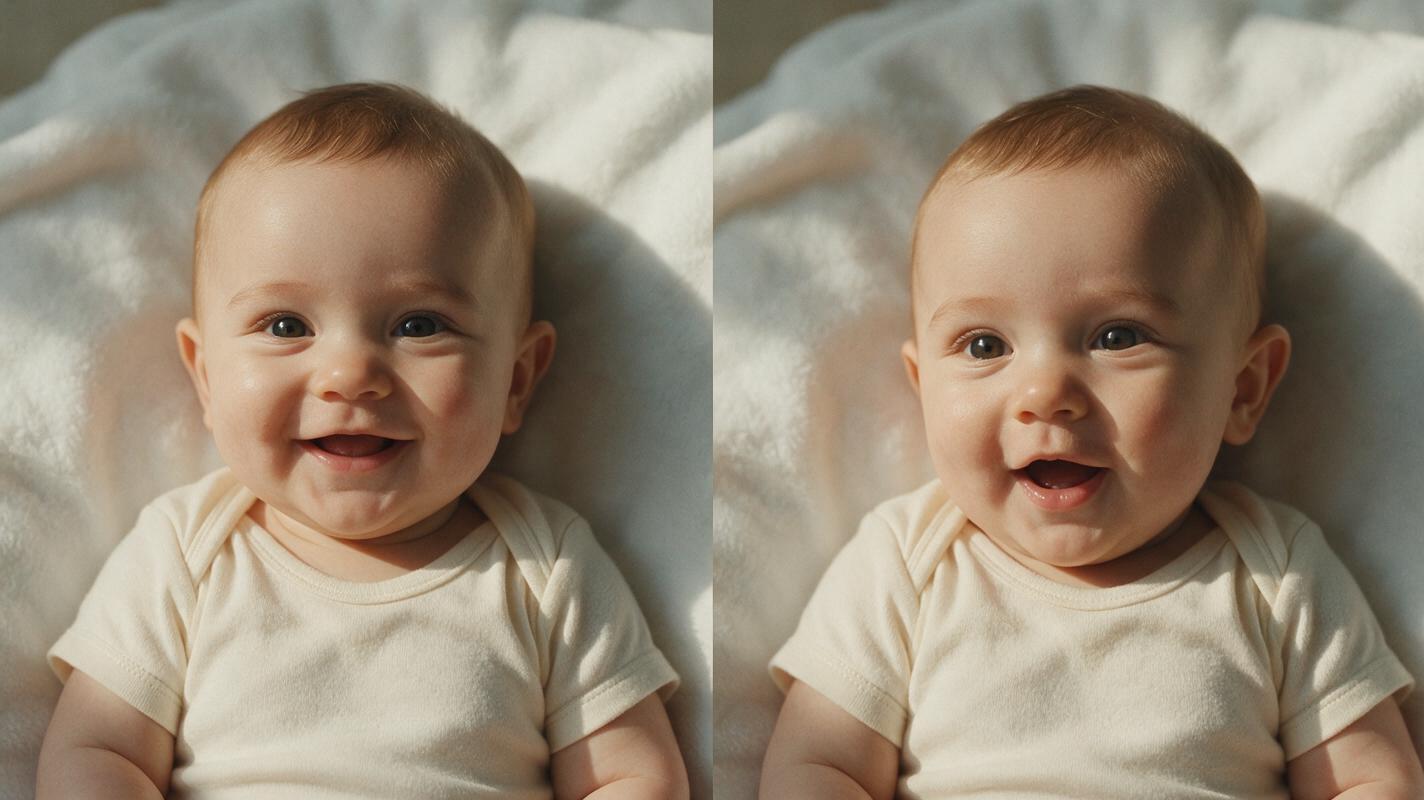
Step 4 — Polish the Final Clip With AI Enhancement
After generating your initial clip, a quick pass with an ai video enhancer will fix common small artifacts: jittery face edges, soft focus, or background noise in the audio track.
Use conservative settings to avoid over-processing — baby skin should stay soft and natural, not sharpened to a waxy, plastic-like texture. Focus enhancement on the eye and mouth areas only, if your tool allows region-specific adjustments.
For podcast use, you can also add soft background lullaby music, closed captions, or a simple title card with the episode name. Keep the final clip under 60 seconds for social media, or 2-3 minutes for a full podcast segment.
Final Checklist for Great Talking Baby Podcast Clips
- Use a clear, front-facing baby photo with no mouth or face obstructions
- Keep voice scripts short (10-20 seconds) for natural pacing and better lip sync
- Enable subtle head and eye motion to avoid a stiff, static look
- Apply gentle AI enhancement only, to preserve soft baby skin texture
- Test the clip on a mobile screen to verify lip sync looks natural at small sizes
Keywords
ai talking baby podcast generator, ai avatar video generator, motion mimic, animate image to video, ai lipsync, ai voice generator, ai video enhancer