Why AI Upscaling Changes Your Product Label—and What to Do Instead
AI upscaling can make a small product photo look sharper while quietly changing the words, symbols, or design on its packaging. This guide helps marketplace sellers identify that risk, capture a better source image, and use AI for the surrounding scene without treating invented detail as product evidence.
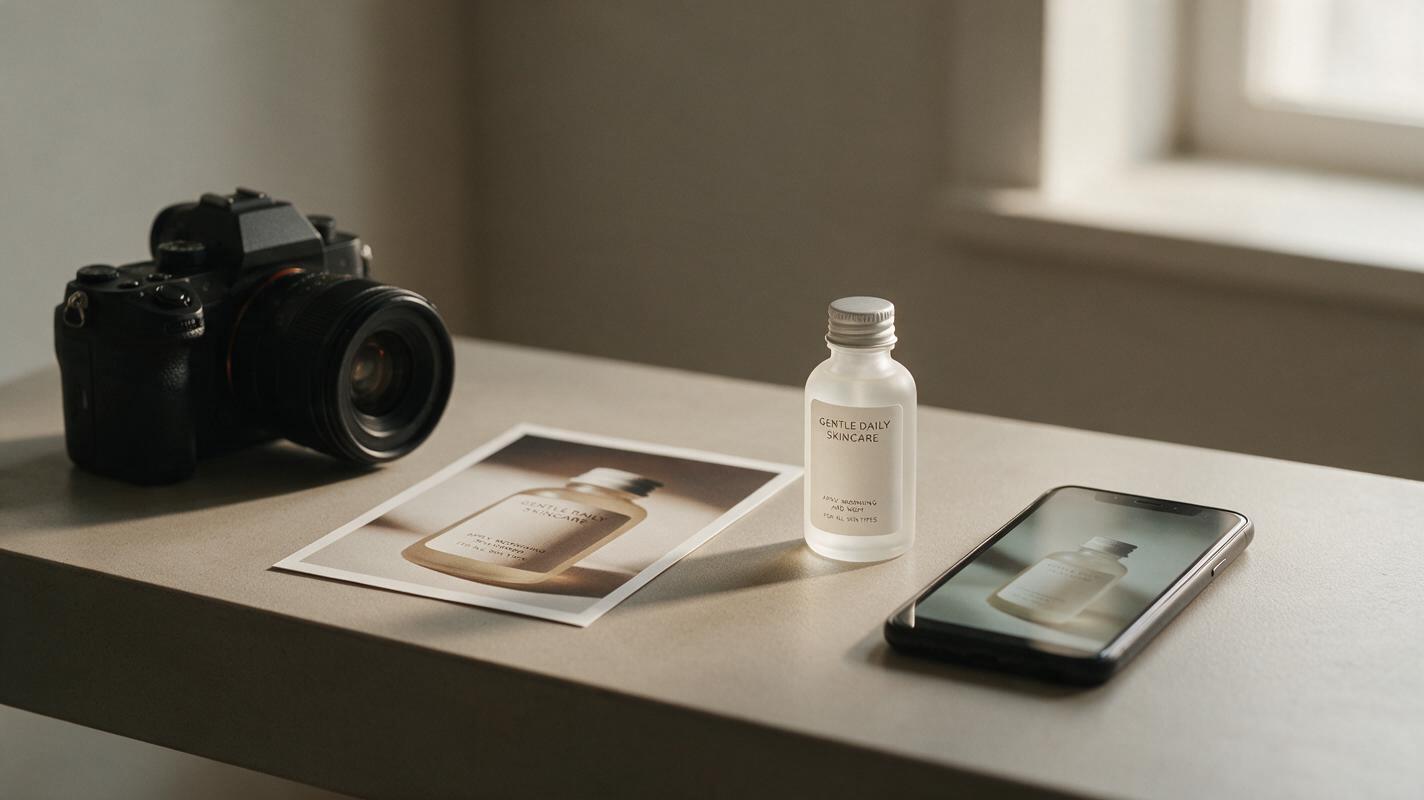
Table of contents
A sharper image is not always a more accurate image
You upscale a small supplier photo, and the bottle suddenly looks crisp—until you zoom in on the label. A letter has changed, the weight is unclear, or a certification-like symbol has appeared where there was only a blur. For a product listing, that is not a harmless visual flaw. Buyers may rely on packaging details to decide what they are purchasing.
The safer goal is to make the actual photographed label readable, not to ask AI to reconstruct text the camera never captured. Use the checks below to decide when an existing photo is usable, when a reshoot is necessary, and where image generation can still help.
Why upscaling invents packaging detail
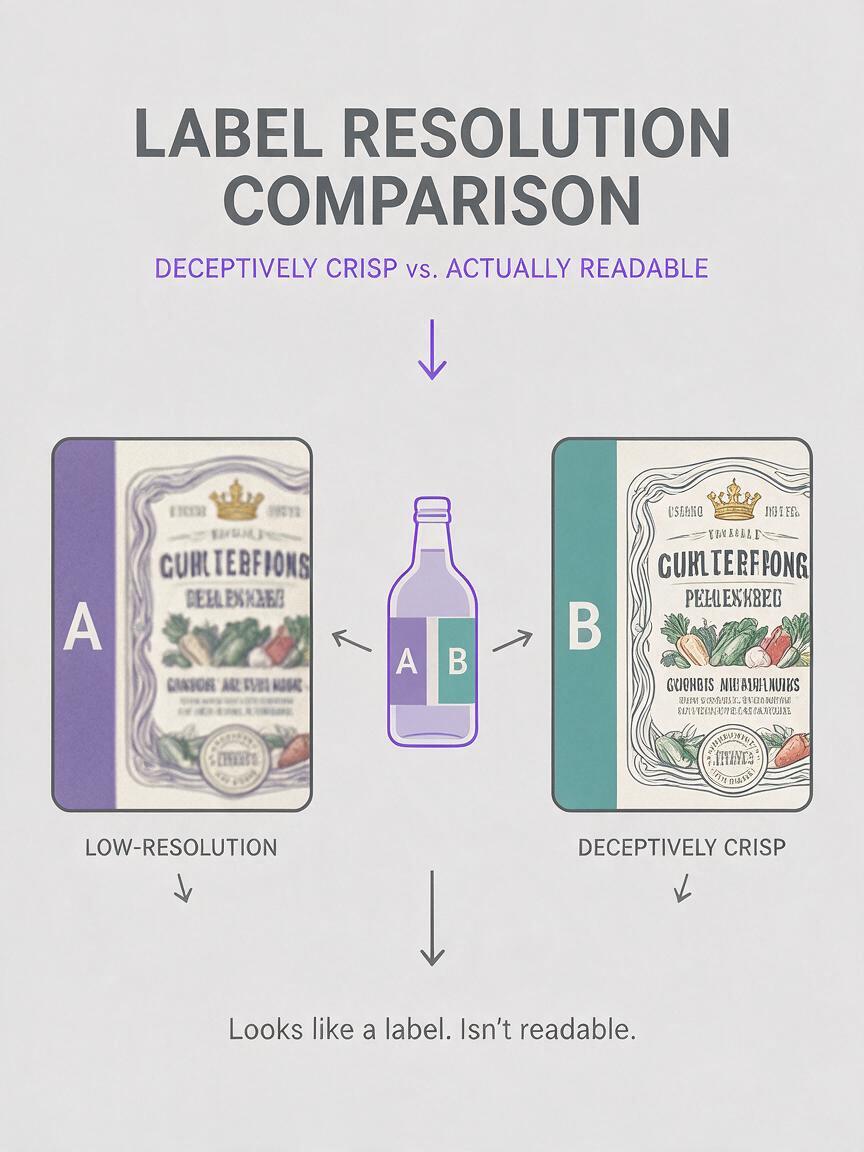
A low-resolution photo does not contain a hidden, perfect version of every letter. If the original label occupies only a few pixels, an AI upscaler must estimate the missing shapes. The result may resemble convincing print without matching the product.
This is especially easy to miss on curved bottles, small cartons, patterned pouches, and products photographed through reflective wrapping. An image can look better at thumbnail size while becoming less trustworthy at full size. Inspect the label at the size a shopper can view, rather than judging only the overall polish.
Practical rule: If you cannot independently read a detail in the source photo or verify it against the physical product, do not treat the upscaled version as evidence of that detail.
Check what the source photo can actually prove
Open the original file beside the enhanced version. Compare the product name, size or quantity, variant, ingredients or materials where shown, safety text, logos, seals, and barcode area. Look for missing characters, duplicated strokes, changed punctuation, and print that has become suspiciously uniform.
| What you see in the source | Safer listing decision |
|---|---|
| Label text is legible but the photo looks slightly soft | Try restrained sharpening and compare every printed detail with the original. |
| Label text is present but obscured by glare | Retake the photo with different lighting or camera angle; sharpening will not reveal what glare hides. |
| Letters are too small or blurred to identify | Photograph the product again or obtain a verified, higher-quality source file. |
| A generated image shows clearer text than the source | Do not publish it as a faithful product photograph without checking against the physical item. |
Keep the source file. It gives you something to compare against after cropping, retouching, resizing, and export.
Capture a label photo that survives the listing crop
For packaging with important print, take a dedicated close-up rather than expecting one wide hero image to do every job. Clean the package, steady the camera, and position the label as square to the lens as its shape allows. Use soft, even light to reduce bright streaks across glossy surfaces. Tap to focus on the print, then review the actual file at full size before putting the product away.
Leave enough room around the package for the intended listing crop, but make the label large enough in the frame to read. If a curved surface prevents all the text from appearing clearly in one view, take another genuine angle. Photograph the correct size and variant: a beautiful close-up of a different version is not a substitute.
A front-facing label detail, a separate back-of-pack image, and a wider product view can serve different purposes. You do not need to squeeze every piece of information into one AI-enhanced image.
Use Seedream 4.5 for the scene, not the lettering
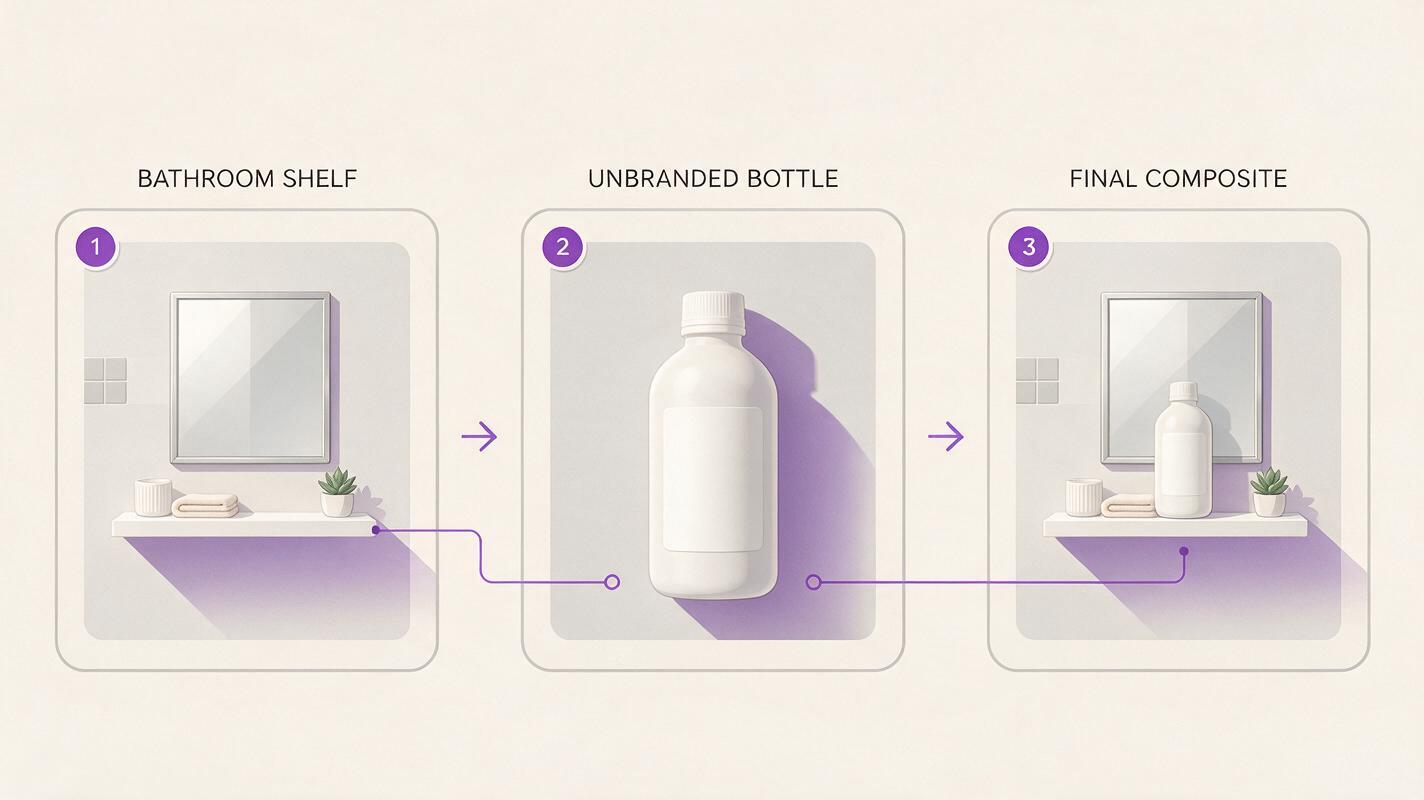
When the product photo is accurate but its setting is weak, Seedream 4.5 can help draft a product-free background. Use an ai image generator to make the surrounding surface and lighting concept, then place the verified product photograph into that scene in an editor. Keep the photographed packaging and its print intact.
For example, a skincare seller might want a restrained bathroom-shelf lifestyle image. The useful prompt describes the shelf and empty space—not a replacement bottle:
Create a photorealistic, unoccupied bathroom shelf scene for a product listing. Warm natural window light enters from the left. Show a clean matte stone surface, a softly blurred neutral wall, and an open area in the center for a separately photographed bottle. Do not generate any product, packaging, label, writing, logo, or hands. Keep reflections subtle and leave room around the empty placement area for a square crop.The prompt creates a setting, not a finished listing photo. Match the real product’s camera angle, scale, lighting direction, and contact shadow when compositing. If the source label is unreadable, a better background does not solve that problem; capture the label first.
When a clean label needs a different treatment
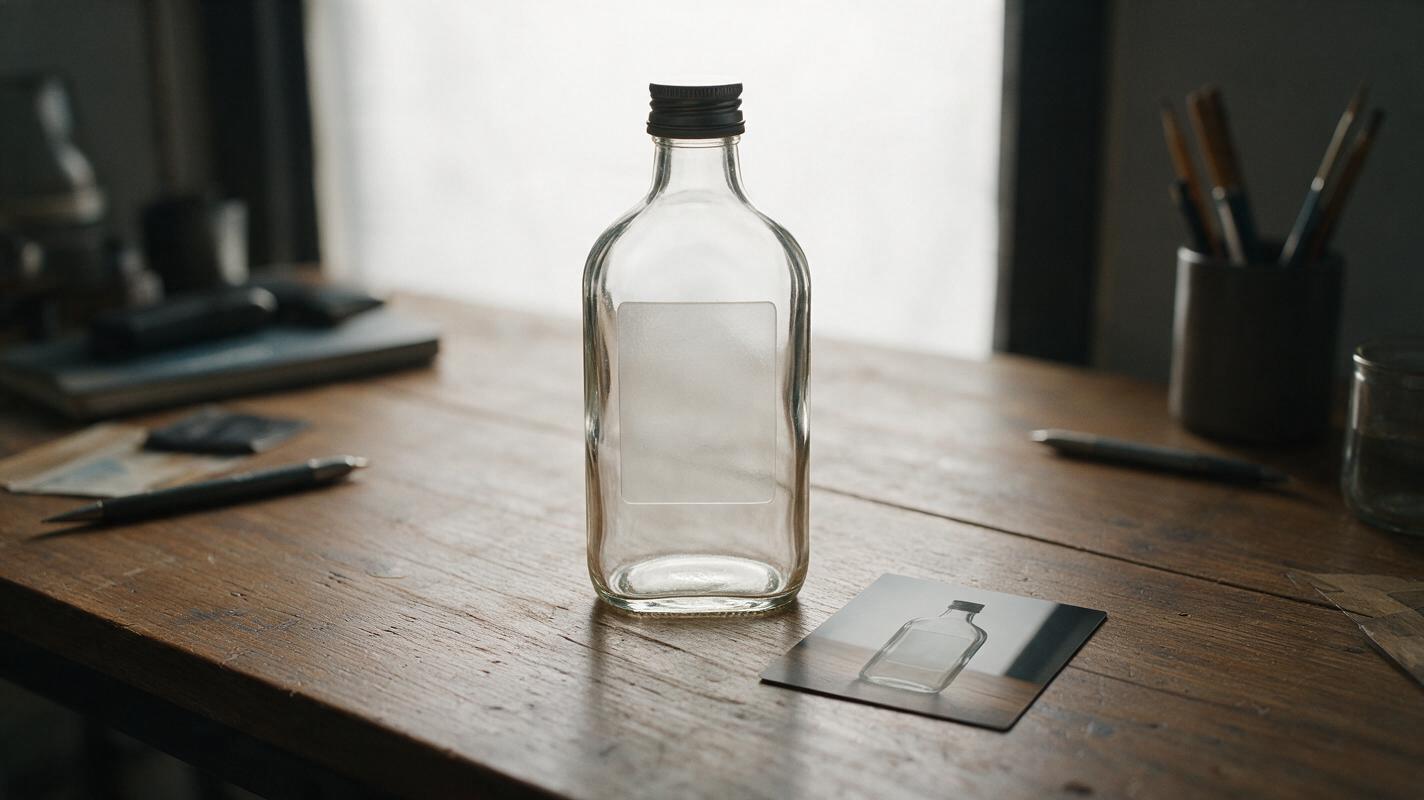
Sometimes a seller has the approved packaging artwork but not a readable photograph of the printed package. It can be tempting to paste the artwork onto a blurred bottle and call the result a product photo. That shortcut may misrepresent how the print sits on the real object: curvature, placement, finish, and visible area can all differ.
Use a verified flat label graphic as a separate informational image when appropriate, with clear context about what it shows. Use a real photograph for claims about the physical package. If artwork has changed since the product was photographed, confirm which version buyers will receive before publishing either asset.
For Shopify, Etsy, and other storefronts, this separation can make the gallery easier to understand: one image shows the item as photographed, while another makes verified information easier to read. For Amazon or another marketplace, check the current rules for each image placement before uploading a composite or informational graphic.
Review the exported image, not just the editor preview
Exporting can introduce a final round of trouble: an aggressive crop makes the label tiny, compression muddies thin print, or a resized version looks acceptable on desktop but not on a phone. Inspect the file that will actually be uploaded. View it at thumbnail size for product recognition, then zoom in for package accuracy.
Compare it with both the original photograph and the physical item or approved packaging proof. If a retouching pass changed a word, removed a warning, or made an ambiguous symbol look authoritative, revert that area. The aim is a useful shopping image—not the sharpest possible pixels at any cost.
Final checklist
- Read the source first: Do not rely on AI to recover text that is absent or unreadable.
- Reshoot when needed: Fix glare, focus, distance, and angle at capture.
- Preserve real packaging: Keep product pixels and verified print intact when changing the scene.
- Separate information from photography: Present approved flat artwork as information, not as proof of a physical print result.
- Inspect the upload file: Check the final crop and text at both mobile and full-view sizes.
If you already have a clear, verified product photo, test this prompt yourself to explore a new background without asking AI to rewrite the label.
Keywords
AI product photography, product photo upscaling, product label text, product listing images, Shopify product images, Amazon product images, Seedream 4.5