AI Virtual Try-On Video: Create Clothing Try-Ons Without Models
Want to create realistic clothing try-on videos without hiring models or booking studio time? This step-by-step guide teaches small clothing brand owners how to make 15-second vertical AI virtual try-on clips using avatars, motion mimic, and video enhancement tools. You’ll learn asset prep, generation tips, and polishing tricks for shareable, conversion-ready social media content.
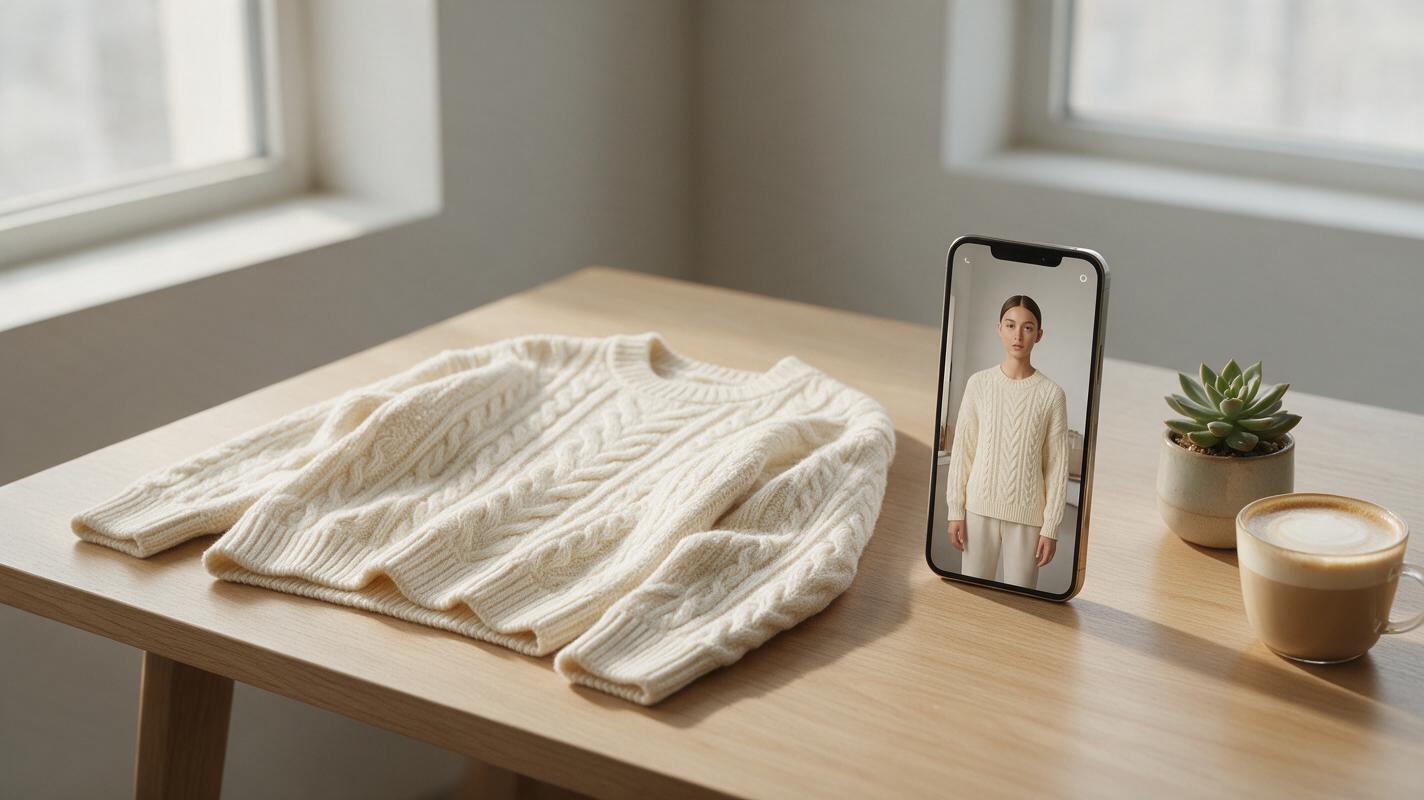
Table of contents
Why AI Virtual Try-On Video Is a Game-Changer for Small Clothing Brands
Small clothing boutiques and independent brands often struggle to create high-quality try-on content without breaking the bank. Hiring models, renting studio space, and shooting dozens of product SKUs can cost thousands of dollars — and the final footage might not even resonate with your target audience.
AI virtual try-on video solves this problem by generating realistic, moving clothing try-on clips from just a product photo and a base AI avatar. No physical shoot, no model fees, no wardrobe styling required. This step-by-step guide walks you through creating 15-second vertical try-on clips perfect for TikTok, Instagram Reels, or product pages, using tools you can access online.
Step 1 — Prep Your Product Assets and Base Avatar
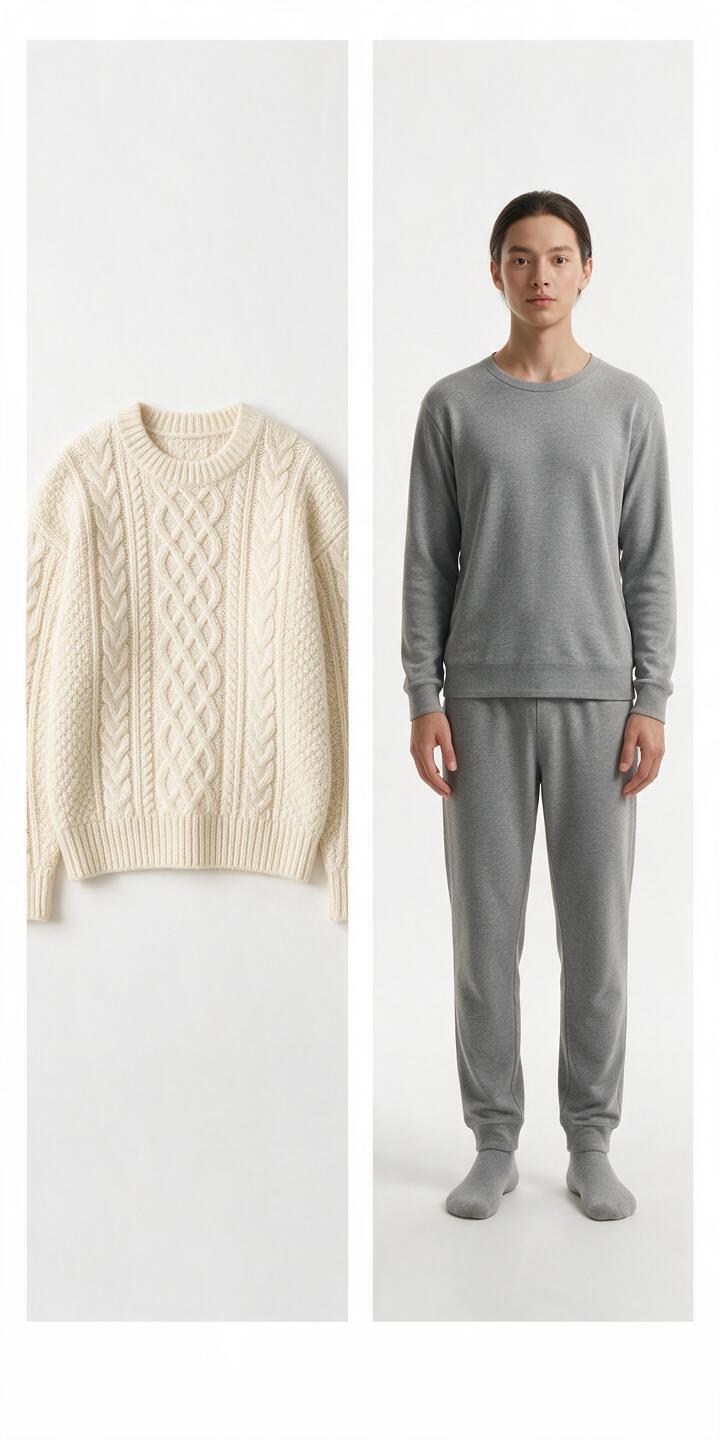
The quality of your final try-on clip depends almost entirely on the assets you start with. You’ll need two core items: a high-resolution product photo of your garment, and a base AI avatar that matches your target customer’s body type and vibe.
For your product photo, follow these rules for best results:
- Use a front-facing shot of the garment laid flat or on a plain mannequin
- Shoot against a clean white or neutral background with no shadows
- Make sure the fabric is smooth, with no wrinkles or creases that could confuse the AI
- Capture accurate colors and patterns — avoid filters or heavy editing
For your base avatar, choose one with a neutral standing pose and minimal accessories, so the focus stays on the clothing. If you’re generating a custom avatar, use this copyable prompt for consistent results:
full-body female avatar, casual neutral standing pose, average body type, no accessories, soft studio lighting, plain light gray background, photorealistic, 9:16 vertical framingPro tip: Stick to one avatar style for all your try-on clips to build brand consistency across your social media channels.
Step 2 — Generate the Try-On Clip With Motion Mimic
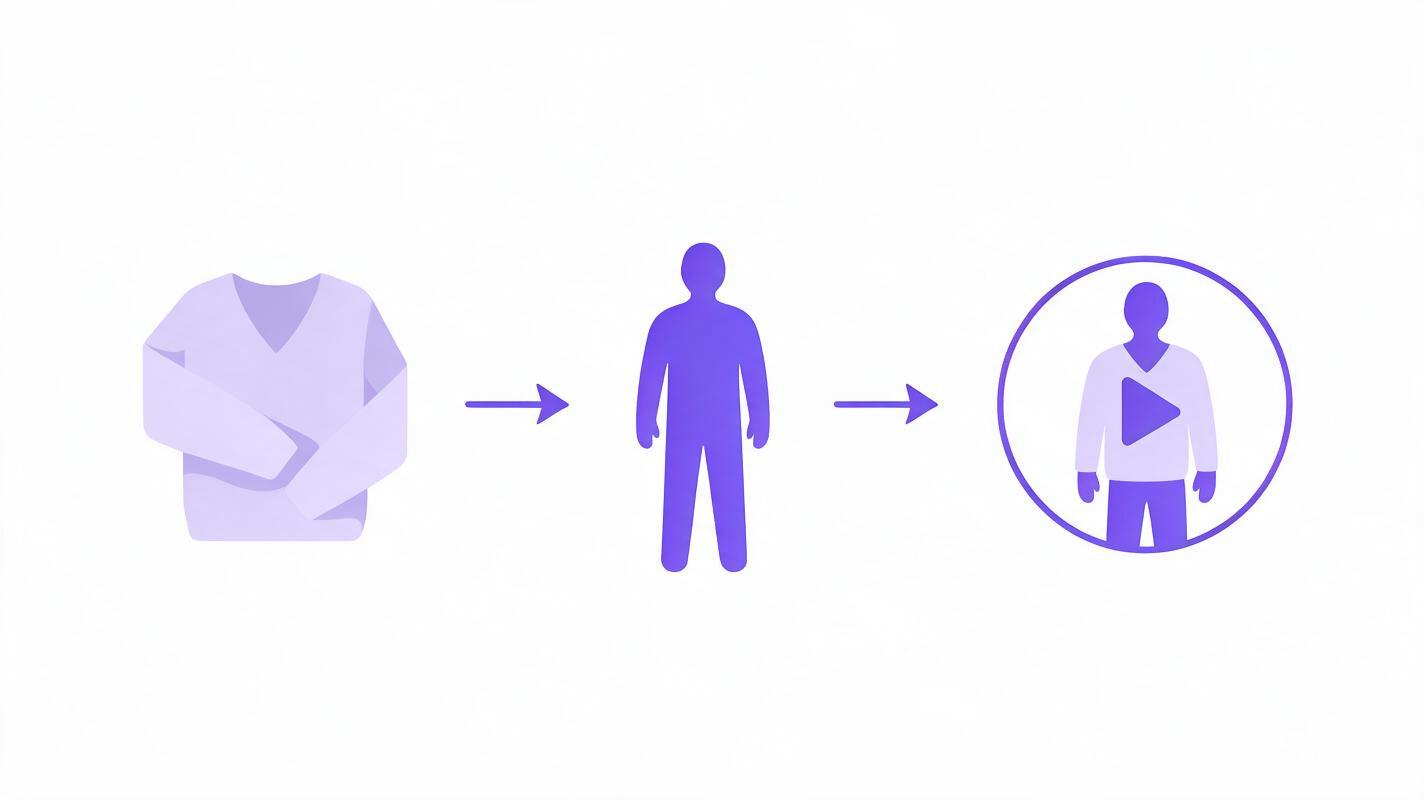
Once you have your assets ready, it’s time to generate the actual try-on clip using motion mimic technology. This tool takes a pre-recorded motion sequence (like a model walking, turning, or adjusting their outfit) and applies it to your avatar, while mapping your product garment onto the avatar’s body.
Pick a motion clip that highlights your garment’s best features: for a flowy dress, a slow 360-degree turn and casual walk works well; for a hoodie or sweater, try a pose with arm movement to show fit and sleeve length. Keep the clip short — 5 to 15 seconds is ideal for social media.
Use this copyable prompt as a starting point, adjusting the garment details and motion to match your product:
apply cream cable-knit sweater to avatar, realistic fabric texture and drape, natural wrinkles when moving, accurate color and stitch detail, motion: slow 360-degree turn + casual arm cross, vertical 9:16 format, clean backgroundGenerate 2 to 3 versions of the clip and pick the one with the most natural fabric movement and fit. Minor artifacts in early drafts are normal — we’ll fix those in the next steps.
Step 3 — Clean Up Edges and Background With Video Matting
AI-generated try-on clips often have small edge artifacts, especially around hems, sleeves, and necklines where the garment meets the avatar’s skin. Video matting tools fix this by creating a precise cutout of the avatar and garment, so you can clean up fuzzy edges and swap the background for something on-brand.
Zoom in to 100% to check edge quality across the entire clip, paying extra attention to areas with flowing fabric or moving limbs. Use a small refine tool to touch up any spots where the garment edge looks blurry or where the avatar’s skin clips through the fabric.
Once your edges are clean, swap the default background for a simple, brand-aligned option: a soft solid color, a subtle gradient, or a minimal lifestyle scene like a white bedroom or boutique interior. Avoid busy backgrounds that distract from the clothing.
Step 4 — Polish the Final Clip With AI Video Enhancer
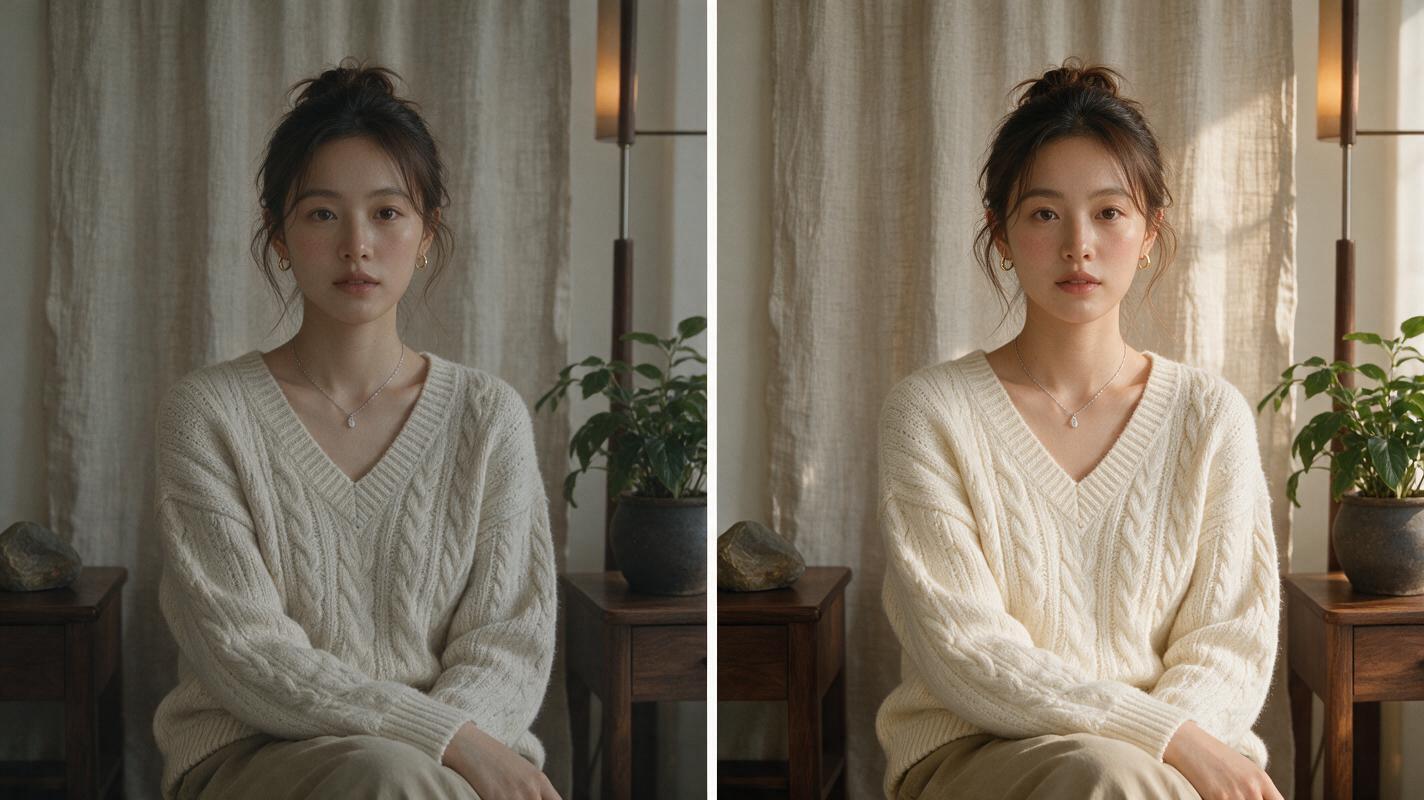
The last step is to polish your clip with an AI video enhancer to make it look more like real footage and less like AI-generated content. Enhancer tools sharpen fine details, fix color accuracy, and reduce any digital noise or motion blur that can appear in generated clips.
Stick to a light enhancement setting — over-sharpening can make fabric look plastic or create unnatural edge halos. Focus on preserving the garment’s texture: the weave of a sweater, the print of a dress, or the softness of a t-shirt should all look clearer after enhancement, not distorted.
When you’re happy with the result, export the clip in 1080p 9:16 vertical format for the best quality on social media platforms.
If you want to complete this entire workflow without switching between multiple tools, MagicBoat includes built-in AI virtual try-on, motion mimic, video matting, and enhancement tools all in one dashboard. You can upload your product photo, generate a custom avatar, and export a polished try-on clip in minutes.
Final Checklist for Polished AI Try-On Clips
- Product photo is high-res, front-facing, and shot against a clean neutral background
- Base avatar matches your target audience and has a neutral, distraction-free pose
- Motion sequence is 5-15 seconds long and highlights your garment’s best features
- Edge artifacts around hems, sleeves, and necklines are cleaned up with video matting
- Background is simple and on-brand, with no elements that distract from the clothing
- Final clip is lightly enhanced for sharpness and color accuracy, exported in 1080p 9:16
Keywords
ai virtual try-on video, ai video tools, video to video ai, ai avatar video generator, motion mimic, ai video enhancer, ai video presets