How to Make Matching Album Back Covers & Spines With Readable Text (Imagen)
Most AI image tools generate mangled, unreadable text, making it nearly impossible to create matching album back covers and spines without manual design work. This guide shows musicians and MV creators how to use Imagen’s style reference and high-accuracy text rendering to produce print-ready back covers, spines, and packaging assets that perfectly match their existing front cover art. It includes reusable prompt templates, setting recommendations, and fixes for common text and style issues.
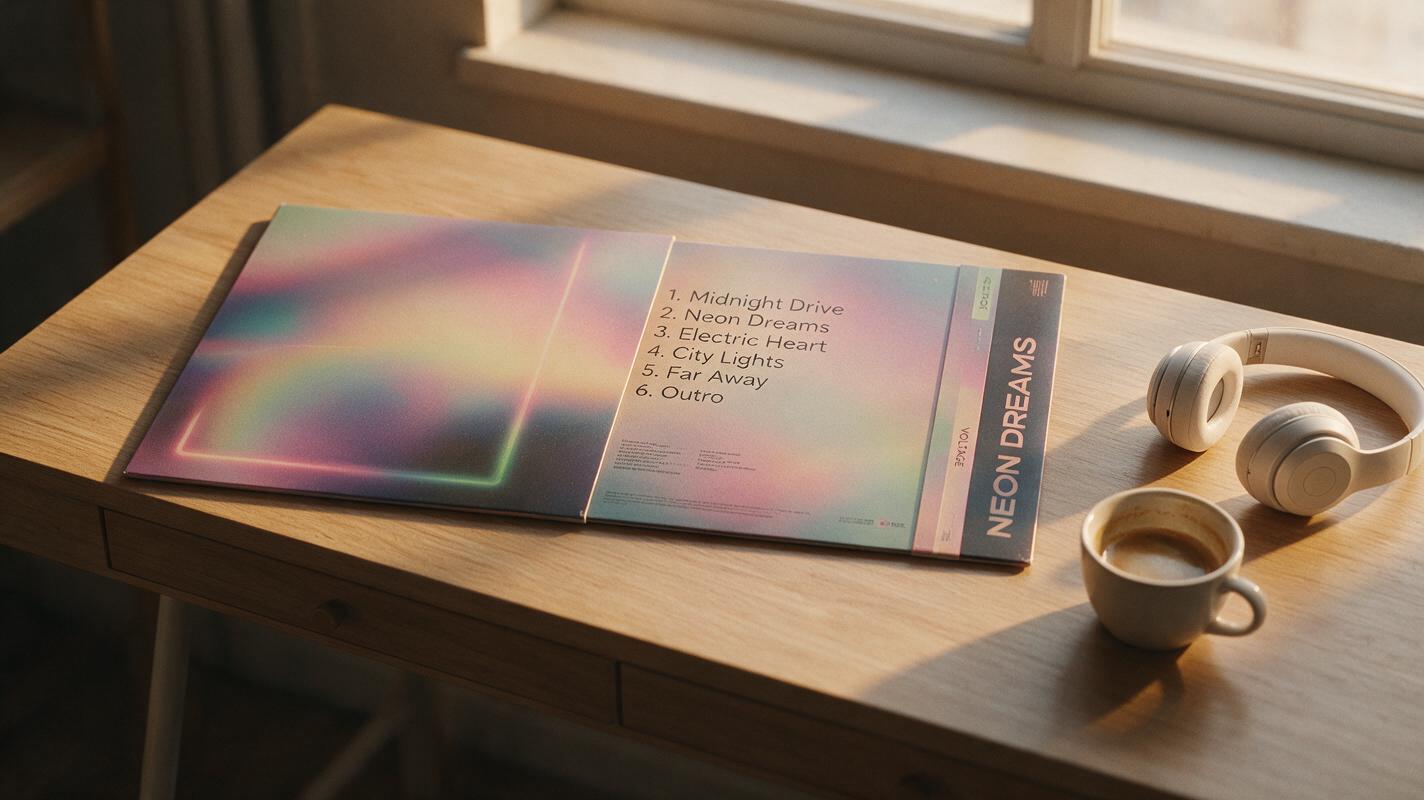
Table of contents
Why album back covers are hard to get right with AI
If you’ve ever finished a front album cover you love, then tried to generate a matching back cover only to get garbled tracklist text and a style that feels totally off, you’re not alone. Most AI tools nail visual style but fall apart when it comes to rendering accurate, readable text — a non-negotiable for back covers, spines, and inner sleeves that need tracklists, credits, and catalog numbers.
For independent musicians, this usually means either paying a designer for a 10-minute layout tweak, or spending hours manually typing and aligning text in Canva while trying to match the cover’s color palette and texture. A high-quality ai image generator with built-in text rendering and style reference eliminates almost all of that work, and Imagen is one of the most reliable options for this exact task.
Imagen’s core strength for album art is its ability to generate crisp, correctly spelled text directly in the output image, while locking to the visual style of your existing front cover. This guide walks through how to use it to make matching back covers, vinyl/CD spines, and other packaging assets with zero design experience required.
Prep your front cover and assets first
Before generating anything, gather three key assets to ensure consistency and accuracy:
- High-res front cover file: PNG or JPG, at least 1024x1024px (2048x2048 is better for print). Make sure no critical design elements are cropped at the edges.
- Finalized text copy: Tracklist, artist name, album title, catalog number, barcode note, and any credits you want included. Double-check for typos — Imagen will render exactly what you type, including mistakes.
- Style notes (optional but helpful): If you know the font name, texture type (e.g., grainy film, watercolor, neon glow), or color palette hex codes, note them down to reinforce consistency.
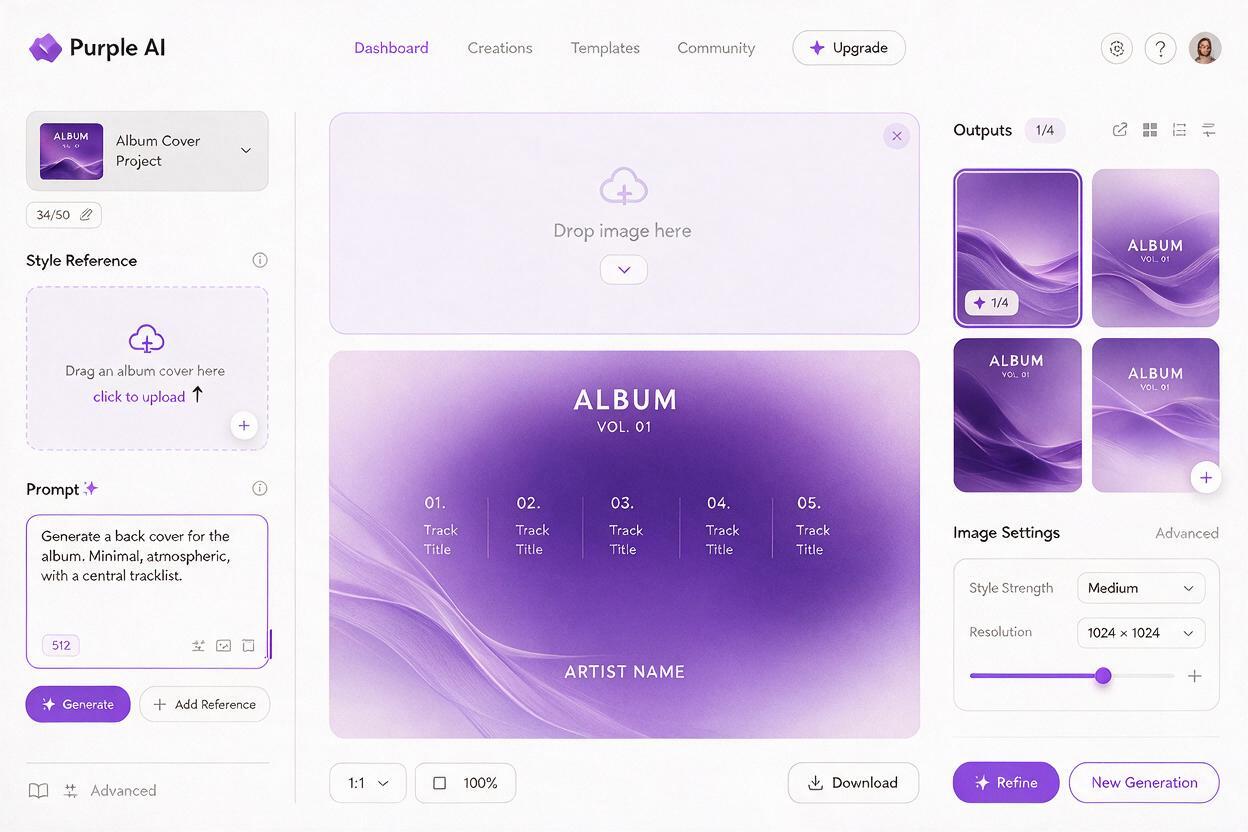
You don’t need to edit or crop your front cover to isolate elements. Imagen’s style reference feature can pick up the overall mood, color scheme, texture, and typography style from the full cover image.
Choose the right Imagen settings for album packaging
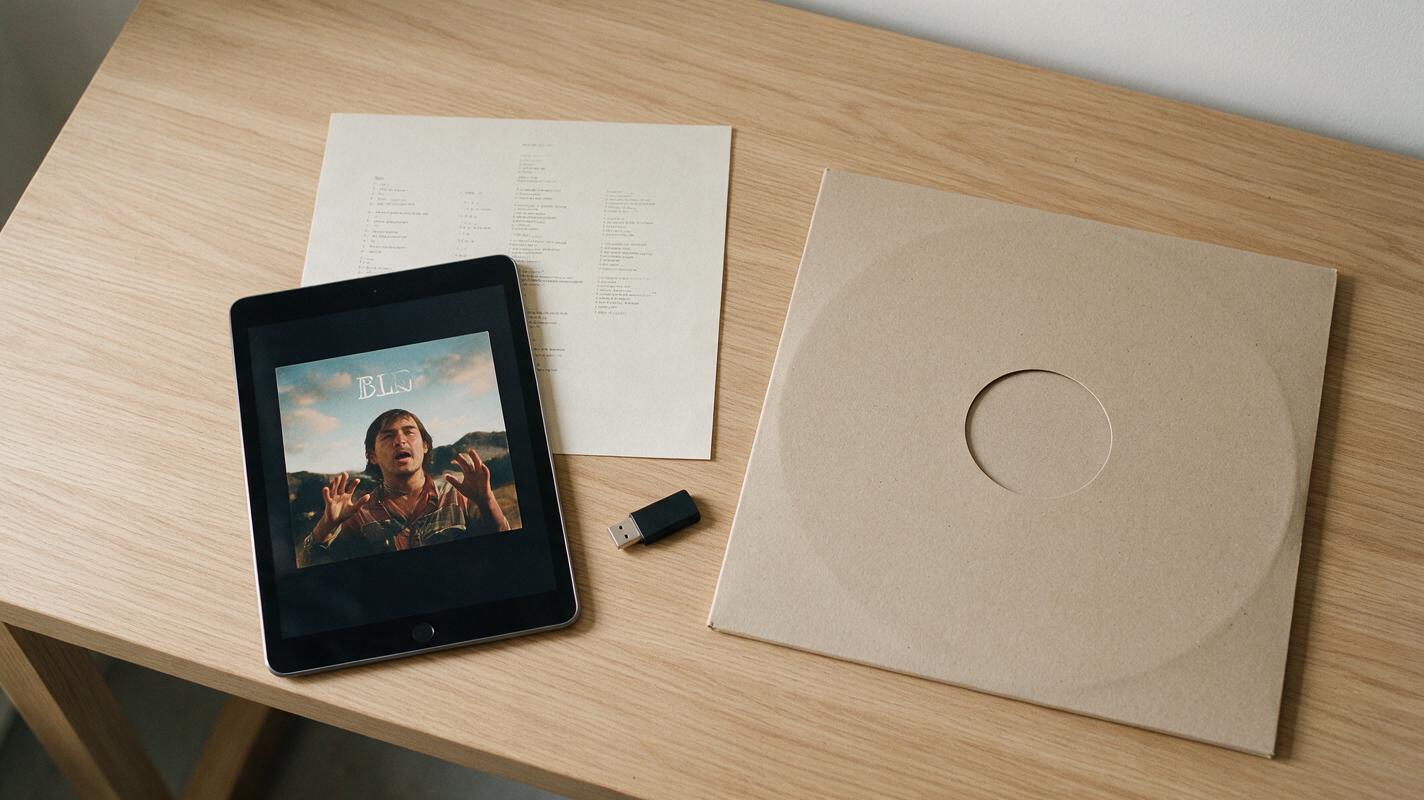
Imagen’s default settings work for casual art, but you’ll want to tweak a few options for print-ready album assets that match your cover:
- Aspect ratio: Use 1:1 square for CD and vinyl back covers (same as your front cover). For spines, use a narrow vertical ratio — 1:6 for standard CD spines, 1:8 for single vinyl LPs, and 1:10 for double LPs.
- Style reference strength: Set to 70–80% for back covers (high enough to match the style, low enough to let it arrange a new layout). Bump to 80–85% for spines, which need to match the cover’s color and font exactly.
- Text quality: Set to the highest available option. Imagen’s text rendering mode prioritizes crisp, correctly formed letters over artistic flourishes, which is exactly what you need for tracklists and credits.
- Output resolution: Pick 2048x2048px or higher. For physical print, aim for 300 DPI (Imagen’s high-res outputs are usually 300 DPI by default, but confirm before exporting).
Quick tip: If you’re making a gatefold vinyl cover, generate each panel separately (front, back, left inner, right inner) rather than trying to fit all four in one generation. This keeps text sharp and layout clean.
Reusable prompt templates for back covers and spines
The best prompts for album packaging balance three things: style reference to match your front cover, clear layout instructions, and exact text content. Use these templates as a starting point, swapping in your own details.
CD back cover prompt
Style reference: [upload your front cover image, set strength 75%]
Square CD album back cover, clean minimalist layout, centered numbered tracklist in upper two-thirds, small artist logo at bottom left, standard barcode placeholder at bottom right,
matching color palette and grainy film texture from reference image,
crisp legible sans-serif text matching reference font style,
print-ready, 300 DPI, no distortion

Tracklist (exact text):
1. Midnight Drive
2. Neon Rain
3. Lost in Static
4. Hollow Hearts
5. Echo Chamber
6. Paper Planes
7. Cold Light
8. Wasteland
9. Home Again
10. Fade Out

Negative prompt: blurry text, distorted letters, misaligned text, extra tracks, wrong numbers, watermarks, artifacts, messy layout
Vinyl spine prompt
Style reference: [upload your front cover image, set strength 82%]
Vertical vinyl record spine, 1:8 aspect ratio,
top-aligned vertical album title, middle-aligned vertical artist name, bottom-aligned vertical catalog number,
exact same background color and font style as reference cover,
crisp readable text, no distortion, print-ready, 300 DPI

Text (exact, top to bottom):
Album title: NEON RAIN
Artist: The Hollow Hours
Catalog number: HH-001

Negative prompt: blurry text, rotated text, distorted letters, extra graphics, messy edges, watermarks
After you generate your first draft, adjust the style strength or add specific details (e.g., "neon pink accent color", "handwritten script text") to match your cover more closely. test this prompt yourself with your own tracklist and cover to see the results in minutes.
Fix common text and style issues
Even with the right prompts, you might run into small issues. Here are the most common fixes:
- Blurry or slightly distorted text: Bump the text quality setting to maximum, add "ultra-crisp 300 DPI text, perfectly formed letters" to your prompt, and reduce style strength by 5% (very high style strength can sometimes warp text to match textured references).
- Style doesn’t match the front cover: Increase style reference strength by 5–10%, and add 1–2 specific style details from your cover (e.g., "retro 70s psychedelic illustration style", "minimalist black and white line art") to the prompt.
- Tracklist is misaligned or has wrong spacing: Add "evenly spaced, perfectly centered tracklist with consistent line height" to your prompt, and specify the exact number of tracks to avoid extra or missing entries.
- Spine text is oriented wrong: Specify "vertical text read top to bottom" (standard for US vinyl/CD cases) or "vertical text read bottom to top" (standard for EU releases) in your prompt.
Final checks for print and digital use
Before you finalize your assets, run through these quick checks to make sure they’re ready to use:
- Zoom to 100% and read every line of text to confirm no typos or distorted letters.
- For digital use (Bandcamp, iTunes, download pages): Export as PNG at 3000x3000px for back covers, and pair with your front cover in a zip file for fans.
- For physical print (CDs, vinyl): Add a 0.125-inch bleed area if your manufacturer requires it. You can add this quickly in a free tool like Canva, or prompt Imagen to include "0.125 inch bleed area with extended background" if you want it built in.
- Test your spine in a mockup: Place it next to your front cover in a CD/vinyl case mockup to make sure the color and font match perfectly.
Whether you’re prepping a limited vinyl run or upgrading your digital album download, this workflow cuts down packaging design time from hours to minutes. try these models for free to build your full album art set today.
Key takeaways
- Imagen’s text rendering solves the biggest pain point of AI-generated album packaging: readable, accurate tracklists and text without manual editing.
- Use style reference strength of 70–80% for back covers and 80–85% for spines to balance consistency and layout flexibility.
- Always double-check text for typos before prompting — Imagen will render exactly what you type.
- Generate each panel of your packaging separately for the sharpest text and cleanest layouts.
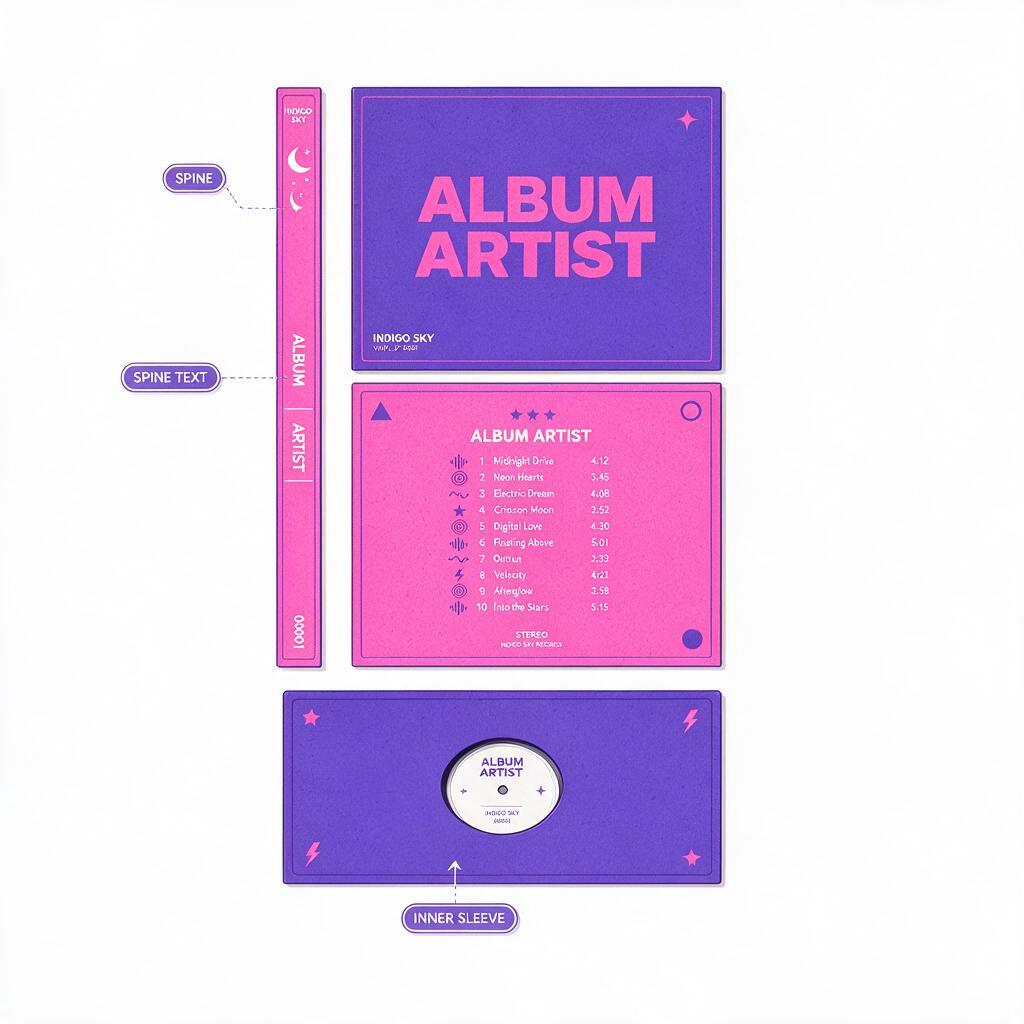
- You can build an entire full album packaging set (front, back, spine, inner sleeves) in under an hour without any design software experience.
Keywords
album back covers, album spines, imagen album art, readable ai text, album packaging design, matching album art, ai album cover