Turn Album Cover Art Into Beat-Synced Visualizers With Seedance
This guide shows independent music artists and MV creators how to use Seedance to turn static album cover art into beat-synced, audio-reactive visualizers that match their album’s aesthetic. It includes a reusable base prompt template, genre-specific prompt variations, settings tuning guidance, and troubleshooting for common issues like style drift and off-beat motion. Readers can create professional visualizers for YouTube, social media, and live streams without prior motion design experience.
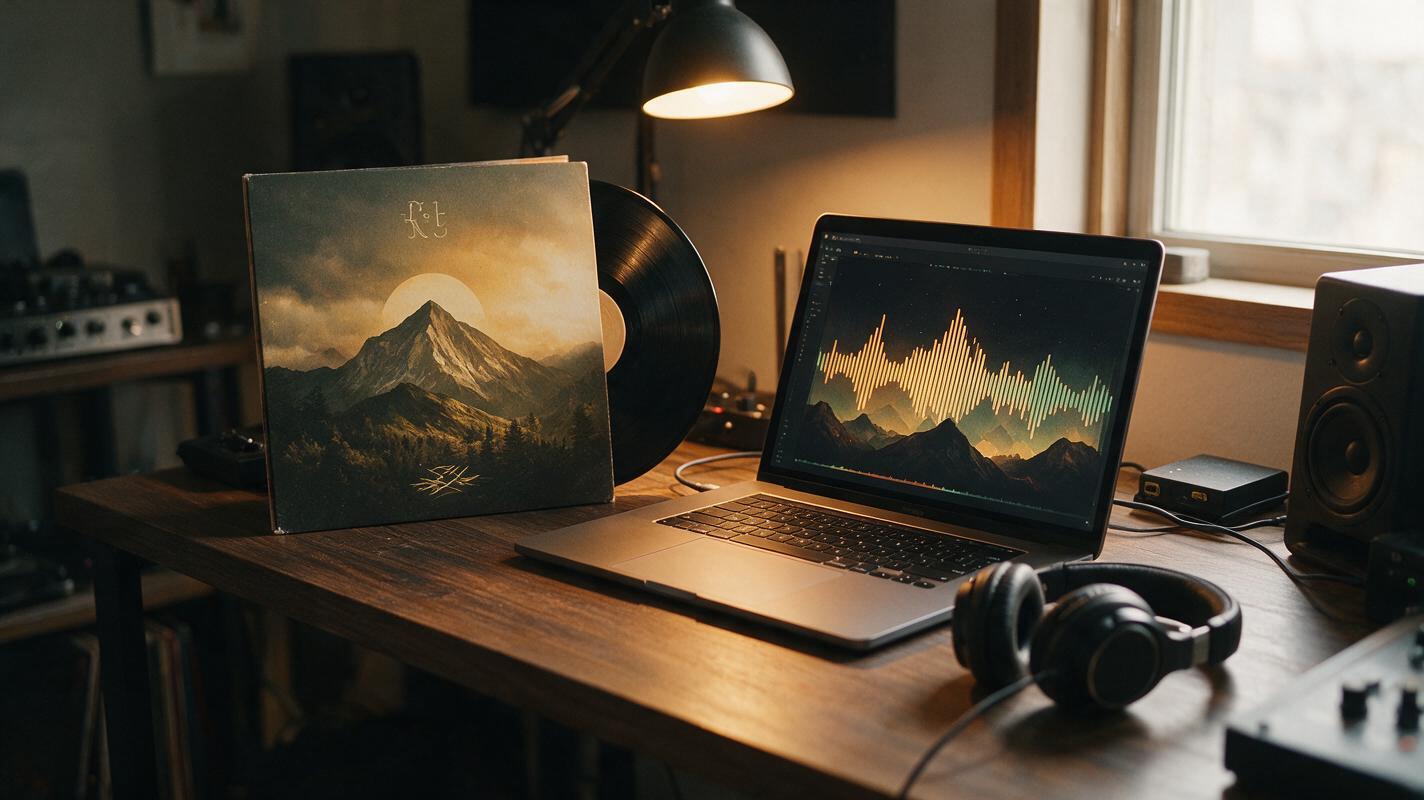
Table of contents
The problem with generic music visualizers
Independent artists pour hours into refining their album cover art to capture their sound and brand, then settle for generic audio visualizer templates that clash with their aesthetic, feel unoriginal, and fail to sync with the unique dynamics of their track. For YouTube uploads, Spotify Canvas extensions, TikTok promo clips, and live stream backdrops, a visualizer that matches your cover art turns passive listens into immersive, brand-aligned experiences.
Seedance’s image to video and audio reactivity features solve this by letting you use your existing album cover as the base for a custom, beat-synced visualizer — no motion design skills or expensive software required.
Prepping your album cover for clean, consistent results
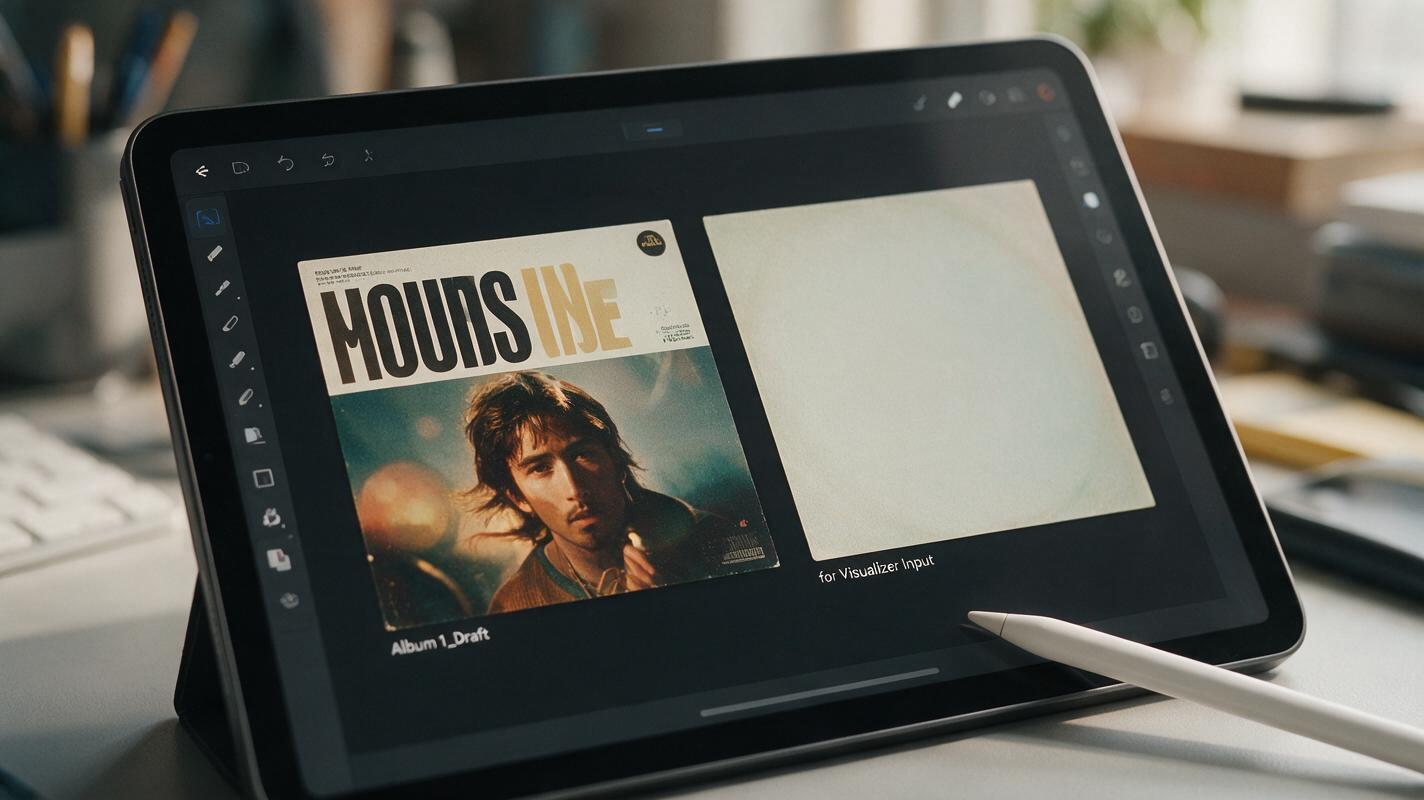
Before you generate your visualizer, a few small tweaks to your cover art will prevent common issues like text distortion and style drift. Start with a high-resolution export (at least 1920x1920 for square formats, 1920x1080 for horizontal YouTube visualizers) with flattened layers so no hidden elements interfere with generation.
If your cover has small or intricate text, consider creating a text-free version of the art to use as the input base, then overlay the original text in a free video editor after generation to guarantee readability. For best results, make sure your cover has a clear focal point (a portrait, central object, or distinct graphic) that Seedance can anchor motion to, rather than a fully flat or uniform design.
Core Seedance prompt structure for audio-reactive visualizers
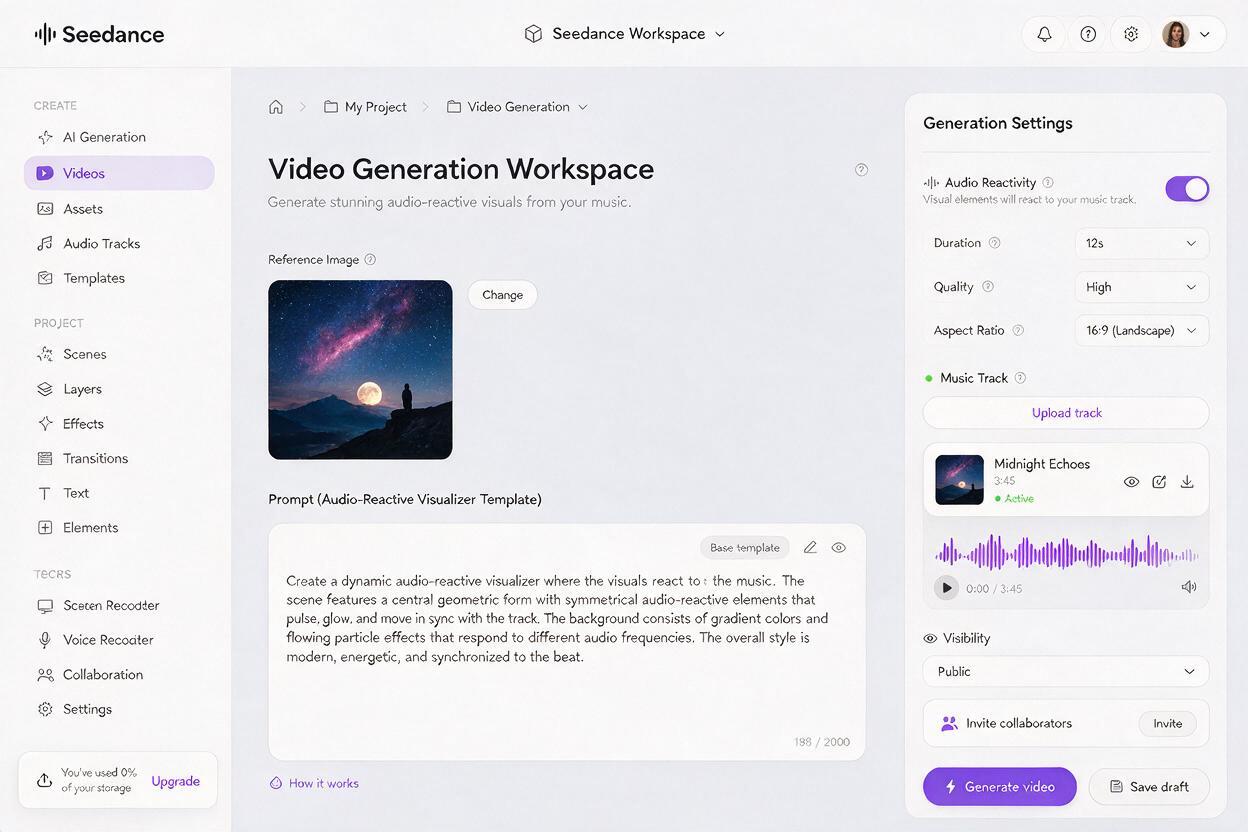
The key to a great album-matched visualizer is a prompt that ties motion directly to audio cues while locking in your cover’s style. Use this base template, swapping the bracketed details for your album’s specific traits:
[Describe your album cover art in 2-3 specific details: e.g., "dark indie folk album cover with a watercolor mountain range at golden hour, soft grain, muted teal and orange palette"]
Audio-reactive motion: focal elements pulse and expand on kick drum beats, ambient particles drift on synth pads, camera slowly zooms in on the central mountain during choruses
Style consistency: preserve exact color palette, texture, and illustration style of the reference image, no added elements or color shifts
Output: 1080p horizontal, 60-second seamless loop, smooth motion, no flicker
When you upload your cover art as a reference image, set the reference strength to 0.75–0.85 to keep the visual style locked in while still allowing for natural motion. Turn on audio reactivity and upload a 60-second clip of your track’s chorus or most dynamic section to test the sync first.
Once you’ve tailored the base prompt to your cover, turn your image into a video and run a short test clip before generating the full length.
Genre-specific prompt variations for every sound
Adjust the motion details in your prompt to match your genre’s energy and sonic traits. Here are ready-to-use variations you can drop into the base template:
- Indie folk / acoustic: Soft, organic motion: grass and tree leaves sway gently on string swells, sunbeams brighten on vocal harmonies, slow horizontal pan across the landscape, no sharp movements
- Hyperpop / electronic: High-energy reactive motion: neon outlines flash on every beat, geometric shapes morph and multiply on synth drops, quick zoom pulses on bass hits, glitch effects timed to percussion
- Hip-hop / trap: Bold, punchy motion: central portrait or logo pops forward on 808s, grain and contrast spike on snare hits, slow rotation of the focal element, smoke or particle bursts timed to ad-libs
- Ambient / post-rock: Slow, evolving motion: fog and light drift continuously, colors shift gradually across the full track length, subtle zoom out over time, no hard beat triggers, smooth texture changes
- Punk / rock: Aggressive, raw motion: camera shakes on drum hits, grain increases on choruses, high-contrast flashes timed to guitar riffs, quick cuts between close-up and wide shots of the cover’s focal point
Tuning audio reactivity and motion settings
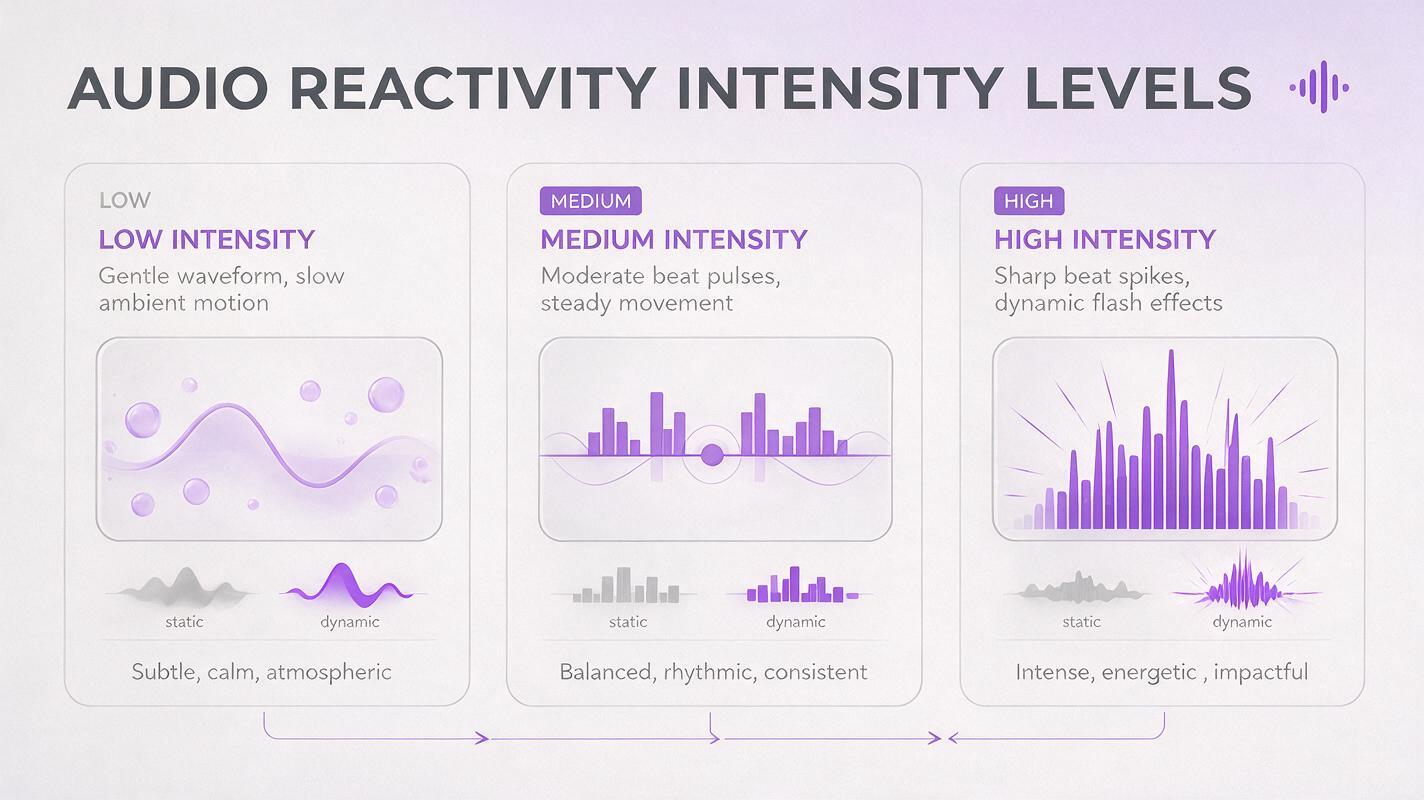
Even with a great prompt, small adjustments to Seedance’s settings can make the difference between a smooth, immersive visualizer and a chaotic, distracting one. Start with these baseline settings, then tweak based on your genre:
| Setting | Low-energy (folk / ambient) | Medium-energy (indie / hip-hop) | High-energy (hyperpop / punk) |
|---|---|---|---|
| Beat sensitivity | 0.3–0.4 | 0.5–0.6 | 0.7–0.85 |
| Motion intensity | 0.2–0.3 | 0.4–0.6 | 0.7–0.9 |
| Camera movement | Minimal (slow pan only) | Moderate (zoom + slow pan) | Dynamic (punchy zoom + shake) |
| Loop length | 60–90 seconds | 30–60 seconds | 15–30 seconds |
For seamless loops, make sure your track’s clip starts and ends at a similar point in the arrangement (e.g., the start and end of a chorus) so the motion doesn’t jump when the loop repeats. If you’re making a full-track visualizer for YouTube, generate multiple 60-second clips with slight prompt variations and stitch them together in a free editor to avoid repetitive motion.
Troubleshooting common visualizer issues
Even with careful prep, you may run into small issues. Here are fixes for the most frequent problems:
- Style drift or color shifts: Increase reference strength by 0.05–0.1, and add "strictly preserve reference image color palette and art style" to the end of your prompt. Avoid describing new visual elements that aren’t already on your cover.
- Text distortion or warping: Use a text-free version of your cover as the input, then add your album title and artist name back in post-production. If you want text in the generated clip, add "text remains perfectly sharp and readable, no distortion" to your prompt and keep reference strength above 0.8.
- Motion is off-beat or unsynced: Double-check that your audio clip is a high-quality MP3 or WAV file with no background noise. Increase beat sensitivity by 0.1, and specify exactly which elements move on which beats (e.g., "kick drum triggers pulse, snare triggers flash") in your prompt.
- Too much camera movement: Add "static camera, no zoom, no pan" to your prompt, or set motion intensity to a lower value. For subtle movement, specify "only focal elements move, background stays static" to keep the composition stable.
- Flicker or stuttering motion: Increase the frame rate setting to 30fps or higher, and add "smooth motion, no flicker, consistent lighting" to your prompt. Avoid rapid color or brightness changes in your motion cues.
Key takeaways
- Start with a high-resolution album cover, and use a text-free version if you want to guarantee readable typography in your final visualizer.
- Use the base prompt template to tie motion directly to specific audio cues, and adjust motion intensity to match your genre’s energy.
- Test with a 10–15 second clip first to check beat sync and style consistency before generating the full-length visualizer.
- For multi-platform use, generate square (1:1) for Instagram, vertical (9:16) for TikTok/Reels, and horizontal (16:9) for YouTube from the same cover art.
Keywords
seedance, album cover visualizer, beat-synced visualizer, audio reactive visualizer, music visualizer, image to video, album promo