How to Make Album Cover-Matched Lyric Video Backgrounds With Luma
Lyric videos need backgrounds that match your album art without pulling focus from the text, but most AI video tools produce busy, fast-motion footage that makes lyrics unreadable. This guide shows you how to use Luma’s image to video tool to turn your existing album cover into smooth, low-distraction lyric video backgrounds tailored for YouTube, TikTok, and Reels. It includes cover prep tips, genre-specific prompt templates, and fixes for common issues like choppy loops and style drift.
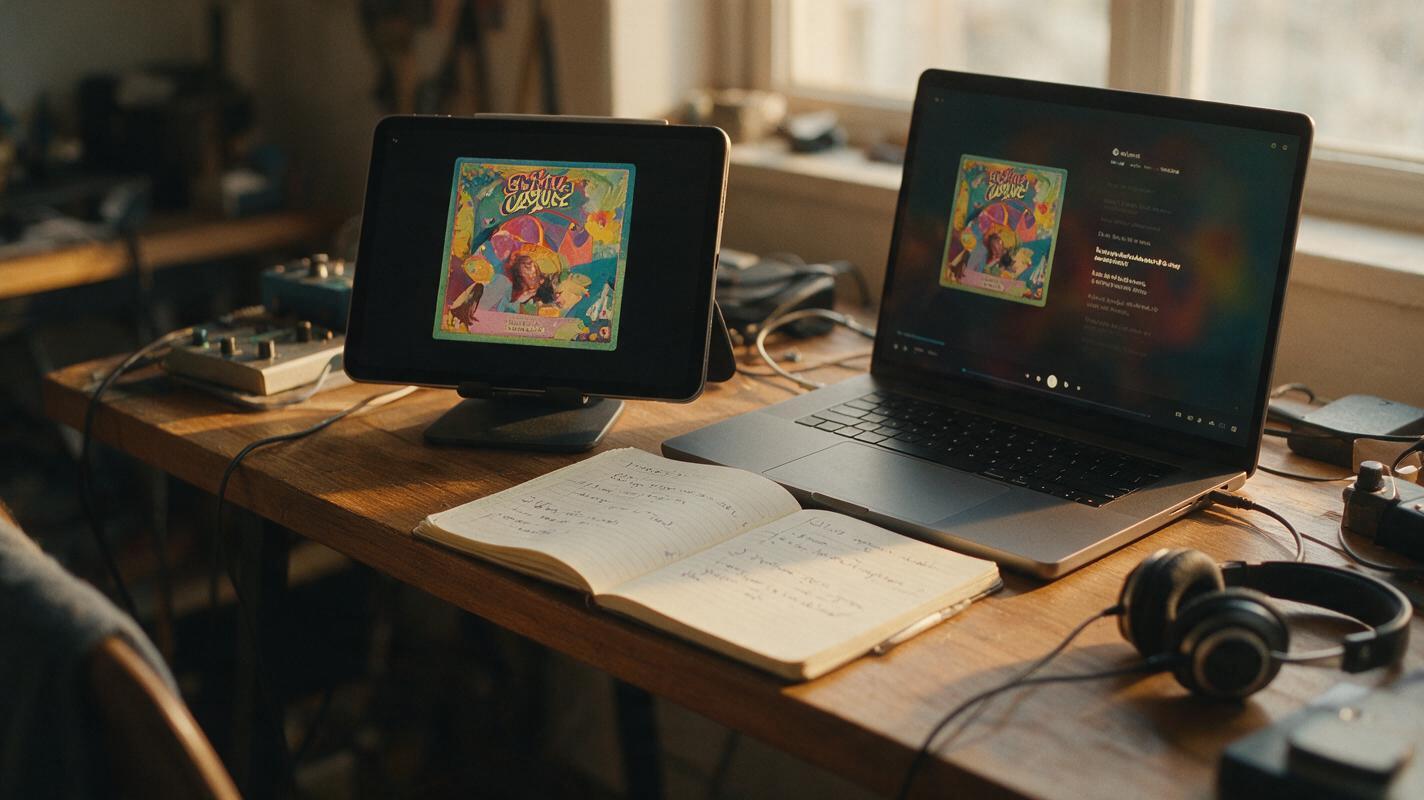
Table of contents
What makes a great lyric video background?
If you’ve ever published a lyric video and gotten comments that the text is hard to read, or that the visuals don’t match your single or album cover, you’re not alone. Lyric video backgrounds walk a fine line: they need to feel on-brand and visually engaging, but they can’t be so busy or fast-moving that they compete with the lyrics themselves. Most off-the-shelf AI video tools generate flashy, high-motion footage that works for promo reels but falls flat for lyric content, where text readability is the top priority.
The solution is to build backgrounds from your existing album cover art, using controlled, subtle motion that preserves the cover’s style while keeping a clear, low-distraction zone for lyrics. Luma’s image to video tool is ideal for this because it produces smooth, cinematic motion with fine-grained control over speed and movement, making it easy to keep text areas static while adding gentle life to the rest of the frame.
Prep your album cover for text readability
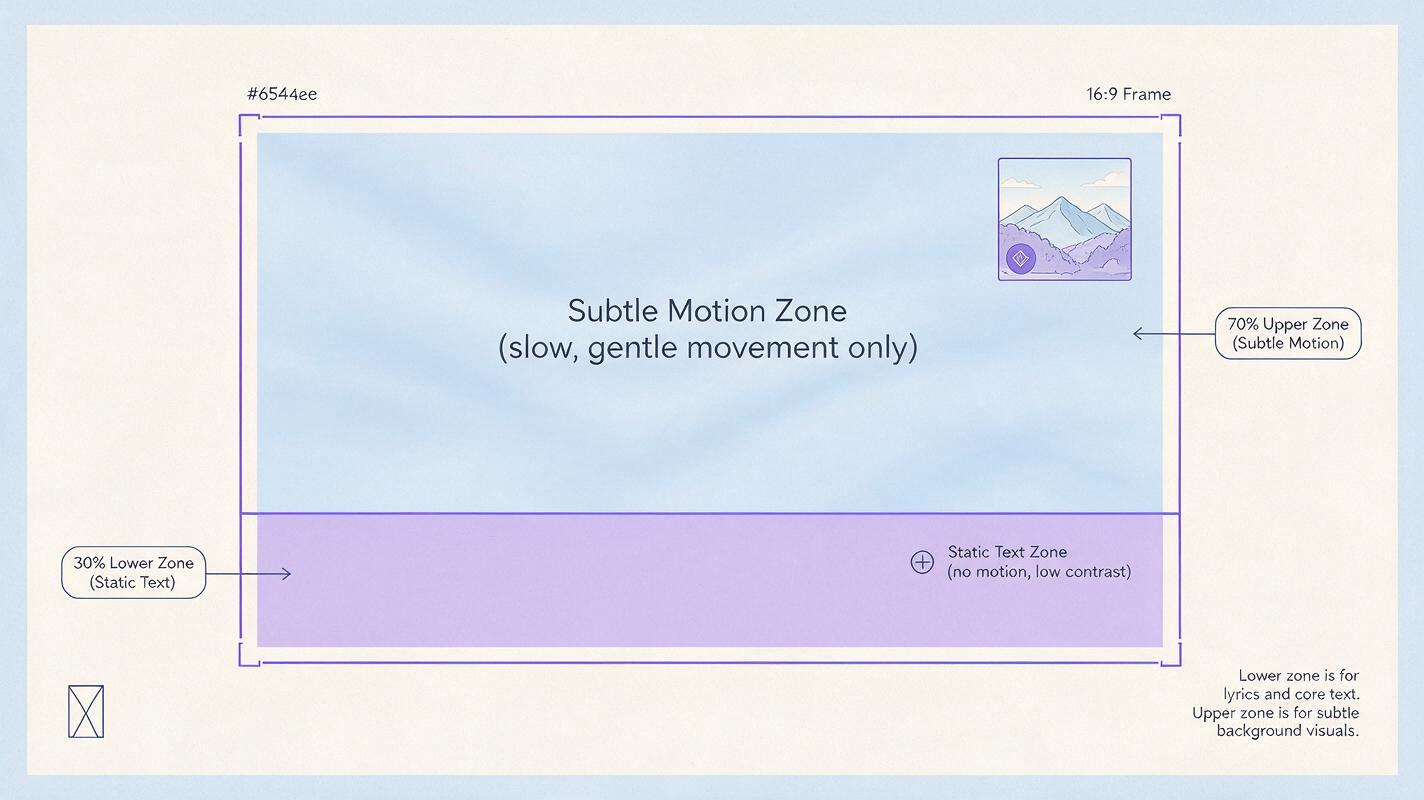
Before you generate any video, you need to adjust your cover art to create a dedicated text zone where lyrics will sit. This zone (usually the lower third for horizontal video, or the middle third for vertical) should have low contrast and minimal detail, so white or black text pops without distraction.
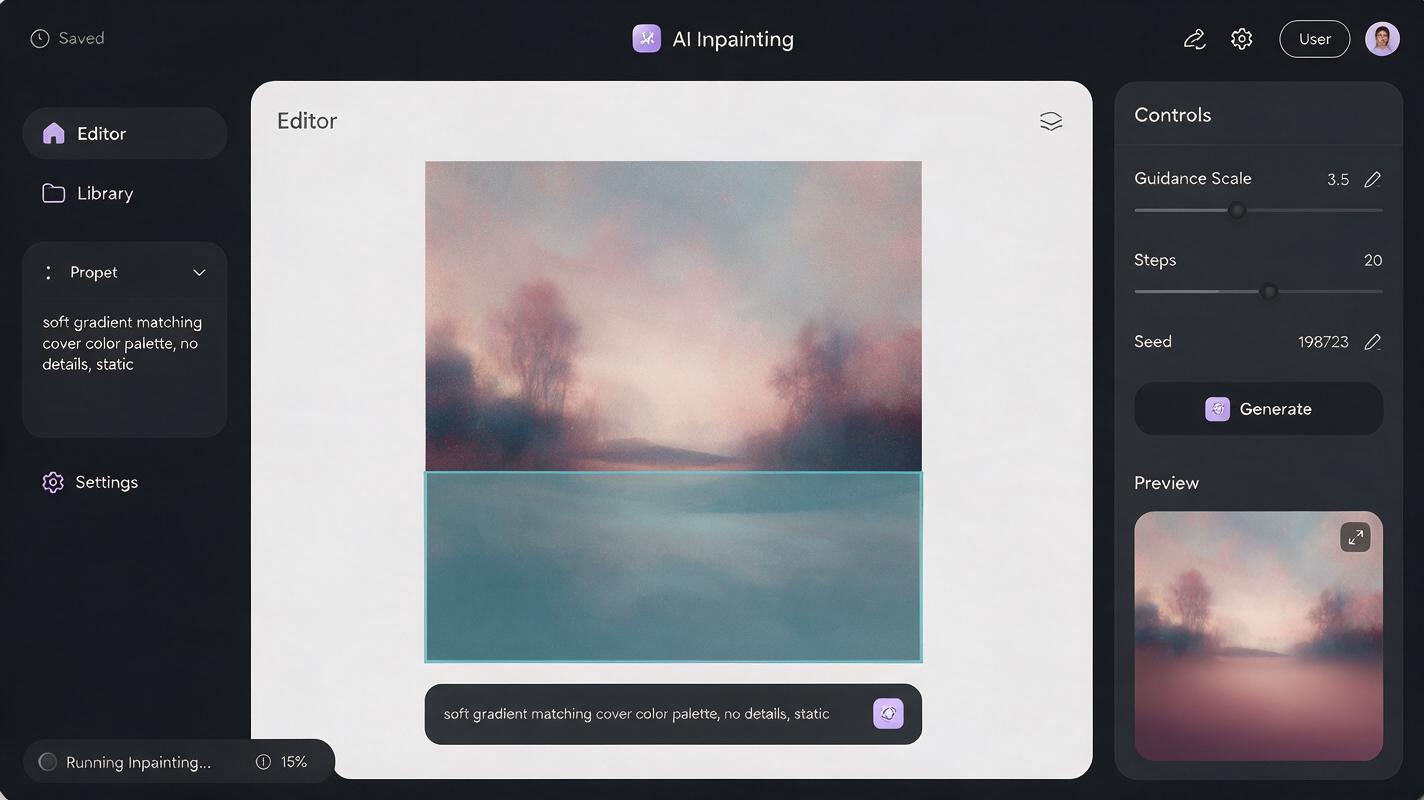
Start by cropping your cover to your target aspect ratio (we’ll cover platform-specific sizes later). Then, identify the area where your lyric text will go. If that area is already low-contrast (like a solid color sky, a soft gradient, or a blurry background), you’re good to go. If it’s busy (filled with text, detailed artwork, or high-contrast elements), use an ai image generator to inpaint a softer, more uniform version of the background in that zone, matching the cover’s color palette and style exactly.
For best results, keep the artist name and album title out of the text zone entirely—you don’t want lyrics overlapping with existing cover typography. If your cover has prominent text in the lower third, move it to the top of the frame during prep, or remove it entirely for the lyric video version.
Generate low-distraction backgrounds with Luma
Once your prepped cover is ready, upload it to Luma’s image to video interface. The key here is to write prompts that explicitly limit motion in the text zone, keep overall movement slow, and preserve the cover’s original style as closely as possible.
Start with a base prompt structure that includes three core parts: a style reference to the cover, a description of the subtle motion you want, and a clear instruction to keep the text zone static. Avoid prompts that mention camera movement, fast action, or dynamic changes—these will make the background too distracting for lyrics.
Pro tip: For 16:9 horizontal lyric videos, specify that the lower third of the frame stays completely static. For 9:16 vertical lyric videos, specify that the middle 40% of the frame has no movement. This guarantees a clean, readable area for your lyric text.
When adjusting motion settings, set the motion strength to low or medium-low. Luma’s default motion setting often produces more movement than is ideal for lyric backgrounds; dialing it back keeps the feel subtle. You should also disable any dynamic camera or cinematic movement toggles if they’re available, as these can cause the text zone to shift or warp.
Test this prompt yourself with your own cover art to see how small changes to motion strength affect readability.
Genre-specific prompt templates you can reuse
Different music genres call for different types of subtle motion. Below are reusable prompt templates tailored to common genres, all optimized for low distraction and style consistency with your cover art. Replace the bracketed text with details from your own cover.
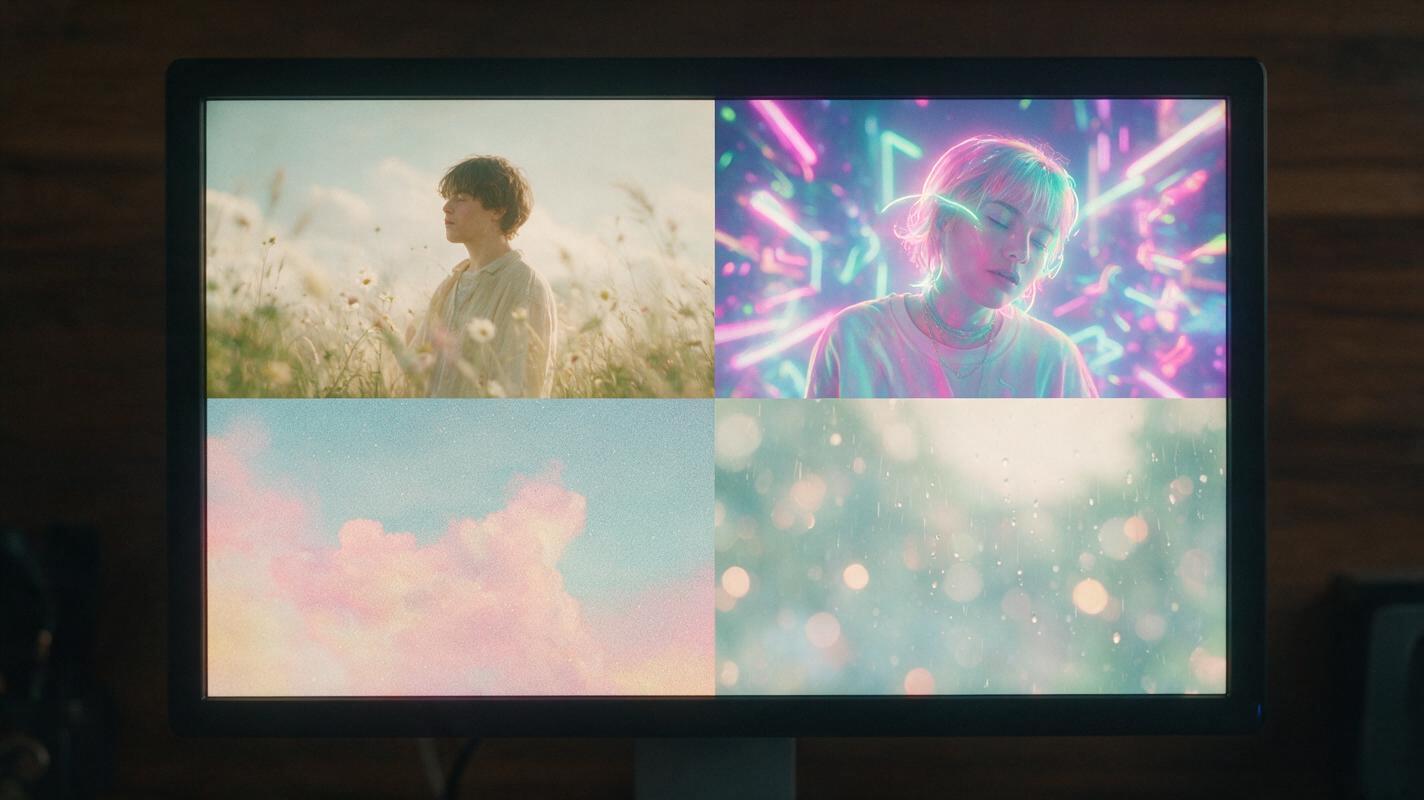
- Indie folk / acoustic: Slow, gentle pan across the album cover landscape, soft golden hour light shifting slightly, lower third of frame completely static, no camera shake, preserve original cover art style exactly, 4k, smooth motion
- Hyperpop / electronic: Subtle neon glow pulsing in time with a slow beat, soft particle effects floating in the upper half of the frame, middle third of vertical frame completely static, preserve original cover color palette and style, no fast movement, 4k
- Hip hop / rap: Slow, subtle zoom out from the center of the cover, soft grain texture shifting gently, lower third of frame static, preserve original cover art and typography style, no warping, 4k
- Lofi / chill: Slow rain or snow falling softly in the upper part of the frame, gentle bokeh lights dimming and brightening slowly, lower third completely static, match cover art mood and color palette exactly, smooth, no fast motion
All of these templates keep the text zone explicitly static and limit motion to the edges or upper portion of the frame, so lyrics stay readable without feeling like they’re pasted on a flat image.
Troubleshoot common lyric background issues
Even with a good prompt, you might run into a few common problems. Here’s how to fix them:
- Motion is too fast or busy: Lower the motion strength setting by 20-30%, and add "extremely slow motion, no sudden movement" to the end of your prompt. Avoid any mention of dynamic or energetic visuals.
- Text zone moves or warps: Explicitly name the text zone in your prompt (e.g., lower third of the frame is completely static, no movement or distortion) and increase the image reference strength to prioritize the original cover’s composition.
- Style drifts from the cover: Turn up the reference image strength setting, and add "exact match to reference image style, color palette, and composition" to your prompt. Avoid adding new visual elements that aren’t present on the original cover.
- Loop is choppy or glitches: Generate a longer clip than you need (at least 10 seconds longer than your intended loop length) and crossfade the end back to the start in your video editor. For seamless loops, add "seamless looping, no sudden changes at start or end" to your prompt.
Export for every platform
Lyric videos are posted across multiple platforms, each with its own ideal aspect ratio and resolution. Generate your background in each of these sizes to avoid awkward cropping later:
| Platform | Aspect Ratio | Resolution | Text Zone |
|---|---|---|---|
| YouTube Lyric Video | 16:9 | 1920x1080 | Lower third (bottom 30% of frame) |
| TikTok / Reels Lyric | 9:16 | 1080x1920 | Middle third (center 40% of frame) |
| Instagram Carousel Lyric | 1:1 | 1080x1080 | Lower quarter (bottom 25% of frame) |
| Spotify Canvas Lyric Snippet | 9:16 | 720x1280 | Lower third (avoid bottom 10% for UI elements) |
When exporting, choose the highest resolution available, and export in MP4 format for maximum compatibility with video editing tools and social media platforms.
Final checklist
- Prep your cover art to create a low-contrast text zone free of busy details and existing typography
- Write prompts that explicitly keep the text zone static and limit overall motion to slow, subtle movement
- Set motion strength to low or medium-low to avoid distracting from lyrics
- Match the aspect ratio and text zone placement to your target platform
- Test loops by crossfading the end of the clip back to the start for seamless playback
- Verify style consistency by comparing the final clip side-by-side with your original album cover
Keywords
lyric video backgrounds, luma ai, album cover match, music video assets, image to video, low motion visuals, lyric video creation