Amazon Multipack Images That Show Exactly What Ships
A multipack listing can look convincing while leaving shoppers unsure whether they will receive one unit, several units, or a display box. This guide shows Amazon sellers how to photograph the actual offer, use AI for supporting scenes without changing the contents, and check every image against the pack buyers will receive.
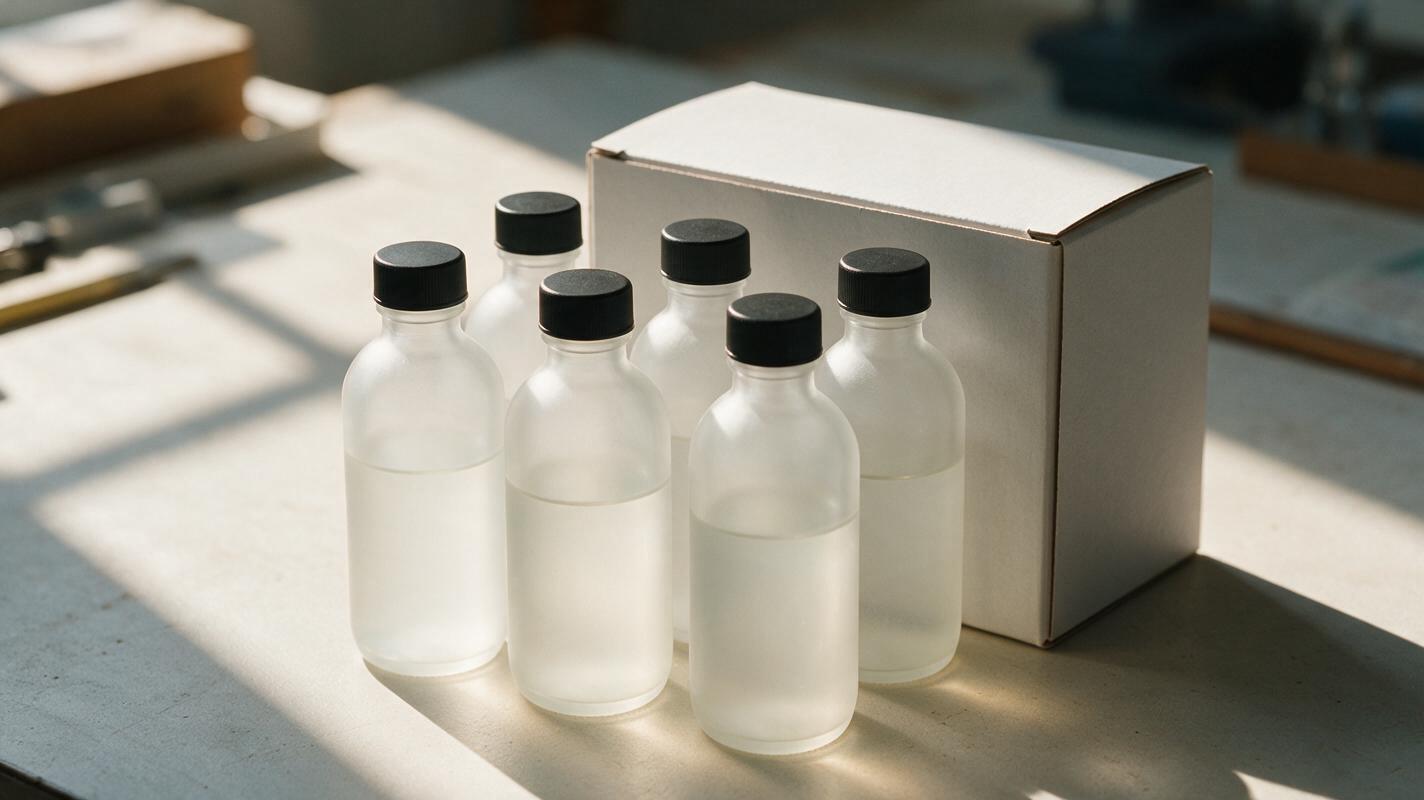
Table of contents
The quantity problem shoppers notice first
A multipack image has one job that a single-product photo does not: it must make the purchase quantity unmistakable. If your listing says six bars but the photo shows one bar beside a display carton, shoppers may reasonably wonder whether the carton is included or whether the image represents a single unit. AI can help create a polished setting, but it should not decide how many products appear or what packaging ships.
The safest approach is to establish the offer with photographs of the real items, then use generated backgrounds only where they improve presentation. The same distinction applies whether you sell identical refill bottles, individually wrapped snacks, or a set of cleaning cloths.
Define the offer before making the image
Write down what a customer receives when they order one listing unit. Include the number of items, the size of each item, whether individual retail packaging is included, and whether an outer box is part of the delivered product. Check those details against the inventory you will actually fulfill—not an early sample or a supplier rendering.
| What the image shows | Question to settle before publishing |
|---|---|
| Six individual products | Are all six included in one order, and are their sizes and labels accurate? |
| Retail sleeve or branded box | Does every customer receive that packaging? |
| Shipping carton | Is it relevant to the offer, or could showing it imply a retail box that is not included? |
| Props or accessories | Could a shopper mistake them for included items? |
For a bundle with different components, photograph each component. For a multipack of supposedly identical items, compare several units before assuming one photographed unit can stand in for all of them. Handmade finishes, changing labels, and assorted colors may require photographs of the actual range rather than copied duplicates.
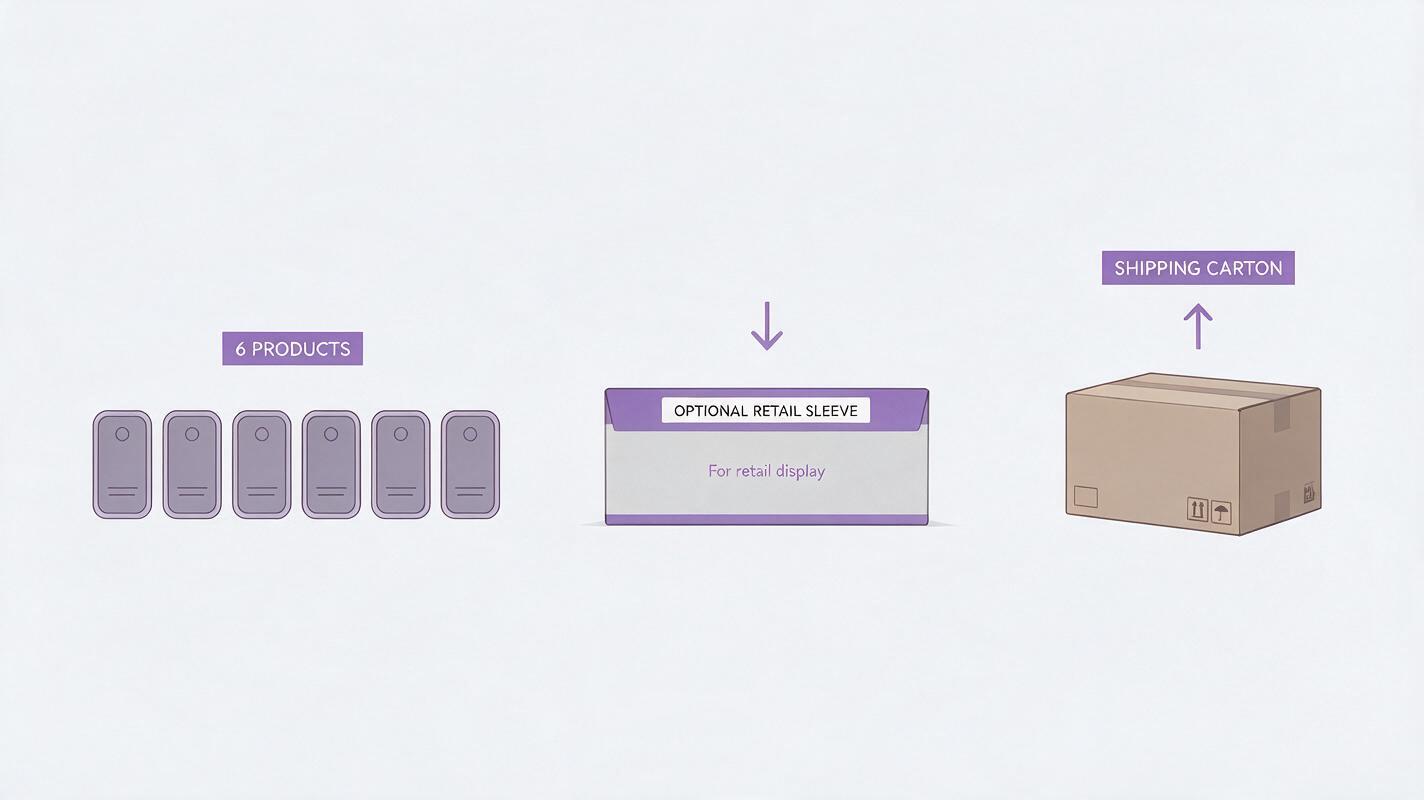
Photograph the quantity buyers will receive
Make a straightforward evidence photo with every included item visible. Arrange the products so none disappears behind another, and keep enough separation to count them at a glance on a phone. If the items ship inside an included retail box, photograph the box and its contents as separate views when that helps clarify the offer.
A useful supporting image for a six-pack might show six verified units in two rows of three. Another can show one unit close enough to read its real label. Those views answer different questions: How many do I get? and What is each one? Do not replace either answer with a generated pile of look-alike products.
If a customer must zoom in or read a caption to discover the quantity, make the arrangement clearer before adding design elements.
Keep the original files and a record of which pack configuration they represent. If your fulfillment changes from loose units to an included retail carton—or the unit label changes—review the images again.
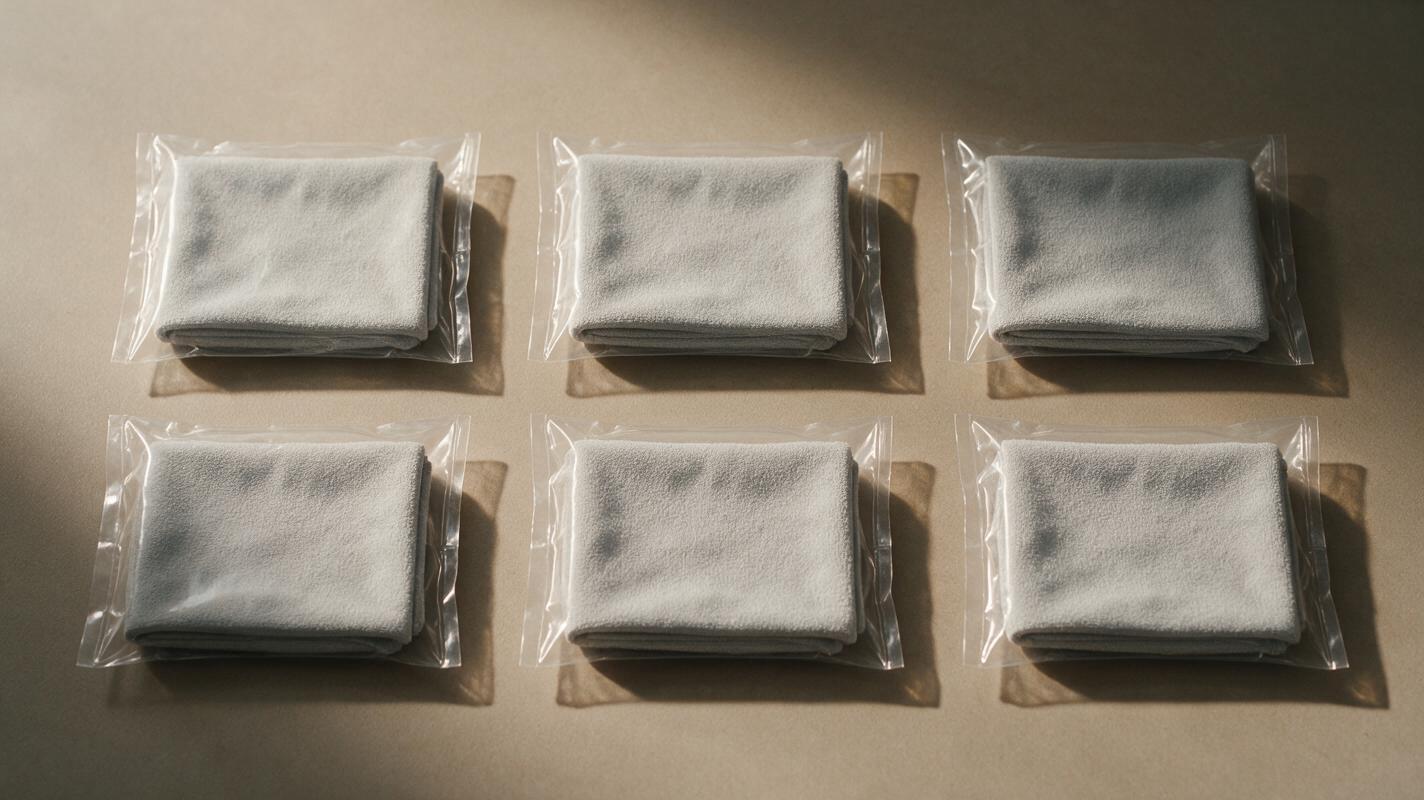
Give AI the setting, not the inventory
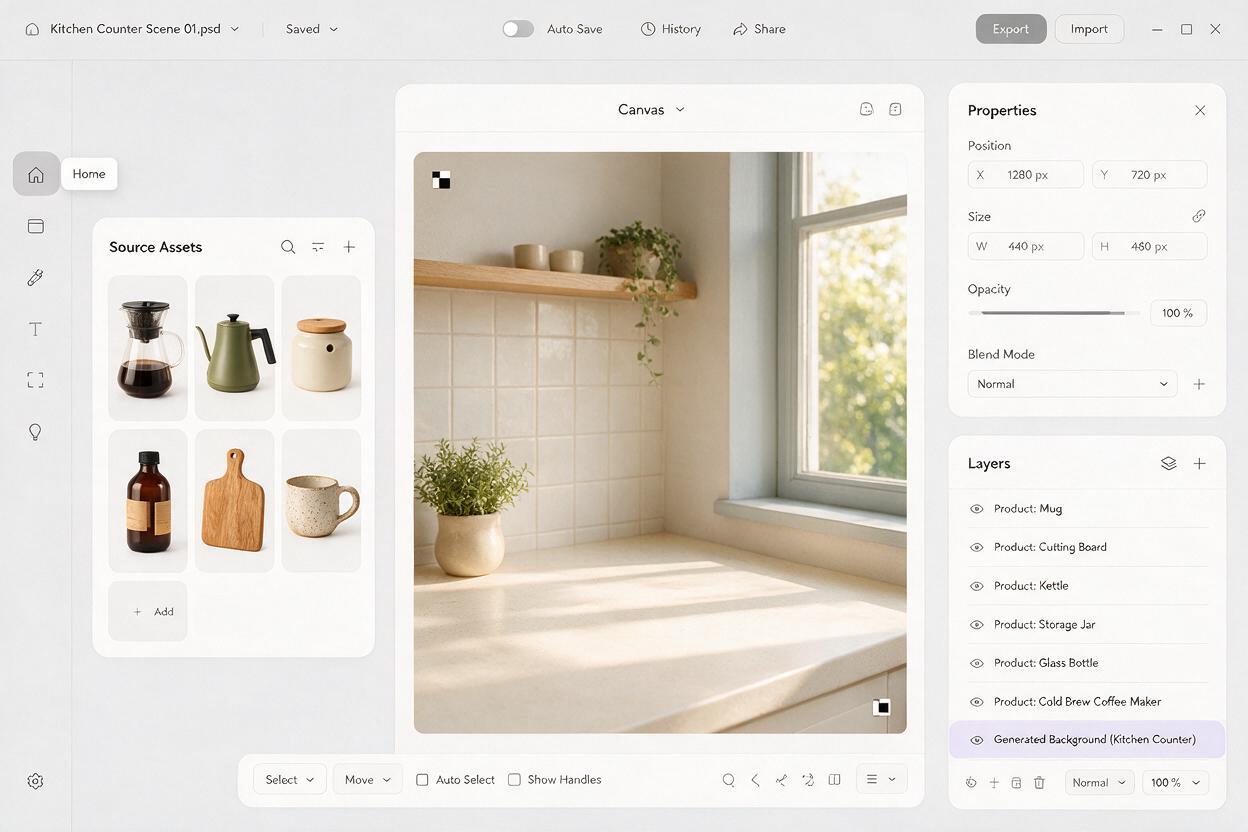
Seedream 4.5 can be used to explore an empty countertop or shelf scene for a supporting lifestyle image. The important boundary is that the model generates space around the merchandise; your verified product photographs supply the merchandise itself. If you use an ai image generator for the scene, ask for no products, packaging, lettering, or hands that might suggest extra contents.
Generate a photorealistic empty kitchen counter scene for a product multipack lifestyle image. Soft morning light from the left, pale stone counter, simple neutral wall, realistic contact surfaces, clear open area across the center for six photographed products to be composited later. No products, boxes, bottles, food, logos, labels, hands, or text.Composite the real product cutouts into the open area. Match their scale and lighting, then inspect edges and shadows so the arrangement looks grounded. A generated scene may suggest where a multipack is used, but it cannot verify quantity, included packaging, or product details.
For an assorted pack, keep each photographed variant distinct during compositing. Repeating one attractive color six times when the shipped pack contains six different colors would turn a tidy visual into an inaccurate offer.
Make the gallery answer three separate questions
Rather than crowding count, packaging, and use context into one composition, assign each supporting image a clear purpose:
- Quantity: show all included units in a countable arrangement.
- Identity: show a close view of the actual unit, label, finish, or size information.
- Presentation: show the products in a plausible setting without adding implied contents.
The main image is subject to Amazon’s current requirements for the relevant category and listing type; check those requirements before uploading. Use supporting images to add clarity, not to correct a misleading main photo. If a sleeve, tray, or box appears anywhere in the gallery, make sure its role is clear and that the depicted packaging matches what ships.
Be especially careful with captions such as “set of six.” A caption can reinforce a visible count, but it should not be the only evidence for it. Likewise, do not invent a printed quantity badge on the product package. Add any explanatory gallery text as editable design text outside the photographed packaging, and verify it against the listing.
Catch the errors that polished images can hide
Review the finished gallery at thumbnail size and again at full size. Count every visible unit in each image. Check that a rear-row item has not been partly erased, duplicated, or transformed during editing. Compare labels, caps, patterns, and dimensions with the source photographs.
Then ask someone unfamiliar with the product a simple question: “What would you expect to receive if you bought one?” If their answer differs from your fulfillment record, revise the images or the listing before publishing. That test is more useful than asking whether the scene looks professional.
Once the evidence photos and an empty-scene prompt are ready, test this prompt yourself and keep the photographed products—not generated substitutes—as the source of truth.
Final checklist
- The displayed unit count matches one order of the listing.
- Every shown variant and package matches the actual offer.
- Props and shipping materials do not look like included merchandise.
- At least one image makes the quantity easy to count on mobile.
- Generated backgrounds contain no invented products or packaging.
- The gallery and listing details agree with current fulfillment inventory.
Keywords
amazon multipack images, amazon product images, multipack product photography, product listing images, ai product photography, product photo background