How to Batch Generate Consistent Catalog Product Backgrounds With Seedream 4.5
Ecommerce marketers with large product catalogs can use Seedream 4.5 to batch generate on-brand, consistent background variants for every SKU in hours instead of days. This guide covers setting up a brand reference system, writing campaign-specific prompts, avoiding product drift across batches, and exporting assets for ad platforms and storefronts.
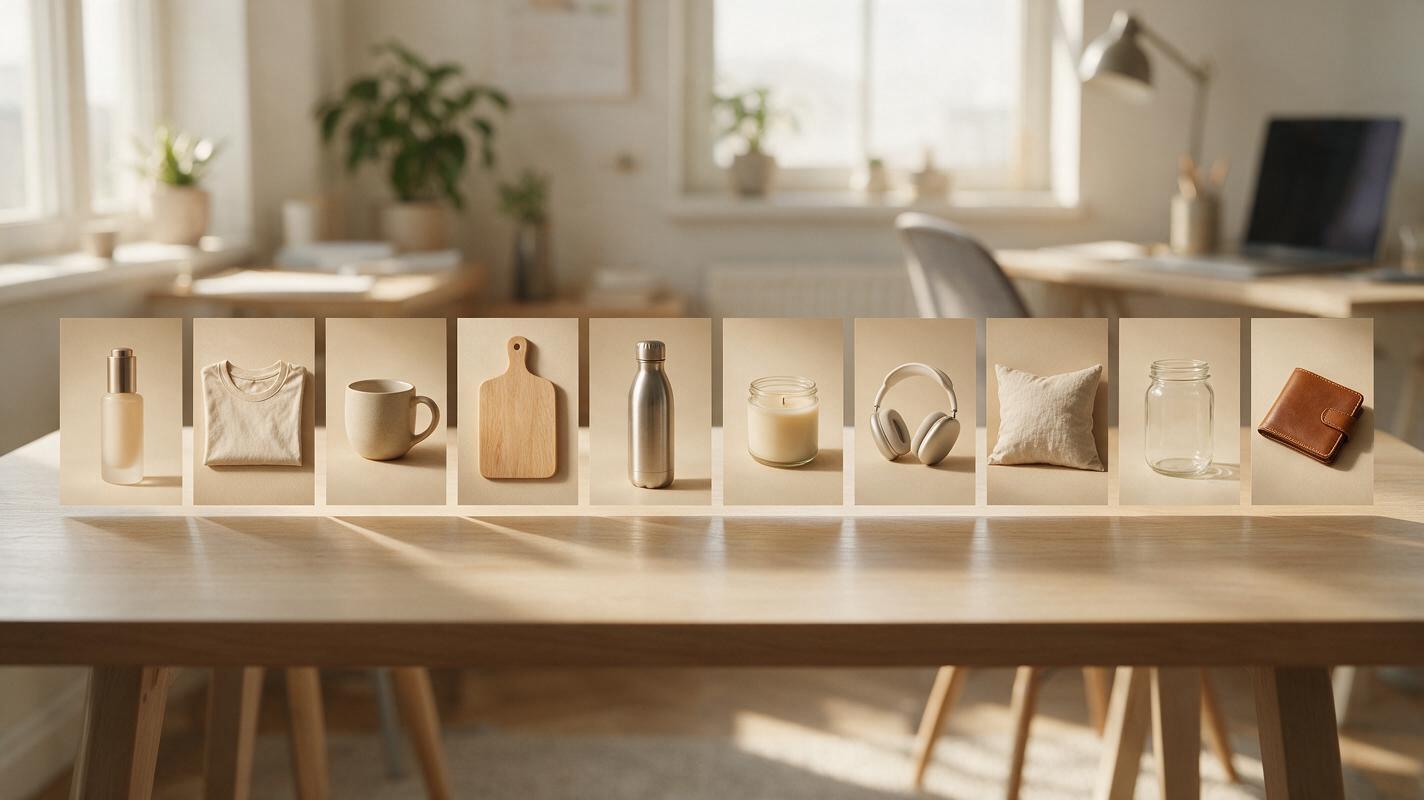
Table of contents
Stop editing catalog product backgrounds one by one
If you’ve ever spent a full week updating 200 SKU photos for a holiday sale, rebrand, or seasonal collection, you know the pain of inconsistent lighting, misaligned products, and labels that warp with every background swap.
Manual background replacement for large catalogs is slow, expensive, and prone to human error. Even freelance designers can take days to work through a mid-sized catalog, and small inconsistencies in shadow, lighting, or background tone can make your storefront look unpolished and hurt conversion rates. Basic AI background tools often make the problem worse: they treat each image as a separate task, so you end up with a dozen slightly different shades of "white" or mismatched shadow directions across your SKUs.
Seedream 4.5’s reference-based batch generation solves this by letting you lock in a single brand background style and apply it to dozens of product photos at once, while preserving product details, labels, and proportions. You can generate an entire catalog’s worth of campaign-ready assets in a few hours, with a consistent look that reinforces your brand. This guide walks through setting up a repeatable batch workflow, writing prompts that stay on-brand, and fixing common consistency issues across your entire product line.
Set up your brand style reference first
The single most important step for batch consistency is creating a single, perfect style reference image that defines exactly what you want your background to look like. This reference acts as the north star for every SKU in your batch, so the model doesn’t have to guess what "minimalist beige" or "spring garden" means.
If you already have a hero product photo with your desired background (from a past shoot, for example), you can use that directly. If you don’t, you can use an ai image generator to create a style reference from a text prompt, then refine it until it matches your brand guidelines exactly. Pick a reference with a simple, neutral product (like a plain white box) so the background style is the main focus — avoid busy products that distract from the lighting and texture you’re trying to replicate.
Pro tip: Your reference should include explicit details you want to replicate: lighting direction, shadow softness, background blur level, color palette, and any texture (like marble, wood grain, or fabric). The more specific your reference, the more consistent your batch output will be.
Prepare your catalog product photos for batch upload
Consistent input leads to consistent output. Before you upload any SKUs to the batch tool, take 15-20 minutes to standardize your source photos to avoid small variations that throw off the model.
Start with product isolation: if your source photos have cluttered or inconsistent backgrounds, run a one-click background removal pass first to isolate the product. This ensures the model focuses on applying your new background style instead of correcting existing clutter or trying to preserve old background elements.
Next, standardize framing and resolution. All product photos should have the same general framing (e.g., product centered, 75-80% of the canvas filled, equal white space on all sides) and the same base resolution. If you have a mix of portrait and landscape products, batch-resize them to a square canvas with consistent padding so every product sits at the same relative position. This ensures shadows, lighting, and background composition line up perfectly across every SKU.
Write prompts that lock in background consistency
When writing prompts for batch background generation, focus entirely on the background, lighting, and composition — not the product. The model will use your source product photo for the product itself, so adding extra product details (like "blue glass bottle") can cause conflicts and drift.
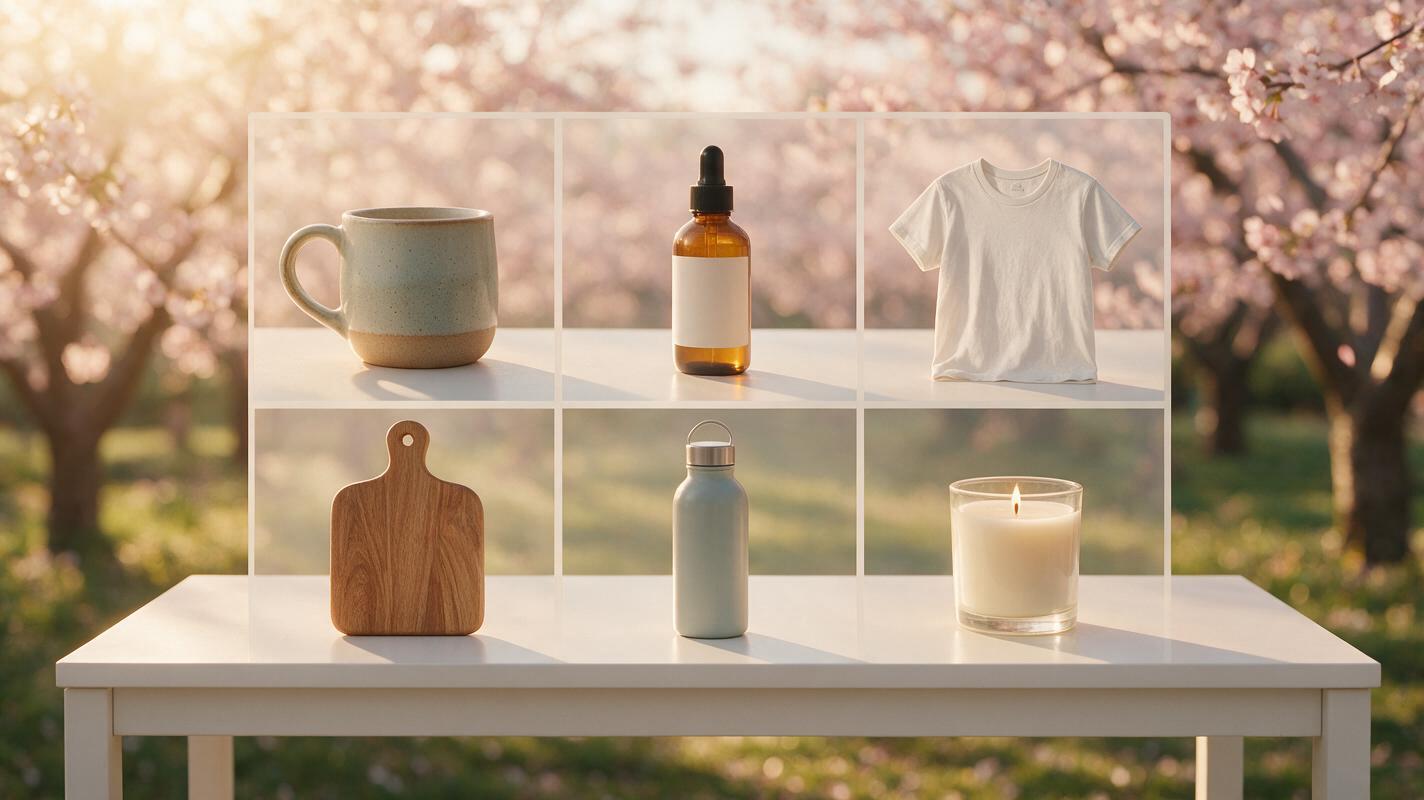
Stick to specific, measurable descriptions instead of vague phrases. For example, instead of "nice spring background", write "softly blurred cherry blossom garden background, warm golden hour lighting from top left, pastel pink and white tones, shallow depth of field".
Here’s a reusable prompt template for ecommerce product backgrounds:
commercial ecommerce product photo, product centered in frame, [background description], [lighting direction and quality], soft subtle shadow under product matching light direction, sharp focus on product, background slightly out of focus, 4K resolution, professional product photography styleTest this prompt yourself with 2-3 of your own catalog SKUs first to dial in settings before running a full batch. This small test can save you hours of rework if the initial output doesn’t match your vision.
Add a short negative prompt to exclude common issues: distorted labels, warped product shape, blurry product, inconsistent lighting, text in background, watermarks, grainy texture
Adjust batch settings for SKU accuracy
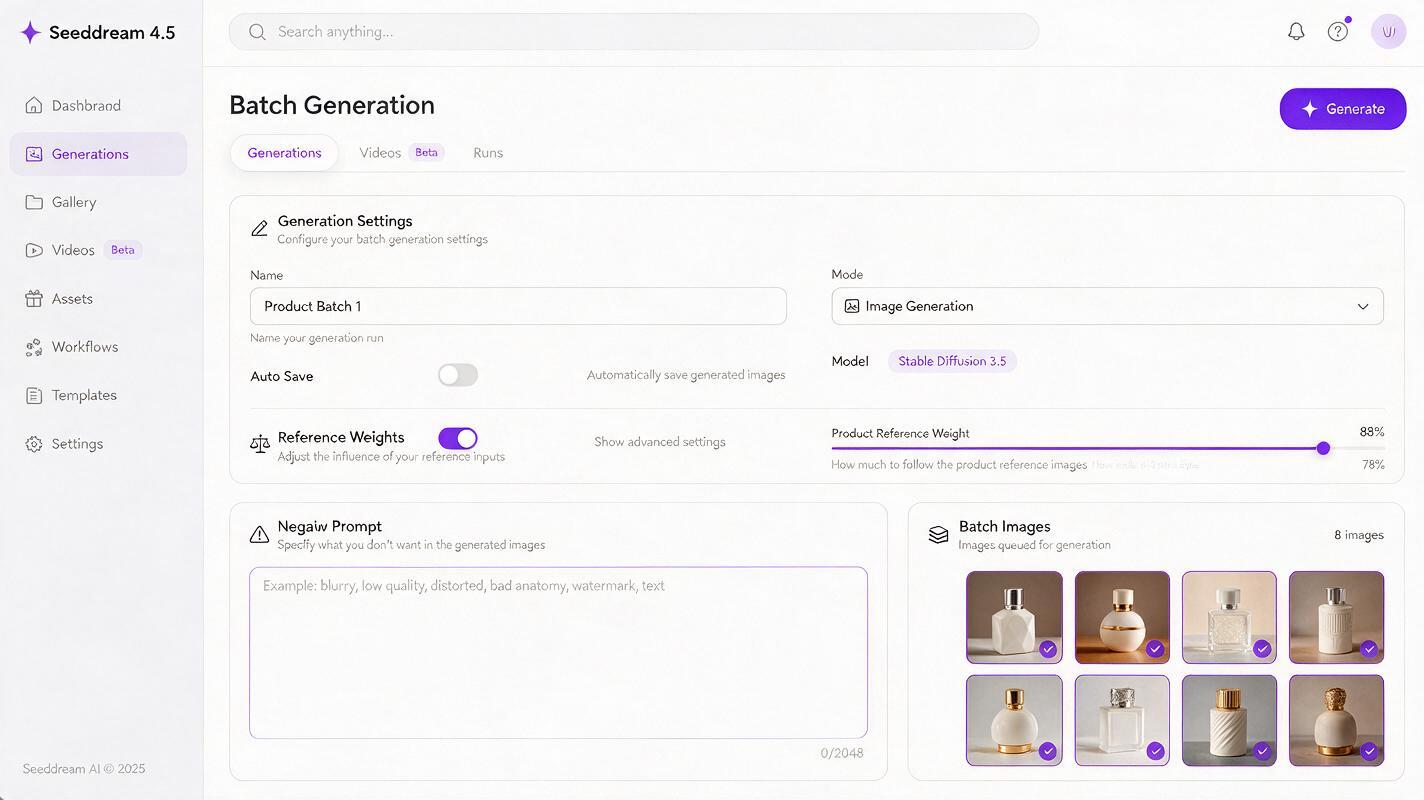
Seedream 4.5’s batch generation has two key settings that balance product accuracy and background consistency, and getting them right is critical for good results.
First, product reference weight: this controls how closely the output matches your source product photo. For catalog images where label accuracy, logo placement, and product shape are non-negotiable, set this to 85-90%. If you set it too low, the model may alter product details or warp packaging; too high, and it may carry over old background artifacts.
Second, style reference weight: this controls how closely the background matches your brand style reference. For a fully consistent catalog look, set this to 75-80%. Setting it to 100% will make every background identical, which can look unnatural and fake — a small amount of variation makes the assets feel like they were shot in a real studio.
Most batch tools let you set a single seed value for all generations, but for product backgrounds, we recommend leaving the seed random. A fixed seed will make small background elements identical across every image, which is easy for customers to spot and looks unprofessional. The style reference will keep the overall look consistent without needing a fixed seed.
Troubleshoot common batch consistency issues
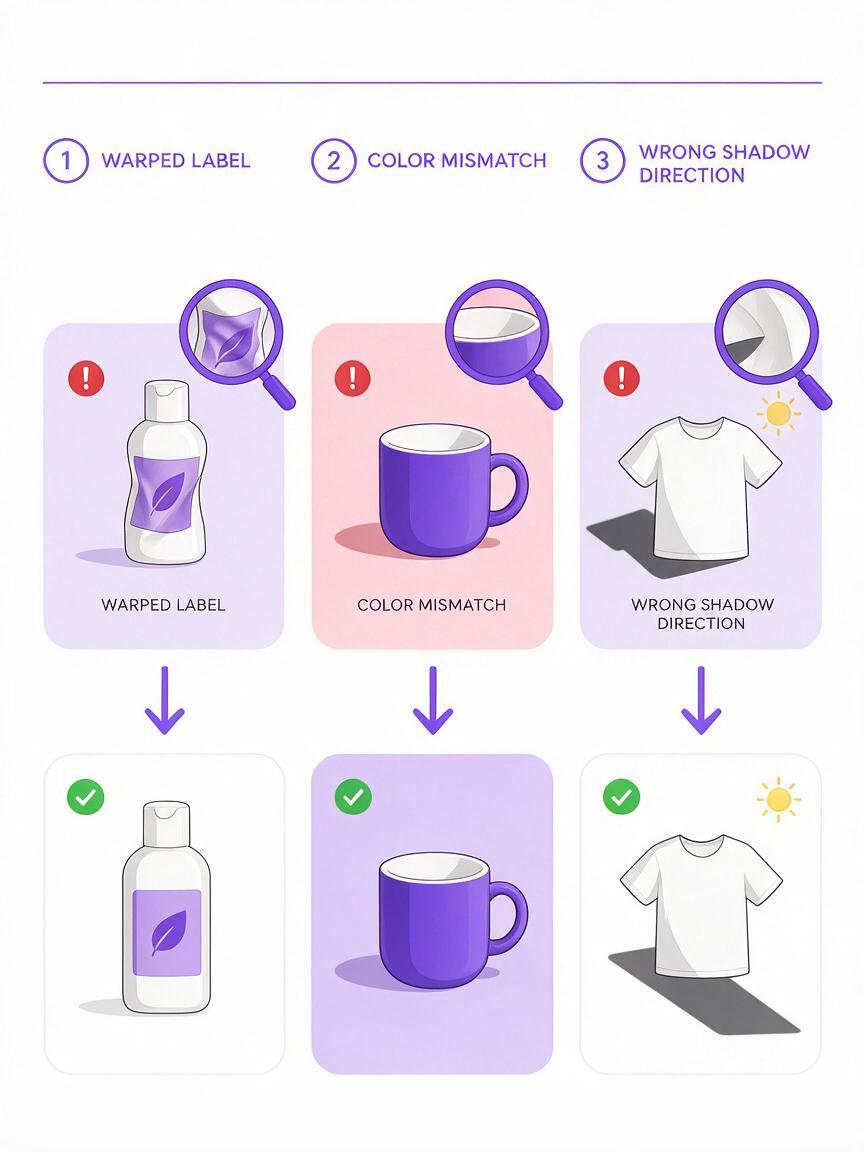
Even with perfect settings, you may run into small consistency issues across a large batch. Here’s how to fix the most common ones without re-running the entire catalog:
- Warped labels or misshapen products: Increase the product reference weight by 5-10% and re-run the affected SKUs. If the issue persists, add "preserve original product shape and labels" to the start of your prompt.
- Background color or texture variation: Increase the style reference weight by 5-10%, and make sure your style reference image is high-resolution with no compression artifacts. You can also add explicit hex color codes to your prompt for exact color matching.
- Mismatched shadow direction or hardness: Add explicit shadow details to your prompt (e.g., "soft diffused shadow falling to the bottom right") and double-check that your style reference has shadows that match your description.
- Products sized inconsistently: This is almost always an input issue. Go back to your source photos and make sure all products have the same frame fill and canvas size before re-uploading.
Most batch tools let you re-run individual SKUs, so you don’t have to redo the entire 100-SKU batch just because 3 images have issues. Spot-check 10% of your outputs as soon as the batch finishes to catch problems early.
Export variants for different sales and ad channels
Once you have your base batch of consistent product images, you can quickly generate variants for every channel you use, without redoing the entire workflow.
For Shopify or Amazon product pages, stick to 1:1 or 4:5 aspect ratios with clean, neutral backgrounds. For Instagram carousels and feed posts, use 1:1 or 4:5 with slightly more stylized backgrounds. For TikTok and Reels ads, generate 9:16 vertical versions with extra negative space at the top and bottom for text overlays.
You can also swap out the style reference to generate seasonal or campaign-specific variants in minutes. For example, if you have a summer sale coming up, replace your neutral beige background reference with a bright poolside background reference, keep the same product source photos, and run a new batch. You’ll have a full set of sale-ready assets in a fraction of the time it would take to shoot new photos.
Final checklist for batch catalog background generation
- Standardize all source product photos with consistent framing, resolution, and isolated products
- Create a single high-quality brand style reference image for your background look
- Write a specific prompt focused on background, lighting, and composition (no extra product details)
- Set product reference weight to 85-90% to preserve labels, logos, and product shape
- Set style reference weight to 75-80% for consistent but natural-looking backgrounds
- Test settings on 2-3 SKUs before running the full batch
- Spot-check 10% of outputs for consistency, re-run individual faulty SKUs as needed
- Export aspect ratio variants for each sales and ad channel
Keywords
batch product backgrounds, seedream 4.5, catalog product images, ecommerce product photography, product background generator, bulk product photo editing, campaign product assets