How to Generate a Full Branded Listing Social Asset Pack With PixVerse
Real estate marketers spend hours creating consistent, branded social media assets for every new listing, from carousel slides to story backgrounds. This guide shows how to use PixVerse to generate a full pack of matching listing social assets in minutes using a single hero listing photo as a style reference. It includes reusable prompt templates for every major social format, plus troubleshooting tips for common consistency issues.

Table of contents
Why manual listing social asset creation wastes hours
Stop spending 2+ hours per listing resizing, recoloring, and branding social media assets when you can generate a full consistent pack in 10 minutes.
For every new listing, real estate marketers need 8–12 distinct social assets: square carousel slides, vertical story backgrounds, wide Facebook page covers, Reel thumbnails, and open house invite graphics. Each one needs to match the listing’s aesthetic, align with your brokerage’s brand guidelines, and be optimized for its platform. Doing this manually in Canva or Photoshop eats into time better spent on lead follow-up and client meetings, and outsourcing to a designer adds cost and turnaround time.
PixVerse solves this by letting you generate a full set of matching assets from a single hero listing photo, with consistent colors, lighting, and tone across every size. No more manually adjusting filters or copying brand elements across 10 different files.
What you need to get started
Before you begin, gather these three inputs to ensure fast, accurate results:
- One high-res hero listing photo: Pick your best exterior or key interior shot, with good lighting and clear property details. This will be your style reference for all generated assets.
- Brand style notes: 1–2 short descriptors of your brand vibe (e.g., "minimalist modern luxury", "warm family-friendly suburban") and your primary brand color, if you want it incorporated into backgrounds or accent elements.
- Asset size list: Note which social formats you need (e.g., 1:1 carousels, 9:16 stories, 2.7:1 Facebook covers) so you can generate each one with the correct aspect ratio.
Set up your style reference for consistent results
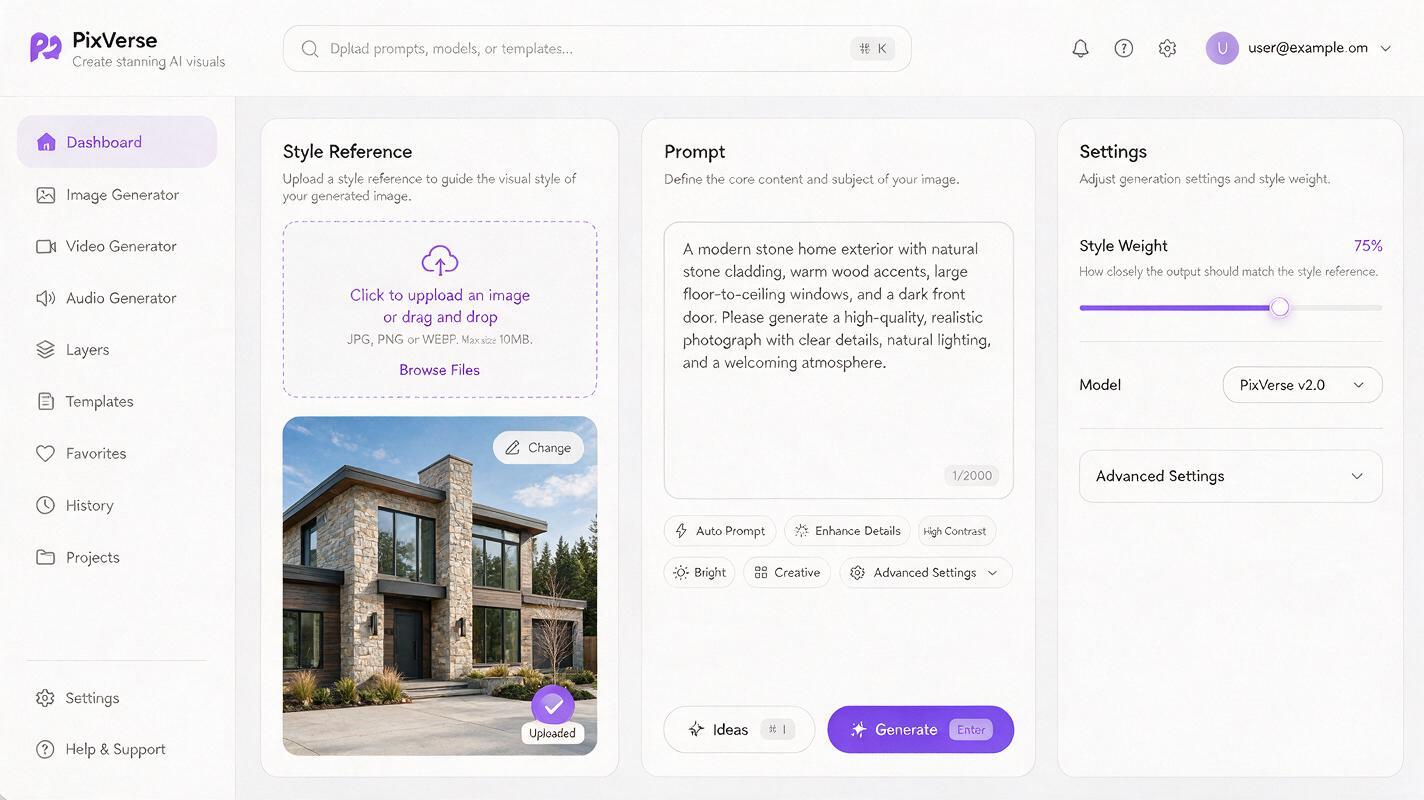
The key to a cohesive asset pack is using your hero photo as a style reference, so every generated asset matches the listing’s actual color palette, lighting, and architectural details. PixVerse is an ai image generator that excels at style reference control, letting you dial in how closely outputs match your source photo.
Start by uploading your hero listing photo to PixVerse’s style reference panel. Set the style weight to 70–80%: high enough to preserve your listing’s unique features, but flexible enough to adapt to different aspect ratios and compositions.
Use this base prompt as a starting point, swapping in your listing’s details:
Photorealistic real estate social media asset, [property type: e.g., modern 4-bed suburban home] with [key feature: e.g., stone facade and covered porch], [lighting: e.g., golden hour sunlight], [color palette: e.g., warm neutral tones], clean composition, high resolution, no text, no watermarks, no logos
Style reference: [uploaded hero listing photo]
Style weight: 75%
Run a test generation in your most-used size first (e.g., 1:1 carousel) to check if the output matches your listing’s look. Adjust the style weight up if the property details are off, or down if the composition is too rigid for other aspect ratios.
Generate each asset type with tailored prompts
Once your base prompt and style reference are dialed in, generate each asset type by adjusting the aspect ratio and adding composition notes to the base prompt. Test this prompt yourself with your own listing photo to see how consistent the results are across formats.
Instagram carousel slides (1:1 aspect ratio)
Carousel slides need centered, balanced compositions that work for both feed views and profile grids. Add these lines to your base prompt:
1:1 aspect ratio, centered composition, subject fills 70% of frame, small amount of negative space at bottom for text overlayGenerate 3–4 variations for your carousel: one exterior hero, one kitchen interior, one backyard, and one lifestyle-focused shot (if you’re adding lifestyle elements).
Instagram/Facebook stories (9:16 aspect ratio)
Stories are vertical, so push the property to the upper two-thirds of the frame to leave room for text, stickers, and link buttons at the bottom. Add these lines:
9:16 aspect ratio, subject positioned in upper two thirds of frame, blank solid lower third (matching background color) for text and sticker overlays, no important details near the bottom 20%You can also generate story assets with a subtle blurred background version of the hero photo for text-heavy slides like price drops or open house announcements.
Facebook page & event covers (2.7:1 aspect ratio)
Wide cover photos need balanced horizontal composition, with the most important property details centered to avoid being cut off on mobile. Add these lines:
2.7:1 aspect ratio, wide horizontal composition, key property feature centered, no important details in left or right 10% of frame, clean sky/background area at top for page name overlayReel/TikTok thumbnails (9:16 or 1:1 aspect ratio)
Thumbnails need high contrast and a clear focal point to stop scrollers. Add these lines to make your thumbnail pop:
9:16 aspect ratio, bold composition, strong focal point on best property feature, high contrast lighting, blank side margin for text overlay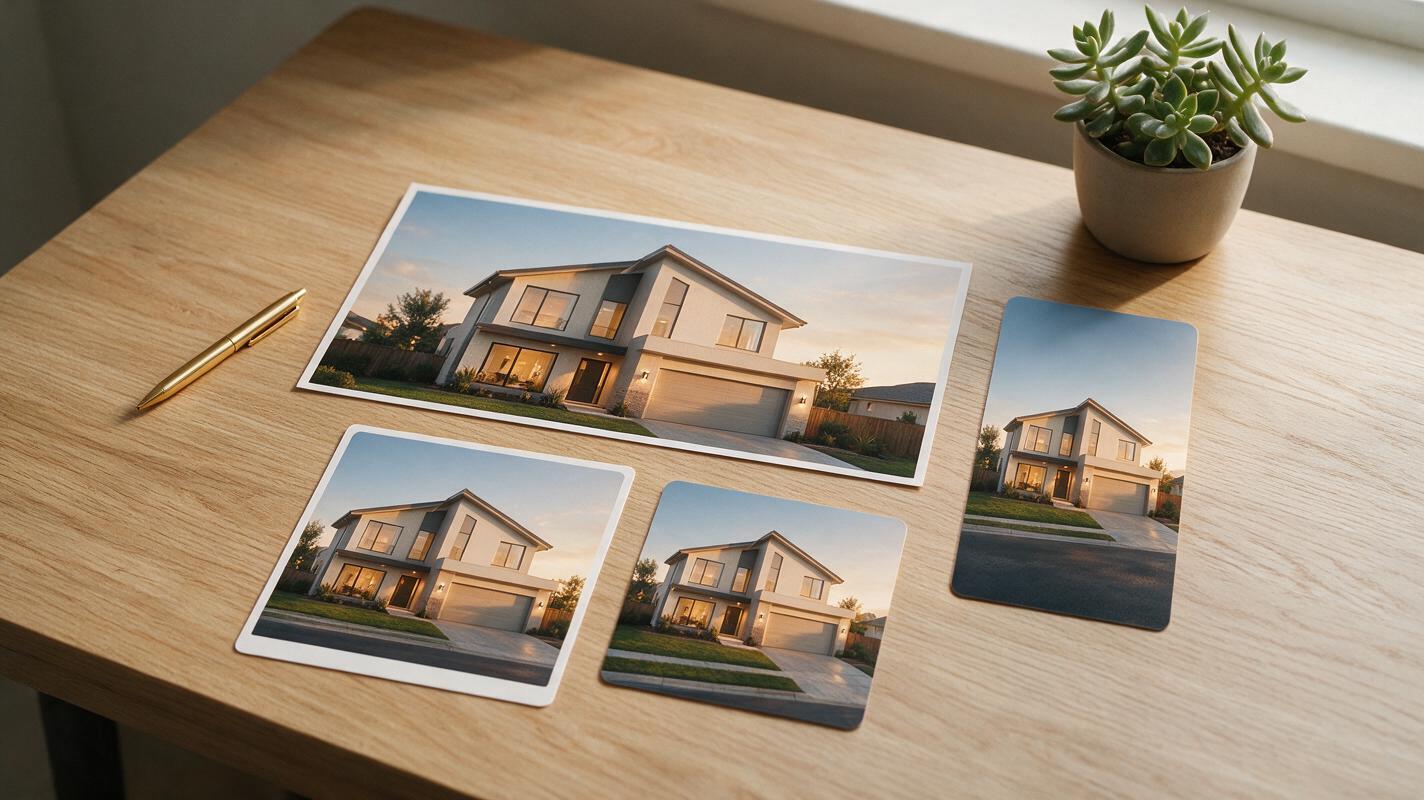
Design assets for fast overlay placement
One of the biggest time drains of social asset creation is editing out background details to make room for logos, prices, and listing addresses. Avoid this by building negative space directly into your prompts.
For example, if your brokerage places its logo in the top right corner of all social assets, add "empty clean top right corner, no background details in top right 10%" to your prompt. If you add a price banner across the bottom, add "solid neutral lower third, no property details in bottom 25%".
This way, you can drop your branded overlays directly onto the generated asset in 30 seconds, no erasing or background editing required.
Fix common consistency and accuracy issues
Even with a strong style reference, you may run into small issues across your asset pack. Here are the most common problems and how to fix them:
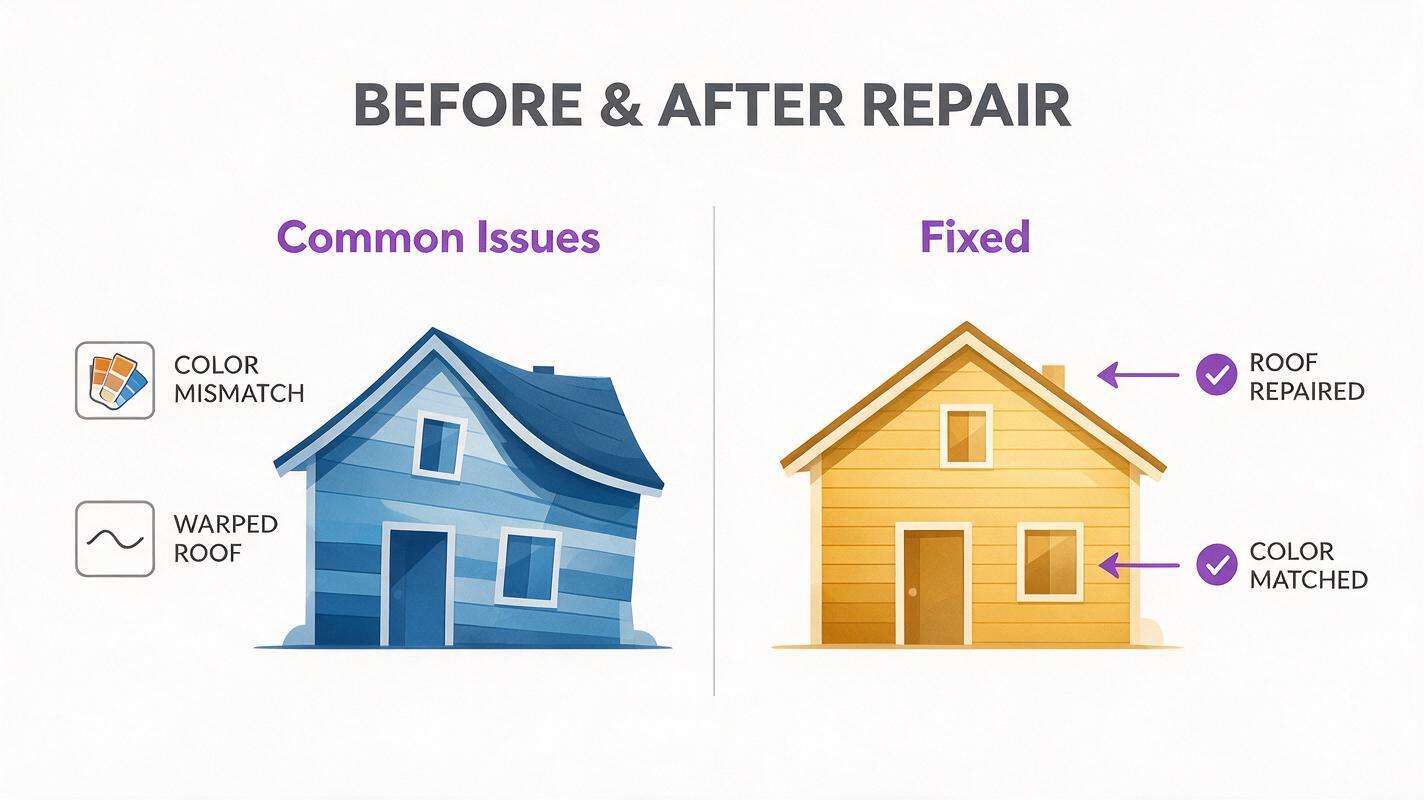
- Color mismatch across assets: If one story slide has cooler tones than the rest, increase the style weight by 5–10% and add a specific color note to your prompt (e.g., "warm golden beige tones, no cool blue tints").
- Warped or incorrect property details: If the roofline is bent or windows are the wrong shape, increase the style weight to 85% and add "architecturally accurate, straight lines, correct proportional scale" to your prompt. For interior shots, add "no warped walls, straight door frames, realistic room proportions".
- Cluttered negative space: If the blank area you requested has random plants or furniture in it, add "completely empty [area: e.g., lower third], no objects, solid color matching background" to your prompt, and reduce the style weight slightly to give the model more room to follow composition instructions.
- Wrong aspect ratio: If outputs are cropped incorrectly, make sure you’ve selected the correct aspect ratio in PixVerse’s settings, and explicitly state the ratio in your prompt text. For non-standard sizes, use custom dimensions and add the pixel size to your prompt.
Final checklist
Before publishing your asset pack, run through these checks to ensure quality and accuracy:
- All assets match the listing’s actual features (no added rooms, altered finishes, or changed square footage)
- Color and lighting are consistent across every asset in the pack
- Negative space is clear and positioned correctly for your brand overlays
- No AI artifacts: warped walls, distorted windows, floating objects, or unnatural textures
- All required asset sizes are generated and formatted correctly for their platforms
- Assets align with your brokerage’s advertising guidelines for accuracy and disclosure
Keywords
pixverse, listing social assets, real estate social media, branded property marketing, ai image generator, social media templates, real estate marketing tools