Motion Transfer AI Video: Bring Character Art to Life With Real Movement
Learn how to use motion transfer AI video to animate static character illustrations with natural human movement for short films. This practical guide covers character reference preparation, motion source selection, motion mimic generation, artifact fixing, and consistency tips across multiple scenes.
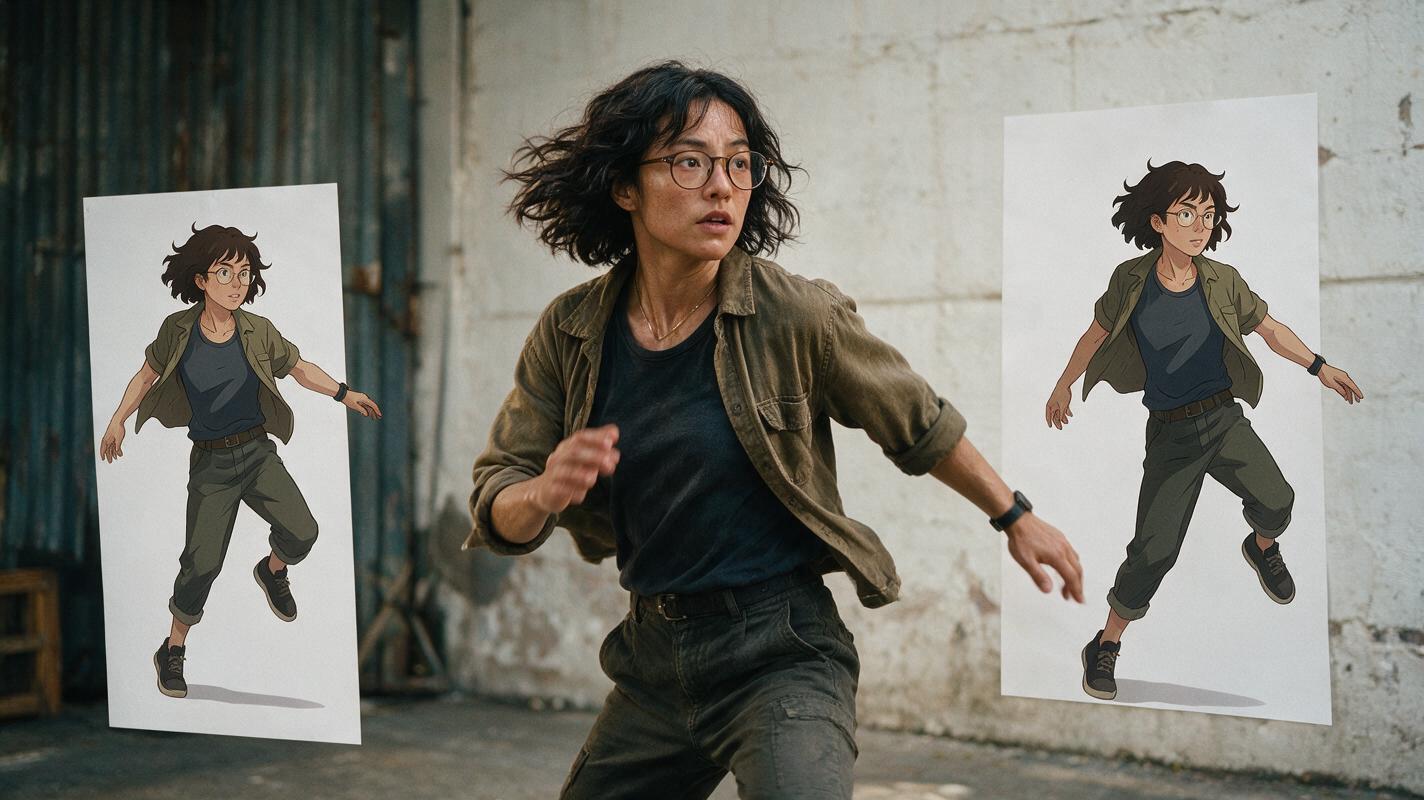
Table of contents
Bring static characters to life with real human motion
Motion transfer AI video is changing how indie animators and short film creators approach character animation. Instead of manually keyframing every movement or hiring motion capture teams, you can take a single character illustration and apply natural human movement from a reference video in minutes. The result is fluid, believable motion that would take hours to produce by hand.
This guide walks through a practical motion transfer workflow designed specifically for character-focused short films. You'll learn how to prepare character references, pick the right motion sources, run motion mimic generation, fix common artifacts, and keep your character looking consistent across multiple scenes.
Whether you're working on a 90-second micro-short or a multi-scene story, motion transfer can dramatically cut down animation time while keeping your character's unique design intact. The workflow uses animate image to video tools with reference locking to preserve character identity throughout the movement.
Step 1 — Prepare a character reference sheet
The foundation of any good motion transfer result is a high-quality character reference. If your starting image is blurry, poorly lit, or has ambiguous proportions, the motion transfer will inherit those problems. Spend time getting this right — it saves hours of cleanup later.
Start by generating a clean front-facing character image with consistent lighting and a neutral pose. The character should be standing straight, arms slightly away from the body, with a neutral facial expression. Avoid dynamic poses at this stage; the reference image is the identity anchor, not the final performance.
For best results, create a three-panel character sheet showing front, three-quarter, and side views. This gives the motion transfer model multiple angles to understand the character's proportions, hairstyle, clothing details, and facial structure. Use a plain light-gray background so the model focuses entirely on the character.
Pro tip: Generate all three views using the same seed and style prompt in your ai image generator to keep details consistent across views. Only change the camera angle in the prompt.
Step 2 — Source or capture a clean motion reference
The motion reference video determines what your character will do. You can use a video of yourself performing the action, a stock footage clip, or even a short video generated with a text-to-video model. The key is clarity: the person in the reference should have visible full-body framing, a clean background, and consistent lighting.
When selecting or filming a motion reference, match the approximate body type of your character if possible. A tall, thin character moving like a short, stocky reference person will look uncanny. You don't need an exact match, but closer proportions produce more natural results.
Also consider the camera angle. If your final shot is a medium shot at eye level, film your reference from the same height and distance. This helps the motion transfer align correctly without perspective distortion that can cause floating limbs or mismatched foot placement.
Motion reference checklist:
• Full body visible throughout the clip
• Plain or simple background (no distracting objects)
• Even lighting, no harsh shadows on the body
• 5-15 seconds long for most use cases
• 24-30 fps, minimal compression artifacts
• Camera angle matches your planned shot
Step 3 — Run motion transfer with reference locking
Once you have both your character reference and motion reference ready, it's time to run the motion transfer. The core technology here is motion mimic — the AI analyzes the pose, movement, and timing from the reference video and applies that same motion to your static character image.
Load your character reference as the base image and your motion reference as the motion source. Most motion transfer AI video tools let you adjust strength or intensity settings. Start with a conservative setting around 70-80% — this preserves your character's identity while still transferring the motion accurately.
Reference locking is critical for maintaining character consistency. Make sure your tool supports image reference locking so the character's face, hair, and clothing don't drift or morph during the movement. Without reference locking, you might end up with a character who looks great in frame 1 but unrecognizable by frame 50.
For ai short film projects with multiple shots, run each shot separately using the same character reference image. This ensures your protagonist looks like the same person across every scene, even when performing completely different actions.
First pass strategy: Generate a low-resolution preview first to check motion timing and character consistency before committing to a full-resolution render. It's much faster to iterate at 480p than 1080p.
Ready to test your character with motion transfer? try these models for free with your own character reference and motion clip.
Step 4 — Fix common motion transfer artifacts
Even with good references, motion transfer AI video often produces small artifacts that need fixing. The most common issues are distorted hands, floating limbs, clothing that doesn't follow body movement, and facial feature warping during fast motion.
Hand distortion is the most frequent problem. AI models struggle with the complex bone structure of hands, especially during gesturing or grasping motions. If hands are a focal point in your shot, consider using a closer crop that minimizes hand visibility, or add a prop that partially obscures them.
Facial warping happens when the motion reference's head turns quickly or tilts far. The model tries to follow the motion but can lose the character's facial structure. Fix this by running a second pass with stronger face reference locking, or by using face restoration tools on individual problem frames.
Clothing and hair artifacts are normal when motion is transferred from a person in different clothing. The model has to invent how your character's specific outfit moves. Loose fabrics, long hair, and accessories like scarves or jewelry are particularly prone to weird behavior. A post-processing enhancement pass can help smooth these out.
| Artifact type | Common cause | Fix |
|---|---|---|
| Distorted hands | Complex hand motion in reference | Crop tighter, add props, lower motion strength |
| Face warping | Fast head turns, extreme angles | Stronger face reference, face restoration pass |
| Floating limbs | Perspective mismatch | Match camera angle in motion reference |
| Clothing glitches | Different clothing on reference person | Enhancement pass, frame-by-frame touchups |
Step 5 — Polish and enhance for final output
After you're happy with the motion itself, run a final enhancement pass to clean up the video quality. Motion transfer output can sometimes look soft or have temporal flickering between frames, especially in areas with fine detail like hair or fabric textures.
Start with a conservative AI enhancement to sharpen details without creating halos or over-sharpening artifacts. Then, if your footage has any grain or noise from the transfer process, run a light denoise pass. Be careful not to over-denoise — you want to preserve skin texture and fabric detail, not create a waxy, plastic look.
For multi-scene projects, apply the same enhancement settings across all clips to keep the look consistent. You can save your settings as presets to speed up batch processing and ensure every shot in your film has matching color, contrast, and sharpness.
Finally, add your sound design, music, and dialogue. If your character is speaking, use ai lipsync to match lip movements to the voice track. This is much more effective than trying to transfer lip motion from a reference video, where the words won't match your script.
Final checklist
- Character reference sheet has front, three-quarter, and side views with consistent style and lighting
- Motion reference video has clear full-body visibility and a camera angle that matches your planned shot
- Reference locking is enabled to preserve character identity during motion transfer
- Preview at low resolution before generating full-quality output to save iteration time
- Common artifacts (hands, face warp, clothing glitches, floating limbs) are identified and fixed
- Final enhancement and denoise pass is applied consistently across all scenes
- Lip sync is added separately for dialogue scenes rather than relying on motion transfer alone
Keywords
motion transfer ai video, motion mimic, animate image to video, ai video generator, ai short film, ai filmmaking