AI Dance Generator: Create Dance Videos From a Single Photo
Learn how to use an AI dance generator to turn a single character photo into a polished dance video for social media. This practical guide covers motion mimic setup, reference preparation, artifact fixing, and enhancement workflows using image-to-video animation tools.
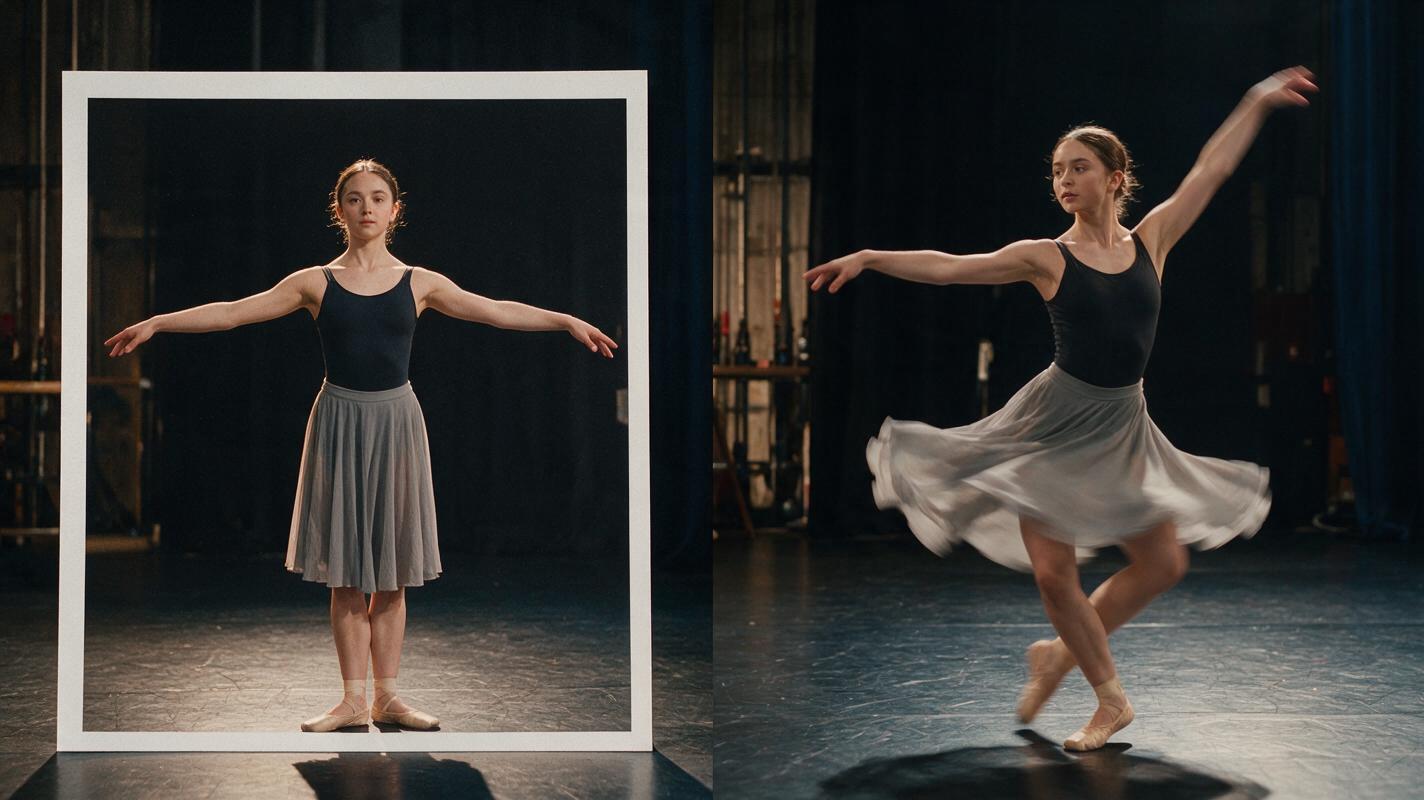
Table of contents
What an AI dance generator can do for you
Want to jump on the latest dance trend without stepping in front of a camera? An AI dance generator lets you create full dance videos from a single photo, using motion mimic technology to transfer real dance movements onto any character or avatar. Whether you're making social media content, building a virtual performer, or just experimenting with creative video, this workflow delivers impressive results in minutes.
This guide walks through a practical end-to-end workflow for creating AI dance videos. You'll learn how to prepare a solid character reference, select the right motion source, generate your clip with motion transfer ai video techniques, and polish the final result with enhancement tools. The methods work for human characters, original avatars, and even stylized characters — as long as you start with a clean reference.
If you want to follow along, you can try these models for free on MagicBoat and test the workflow with your own reference image.
What you need before you start
Before generating your dance video, gather these assets:
- A clear reference photo of your character — full body, standing pose, even lighting, no obstructions
- A dance motion source — this can be a short video clip of a real dancer, or a preset motion pattern
- An AI video tool with motion mimic or image-to-video animation capabilities
- Enhancement tools for cleaning up artifacts and boosting quality before export
The quality of your reference image is the single biggest factor in your final result. A blurry, cropped, or poorly lit photo will produce inconsistent motion and distorted features. Spend an extra minute getting this right — it saves far more time in fixes later.
Step 1 — Build a clean character reference
Your character reference is the foundation of every dance video you generate. For best results, use an ai image generator to create a custom reference, or use a high-quality photo you have rights to.
A strong reference meets these criteria:
- Full body visible from head to toe
- Neutral standing pose (arms slightly away from body)
- Even, soft lighting with no harsh shadows on the face
- Plain or simple background that won't confuse the motion model
- Consistent clothing style — avoid baggy fabric that obscures body shape
For maximum consistency across multiple dance clips, create a three-panel reference sheet showing the character from the front, side, and back. This gives the motion model a complete understanding of the character's proportions and outfit details from every angle.
Pro tip: If you're generating your reference with AI, use a fixed seed number and keep character description words identical across all views. This ensures the same face, hair, and clothing appear in every panel.
Here's a copyable prompt for generating a front-view dance character reference:
full body shot of a young dancer in casual streetwear, standing neutral pose,
arms slightly out from sides, soft studio lighting, plain light gray background,
photorealistic, sharp focus, 4K, MANDATORY CAMERA: eye-level front view
Step 2 — Pick the right motion source for your dance
The motion source determines what dance moves your character performs. With motion mimic technology, the AI analyzes the body movements from a source video and transfers them onto your reference character.
You have two main options for motion sources:
Recorded dance video. Film yourself or a dancer performing the moves you want. This gives you full creative control. For best results, film in a well-lit space with a plain background, and make sure the full body is visible in every frame. The dancer should wear form-fitting clothing so the AI can clearly track joint positions.
Preset dance motions. Many AI dance generator tools include built-in dance presets — popular choreographies ready to apply to any character. These are great for jumping on viral trends quickly. Look for presets labeled by dance style (hip-hop, K-pop, TikTok trends) or by specific song names.
Whichever source you choose, aim for motion clips between 5 and 30 seconds. Longer clips increase the chance of drift and artifacts, and you can always stitch multiple short clips together in editing.
Step 3 — Generate your dance video with motion mimic
Now it's time to combine your character reference with the dance motion. This is where animate image to video and motion transfer ai video technology work together to bring the character to life.
Upload your reference image and your motion source to the tool. Most platforms let you adjust a few key settings before generation:
- Motion strength. Controls how closely the character follows the source motion. Lower values (30-50%) work better for stylized characters; higher values (70-90%) for realistic human avatars.
- Character consistency lock. If the tool offers reference locking, enable it. This keeps the character's face and outfit stable throughout the dance.
- Background setting. Choose whether to keep the original reference background, use the motion source background, or generate a new one. For clean results, start with a plain background and add scenery later.
Run a short test first — a 3-5 second clip — to check that the character's face stays recognizable and the dance moves look natural. If the face drifts or the body proportions warp, adjust your reference image or lower the motion strength before generating the full clip.
Here's a sample prompt you can use with image-to-video animation tools to guide the dance style:
character performing a smooth hip-hop dance routine, natural movement,
consistent face and outfit, studio lighting, plain background,
MANDATORY CAMERA: full body shot, eye-level, locked position
Step 4 — Fix motion artifacts and refine timing
Even with good source material, AI dance videos almost always have small artifacts that need fixing. The most common issues are distorted hands, floating limbs, face drift during turns, and unnatural foot placement.
The fastest way to spot problems is to scrub through your clip frame by frame, paying extra attention to:
- Hand and finger shape — look for fused fingers or extra digits
- Foot contact with the ground — feet should appear to press into the floor, not float through it
- Face consistency — pause at turn frames where the character faces different directions
- Clothing physics — fabric should move naturally with the body, not pass through limbs
For minor artifacts in specific frames, use an AI inpainting or object removal tool to correct individual frames. For more widespread issues like consistent face drift, go back and regenerate with a stronger reference lock or a different motion strength setting. Sometimes running the same generation twice with slightly different settings produces a cleaner result.
Timing adjustments happen in your video editor. If the dance feels slightly off-beat, trim the start or end of the clip, or adjust the playback speed by 5-10% to match your music track better.
Common fix: If your character's feet slide around like they're on ice, try adding subtle shadow layers under the feet in post-production. This simple trick grounds the character and makes the whole dance feel more realistic.
Step 5 — Polish and export for social platforms
Once your dance moves look right, run the clip through an ai video enhancer to boost overall quality. Enhancement tools sharpen details, smooth out jitter, improve color consistency, and upscale resolution — all things that make a big difference on social media feeds.
For dance videos specifically, pay attention to these enhancement settings:
- Face enhancement — keep it on a low or medium setting to avoid the "plastic" look that can happen with over-processed faces during fast dance moves
- Motion stabilization — useful if the camera moves, but skip it if you want a locked-off static shot
- Upscaling — go from 720p to 1080p or 4K, but stop at the resolution where you start seeing invented details
If you plan to make multiple dance videos with the same character, set up ai video presets for your enhancement settings and export profile. This keeps all your clips visually consistent and saves time on every new project.
When exporting for social platforms, match your aspect ratio to the platform:
- TikTok / Reels / Shorts: 9:16 vertical, 1080×1920
- Instagram feed: 1:1 square or 4:5 portrait
- YouTube: 16:9 landscape, 1920×1080
Add your music track last, after all visual adjustments are final, so you can sync the beat to key dance moments.
Final checklist
- Reference photo shows full body with clear features and even lighting
- Motion source is well-lit with full-body visibility and form-fitting clothing
- Test clip generated first to verify face consistency and natural motion
- Artifacts checked frame by frame — hands, feet, face, and clothing all look correct
- Enhancement pass applied conservatively to avoid over-processing
- Export settings match your target platform's aspect ratio and resolution
Keywords
ai dance generator, motion mimic, motion transfer ai video, animate image to video, ai video enhancer, ai video presets, ai avatar video generator