Turn Environment Concept Art Into Ambient Animation Loops With Runway
Static environment concept art fails to convey the full atmospheric mood of a game biome, but subtle looping animation can turn a single painting into a versatile pitch and production asset. This guide walks through using Runway’s image-to-video tool to create stable, style-consistent ambient animation loops that preserve original concept art composition and detail. It includes recommended settings, sample prompts, and fixes for common issues like camera drift, style shift, and jarring loop cuts.
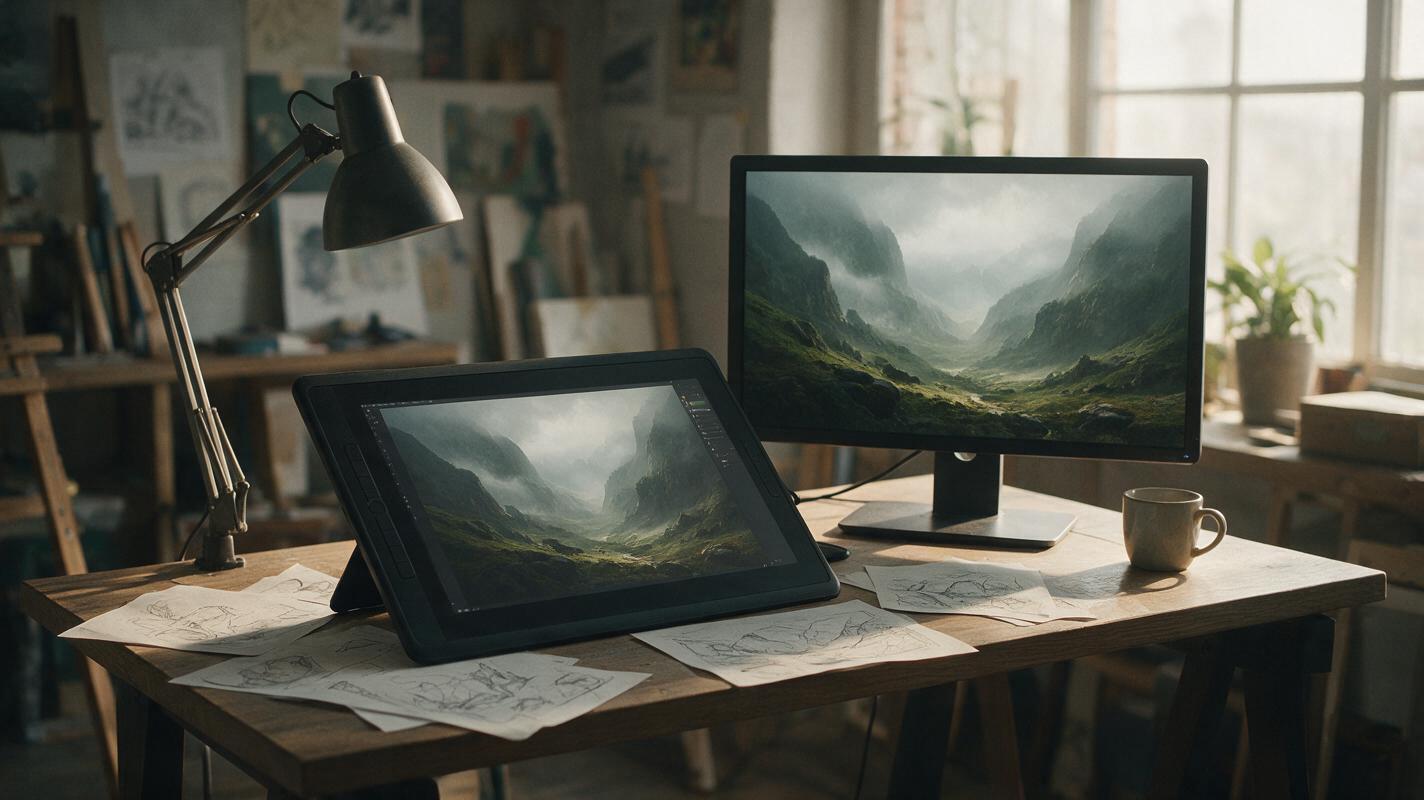
Table of contents
Why ambient concept loops elevate game pre-production
Static environment concept art sells a color palette and a layout, but it rarely communicates the full mood of a rain-soaked swamp, a wind-swept mountain pass, or a neon-lit cyberpunk alley. Subtle, looping ambient animation turns a single concept painting into a living asset that works for pitch decks, loading screens, main menu backgrounds, and stakeholder reviews — all without the time investment of a full hand-animated sequence.
Many game design teams run into the same problems when trying to animate concept art: unwanted camera movement, style drift that erases the original painterly details, jarring cuts at loop endpoints, or over-the-top motion that distracts from the design itself. This guide uses Runway’s image to video tool to solve those problems, producing stable, seamless loops that stay true to your original concept.
Preparing your concept art for stable looping
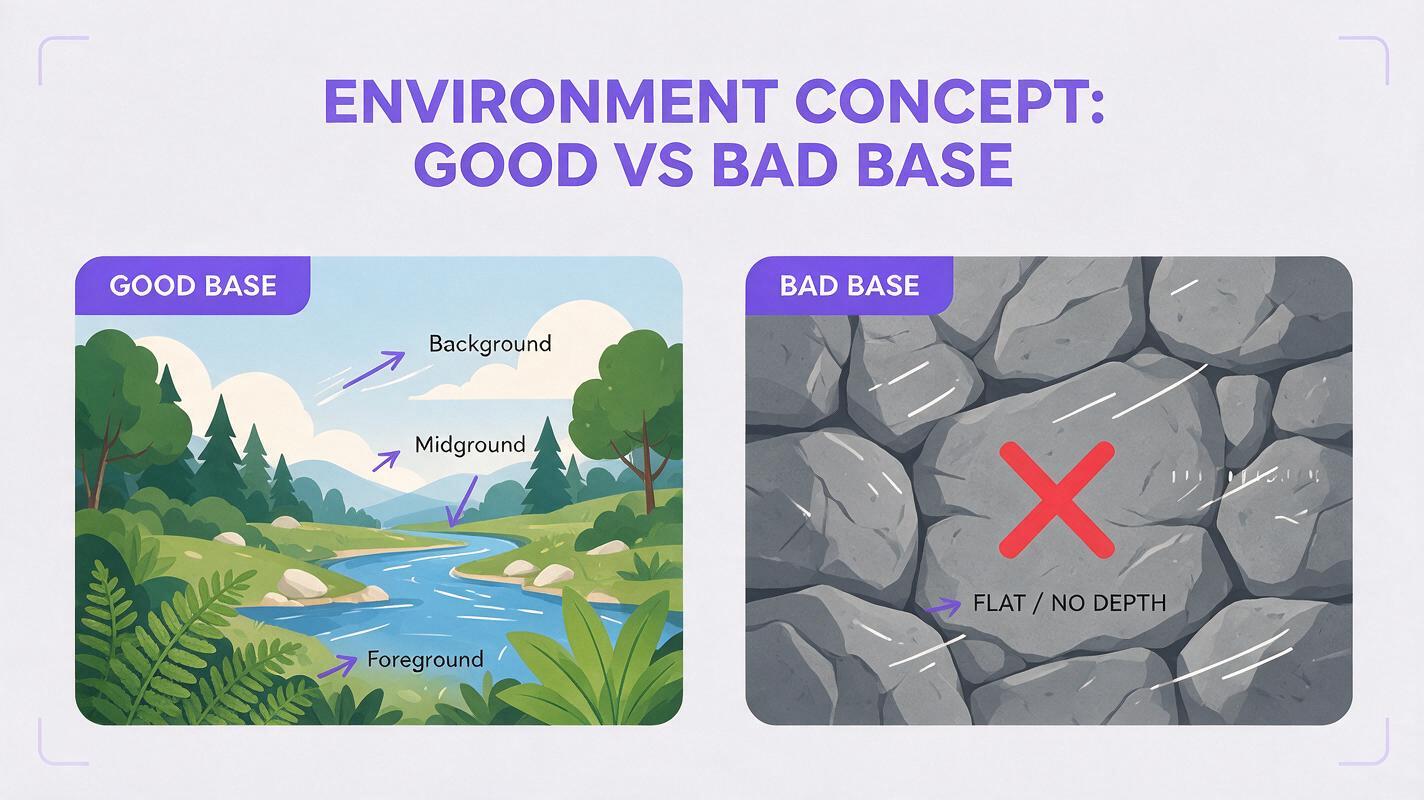
The quality of your base image determines 80% of your loop’s success. Not every concept art piece is a good fit for ambient animation, so start with these checks before you upload:
- Clear layered composition: Look for distinct foreground, midground, and background elements that can move at different speeds (e.g., foreground leaves, midground water, background clouds). Flat, single-plane art will feel unnatural when animated.
- Naturally moving subjects: Pick pieces with elements that are supposed to move — water, fire, smoke, clouds, foliage, flags, or floating particles. Avoid static scenes with only solid rock or architecture, as the model will invent motion that feels out of place.
- No text or UI overlays: Animating text or UI elements causes distortion and readability issues. Remove any logos, quest markers, or minimap previews before uploading.
- Consistent edge details: For seamless looping, make sure the left and right edges of your image have similar color and detail levels (e.g., a continuous tree line, a uniform sky). Hard, unique edges will create visible jumps when the loop repeats.
Pro tip: Crop your image to a 16:9 aspect ratio for desktop loading screens and pitch decks, or 9:16 for vertical social media teasers of your game’s world.
Tuning motion settings for subtle, static-camera results
The biggest mistake teams make when animating concept art is cranking motion settings too high, resulting in wild camera movement and distorted architecture. The goal of an ambient loop is to feel like you’re standing still in the world, not flying through it.
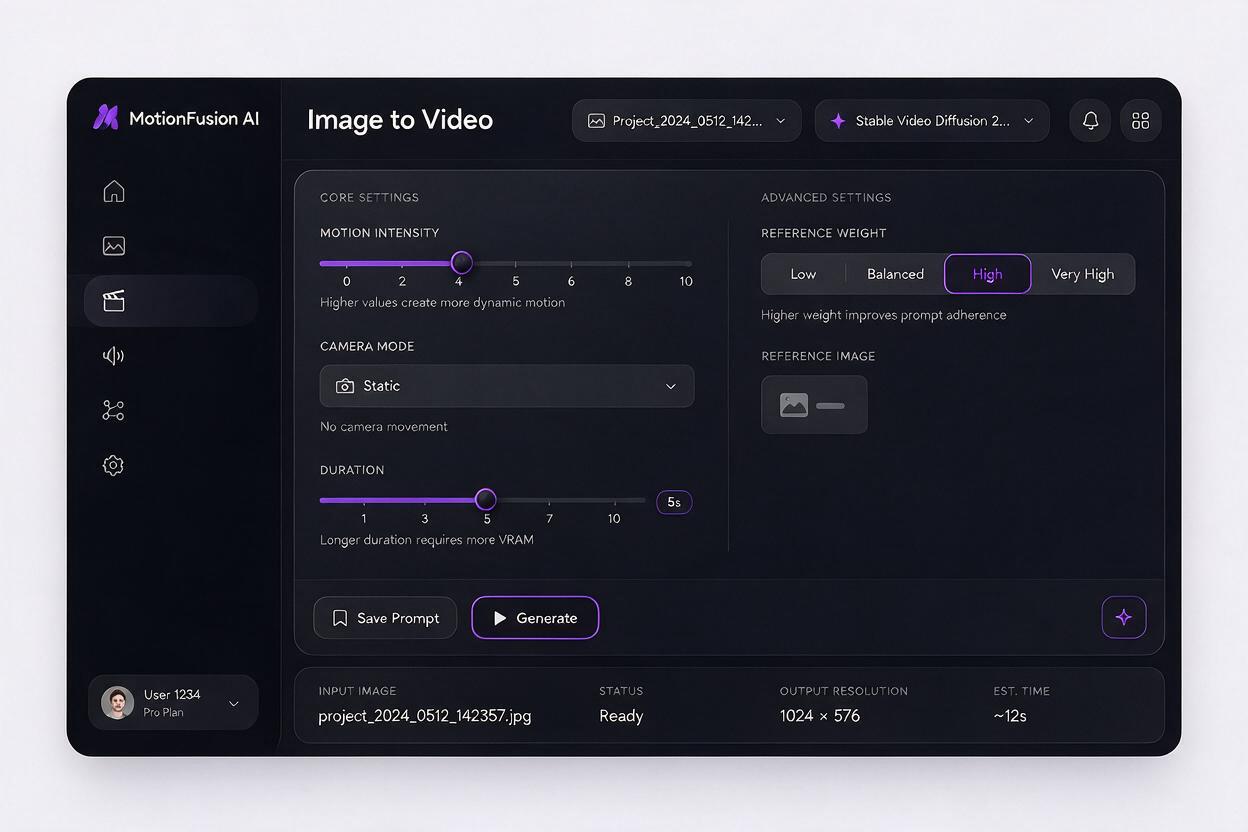
For Runway’s image-to-video workflow, stick to these baseline settings:
- Motion intensity: 3–5 out of 10. This keeps movement slow and subtle, so leaves sway instead of flapping, and clouds drift instead of racing across the sky.
- Camera mode: Static / Locked off. This disables all panning, zooming, and parallax, so the composition of your original concept art stays 100% intact.
- Duration: 4–6 seconds. Shorter clips are far easier to loop seamlessly, and 4 seconds is long enough to sell the mood without feeling repetitive.
- Reference weight: High (if available). Crank up the reference image weight to ensure the model prioritizes your original art’s style and layout over its own defaults.
If you want slightly more dynamic motion for a teaser clip, you can bump motion intensity to 6, but never go above 7 for concept art loops — the style drift becomes too severe.
Prompt structure that preserves concept art style
Even with the right settings, a vague prompt will lead to style drift or unwanted motion. Your prompt needs to do three things: reinforce the original art style, specify exactly which elements should move, and explicitly ban camera motion.
Here’s a reusable prompt template tailored for environment concept loops:
Subtle ambient animation of [scene description], static locked-off camera, [specific moving elements] moving slowly and gently, [original art style], no camera movement, no parallax, seamless loop, crisp detailsFor a misty medieval valley concept piece, the filled-out prompt would look like this:
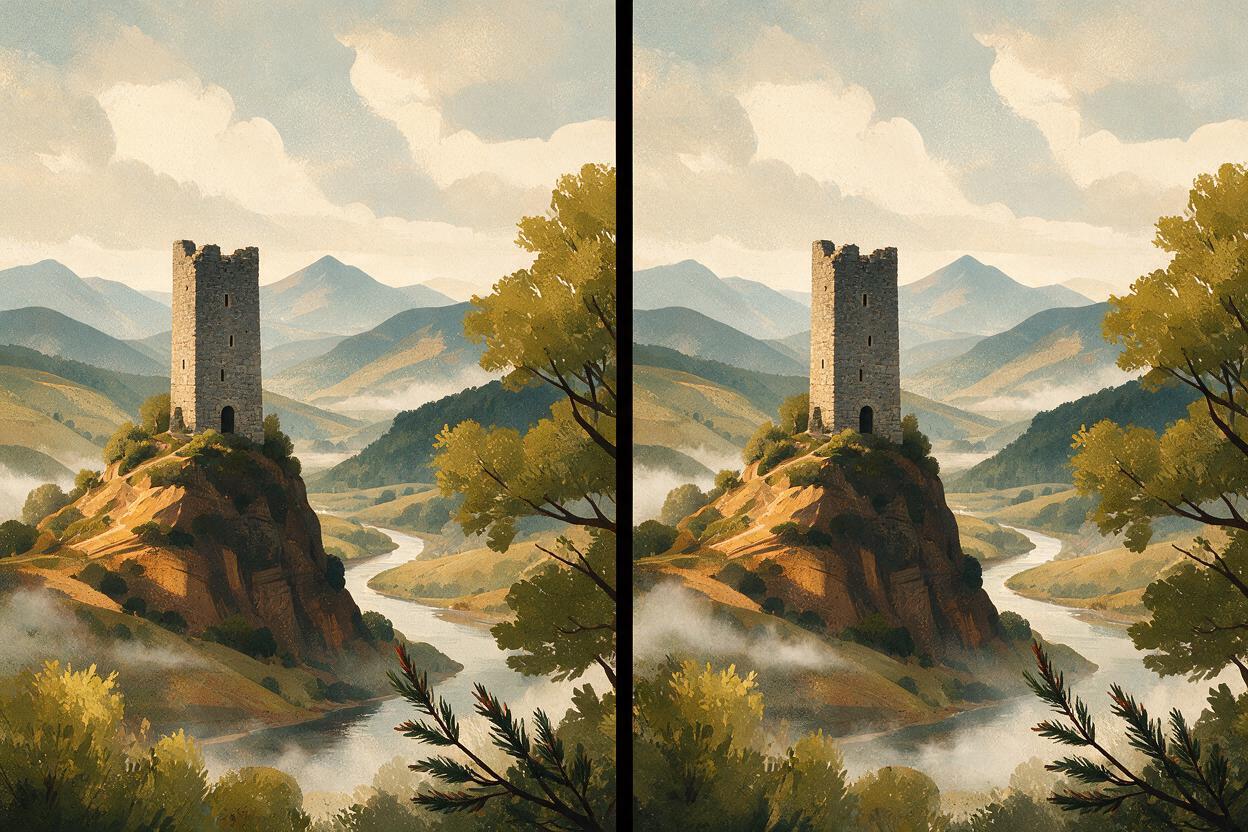
Subtle ambient animation of a misty medieval mountain valley with a stone watchtower, static locked-off camera, pine needles swaying gently in the wind, thin mist drifting slowly across the grass, soft clouds moving in the overcast sky, painterly digital concept art style, visible brushstrokes, muted earthy color palette, no camera movement, no parallax, seamless loop, crisp architectural detailsPair it with a negative prompt to block common failures:
camera pan, camera zoom, camera shake, character movement, distorted architecture, blurry details, photorealistic, 3d render, style shift, text, watermarkTest this prompt yourself with your own environment concept art, adjusting the moving elements and style descriptors to match your project’s art direction.
Fixing common loop and drift issues
Even with the perfect prompt and settings, you may run into small issues. Here are the most common problems and their fixes:
Unwanted camera movement
If the camera pans, zooms, or shifts even when you selected static mode, add "completely locked off camera, zero camera movement, no parallax effect" to the front of your prompt, and lower motion intensity to 2–3. This tells the model to prioritize camera stability over dynamic motion.
Visible loop jump
If there’s a jarring cut between the end and start of the loop, first make sure you have the loop toggle enabled in your export settings. If the jump is still there, generate a 6-second clip, then trim 1 second from the start and 1 second from the end in a free video editor, and add a 1-second crossfade between the two ends. The middle 4 seconds of the clip will have the most consistent motion.
Style drift from original concept
If the final clip looks more photorealistic or 3D-rendered than your original painterly concept, increase the reference image weight, and add the exact style keywords from your original concept art prompt to the animation prompt. For example, if your original art was "gouache painting, soft edges, warm golden hour lighting", include those exact phrases in the animation prompt.
Unnatural moving elements
If water looks choppy, leaves are flapping wildly, or fire is exploding out of a campfire, add "gentle, slow, subtle motion" before the list of moving elements, and specify the exact type of movement (e.g., "calm small ripples on lake surface" instead of just "water moving"). Lower the motion intensity by 1–2 points as well.
Final checklist
- Base image has naturally moving elements and no text or UI overlays
- Camera mode is set to static, with motion intensity between 3 and 5
- Prompt explicitly names moving elements and restates the original art style
- Loop plays seamlessly with no visible jump at the endpoint
- No style drift, distorted architecture, or unwanted camera movement
Keywords
environment concept art, ambient animation loops, runway, image to video, game concept art, concept art animation, seamless loops