Hailuo Prompts for B-Roll That Hides YouTube Jump Cuts
A jump cut in a faceless YouTube video is easier to hide when the B-roll has a clear editing job. These Hailuo prompts create short visual bridges for topic changes, removed pauses, and narration that needs a moment of breathing room.
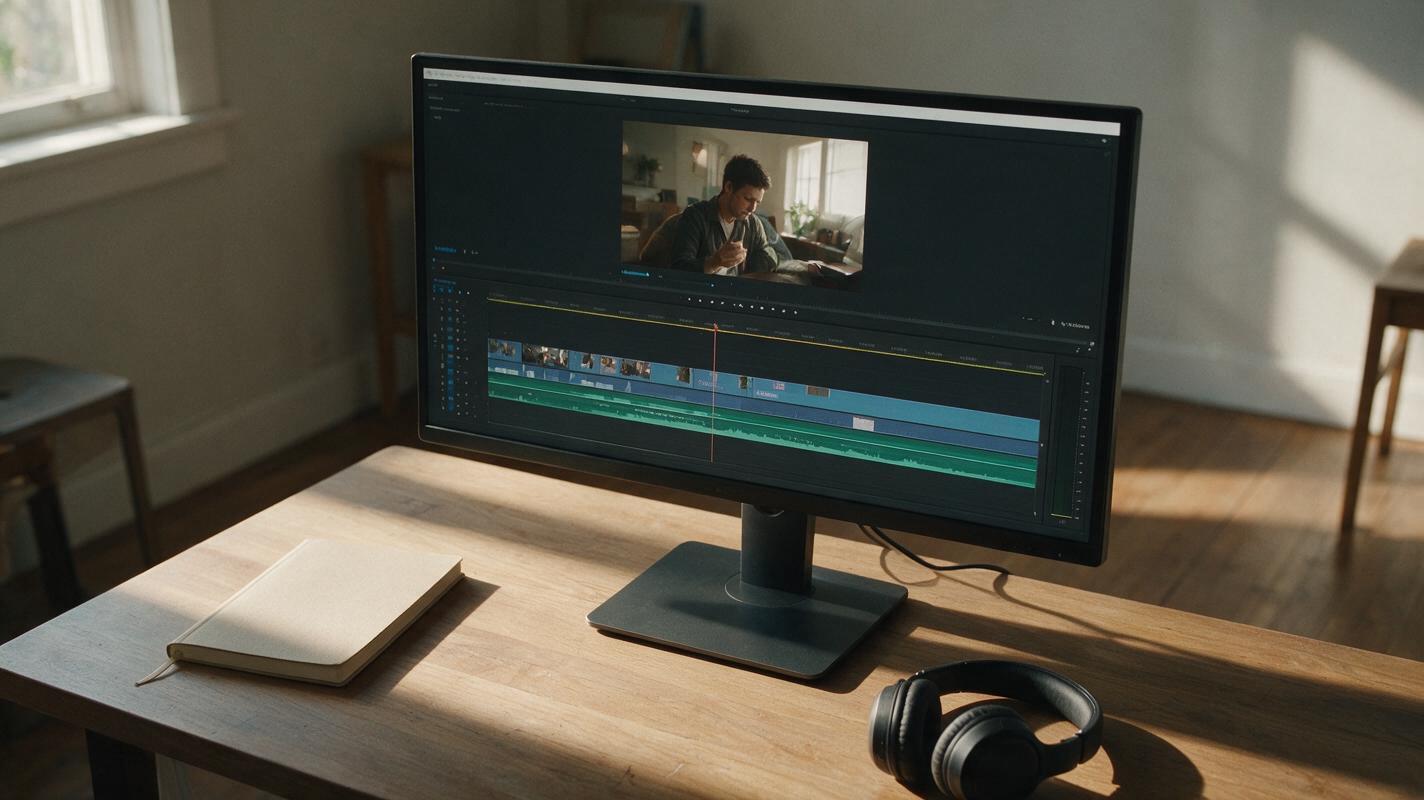
Table of contents
B-Roll should cover a cut, not create another distraction
You have removed a pause from your narration, but the picture now jumps. A short B-roll clip can bridge that edit—provided its subject, movement, and duration fit what the viewer is hearing. For faceless YouTube videos, Hailuo can help generate those bridges without requiring another shoot.
The trick is to prompt for an editing function, not merely a beautiful scene. A clip that introduces a new topic should behave differently from one that covers two seconds of trimmed audio. The prompts below are built around three common cuts and give you room to add titles, diagrams, or authentic footage in your editor.
Match the cut before writing the prompt
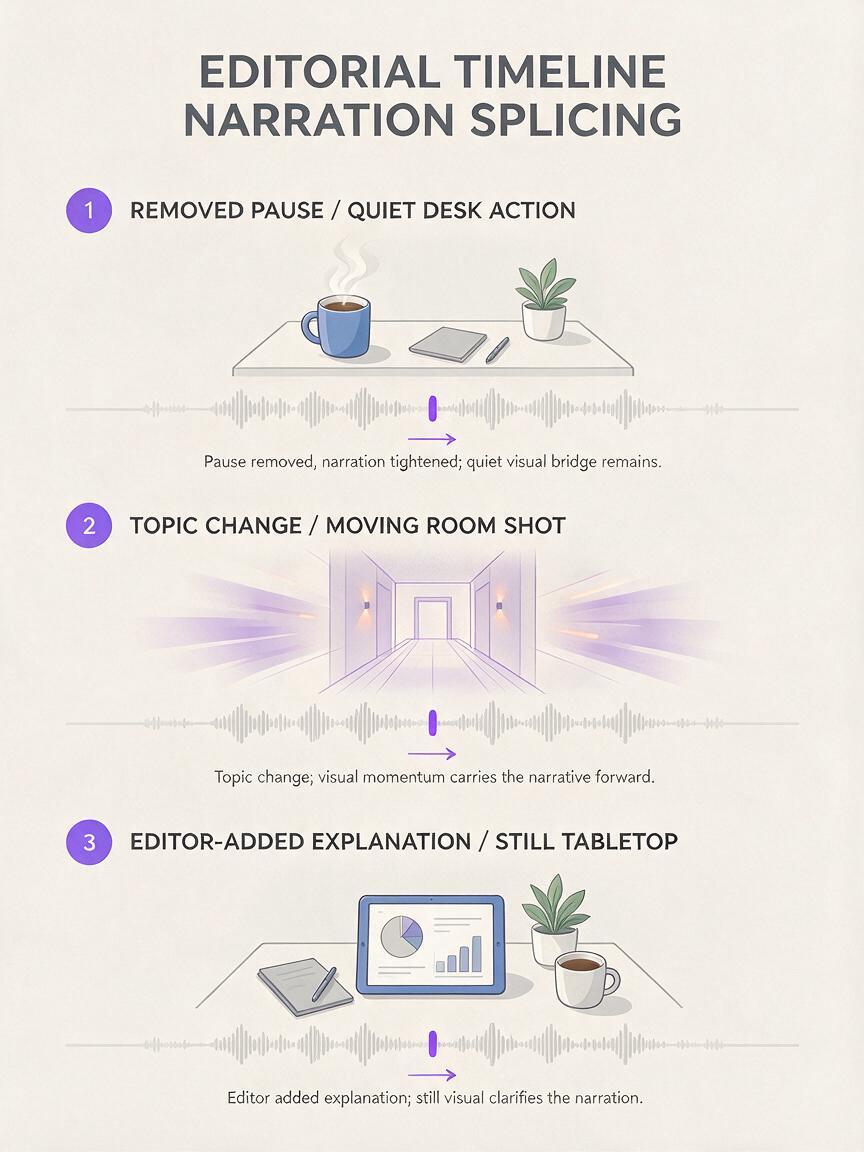
Listen to the narration on both sides of the edit. Note the last word before the cut, the first word after it, and how long the visual needs to cover. Then choose one of these jobs:
| Edit problem | Useful visual bridge | What to avoid |
|---|---|---|
| A pause was removed | Quiet action related to the sentence | A dramatic reveal that competes with the voice |
| The video changes topics | Movement toward a new setting or object | A clip that implies the topics are causally linked |
| An explanation needs breathing room | Steady, readable motion beneath a title or diagram | Generated labels or fast-moving detail |
If the voiceover makes a factual claim, use your own footage, a verified source, or an editor-made graphic to support it. Generated B-roll is best treated as illustration—not proof that a particular product, place, or event looks a certain way.
Prompts for three common edit problems
Use Hailuo for text to video when you need a short illustrative insert rather than a depiction of a specific real-world subject. Replace the bracketed details, then generate more than one option: timing and direction matter more here than a single impressive frame.
Cover a pause without changing the subject
Suppose a desk-setup narrator cuts a hesitant phrase between “keep your tools within reach” and “start with the items you use daily.” A quiet overhead insert can cover the audio splice while staying on topic.
Short overhead B-roll for a faceless desk-setup video. On a plain wooden desk, an unbranded notebook slides gently into a tidy workspace beside a pen and closed laptop. One simple action, slow and continuous. Soft daylight, stable camera, realistic proportions. Keep the center of the frame uncluttered. No hands, readable writing, logos, captions, or extra objects.Trim the generated clip to the action itself. You do not need to show its full beginning and end; a one- or two-second portion may cover the cut more naturally. If the notebook appears or disappears between frames, choose another generation rather than hiding the error with a faster edit.
Signal a topic change with directional movement
When narration moves from planning to execution, a change of space can make the transition feel intentional. Match the camera direction to the next shot if you can: a move toward the right side of the frame pairs better with another rightward move than with an abrupt reversal.
Brief transitional B-roll for a faceless creative-process video. The camera moves slowly from an uncluttered planning desk toward a nearby worktable holding blank paper and simple unbranded tools. Natural indoor light, one continuous forward movement, believable room layout. The planning desk leaves the frame as the worktable becomes the clear subject. No people, text, logos, screens with content, or sudden camera turns.This is an illustrative transition, not a continuity shot of your actual room. If viewers have already seen your workspace, a generated room with different furniture may be more distracting than a simple cut to real footage.
Leave space for an explanation
Some cuts happen because the next sentence needs a diagram or a short heading. In that case, generate a restrained background and add the meaningful information in your editor. Do not ask the video model to write the title.
Minimal B-roll background for a faceless YouTube explanation. Three plain, unmarked index cards rest on a neutral tabletop as soft daylight shifts subtly across them. Locked camera, gentle continuous motion only, no card movement. Leave clear empty space above the cards for an editor-added heading. No writing, symbols, hands, logos, dramatic lighting, or camera zoom.Place the heading over the quietest part of the clip. If the shifting light reduces contrast, darken or replace the background in your editor; readability is more important than preserving a generated effect.

Use a real frame when continuity matters
If the B-roll must match a specific object, set, or camera angle already in your video, start with a frame you own instead of describing it from memory. Where an image-guided option is available, use image to video to request modest motion around that frame. This gives the model a visual reference, but it does not guarantee that every detail will remain unchanged.
Reference-frame prompt: “Use the supplied frame as the visual reference. Keep the desk layout, object colors, and camera angle unchanged. Add only a subtle push-in and natural light variation. Do not introduce new objects, writing, hands, or logos.”
Compare the result with the source at the beginning, middle, and end. Watch the edges of products, the shape of any visible ports or controls, and anything carrying text. If those details drift, keep the authentic frame and add a gentle scale or position change in your editor instead. A reliable still beats a moving clip that misrepresents what you filmed.
Check the clip at the actual edit point
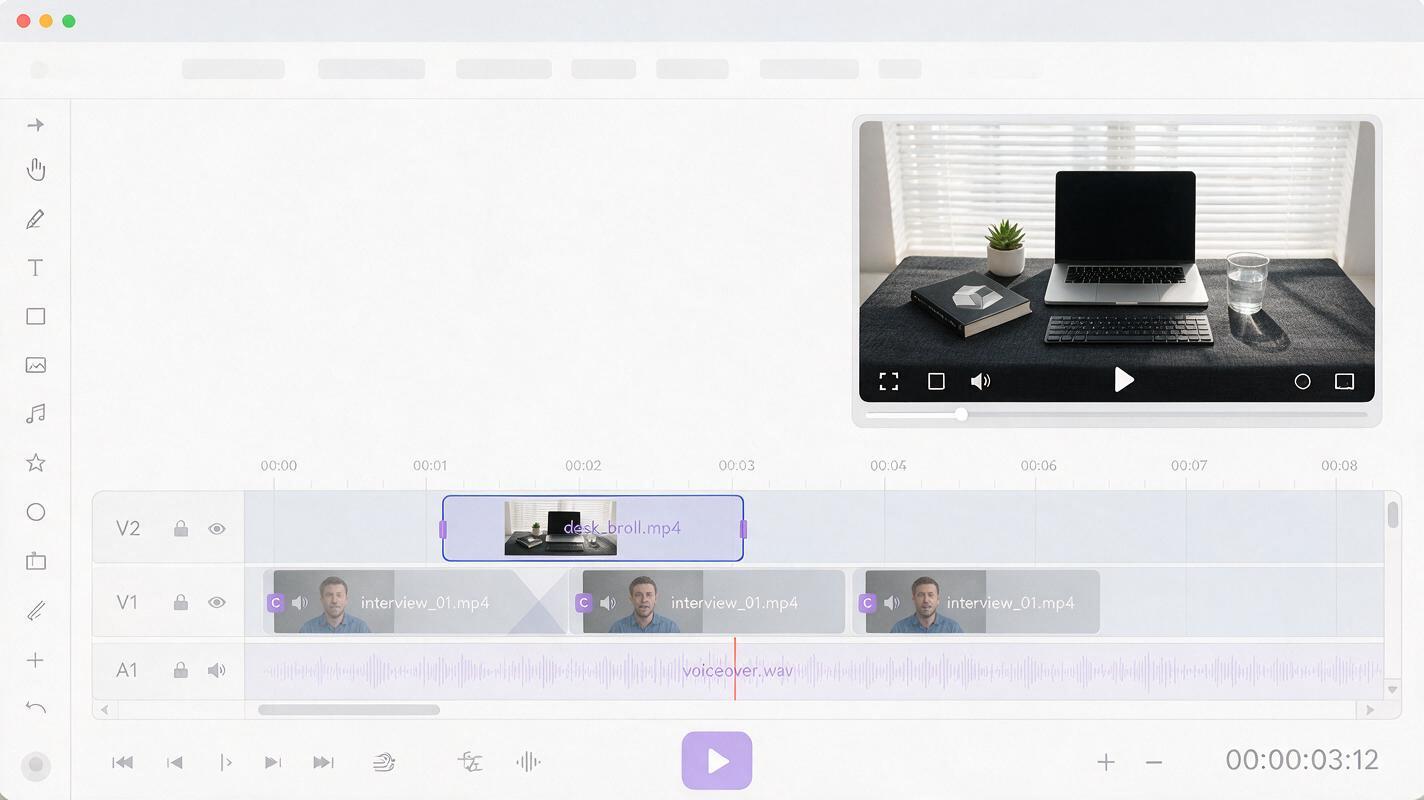
A B-roll candidate can look convincing alone and still fail in the timeline. Put it above the narration cut, listen at normal speed, and check these questions:
- Does it begin early enough? Start the insert just before the audio splice so the picture does not call attention to it.
- Does its motion lead somewhere? Cut away before an unexpected morph, camera turn, or newly invented object becomes visible.
- Does it match the sentence? An attractive but unrelated shot may make the explanation harder to follow.
- Is it safe to present as illustration? Do not use generated footage as evidence of a real product feature, location, or result.
Finally, watch the transition at the size your audience will see, including on a phone. If an object becomes ambiguous at small size, favor a simpler shot. If you are deciding between two generations, choose the one that makes the edit feel invisible—not the one with more visual effects.
Final checklist
- Define the cut’s job: cover a pause, change topics, or hold space for an explanation.
- Prompt for one clear action and restrained camera movement.
- Add factual labels and claims in the editor, not in generated footage.
- Use an authentic frame when the clip must match something viewers have already seen.
- Inspect the insert in the timeline, then trim away unstable frames.
Have a troublesome cut in your current video? Pick the prompt that matches its job and test this prompt yourself before committing to another shoot.
Keywords
hailuo prompts, youtube b-roll, hide jump cuts, faceless youtube videos, ai video prompts, video editing