Hide Jump Cuts in YouTube Shorts With Vidu B-Roll
A jump cut can make a YouTube Short feel rushed, but a generic cutaway can be just as distracting. This guide shows how to plan short Vidu B-roll clips that cover edits, reinforce the narration, and fit a vertical timeline.
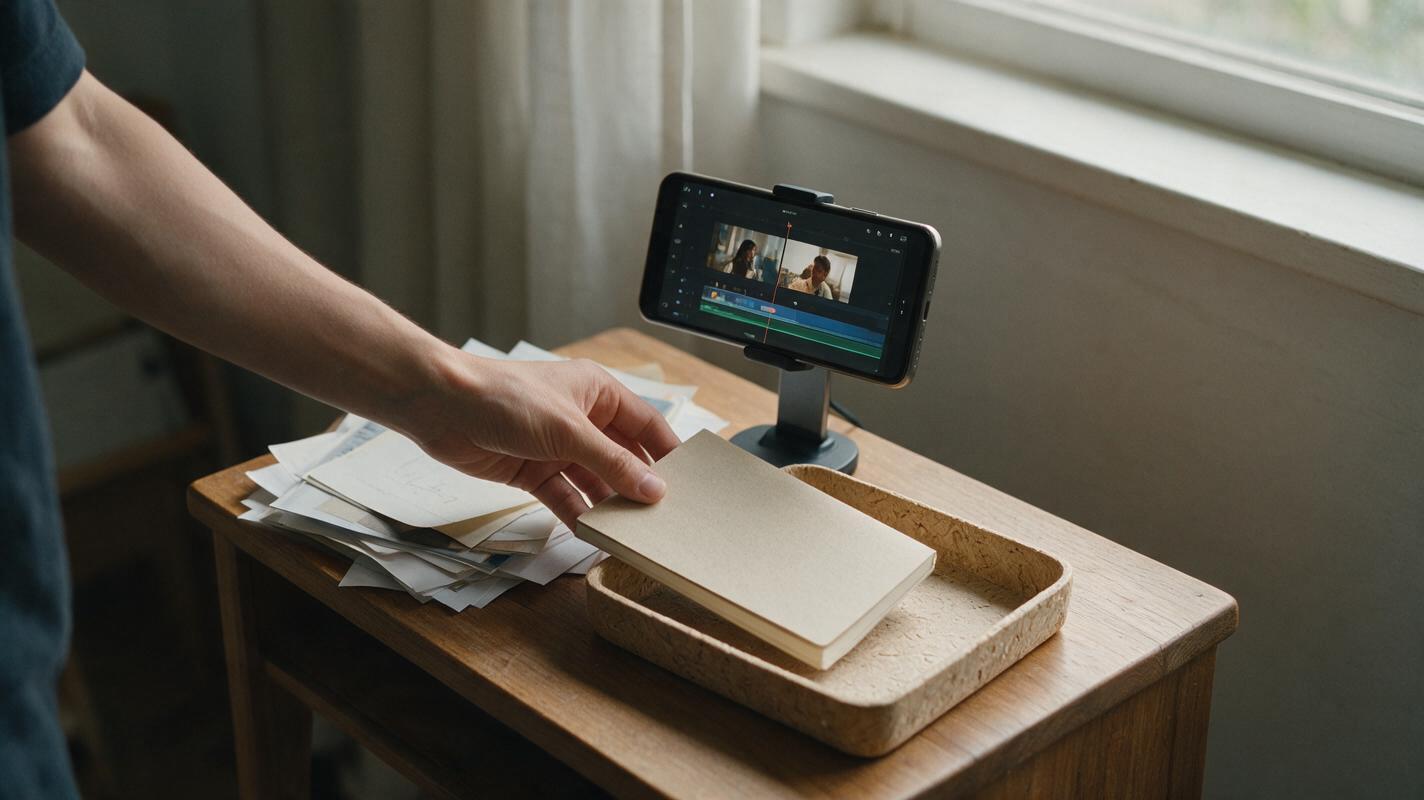
Table of contents
Make the cutaway earn its place
A jump cut in a YouTube Short is only a problem when it makes the viewer lose track of the thought. Instead of covering every edit with random footage, use a brief visual that shows the object, action, or contrast your narration mentions. Vidu can help create that cutaway when you do not have usable B-roll, but the edit—not the generated clip—determines whether the transition feels smooth.
Consider a faceless Short explaining why a cluttered desk slows down a morning routine. Your narration moves from “I kept losing the one thing I needed” to “so I gave it a fixed spot.” A shot of a hand clearing space for a notebook can bridge that spoken change. A dramatic aerial view of an office cannot, even if it looks polished.
Find the cuts that actually need covering
Watch your rough cut without adding footage. Mark an edit only if the picture jumps awkwardly, an on-screen object changes position without explanation, or the narration introduces an idea the current shot cannot show. Leave clean, energetic cuts alone; covering them may slow down the Short.
For each marked edit, write a small visual brief: spoken idea, visible action, and return shot. The return shot matters because the cutaway needs somewhere natural to end.
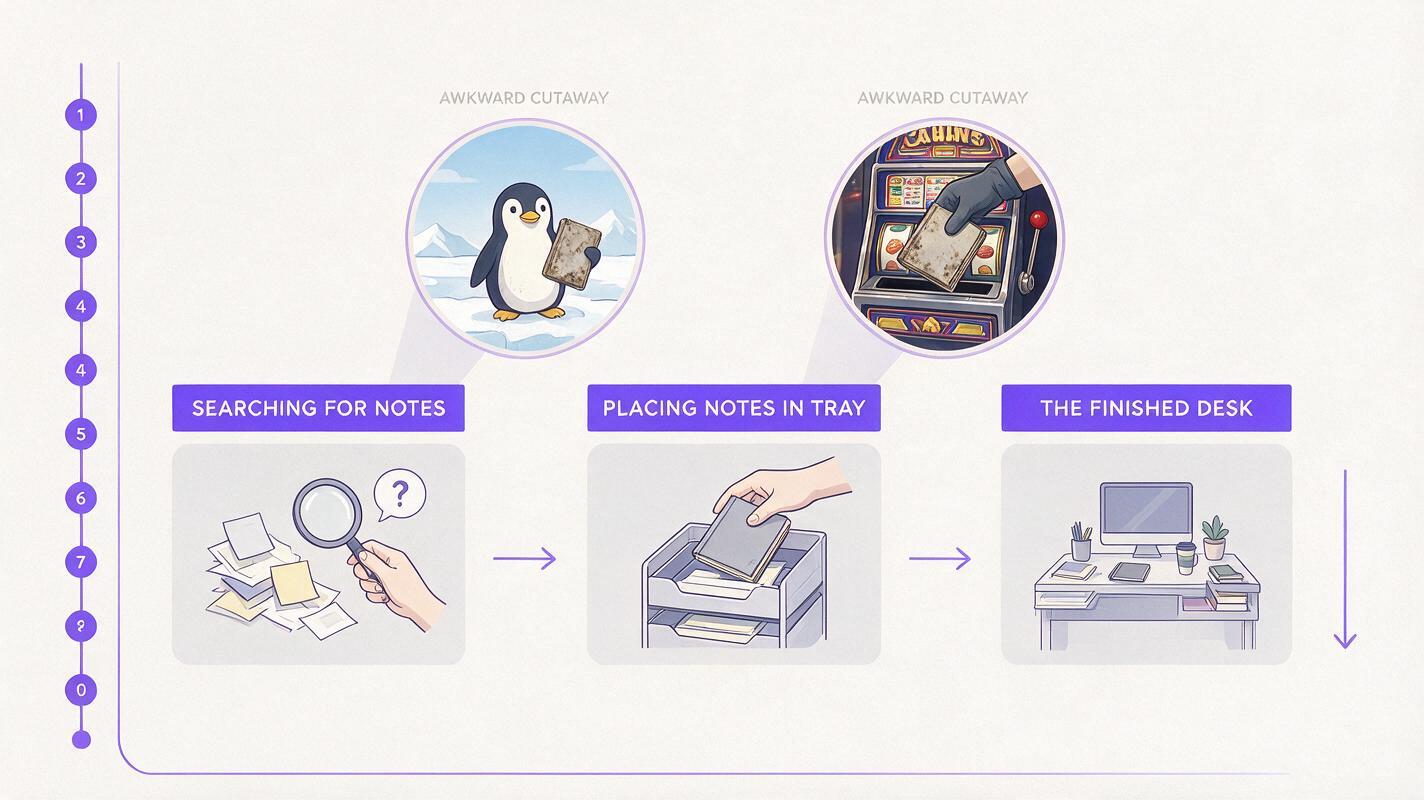
| Narration at the edit | Useful cutaway | Return to |
|---|---|---|
| “I could never find my notes.” | Hands searching through a small stack of plain papers | The creator holding the missing notebook |
| “Then I made one place for them.” | A notebook placed in a clear tray | The wider desk shot |
| “Now I start faster.” | No cutaway needed if the next shot already shows the result | The finished setup |
That last row is an important decision. More generated footage does not automatically make a Short easier to follow.
Write a prompt for one visible action
For each useful cutaway, ask Vidu for a single, legible action rather than a miniature story. An ai video generator is easier to direct when the shot has one subject, one movement, and a clear endpoint. State the intended vertical framing in the prompt and select a vertical aspect ratio if your available interface offers one. Avoid relying on a later crop to rescue an important object near the edge.
Vertical close-up for a faceless YouTube Short. On a simple wooden desk, one hand slides a plain, unbranded notebook from a small stack of papers into an empty tray. Keep the notebook and tray near the center of the frame. Natural window light, realistic tabletop textures, steady camera, one continuous action. No readable writing, logos, extra hands, or dramatic camera movement.The prompt names what viewers should recognize at a glance: the notebook, the tray, and the change from clutter to order. It does not ask the model to display a convincing productivity claim or recreate anyone’s actual desk. If the footage illustrates your point rather than documents a real event, edit and caption it accordingly.
Need a different topic? Keep the structure and swap the action. For a cooking Short, show an unbranded ingredient being placed beside a pan. For a budgeting explainer, show blank envelopes being sorted. For a software tutorial, use a real screen recording instead of generating an interface that could misrepresent the product. Test this prompt yourself with the object your narration actually names.
Use a reference when the object must match
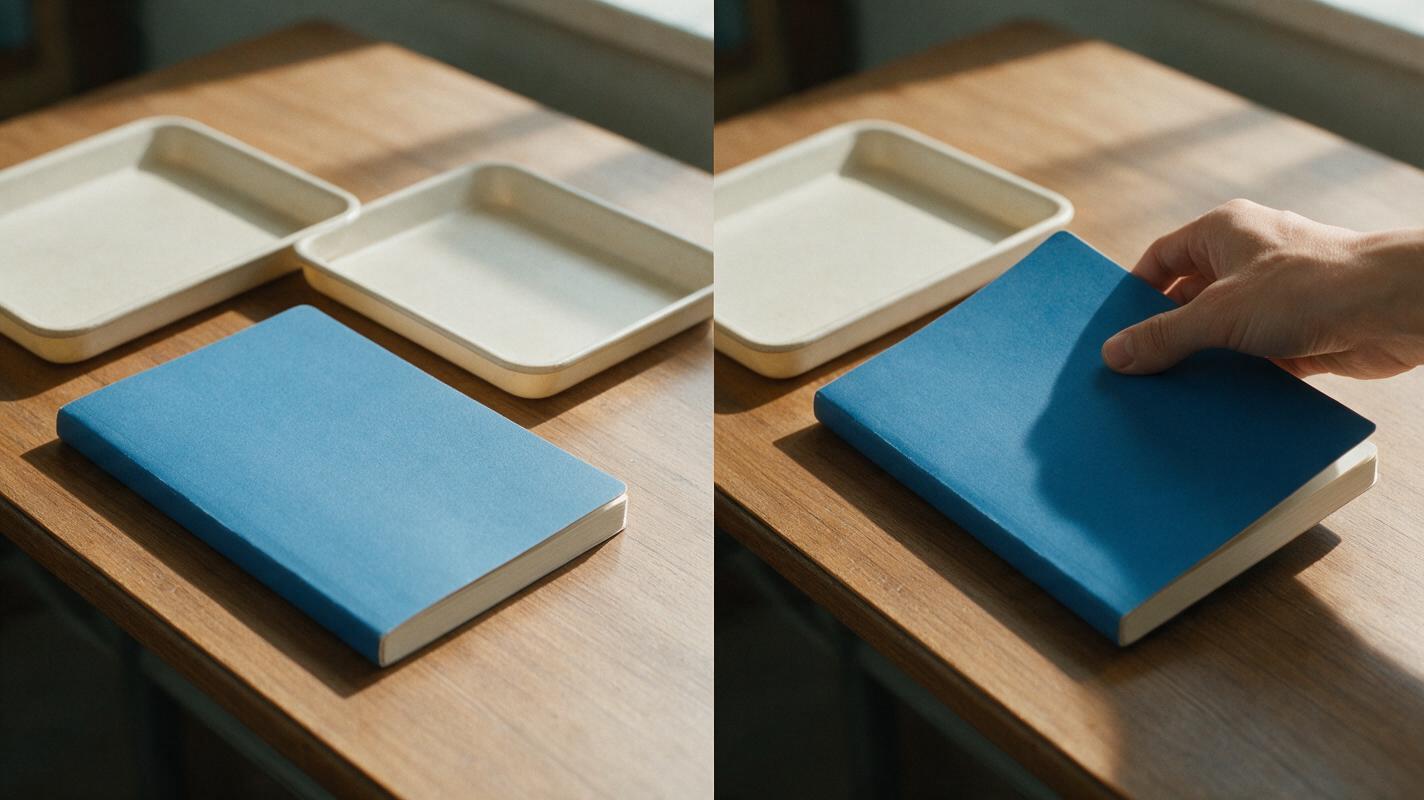
A generated notebook may look nothing like the one in your filmed shots. If visual continuity matters, take a clean reference photo of the real prop: good light, uncluttered background, no sensitive information, and enough space around the object for a vertical crop. Where reference input is available, an image to video approach lets you request a small motion from that image instead of inventing the prop from scratch.
Use the supplied desk image as the visual reference. Preserve the notebook’s color, the wooden surface, and the tray’s position. Animate only a hand moving the notebook into the tray in one smooth action. Keep the framing vertical and stable. Do not add writing, labels, new objects, or a second notebook.A reference can improve consistency, but it does not guarantee it. Check the generated frame immediately before and after the hand touches the prop. Reject a clip if the notebook changes shape, the hand crosses impossibly through an object, or a new item appears. A plain original shot is better than a conspicuous continuity error.
Practical fallback: If matching the real prop takes repeated attempts, film the hand movement yourself or use a tighter cutaway that does not show the mismatched detail.
Cut on the narration, not on the clip length
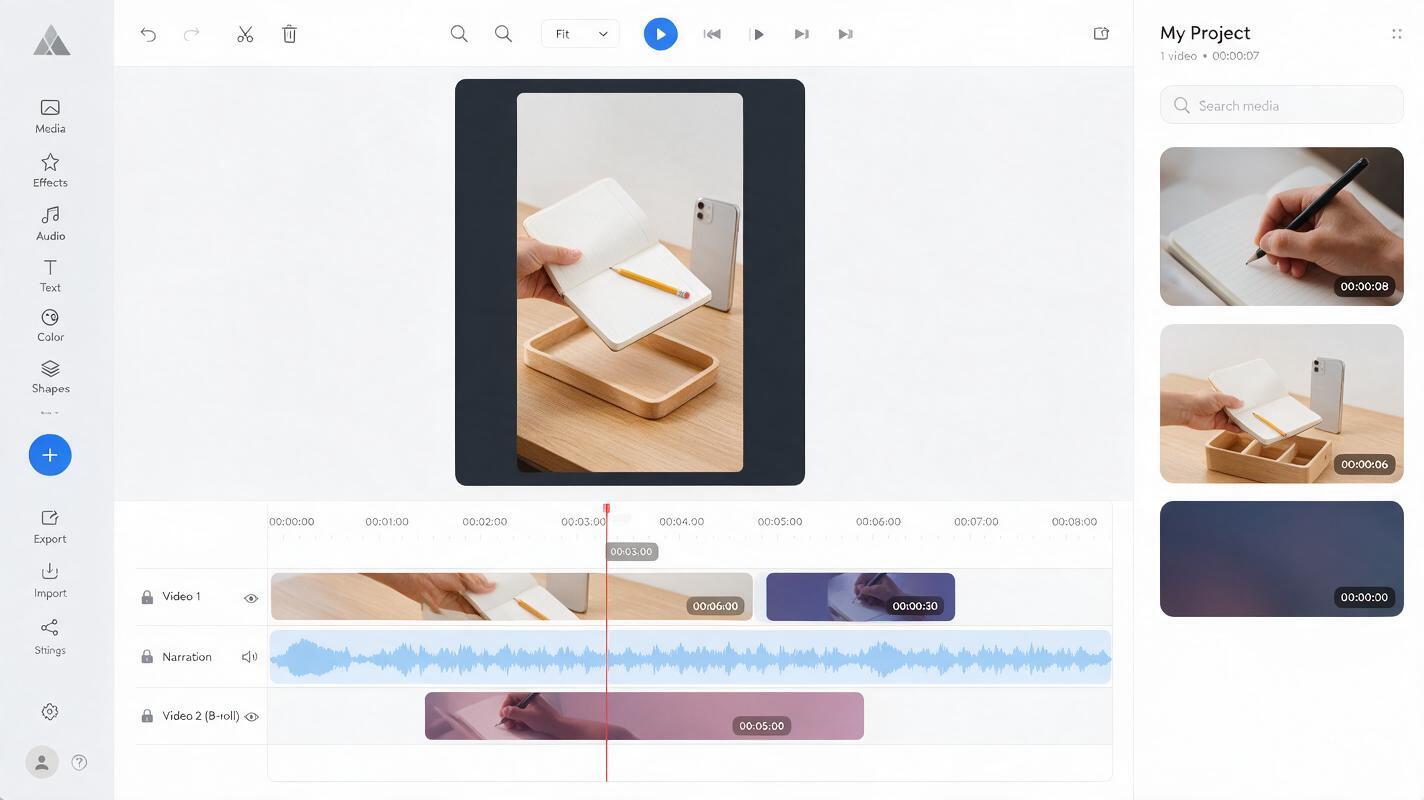
Place the cutaway over the phrase it illustrates. In the desk example, show the search while the voice says “losing my notes,” then return to the main shot as the voice introduces the solution. Do not leave the generated footage on-screen simply because it continues for several more seconds.
Keep the narration running underneath unless a deliberate pause is part of the Short. Trim the visual to its useful action, and let the audio carry the transition. If the cut feels abrupt, try moving its start to a word with a strong visual cue, such as “find,” “move,” or “open.” If the return feels jarring, compare the outgoing and incoming frames: a large change in brightness, scale, or subject position may be the real issue.
Generated audio is unnecessary for most of these cutaways. Retain your original voice track and add only sound effects you can justify from the visible action. A subtle paper movement may help; an exaggerated impact sound can make an ordinary desk action feel false.
Check the Short at phone size
Review the finished sequence on a phone or in a similarly small preview. Watch once with sound and once muted. With sound on, the cutaway should support the sentence. Muted, its central action should still be understandable without tiny labels or intricate details.
- Subject visibility: Can you identify the object and action immediately?
- Continuity: Does the prop still resemble the one in the surrounding footage?
- Framing: Are hands and key objects clear in the vertical crop?
- Pacing: Does the cutaway end when its visual point is made?
- Accuracy: Could a viewer mistake an illustrative shot for footage of a real event, place, product, or result?
If the answer to the last question is yes, choose a more plainly illustrative visual, use your own footage, or make the context clear in the edit. A smooth jump-cut cover is not worth misleading the viewer.
Final checklist
- Cover only jump cuts that interrupt understanding.
- Match each cutaway to a specific spoken idea and visible action.
- Keep the main subject readable in a vertical frame.
- Use a reference image when a real prop needs to stay recognizable.
- Trim to the action, preserve your narration, and check the return cut.
- Review for visual errors and misleading implications before publishing.
Keywords
hide jump cuts in shorts, Vidu B-roll prompts, YouTube Shorts editing, vertical B-roll, faceless Shorts, AI video generator