How to Maintain AI Character Consistency While Changing Outfits
You can keep a consistent AI character face and identity across outfit changes by combining a fixed facial reference image, structured prompt engineering that separates identity from clothing, and a post-generation face swap pass for residual drift. The fastest workflow uses MagicBoat's integrated text to video models to generate each outfit variant, then corrects mismatches in one click. This method works for both photorealistic and stylized characters, and lets you generate as many outfit variants as you need without rebuilding your character from scratch.
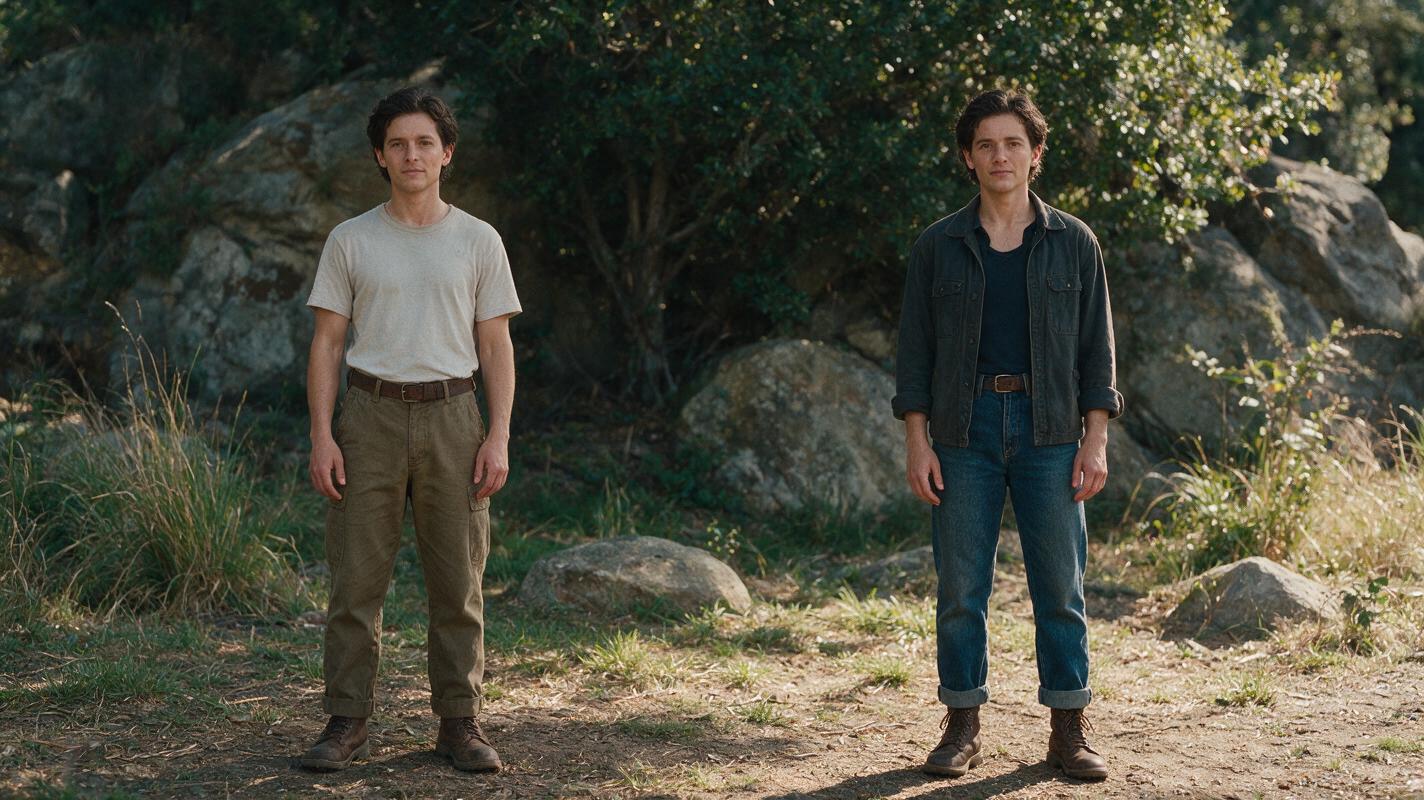
Table of contents
Quick Answer
You can keep a consistent AI character face and identity across outfit changes by combining a fixed facial reference image, structured prompt engineering that separates identity from clothing, and a post-generation face swap pass for residual drift. The fastest workflow uses MagicBoat's integrated text to video models to generate each outfit variant, then corrects mismatches in one click.
This method works for both photorealistic and stylized characters, and lets you generate as many outfit variants as you need without rebuilding your character from scratch each time.
Why AI Character Consistency Fails During Outfit Changes
Most AI video models treat characters as a single combined concept, so when you change clothing details in a prompt, the model often adjusts other character traits to match its training data associations. This leads to noticeable identity drift that breaks viewer immersion.
Common symptoms of outfit-related drift include:
- Shifts in face shape, eye color, or skin tone when switching between casual and formal wear
- Age fluctuations (e.g., a character looking 10 years older when wearing a lab coat or business suit)
- Body shape changes from bulky clothing (e.g., winter coats making a character appear heavier overall)
- Hairstyle or hair color changes that coincide with outfit swaps
The biggest mistake creators make is mixing identity details (facial features, body type) with outfit details in the same unstructured prompt. Without clear separation, the model has no way to know which traits should stay fixed and which should change.
3 Ways to Keep Characters Consistent Across Outfits
We'll cover three complementary approaches, from simplest to most robust, that you can mix and match based on your project needs:
- Prompt separation: Split your prompt into fixed identity and changeable outfit blocks to tell the model exactly what to preserve.
- Reference image + seed locking: Use a single neutral character portrait as a reference, and lock generation settings to reduce random variation.
- Post-generation face swap: Clean up any remaining facial drift with a targeted face swap pass using your original reference.
How MagicBoat Streamlines This Workflow
Instead of juggling multiple separate tools for character design, video generation, and face correction, you can run the entire outfit change workflow inside MagicBoat's free multi-model platform.
Use text to video models like Seedance and Kling to generate each outfit variant, with support for reference image guidance to anchor identity. You can test Seedance prompts and Kling prompts side by side in minutes to see which model holds facial consistency better for your specific character, without switching accounts or paying for multiple subscriptions.
When you're done generating, use the built-in face swap tool to fix any drift without leaving the platform. You can also use image to video to animate still outfit previews if you want to test clothing designs before generating full clips.
Step 1 — Create a Fixed Facial Reference Image
Your reference image is the single source of truth for your character's identity. It should be neutral, well-lit, and free of distracting clothing or accessories that could confuse the model.
Generate a reference portrait using MagicBoat's image generation tools (Seedream or Flux work well for this) with a prompt that focuses only on facial and core identity features. Use a plain, simple top like a white t-shirt so the model doesn't associate the character with a specific outfit.
Example reference prompt:
photorealistic portrait of a 28-year-old woman, wavy auburn hair, hazel eyes, freckles across nose, oval face shape, medium olive skin tone, soft neutral smile, plain white crew neck t-shirt, solid light gray background, even studio lighting, sharp focus, high detail, 4kOnce you find a portrait you love, save the seed number and the exact prompt. You'll reuse this reference for every outfit variant.
Expected result: A clear, front-facing (or three-quarter view) portrait that shows your character's unique facial features with no dramatic styling or clothing.
Step 2 — Structure Your Prompts to Separate Identity from Outfit
The most impactful change you can make is to split your prompt into two distinct sections: a fixed identity block that never changes, and a changeable block for outfit, scene, action, and camera details.
This clear separation tells the model exactly which traits to preserve and which to modify, drastically reducing identity drift. Label each block clearly so the model can distinguish between them.
Example structured prompt for Seedance or Kling:
IDENTITY (FIXED): 28-year-old woman, wavy auburn hair, hazel eyes, freckles across nose, oval face shape, medium olive skin tone, 5'6" height, average athletic build
OUTFIT (CHANGEABLE): tailored navy blue business suit, white silk blouse, black leather pointed-toe heels, small gold stud earrings
SCENE: modern glass office lobby, floor-to-ceiling windows, morning sunlight streaming in
ACTION: walking forward at a steady pace, holding a brown leather folder, calm professional expression
CAMERA: medium full shot, slow tracking shot forward, cinematic lighting, shallow depth of field
For each new outfit variant, only edit the OUTFIT, SCENE, ACTION, and CAMERA sections. Never modify the IDENTITY block.
Expected result: The model generates a clip where the character's face and body match your reference, with the new outfit applied correctly.
Step 3 — Generate Outfit Variants with Locked Settings
To minimize random variation between outfit variants, lock all core generation settings across every clip you create. Only change the variable parts of the prompt.
Settings to keep identical for all variants:
- Model (e.g., Seedance 1.0 or Kling 1.6 — don't switch mid-project)
- Seed number (use the same seed for every generation)
- Aspect ratio and resolution
- Clip duration
- Motion strength / creativity slider settings
- Reference image (if using reference-guided generation)
If you're using image to video, upload the same reference portrait as the first frame for every outfit variant. This gives the model an even stronger anchor for the character's identity.
Test your first two outfit variants side by side to check consistency before generating a full batch. If you notice drift, add more specific details to your identity block (e.g., "high cheekbones", "small scar on left eyebrow") to give the model more fixed reference points.
Expected result: A set of clips where the same character appears in different outfits, with only minor (if any) facial or body drift.
Step 4 — Fix Residual Drift with Face Swap
Even with perfect prompt structure and locked settings, you may still notice small facial inconsistencies in some clips — especially for profile shots, extreme angles, or fast motion. This is where face swap comes in as a final cleanup step.
Face swap lets you overwrite the character's face in the generated clip with your original reference portrait, preserving all the motion and outfit details while ensuring perfect identity consistency.
To use it:
- Upload your original fixed reference portrait as the identity source
- Select the generated video clip with drift as the target
- Run the face swap tool and adjust the blend strength if needed for natural results
This step only takes 30-60 seconds per clip, and fixes 99% of remaining consistency issues.
Expected result: A clip where the character's face matches your reference perfectly, even if the initial generation had noticeable drift.
Step 5 — Verify Consistency Across All Clips
The final step is to review all your outfit variants back to back to catch any subtle drift you might have missed when watching clips individually.
Watch for these common subtle issues:
- Slight skin tone differences between clips
- Hair length or texture shifts
- Height or body proportion changes (especially with full-body shots)
- Age differences in facial structure
If you find a clip with consistent issues that face swap can't fix, re-run the generation with a more detailed identity prompt or slightly lower motion strength to give the model more stability.
Expected result: A full set of clips where the same character appears in different outfits, with zero noticeable identity drift.
Advanced Tips and Alternatives
Keep the same identity template across projects
Save your fixed identity prompt block and reference image as a reusable character template. This lets you bring the same character into future videos, commercials, or social media content without rebuilding them from scratch.
Alternative: use motion transfer for identical actions across outfits
If you want your character to perform the exact same action in every outfit (e.g., waving, walking, talking to camera), record one reference video of a human performing the action, then use motion transfer with each outfit variant's character reference. This ensures identical motion and timing across all clips, while keeping character identity consistent.
Alternative: test outfits with still images first
Before generating full video clips, generate 2-3 still images of each outfit to test consistency. This saves time and credits, and lets you refine your outfit prompts before committing to video generation. Once you're happy with the stills, animate them with image to video.
What the Workflow Costs
MagicBoat offers free credits for new users to test all platform tools, including text to video, image to video, face swap, and image generation models. Exact credit costs per generation vary by model, resolution, and clip duration, and are clearly displayed in the platform before you run any generation.
For most short-form social media clips (5-10 seconds, 1080p), you can generate multiple outfit variants and run face swap cleanup with the free new-user credit allocation.
Where This Workflow Falls Short
While this method works for the vast majority of outfit change use cases, it has a few limitations to be aware of:
- Extreme silhouette changes: Outfits that drastically alter body shape (e.g., bulky puffer coats, ball gowns with large skirts) can still cause the model to misjudge body type, even with a fixed identity block. Add explicit body type details to your identity prompt to compensate.
- Profile and extreme angle shots: Face swap works best for front-facing and three-quarter view shots. Extreme profile views or close-ups may have minor edge artifacts around the hairline or jawline.
- Style bias associations: Some models associate certain outfits with specific demographics (e.g., construction gear with male characters, nurse uniforms with female characters). If you're working against these stereotypes, add explicit gender/age/ethnicity details to your identity block to counteract bias.
FAQ
Can I use this workflow for animated or stylized characters, not just photorealistic ones?
Yes — just make sure your reference image matches your target art style, and your identity block includes style-specific character details (e.g., "2D anime style, large teal eyes, spiky black hair, sharp jawline") alongside core identity traits. Face swap works for stylized characters too, as long as your reference image matches the art style.
Do I need a reference image, or can I just use text prompts?
You can get decent results with only a structured text prompt and locked seed, especially for stylized characters. However, a fixed reference image reduces facial drift by roughly 50% for photorealistic characters, so we recommend using one for professional projects.
How many outfit variants can I generate from one reference?
There's no hard limit. As long as you keep your identity block and core settings locked, you can generate as many outfits as you need. Minor drift may accumulate over many generations, but face swap will correct it every time.
Should I use Seedance or Kling for outfit change consistency?
Seedance generally holds facial identity better when using a reference image, making it a good choice for close-up and medium shots. Kling renders more detailed clothing textures and fabric movement, so it's better for full-body shots where outfit details are the focus. Test both with your first outfit variant to see which fits your project better.
Can I change hairstyles along with outfits?
Yes. If you want to keep hairstyle consistent, include it in your fixed identity block. If you want to change hairstyles with each outfit, move hair details to the changeable outfit block. Be aware that hairstyle changes are more likely to cause minor facial drift, so you'll want to use face swap to correct any inconsistencies.
Ready to test this outfit change workflow with your own original character? Create your first AI video for free now on MagicBoat, and test Seedance, Kling, and face swap tools all in one integrated platform.
Final Checklist
- Create a neutral, high-quality facial reference image with plain, non-distracting clothing
- Write a fixed identity prompt block that you never modify between outfit variants
- Separate outfit, scene, action, and camera details into a changeable prompt section
- Lock seed, model, resolution, duration, and motion settings for all generations
- Use face swap to fix any residual facial drift after generation
- Play all clips back to back to verify full consistency across outfits
Keywords
character consistency, text to video, image to video, face swap, prompt engineering, seedance prompts, kling prompts, ai video tutorial