How to Create On-Brand AI Packaging Concepts & Animated Teasers Fast
This step-by-step tutorial teaches brand and graphic designers to generate on-brand AI packaging design concepts for multi-SKU product lines using Flux, with reusable prompts and brand consistency hacks. Then, learn to turn static packaging renders into polished animated product teasers with Runway’s image-to-video tool. Includes troubleshooting for off-brand colors, distorted logos, and warped packaging shapes.
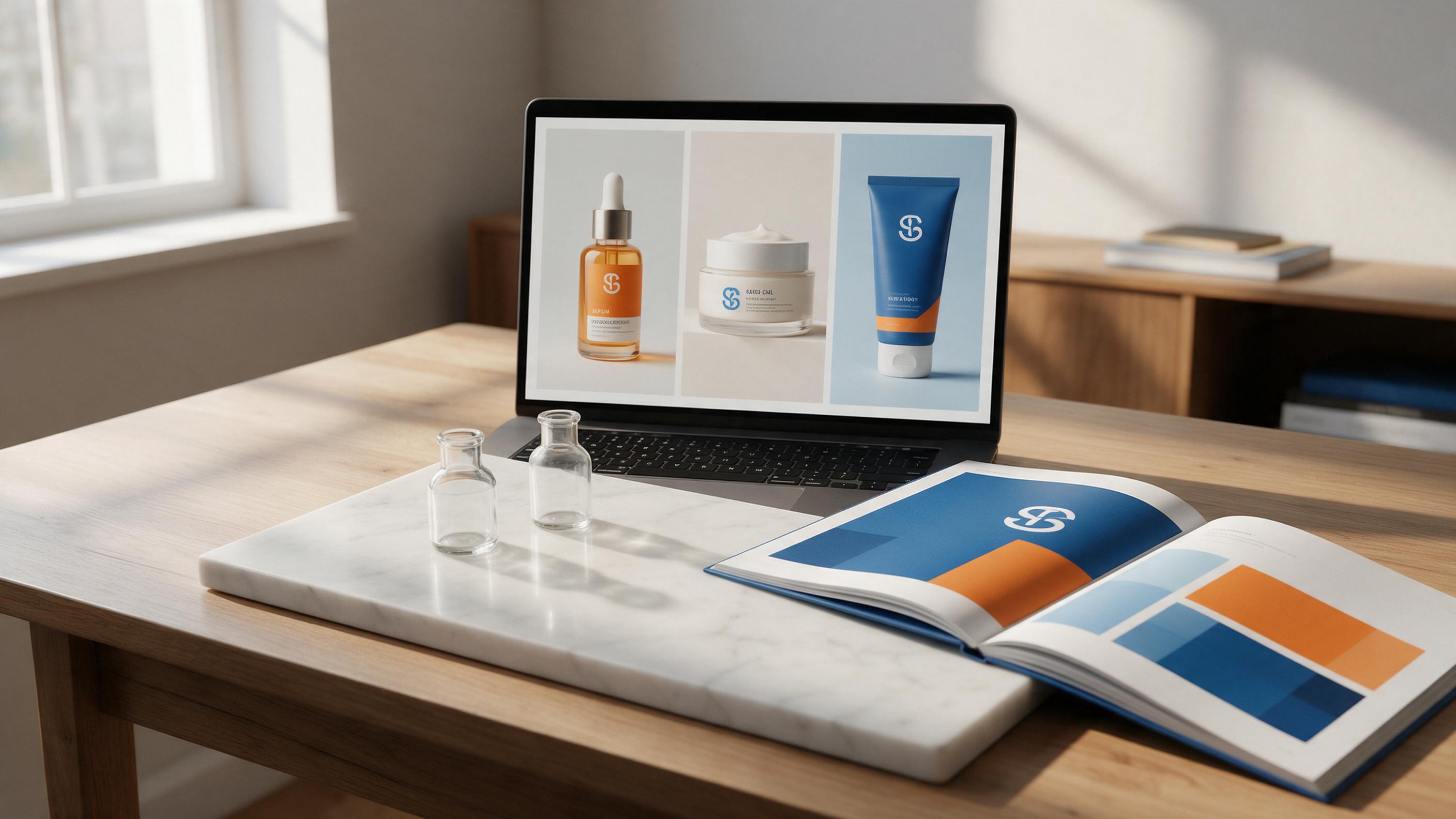
Table of contents
Why AI Packaging Design Fails (and How to Fix It for Brand Consistency)
Tired of spending 8+ hours mocking up 5 SKUs of packaging for a new product line, only to have to redo half of them because the logo placement is off or the brand blue is 10% too dark? AI packaging design tools can cut that time to under an hour, but most designers struggle with distorted dielines, off-brand colors, and logos that melt into the background.
This tutorial walks you through a repeatable workflow to generate on-brand static packaging concepts for multiple SKUs using Flux, then turn those static renders into eye-catching animated teasers with Runway’s image-to-video tool. No 3D skills or advanced software required.
Step 1 — Prep Your Brand Reference Kit for AI Consistency
The #1 reason AI packaging design misses the mark is missing clear brand references. Before you open any AI tool, gather these 4 assets to lock in consistency across every SKU:
- High-res transparent logo PNG (at least 1000px wide, no background)
- Brand color palette with exact hex codes (primary, secondary, and neutral colors)
- 1-2 existing on-brand assets (e.g., a brand poster, business card, or previous packaging) as a visual reference
- SKU list with packaging formats (e.g., 50ml glass serum bottle, 100ml plastic moisturizer jar, 150ml squeezable cleanser tube)
Pro tip: If you’re using a reference image, make sure it’s cropped to focus on the key brand elements (logo, color blocking, typography) so the AI prioritizes those details.
Step 2 — Generate Your First On-Brand Packaging Concept with Flux
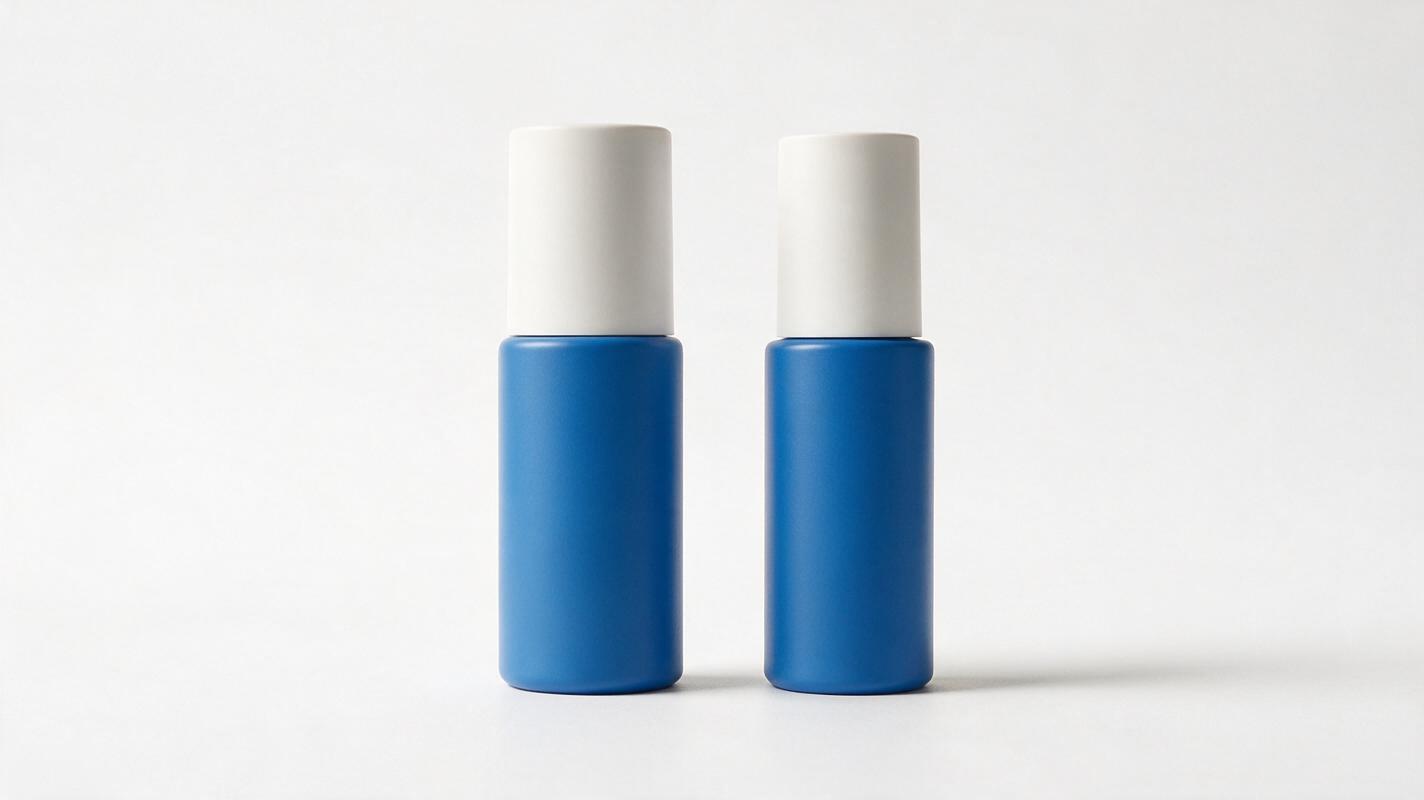
Flux is a powerful ai image generator for product and packaging visuals, ideal for capturing fine details like brand logos and typography. We’ll use image-to-image with your brand reference as a guide, plus a detailed text prompt to define the packaging format and style.
Follow these settings for best results:
- Model: Flux Pro
- Reference image strength: 0.6–0.7 (high enough to keep brand colors/logo, low enough to adapt to the new packaging shape)
- Aspect ratio: 1:1 (square works best for most packaging mockups)
- Output quality: High
Use this reusable prompt, replacing the bracketed details with your own brand info:
Professional product photography of [50ml glass serum bottle] packaging, minimalist design,
primary brand color [#2563eb blue], secondary color [#f97316 orange] accent,
crisp white brand logo centered on the front panel, clean sans-serif typography for product name,
soft natural studio lighting, white background, sharp focus, 8K, no text distortion
--negative distorted logo, blurry text, warped packaging, messy background, unrealistic proportions
Generate 3–4 variations, then pick the strongest one as your base for other SKUs. Test this prompt yourself with your own brand references to see how quickly you can get a usable first draft.
Step 3 — Create Consistent Multi-SKU Packaging Variations
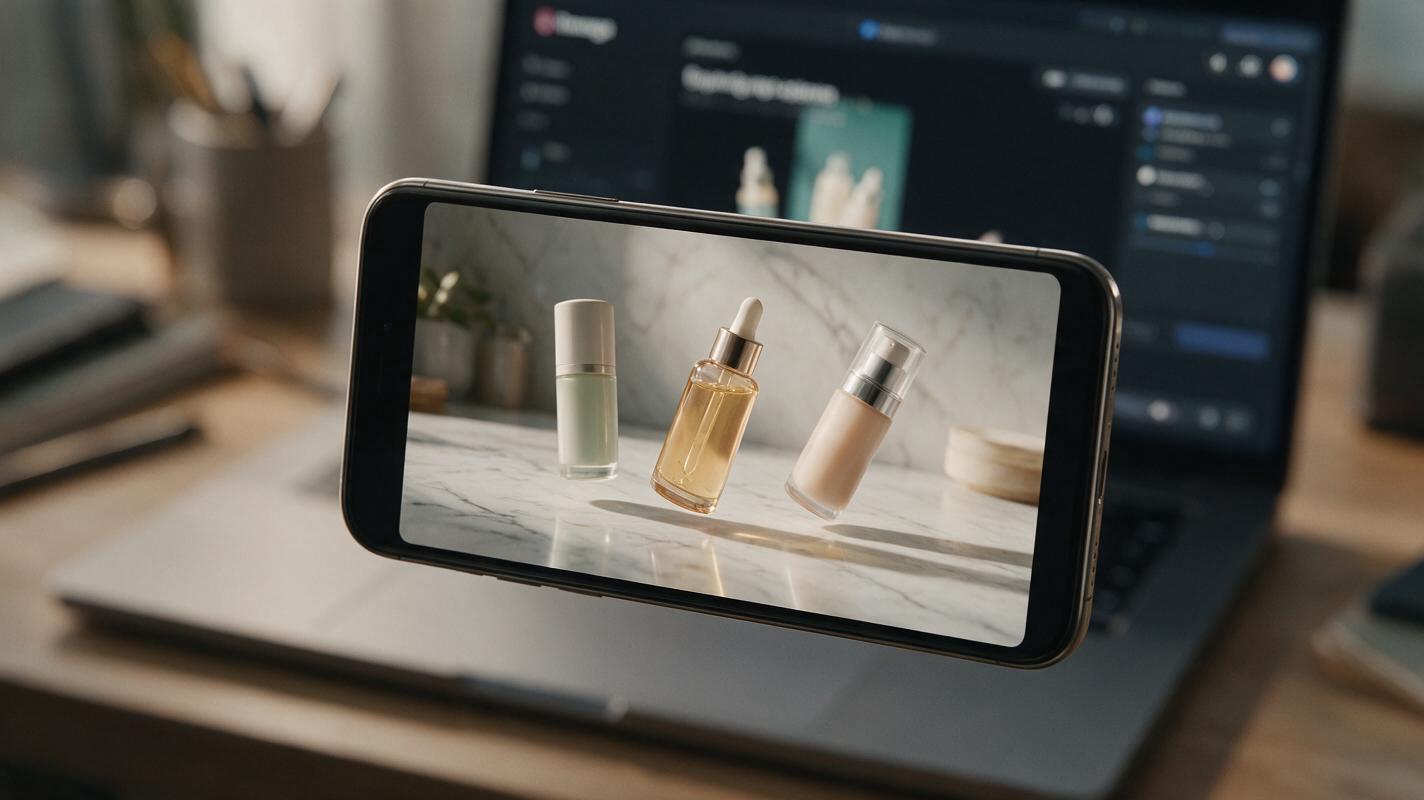
Once you have a base packaging concept you love, it’s easy to generate matching designs for every SKU in your product line without starting from scratch. The key is to keep 90% of the prompt and reference settings identical — only change the packaging format and product name.
For example, to make a moisturizer jar variation of the serum bottle design above, your revised prompt would start like this:
Professional product photography of [100ml frosted glass moisturizer jar] packaging, minimalist design,
primary brand color [#2563eb blue], secondary color [#f97316 orange] accent,
crisp white brand logo centered on the front panel, clean sans-serif typography for product name,
soft natural studio lighting, white background, sharp focus, 8K, no text distortion
Use the same reference image and reference strength as your base design to keep colors and logo style consistent. If you’re working with a tool that supports seed numbers, reuse the seed from your best base concept for even tighter alignment.
Troubleshooting Common Packaging Issues
- Off-brand colors: Add explicit hex codes to the prompt (don’t just say "blue") and increase reference strength by 0.1.
- Distorted or missing logo: Add "crisp, undistorted logo centered on front" to the positive prompt, and "melted logo, blurry logo" to the negative prompt.
- Warped packaging shape: Add "realistic product proportions, straight edges, no warping" to the positive prompt, and try a higher reference strength if the shape is too far off.
Step 4 — Turn Static Packaging Renders into Animated Teasers with Runway
Static packaging mockups are great for client presentations, but animated teasers are far more engaging for social media and campaign landing pages. Runway’s image to video tool lets you turn static packaging renders into short, polished motion clips without 3D software or animation skills.
Follow these steps for a professional product teaser:
- Upload your best static packaging render (for a single SKU, or a group shot of all SKUs)
- Set video duration to 10 seconds (ideal for Instagram Reels and TikTok)
- Use a motion strength of 3–4 (low enough to avoid distorting the packaging, high enough for subtle movement)
- Add a detailed motion prompt to guide the animation
Use this reusable motion prompt for packaging teasers:
Slow 30-degree rotation of the skincare packaging set on a white marble countertop,
soft natural light from a nearby window, subtle shadow movement,
smooth cinematic motion, no distortion of product shape or logo,
10 seconds, 24fps, high resolution
Generate 2–3 variations, then pick the smoothest one. If you want a longer clip, you can extend it by 5–10 seconds using the same tool with the end frame as the new input.
Pro tip: For a more dynamic campaign asset, create 2–3 short clips of different SKUs, then edit them together with your brand’s font and music for a full product launch reel.
Final Checklist for On-Brand AI Packaging & Animation
- Brand reference kit gathered (logo, hex codes, sample assets, SKU list)
- Base packaging concept generated with Flux, matching brand colors and logo style
- All SKU variations use the same reference settings and prompt structure for consistency
- Static renders are free of distorted text, warped shapes, or off-brand colors
- Animated teaser preserves packaging shape and brand details, with smooth, natural motion
- Final assets align with your brand’s overall visual identity system
Keywords
ai packaging design, brand design ai, flux, runway, image to video, graphic design prompts, packaging concepts