How to Maintain Character Consistency in AI Video Clips
You can maintain character consistency across AI video clips by combining reference image locking, structured prompting, and model-specific settings for Seedance and Kling. The fastest workflow starts with a single high-quality base character image, then uses image to video with locked facial and style parameters for every new scene. This tutorial covers 3 actionable methods you can test for free on MagicBoat’s multi-model platform.
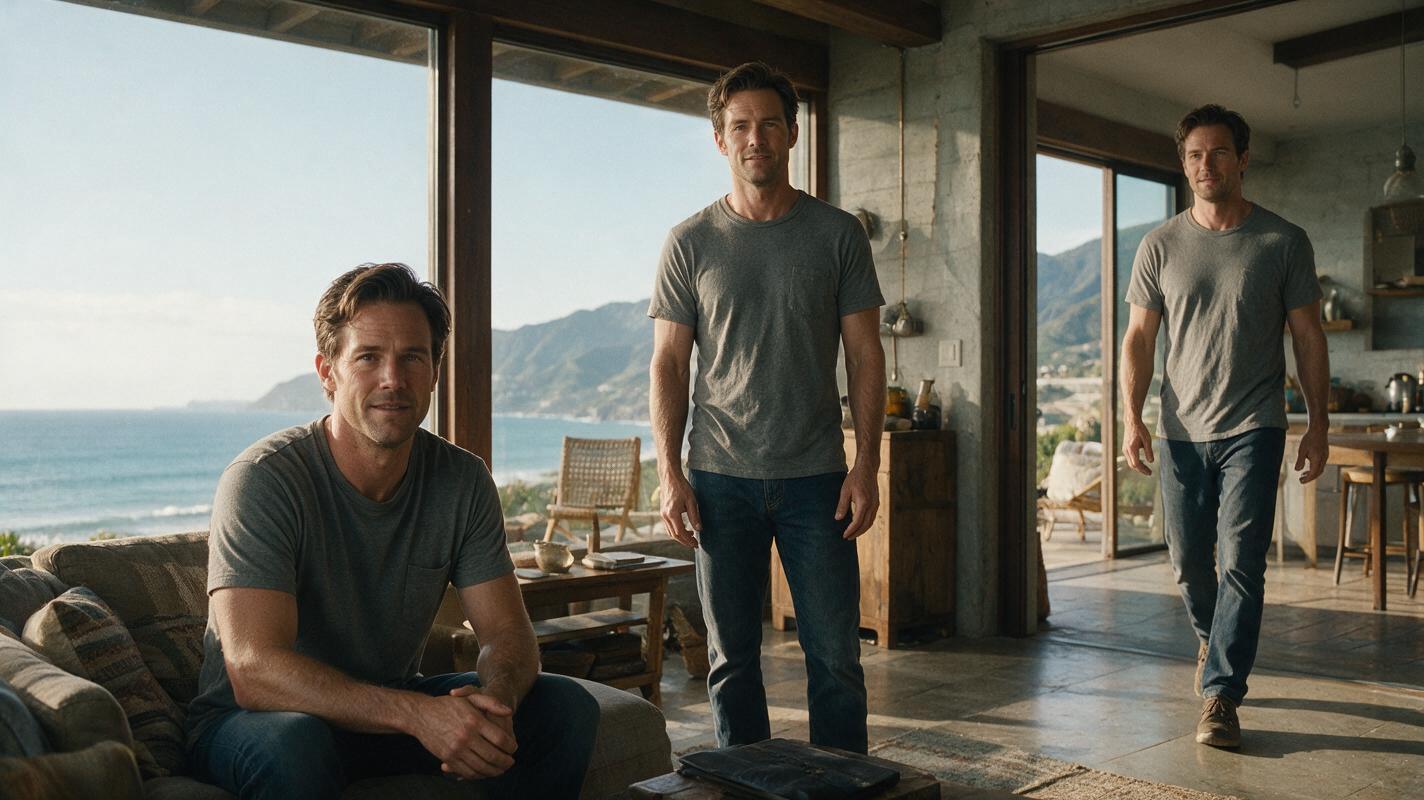
Table of contents
Getting a single character to look the same across every AI video clip doesn’t require fancy custom models or hours of post-processing — you just need a structured, repeatable workflow.
Why Character Consistency Breaks in AI Videos (And What It Looks Like)
If you’ve ever tried to make a multi-scene AI video with a recurring main character, you’ve probably run into this problem: the character looks perfect in the first clip, but in the second clip their hair is a different shade, their face shape changes, or their outfit suddenly has new details. This isn’t a mistake in your prompting — it’s a core limitation of how generative video models work.
Common failure modes include:
- Facial feature drift: eye color, nose shape, or jawline changes between clips, especially when the character is viewed from different angles
- Style shift: a character that looked like a 2D anime character in the first clip suddenly looks more 3D or semi-realistic in the next
- Clothing/accessory loss: a character’s glasses, necklace, or unique jacket disappears mid-scene, especially during fast motion
- Age or body type changes: the character looks 10 years older, or their height/build shifts, between wide and close-up shots
These issues happen because every new video generation starts with a degree of randomness, and models prioritize motion and scene composition over retaining tiny character details. The good news is that with a structured workflow, you can reduce or eliminate almost all of these inconsistencies.
3 Ways to Keep Characters Consistent in AI Videos
There are three proven methods for maintaining character consistency, each with different use cases depending on your project needs and preferred workflow:
- Reference image locking: Use a single base character image as a reference for every clip (most reliable, recommended for most projects)
- Structured prompt engineering: Use standardized, repeated character descriptions and seed locking for text-only generation (best for stylized characters when no reference image is available)
- Post-production face swap: Fix small drift issues after generation by swapping the character’s face back to the original reference (ideal for realistic human characters with fast-motion scenes)
How MagicBoat Handles Character Consistency Workflows
MagicBoat’s integrated multi-model platform eliminates the hassle of switching between tools to test character consistency methods. You can generate base character images with Flux or Seedream, then test both text to video and image to video workflows across Seedance, Kling, and Veo all from one dashboard.
Seedance excels at stylized and animated characters, with a reference strength slider that lets you fine-tune how closely the output matches your input image. Kling has industry-leading face consistency for realistic human characters, with built-in face enhancement and character lock settings. For post-production fixes, you can use the platform’s integrated face swap and motion transfer tools without exporting your clips to external software. Best of all, you can test every model and tool for free with a single MagicBoat account.
Step 1 — Generate a Consistent Base Character Image
The foundation of any reliable character consistency workflow is a single high-quality reference image. This image will be the source of truth for every clip you generate, so it’s worth taking the time to get it right. Use Flux or Seedream on MagicBoat to generate your base image, and include every defining character detail in your prompt.
Sample base character prompt:
Full body portrait of a 28-year-old non-binary barista, curly auburn shoulder-length hair with subtle blonde highlights, round wire-rimmed glasses, warm brown eyes, freckles across nose, small silver nose stud, wearing a navy blue canvas apron over a cream turtleneck, black high-waisted jeans, white scuffed sneakers, standing in a sunlit minimalist coffee shop, soft natural side lighting, 8k, photorealistic, neutral expression, facing camera directly, no obstructions to face or bodyKey settings to lock in:
- Write down the seed number of your favorite generated image — you’ll need it if you ever want to regenerate the same character from a different angle
- Choose a single art style (photorealistic, 2D anime, watercolor, etc.) and stick with it for all generations
- Pick an image with the character facing the camera directly, with no hair or objects covering their face
Expected result: A sharp, full-body (or head-to-hips) image where every defining character feature is clearly visible and unobscured.
Step 2 — Generate Your First Video Clip With Image to Video
Once you have your base reference image, use image to video to generate your first clip. The exact settings and prompt structure will vary slightly depending on which model you use. Below are optimized settings for the two most popular models on MagicBoat for character consistency:
Seedance Settings & Prompt
- Reference strength: 0.75–0.85 (higher = more character lock, lower = more motion flexibility)
- Resolution: 720p or 1080p
Sample Seedance prompt:
Same character as reference: 28-year-old non-binary barista with curly auburn hair, round wire-rimmed glasses, freckles, navy apron over cream turtleneck. They are steaming a pitcher of oat milk behind a wooden coffee shop counter, soft steam curling up around their face, slow natural hand movement, sunlit background, cinematic lighting, 24fps, photorealisticKling Settings & Prompt
- Character consistency: High
- Face enhancement: On
- Motion intensity: Medium
Sample Kling prompt (wrap core character details in brackets to prioritize them):
[Character: 28-year-old non-binary barista, curly auburn shoulder-length hair, round wire-rimmed glasses, warm brown eyes, freckles, navy blue apron, cream turtleneck] Action: steaming a pitcher of oat milk behind a coffee shop counter, steam rising gently, slow deliberate hand movement, sunlit cafe background, realistic, 4kExpected result: A 3–5 second clip where the character’s face, hair, and clothing match the base reference image exactly, with smooth, natural motion.
Step 3 — Reuse the Base Image for Every New Clip
For every subsequent scene in your video (e.g., the barista handing a drink to a customer, wiping down the counter, laughing with a coworker), repeat the exact same process: use your original base reference image, keep the same model settings, and repeat the core character description at the start of every prompt.
Pro tip: Never use a frame from a previous video clip as a reference. Video frames have compression artifacts and motion blur that introduce tiny inconsistencies that build up over multiple clips, leading to noticeable drift by your third or fourth scene. Always go back to your original high-quality base image.
If you need a clip where the character is viewed from a new angle (e.g., side profile, back view), generate a new reference image of that angle using the same base prompt and seed, then use that new reference for the corresponding clip. This is far more reliable than asking the model to rotate the character from a single front-facing reference.
Expected result: All clips in your project have the same recognizable character, with consistent facial features, hair, clothing, and style across every scene.
Alternative Workflows for Tricky Scenes
Alternative 1: Structured Prompt Engineering for Text to Video
If you don’t have a reference image and need to use text to video directly, use a structured prompt format that leads with character details, repeats them consistently, and uses model-specific trigger words. For Seedance prompts, prefix the prompt with CHARACTER LOCK: [full description] to prioritize feature retention. For Kling prompts, wrap character details in [Character: ...] brackets as shown in Step 2.
Also, use the same seed number for every text to video generation — this reduces random variation between clips. Note that text-only consistency will never be as reliable as reference image locking, but it works well for stylized or animated characters where small variations are less noticeable.
Alternative 2: Use Face Swap for Post-Production Fixes
If you have a clip where the character’s face drifted slightly (common in fast-motion scenes or extreme close-ups), use MagicBoat’s built-in face swap tool to correct it. Upload your original base character image as the source face, and the drifted clip as the target. This works best for realistic human characters, and can fix small inconsistencies like eye color shifts or face shape changes that happen during dynamic movement.
Alternative 3: Motion Transfer for Exact Poses
If you need the character to perform a specific, complex movement without drifting, use motion transfer. Upload a reference video of the movement you want (e.g., someone dancing, pouring a drink, or walking), paired with your base character image. This locks the character’s appearance while transferring the motion from the reference video, eliminating style drift entirely during complex actions.
What This Workflow Costs
All the tools used in this guide — image generation, image to video, text to video, face swap, and motion transfer — are available to test for free with a MagicBoat account. For higher resolution or longer clips, paid tiers are available with additional generation credits; check the MagicBoat pricing page for the latest details.
Where This Workflow Falls Short
- Extreme angles: Even with reference locking, characters viewed from directly behind or in extreme close-up may lose some identifiable features, especially on models with weaker reference adherence.
- Fast motion: Rapid movement like running or dancing can cause temporary facial warping or clothing detail loss; use face swap post-processing to fix these frames.
- Mixed art styles: If your base image is photorealistic and you try to generate a cartoon-style clip, the character’s features may not translate consistently. Stick to the same art style across all clips.
- Long clips: Clips longer than 10 seconds may see gradual drift toward the end; split long scenes into shorter 3–5 second clips and stitch them together for best results.
Frequently Asked Questions
Which MagicBoat model is best for character consistency?
For realistic human characters, Kling has the strongest built-in face consistency features and handles fast motion better than most other models. For stylized, animated, or fantasy characters, Seedance tends to hold reference details better when reference strength is set above 0.75. Test both with your base character to see which fits your project’s style.
Can I use a screenshot from a previous video as a reference?
We don’t recommend it. Video frames have compression artifacts and motion blur that can introduce small inconsistencies that build up over multiple clips. Always use your original high-quality base image as the reference for every new clip.
How detailed does my character prompt need to be?
As detailed as possible for the features that matter to you. If hair color is critical, specify the exact shade (e.g., “curly auburn shoulder-length hair with blonde highlights” not just “brown hair”). Include facial features, clothing, accessories, body type, and even posture if it’s a defining trait. The more specific you are, the less room the model has to improvise.
Does using the same seed guarantee character consistency?
No, but it helps. The seed controls the initial random noise of the generation, but small changes to the prompt, settings, or scene context can still change the character’s appearance. Always pair seed locking with a reference image or repeated detailed character descriptions for the most reliable results.
Test These Workflows for Free on MagicBoat
You don’t need to switch between half a dozen AI tools to get consistent characters — MagicBoat has all the models and editing tools you need in one place, from image generation to face swap. Create your first AI video free today and test which character consistency method works best for your project.
Final Checklist for Consistent AI Video Characters
- Generate one high-quality base character image with all key features visible and unobscured
- Use the same base image as a reference for every image to video clip
- Repeat core character details at the start of every prompt, even when using reference images
- Keep model settings (reference strength, character consistency level) the same across all clips
- Use face swap to fix small drift issues in fast-motion or extreme-angle clips
- Save your base image seed and prompt in a note for future projects
Keywords
character consistency, ai video tutorial, text to video, image to video, seedance prompts, kling prompts, ai video workflow