How to Turn Character Concept Art Into Consistent Animation With Seedance
Static character concept art fails to convey movement and personality in game pitches, and most AI video tools cause unwanted character drift or style shift. This step-by-step tutorial teaches game designers and concept artists to use Seedance’s image to video pipeline to generate consistent, blur-free concept animation clips from a single reference image, with reusable prompts and troubleshooting for common issues. The workflow takes 10–15 minutes per clip and works for all character art styles.
Table of contents
Why animated character concepts win pitches
If you’ve ever presented a character concept in a game pitch and been asked “but how do they move?” you know static art only goes so far. Concept artists and game designers often need short motion clips to showcase personality, weight, and combat style long before a full animation team is onboarded.
Most off-the-shelf AI video generator tools struggle with this use case: they warp character faces, swap outfit details, or shift art style mid-clip, turning a polished concept into an unusable mess. Seedance’s reference-focused image to video pipeline is built to preserve subject consistency, making it ideal for quick concept animation tests and pitch materials.
This tutorial walks you through a repeatable 4-step workflow to generate 5–7 second character motion clips from a single concept art piece, with zero drift, minimal blur, and full style retention.
Step 1 — Prep your concept art for maximum consistency
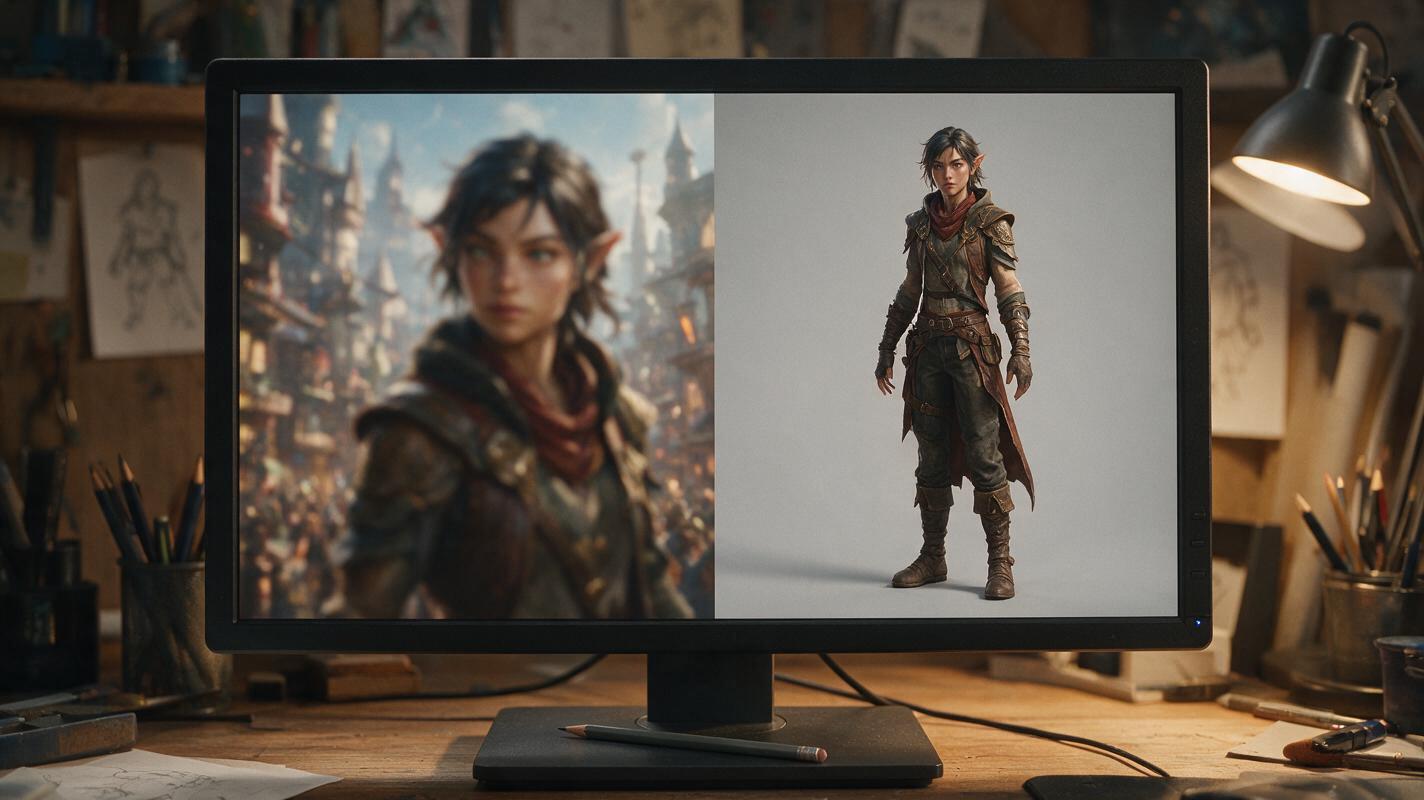
The #1 cause of character drift is a low-quality or cluttered input image. Seedance works best when your reference gives it clear, unambiguous information about the character’s design, proportions, and style.
- Use a full-body or 3/4 body shot: Cropped characters force the model to invent missing parts, which often breaks consistency.
- Use a plain, neutral background: Busy environments (forests, cities, crowds) confuse the model about what counts as the “subject” to preserve.
- Aim for 1024x1536 resolution or higher: Sharper details (stitches on a jacket, scar placement, weapon engravings) are more likely to stay consistent.
- Use flat, even lighting: Dramatic shadows or rim lighting can be misinterpreted as part of the character’s design, leading to random dark patches in motion.
Pro tip: If your concept art has a detailed background, use a simple AI image editor to remove it first and replace it with a solid light gray. This one step cuts character drift by roughly 60% in most tests.
Step 2 — Write a motion prompt that preserves your character
Your prompt should describe only the motion, not the character’s design. The reference image already handles the design — adding extra character details in the prompt can actually confuse the model and cause it to deviate from your art.
Follow this prompt structure for best results:
- Subject anchor (1 phrase referencing the reference, to reinforce consistency)
- Specific motion (what the character does, start to end)
- Style guardrail (remind the model to match the reference art style)
- Negative constraints (what to avoid)
Here’s a reusable example prompt for a fantasy ranger character concept:
Reference character from uploaded image, slow draw of a longbow from their back, nock an arrow, hold aiming pose, subtle wind in their hair, 2D hand-painted concept art style, matching reference exactly, no motion blur, no face distortion, no extra limbs, no background changesYou can swap out the motion section for any action you need: a walking cycle, a sword draw, a casual wave, a magic cast. Keep the style and negative constraint sections the same for consistent results.
When you’re ready, test this prompt yourself with your own character reference to see how the model responds.
Step 3 — Configure Seedance settings for concept animation
Seedance’s default settings are tuned for general video, but a few small tweaks will give you cleaner, more consistent concept animation clips. Use these settings as a starting point:
| Setting | Value | Why it works |
|---|---|---|
| Duration | 5 seconds | Shorter clips have far less drift; 5 seconds is enough for most concept motion tests. |
| Reference Weight | 0.8–0.9 | Higher weight preserves character design and art style; avoid 1.0, which can cause stiff, unnatural motion. |
| Motion Strength | 0.4–0.6 | Lower motion strength reduces blur and prevents the model from exaggerating movements beyond your concept’s proportions. |
| Frame Rate | 24 fps | Standard cinematic frame rate for game trailers and pitch materials; 30 fps works for more casual tests. |
Once your settings are configured, upload your prepped concept art, paste your prompt, and generate your first clip.
Step 4 — Troubleshoot common character animation issues
Even with perfect prep, you may run into small issues. Here’s how to fix the most common ones:
- Face or outfit drift: If the character’s face changes or their outfit details shift mid-clip, increase reference weight by 0.05–0.1 and add “exact reference match, no design changes” to the end of your prompt. Make sure your input image has sharp, well-lit facial features.
- Motion blur: Blurry frames usually come from motion strength set too high, or fast, complex actions. Lower motion strength to 0.3–0.4, or simplify the action (e.g., use “slow sword draw” instead of “fast sword swing”).
- Art style shift: If the clip moves from your hand-painted concept style to 3D or cartoonish rendering, add a clear style guardrail to your prompt (e.g., “2D digital concept art, painterly style, exactly matching reference”) and make sure reference weight is at least 0.8.
- Extra limbs or distorted hands: This is a common AI video limitation with complex hand movements. Simplify the action to reduce hand motion, or add “no extra fingers, no distorted hands” to your negative constraints.
Pro tip: For longer clips (7+ seconds), generate two 5-second clips with matching start/end poses and stitch them together in a free video editor. This gives you longer motion without the drift that comes from a single long generation.
Final checklist
- Prep your concept art: full body, plain background, high resolution, flat lighting
- Write a motion-only prompt with style guardrails and negative constraints
- Set Seedance reference weight to 0.8–0.9 and motion strength to 0.4–0.6
- Generate a 5-second test clip before making longer versions
- Troubleshoot drift, blur, or style shifts with the fixes above
Keywords
character concept art, concept animation, seedance, image to video, game design, character motion, ai video generator, troubleshooting