How to Turn Product Photos Into Seamless Looping Ads With Kling
Learn how to animate a static product photo with Kling and turn it into a short, seamless loop for social ads, product pages, and launch campaigns. This practical workflow covers source-image selection, controlled motion prompts, loop construction, text overlays, and common distortion fixes.
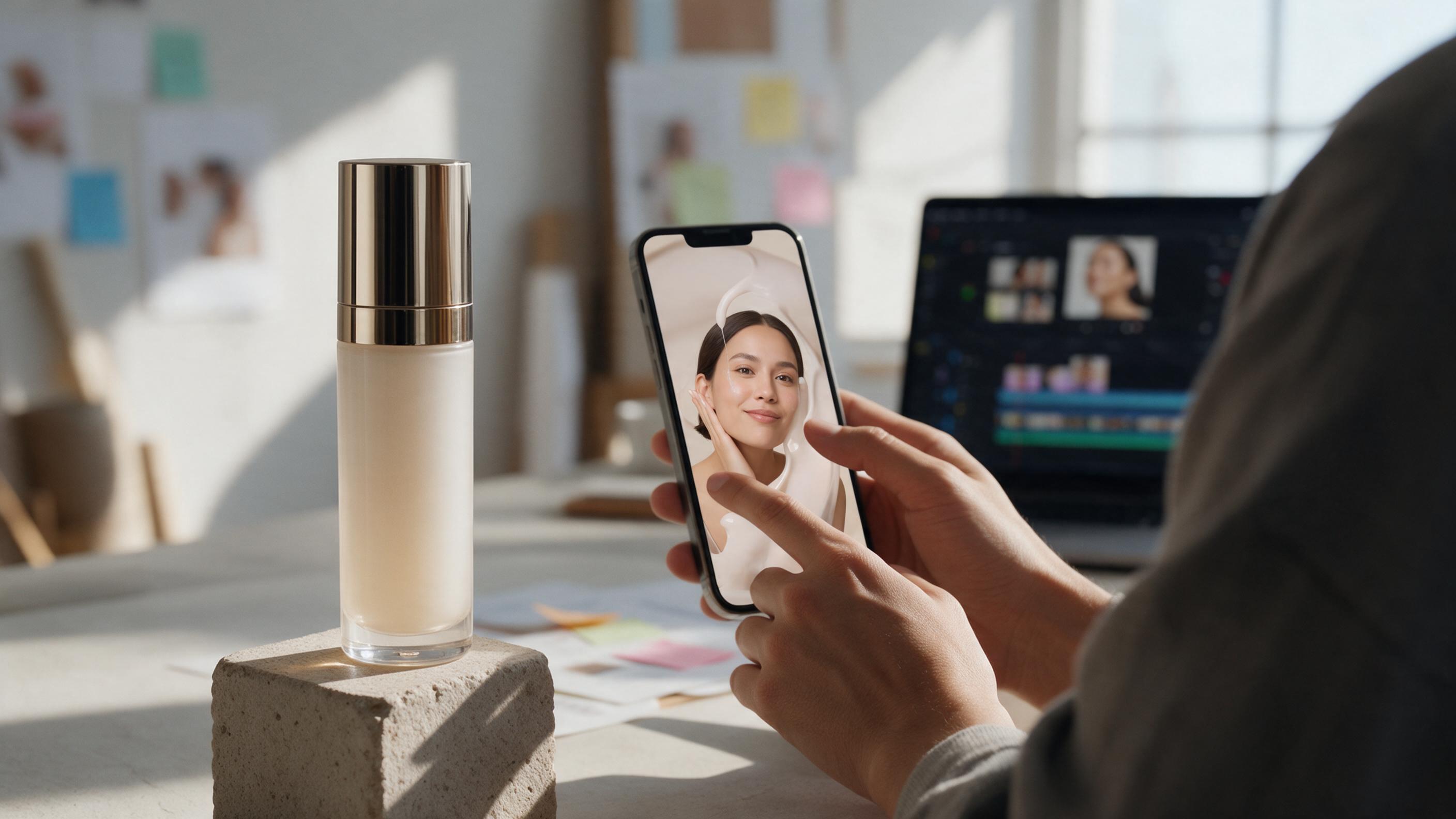
Table of contents
Turn one product photo into an ad that keeps moving
A seamless product loop can stop the scroll without requiring a studio shoot, a complex scene, or a long video. The challenge is making the motion feel intentional while keeping the product recognizable. This tutorial shows how to use Kling for controlled photo animation, create a clean repeating loop, and avoid the drifting logos, changing packaging, and abrupt resets that make AI-generated product ads look unfinished.
The workflow works best for short paid-social assets, product-page motion, launch teasers, email graphics, and catalog-to-content production. You will begin with one strong product image, generate a restrained motion shot, and finish the loop outside the model if necessary.
Step 1 — Choose a photo that can become a loop
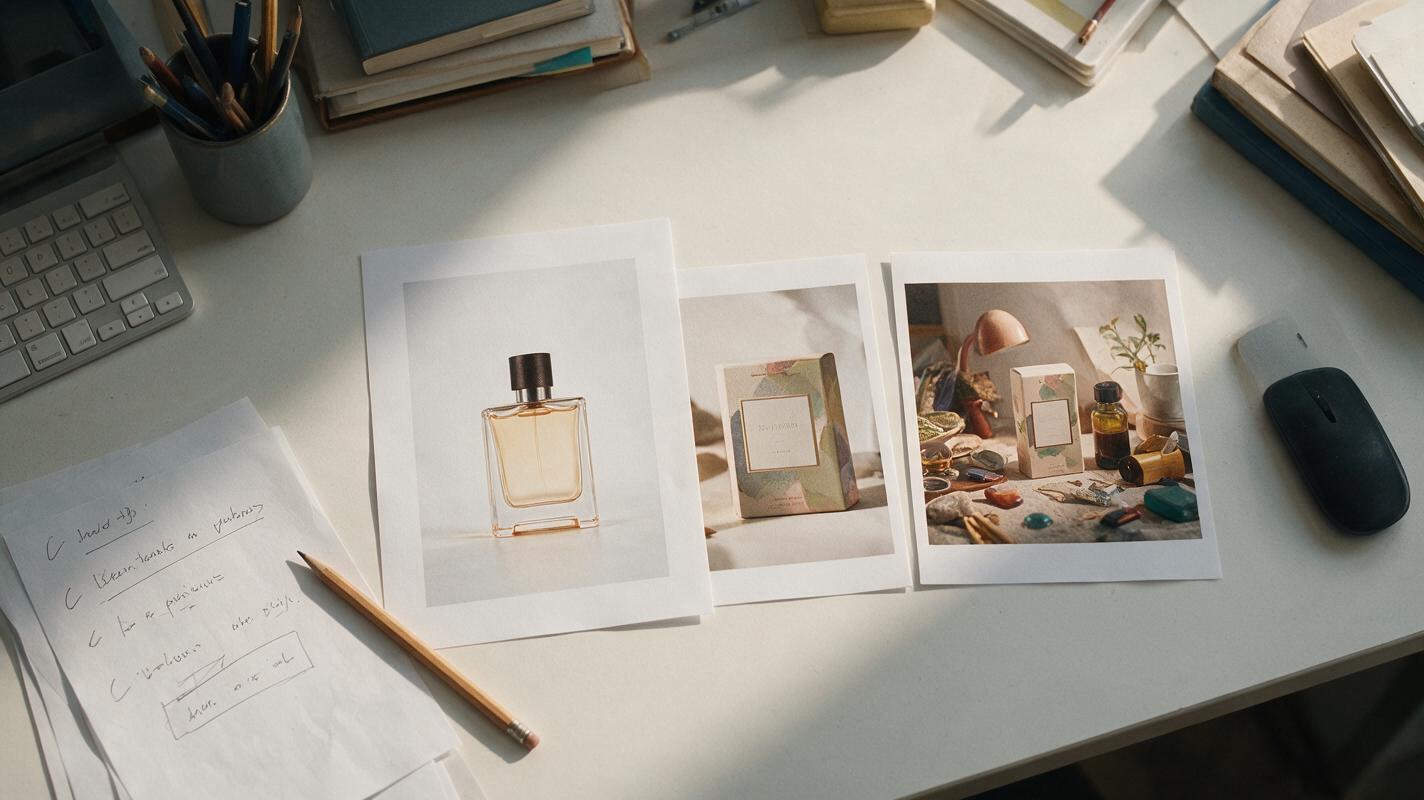
Start with an image that already looks like the opening frame of an advertisement. Kling can add motion, but it should not be asked to repair poor composition and invent complicated action at the same time.
A suitable source image usually has:
- A clearly visible product silhouette with no cropped cap, handle, heel, or packaging edge.
- Readable branding at the intended viewing size.
- Visual separation between the product and its background.
- Space for movement around objects that will float, fall, rotate, or cast moving shadows.
- A simple lighting direction that can remain consistent throughout the shot.
For the easiest first test, use a centered bottle, box, shoe, bag, or device on a stable surface. Let secondary elements create the movement. Examples include a slowly traveling highlight, drifting steam, falling petals, moving condensation, or a gentle camera push.
A loop does not need constant action. One controlled visual change is usually more convincing than several competing effects.
Choose the final aspect ratio before generating. A vertical 9:16 composition suits short-form placements, while 4:5 offers more product area in many social feeds. Use a wider composition only when the destination actually requires it.
Step 2 — Prepare the source image before animation
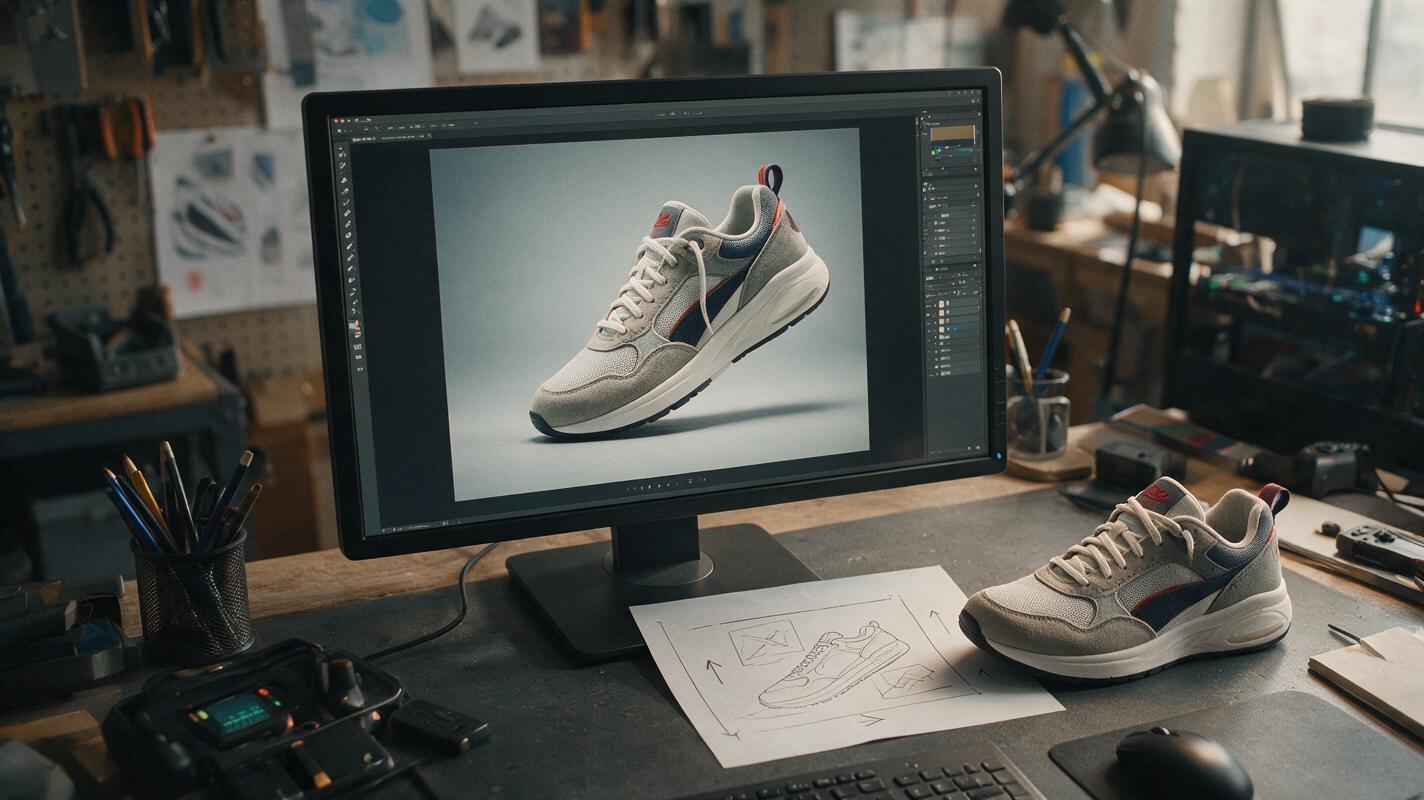
Clean the still image before uploading it. Generative video tends to amplify small defects because every frame creates another opportunity for the defect to move or change.
- Remove stray reflections, dust, accidental text, and edge artifacts.
- Check that logos and label typography are correct in the source.
- Give transparent or reflective products a believable contact shadow.
- Extend the canvas to the delivery ratio instead of relying on automatic cropping.
- Export at a useful resolution without aggressive compression.
If you need to create a fresh lifestyle scene first, use an AI image generator to build the composition, then inspect the generated package and branding closely. For commercially important products, a real product cutout or approved catalog photo is a safer anchor than asking an image model to recreate the item from text alone.
Keep a copy of the untouched image. It can become a replacement first frame, a final hold, or a reference when you evaluate whether the video has altered the product.
Step 3 — Write a motion prompt that protects the product
In an image to video workflow, the still image already defines the product, composition, colors, and environment. The prompt should therefore describe what changes over time—not redescribe the entire photograph.
Use four prompt components:
- Camera behavior: locked camera, slow push-in, slight orbit, or gentle lateral slide.
- Environmental movement: passing highlight, drifting vapor, moving leaves, falling particles, or rippling fabric.
- Product behavior: completely stationary, subtle rotation, or one small mechanical action.
- Continuity constraints: unchanged package geometry, stable logo, consistent lighting, and no new objects.
Here is a reusable prompt for a skincare bottle:
Locked premium product shot. The skincare bottle remains completely stationary and keeps the exact shape, label, cap, proportions, and colors from the reference image. A soft band of window light travels slowly across the background and creates a subtle moving reflection on the bottle. Minimal natural shadow movement. No camera shake, no object deformation, no extra products, no text changes. End in a composition visually close to the opening frame.For a sneaker ad, try:
Very slow controlled camera push toward the sneaker. The shoe remains structurally unchanged with stable laces, sole pattern, logo placement, materials, and color. A narrow studio highlight moves gently from left to right across the upper. Clean commercial lighting, realistic contact shadow, no foot, no duplicate shoe, no shape change. Finish with calm motion suitable for a short loop.Negative instructions can help communicate priorities, but they cannot guarantee perfect typography or geometry. The strongest protection is restrained motion combined with a clear source image.
Step 4 — Generate several low-complexity variations
Do not put the entire campaign into one generation. Produce several versions that each test a single motion idea. Interface controls and available settings can vary, so use the shortest practical duration and moderate motion when beginning.
| Variation | Motion to test | Best suited to | Main risk |
|---|---|---|---|
| Locked product | Light or shadow moves | Packaging, cosmetics, electronics | Unnatural reflection changes |
| Slow push-in | Camera advances gently | Hero shots and launch teasers | Logo or edge distortion |
| Atmospheric loop | Steam, mist, dust, or petals drift | Food, fragrance, wellness | Particles covering the product |
| Subtle rotation | Product turns a few degrees | Simple unbranded forms | Invented rear details |
Review every candidate frame by frame. Reject a clip if the cap changes size, printed text crawls, the contact point slides, or a reflection reveals geometry that does not exist. A visually exciting clip is not usable when it misrepresents the item being sold.
Save the most stable take, not necessarily the most dramatic one. You can strengthen a restrained result later with pacing, sound, cropping, and copy.
Step 5 — Turn the clip into a seamless loop
An AI video rarely returns a perfect loop automatically. The first and final frames may differ in camera position, lighting, particle placement, or product shape. Use one of the following finishing methods based on the type of movement.
Method A: Reverse the clip
Duplicate the generated shot, reverse the duplicate, and join the two pieces. This creates a simple forward-and-back loop. Add a short blend at the turning point if the motion stops too sharply.
This method works well for a moving highlight, slight camera drift, swaying leaves, or floating fabric. Avoid it when the reversed action would look physically wrong, such as poured liquid returning to a bottle or crumbs rising from a table.
Method B: Use a hidden cut
Find two frames with similar product position and background brightness. Cut between them during a moment of visual cover, such as a shadow passing across the frame, vapor filling one corner, or a foreground leaf crossing the lens.
Method C: Add a stable hold
For a short paid-social asset, hold the clean source image briefly at the beginning and end. The pause gives viewers time to recognize the product and makes the reset feel deliberate. A subtle fade or light sweep can disguise the transition.
Once you have a stable source photo and a focused prompt, turn your image into a video and test all three loop methods before choosing the final edit.
Step 6 — Add copy after the product motion is approved
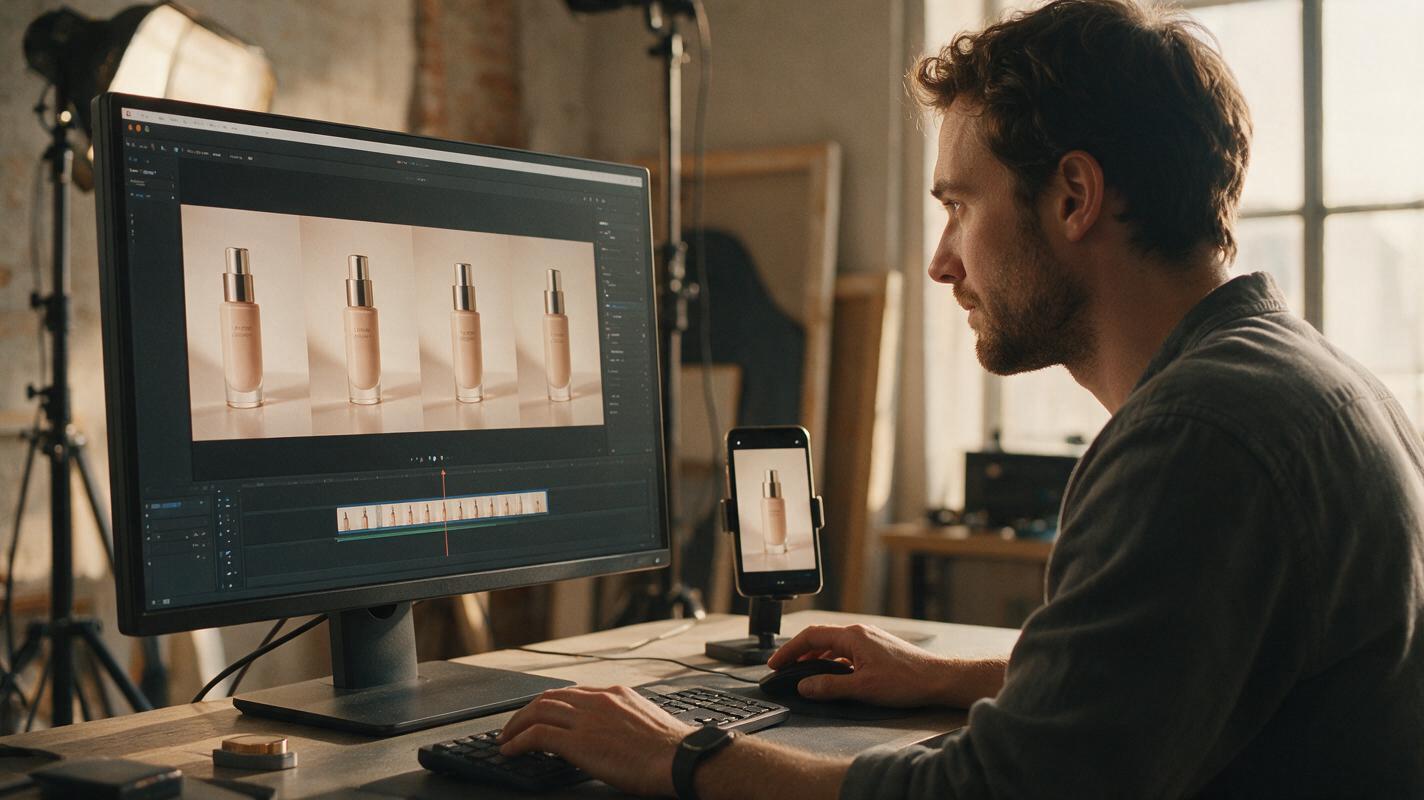
Do not ask the video model to render prices, offer details, calls to action, or legal copy inside the scene. Add those elements as separate overlays so they remain accurate and editable.
For a short conversion-focused loop, use a simple information order:
- Opening: product or problem-led hook.
- Middle: one benefit, ingredient, material, or differentiator.
- Closing hold: product name, offer, and action.
Keep important text away from interface overlays and screen edges. Preview the creative at actual phone size; copy that looks elegant on a desktop canvas may become unreadable in the feed. Preserve a clean version without text so it can be reused across markets, promotions, and placements.
Step 7 — Troubleshoot common product-animation failures
| Problem | Likely cause | Practical fix |
|---|---|---|
| Logo crawls or changes | Excessive product or camera motion | Lock the product, simplify the background action, and overlay approved branding in post if appropriate. |
| Product slowly slides | Weak contact shadow or ambiguous surface | Strengthen the source shadow and request a stationary product on a fixed surface. |
| Loop visibly jumps | Different first and last compositions | Use a reverse loop, similar-frame cut, or stable hold. |
| Extra objects appear | Prompt contains too many scene events | Reduce the prompt to one environmental action and explicitly request no new objects. |
| Reflections look liquid | Highly reflective surface combined with strong movement | Use a locked camera and animate a soft, slow light source instead. |
| Motion feels cheap or frantic | High motion across the product and background | Make one element move while everything else remains stable. |
If several attempts fail in the same area, return to the source image instead of generating indefinitely. A cleaner silhouette, simpler background, stronger contact shadow, or better-resolved label often fixes more than another prompt revision.
Step 8 — Build conversion variants from the same loop
One approved animation can support several ad concepts without another generation. Change the hook, crop, pacing, offer, or final frame while keeping the underlying product motion consistent.
- Benefit variant: lead with the primary customer outcome.
- Feature variant: point to a material, component, flavor, or formula detail.
- Offer variant: reserve the closing hold for pricing or promotion.
- Launch variant: delay the full product reveal and use a short anticipation line.
- Retargeting variant: show the product immediately and prioritize proof or urgency.
Test the first-frame message separately from the motion style. This makes it easier to determine whether performance changed because of the creative concept, the visual animation, or the offer. Keep filenames and exports organized by aspect ratio, hook, and version so a successful loop can become a repeatable catalog-to-content template.
Final checklist
- The source photo shows the complete, accurate product.
- The generation uses one clear motion idea.
- Logos, packaging, proportions, and colors remain stable.
- The first and final frames connect without a distracting jump.
- Offer text and calls to action were added after generation.
- The loop was reviewed at actual mobile viewing size.
- A clean text-free master was saved for future variants.
- Every exported version matches its intended placement ratio.
Keywords
kling image to video, animate product photos, seamless looping ads, product video ads, photo animation, ecommerce creative, AI video generator