Imagen Prompts for Consistent Isometric Explainer Assets
Create a cohesive set of isometric buildings, devices, vehicles, and props for animated explainers with Imagen. This prompt system locks the camera, palette, lighting, scale, and surface treatment so independently generated assets feel like one designed world.
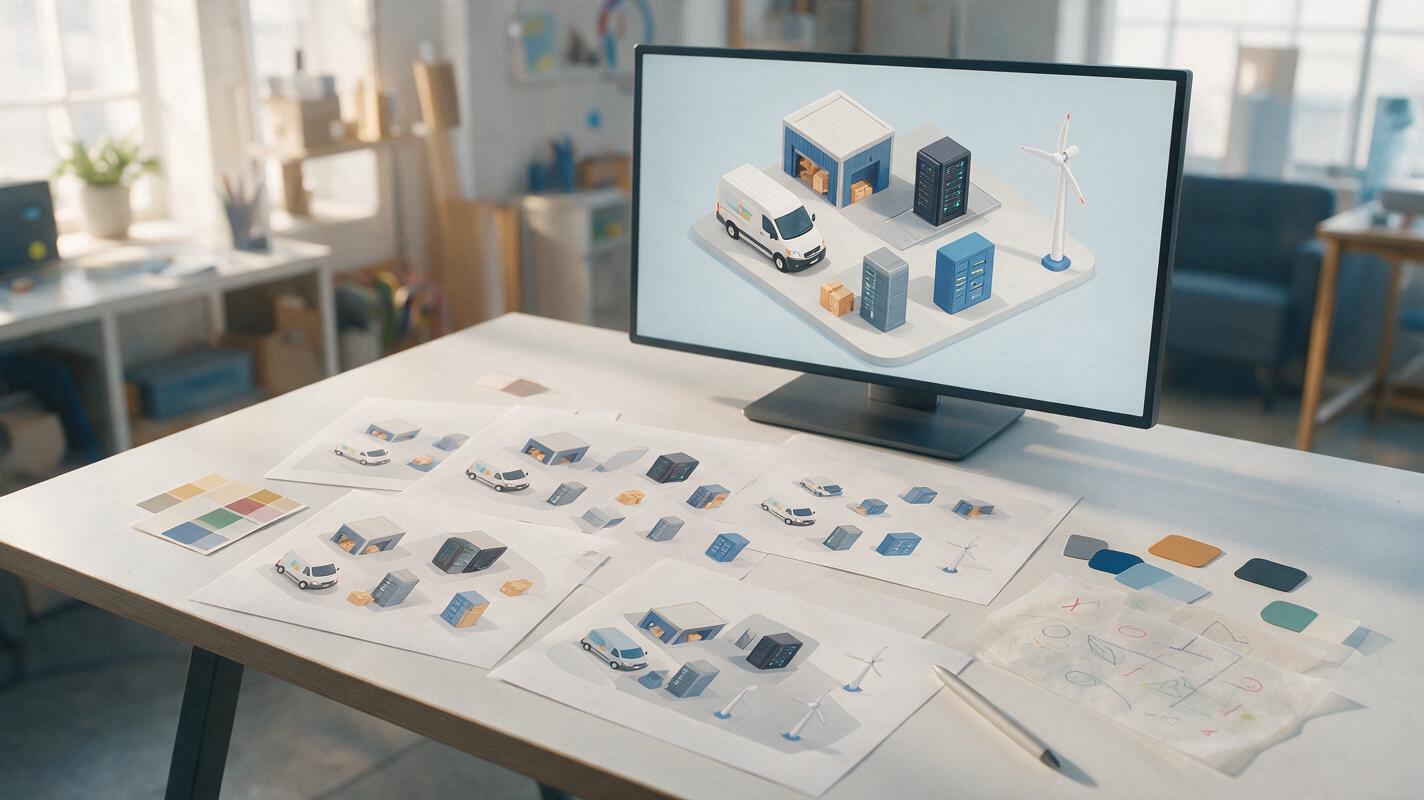
Table of contents
Build a kit, not a pile of unrelated images
The hardest part of generating isometric explainer assets is not making one attractive object—it is making twenty objects that share the same visual system. Camera angle, scale, shadows, line weight, and material treatment can drift between generations, leaving motion designers with assets that cannot convincingly occupy the same scene.
This Imagen prompt method treats consistency as a design-specification problem. You will define one visual grammar, generate a calibration object, and reuse a locked prompt block for every building, vehicle, device, and prop in the kit.
The goal is not pixel-perfect repetition. The goal is a family resemblance strong enough that the assets can be arranged, animated, and art-directed as one coherent explainer world.
Define the visual grammar before naming any objects
A prompt such as “isometric office building” describes content but leaves most art-direction decisions open. Imagen must still decide the camera, palette, rendering style, background, shadows, and degree of detail. If those choices are regenerated independently, the resulting objects will rarely match.
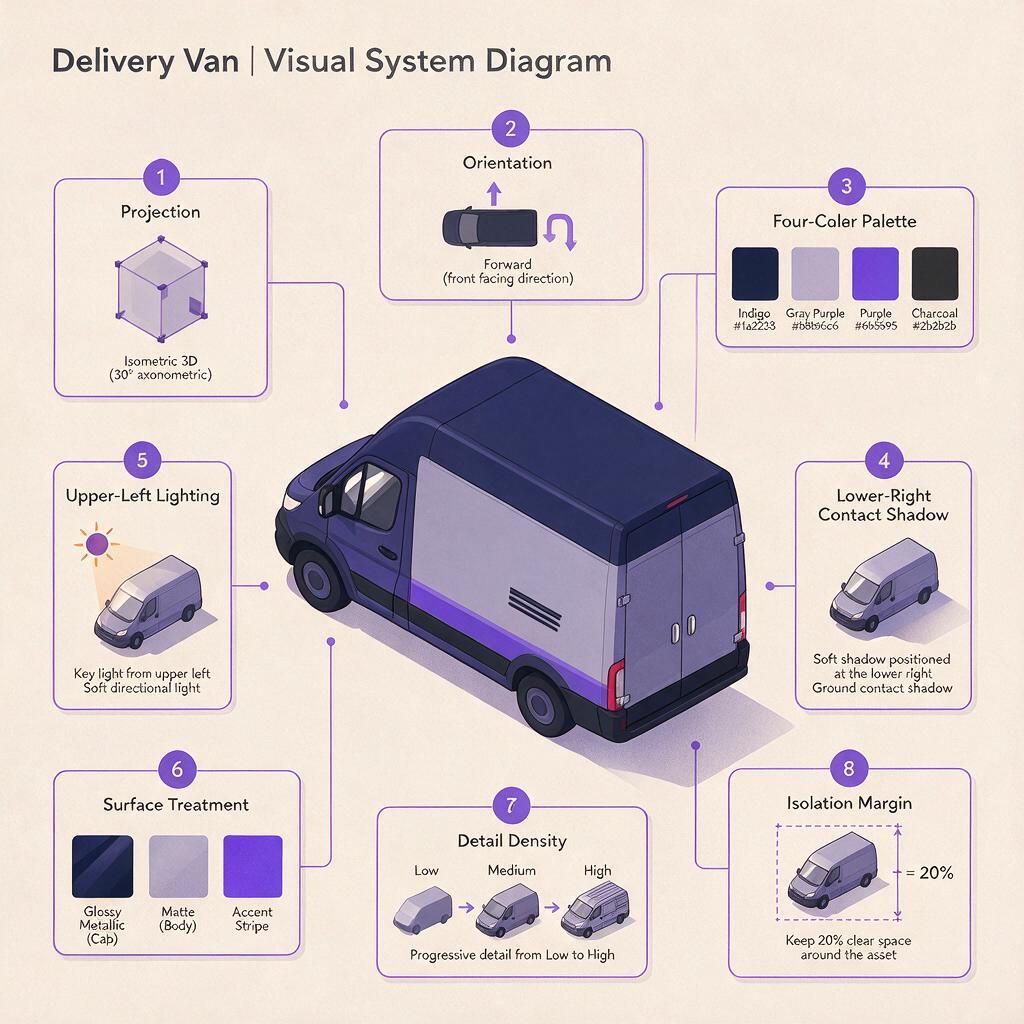
Write a compact style specification before requesting the first asset. It should define:
- Projection: consistent isometric or three-quarter axonometric view.
- Orientation: the visible faces and the direction each object points.
- Palette: named colors with clear roles rather than a vague mood.
- Lighting: one source direction, one shadow direction, and restrained contrast.
- Surface treatment: flat vector-like fills, softly modeled clay, paper cutout, or another single treatment.
- Detail density: simple enough to remain readable at the final delivery size.
- Isolation: one complete object, no crop, no environment, and generous clearance around the silhouette.
For example, a technology explainer might use cool white structures, violet interaction points, dark navy windows, and one coral accent reserved for alerts. Assigning functions to colors makes the kit easier to animate because emphasis remains predictable.
Use one calibration object to expose inconsistencies
Start with an object that contains several useful visual tests. A small delivery van works well because it has a clear front, visible side planes, wheels, windows, rounded details, and contact with the ground. A compact building with doors, windows, and rooftop equipment is another good choice.
Generate several variations using Imagen through an ai image generator, then judge the results as production assets rather than finished artwork. Look for a readable silhouette, unambiguous orientation, clean boundaries, sensible negative space, and a shadow that can be removed or recreated during compositing.
Create one isolated isometric delivery van for a modular animated explainer asset kit.

STYLE SYSTEM:
consistent isometric projection, front and right side visible, compact geometric proportions, clean vector-like shapes with subtle soft modeling, no outlines, cool white body, deep navy windows, violet functional accents, one small coral indicator, soft light from upper left, restrained contact shadow falling lower right, polished editorial infographic style.

ASSET RULES:
one complete vehicle only, centered, fully visible, generous empty margin on every side, plain warm-gray background, no road, no scenery, no people, no text, no logo, no badge, no watermark, no motion blur.
Do not move on as soon as one result looks appealing. First ask whether the same rules could describe a warehouse, laptop, bicycle, cloud server, and streetlight. If the style depends on unique decoration rather than repeatable geometry, simplify it.
Lock the prompt block and change only the asset module
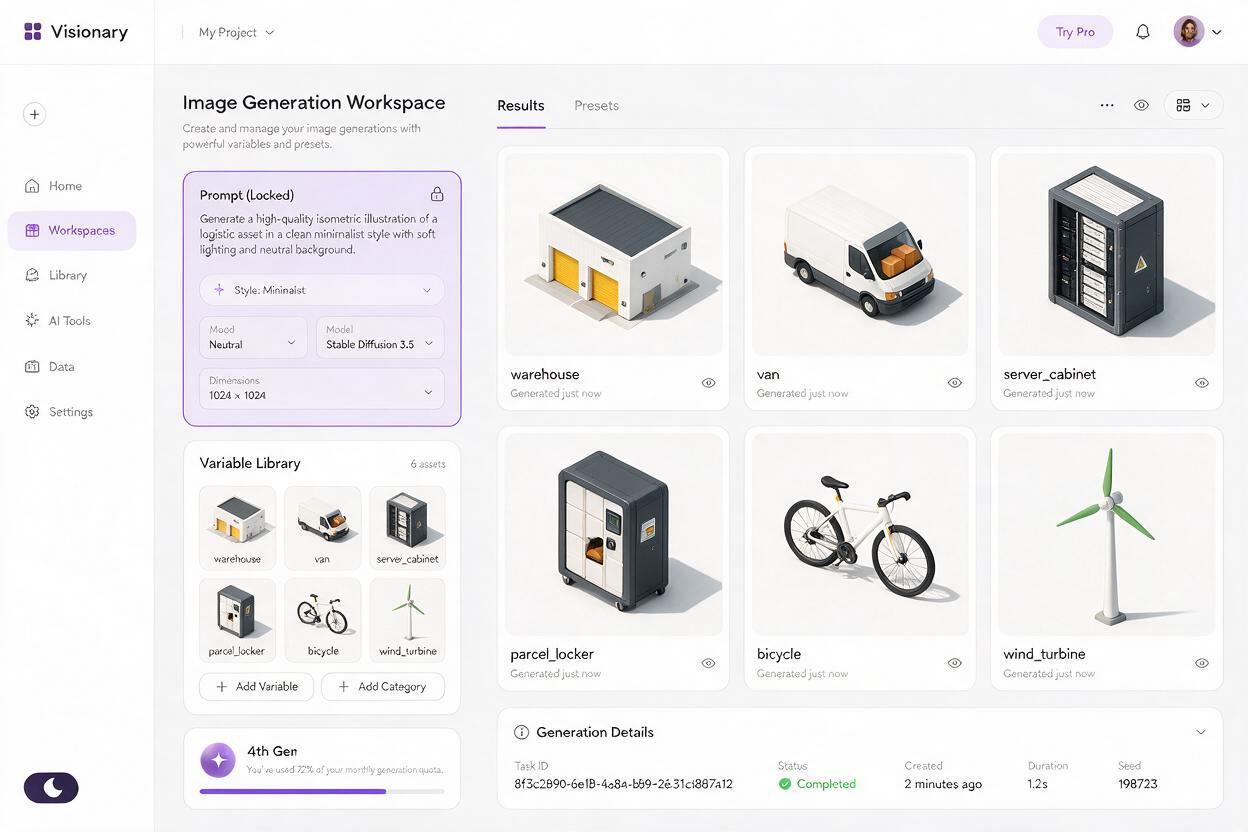
Once the calibration object works, divide the prompt into a permanent block and a variable block. The permanent block contains every decision that defines the visual world. The variable block describes only the object, its functional parts, and its orientation.
| Prompt component | Keep fixed | Change per asset |
|---|---|---|
| Projection | View angle and visible faces | Object-facing direction only when necessary |
| Rendering | Shape language, modeling, outlines | Object-specific geometry |
| Color | Palette and color roles | Which functional accent appears |
| Light | Source and shadow direction | Nothing |
| Composition | Isolation, margin, background | Wide or tall clearance if needed |
| Content | Exclusions such as text and logos | Asset name and required components |
Use this modular template for the rest of the kit:
ASSET:
One isolated [OBJECT], designed for [FUNCTION]. Include [ESSENTIAL PARTS]. The object faces [DIRECTION]. Keep the silhouette simple and readable at small size.

LOCKED STYLE:
consistent isometric projection, front and right side visible, compact geometric proportions, clean vector-like shapes with subtle soft modeling, no outlines, cool white primary surfaces, deep navy secondary surfaces, violet functional accents, coral reserved for alerts, soft light from upper left, restrained contact shadow falling lower right, polished editorial infographic style.

OUTPUT:
one complete object only, centered and fully visible, generous empty margin, plain warm-gray background, no surrounding scene, no people, no text, no logo, no watermark, no crop, no motion blur.
Suitable asset substitutions include a distribution warehouse, desktop monitor, charging station, cargo bicycle, server cabinet, apartment block, wind turbine, parcel locker, notification bell, or modular conveyor. Keep the locked block unchanged while testing the first batch.
Match scale through visual complexity, not image dimensions
Two files can have identical pixel dimensions while depicting objects at incompatible visual scales. A building covered in tiny windows may feel enormous next to a simplified van, even when their bounding boxes are similar.
Control perceived scale with a shared detail unit. For example, make doors, windows, wheels, handles, and indicator lights use comparable proportions across the kit. Limit small repeated elements that imply a much larger world than the other assets support.
- Use broad windows instead of dozens of tiny panes.
- Reduce rooftop equipment to two or three readable forms.
- Keep wheels and handles slightly oversized for motion readability.
- Avoid microscopic seams that disappear after resizing.
- Reserve dense texture for close-up assets generated as a separate family.
A practical test is to arrange six generated objects on one blank canvas at their intended scene sizes. If one object appears to come from a miniature model while another resembles a city-scale illustration, revise the detail density before generating more assets.
Generate animation states as controlled variants
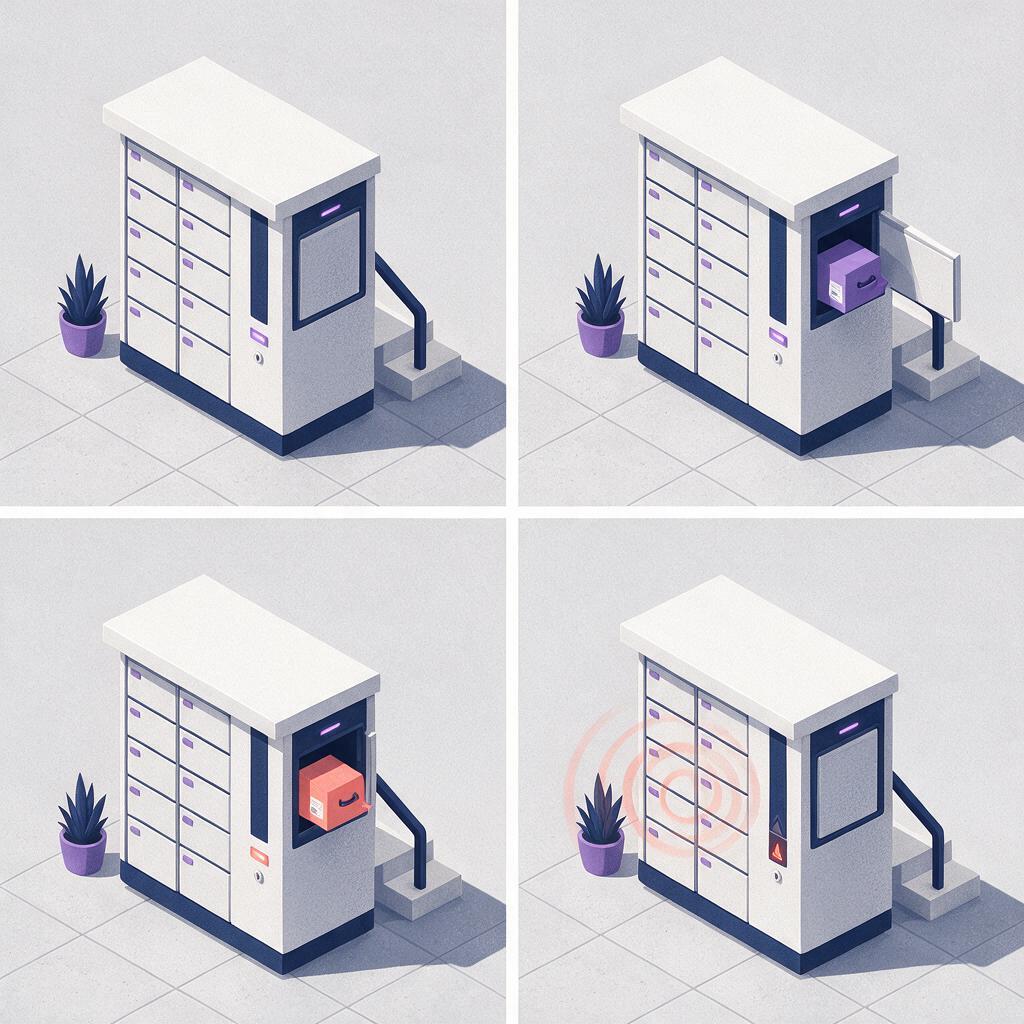
A useful explainer kit needs more than static nouns. It also needs states: open and closed, inactive and active, empty and full, normal and alert. Generate these as tightly constrained variants rather than asking for a completely new illustration.
Recreate the same isometric parcel locker using the identical projection, proportions, palette, lighting, surface treatment, framing, and background.

Change only this state:
three locker doors are open toward the viewer, with simple dark interior cavities and one violet parcel visible.

Preserve every other structural feature. Add no people, labels, symbols, environment, or extra objects.
State pairs give animators clear endpoints for replacement animation, shape interpolation, wipe reveals, and quick pop transitions. For mechanical motion, separate the moving component in post-production whenever possible. A generated open door can provide the final pose, while the actual swing is animated with a clean pivot in the compositor.
Useful state families include:
- Button idle, hover, pressed, and confirmed.
- Battery empty, half-full, full, and charging.
- Warehouse closed, receiving, sorting, and dispatching.
- Server normal, processing, warning, and offline.
- Vehicle parked, loaded, and ready to depart.
Prepare each asset for motion design
Generated images should be treated as source plates. Before animation, remove the background, inspect the silhouette, and separate any part that needs independent motion. Rebuild important shadows rather than relying on baked shadows that may vary slightly from asset to asset.
A practical layer structure might be:
asset_master
  body
  front_detail
  moving_part
  accent_state
  contact_shadow
  highlight_overlay
Keep an untouched source image outside the animation composition. For each cleaned asset, use a consistent anchor convention: ground-contact center for buildings and vehicles, geometric center for floating interface objects, and hinge position for doors or lids.
Once the calibration object, locked prompt, and layer convention are working, create your own version of the kit with five related assets before expanding into a full scene. A small batch reveals style drift quickly and costs less time to correct.
Fix the most common consistency failures
The camera angle changes
Repeat the visible faces and orientation in both the object description and locked style block. Avoid mixing “isometric,” “top-down,” “three-quarter,” and “bird’s-eye” in one prompt, because they suggest different spatial readings.
The palette becomes more colorful over time
Give every color a role and explicitly exclude unrequested colors. If a new asset needs emphasis, use the established accent instead of inventing a new hue.
Objects arrive as complete scenes
Place isolation requirements near the end of the prompt and describe the background plainly. Repeat “one complete object only” when requesting buildings, vehicles, or furniture that the model might otherwise contextualize.
Small assets become too detailed
Add the intended use: “readable at small size in an animated explainer.” Specify the essential parts and ask for simplified geometry. Do not request intricate realism and icon-scale clarity at the same time.
State variants redesign the object
State exactly what may change and what must remain fixed. If a variant still drifts, retain the strongest image as a reference and generate only the missing component, then composite it onto the approved master.
Final checklist
- The same projection and visible faces appear throughout the kit.
- Primary, secondary, functional, and alert colors have fixed roles.
- Lighting and contact shadows point in one direction.
- Every asset is fully visible with enough clearance for extraction.
- Detail density remains readable at the intended animation size.
- State variants change only the requested functional element.
- Moving parts and shadows are separated before animation.
- A small calibration batch is approved before full production.
Keywords
Imagen prompts, isometric illustration, explainer animation, motion graphics assets, AI image generator, visual consistency, modular illustration