Kling Prompts to Animate Old Photos Without Warping Faces
Turn old photographs into restrained cutaways for faceless YouTube videos using Kling image animation prompts. Learn which movements are least likely to distort faces, when to keep the original photo on screen, and how to make the result clear to viewers.
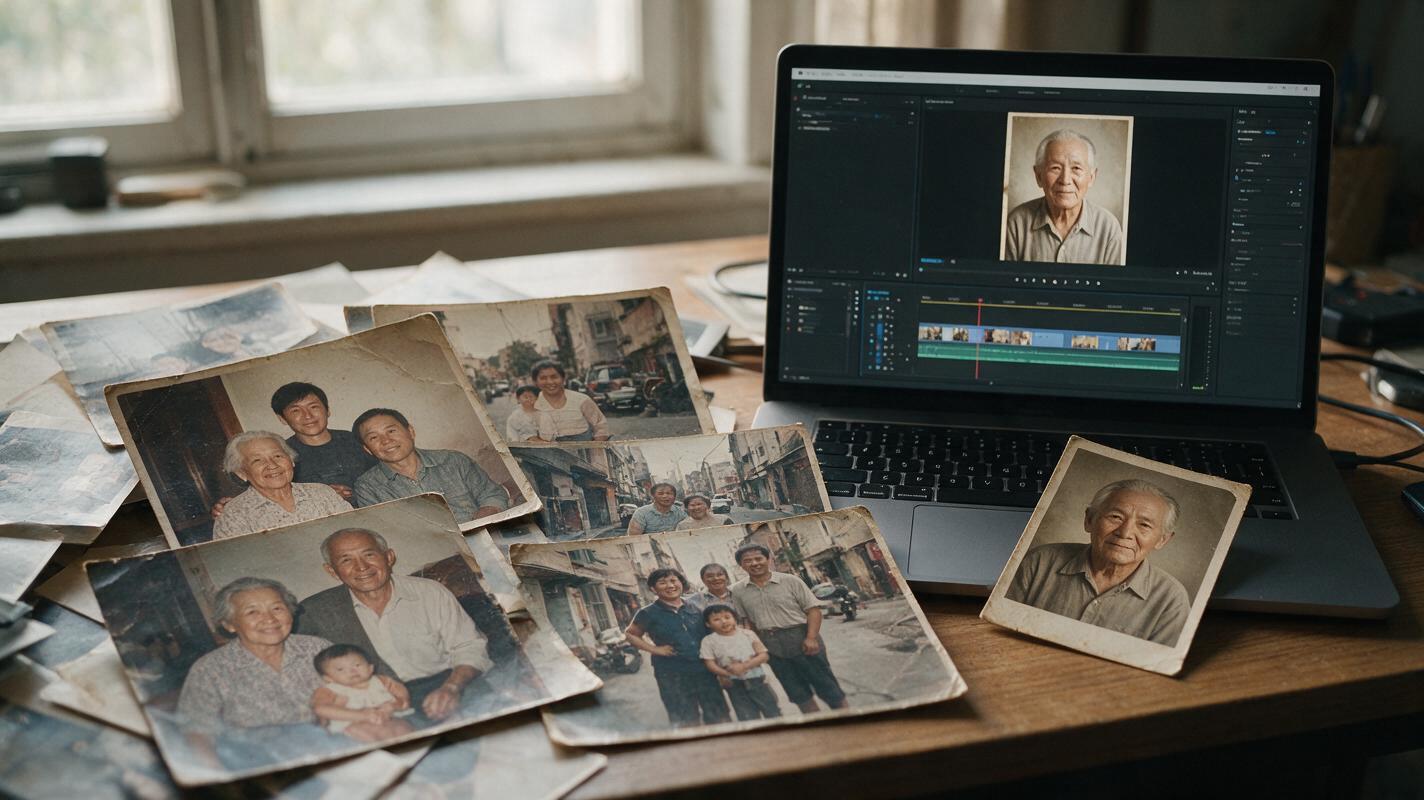
Table of contents
Give an old photo movement without rewriting the moment
An old photograph can hold attention in a faceless YouTube story, but animation can also change a face, invent a gesture, or make a still image look like recovered footage. For most archival cutaways, the safest result is modest: a slow camera move through an otherwise unchanged photograph. The Kling prompts below aim for that result, with clear limits for images that should stay still.
Use photographs you own or have permission to use. If a picture documents a real person or event, treat the source image—not the generated clip—as the visual record.
Choose a photo that can tolerate movement
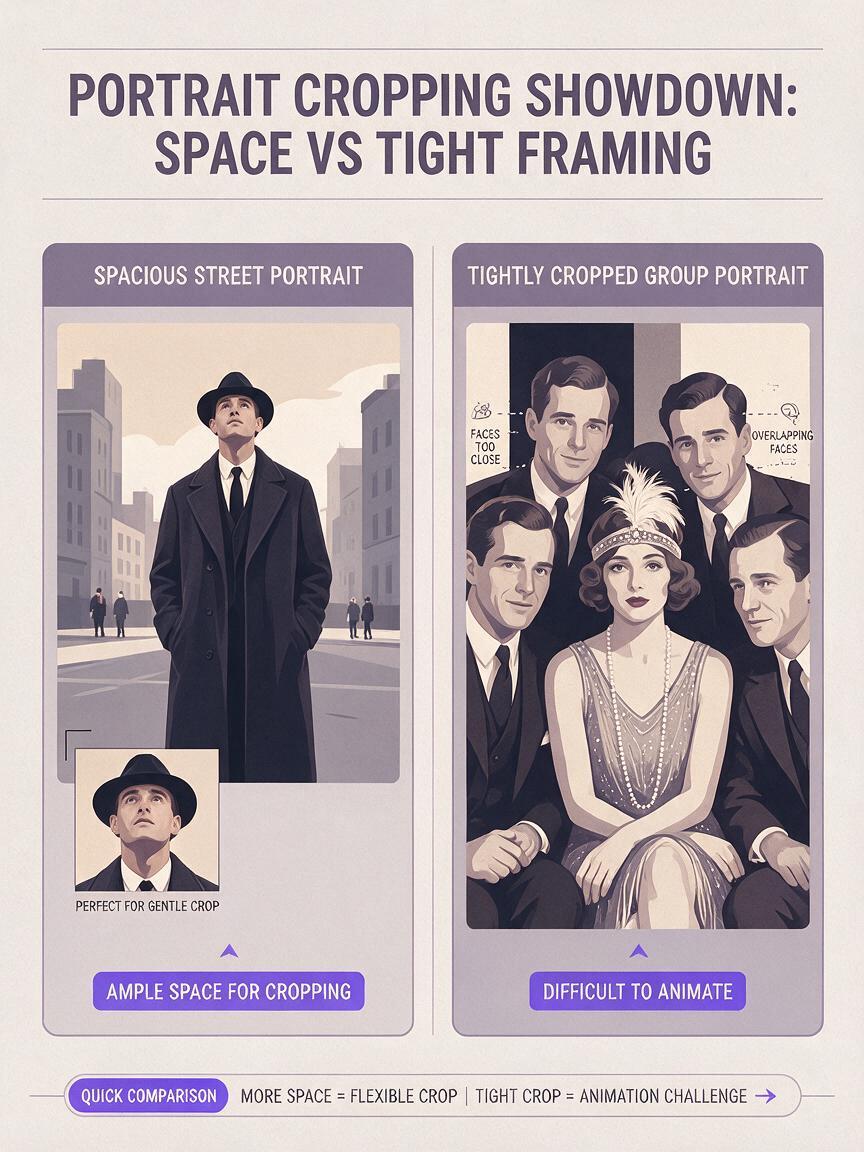
Start with a reasonably sharp image whose important subjects have some space around them. A close crop around a face leaves little room for a virtual camera move; a crowded group portrait gives the model many features to reinterpret. For a first test, choose a photo with a stable background, visible edges, and no critical writing.
- Good candidate: One person standing in front of a storefront, with empty space on either side.
- Hard candidate: A tightly cropped family portrait with overlapping faces and hands.
- Keep still: A newspaper clipping, document, map, or photograph whose exact details are evidence in your story.
If you need to repair scratches or extend a crop, save the untouched original alongside the edited copy. Do not silently replace a defining facial feature, uniform detail, sign, or date. When accuracy matters more than motion, a conventional pan or zoom in your video editor gives you precise control without regenerating the photograph.
Prompt a camera move, not a new performance
Upload the photograph as the visual starting point for image to video in Kling. Ask for one small movement, and explicitly identify what must remain unchanged. This is a direction to the model, not a guarantee: inspect the output before using it.
Use the supplied photograph as the source frame. Create a restrained, slow camera push toward the storefront while keeping the photographed people, their faces, clothing, poses, and the storefront layout unchanged. Preserve the original photographic texture and lighting. No speaking, blinking, walking, new objects, altered signs, or dramatic camera motion.The prompt separates camera movement from subject movement. That distinction matters. “Bring this photo to life” leaves the model free to invent expressions and actions; “slow camera push” gives it a narrower job.
Keep the first clip short enough to check frame by frame. If the camera seems to pass through a person, a face shifts shape, or a background object appears from nowhere, reduce the requested movement or use an editor-only crop instead.
Match the movement to the photograph
Pick a prompt according to what the viewer needs to notice. These are alternatives, not effects to combine in one clip.
For a person-centered portrait
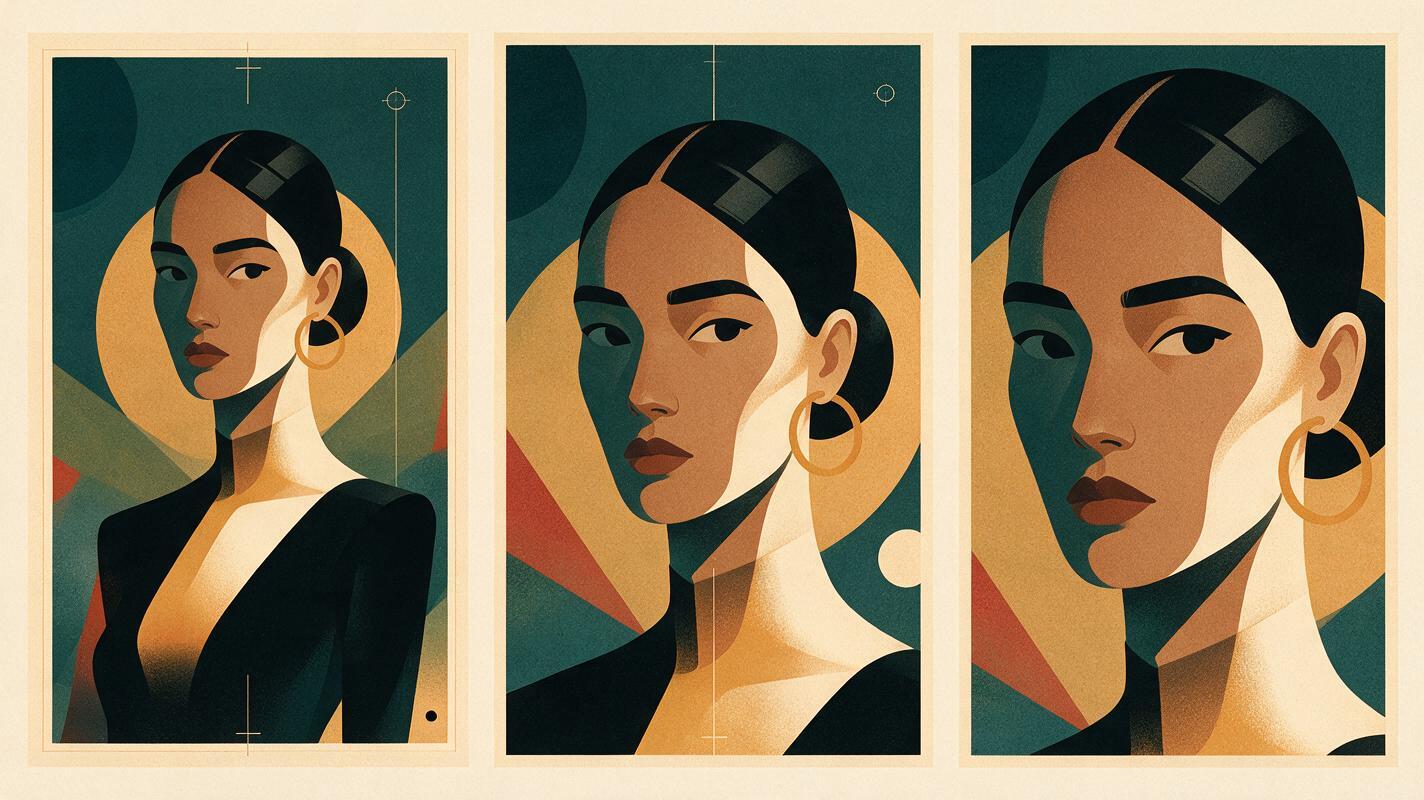
A small push can draw attention to a face without asking that person to act. This works best when the face is already clear and there is room around the head.
Animate this supplied portrait with a very subtle camera push toward the photographed person. Keep the person's facial features, expression, gaze, hairstyle, clothing, and pose identical to the source photo throughout. Maintain the original background and photographic grain. The person remains completely still. No blink, lip movement, head turn, or newly revealed facial detail.Editorial check: Compare the first, middle, and last frames with the original. If the eyes, mouth, or head shape change, do not present the result as a faithful animation of that person. Return to the still image and add your movement in the editor.
For a street or building scene
A wide scene offers more room for a gentle lateral move. Keep signs and architectural details out of the generated motion if they are facts the narration depends on.
Use the supplied street photograph as the only visual reference. Make a slight, slow camera drift to the right, as if viewing a flat archival print. Keep every building, vehicle, person, sign position, and shadow consistent with the source image. No pedestrians moving, no traffic motion, no new storefront details, and no rewritten lettering. Preserve the original era and photographic texture.If a sign becomes illegible or changes wording, cut back to the source photograph when discussing it. You can also place a separate, clearly sourced close-up over the animated background.
For a landscape used under narration
Landscapes may allow a little more movement, but avoid asking for weather or time-of-day changes unless your video identifies them as an artistic interpretation.
Create a restrained camera push into the supplied landscape photograph. Preserve the exact horizon, landforms, buildings, and lighting shown in the source. Keep the scene still: no added people, vehicles, clouds, weather, or moving water. Retain the photograph's natural grain and color character.This is useful when a narrator needs a quiet visual bridge, not a reenactment of what happened at the location.
Check for changes the prompt cannot prevent
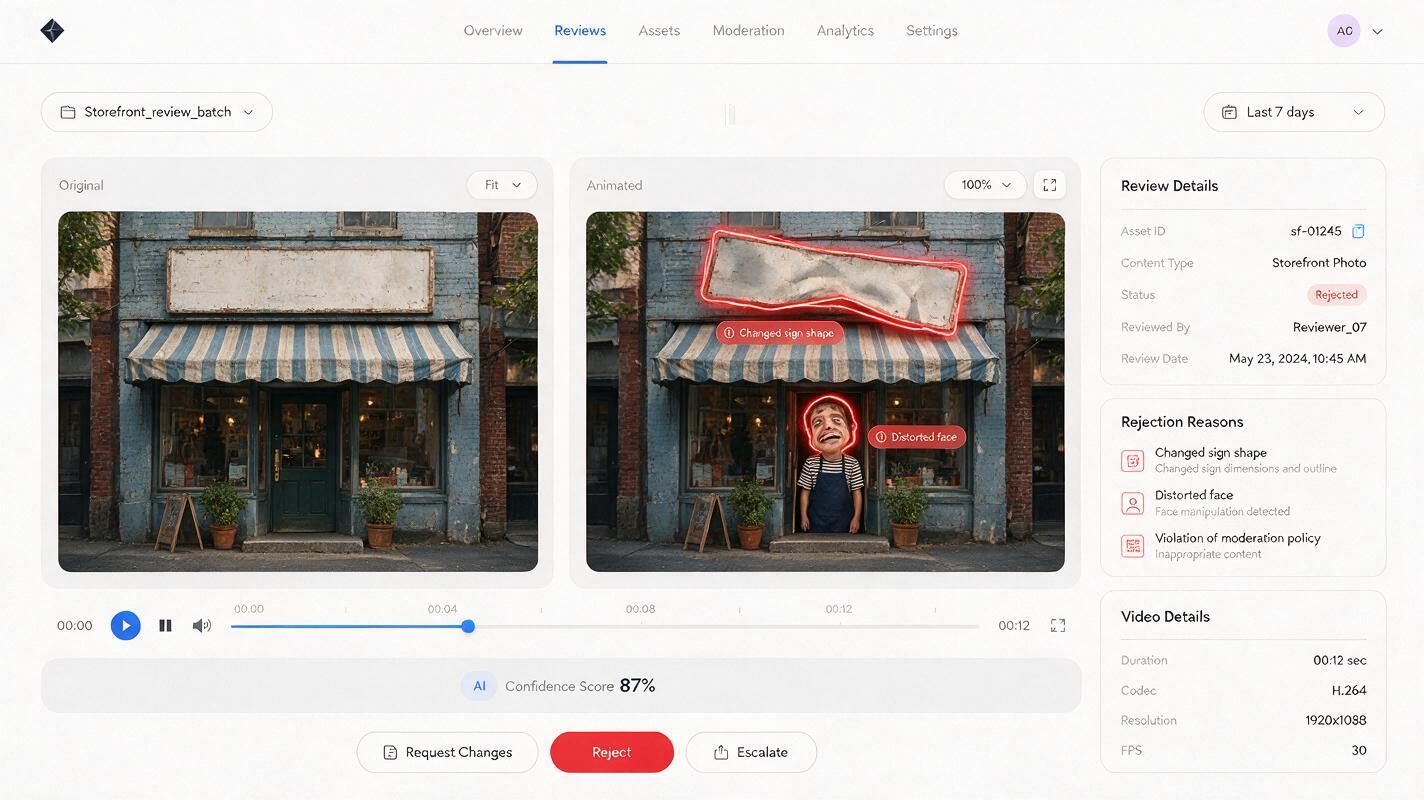
A prompt can ask Kling to preserve a photograph, but the finished frames determine whether it succeeded. Watch the clip at normal speed, then pause at several points and compare them with the original.
| What changed? | Why it matters | Safer response |
|---|---|---|
| Face, hands, or clothing | The clip may misrepresent a real person. | Use the original still with an editor-made pan or zoom. |
| Signs, dates, or documents | Viewers may read invented information as evidence. | Show a sourced close-up of the original. |
| Objects at the frame edges | Newly revealed areas may be fabricated. | Shorten the move or crop within the source image. |
| People or vehicles start moving | The animation implies an event the photo did not capture. | Regenerate with a static-scene prompt or keep it still. |
A successful archival cutaway adds visual rhythm. It does not add new testimony to the photograph.
Before publishing, check the image's usage rights and decide whether a brief on-screen label such as “Photo animation” would help viewers distinguish the moving treatment from original footage. Do not describe generated motion as a recording of the event.
Put the photograph back at the center of the edit
Consider opening on the original still for a beat before the animated cutaway. That establishes what the source actually shows. Let the motion support one sentence of narration, then return to the still or another sourced visual when the story turns to a factual detail.
For a vertical Short, crop deliberately around the subject before generating; do not rely on a wide camera move to fill the frame. For a longer story video, mix animated cutaways with unanimated photos so every image does not appear to perform. If the original picture is emotionally strong, leaving it still may be the more effective choice.
Have a suitable image ready? try this prompt for free, then compare the result against the source photo before it enters your timeline.
Final checklist
- Use a photograph you have permission to publish.
- Ask for one restrained camera move, not invented human action.
- Compare faces, hands, signs, and background details against the original.
- Switch to an editor-made pan or zoom when factual details must remain exact.
- Make it clear when motion is an animation rather than original footage.
Keywords
kling photo animation, animate old photos, faceless youtube videos, archival photo b-roll, photo animation prompts, avoid warped faces