Why AI Social Ad Clips Warp Campaign Key Visuals (3 Fixes With Kling)
AI image-to-video tools make it fast to repurpose static campaign key visuals into short-form social ads, but most tools warp logos, blur text, and shift brand colors. This article breaks down three common causes of brand drift in AI-generated social ad clips and shares actionable fixes using Kling’s image-to-video mode, including reference masking, constrained camera movement, and hybrid compositing. Brand and graphic designers can use these workflows to create on-brand 10–15 second Reels and TikTok ads without hiring a motion designer.
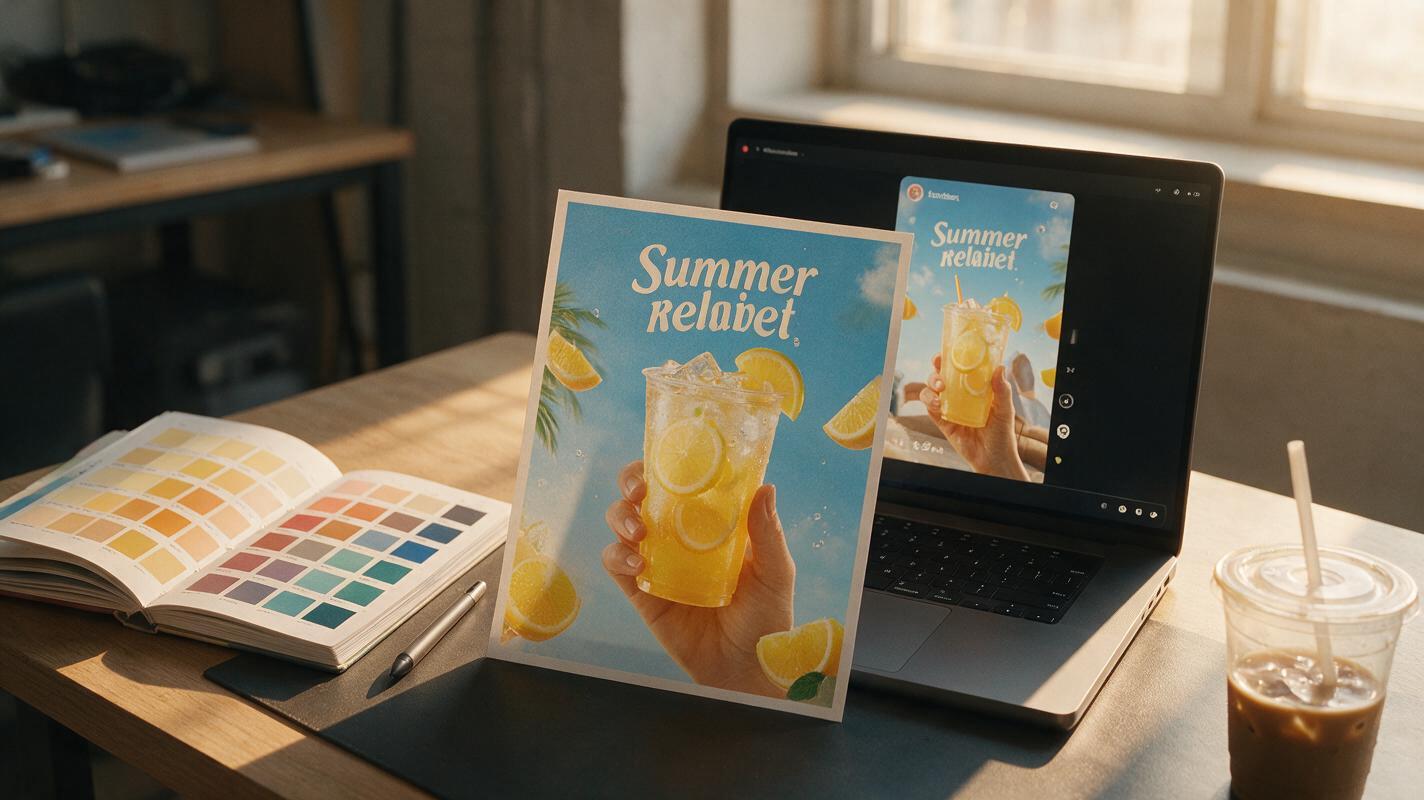
Table of contents
The problem with AI-generated social ad clips from key visuals
You’ve spent weeks refining a campaign key visual: the logo is perfectly kerned, the headline sits exactly in the negative space, and the brand colors match your style guide down to the hex code. Now your client wants a 15-second Instagram Reel and TikTok ad version, and you don’t have the budget for a motion designer.
Many brand designers now turn to image to video tools to repurpose static campaign key visuals into short-form social ads in minutes. But the results are often disappointing: logos warp at the edges, headline text blurs mid-clip, and carefully calibrated brand colors wash out or shift hue.
These issues happen because most AI video models prioritize smooth motion flow over strict reference fidelity. They treat text and logos as generic visual elements rather than non-negotiable brand assets, and unregulated camera movement can stretch or crop critical layout components. Kling is a powerful ai video generator for cinematic short clips, but its default settings can still drift from strict brand guidelines. With three targeted workflows, however, you can generate on-brand social ad clips that stay true to your original key visual.
Protect critical brand elements with reference masking
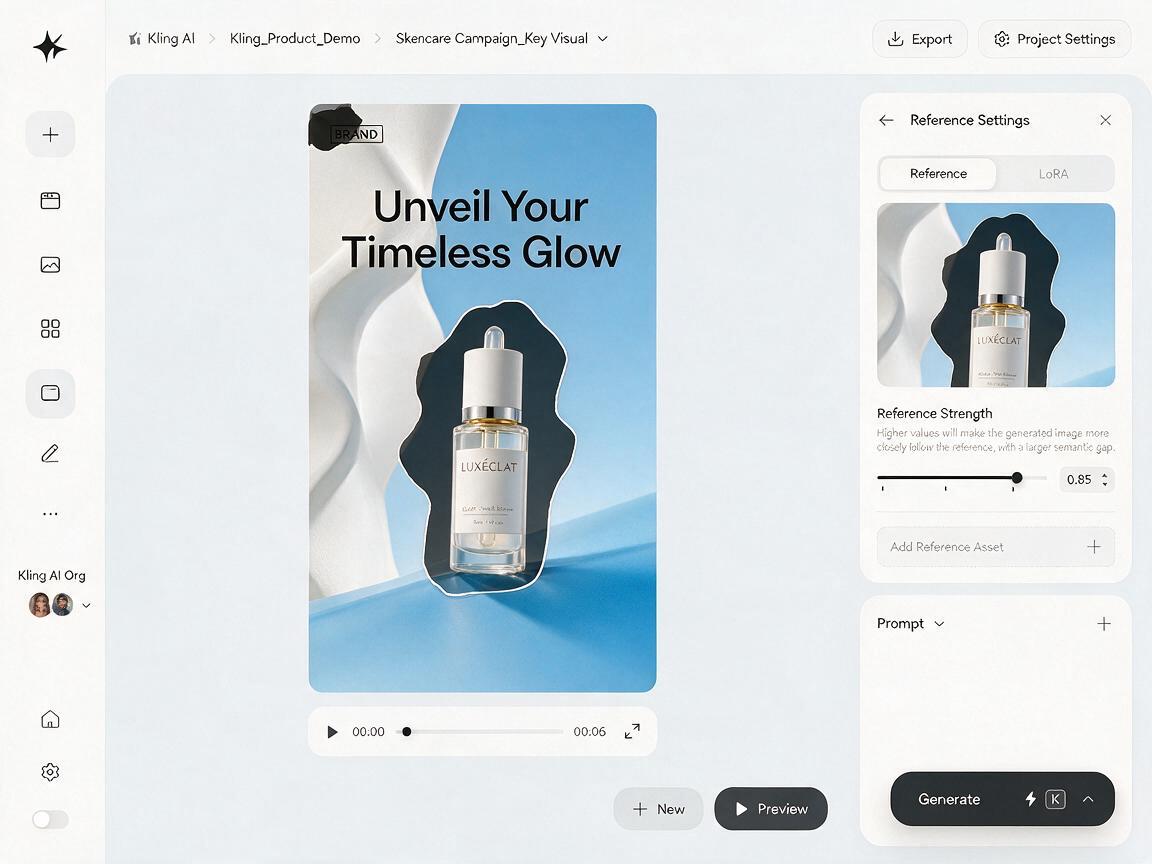
The biggest cause of brand drift in AI social ad clips is the model’s tendency to alter high-contrast elements like logos and text to fit its idea of "natural motion". Kling’s image-to-video mode includes a reference masking feature that lets you mark specific regions of the frame as off-limits for alteration.
Start by uploading your high-resolution key visual, then use the built-in mask tool to trace around every non-negotiable brand asset: your logo, headline text, product or packaging silhouette, and any tagline or call-to-action text. Set the reference strength slider to 0.8–0.9 — any higher and motion around the masked edges will look stilted; any lower and the model may still warp edge details.
Slow, cinematic dolly-in motion on a skincare campaign key visual. Soft golden light shifts gently across the background desert landscape. Masked areas (logo, product bottle, headline text) remain completely static and unchanged. 12 seconds, 1080p, 24fps, smooth motion, no camera shake.
This method works best for clips with subtle, centered motion where core assets stay within the middle 80% of the frame. For clips with more dynamic movement that shifts elements across the frame, you’ll need to combine masking with controlled camera settings.
Constrain camera movement to preserve layout geometry
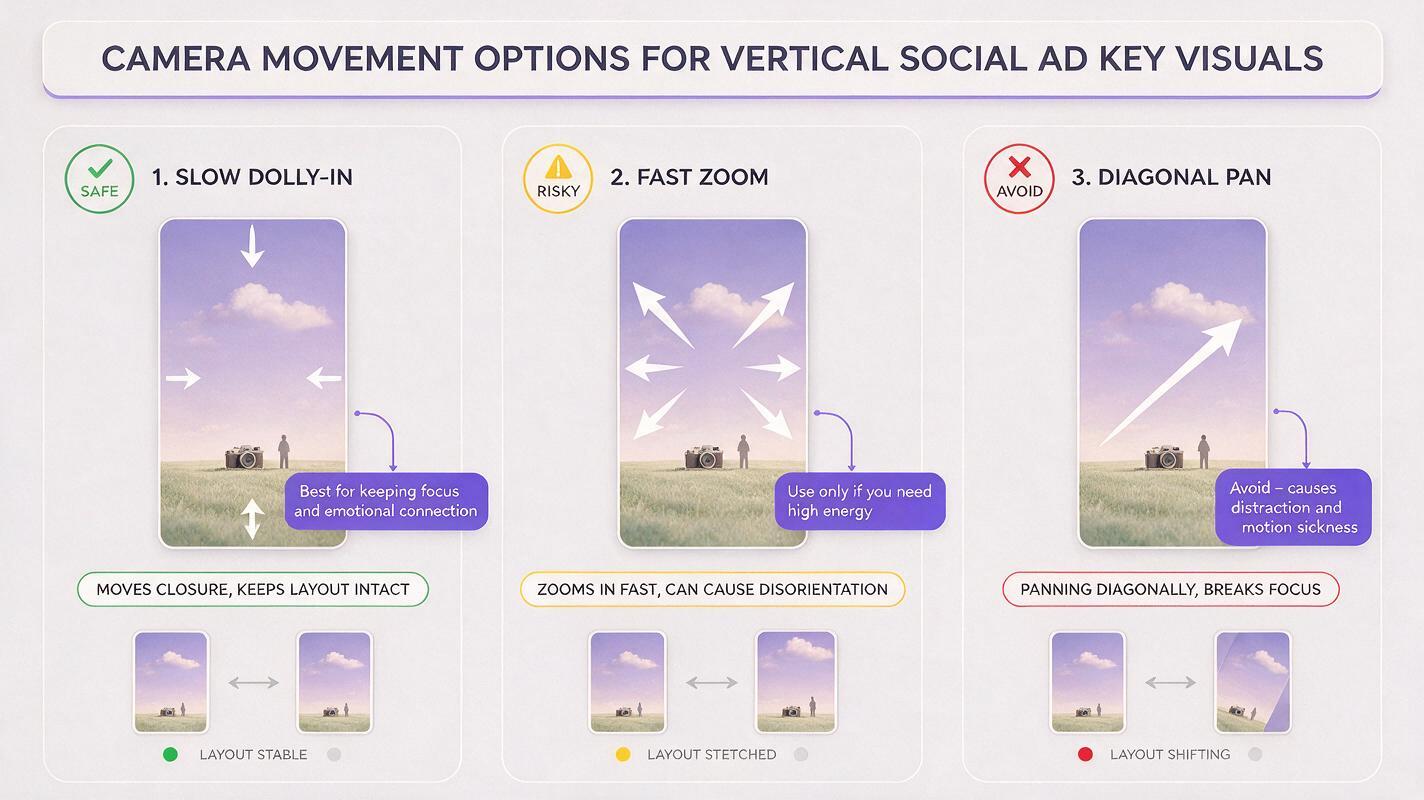
Even with masking, unregulated camera movement can warp the overall composition of your key visual. A fast zoom, for example, can stretch edge elements or push your logo out of the safe zone for social media platforms. A sideways pan can crop critical text or product details before the clip ends.
Kling lets you specify exact camera movements in your prompt, and its built-in camera presets (dolly in, dolly out, pan left/right, tilt up/down) give you more predictable results than free-form motion prompts. The key is to choose motion that complements your layout without disrupting critical elements.
- Use slow dolly-in motion for vertically oriented key visuals (Reels/TikTok) to draw focus to the product or headline without cropping edges.
- Stick to subtle background parallax (foreground elements move slightly faster than background) for horizontal formats, keeping core assets locked in place.
- Avoid fast zooms, rotations, or diagonal pans — these almost always cause layout distortion or edge warping.
Subtle parallax motion on a summer beverage campaign key visual. Foreground palm leaves drift slowly to the left, background ocean waves move gently to the right. Logo and headline text stay perfectly centered and static. 15 seconds, 1080x1920, 30fps, smooth cinematic motion.
For layouts with very tight negative space or edge-aligned text, you may want to use the third method for total creative control and zero drift.
Composite static brand assets for pixel-perfect results
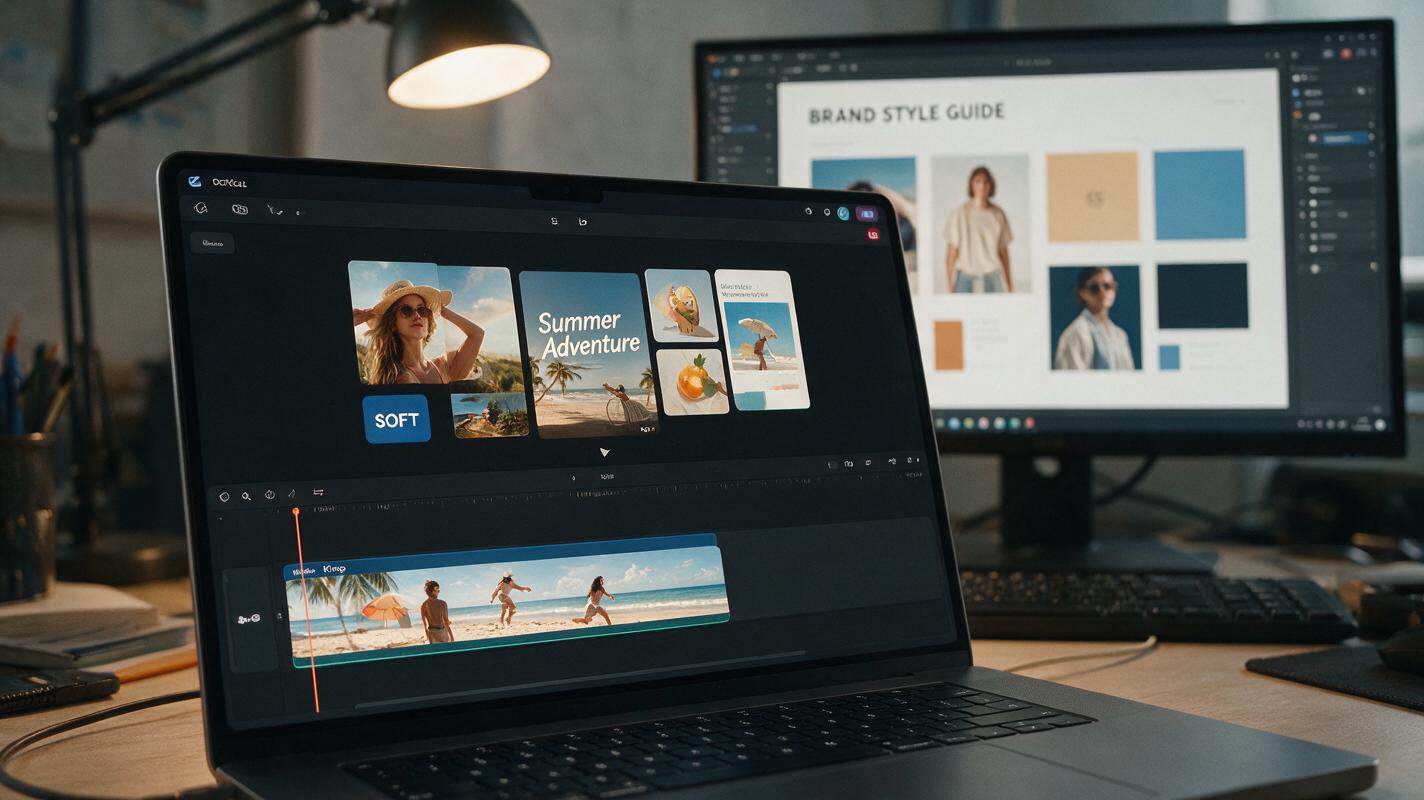
For campaigns with ultra-precise brand guidelines, tiny text, or intricate logos, even reference masking can leave slight blurriness or edge warping. The most reliable solution is a hybrid workflow: generate a motion-only base clip with Kling, then overlay your original static brand assets in a simple editing tool.
First, create a version of your key visual with all text, logos, and critical brand elements removed (use inpainting or a quick edit in Photoshop to fill in the space). Upload this "clean" base image to Kling and generate your desired motion clip. Then, import the clip into a tool like Figma, CapCut, or After Effects, and overlay your original vector logo and text layers exactly as they appear in the static key visual.
This method has two big advantages:
- 100% brand accuracy: Your text and logos are exactly as designed, with no AI-generated warping or blurriness.
- More creative freedom: You can add subtle text animation (like a fade-in or slight scale) separately, without relying on the AI to interpret your brand’s motion style.
The only downside is the extra 5–10 minutes of editing time, which is negligible for most client deliverables and far faster than building the entire clip from scratch in a motion design tool.
Final quality checklist for on-brand social ad clips
Before delivering your clip to the client, run through this quick checklist to ensure full brand consistency:
- Logo integrity: No warping, blurring, or color shift; matches the original vector asset exactly.
- Text legibility: Headlines and CTAs stay sharp throughout the clip; no pixelation or edge distortion.
- Color accuracy: Brand colors match your style guide hex codes; no hue shifts from AI motion processing.
- Layout balance: Core assets stay within platform safe zones; no critical elements are cropped or stretched.
- Motion tone: Movement aligns with the brand’s personality (slow and elegant for luxury brands, energetic for youth-focused brands).
- Artifact check: No weird glitches, floating elements, or distorted product shapes in the background.
Ready to test these workflows for your next campaign? Try these models for free to generate on-brand social ad clips from your existing key visuals.
Keywords
kling, social ad clips, campaign key visuals, brand consistency, image to video, ai video generator, poster animation