Landscape Video Stills to Vertical Shorts Backgrounds With Nano Banana Pro
Turn a frame from your own landscape video into a vertical background for a YouTube Short without cutting off the subject. This guide shows where to extend the image, what to ask Nano Banana Pro to preserve, and when a blurred background is the more honest choice.
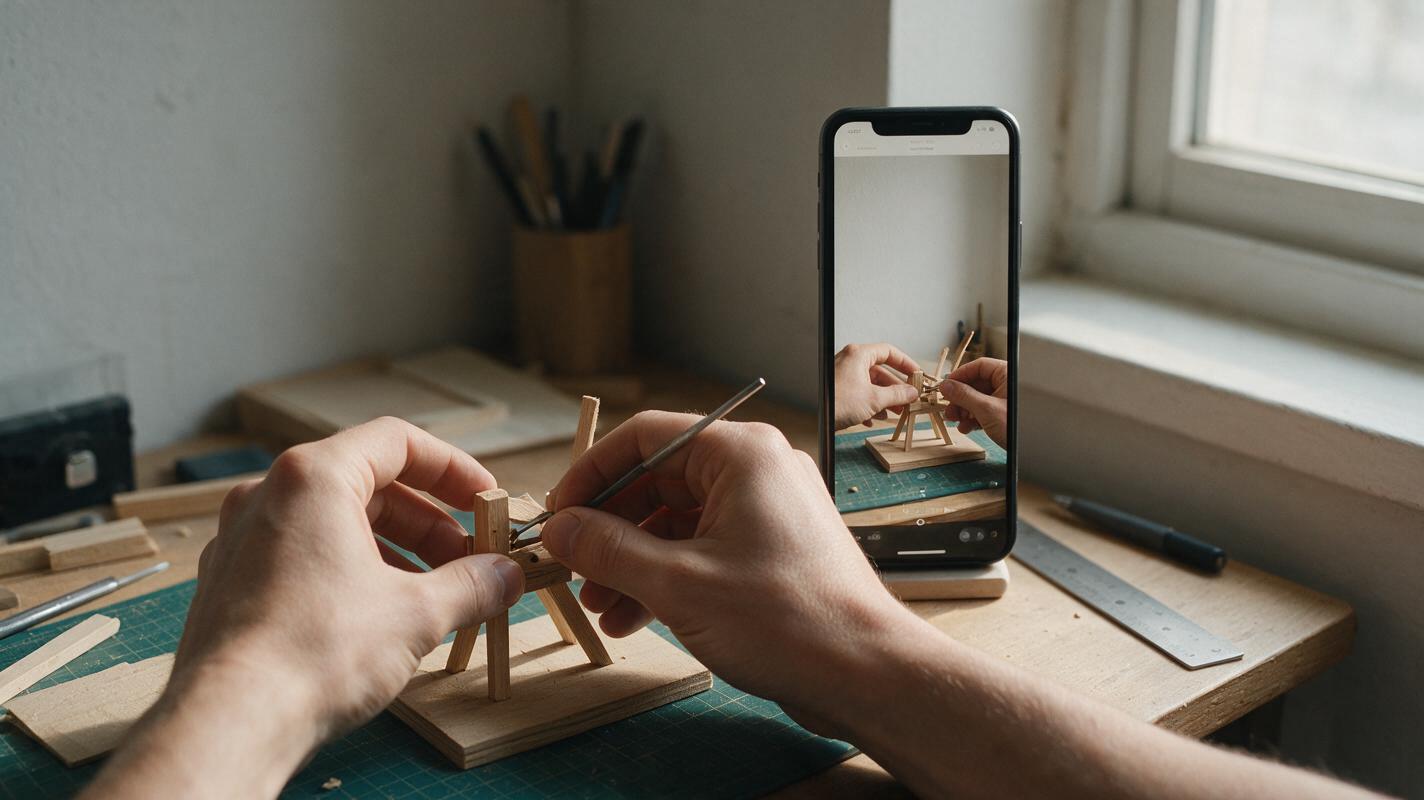
Table of contents
Keep the shot you filmed, but give it room to fit
A useful landscape frame can become a vertical Shorts background without cropping out the person, object, or action that made it worth using.
The catch is that a portrait canvas needs image area your camera never captured. Nano Banana Pro can help extend a still around its existing content, but generated surroundings should not quietly change what the footage appears to show. The safest approach is to keep the original frame visible, generate only the missing area, and use the result as an illustrative still—not as a new camera angle or documentary evidence.
This works particularly well for faceless tutorials, narrated explainers, and highlights from your own long-form videos. It is less suitable for shots where an extension could imply an unfilmed result, an extra product feature, or a different location.
Choose a frame with a believable place to extend
Pause your landscape video where the important action is clear and motion blur is minimal. A frame with a person near the center, a recognizable workbench, or a single object against a simple background is easier to adapt than a crowded shot with people or critical details at both edges.
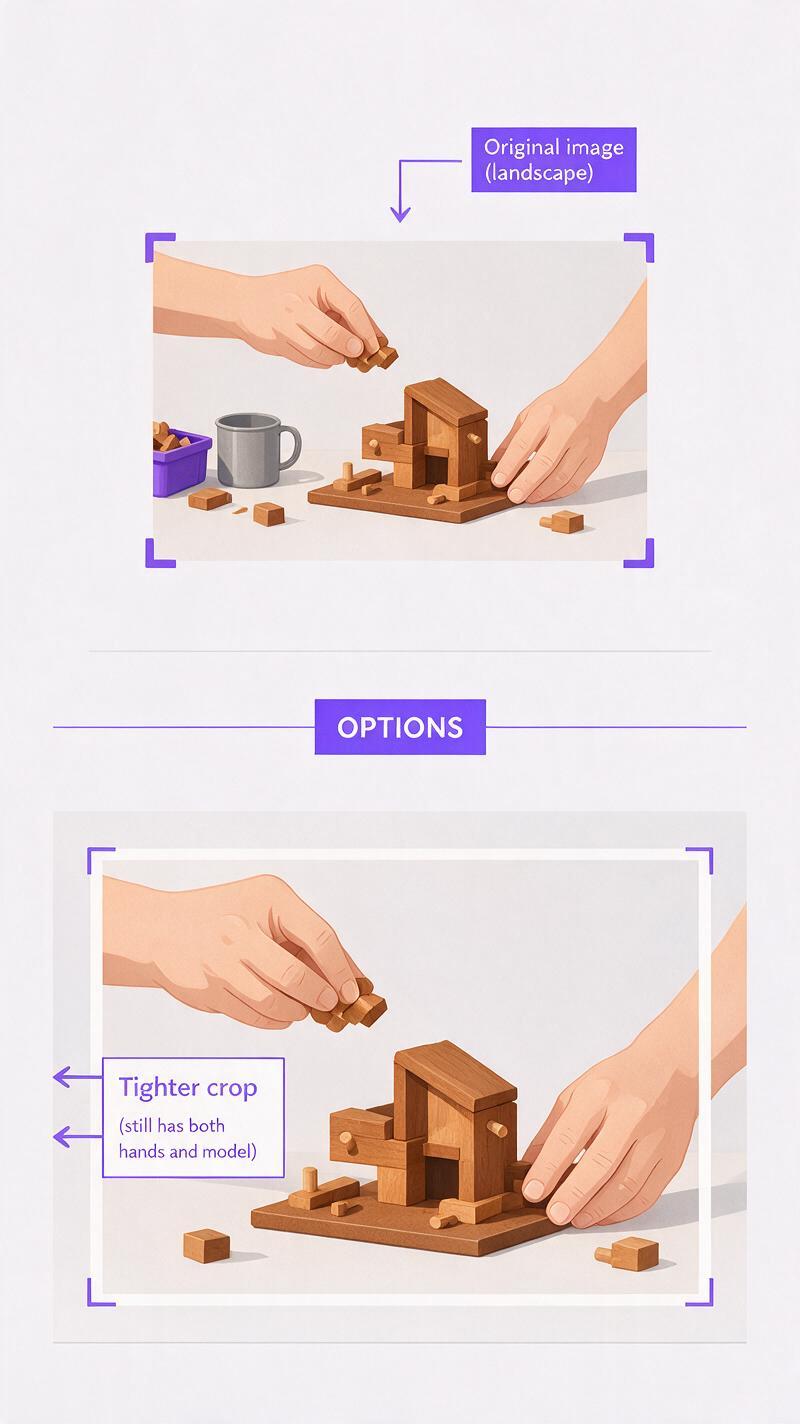
Before generating anything, make a 9:16 canvas and place the still on it. Crop away expendable edges, but retain the entire subject and the evidence viewers need to understand the shot. You will usually be filling space above and below the original image. If keeping the subject requires enormous invented areas, choose another frame or use a blurred copy of the source as the background.
- Keep: hands, facial features, product markings, tool positions, and any visible result you intend to discuss.
- Leave room: decide where captions will sit before extending the image.
- Avoid: source frames whose missing space would require inventing another person, a readable screen, or the rest of a partly visible object.
For example, a desk-tutorial frame might already show both hands working on a model in the center. Extending the neutral wall above and the unremarkable desk surface below adds useful portrait space. Generating a new laptop screen beside the model would add information that was never in the shot.
Extend the surroundings, not the event
Use your selected still as the reference when working with nano banana pro. Prepare a portrait canvas with the source frame positioned where you want it, then ask the model to fill only the empty areas. If your available editing controls cannot reliably restrict changes to those areas, treat the generated image as a background layer and place the untouched original frame over it in your editor.
Start with this prompt for a neutral creator-workspace shot:
Extend this supplied landscape frame into a 9:16 portrait still for a YouTube Short. Fill only the blank canvas above and below the original image. Continue the existing wall, desk surface, lighting direction, perspective, and depth of field. Keep the original subject, hands, tools, object positions, and visible results unchanged. Do not add people, screens, labels, logos, or new actions. Leave the upper area visually quiet for editor-added captions. The extension should look like background surrounding the original frame, not a different shot.Compare the result with the source at full size, not just as a phone-sized preview. Watch for extra fingers, altered product details, shifted shadows at the boundary, or a new object that seems relevant to the narration. A pleasant composition is not enough if it changes the meaning of the clip.
Editing safeguard: Re-overlay the untouched source pixels on the generated result. This makes the original footage—not the model's reconstruction—the visible record of what happened.
Match the extension to the kind of source frame
Small prompt changes can make the generated space more useful without asking the model to reinvent the scene. Pick the version that matches your actual frame.
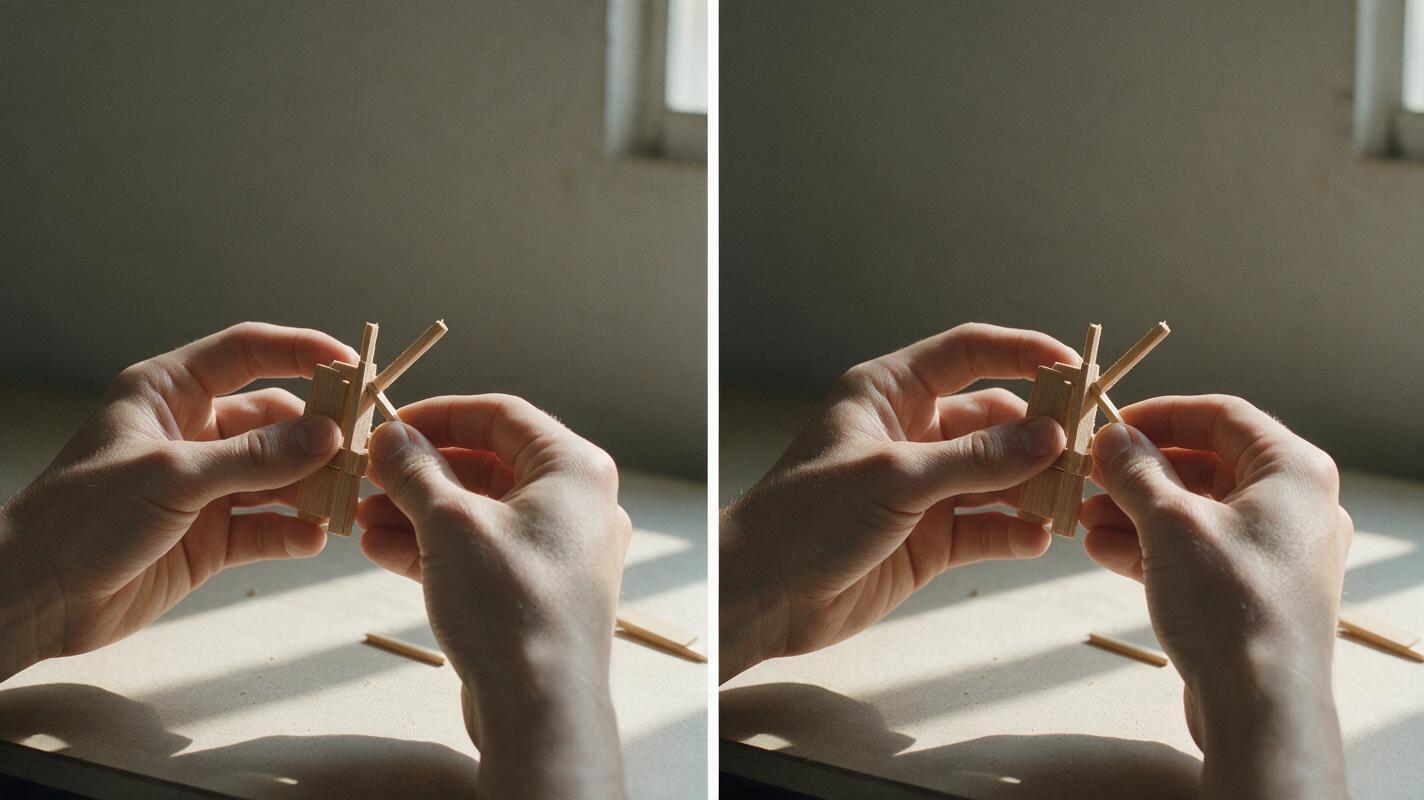
For a tabletop tutorial
Continue the existing tabletop downward and the plain background upward. Match the wood grain scale, camera angle, soft window light, and focus falloff. Preserve the original work area exactly. Keep the added space free of tools and hands so captions remain readable.For a talking-head excerpt
Extend the existing background above and below this supplied frame. Match its real lighting and depth of field. Do not change the person's face, hair, clothing, pose, or expression. Do not create another person or imply a different room. Keep the new areas simple and unobtrusive.For a faceless product close-up
Continue only the existing neutral surface and backdrop outside the supplied frame. Preserve the product silhouette, markings, ports, buttons, and reflections shown in the source. Do not invent unseen sides, accessories, controls, or performance indicators. Leave space for captions without generating text.These prompts are intentionally restrained. Their job is to produce usable negative space, not a more dramatic version of the video. Add headings, arrows, and subtitles afterward in your editor so they stay legible and can be revised.
Check the seam before building the Short
Place the result on a 9:16 timeline and inspect the boundary where the original frame meets the extension. A straight horizon that suddenly bends, mismatched desk grain, or inconsistent shadow direction will be especially visible behind large captions. If the seam is distracting, try a gentler background, move the boundary behind a natural edge, or return to a blurred-source treatment.
Next, watch the Short at phone size with the actual caption placement. Leave breathing room around faces and objects; do not solve a layout problem by covering the action. If you animate the still with a slow pan or scale in your editor, keep the movement subtle enough that viewers understand they are seeing an adapted frame rather than newly captured footage.
For an excerpt from a longer video, bring the original audio forward and identify the frame as a still when that distinction matters. If your narration says a device did something, the preserved source frame must support that claim. Generated wall or desk space can help with layout; it cannot verify an outcome.
When a blurred background is the better answer
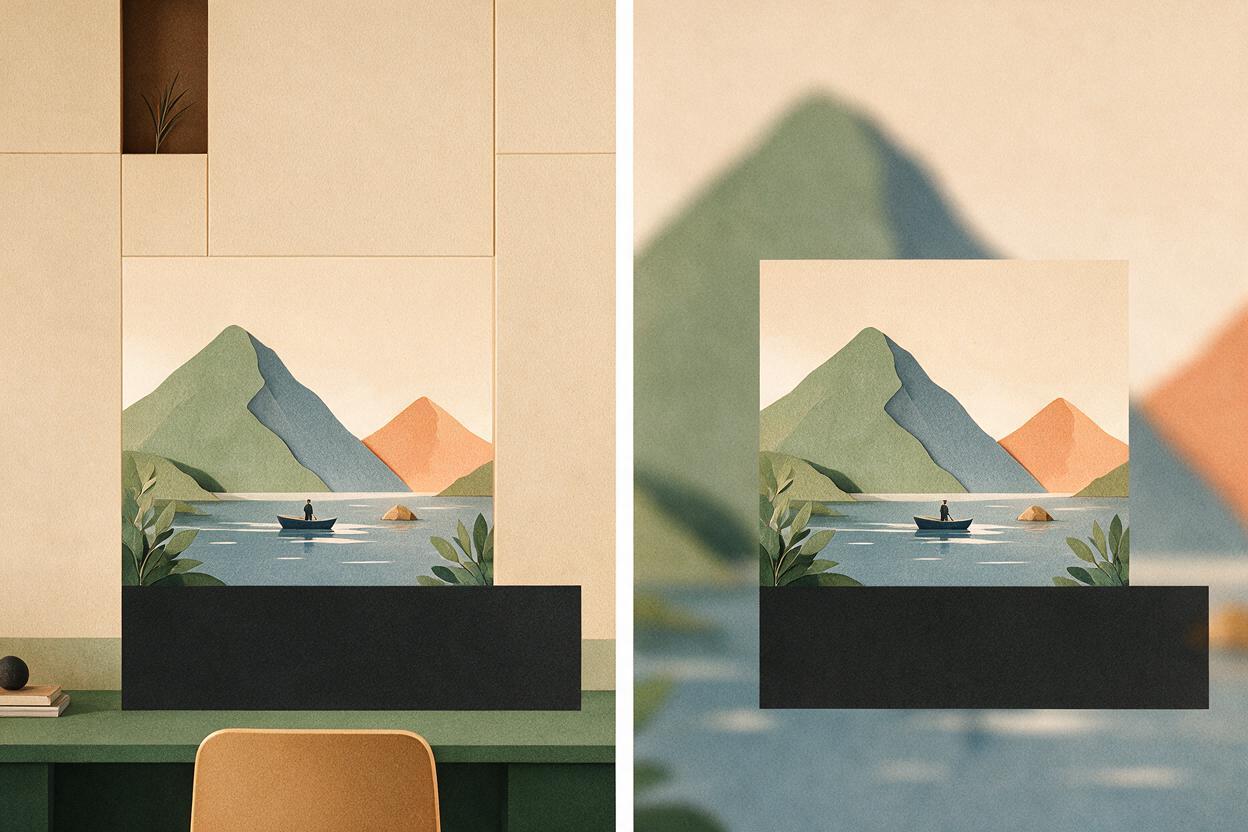
Do not use generative extension just because it is available. A blurred, enlarged duplicate of your original frame is often faster and more faithful for fast-moving highlights, busy locations, or scenes with complex reflections. A solid-color background can work even better when the subject is already clearly framed.
Choose extension when the missing area is visually simple and a clean portrait composition will help viewers follow the Short. Choose blur or a graphic frame when the model would have to guess what an unseen part of the scene contains. If you have a suitable source still, test this prompt yourself, then keep whichever version preserves the original shot most clearly.
Final checklist
- The important subject and action remain visible in the 9:16 crop.
- The generated area contains background, not new evidence or activity.
- The untouched source frame is overlaid if generation changed original details.
- Seams, shadows, and perspective hold up at phone size.
- Captions are added in the editor and do not cover the action.
- A blurred-source alternative is ready if extension looks misleading.
Keywords
vertical Shorts backgrounds, landscape video stills, Nano Banana Pro prompts, YouTube Shorts visuals, portrait frame extension, faceless video repurposing