How to Change Listing Photo Seasons With GPT Image (No Warping)
Outdated seasonal listing photos can make properties feel stale, but reshooting costs time and money, and generic AI edits often warp architectural details. This guide teaches real estate marketers how to use GPT Image to change seasons in listing photos while preserving the home’s exact facade, windows, and roofline. It includes reusable prompt templates, calibration tips, and fixes for common rendering glitches.
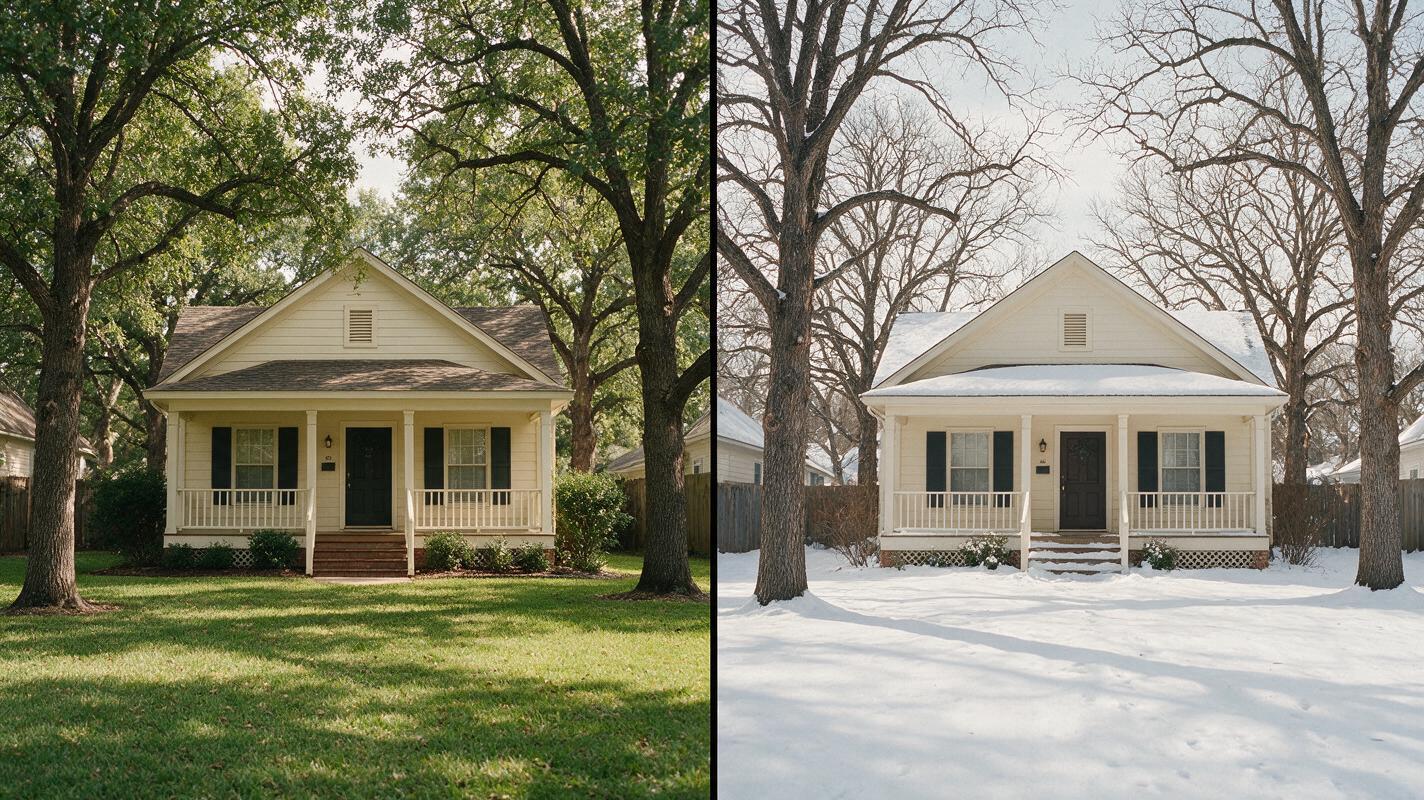
Table of contents
The problem with out-of-season listing photos
Tired of listing photos that feel out of sync with the current season—without reshooting or warping the home’s actual architecture? You’re not alone.
Many real estate marketers sit on high-quality listing photos shot in one season, only to list the home months later when the weather has completely shifted. A suburban home with a lush green lawn feels out of place in a December marketing campaign in Minnesota, just like a ski cabin with bare trees falls flat for summer vacation rental bookings. Reshooting costs hundreds of dollars and hours of coordination, and generic AI photo edits often leave you with warped windows, shifted rooflines, or a completely different front door than the actual property.
GPT Image, a powerful ai image generator with reference-aware editing capabilities, lets you swap seasons in listing photos while locking in critical architectural details. When done right, the edit is so seamless buyers will never guess the photo was adjusted.
Pick the right base photo for clean seasonal edits
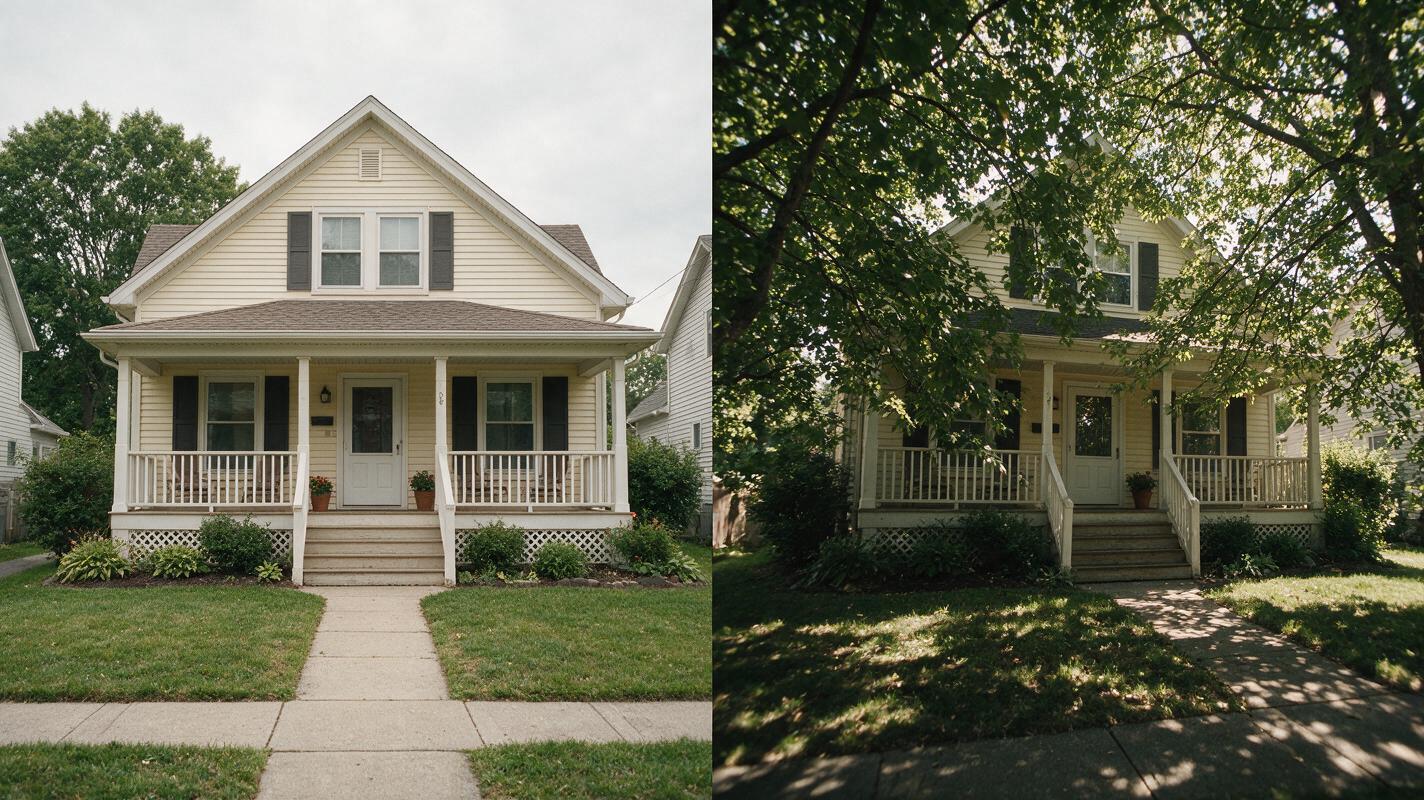
The success of your seasonal edit starts before you even open the tool. Choosing the right base photo cuts down on glitches and ensures your home’s features stay intact.
Look for these qualities in a base photo:
- Clear, unobscured facade: Avoid photos where thick tree branches, bushes, or patio furniture cover large portions of the home’s exterior. The more the AI can see of the original architecture, the better it can preserve it.
- Even, soft lighting: Harsh midday shadows or extreme backlighting make it harder for the AI to distinguish between the home’s features and seasonal elements like leaves or snow.
- Natural perspective: Skip heavily distorted wide-angle shots or extreme aerial angles. Straight-on or slightly angled eye-level shots produce the most consistent results.
- High resolution: Larger files retain more detail, so siding patterns, window trim, and roof shingles stay sharp after editing.
Pro tip: If your best photo has minor foliage obscuring the house, use the tool’s masking feature to select only the non-house areas (yard, sky, trees) for editing. This guarantees the home itself stays 100% unchanged.
Write prompts that preserve every architectural detail
Vague prompts are the #1 cause of warped homes and incorrect features in seasonal edits. Your prompt needs two clear parts: the seasonal change you want, and explicit rules for what to leave untouched.
Include specific preservation language to lock in the home’s identity. Phrases like “keep exact architecture unchanged”, “preserve original window shape and siding color”, and “no distortion of roofline or walls” tell the AI what not to touch, which is just as important as what to change.
Use this reusable prompt template for summer-to-winter exterior edits:
Transform this residential exterior photo from mid-summer to deep winter. Keep the house’s exact architecture, siding color, window shape, roofline, front door, and porch details 100% unchanged. Add soft fresh snow on horizontal surfaces only: lawn, roof edges, tree branches, walkway, and patio. Pale gray overcast winter sky, bare deciduous trees, subtle cool lighting. Photorealistic, natural perspective, no distortion of the home’s structure.For winter-to-summer edits, swap the seasonal details and keep the preservation rules intact:
Transform this residential exterior photo from deep winter to mid-summer. Keep the house’s exact architecture, siding color, window shape, roofline, front door, and porch details 100% unchanged. Lush green lawn, full leafy deciduous trees, bright blue sky with soft white clouds, warm golden hour lighting. Photorealistic, natural perspective, no distortion of the home’s structure.Always name specific features you want to preserve, especially unique ones like a red front door, stone veneer siding, or a bay window. The more specific you are, the less likely the AI is to alter them.
You can test this prompt yourself with your own listing photos to see how well the model preserves architectural details.
Tune edit intensity for realism and accuracy
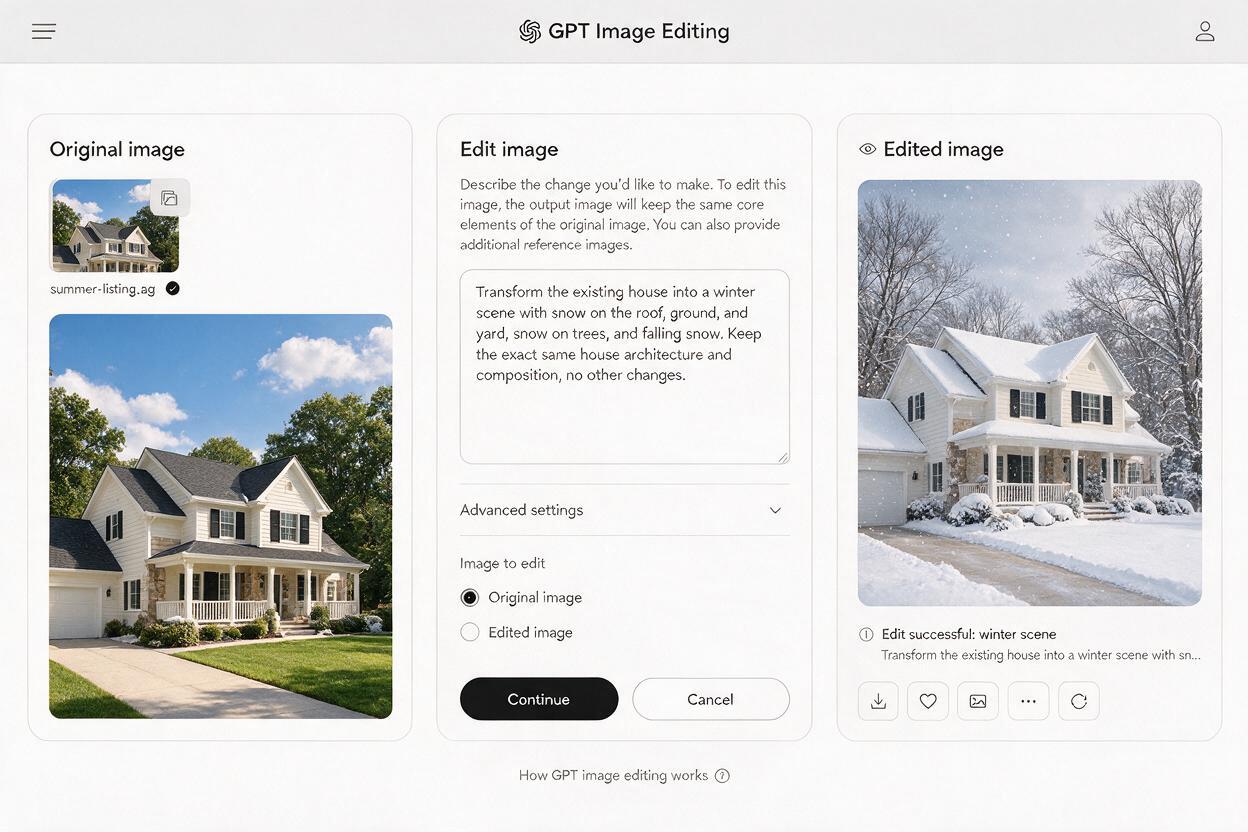
Most AI image editing tools include an edit strength, similarity, or intensity slider that controls how much the model can change the original photo. Getting this setting right is the difference between a seamless seasonal swap and a unrecognizable home.
For seasonal edits with GPT Image, start with an intensity setting of 60–70%. This is high enough to fully swap foliage, sky, and weather elements, but low enough that the model stays anchored to the original home’s structure and perspective.
Adjust the slider based on your results:
- If the house shows signs of warping or feature changes, lower the intensity by 10% and re-run the prompt.
- If the seasonal change is too subtle (e.g., only a few leaves change color, or the sky stays the same), raise the intensity by 5–10%.
- If you’re using a mask to edit only the background, you can use a higher intensity (80–90%) since the home is already protected.
For best results, run 2–3 variations with slightly different intensity settings, then pick the one that balances seasonal realism with architectural accuracy.
Troubleshoot common seasonal rendering issues
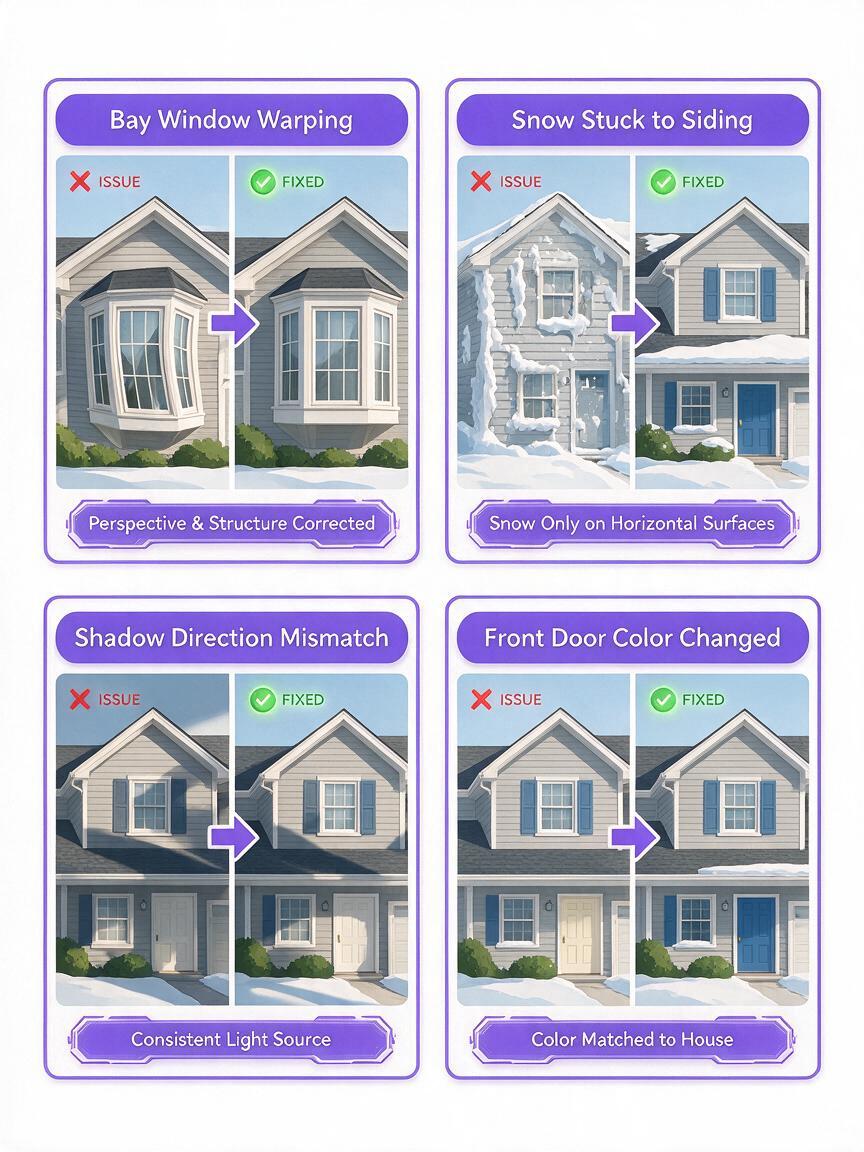
Even with the right prompt and settings, you may run into small glitches. Here are the most common seasonal edit issues and how to fix them quickly:
Warped windows or siding
This happens when the model prioritizes the seasonal change over preserving the home’s structure. Fix it by adding more explicit preservation language to your prompt (e.g., “exact same window frames, no changes to siding pattern”) and lowering the edit intensity by 10%. For persistent issues, use a mask to cover the entire house so only the background is edited.
Unnatural snow or foliage placement
Snow sticking to vertical walls or leaves growing on a home’s roof is a common AI quirk. Fix it by adding specific placement rules to your prompt (e.g., “snow only on horizontal surfaces, no snow on vertical siding or walls”) or use inpainting to touch up small, misplaced areas.
Mismatched lighting
If the new seasonal lighting doesn’t match the home’s shadows, the edit will look fake. Fix it by specifying lighting direction in your prompt (e.g., “warm golden hour light coming from the left, matching original shadow direction”) and lowering the edit intensity to retain more of the original photo’s lighting.
Changed trim or door color
The AI may accidentally alter accent colors when adjusting the overall color palette for the season. Fix it by explicitly naming the colors to preserve in your prompt (e.g., “keep forest green front door and white window trim exactly the same color”).
Ways to use seasonal listing photos in your marketing
Seasonal edits aren’t just for making listings feel timely—they can also boost engagement across your marketing channels.
- Active listings: Update MLS and website photos to match the current season, so buyers browsing in December don’t see photos of a summer garden.
- Vacation rental marketing: Create both summer and winter versions of rental property photos to target peak booking seasons for each.
- Social media content: Post seasonal variations of listing photos to your Instagram or Facebook feed for fresh, relevant content without new shoots.
- Client updates: Send sellers a seasonal version of their listing photo as a creative touch to show you’re actively marketing their home.
- Before/after content: Pair the original and edited photo in a carousel post to highlight how the home looks year-round.
Final checklist
- Choose a base photo with a clear, unobscured view of the home and even lighting.
- Write a prompt that explicitly lists all architectural features to preserve, not just the seasonal change.
- Start with 60–70% edit intensity, adjusting up or down based on results.
- Use masking for foolproof protection of the home’s facade if you’re only editing the background.
- Touch up small glitches with targeted inpainting instead of re-running the full edit.
- Verify the final photo matches the home’s actual features before publishing.
Keywords
gpt image, listing photos, seasonal edits, real estate marketing, architectural accuracy, ai image generator, seasonal listing photos