Nano Banana Pro Prompts for a Consistent Room in Story Videos
A fictional room can anchor a faceless story video, but it loses that role when every generated shot changes the layout. These Nano Banana Pro prompts establish a master view, produce useful camera angles, and help creators catch continuity errors before editing.
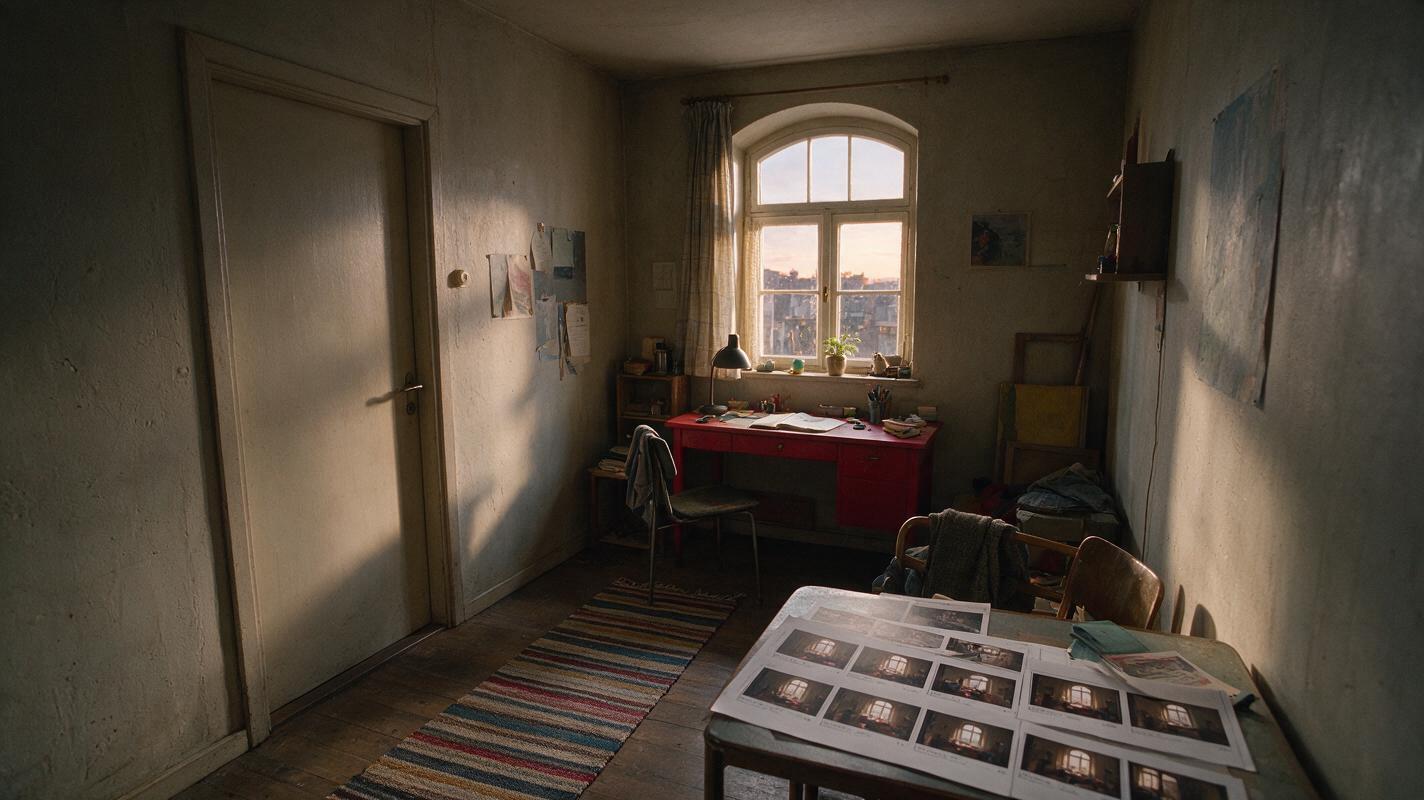
Table of contents
Make the room recognizable in every shot
A faceless story video may return to the same bedroom, office, or apartment several times. If the window switches walls or the doorway disappears, viewers stop following the scene and start noticing the image generation. The fix is to establish one room as a visual reference, then request each new angle as a view of that room—not a fresh room with similar decor.
The prompts below use Nano Banana Pro to build a fictional apartment set for a short mystery story. Swap the details for your own location, but keep the same process: lock the layout, change the camera deliberately, and inspect every result before it reaches the timeline.
Define landmarks before generating images
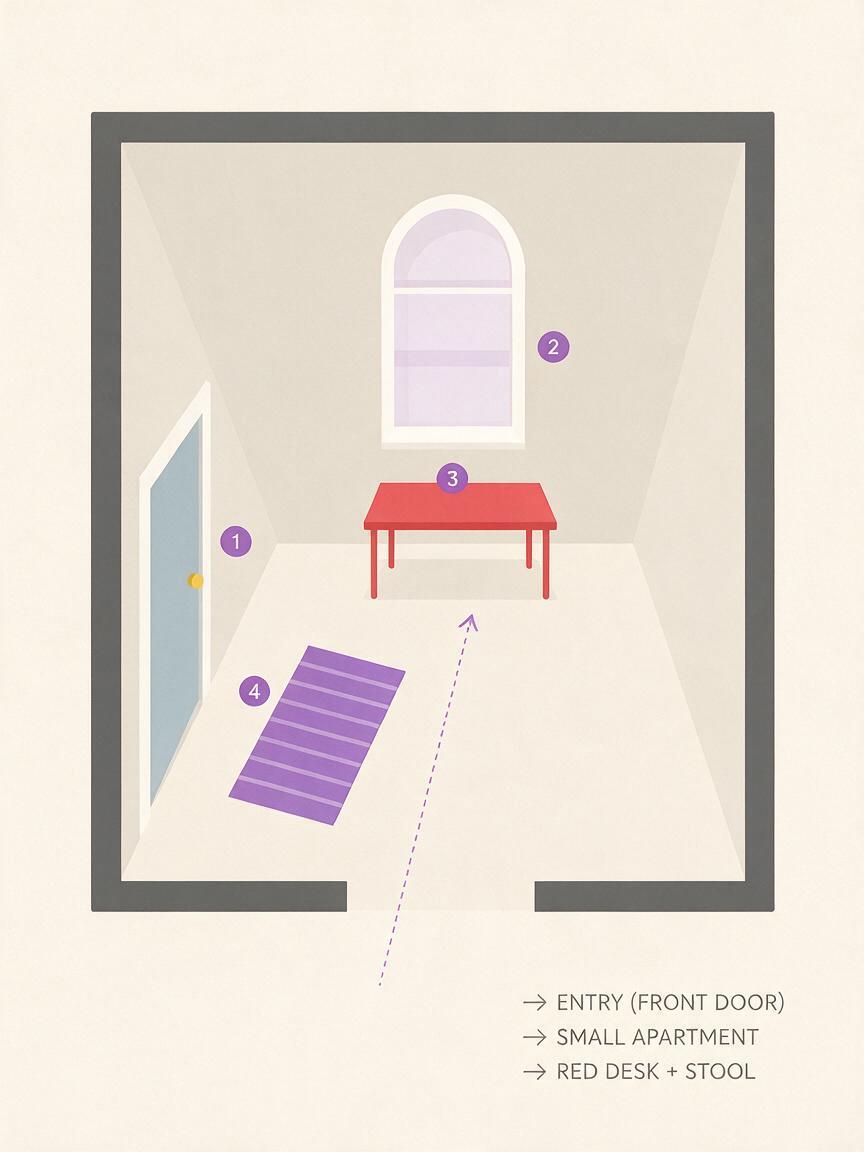
Give the room a few unmistakable features that can survive a change in camera angle. For this example, the apartment has a front door on the left wall, a tall arched window on the back wall, and a small red desk beneath the window. A striped rug points from the door toward the desk. These are continuity markers, not just decorative adjectives.
Start with a wide establishing image using an ai image generator. Keep the frame clear enough to identify where the main landmarks sit. A dramatic close-up might look better on its own, but it cannot tell you whether later shots belong to the same room.
Create a wide establishing image for a fictional apartment used in a faceless mystery video. View from the corner opposite the entrance. Fixed layout: a plain front door on the left wall; one tall arched window centered on the back wall; a small red desk directly beneath that window; a narrow striped rug running from the door toward the desk. Evening light through the window, restrained cinematic realism, uncluttered floor, no people, no writing, no signs. Keep all four landmarks visible and spatially coherent.Save the approved result as your master room image. If the tool supports image references, attach that image to later requests. A written prompt alone can restate the landmarks, but it cannot guarantee identical geometry; compare outputs rather than assuming a repeated description is enough.
Prompt camera changes, not room redesigns
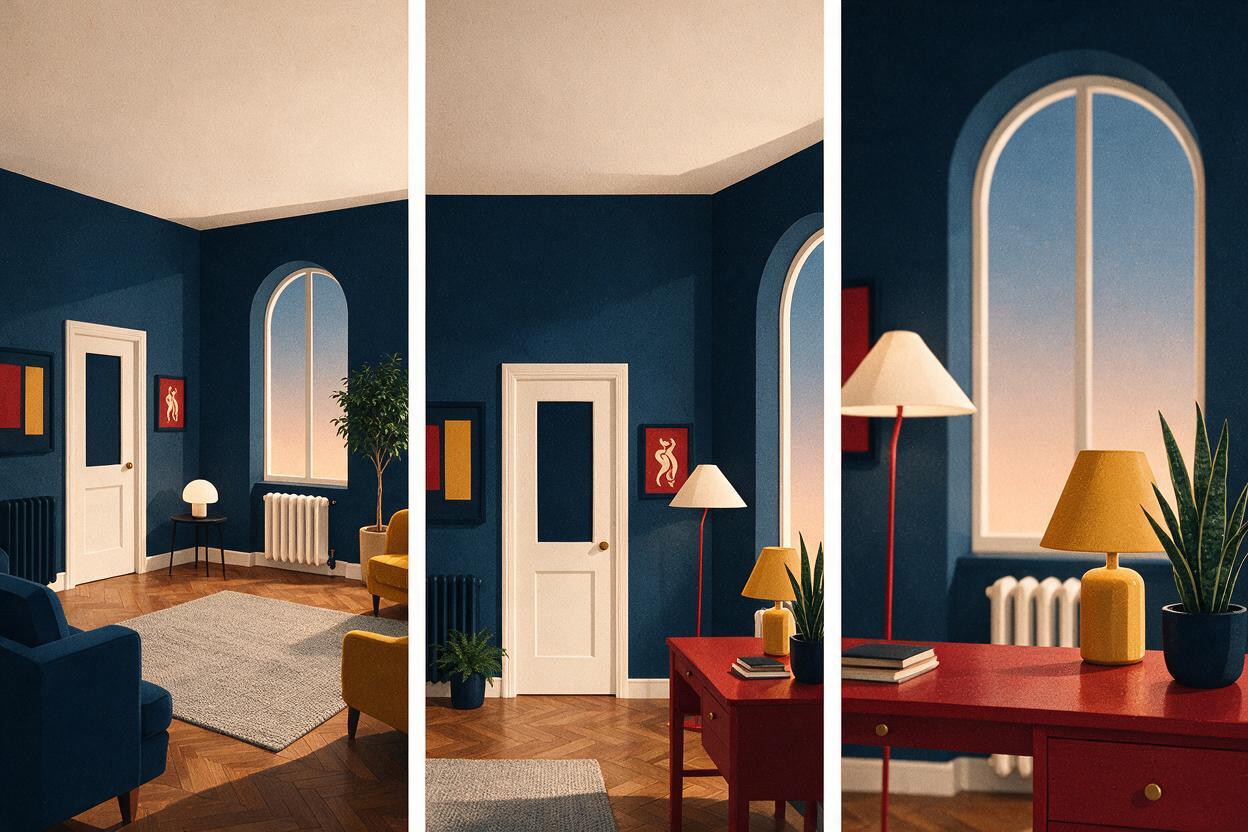
Plan the story around views an editor can actually use: a wide shot to establish the space, a view toward the entrance when a sound is heard, and an insert at the desk when a clue appears. In each request, specify what changes—the camera position and story focus—and what must remain fixed.
The sound at the door
This shot should direct attention toward the entrance without moving the window or adding a second doorway. Attach the master image as a reference when available.
Use the attached master room image as the reference for the same fictional apartment. Show a medium-wide view looking toward the front door on the left wall, as if the camera has moved closer to the red desk. The arched window remains on the back wall behind the desk; part of the striped rug stays visible on the floor. The door is closed. Suggest unease through lighting and framing only. Do not add another door, change the furniture, add a person, or place text in the image.The clue on the desk
An insert does not need to show every landmark. It does need to fit the established set. Show enough of the red desk and window to connect it to the wide shot, then add the clue in a way you can control in the edit.
Use the attached master room image as the reference for the same apartment. Create a close view of the small red desk beneath the tall arched window. Keep the desk shape, wall color, and evening light consistent. Leave a clear, empty area on the desktop where an editor can later place a readable note. No legible writing, no extra windows, no changed room layout, no people.Keep important clues editable. If the note must say something specific, add its text in your video editor. That lets you correct wording and control exactly when the audience can read it.
Check the room like a film set
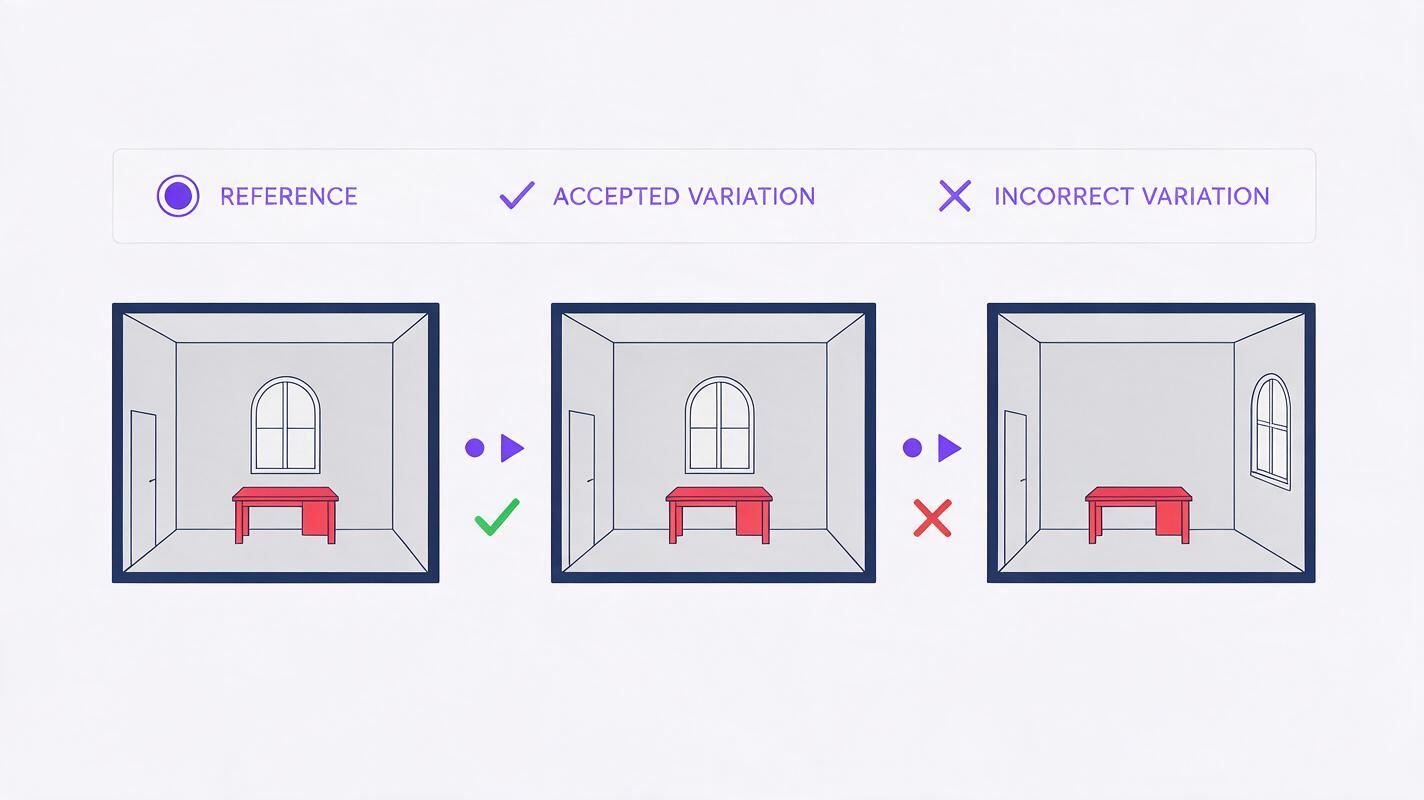
Put the establishing view beside each new image before generating more. Check geography first and atmosphere second. A moody result is not useful if it silently replaces the set.
| Check | Acceptable variation | Regenerate or edit when… |
|---|---|---|
| Door and window | One may fall outside a close crop. | Either moves to a different wall or an extra opening appears. |
| Red desk | Perspective changes its apparent size. | Its color, shape, or position under the window changes. |
| Striped rug | Only a portion appears in a tighter shot. | It points in a contradictory direction in a comparable wide view. |
| Lighting | Shadows deepen as the story progresses. | Time of day jumps without a story reason. |
If a result fails, revise the smallest possible instruction: “Keep the arched window on the back wall behind the red desk.” Do not rewrite the entire prompt with a new style description unless you intend to rebuild the set. When reference-based attempts still change the geometry, reuse the approved wide image and crop into it for an insert instead.
Turn the stills into an understandable scene
On the timeline, open with the wide view long enough for viewers to register the door, window, and desk. Cut toward the door when the narration mentions the sound; cut to the desk only when the clue matters. Subtle pushes or crops can add movement without requiring another generated image.
If you want motion within one shot, try image to video with an approved still as the source. Request limited movement, such as a slow camera push and gently shifting light. Review the full clip for drifting furniture, moving doorframes, or newly invented objects; if those appear, use the still and animate the crop in your editor instead. Treat generated footage as part of a fictional scene, not as evidence of a real event.
Final checklist
- Choose a master image that clearly establishes the room’s layout.
- Repeat a small set of fixed landmarks in each camera-angle prompt.
- Compare new images against the master before adding them to the edit.
- Place story-critical text and clues in the editor for reliable readability.
- Use motion only when it preserves the room viewers already know.
Ready to build a set for your own story? test this prompt yourself, beginning with one wide room image and expanding only after its layout is right.
Keywords
nano banana pro prompts, consistent ai backgrounds, faceless story videos, story video locations, ai room images, visual continuity