Fix Cropped YouTube Shorts With Nano Banana Pro Backgrounds
A horizontal shot can look cramped when it is cropped to fit a vertical Short. Use Nano Banana Pro to create a matching portrait background, then place the original footage on top so the subject stays fully visible.
Table of contents
Keep the entire shot visible
A useful clip can become unusable in a YouTube Short when a vertical crop cuts off the product, demonstration, or action. Instead of forcing the footage to fill a 9:16 frame, keep the horizontal video intact and build a matching background around it. Nano Banana Pro can help create that background from a still taken from the clip; your video editor handles the final composition.
This approach works especially well for faceless tutorials, desk demonstrations, and B-roll where the whole frame matters. It does not invent missing video footage. It gives the original shot a deliberate vertical setting while preserving what the camera actually captured.
Choose a frame that represents the shot
Export a still from a moment when the subject and surroundings are clearly visible. For a desk demonstration, choose a frame that shows the tabletop, lighting, and main object without a hand blocking half the scene. That frame gives Nano Banana Pro useful visual cues for a compatible background.
Before generating anything, check whether the clip can survive being displayed at less than full-screen height. Tiny interface labels or distant objects may become unreadable. If the viewer must read fine detail, use a close-up, re-edit the shot, or add a separate legible graphic rather than relying on a decorative background.
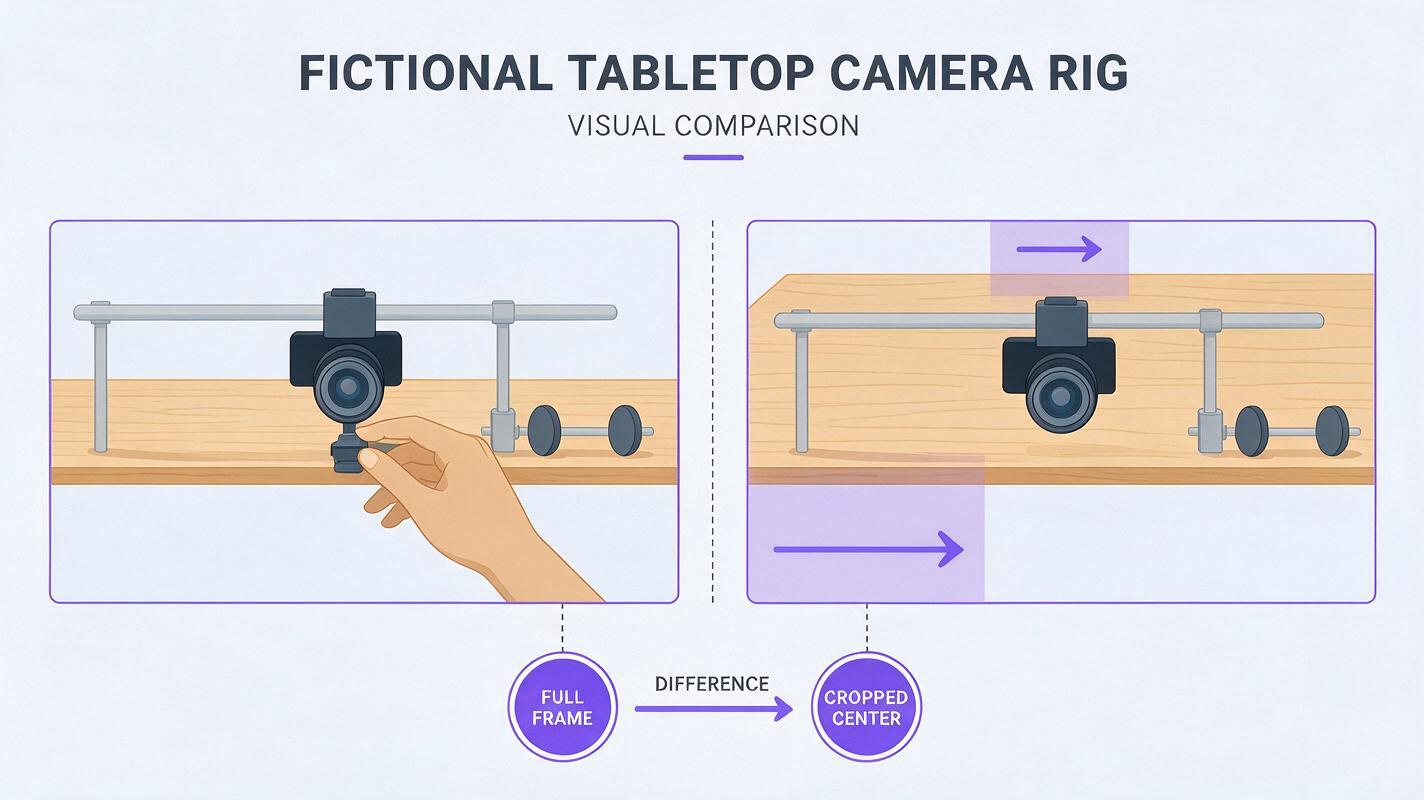
Example: A horizontal shot shows both hands assembling a small camera rig. A center crop removes the hands. An uncropped inset keeps the assembly visible, while a portrait background fills the space above and below.
Generate a portrait background, not replacement footage
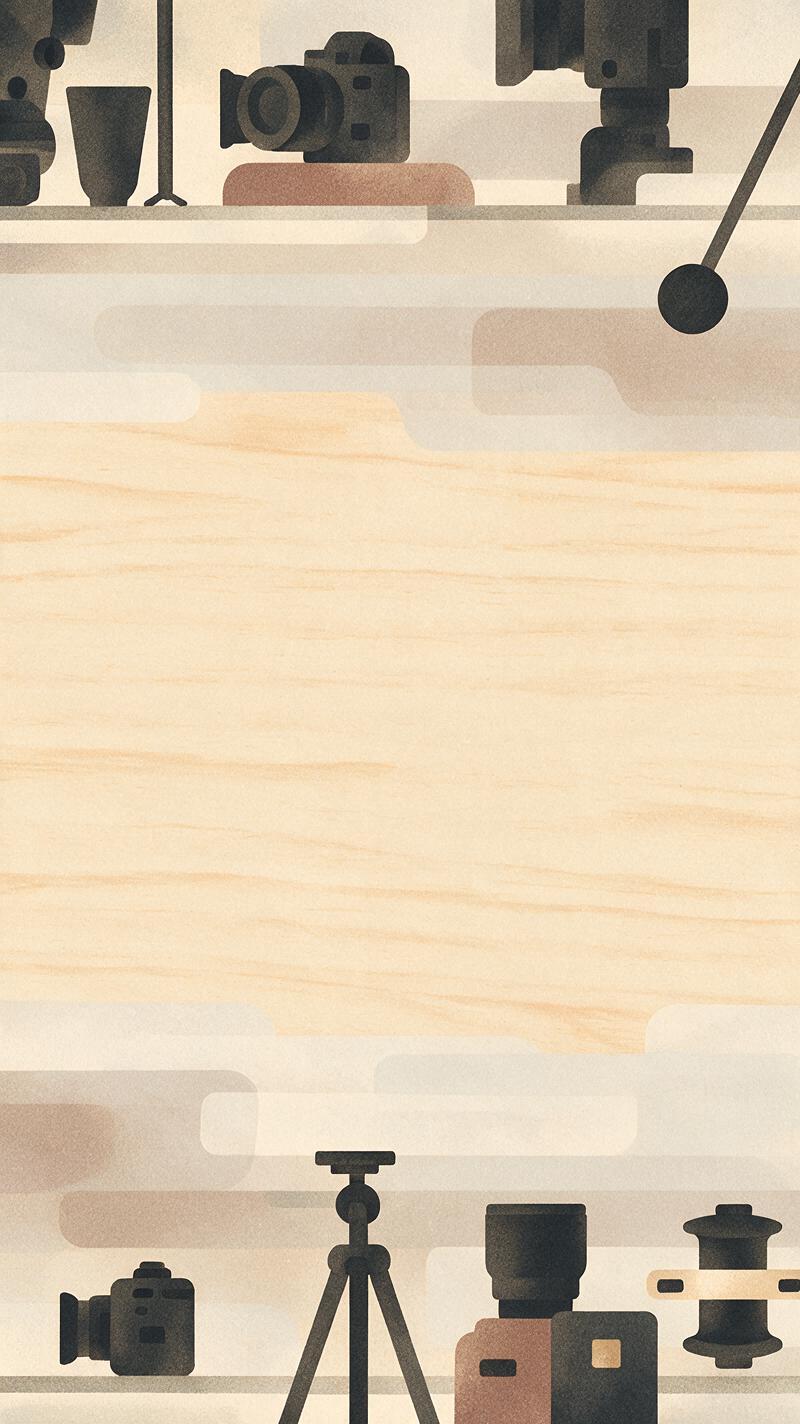
Use the exported still as a visual reference in Nano Banana Pro and request a vertical background with compatible colors, lighting, and materials. If your editing interface offers canvas expansion, place the original still near the center and expand above and below it. If it does not, generate a separate portrait background inspired by the reference. Either way, the finished background sits behind the untouched video; it should never be mistaken for an extension of the moving footage.
Create a 9:16 background for a vertical video edit using this reference frame for visual direction. Match its warm desk lighting, pale wood surface, and muted charcoal equipment. Keep the middle area quiet and low-detail so a separate horizontal video can be placed over it. Extend the atmosphere above and below with plausible desk textures and soft shadows. Do not add hands, products, readable text, logos, or a second copy of the main subject. This is background artwork, not a reconstruction of the original footage.That instruction uses ai image generation for the part the model can contribute: a still backdrop. Generate a few variations and choose the one that supports the original clip without competing with it. You can test this prompt yourself with a frame from your own video, then replace the scene details with what your footage actually contains.
Place the original video over the background
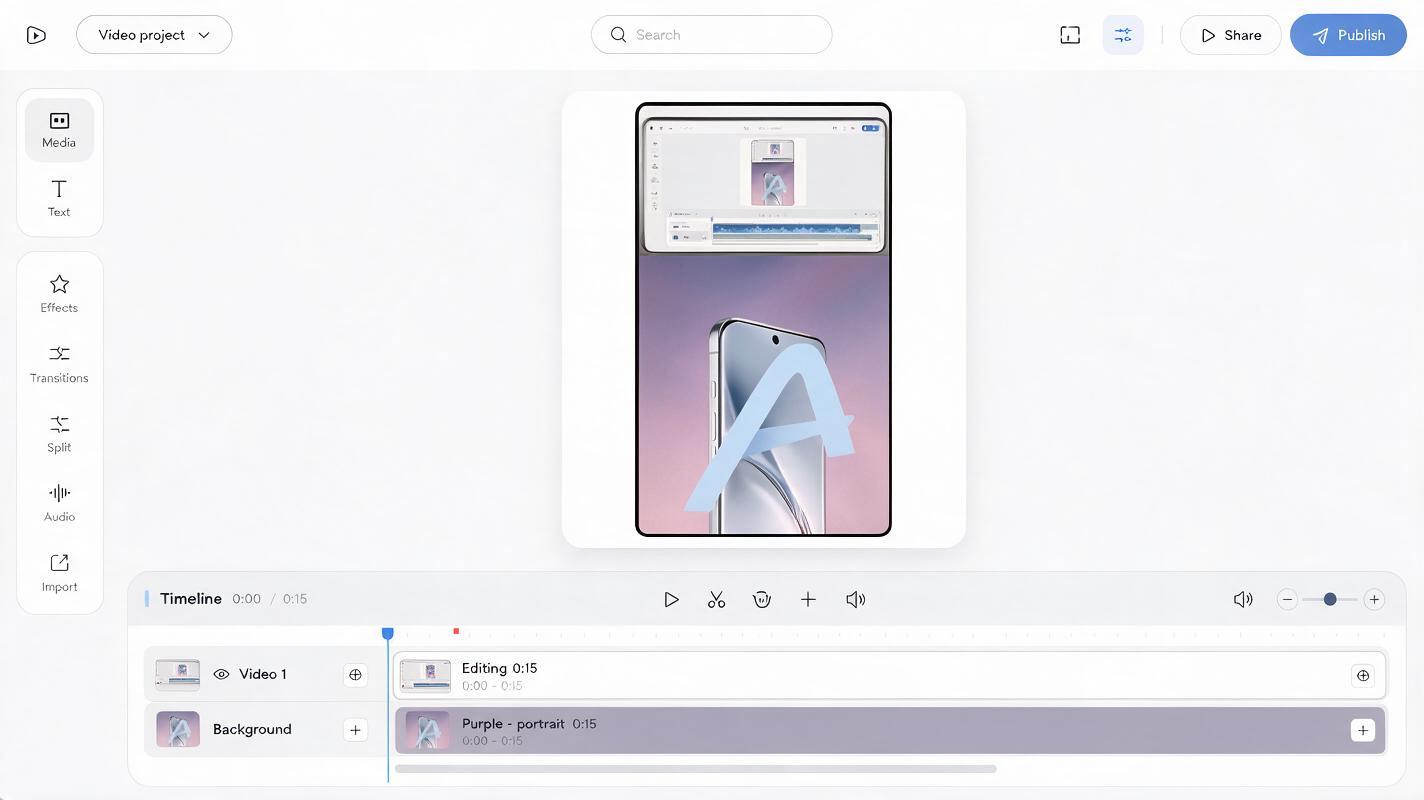
In your editor, create a 9:16 sequence, such as 1080 × 1920. Put the generated portrait image on the lower track and stretch it to cover the clip’s duration. Put the original horizontal video above it. Resize the video until the full subject is visible, then position it where the viewer’s eye should land.
For a 16:9 source displayed at the full 1080-pixel canvas width, the picture occupies roughly 608 pixels of the canvas height. That leaves substantial room above and below. You do not need to fill every gap with detail: a quiet background makes the real footage easier to follow.
- Keep boundaries intentional. A narrow border, subtle shadow, or clean rectangular edge can distinguish the real video from the generated still.
- Avoid false continuity. Do not align a generated tabletop so precisely with the moving clip that viewers might assume the invented area was recorded by the camera.
- Leave room for captions. Place essential labels over a calm area, and preview the Short with platform controls visible before publishing.
If the clip changes scene or camera angle, do not stretch one background across the entire edit. Split the edit at the cut and use a new background, or switch to a neutral color that works with both shots.
Make the background useful, not merely decorative
The open space can carry context that a horizontal crop would otherwise lose. A faceless tutorial might put a short topic label above the inset and a single supporting detail below it. Keep those words in your editor, where you can correct spelling and adjust timing; do not ask the image model to bake important text into the artwork.
For a product comparison, you could place two unmodified clips in separate panels over one restrained background. For a story video, you could use the space for a location or time cue—provided it is accurate and clearly presented as an editorial label. In each case, the generated image supports the footage rather than claiming to document something outside the recorded frame.
| If the source clip shows… | Use the background for… | Avoid… |
|---|---|---|
| A hands-on demonstration | Matching surface and lighting | Extra generated hands or tools |
| A software walkthrough | Muted color and space for captions | Fake interface elements that look clickable |
| A narrated story insert | Consistent mood and a clear scene label | Invented details presented as evidence |
Check the Short on a phone before exporting
Watch the composition at phone size, not only in the editor preview. The central clip should remain large enough to understand without squinting. Check a frame near the beginning, middle, and end: moving hands or objects may approach the inset’s edge even if your exported reference still looked clear.
Then mute the video briefly and ask what the image alone communicates. Can you identify the action? Is the generated background drawing more attention than the real footage? Are captions covering the subject or sitting beneath interface controls? If the answer is uncertain, enlarge the original clip, simplify the background, or choose a different shot.
Finally, review the transition into and out of this layout. A single inset can look purposeful; repeated changes between full-bleed crops and framed horizontal clips can feel accidental unless the edits follow the story. Keep the layout consistent for related shots, and change it when the visual information calls for a different treatment.
Final checklist
- The original footage remains uncropped where its full frame matters.
- The generated background matches the scene without adding misleading subjects or details.
- The real video has a clear edge and remains readable on a phone.
- Captions and labels are editable and clear of the subject and interface controls.
- Every scene change has a suitable background or a deliberate neutral alternative.
Keywords
nano banana pro, youtube shorts background, horizontal video to vertical, uncropped youtube shorts, vertical video background, faceless video editing