PixVerse Prompts to Animate Doodles for YouTube Explainers
Turn a simple hand-drawn doodle into a short animated cutaway without losing its recognizable shape. These PixVerse prompts cover reveals, emphasis, and directional motion, plus editing fixes for morphing lines and unreadable labels.
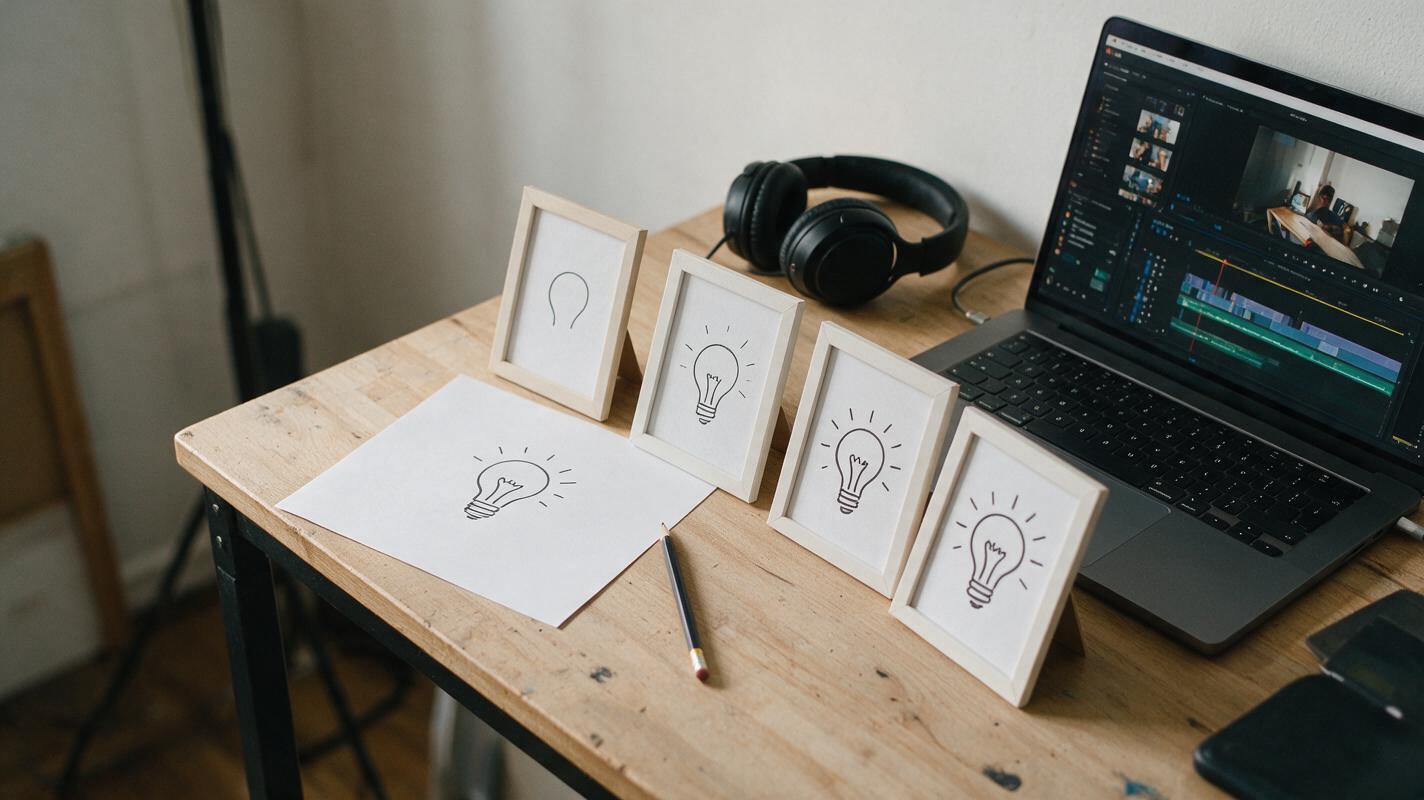
Table of contents
Make the doodle move without changing the drawing
A hand-drawn arrow, lightbulb, or simple diagram can make an explanation easier to follow—until animation turns it into a different object. For YouTube explainers, the useful result is usually modest: a line draws on, a shape gently pulses, or an arrow guides the eye. Start with a clean still, ask PixVerse for one motion at a time, and keep any words or factual labels in your editor rather than inside the generated clip.
This approach works especially well for faceless videos that already use sketches as visual shorthand. The doodle remains the subject; motion only helps viewers notice the part your narration is discussing.
Prepare a drawing the model can follow
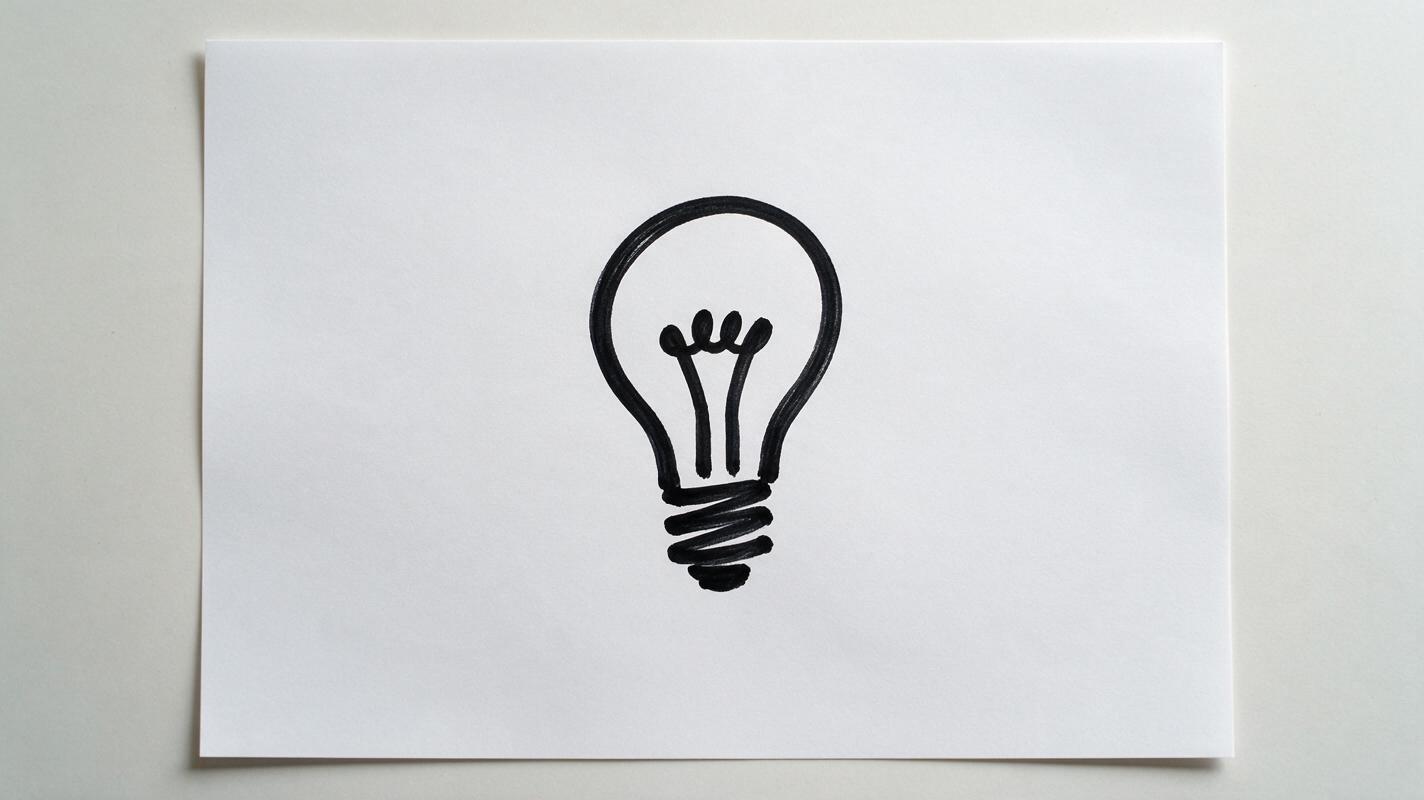
Draw one idea per image. A lightbulb with five radiating marks is easier to animate predictably than a crowded page containing a person, several arrows, and a paragraph of notes. Use a plain, high-contrast background and leave space around every stroke so slight movement does not push the drawing out of frame.
- Keep the silhouette clear: thick, separated lines are easier to inspect for unwanted changes.
- Remove written labels: add names, numbers, and citations later as ordinary video text.
- Choose the final framing first: prepare a horizontal image for a standard YouTube video or a vertical one for Shorts.
- Save the original still: you can cut back to it whenever the generated motion becomes unstable.
Photographing a paper sketch? Shoot straight down in even light, crop out the tabletop, and correct the page so it looks flat. A digital drawing works too. In either case, the clean still becomes the reference for an image to video clip, not a request to redesign the illustration.
Prompts for three useful doodle motions
Upload the appropriate still to PixVerse and adapt one of the prompts below. Each asks for a single readable action. If your interface offers duration or aspect-ratio controls, choose settings that suit your edit; the prompt itself should not depend on a particular control being available.
Reveal a concept with a draw-on
Use this when narration introduces an idea. The viewer should recognize the finished symbol immediately, even if the opening strokes are brief.
Use the uploaded black-marker lightbulb doodle as the exact visual reference. Keep the white background, line thickness, bulb shape, and framing unchanged. Animate the existing lines as if they are being drawn on once: outer bulb outline, filament, then five short rays. The completed drawing holds still at the end. Fixed camera. No new objects, words, color, shading, or changing line shapes.Emphasize a key point without a full redraw
A small pulse gives editors a beat to place under a word such as “idea” or “solution.” It should not look as though the object is inflating.
Preserve the uploaded doodle exactly: one black-marker lightbulb with five rays on a plain white background. Keep the bulb still and recognizable. Animate only the five existing rays with one subtle outward pulse, then return them to their starting positions and hold. Fixed camera, consistent line thickness. Do not redraw the bulb, add rays, add text, or change the background.Point viewers toward the next visual
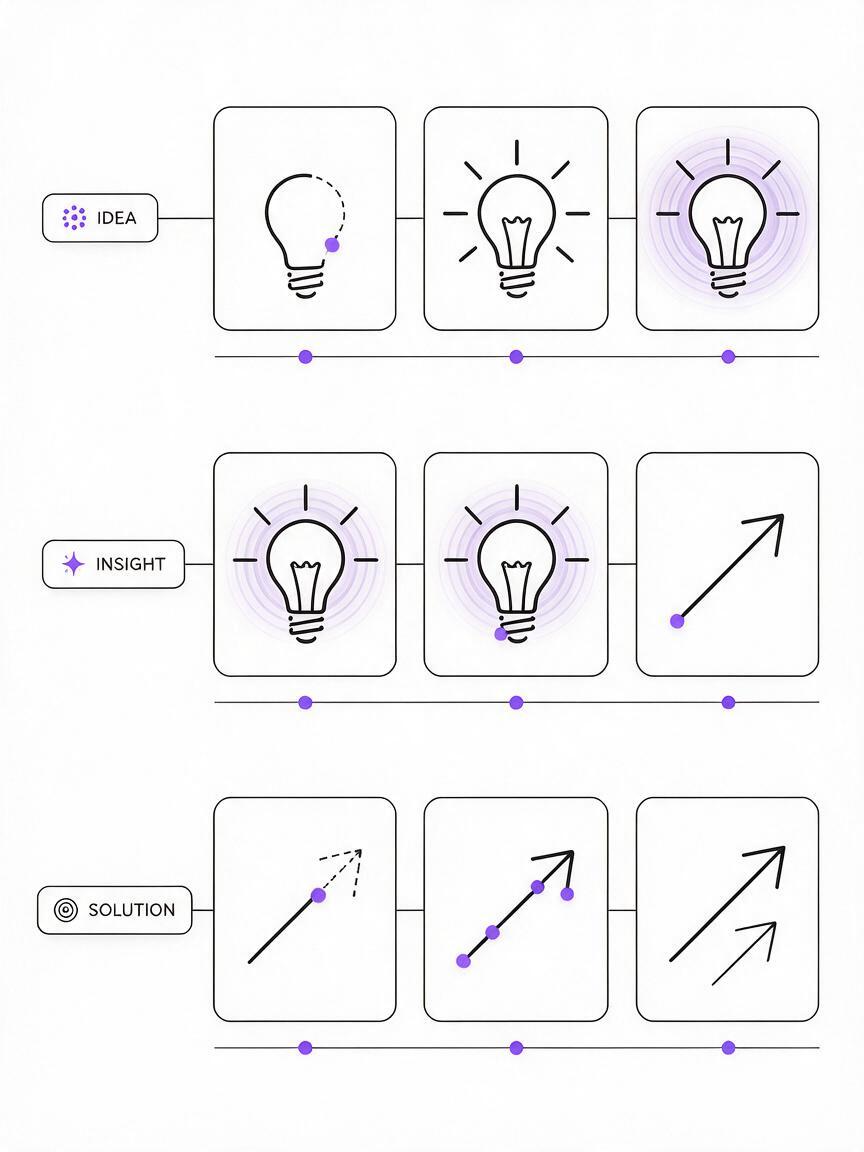
For a process explanation, animate a simple arrow rather than an entire diagram. Place the next graphic where the arrow points during the edit.
Use the uploaded hand-drawn arrow as the exact reference. Preserve its black ink style, arrowhead, position, and plain white background. The existing arrow line draws smoothly from tail to arrowhead once, then remains completely still. Fixed camera. No extra marks, labels, objects, background movement, or shape changes.Editing tip: Put the narration on the timeline before choosing a clip. If a draw-on finishes after the relevant word has passed, trim or speed up the motion rather than filling the screen with more animation.
Fix the morphing that makes drawings unusable
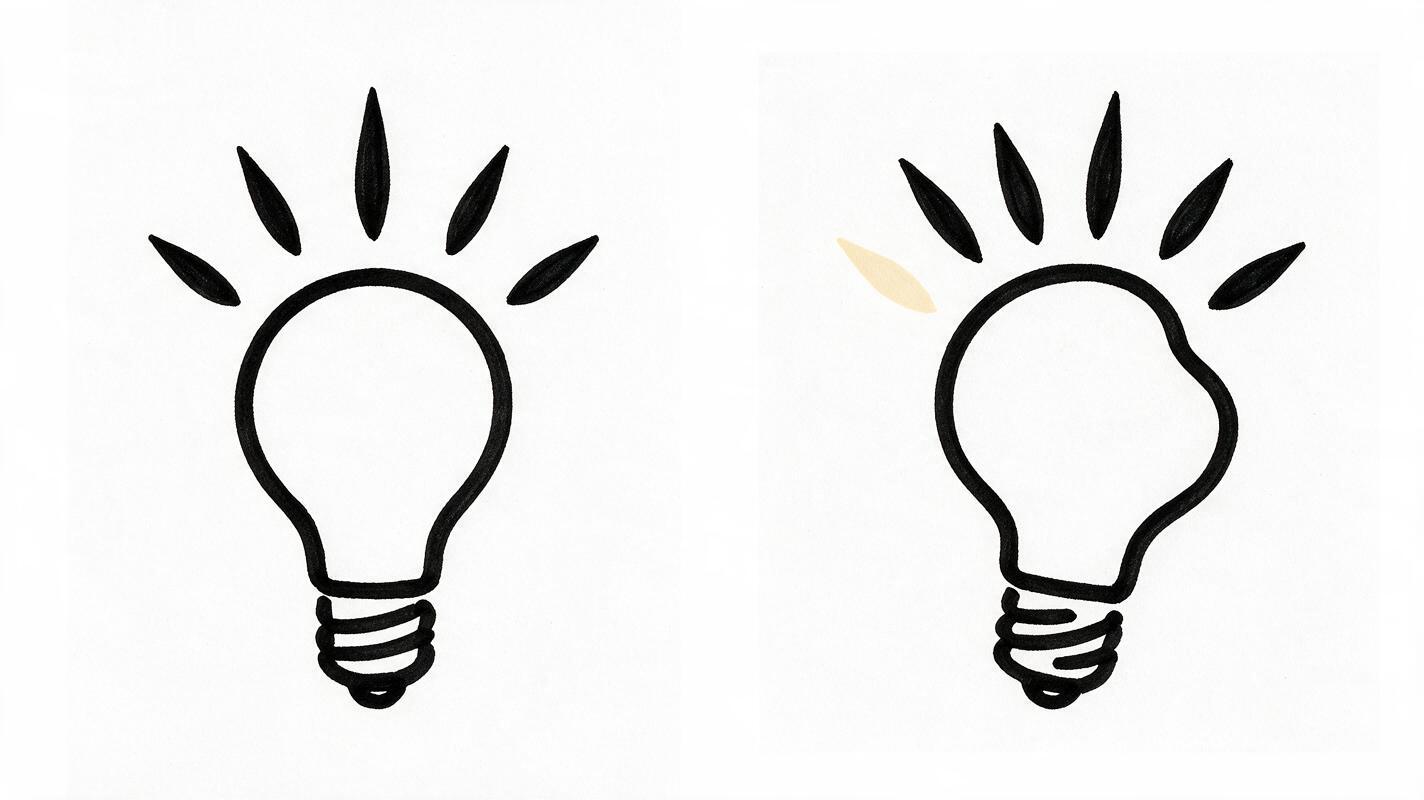
Inspect the exported clip frame by frame, particularly at the beginning and end. A doodle can look fine at normal speed while briefly growing an extra ray or changing its arrowhead between frames.
| What you see | What to change |
|---|---|
| Lines split or sprout new details | Simplify the source image and ask for motion in only one existing element. |
| The whole drawing wobbles | Specify a fixed camera and request a stationary hold after the action. |
| Labels become unreadable | Remove labels from the input and rebuild them as text overlays in the editor. |
| The last frame no longer matches the still | Cut before the drift, then hold the original still for the rest of the narration. |
Do not spend repeated generations trying to rescue a complex sketch. Separate it into simple pieces: animate the arrow, keep the chart static, and assemble them in your editor. For factual diagrams, measurements and relationships should come from verified source material; generated motion is only a visual cue, not evidence that the diagram is correct.
Cut the animation into an explainer
Place the clip exactly where the narration names its subject. A lightbulb draw-on can introduce a proposed solution; a pulsing ray can underline the moment you explain why it matters. Leave the completed image on screen long enough to read, either by using the clip’s stable final frames or by replacing them with the original still.
Keep the doodle’s background and line treatment consistent with your other graphics. If the rest of your video uses off-white paper, do that compositing in the editor rather than asking the animation to invent changing paper texture. For Shorts, check the preview at phone size: a motion that looks delicate on a desktop may disappear on a small screen.
Ready to see whether your sketch survives the motion? Upload one simple drawing and test this prompt yourself. Judge the result by whether the original shape remains readable—not by how much happens in the frame.
Final checklist
- The source image contains one clear doodle and no essential text.
- The prompt requests one motion while preserving the original shape.
- Every frame keeps the correct line count, silhouette, and direction.
- Labels and factual details are added or checked in the editor.
- The animation lands on the narration beat and ends on a readable hold.
Keywords
pixverse doodle animation, animated doodles, youtube explainer visuals, faceless youtube videos, image to video, pixverse prompts