Animated YouTube End Screens With PixVerse That Leave Room for Links
Create a subtle animated background for a YouTube end screen without putting important artwork behind clickable elements. This tutorial uses PixVerse for motion, keeps titles and links editable, and shows what to check before publishing.
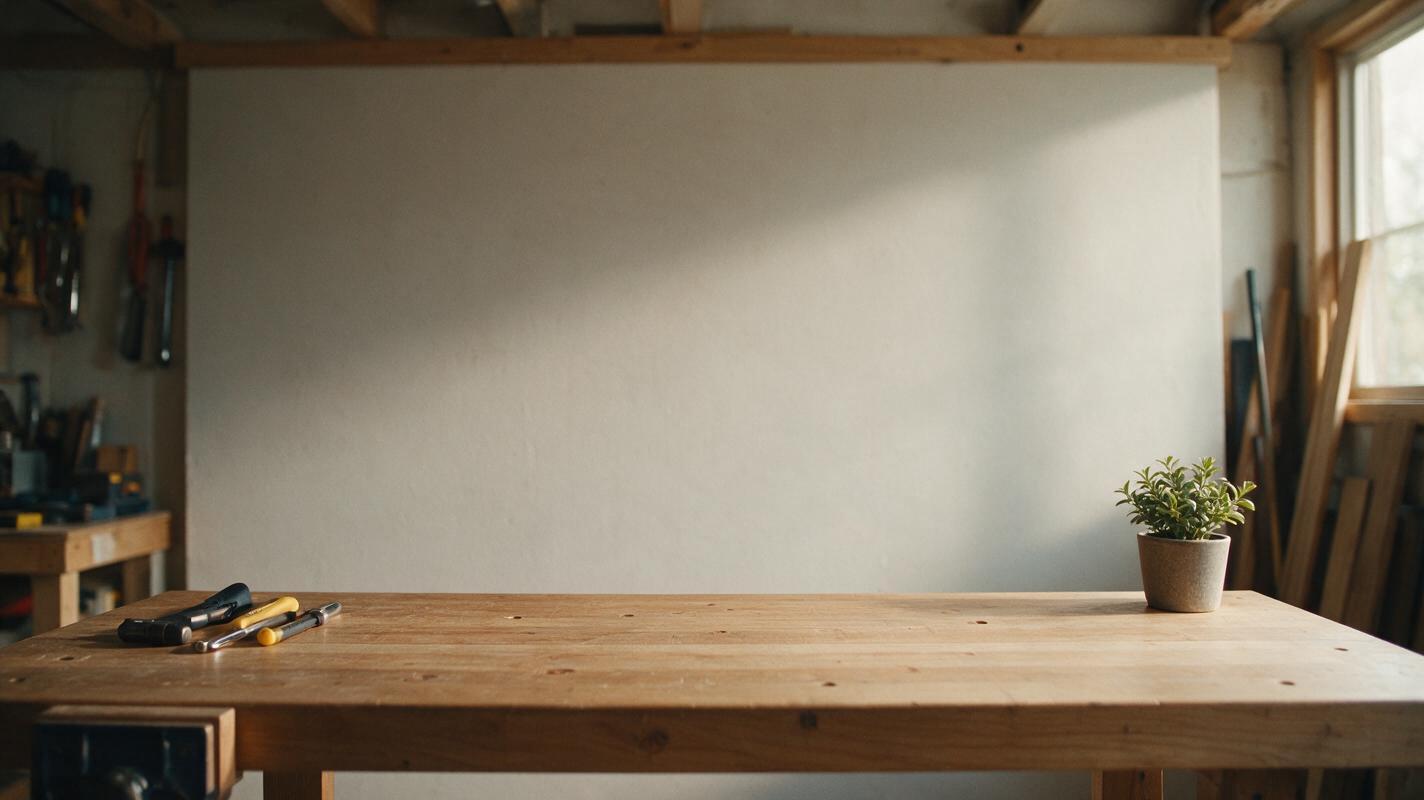
Table of contents
Make the background move, not the links
An animated end screen can give viewers a reason to stay for the next video—but the effect falls apart if moving objects compete with the clickable video and subscribe elements. The reliable approach is to animate a quiet background, then add the actual end-screen elements in YouTube Studio. PixVerse can provide the motion; your editor and YouTube handle the information viewers need to read and click.
This is especially useful for faceless channels: a moving desk scene, illustrated room, or atmospheric landscape can carry the channel’s visual identity without requiring an on-camera goodbye. The key is to design around empty space before generating anything.
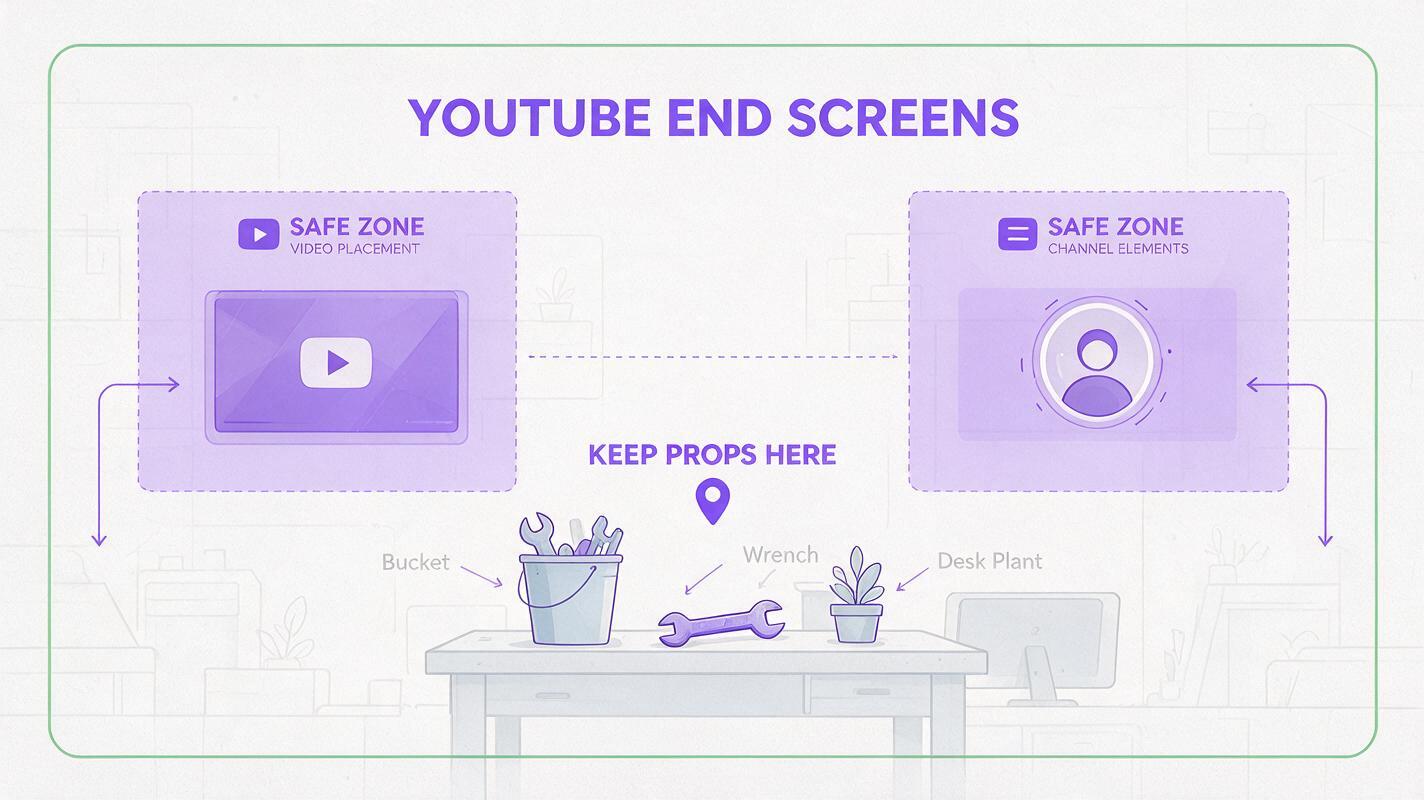
Design around the elements viewers will click
Start by deciding which end-screen elements you intend to use. For example, a suggested video on the left and a subscribe element on the right need different clear areas than two suggested videos. Placement options can vary, so check the end-screen editor for the video you are publishing before committing to a layout.
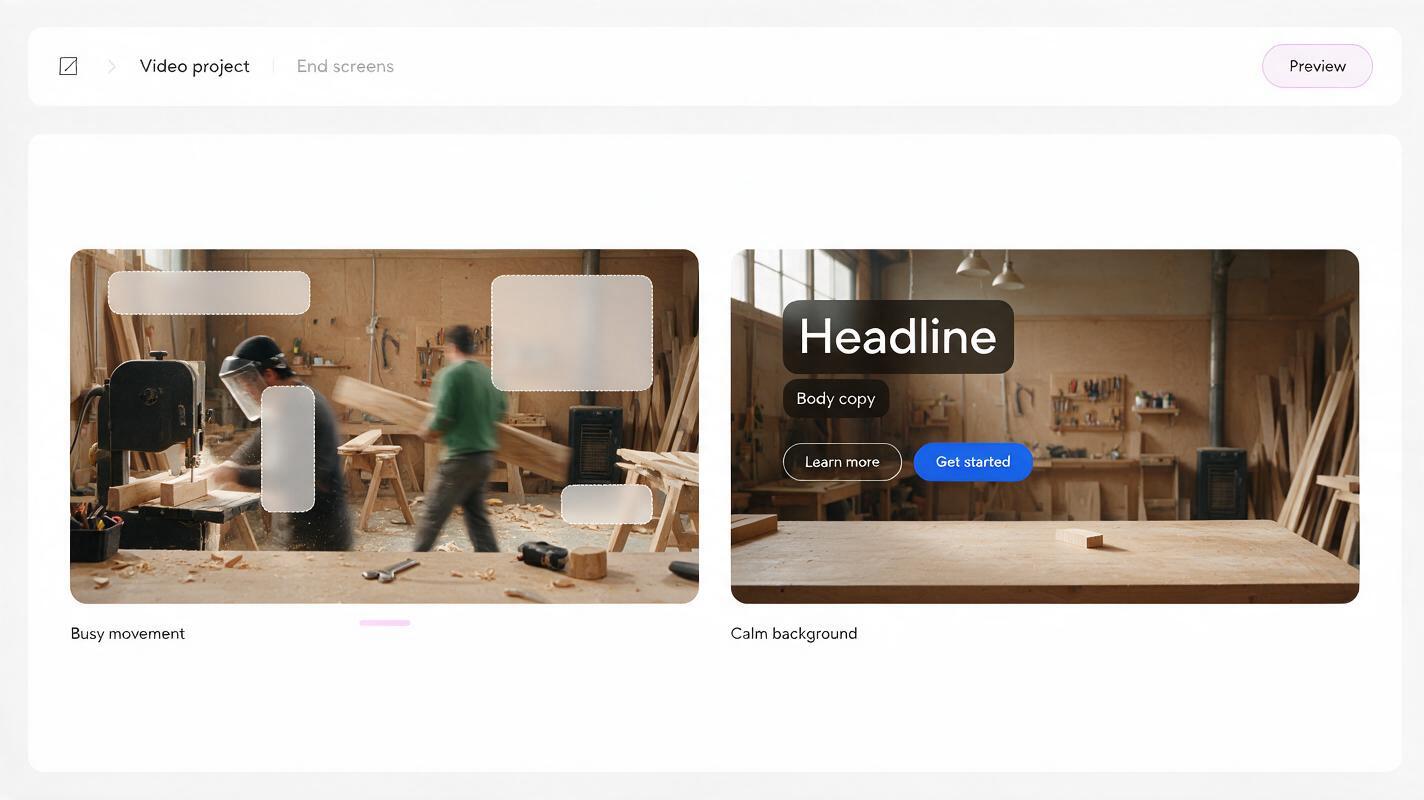
Make a temporary frame in your video editor using plain rectangles to represent those elements. Keep faces, focal objects, essential text, and important motion out of the rectangles. Also leave breathing room around them: the background should still look intentional if an overlay covers more of the image than you expected.
Useful design test: If you hide every temporary rectangle, does the background look finished? If you show them, can you still tell where to click? Both answers should be yes.
For a 16:9 video, favor a composition with visual detail around the outer edges and a relatively calm middle. Do not bake a fake play button, subscribe button, or video thumbnail into the generated image. Those shapes might resemble interactive elements but cannot function as YouTube end-screen links.
Create a still image with deliberately quiet zones
A strong source image makes animation easier to control. You can photograph your own set or use Seedream 4.5 through an ai image generator to make an original background. Ask for a concrete setting and specify where detail should—and should not—appear.
Here is a prompt for a faceless channel about home projects. Adjust the props and palette to match your videos, but keep the instruction about open space:
Wide 16:9 editorial photograph of a tidy home workshop at golden hour. A wooden workbench runs along the bottom edge, with a few hand tools grouped at the far left and a potted plant at the far right. Soft daylight enters from a side window. The central and upper-middle areas are simple, softly lit wall space with no shelves, signs, people, logos, lettering, buttons, or screens. Natural textures, restrained colors, believable scale, calm composition suitable behind YouTube end-screen elements.Inspect the still at the size viewers will actually see. Reject versions with tiny lettering, malformed tools, or a prominent object inside your reserved overlay areas. If your channel already has a recognizable set or approved artwork, use that as a visual reference where your chosen tool supports it rather than asking the model to invent a new identity for every upload.
Animate only the parts that improve the scene
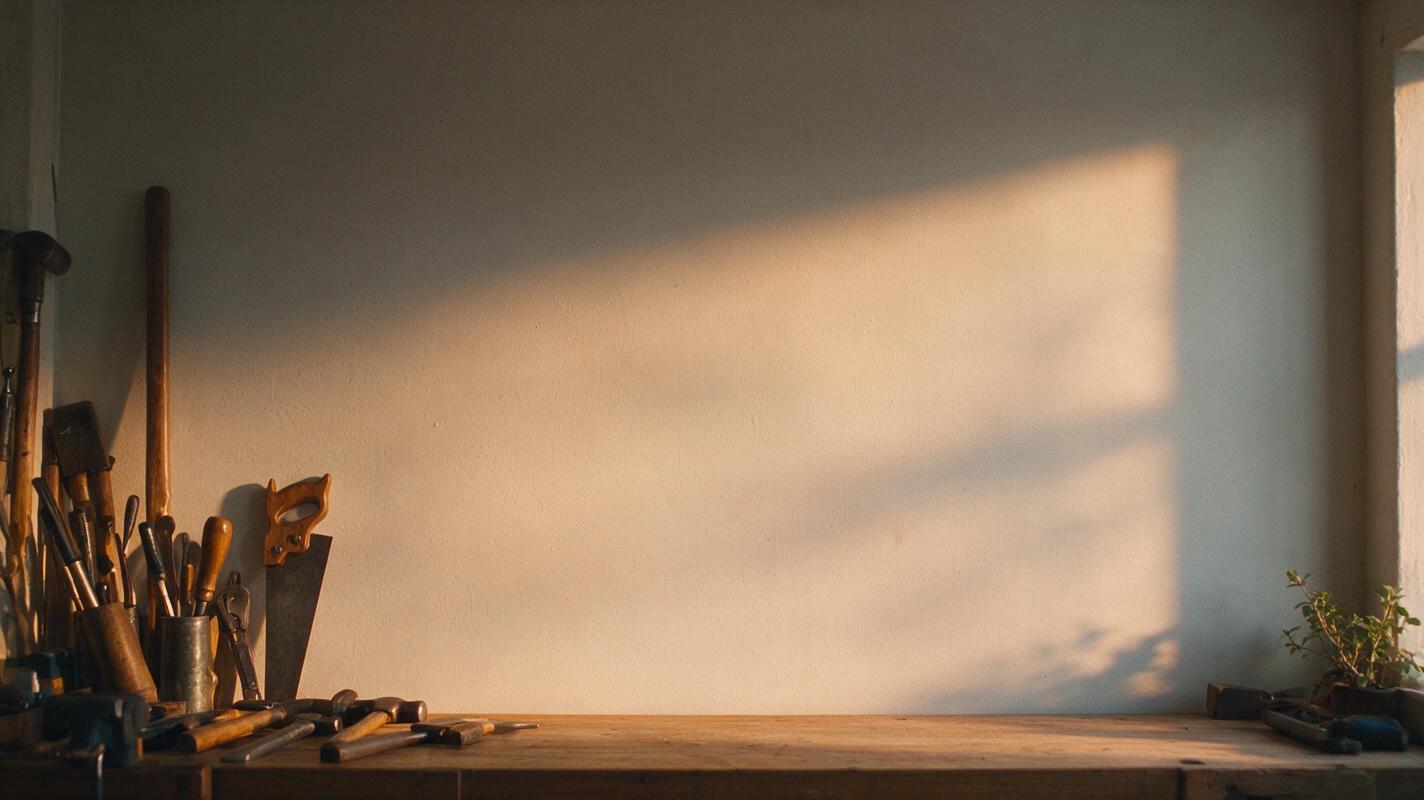
Feed the selected still into PixVerse using its image-input workflow where available. This is an image to video task: the image establishes the layout, while the prompt asks for restrained movement within it. Generate a short test before building the complete ending around the result.
Animate this existing workshop image with extremely subtle motion. Gentle daylight shifts across the wall; a few leaves at the far right move slightly in a soft breeze. Locked camera, no zoom, no pan. Keep the workbench, tools, wall boundaries, and all open space in exactly the same positions. Do not add text, graphics, people, buttons, screens, or new objects. Maintain a calm final frame suitable for YouTube end-screen overlays.A locked camera is a practical request, not a guarantee. Watch the output for drifting edges, objects appearing in clear zones, and sudden movement that draws the eye away from where the next-video element will sit. If PixVerse changes the composition, return to the still and simplify it further. A single plant at the edge is easier to animate cleanly than a crowded shelf full of small objects.
For a different channel, change the motion rather than merely changing the color grade:
- Travel videos: A stationary view through a train window, with distant scenery moving gently while the interior stays still.
- Book discussions: A desk with a closed book near the lower edge and soft window-shadow movement across an otherwise blank wall.
- Gaming commentary: A stylized, original room with low-intensity ambient light changes; avoid imitating a game interface or adding fake clickable panels.
Fit the animation to the ending
Put your chosen clip on the timeline beneath the last portion of your video. Let the narration finish its thought before asking viewers to make another choice. A short spoken invitation—such as “Watch the breakdown on the left next”—works best when you already know which end-screen element will occupy that position.
If the animated clip is shorter than the ending you need, avoid repeatedly duplicating it without checking the seam. A jump in leaf position or lighting becomes especially noticeable beneath static end-screen elements. You can trim to the calmest section, hold a clean frame at the end, or make a gentle edit that hides the transition. Never assume a generated clip will loop perfectly.
Keep any channel title or closing sentence as a separate editor layer if you need one. That makes the wording easy to correct and helps you reposition it when you decide where the clickable elements should go. Keep music and ambient sound low enough that the final spoken line remains clear, and check that you have the rights to use every audio asset in the upload.
Preview the actual clickable end screen
Export the video, then add the end-screen elements in YouTube Studio. The animated file is only a background; adding it to the edit does not create clickable links. Preview the published arrangement rather than relying on the empty rectangles from your editing template.
| What to inspect | What a good result looks like | If it fails |
|---|---|---|
| Visual hierarchy | The suggested video is easier to notice than background movement. | Reduce motion or choose a quieter section of the clip. |
| Clear space | Overlays do not cover a face, focal prop, or essential words. | Reposition editor layers or regenerate with more empty space. |
| Continuity | The transition from the main video feels deliberate. | Carry over a sound, color, or final shot before the background appears. |
| Last frame | Nothing flashes, warps, or cuts off abruptly. | Trim the clip or end on a stable held frame. |
Check the result on a phone as well as a desktop display. On a small screen, a beautifully detailed background can become visual noise. If the thumbnail and subscribe element no longer stand out, simplify the image rather than adding brighter arrows or more text.
Final checklist
- The background still has clear space for the end-screen elements you plan to add.
- PixVerse motion stays subtle and does not move objects into those areas.
- No generated button or thumbnail pretends to be clickable.
- Any closing text remains editable outside the generated video.
- The exported ending has been previewed with real YouTube end-screen elements on a phone.
Ready to test a quiet background for your next upload? try these models for free, begin with one still image, and judge the animation by how well it supports the next click.
Keywords
animated youtube end screen, pixverse end screen, youtube end screen background, end screen animation, youtube outro design, image animation prompts