Podcast Clips to Faceless YouTube Shorts With Nano Banana Pro
Turn a strong podcast moment into a faceless YouTube Short without relying on a static waveform or misleading stock footage. This guide shows how to plan a visual sequence, generate supporting stills with Nano Banana Pro, and edit them around the original audio.
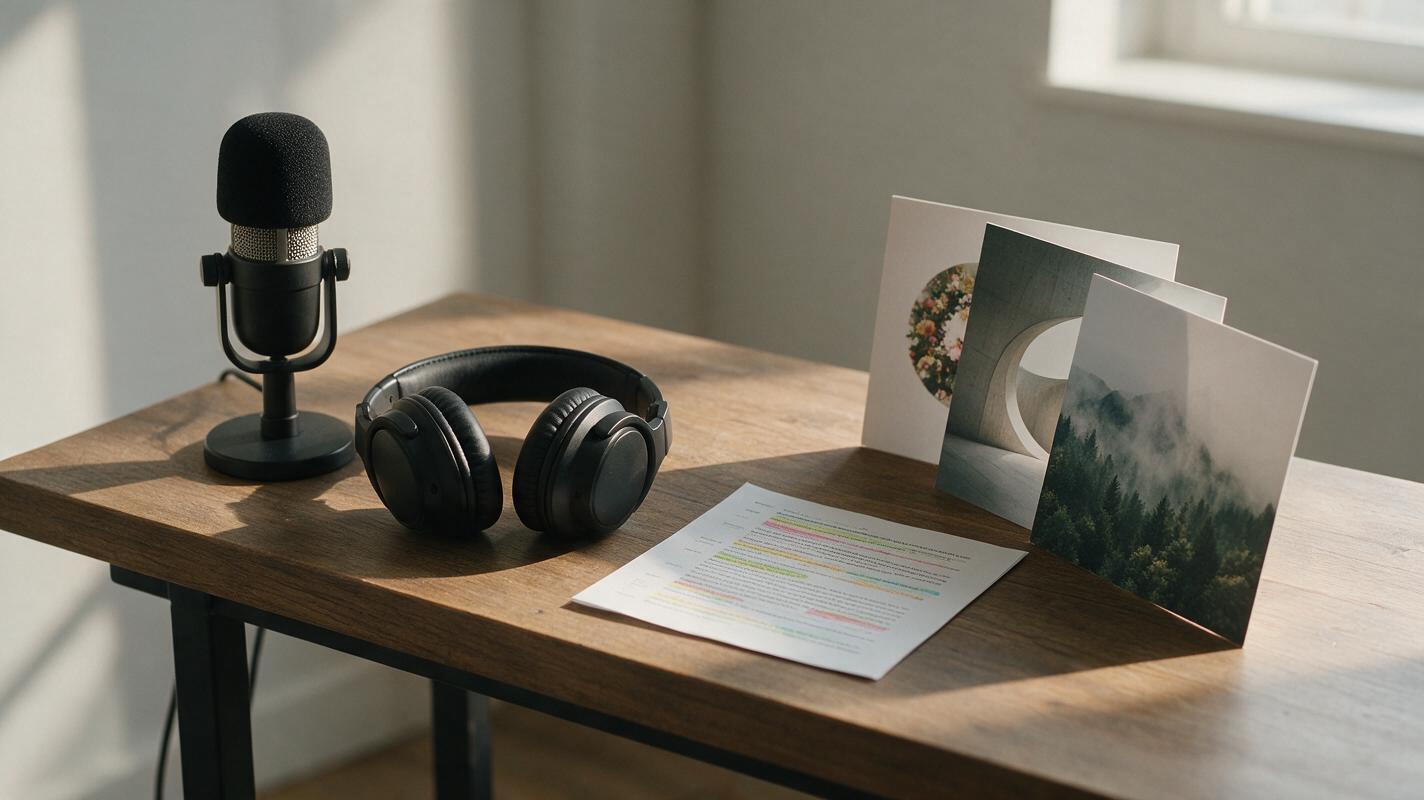
Table of contents
Give the audio something worth watching
A good podcast clip can make a compelling faceless YouTube Short, but a static cover image rarely carries the whole story. Use the speaker’s actual words as the backbone, then build a small sequence of images that makes the idea easier to follow without pretending those images are documentary footage.
Nano Banana Pro is useful here for creating coordinated visual concepts. The finished Short still depends on your edit: the original audio, accurate captions, well-timed image changes, and a clear opening frame.
Choose a clip that earns a visual
Start with a self-contained moment, not simply the loudest sentence in a long recording. A workable clip introduces a problem or surprising observation, develops it, and lands on a takeaway that makes sense without the rest of the episode.
For example, imagine a speaker says: “I kept fourteen tabs open to finish a five-minute task. The fix wasn’t another productivity app. I wrote down the one decision I needed to make.” That gives you three distinct things to show: overload, a pause, and one clear decision. A passage consisting mostly of names, qualifications, or references to earlier conversation may need too much explanation for a short edit.
Before making images, listen once with the screen off. If a new viewer cannot follow the point from the excerpt alone, choose another passage or add a brief, truthful setup in your own edit.
Build a visual spine from the transcript
Transcribe the chosen excerpt and mark the phrases where the viewer’s understanding changes. You do not need an image for every sentence. Three or four visual beats are usually more useful than a rapid sequence of loosely related pictures.
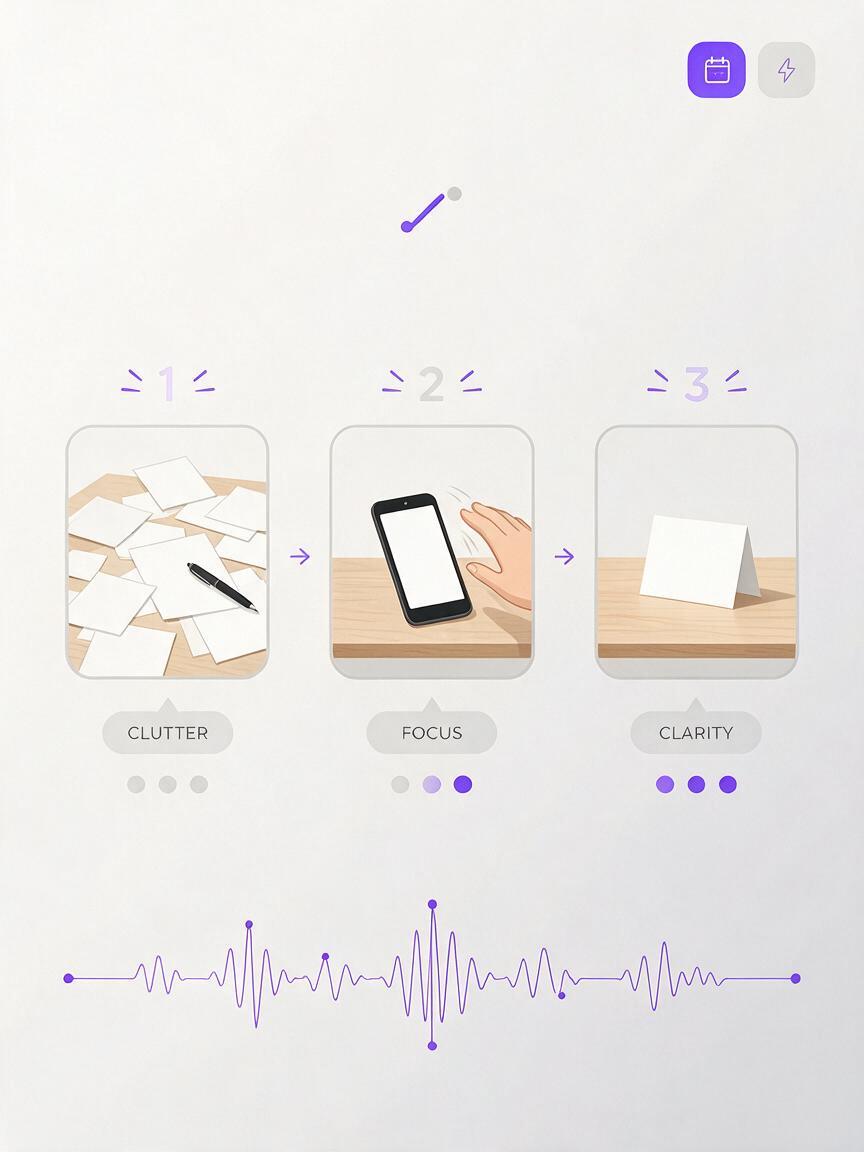
| Audio beat | What the image should communicate | Possible visual |
|---|---|---|
| “Fourteen tabs open” | Competing demands | A crowded desk with overlapping, blank paper rectangles |
| “Not another app” | Rejecting a tempting distraction | A hand moving a generic device aside |
| “One decision” | Clarity | One blank card isolated on a cleared desk |
This is a visual spine, not a reenactment. In particular, do not generate a fake screen recording of the speaker’s computer or imply that an invented desk belonged to them. Where a real interface, product, document, or person matters to the claim, use authorized source material instead.
Generate an opening frame that shows the point
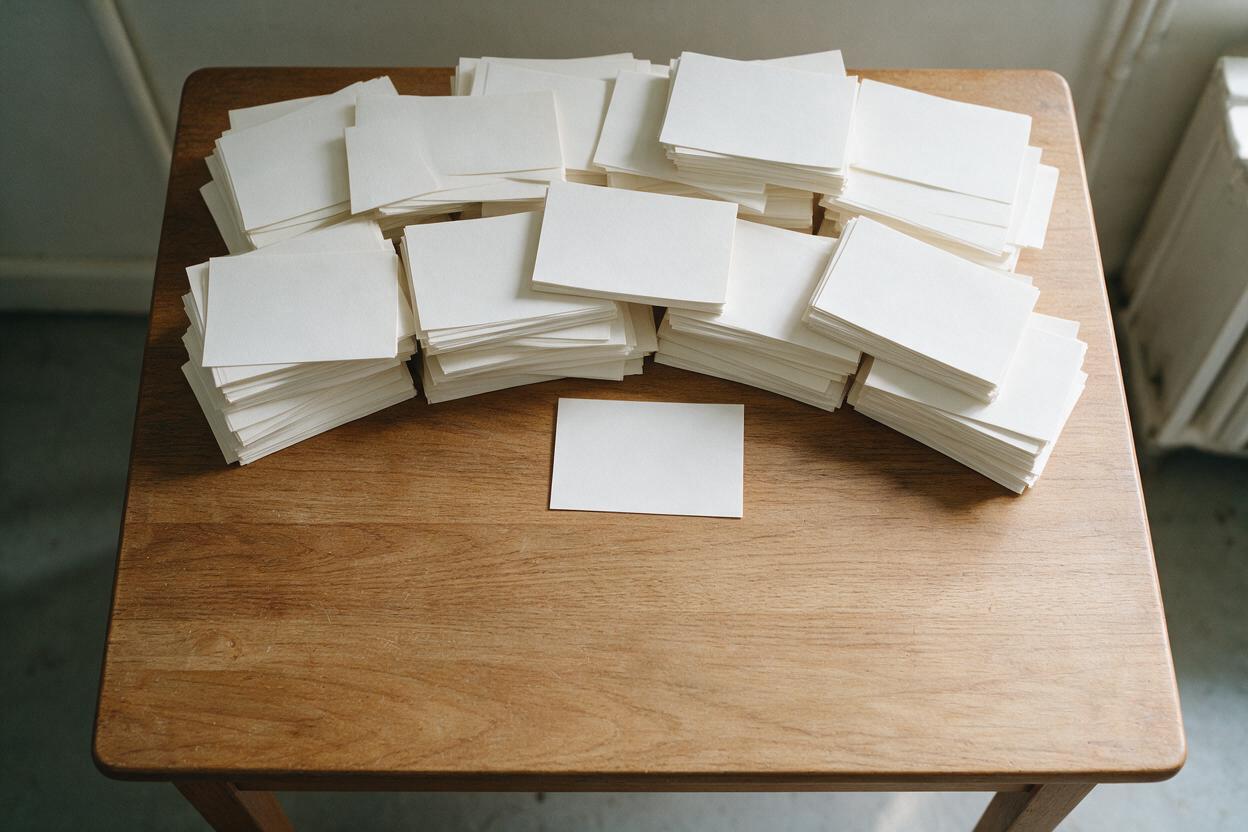
The first still must work before anyone reads a caption. Put one legible subject in the center of attention, leave room for editor-added words, and avoid tiny details that disappear on a phone. You can use an ai image generator with Nano Banana Pro to develop the opening concept, then choose the result that best matches the audio rather than the one with the most elaborate styling.
For the example clip, try this prompt:
Vertical 9:16 editorial still for a faceless podcast Short. Overhead view of a real desk in soft morning light. Many overlapping blank paper rectangles suggest too many open tasks; one small blank card sits clearly in the foreground. No person, no logos, no readable writing, no computer interface, no numbers. Strong contrast between the crowded upper half and the clear foreground. Leave uncluttered space in the lower middle for captions. Natural textures, restrained colors, believable photography.Generate alternatives by changing only the composition or lighting. If each version changes the metaphor, you cannot easily tell which framing works best. Add a short hook such as “Too many tabs?” in your editor, where you can control spelling, placement, and timing.
Create supporting images without pretending they are footage
Give the sequence a shared visual identity: the same desk surface, warm light, paper texture, and restrained palette. Describe those elements again in each prompt. If your generation interface accepts a reference image, you can also supply the selected opening still; inspect the results rather than assuming it will preserve every detail.
For the turning point, keep the setting but change the action:
Vertical 9:16 editorial still matching a previous image of a desk in soft morning light, with the same wood surface and restrained warm palette. A hand sets an unbranded phone face down beside a small pile of blank paper rectangles. The center of the frame is becoming less crowded. No visible app, notifications, logos, readable text, or identifiable person. Leave clear space for captions.For the resolution, make the visual change unmistakable:
Vertical 9:16 editorial still, same desk surface, camera angle, soft morning light, and warm palette. The desk is now clear except for one blank paper card placed prominently in the center and a pen beside it. Calm, decisive composition. No readable writing, logos, screens, or identifiable person. Leave room for captions without covering the card.These prompts illustrate a spoken idea; they do not prove what happened during the recording. If the clip discusses a real event, make that distinction clear through your choice of visuals and, when necessary, a brief “illustration” label.
Edit to the speaker’s timing, not the image count
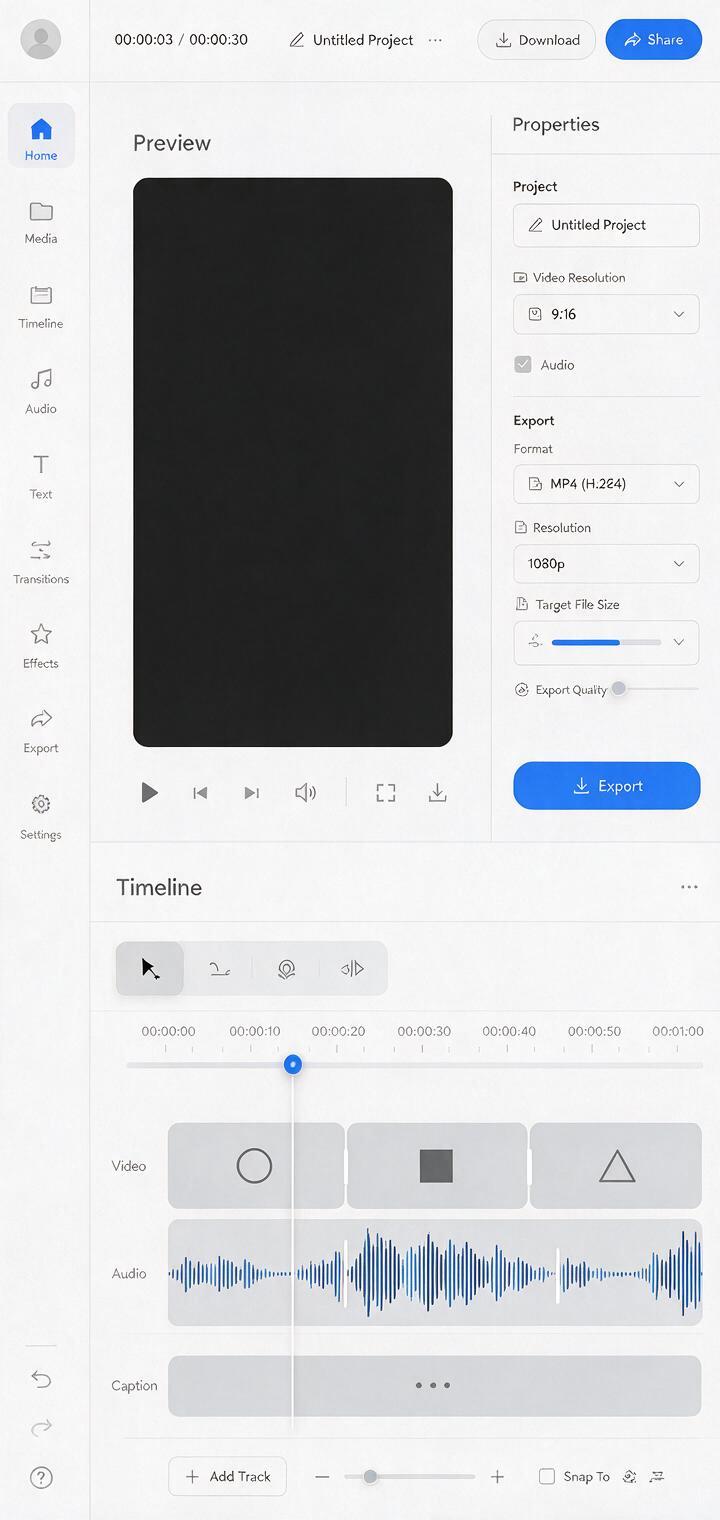
Place the unaltered audio on the timeline first. Trim dead air only where it does not change meaning, and keep the speaker’s thought intact. Set the project to a vertical frame, then position each still against its matching audio beat. A subtle crop or slow push can add movement, but a clean cut at a change in meaning often does more work.
- Open on the problem: Show the crowded composition as the speaker introduces the overload, not several seconds later.
- Change images on the turn: Bring in the phone-moving image when the speaker rejects the extra app.
- Hold the resolution: Let the single-card image remain long enough for the takeaway to register.
- Caption the actual words: Correct automatic transcription against the audio, especially numbers and negations.
Keep essential text and the main subject clear of the areas where the Shorts interface may place controls. Preview the export on a phone-sized screen; safe placement can vary with the viewing interface. If a generated image contains malformed paper, an extra hand, or distracting pseudo-text, replace or crop it rather than hoping motion will hide it.
Make the Short identifiable as your work
A visual style can connect this clip to a recurring series without adding a long introduction. Reuse the same caption treatment, color palette, and end-card design across episodes, while changing the imagery to fit each excerpt. Credit the source episode in the description or on-screen where appropriate, and use audio you have the right to republish.
The fastest test is a muted viewing followed by an audio-only listen. Muted, the progression should be understandable at a glance. Audio-only, the excerpt should still make sense. If either fails, fix the selected clip or its visual beats before generating more images.
Final checklist
- The excerpt makes sense without the full podcast episode.
- Each image corresponds to a specific turn in the speaker’s words.
- Generated visuals are presented as illustration, not evidence of a real event.
- Captions match the audio, and the opening frame reads at phone size.
- You have permission to republish the audio and any source material.
Ready to build the first visual beat? test this prompt yourself, then edit the strongest images around the original voice.
Keywords
podcast clips, faceless YouTube Shorts, Nano Banana Pro, podcast repurposing, Shorts visuals, visual storytelling