How to Turn Old Phone Food Photos Into Pro Menu Shots (No Reshoot)
If you’re a restaurant or food brand with a folder of blurry, badly lit phone photos of your signature dishes, you don’t need an expensive photoshoot to get menu-ready visuals. This guide shows you how to remaster those existing photos using Seedream 4.5, preserving your exact portion sizes, plating, and recipe while upgrading lighting, sharpness, and background styling. You’ll get reusable prompt templates, setting adjustments, and fixes for common remastering flaws.
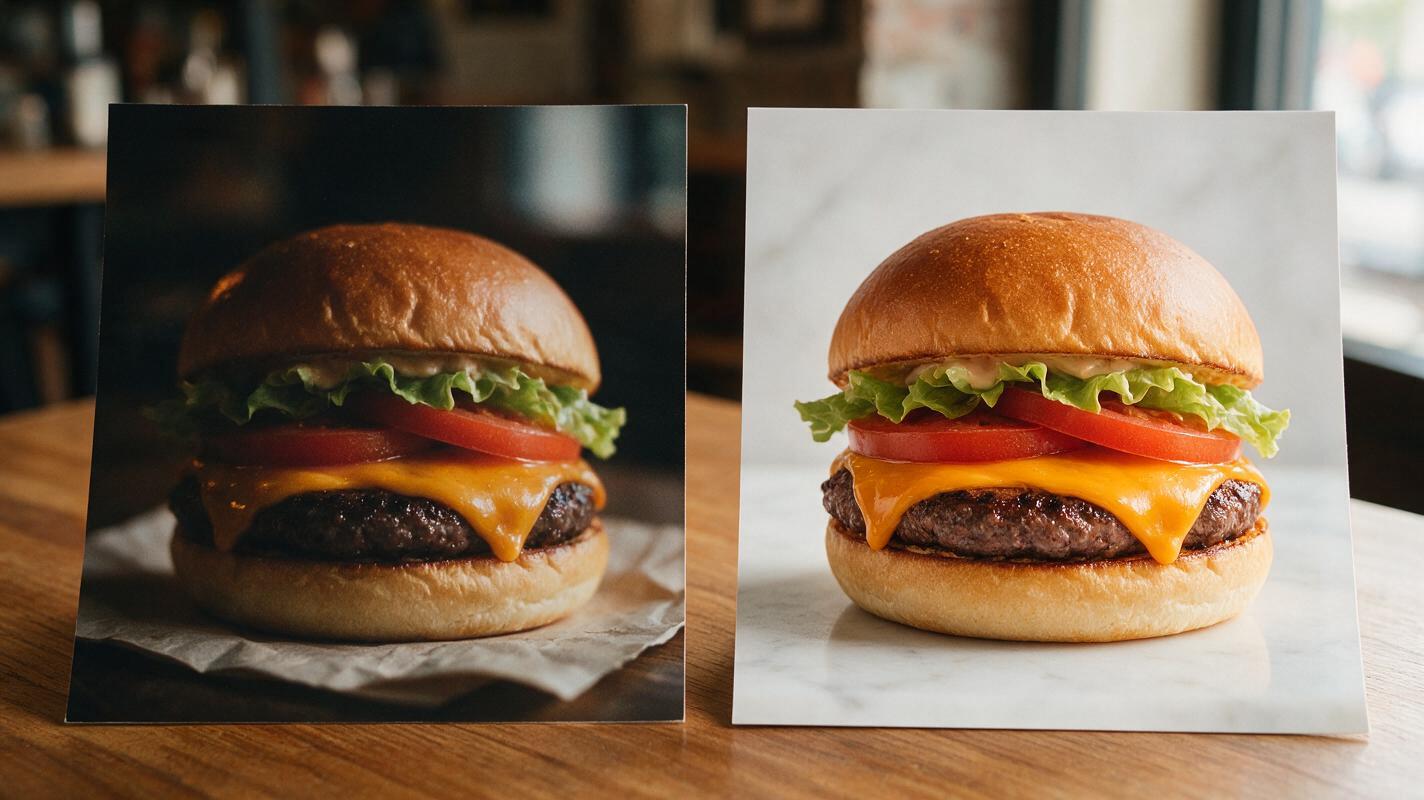
Table of contents
Why remaster old food photos instead of generating new ones?
If you’re a restaurant owner, food marketer, or culinary creator with a folder full of blurry, badly lit phone photos of your signature dishes, you don’t need to book an expensive professional photoshoot to get menu-ready visuals. Generating entirely new AI food photos can lead to incorrect portion sizes, swapped ingredients, or plating that doesn’t match what you actually serve to customers — a problem that erodes trust and leads to disappointed diners.
Remastering your existing phone photos fixes quality issues while keeping every detail of your real food intact: the exact portion size, the way you arrange garnishes, the specific vessel you serve it in, and even the signature drizzle that makes your dish recognizable. It’s faster, cheaper, and far more faithful to your brand than starting from scratch with a text-to-image prompt.
Pick a source photo that will remaster well
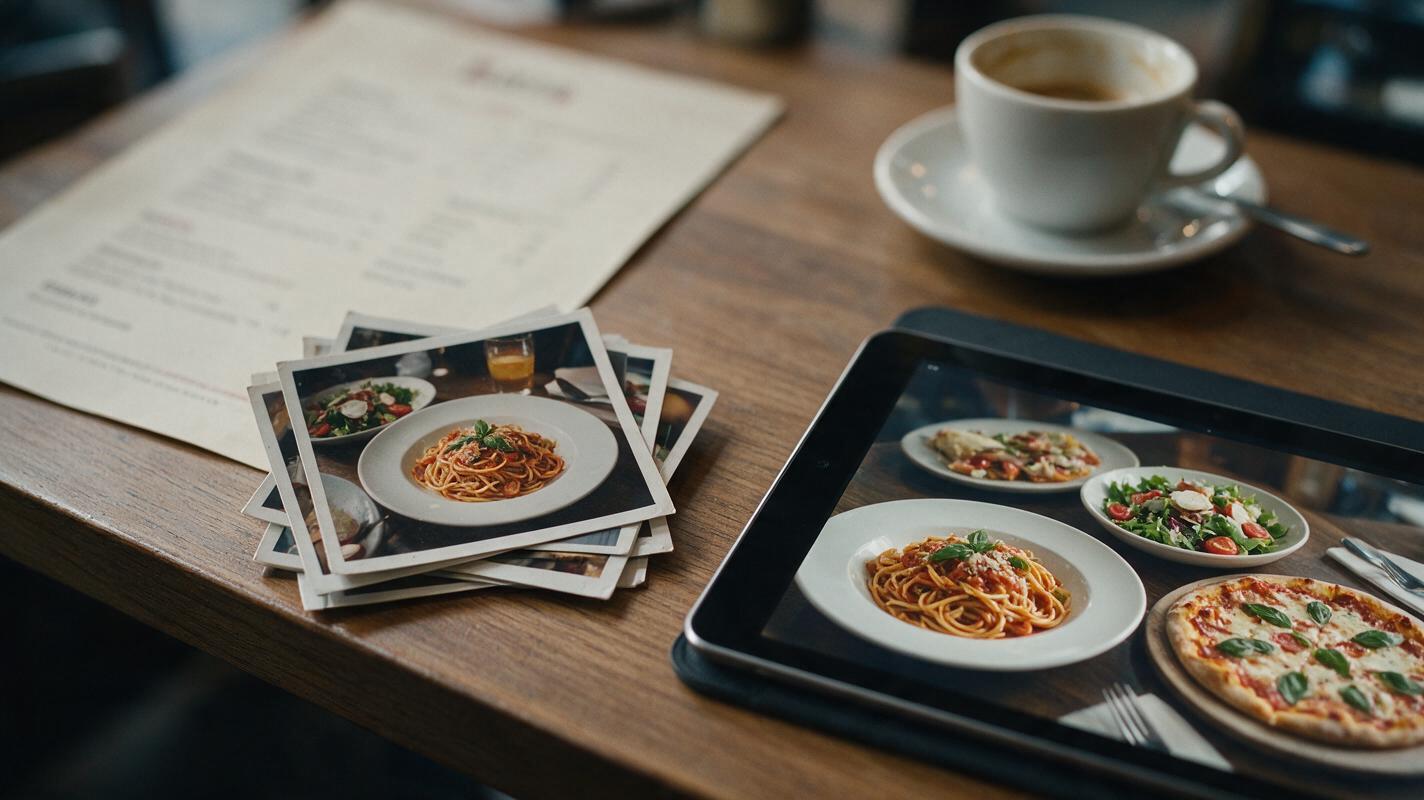
Not every old phone photo is a good candidate for remastering, but you might be surprised by how much even low-quality images can be improved. The most important factor is that the core composition of the dish is clear.
- Good source photos have the entire dish fully in frame, no major obstructions (like a hand holding a fork mid-bite), and plating that is distinct enough to recognize individual ingredients, even if the image is dark, blurry, or grainy.
- Poor source photos include half-eaten dishes, extreme close-ups that cut off 30% or more of the plate, shots so blurry you can’t tell what food is in the frame, or photos with heavy filters that alter all the original colors.
For best results, pick the highest-resolution version of the photo you have — even a 2MP image from an old smartphone can produce a usable 4x upscale if the composition is solid.
Seedream 4.5 settings for faithful dish preservation
To remaster photos without altering the actual dish, use an ai image generator with strong image-to-image and content preservation capabilities, like Seedream 4.5. The key is balancing quality improvements with faithfulness to your original photo, so the AI only fixes flaws rather than redesigning your food.
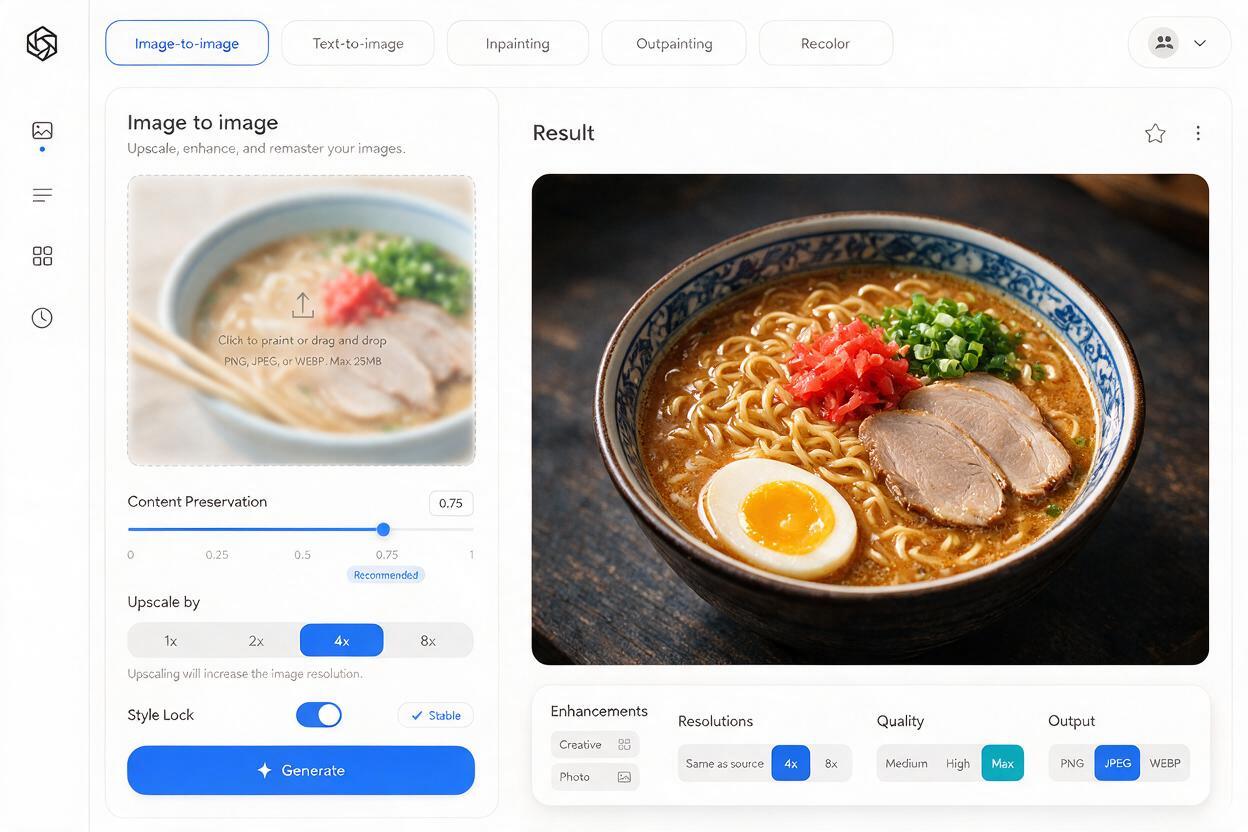
Start by uploading your source photo to image-to-image mode, then adjust these core settings:
- Content preservation strength: Set to 0.7–0.8. This keeps the exact shape, portion, and plating of your dish intact while allowing the AI to improve lighting, texture sharpness, and background styling. Settings below 0.6 will often change ingredients or portion sizes, while settings above 0.9 will leave too many original flaws like blur or grain.
- Upscale resolution: Choose 2x for very low-quality source photos (under 1MP) to avoid artifacts, or 4x for clearer originals to get print-ready resolution.
- Style lock: Enable this feature to prevent random style drift between generations, so all your remastered photos have a consistent look.
Prompt templates for menu-ready remastered shots
Your prompt should explicitly tell the AI to preserve the original dish details, and only specify improvements to lighting, background, and overall quality. Vague prompts will lead to unwanted changes to your food. Use these templates as a starting point, and tweak details to match your brand’s visual identity:
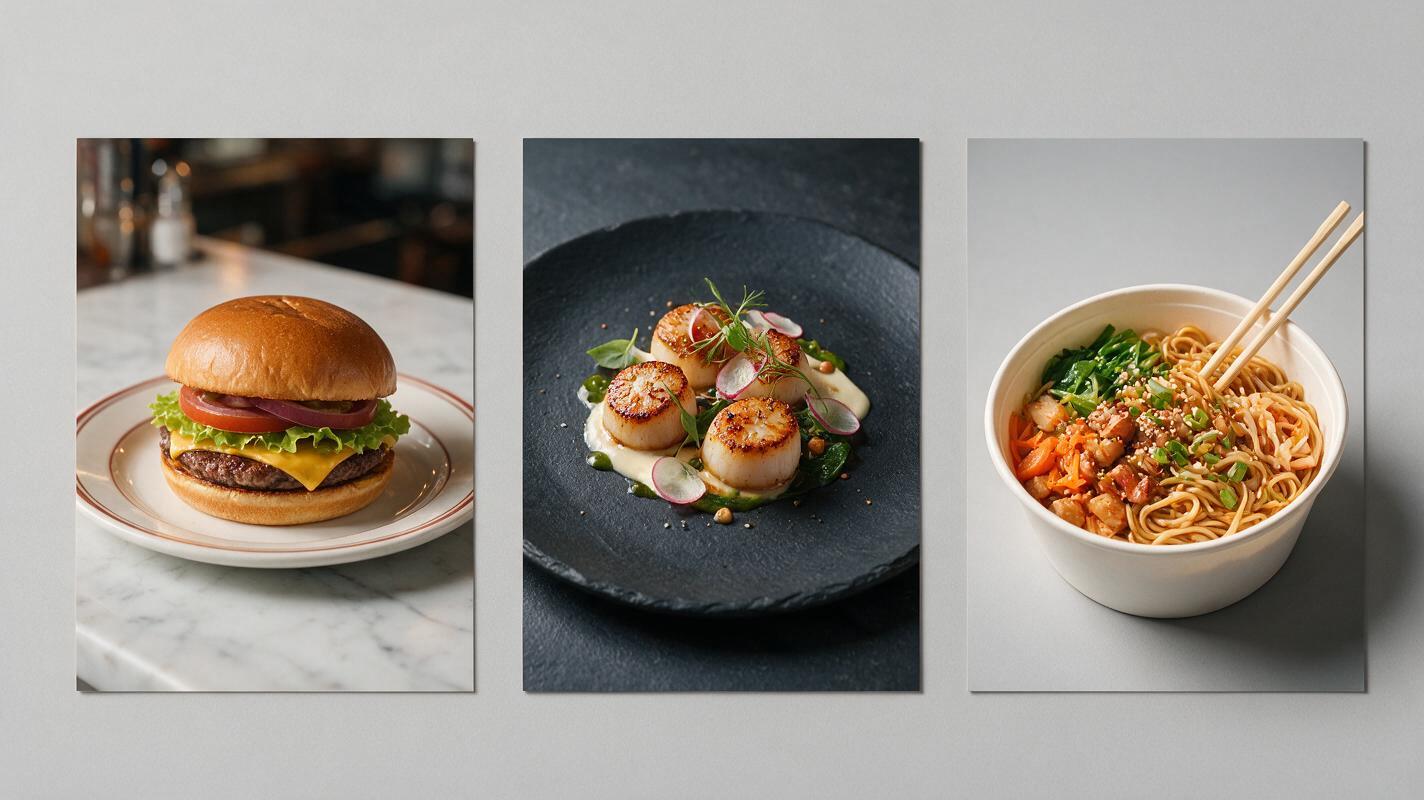
Casual dining menu template
Professional food photography of the exact same dish in the reference image, same portion size, same plating, same ingredients. Soft natural window light, clean white marble background, sharp focus on the food, warm appetizing colors, high resolution, no text or logos. Preserve every detail of the original dish shape and arrangement.Fine dining menu template
Editorial fine dining food photography of the exact dish from the reference image, identical plating and portion. Dramatic side lighting, dark slate background, shallow depth of field, rich moody tones, ultra sharp, Michelin-level styling. Do not alter the food, garnish, or serving size in any way.Delivery app thumbnail template
Bright, high-contrast food photography of the exact dish in the reference photo, same portion and plating. Plain light gray background, even overhead lighting, full dish in frame, vivid natural colors, no harsh shadows that obscure ingredients. Optimized for small square thumbnails, clearly recognizable at 3 inches wide.Copy the template that matches your brand style, swap out background or lighting details to align with your existing menu visuals, and test this prompt yourself with your own source photo.
Fix common remastering flaws with inpainting
Even with the right settings and prompt, you may run into small flaws where the AI alters a detail you wanted to keep. Use targeted inpainting to fix these issues without re-generating the entire image:
- Altered garnish or ingredient: Mask only the changed area, then prompt with “exact same [ingredient name] as reference image, match original shape, color, and placement” and set content preservation to 0.9.
- Distracting background: Mask everything except the dish and plate, then prompt with “clean neutral [color] background, soft subtle shadow under the plate, no clutter or extra objects”.
- Remaining blur or grain: Mask the blurry section of the dish, then prompt with “sharp focus, high detail, match original food texture, no grain”.
- Changed portion size: Mask the entire dish, set content preservation to maximum, and re-run with “exact same portion size and food volume as reference image, no added or removed ingredients”.
Final checklist for menu-ready photos
Before you use a remastered photo on your menu, website, or delivery app, run through this quick quality check to make sure it’s ready for customer-facing use:
- Dish shape, portion size, and plating are identical to the original photo (no extra garnishes, missing ingredients, or changed serving sizes)
- No visible AI artifacts (melted edges, distorted utensils, warped plate shapes, or unnatural textures)
- Lighting and color palette are consistent with your existing menu photo style
- Resolution is at least 300 DPI for print menus, or 1080px wide for digital and social use
- Background matches your other brand visuals (no random props, text, or clutter)
- Colors are true to the actual dish (no oversaturated hues that make the food look fake)
Keywords
ai food photography, food image generator, restaurant marketing ai, menu photo generator, food product photography, ai image editing, seedream 4.5