Runway Prompts for Seamless Course Intro Loops
Create short, polished course intro loops in Runway without distracting camera moves, warped branding, or obvious jump cuts. This guide provides reusable prompt patterns, source-frame advice, editing techniques, and fixes for common animation failures.
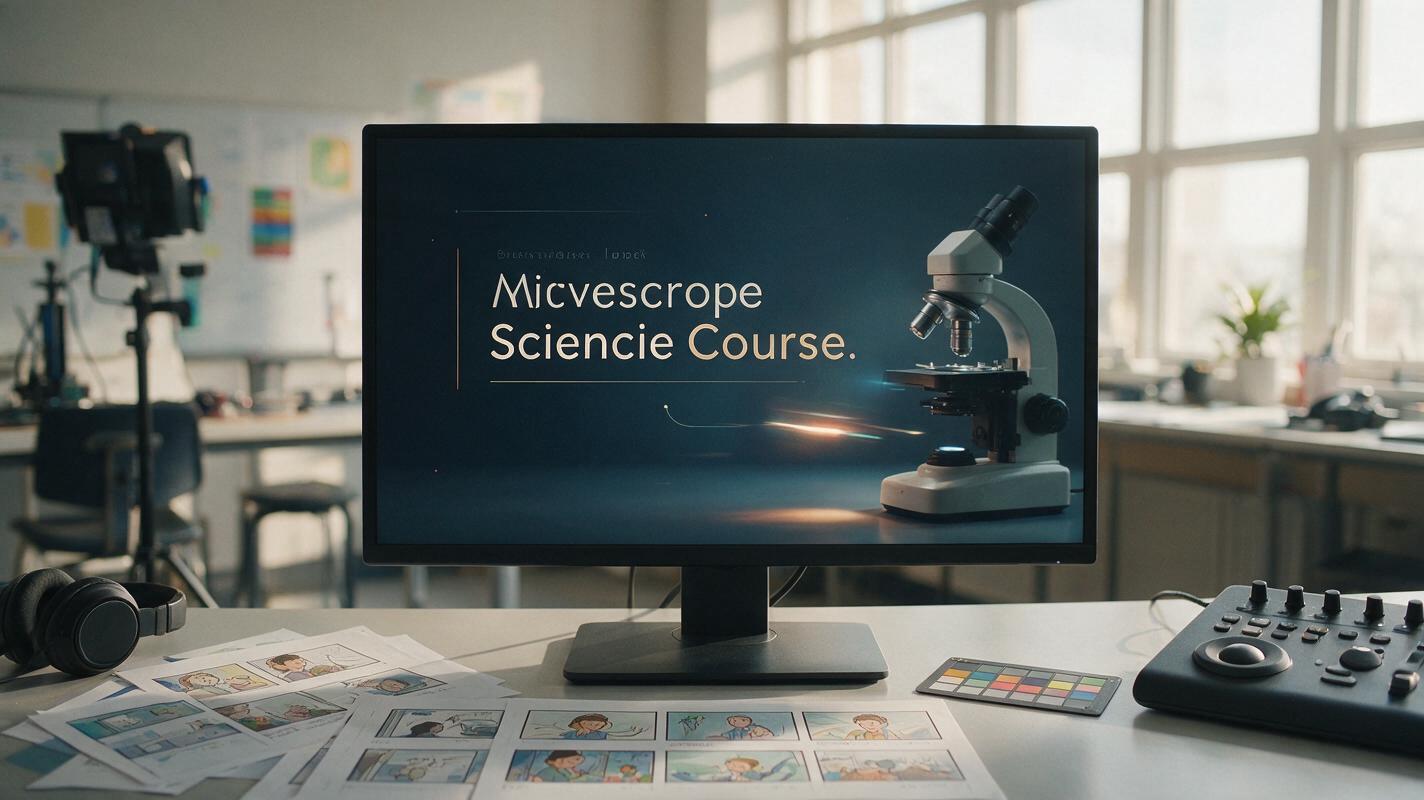
Table of contents
Create a polished intro without a distracting animation
A good course intro loop adds energy while leaving the learner ready to focus; a bad one bends the logo, invents background objects, or ends with an obvious visual jump.
Runway can animate a designed title card, subject illustration, or branded course image, but the cleanest result usually comes from controlling motion rather than requesting a dramatic scene. Start with a stable source frame, specify one restrained movement, and finish the loop in an editor instead of expecting generation alone to create a mathematically perfect repeat.
This method works well for learning-management-system headers, module openers, webinar holding screens, training-series bumpers, and short transitions between lesson chapters.
Decide what the intro must communicate
Before generating motion, identify the intro's single job. It might establish a subject, identify a course series, or create a moment of visual continuity between lessons. It should not attempt to summarize the entire curriculum.
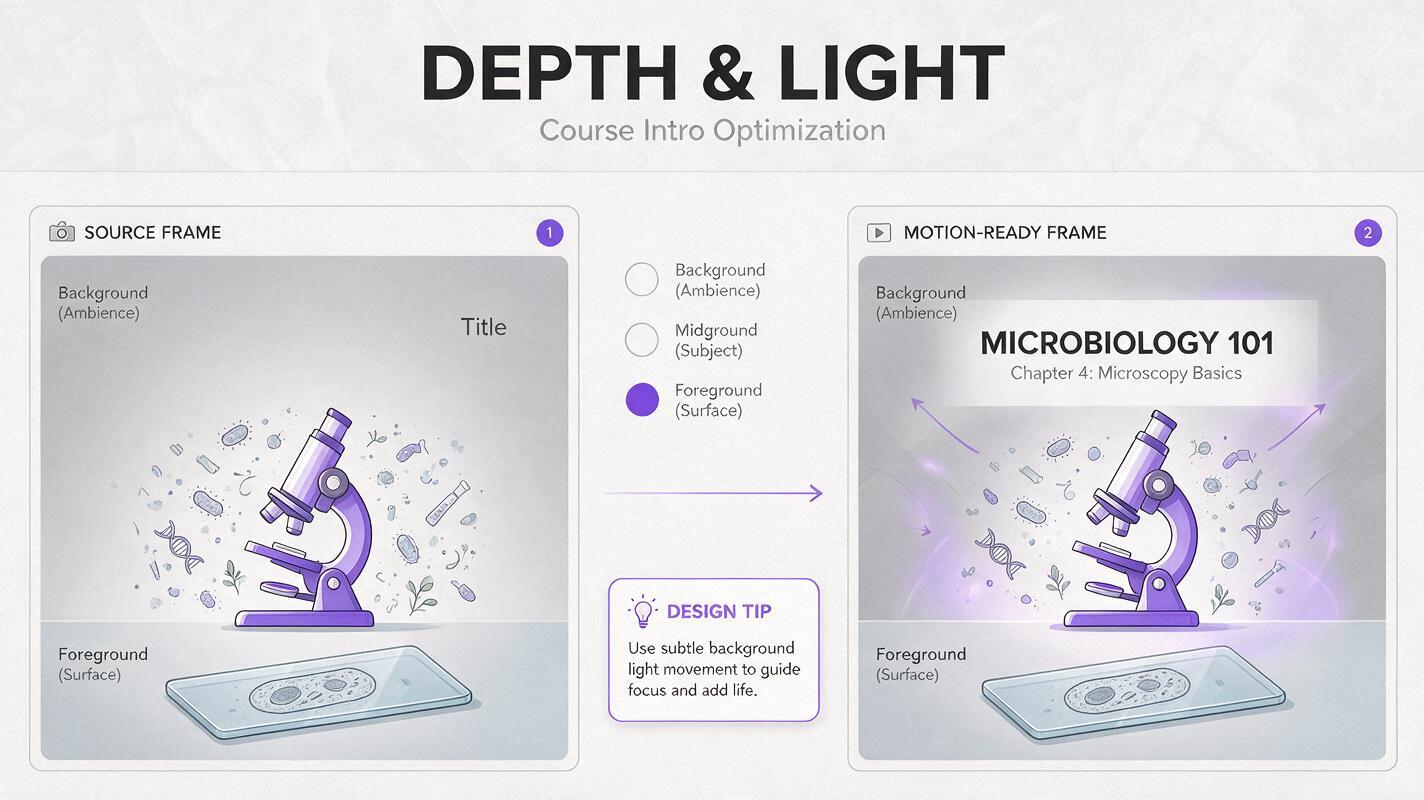
A practical course intro often contains three layers:
- A fixed identity layer: the course title, organization mark, or module label.
- A recognizable subject layer: a microscope, architectural model, language flashcard, safety helmet, or another object connected to the lesson.
- A restrained motion layer: moving light, drifting particles, a turning page, a slow indicator pulse, or subtle environmental movement.
Useful constraint: if the animation would prevent a learner from reading the title in two seconds, the motion is too prominent.
Keep essential wording outside the generated motion layer whenever possible. Add the final title and logo in your video editor so typography remains sharp and brand assets remain unchanged.
Choose a source frame built for motion
The source image determines the composition, visual hierarchy, and objects Runway will attempt to preserve. A clear frame gives the model fewer opportunities to reinterpret the scene.
Choose or design an image with:
- One obvious focal object rather than a collection of equally important objects
- Open negative space reserved for the course title
- A background with depth, such as foreground, subject, and distant environment
- No tiny labels, dense diagrams, or paragraphs embedded in the image
- Complete objects that do not disappear awkwardly beyond the frame edge
- A composition matching the final delivery ratio, such as 16:9 for a standard lesson video
For a branded course, export two versions of the source frame: one clean visual without text and one reference showing the intended title placement. Animate the clean version, then rebuild the title over the finished clip.
When you use Runway's image to video workflow, treat the source as a visual contract. Ask for movement inside that composition rather than asking the model to redesign it.
Write prompts that limit motion before adding style
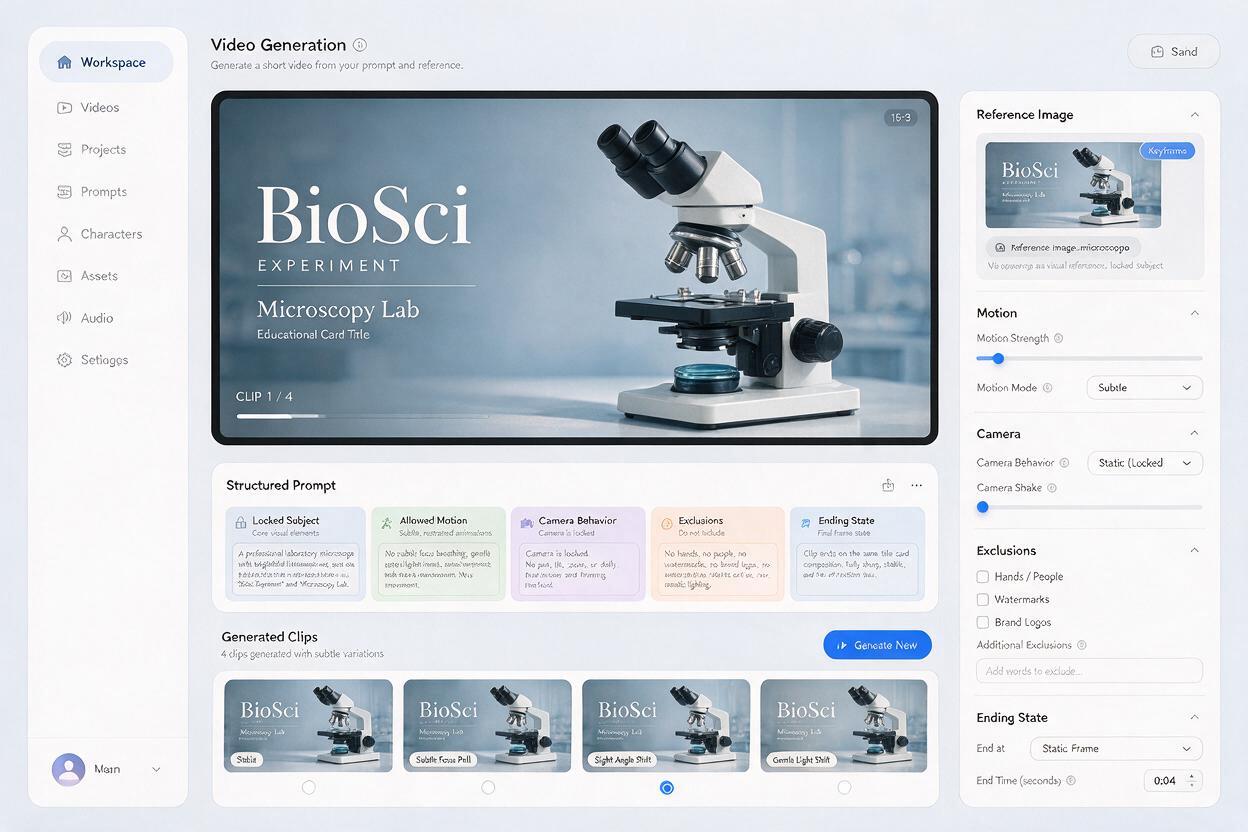
Course intro prompts work best when they define what may move, what must remain stable, and how the shot should conclude. A useful structure is:
[locked subject and composition]. [one environmental motion]. [one camera behavior]. [timing and mood]. [elements that must remain unchanged]. [ending behavior].Here is a reusable base prompt:
Preserve the original composition and the exact shape of the central subject. Add only subtle ambient motion: soft light moving slowly across the background and a few small particles drifting gently. Locked camera, calm academic tone, restrained movement, no new objects, no text changes, no subject deformation. Motion slows naturally near the end.The phrase “add only” is important because it establishes a motion budget. A request such as “make this cinematic and dynamic” leaves too many decisions open and may produce unnecessary zooming, object transformation, or exaggerated effects.
Science course opener
Preserve the microscope, desk, and laboratory composition exactly. Add a gentle reflection moving across the microscope lens and very subtle dust motes in the window light. Locked camera with no zoom. Calm, precise educational mood. No liquid movement, no additional equipment, no distorted microscope parts. End in a visually quiet position close to the opening frame.Workplace safety module
Keep the safety helmet and workshop background unchanged. Add one slow sweep of soft overhead light and minimal background indicator illumination. Fixed camera, professional training-video style, controlled movement. Do not move the helmet, alter safety equipment, add workers, or change signage. Finish with neutral lighting similar to the first moment.Language-learning series
Preserve the open notebook, pencil, and café-table arrangement. Add a slight movement of sunlight and one gentle page-edge flutter without turning the page. Locked overhead camera, warm and welcoming learning mood. No new writing, no altered letterforms, no moving objects beyond the page edge. Let the motion settle before the clip ends.Software training intro
Keep the device and abstract interface panels geometrically stable. Add a slow, soft illumination traveling through the background shapes. No camera movement, no typing simulation, no changing interface text, no new icons. Clean technical training style. Return the background illumination to approximately its opening intensity near the end.Use these as structural templates rather than universal copy. Replace the subject, environment, and allowed motion while keeping the preservation language. You can test this prompt yourself with a clean title-card image before committing to a complete intro package.
Match the motion pattern to the learning context
Different motions create different expectations. The most visually impressive option is not always the most appropriate one.
| Motion pattern | Best suited to | Main risk | Prompt control |
|---|---|---|---|
| Moving light | Professional courses, science, software training | Flickering or excessive contrast | Request one slow sweep with stable exposure |
| Small particles | History, astronomy, conceptual topics | Visual clutter around the title | Specify sparse particles confined to the background |
| Page or paper movement | Literacy, language, research skills | Invented or distorted writing | Move only an unprinted edge and lock all text |
| Environmental movement | Field studies, geography, nature lessons | The subject begins moving too | Name the exact background element allowed to move |
| Camera push-in | Short promotional course trailers | A difficult loop and reduced title space | Use only when a seamless repeat is not required |
For continuously repeating LMS banners and holding screens, a locked camera is usually easier to loop. Save camera pushes, pans, and reveals for intros that play once and transition directly into the lesson.
Build the final loop in the editor
A generated clip can end near its opening state without matching it exactly. For a dependable seamless loop, generate clean motion first and create the repeat during editing.
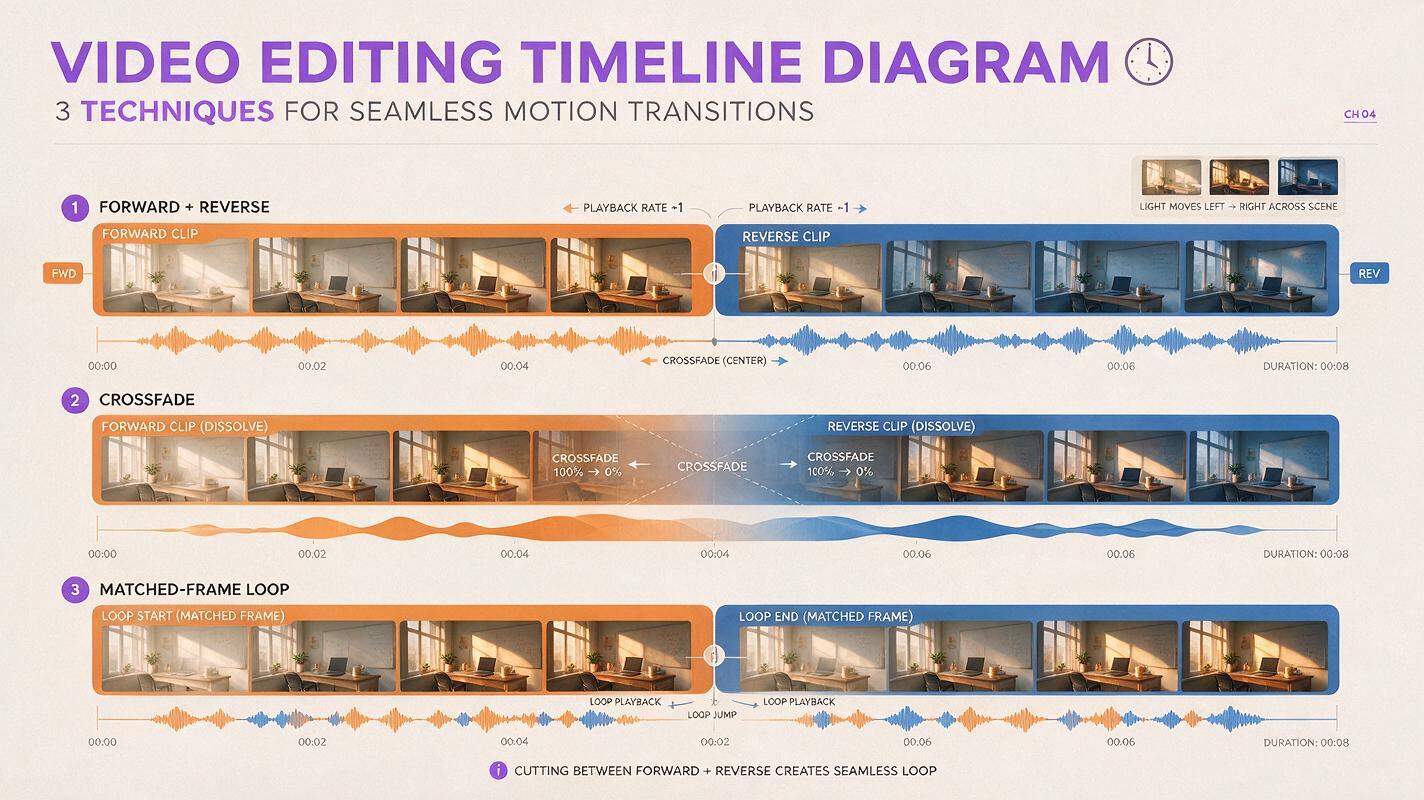
Place the clip on the timeline and inspect the beginning and end frame by frame. Then choose the method that fits the movement:
- Forward-reverse loop: duplicate the clip, reverse the duplicate, and join them. This works for light shifts, floating particles, and gentle pulses, but it looks unnatural for smoke, falling objects, or directional page turns.
- Crossfade loop: overlap the end with a duplicate of the beginning and apply a short dissolve. Use this when the composition is stable and the background movement is soft.
- Matched-frame cut: find two visually similar frames, trim at those points, and join them directly. This preserves directional movement but requires careful inspection.
Add the course title, logo, and module number after the loop is assembled. Keep these overlays static even when the background moves. If music accompanies the intro, align the loop boundary with a sustained tone rather than a strong beat that makes the repeat obvious.
Fix common Runway intro failures
The logo bends or changes
Remove the logo from the source image and add the approved asset during editing. Prompt language can reduce changes, but post-production overlay is more reliable for identity-critical graphics.
The camera zooms without being requested
Replace aesthetic phrases such as “epic cinematic reveal” with explicit framing: “locked camera, unchanged framing, no zoom, no pan.” Also simplify the allowed environmental motion so the prompt does not imply a reveal.
Objects begin floating or transforming
Name the fixed objects and state that their position, dimensions, and shape remain unchanged. Limit animation to a separate background element, such as light or distant particles.
The ending cannot connect to the beginning
Avoid prompts built around irreversible actions. A page turning, object falling, door opening, or liquid pouring has a clear direction in time. Choose reversible motion such as a light pulse or use a crossfade instead of forcing a perfect return.
The intro feels too busy for the title
Reduce the number of moving elements to one and darken or soften the title area in the editor. Motion should frame the title, not travel directly behind every letter.
Review the intro as learning content
A course opener is part of the learner experience, so review more than visual quality. Watch the finished loop at the size and in the interface where learners will encounter it.
- Confirm that the title remains readable against every phase of the moving background.
- Check that flashing, rapid contrast changes, and aggressive camera motion have been removed.
- Keep the intro short enough that repeated module viewing does not become frustrating.
- Verify that scientific, safety, and technical objects have not acquired misleading details.
- Review the muted version because many learning platforms begin playback without sound.
- Export a still alternative for contexts where animation is unsupported or unnecessary.
Finally, test the transition into the lesson. A gentle fade, matched background color, or brief audio bridge can make the intro feel integrated rather than attached as a separate promotional clip.
Final checklist
- The source frame has one focal subject and clear title space.
- Only one or two background elements are allowed to move.
- The prompt explicitly locks the camera, composition, and key objects.
- Logos and final typography are added after generation.
- The chosen motion can be reversed, crossfaded, or matched cleanly.
- The loop has been checked for deformation and invented details.
- The title remains readable throughout the complete animation.
- The final transition supports the opening pace of the lesson.
Keywords
Runway prompts, course intro animation, seamless video loop, image to video, training video intro, educational video prompts, course branding