Runway Prompts for Product Reveal Reels Without Warped Packaging
A product reveal Reel needs motion, but AI-generated motion can bend packaging, blur labels, or invent details. These Runway prompts and editing checks create a moving scene while keeping the approved product image intact.
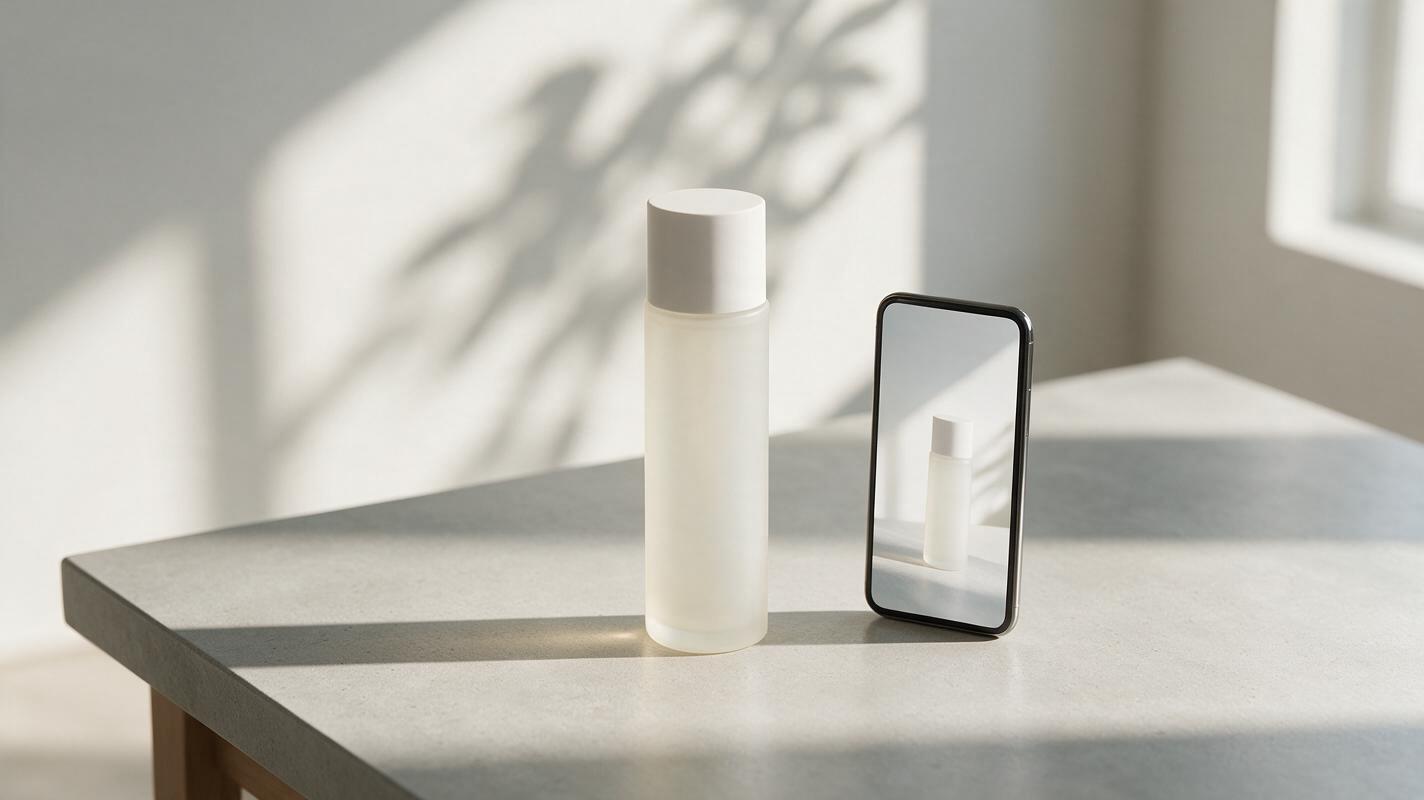
Table of contents
Make the reveal move, not the packaging
A product reveal Reel can look polished until the label warps in the final second. If your team has an approved packshot, the safer approach is to generate motion around it—not ask a video model to redraw every letter on the package. Use Runway to make a short atmospheric reveal, then place the original product image over the result in your editor. You get movement for the opening hook and a product frame you can actually approve.
This approach suits a launch teaser, a colorway announcement, or a quick product spotlight for Reels, TikTok, and Shorts. It works best when the product can remain in one position while light, shadows, or background elements change.
Choose a packshot you can place over the video
Start with an approved, high-resolution product image. A clean cutout with transparent surroundings is ideal, but a photo with a simple background can work if your editor can isolate the product cleanly. Keep the original file: it is your source of truth for the logo, label, color, shape, and any required marks.
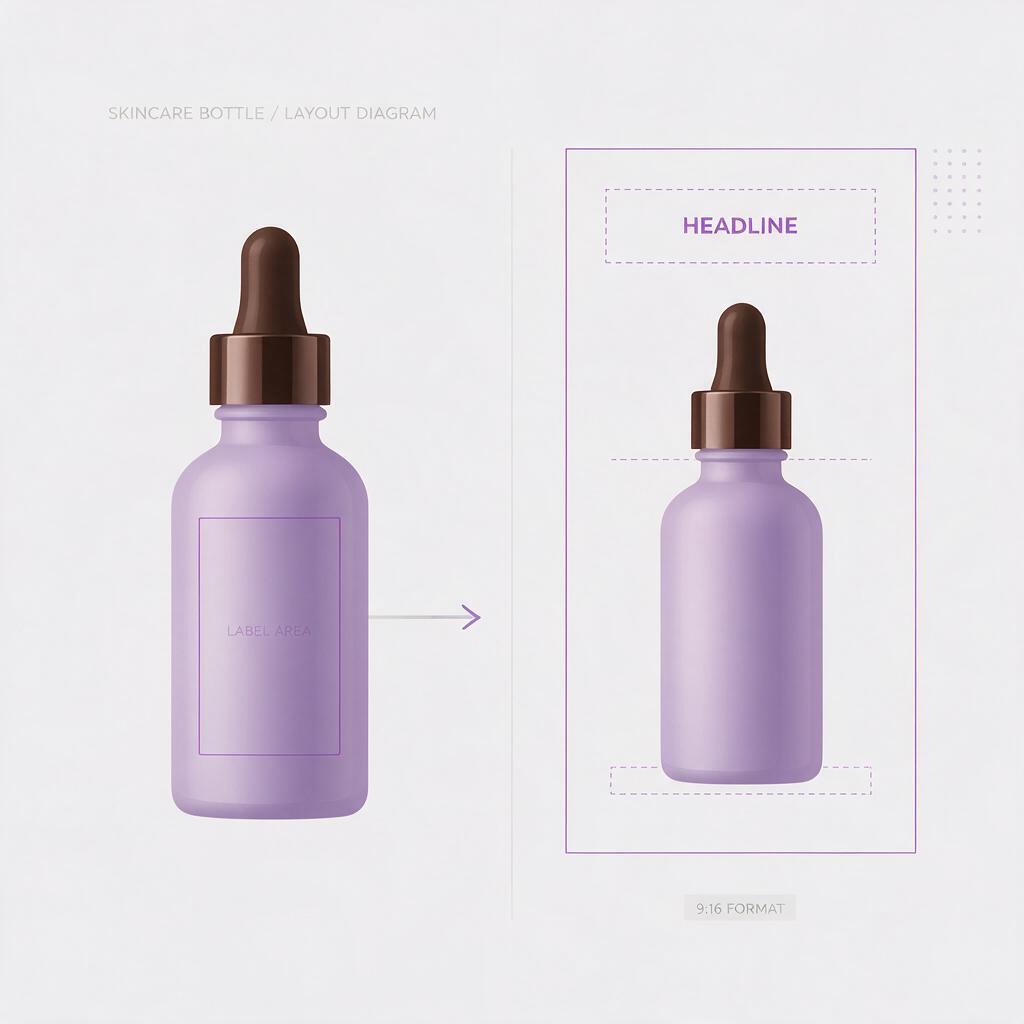
Build a 9:16 composition with the product near the center rather than tight against an edge. Leave room for a headline above or beside it, and avoid placing essential words near the top and bottom of the frame, where app interfaces or captions may cover them. Check the actual previews for every platform you plan to publish on; a single universal safe-zone measurement cannot replace that review.
If the packshot is glossy, translucent, or covered in fine print, plan a simpler reveal. Reflections and tiny text are precisely the details most likely to look inconsistent when a model redraws the product.
Prompt Runway for a restrained motion plate
The aim is a moving background plate that gives the product an entrance. If your Runway workflow accepts an image input, use a version of the scene with the product positioned where it will appear in the final edit. In this reference image to video pass, treat the generated product as a temporary positioning guide; the approved packshot will replace it.
Keep the camera nearly locked. Ask for one visible change—such as a moving shadow, drifting steam, or a light sweep—rather than several competing effects. Here is a prompt for a skincare launch visual:
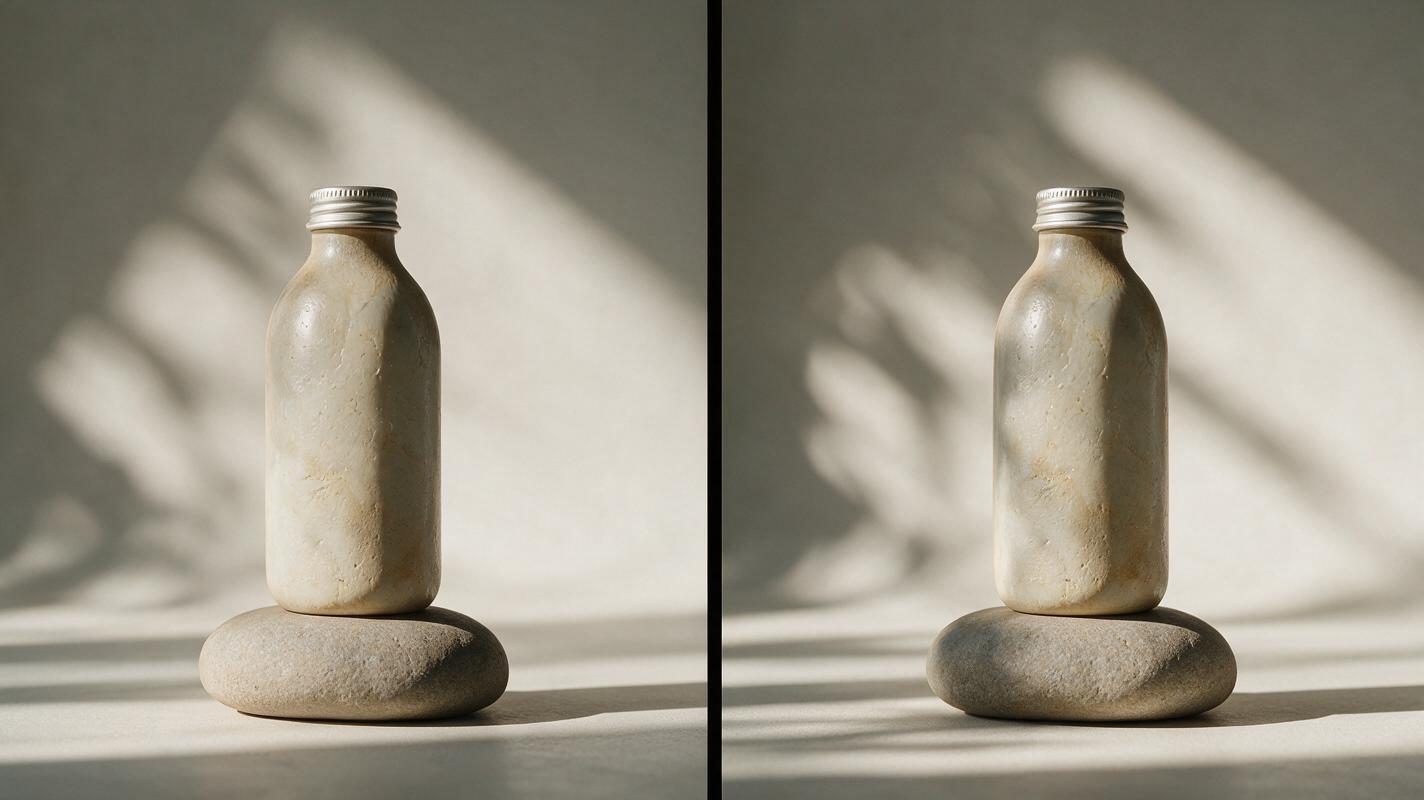
Vertical 9:16 product reveal. A single skincare bottle stands centered on a matte stone surface. Locked camera, no rotation or zoom. Soft morning window light gradually brightens from the left; a gentle leaf shadow moves across the background behind the bottle. Minimal, realistic motion. Keep the bottle position, silhouette, scale, and surface unchanged. No new objects, hands, text, or logos.Use the prompt as a direction, not a guarantee that the model will preserve print or geometry. If a generation introduces a moving bottle, changing cap, or unreadable label, do not try to rescue those frames by sharpening them. Choose a calmer result or generate again.
Creative constraint: Give the viewer one reason to keep watching. A shadow crossing the background can create anticipation; a spinning product, flying particles, and a camera orbit together can obscure what you are selling.
Match the prompt to the product's strongest feature
The best motion reinforces the reason the product is in the post. These variations keep the scene simple enough to edit and review.
| Product or campaign | Reveal motion | Detail to protect |
|---|---|---|
| New beverage flavor | Condensation catches a passing highlight; background color slowly brightens. | Can artwork and flavor name |
| Home fragrance launch | A soft curtain shadow drifts behind a stationary candle. | Jar shape and printed label |
| Accessory colorway | A gentle light sweep reveals the material texture. | Exact color and hardware |
For a beverage shot, adapt the core prompt rather than asking Runway to animate the can itself:
Vertical 9:16 studio scene with one beverage can in the center. Stationary camera and stationary can. Cool side lighting slowly shifts to reveal condensation and a subtle reflection on the tabletop. Background motion only. No splashes, spinning, extra cans, added typography, or changes to the can silhouette.If the campaign depends on an exact color, compare every shortlisted frame against the approved asset under consistent viewing conditions. A visually attractive generation is not a substitute for a brand-approved color reference.
Replace the generated product with the approved image
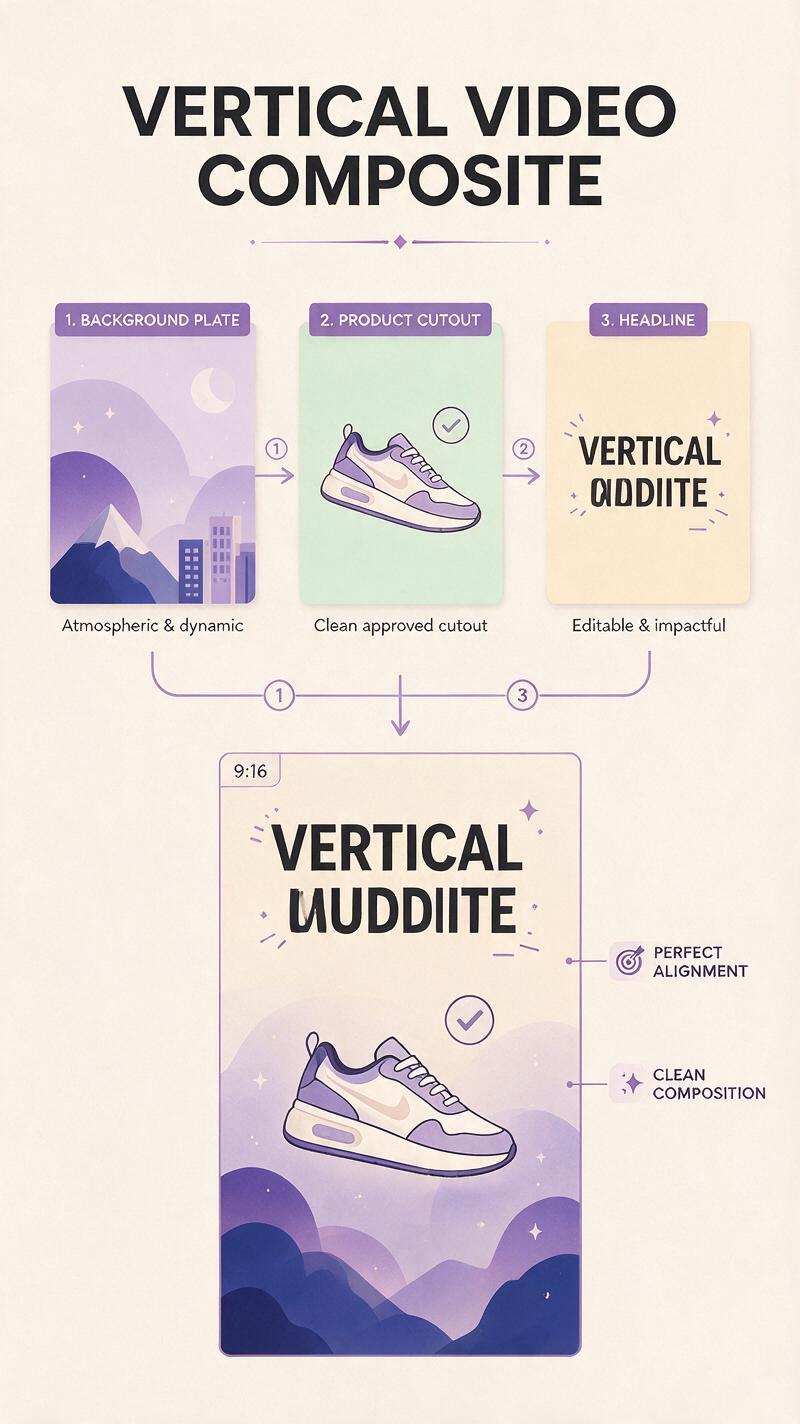
Bring the selected motion plate into your video editor. Place the approved product cutout on a layer above it, align it to the product position, and trim the plate to the moment when the background movement is most effective. If the generated product peeks out around the edges, slightly enlarge the approved cutout or choose a generation with less movement. Do not stretch the cutout until its proportions change.
A stationary overlay is easiest when the camera and product stay still. If the scene shifts, you may need motion tracking or manual keyframes; for a short social post, it is often faster to regenerate a locked-off shot. Add a subtle, separate shadow beneath the approved cutout only if it helps the product sit naturally in the scene.
Place your headline and call to action in the editor rather than in the generated footage. That keeps campaign copy editable for different audiences, offers, and platform crops. Keep any product claim, price, or launch date tied to approved campaign materials—not to details suggested by the generated scene.
Test this prompt yourself with one packshot and one type of background movement. Review the composited result before making more variations.
Cut the reveal for a fast vertical hook
Open on the scene just before its clearest visual change, then show the approved product early enough that viewers understand the post without waiting for a long buildup. A simple edit might begin with a dim background, brighten as the shadow moves, and hold briefly on the readable packshot and headline. You can add sound or a voiceover later, but the visual should still make sense muted.
Watch the export at phone size, not only in the editor's large preview. Check that the product is recognizable immediately, the label remains readable where needed, and the movement does not pull attention away from the announcement. Preview the cover frame and caption placement in each destination app before publishing.
Final checklist
- The product layer comes from an approved image, not a generated redraw.
- The camera and product position stay stable enough for a clean composite.
- Packaging, color, logo, and claims match approved campaign assets.
- Headline and call to action remain legible in vertical previews.
- The reveal communicates the product quickly, even with sound off.
Keywords
Runway product reveal, product reveal Reels, vertical product video, Runway prompts, packaging fidelity, social campaign video