Runway Prompts for Album Cover-Matched Spotify Canvas Loops
This guide shares reusable Runway prompts and settings for turning existing album cover art into seamless, style-matched Spotify Canvas loops. It covers cover art prep, prompt structure, genre-specific examples, and troubleshooting for common issues like jump cuts and style drift. Independent musicians and MV creators can use these workflows to build on-brand streaming promo assets without advanced video editing skills.
Table of contents
Why mismatched Spotify Canvas loops hurt your release identity
Your album cover is the visual core of your release — it’s what fans recognize on playlists, social media, and physical merch. But for many independent artists, Spotify Canvas feels like an afterthought: a generic stock clip, a blurry slow pan of the cover, or a visualizer that clashes completely with your art’s vibe.
Listeners notice this disconnect. A Canvas loop that doesn’t match your cover art breaks the immersive experience of your track, and weakens the brand identity you’ve worked hard to build. Runway’s image to video tool lets you map subtle, intentional motion directly onto your existing cover art, so every frame stays true to your release’s visual identity, no After Effects or motion design experience needed.
Prep your cover art for Canvas-ready generation
Before you generate anything, a few small tweaks to your cover art will make your final Canvas loop look polished and platform-optimized.
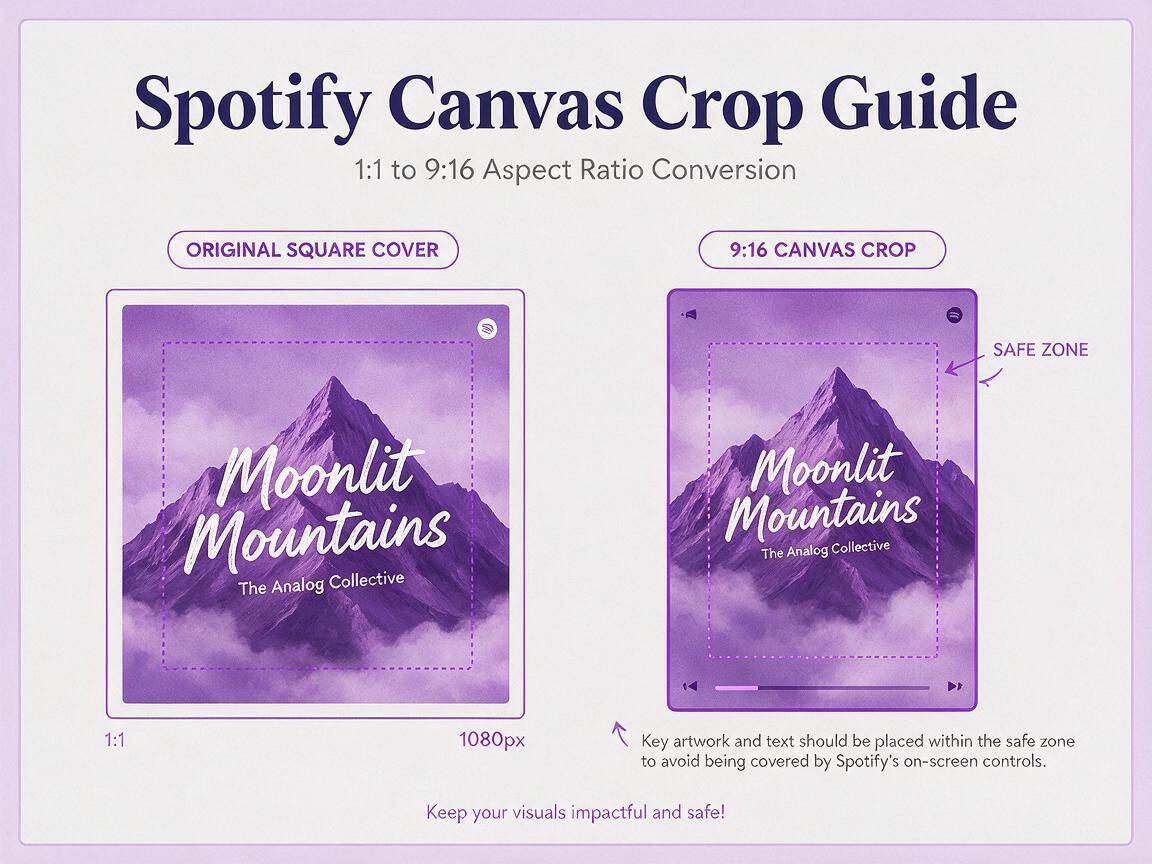
- Crop to 9:16 vertical: Spotify Canvas uses a full vertical aspect ratio. Crop your square album cover to 1080x1920px, keeping key elements (artist face, title, central artwork) centered to avoid edge cropping on different devices.
- Leave a UI safe zone: Spotify’s play button, track name, and artist info overlay the top and bottom ~15% of the screen. Shift critical text or visuals into the middle 70% of the frame so they’re never covered.
- Export high-res: Save your cropped cover as a PNG or high-quality JPG (at least 1080px wide) to avoid compressed artifacts in the generated video.
- Optional: hide small text: If your cover has tiny, detailed typography, consider temporarily hiding it before generation to prevent distortion, then re-add it in a free image editor post-generation.
Runway prompt structure for seamless Canvas loops
The best Runway prompts for Canvas loops balance clear motion direction with strict style guardrails, so your loop feels intentional but stays true to your cover art. Every effective prompt has four core parts:
- Reference context: A 1-2 sentence description of your cover art’s style, colors, and key elements to lock in consistency.
- Motion type: One slow, specific movement (avoid multiple fast actions — loops repeat, so they’ll feel jarring).
- Loop specification: Explicit language requiring a seamless 8-second loop with matching first and last frames.
- Style guardrails: Rules to preserve composition, color palette, and details, and ban unwanted changes.
Use this base template as a starting point, then swap in details from your own cover art:
[Describe your album cover art in 1-2 sentences: e.g. "indie folk album cover of a misty mountain lake at golden hour, watercolor texture, soft blues and oranges, handwritten artist name at the top"]
Slow, gentle cinematic motion: [specific motion, e.g. "camera slowly zooms out 10%, mist drifts across the water, light ripples move across the lake surface"]
Seamless 8-second loop, no jump cuts, first and last frames are identical
Preserve original composition, color palette, and art style exactly, no added elements, no text distortion
Upload your cropped cover as a reference image in Runway, and set the reference weight to 0.8–0.9 to keep style consistency high without completely freezing motion. Once you’ve tailored the prompt to your cover art, test this prompt yourself to see how closely the first generation matches your vision.
Tune Runway settings for zero jump cuts
Even a perfect prompt can produce a broken loop if your settings are off. Adjust these core parameters before generating to get a seamless, platform-ready clip on the first try:
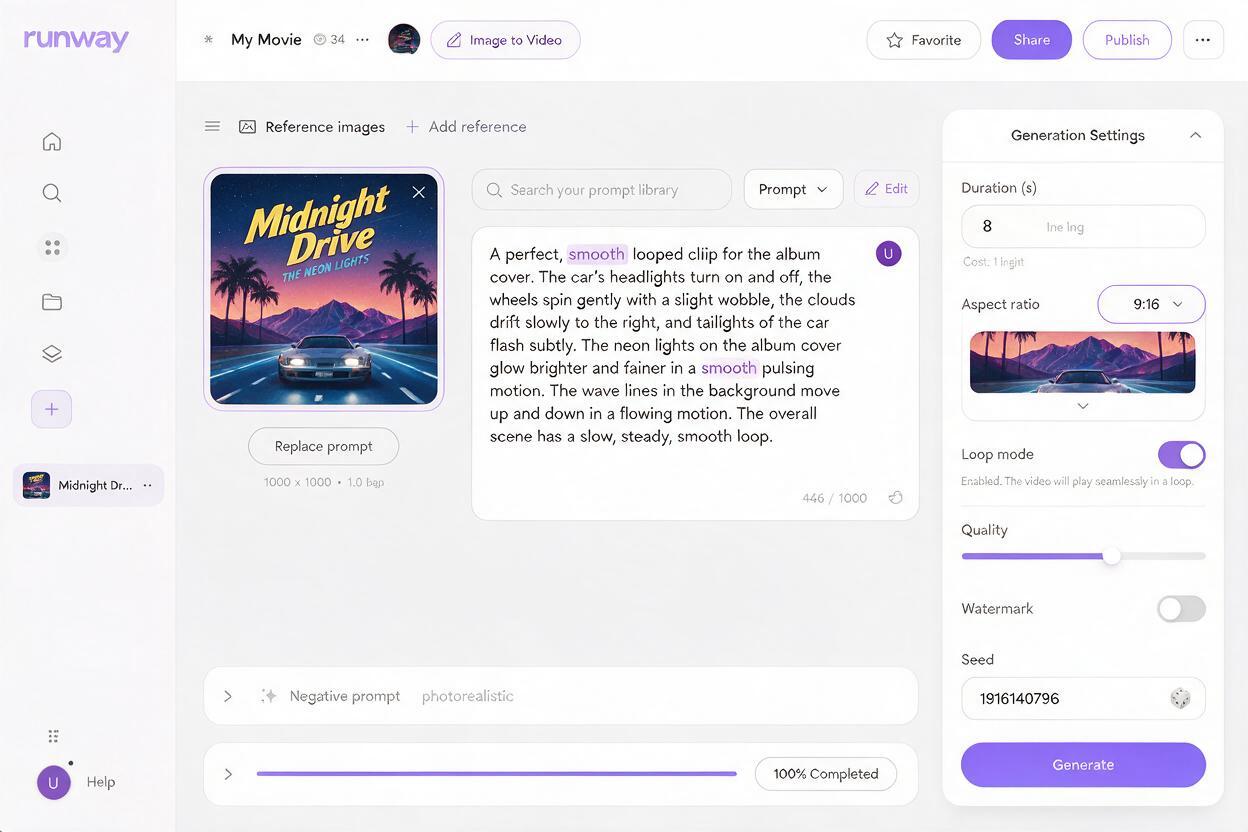
- Duration: Set to exactly 8 seconds, the maximum length for Spotify Canvas loops.
- Motion strength: Keep it between 0.3 and 0.5. Higher values add too much movement, which makes loop transitions jarring and can cause style drift.
- Loop mode: Toggle on Runway’s built-in loop feature, which automatically blends the first and last frames to create a smooth transition.
- Aspect ratio: Select 9:16 (vertical) to match Canvas specs, so you don’t have to crop or resize later.
- Negative prompt: Add "jump cuts, sudden movement, distorted text, extra objects, changed composition, blurry details" to filter out common unwanted results.
Genre-specific prompt examples for different cover styles
Motion that fits a hyperpop track will feel out of place on an ambient song. Use these genre-tailored examples as inspiration for your own cover:
Hyperpop
Hyperpop album cover: glossy 3D chrome butterfly on a neon pink and electric blue gradient, glitch texture, bold sans-serif artist name in white at the bottom
Slow, subtle motion: butterfly wings flap gently once per loop, small glitch effects flicker across the edges of the frame, gradient shifts slightly in hue
Seamless 8-second loop, no jump cuts, first and last frames match exactly
Preserve original composition, color palette, and chrome texture perfectly, no text distortion, no extra elements
Hip-hop
Hip-hop album cover: gritty film photo of the artist standing on a city rooftop at night, neon sign glow, grainy texture, bold white track title in the top left corner
Slow cinematic motion: camera slowly pans left 5%, distant city lights twinkle, faint smoke drifts across the foreground
Seamless 8-second loop, no jump cuts, first and last frames are identical
Preserve artist likeness, original composition, color grading, and film grain exactly, no text distortion
Ambient
Ambient album cover: abstract digital art of floating soft pastel nebula clouds, iridescent purple and green tones, minimal thin white artist name in the center
Slow, meditative motion: clouds drift slowly outward, light pulses gently in the core of the nebula
Seamless 8-second loop, no jump cuts, seamless transition between first and last frame
Preserve original composition, color palette, and soft texture exactly, no text distortion, no sharp edges
Fix common Canvas loop issues
Even with the right settings, you might run into small issues. Here are quick fixes for the most common problems:
- Style drift: If the generated loop changes your art’s style or colors, increase the reference weight to 0.9, and add "strictly preserve original art style and color palette" to your prompt. Avoid vague motion descriptions that give the model room to add new elements.
- Jarring loop cuts: If you can see a visible jump when the loop repeats, confirm loop mode is enabled and reduce motion strength to 0.3 or lower. Add "first and last frames are pixel-identical" to your prompt to reinforce the loop requirement.
- Text distortion: If text on your cover warps or blurs, either hide the text before uploading your reference and re-add it post-generation, or add "text remains sharp, legible, and unchanged in position" to your prompt and keep reference weight at 0.9.
- Distracting motion: If movement pulls focus from your track or artist, simplify the motion to one slow, single action (like a slow zoom or gentle drift) instead of multiple moving elements. Stick to the lower end of the motion strength range.
Key takeaways
- Start with a high-res, 9:16 cropped version of your album cover, with key elements inside the Spotify UI safe zone.
- Use a four-part prompt structure (reference context, motion type, loop spec, style guardrails) to keep generations consistent and on-brand.
- Keep motion strength low (0.3–0.5) and enable loop mode for seamless, non-jarring Canvas loops that feel intentional on repeat.
- Tailor motion to your genre: subtle glitches for hyperpop, slow cinematic pans for hip-hop, meditative drift for ambient.
- Fix style drift or text distortion by increasing reference weight and adding explicit preservation rules to your prompt.
Keywords
runway prompts, spotify canvas loops, album cover visualizer, ai music promo, image to video, seamless video loop, music release assets