Runway Prompts for Transparent-Background Web Animations
Create isolated Runway motion elements that can sit over landing-page layouts without a visible rectangular video background. This guide covers source-image preparation, matte-friendly prompts, clean keying, seamless loops, responsive placement, and web export.
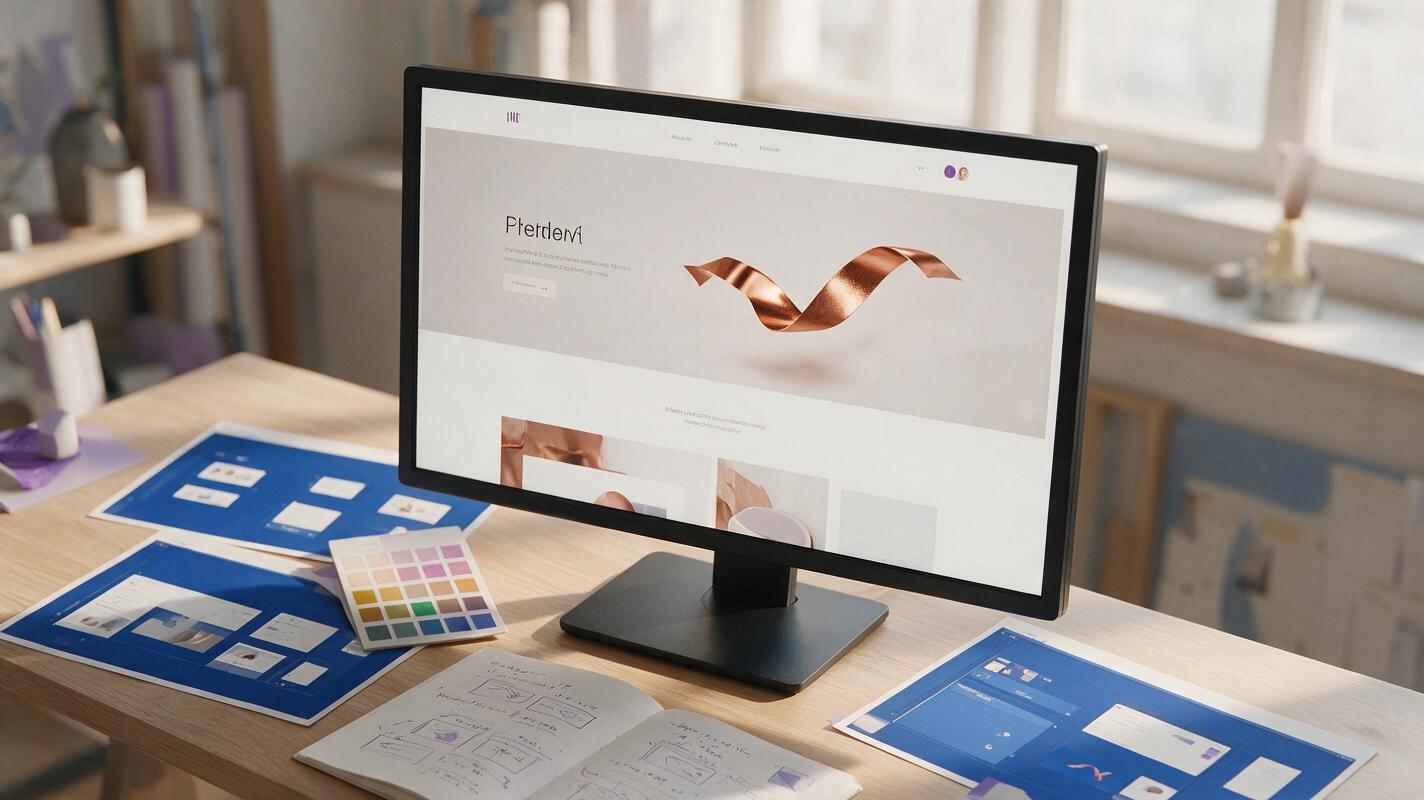
Table of contents
Create web motion without a rectangular video box
Transparent-background animation lets a glowing ribbon, floating product, particle trail, or soft fabric form move independently over a website layout. Runway can generate the motion, but the most reliable workflow is not to request transparency directly. Generate an isolated subject against a controlled matte, remove that matte in compositing software, and export a browser-ready version with an intentional fallback.
This approach is especially useful when a full-frame hero video would cover gradients, interfere with responsive copy, or feel too visually heavy. The animated element remains separate from the page, so designers retain control over its scale, position, blend, and visibility at each breakpoint.
Why direct transparency requests often produce weak results
A prompt such as transparent background, floating glass object describes a desired file property as though it were part of the scene. A video model may instead render a checkerboard pattern, gray studio background, smoky halo, or inconsistent dark field. None of those outcomes is a dependable alpha channel.
Treat the generation as an RGB source clip. Your goal is to create a subject with edges that can be separated cleanly later. That means choosing a matte color that strongly contrasts with the subject and preventing shadows, reflections, fog, or particles from contaminating the background.
Practical rule: ask Runway for a clean studio matte, not a transparent file. Build transparency during post-production, where edge quality can be inspected and corrected.
Choose an animation that survives keying
Not every visual concept works equally well as an isolated overlay. Strong candidates have a clear silhouette, limited motion, and enough internal contrast to remain visible over the final page.
- Good candidates: metallic rings, product packs, folded fabric, luminous ribbons, geometric sculptures, liquid droplets, leaves, and concentrated particle clusters.
- Difficult candidates: smoke, transparent glass on a similar matte, motion-blurred hair, fine mesh, broad shadows, and particles distributed across the entire frame.
- Risky for accessibility: fast flashes, constant large-scale rotation, aggressive zooms, and elements that repeatedly cross text or controls.
Review the actual page before generating. Sample the background colors and decide where the subject will sit on desktop and mobile. A pale translucent object may key perfectly but disappear over a white product page.
Build a clean source plate
Begin with a still image rather than asking the model to invent the object and its movement simultaneously. A deliberate source plate gives you control over silhouette, materials, framing, and the empty perimeter needed for motion.
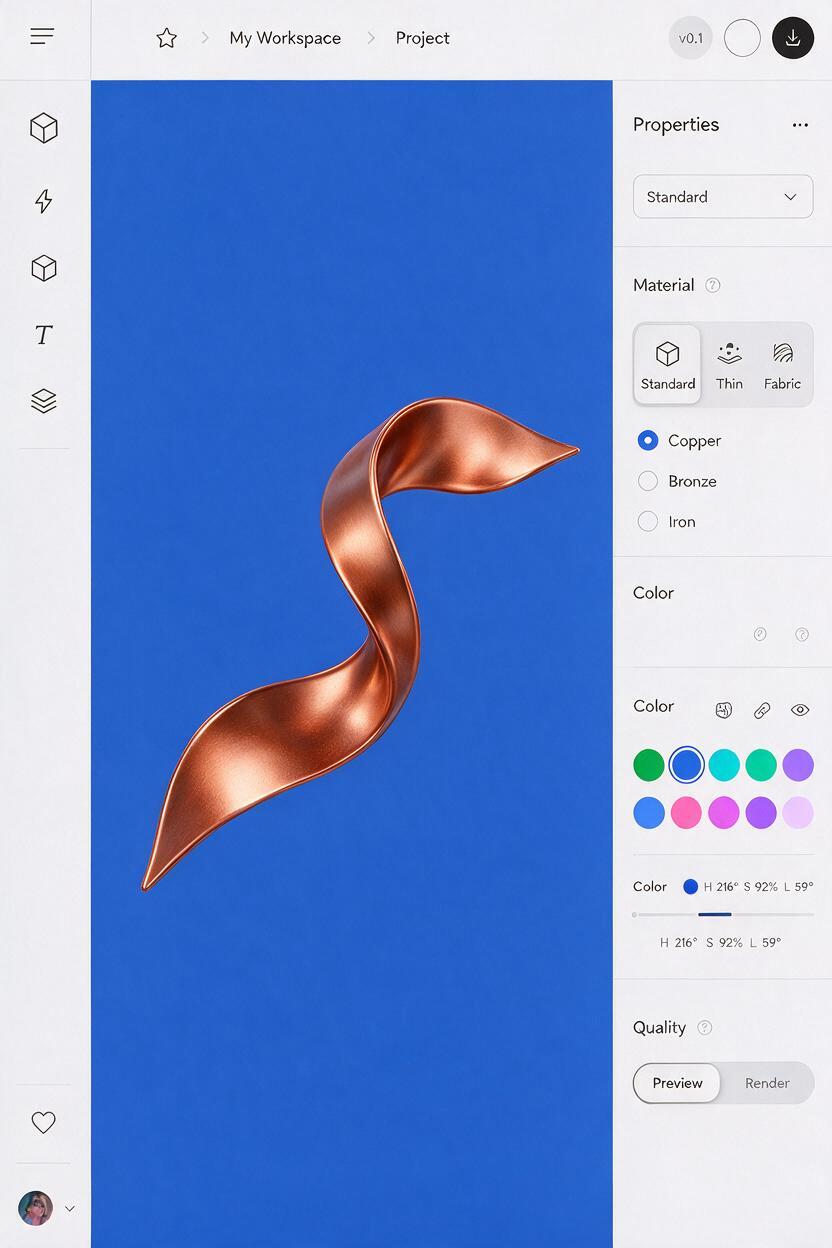
You can use an existing product render, create a stylized object with an AI image generator, or prepare the asset in a 3D or image-editing application. Place the subject centrally against a flat matte color. Green is familiar, but blue, magenta, white, or black may separate better depending on the object.
- Keep the subject entirely inside the frame with generous edge clearance.
- Avoid a matte color already present in the product, logo, or reflections.
- Remove contact shadows unless they are meant to move with the object.
- Use even background color without gradients, texture, or a horizon line.
- Generate at the aspect ratio closest to the intended page container.
For example, a copper ribbon is easier to isolate from a saturated blue matte than from green if its highlights contain yellow-green reflections.
Prompt Runway to move the subject, not redesign it
Upload the source plate to Runway and use an image to video workflow so the initial silhouette and composition remain anchored. Describe one restrained motion, state what must stay unchanged, and explicitly stabilize the matte.
Isolated sculptural copper ribbon making one slow, graceful wave.
The object remains centered and preserves its exact shape, material,
color, and proportions. Locked camera. Flat uniform blue studio
background remains perfectly still and evenly colored. No shadows,
no floor, no additional objects, no text, no camera movement,
no background texture. Subtle controlled motion suitable for a
premium landing-page overlay.
The most important clauses are locked camera, uniform background, and preserves exact shape. They reduce unnecessary changes that make extraction harder. Negative instructions should target visible failure modes rather than becoming an unfocused list.
If the first output is too energetic, simplify the motion phrase. Replace flowing dynamically through the air with one slow wave with minimal displacement. If the object drifts out of frame, request a centered motion with fixed position and rotation limited to a few degrees.
When the source image is ready, test this prompt yourself before creating multiple variations. The first result will reveal whether the matte, silhouette, and motion amplitude are suitable.
Use prompt variants for common landing-page elements
Floating product pack
Product package floating gently upward and returning to its original
position, one slow controlled cycle. Preserve the exact package shape,
label placement, colors, and proportions. Front-facing orientation,
locked camera, uniform green background, no cast shadow, no added text,
no deformation, no secondary objects.
Ambient metallic orbit
Three polished metallic rings performing a subtle synchronized orbit
around a fixed center. Small movement radius, constant scale, precise
geometry, stable reflections, locked camera. Solid blue matte remains
flat and motionless. No floor, no shadow, no particles, no zoom.
Decorative particle accent
Compact cluster of warm golden particles drifting slowly in a gentle
clockwise curve, remaining inside the central third of the frame.
Black background stays pure and uniform. No smoke, no haze, no lens
flare, no camera movement, no particles touching the frame edges.
Particle overlays usually extract better from black with additive or screen compositing than through a conventional color key. Use a key for opaque subjects and a luminance-based blend for light effects whenever it produces cleaner edges.
Remove the matte without damaging the edges
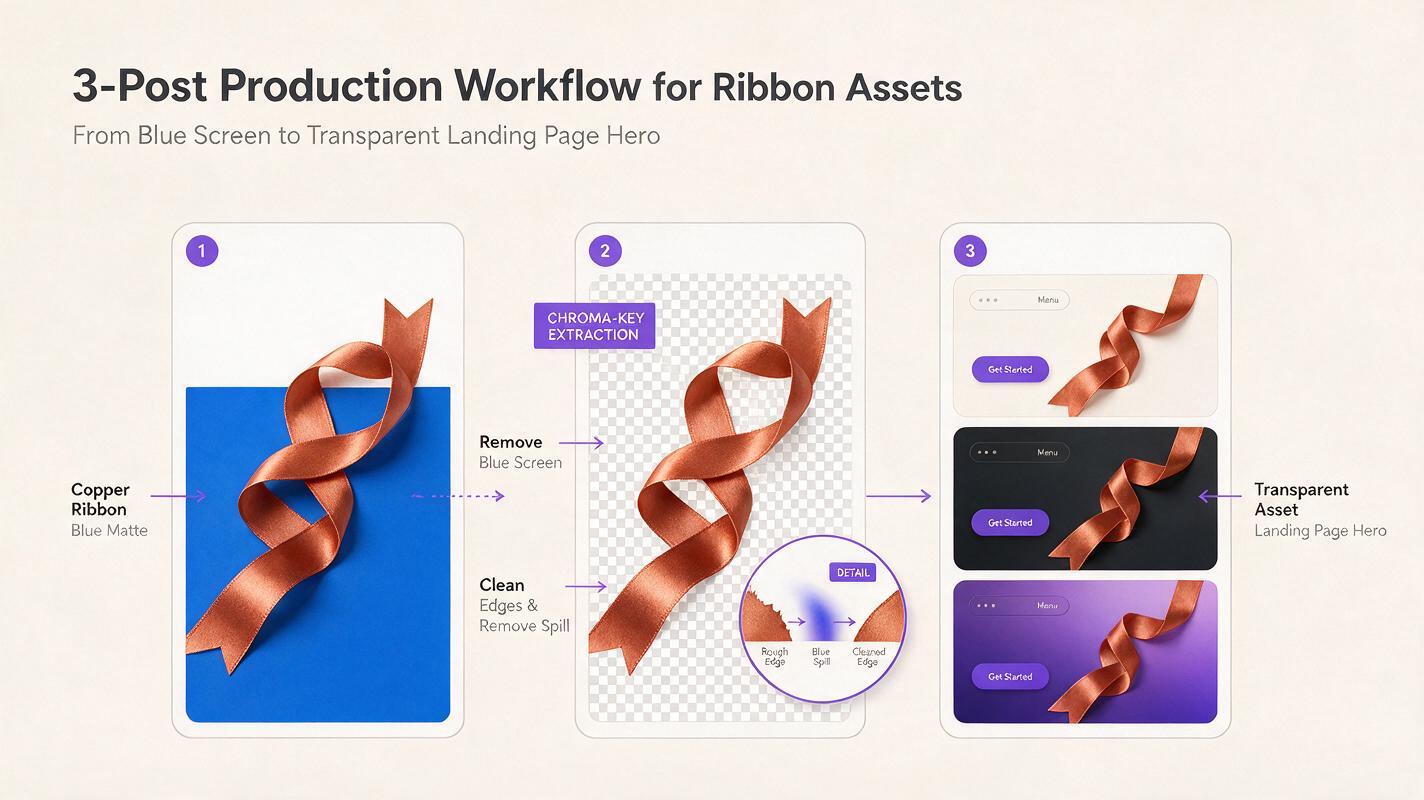
Import the chosen clip into a compositor or video editor with chroma-key controls. Sample the matte, reduce spill, and inspect the result over several temporary backgrounds: white, black, a saturated brand color, and the real landing-page gradient.
A convincing extraction depends on edge treatment rather than simply removing all traces of the matte. Excessive key strength can carve into reflective highlights, thin details, or motion-blurred edges. Too little leaves a colored outline.
- Adjust tolerance until the background disappears without creating holes.
- Use minimal edge softening to prevent a cutout appearance.
- Apply spill suppression carefully around reflective materials.
- Create a small garbage mask to remove unused outer regions.
- Check every frame for matte flicker or newly generated background marks.
If the generated background changes brightness during the clip, correct it before keying or regenerate with stronger uniform-background language. Trying to repair a heavily animated matte usually costs more time than producing a cleaner source.
Make the motion loop without a visible reset
Generated movement rarely returns to its exact starting pose. For subtle web motion, a short crossfade loop is often more dependable than requesting a complex perfect cycle.
Duplicate the clip, place the copy after the original, and overlap the end of the first with the beginning of the second. Reverse the second copy when the action can naturally move backward, such as hovering, breathing, or a gentle ribbon wave. Add a short dissolve and inspect the silhouette for doubling.
Avoid ping-pong playback when the movement includes gravity, splashes, unfolding, or directional particle flow. Reversal makes those actions look physically wrong. In those cases, find two similar poses inside the clip and build a match cut or regenerate a simpler cyclical movement.
Export for real browser conditions
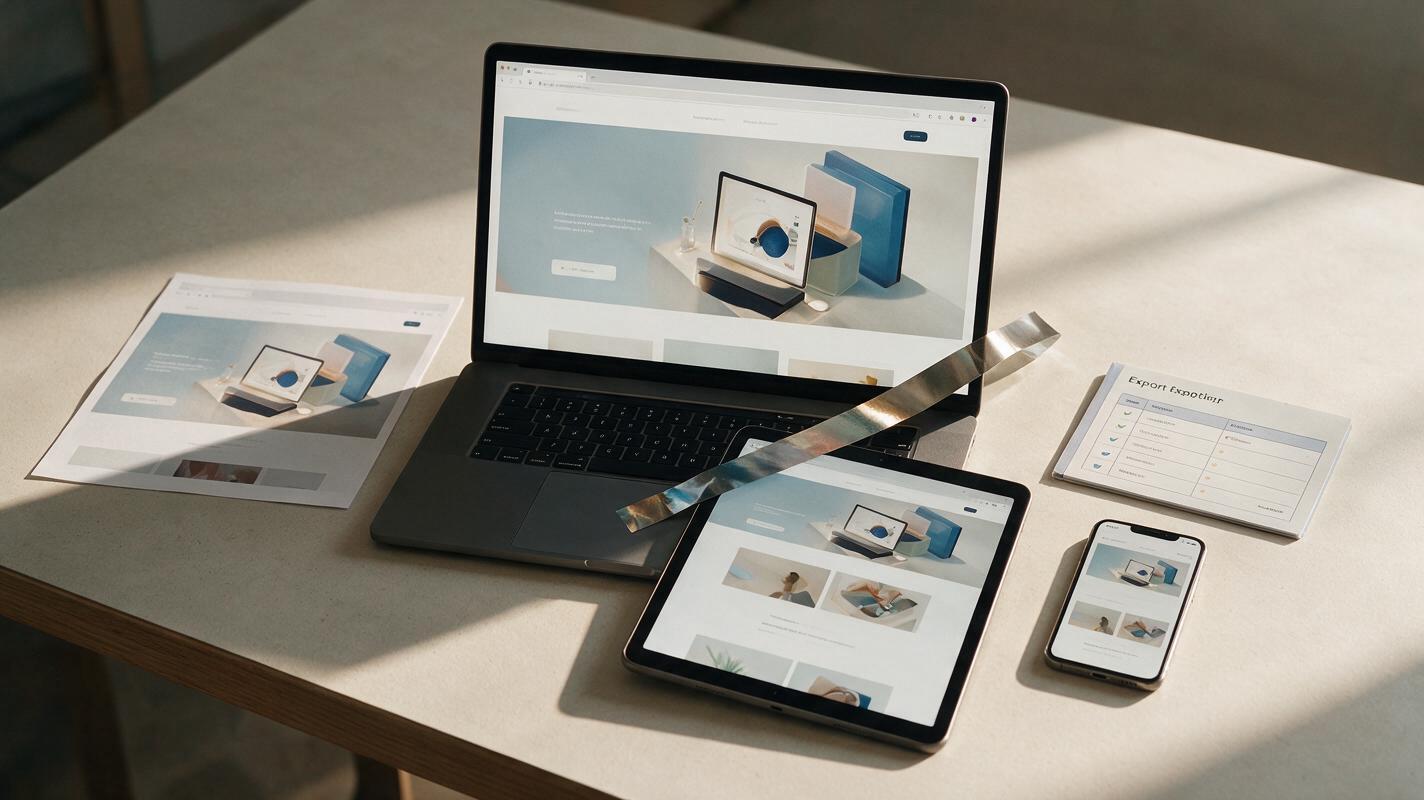
A compositing master with alpha is not automatically the best delivery file for every browser and device. Export a high-quality alpha master first, then create web derivatives according to the formats supported by your production stack. Verify transparency in the actual browser rather than relying only on the editing preview.
| Delivery option | Best use | Main tradeoff |
|---|---|---|
| Transparent video | Detailed motion with soft edges | Support and decoding should be tested across target browsers |
| PNG sequence | Controlled canvas playback or prototyping | Large transfer size without careful compression |
| Opaque video matched to page color | Simple layouts with a fixed background | The illusion breaks when the background changes |
| Static image fallback | Reduced-motion mode and constrained devices | No ambient movement |
Keep the source element larger than its intended CSS display size, but avoid delivering unnecessary dimensions. Reserve layout space before loading the asset, lazy-load motion below the fold, and provide a still poster or image fallback.
Respect the user’s reduced-motion preference. The static source plate often makes an excellent fallback because it preserves the composition without requiring a separate design.
Troubleshoot the failures that reveal the effect
| Problem | Likely cause | Better fix |
|---|---|---|
| Colored halo around the subject | Matte spill or excessive edge softness | Reduce spill, tighten the key, and test on the final background |
| Object changes shape | Motion request is too broad | Use one small action and repeat preservation constraints |
| Background shimmers | The model is interpreting the matte as scenery | Specify a flat, evenly lit, motionless studio background |
| Loop visibly jumps | Start and end poses differ too much | Shorten the clip or use a reversible motion with a dissolve |
| Overlay hides interface content | Motion envelope was not planned in the layout | Constrain movement and test desktop, tablet, and mobile crops |
| Page feels slow | Oversized dimensions or long duration | Trim idle frames, compress derivatives, and use a static fallback |
Final checklist
- Choose a subject with a readable silhouette and restrained movement.
- Use a flat matte color that does not appear in the subject.
- Protect the subject’s shape, materials, framing, and scale in the prompt.
- Keep the camera locked and the background motionless.
- Inspect the extracted edges over light, dark, and branded backgrounds.
- Build a loop that suits the physics of the movement.
- Test the exported asset in target browsers and responsive layouts.
- Provide a lightweight still for reduced-motion and fallback states.
Keywords
runway prompts, transparent web animation, landing-page motion, image to video, website hero animation, alpha video, web motion