Animate a YouTube Logo Intro With Runway Without Warping the Logo
A generated intro can make a channel feel polished, but video models may redraw the logo you need viewers to recognize. This tutorial uses Runway to animate the background while keeping the original logo sharp and unchanged in the final edit.
Table of contents
Make the scene move, not the logo
A YouTube intro loses its purpose if your logo changes shape halfway through. The reliable approach is to generate a short moving background with Runway, then place your original logo above it in a video editor. You get an animated reveal without asking a video model to preserve every letter, line, and spacing detail of your brand.
This works particularly well for faceless channels that want a recognizable opening without filming a host. Keep the finished intro brief: it should identify the channel and give way to the video, not delay the reason someone clicked.
Build a background frame with a clear landing area
Start with a still image for the background. You can photograph a real surface, make a simple graphic in your editor, or create an original illustration. Choose something related to your channel: a workbench for repair videos, a paper-covered desk for history stories, or a softly lit shelf for book reviews.
Leave one calm area where the logo will eventually appear. That space does not need to be empty, but it should have lower contrast and less visual detail than its surroundings. Do not put the logo, channel name, or other essential lettering into the image you plan to animate.
For a standard horizontal video, prepare a 16:9 frame. If the intro is for Shorts, prepare a separate vertical composition rather than cropping the horizontal result afterward. Keep the intended logo area comfortably inside the frame so it remains visible on different screens.
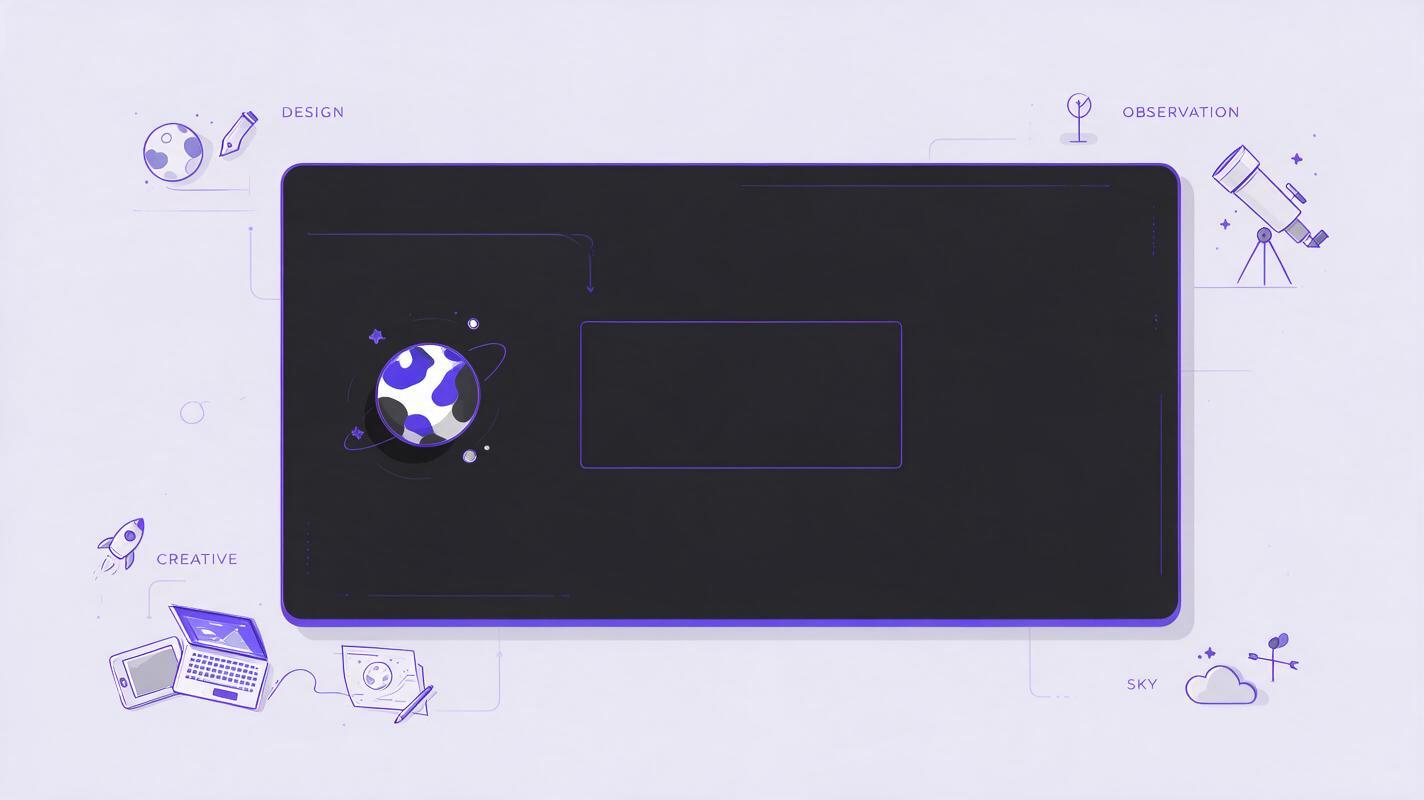
Example: For a faceless astronomy channel, use a dark tabletop with a small model planet near the left edge and a gentle pool of light in the center. The center is reserved for the real logo added during editing.
Ask Runway for one restrained movement
Use image to video with your background still as the input. In Runway, describe a single, modest motion that supports the logo reveal: light moving across a surface, a slow camera push, or dust drifting through a beam. Avoid asking the model to invent a complex sequence and a precise brand mark in the same clip.
Try a prompt like this for the astronomy example:
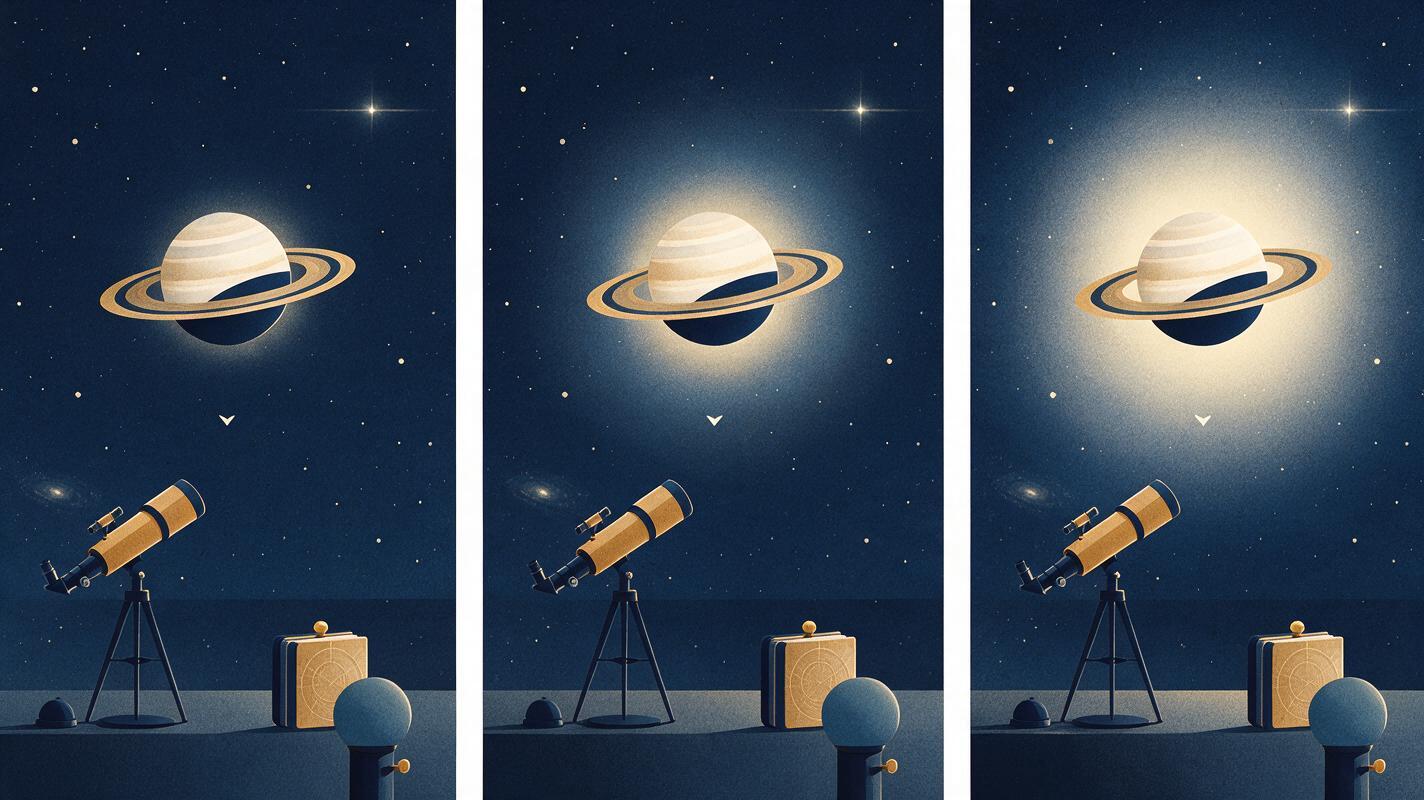
Slow, subtle camera push toward a dark tabletop with a small model planet near the left edge. A soft pool of light gradually brightens the clear central area. Gentle atmospheric dust in the background. Keep the tabletop, planet, and composition stable. No text, no logo, no new objects, no rapid camera motion.Watch the generated clip before making variations. If the planet changes shape or the camera movement makes the center too busy, simplify the prompt or choose a quieter source image. Select the take with the cleanest logo landing area, not necessarily the most dramatic motion.
Composite the original logo in the editor
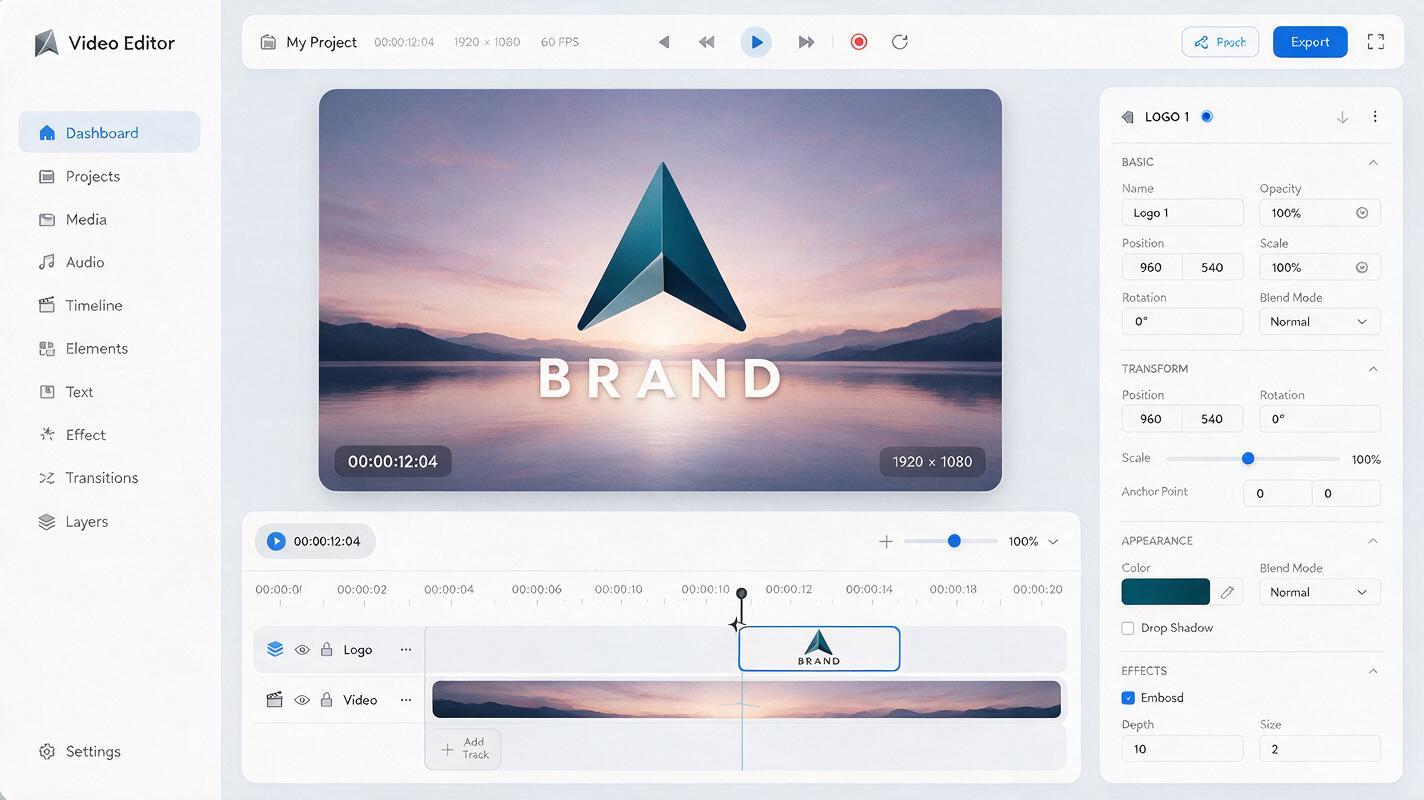
Import the generated background clip into your video editor. Place your approved logo file on a track above it, ideally as a transparent PNG or another format that preserves transparency. Do not use a screenshot of a logo with a solid background unless that background is an intentional part of the design.
Start the background motion first. Bring in the logo as the center brightens, using a simple opacity fade or a small scale change. For example, the logo can fade from transparent to fully visible while scaling from 95% to 100%. These values are starting points, not requirements; the test is whether the mark remains easy to recognize at normal viewing size.
Keep any channel name or tagline as editable text in the editor. This makes spelling, spacing, and later updates easier to control. If you use sound, align a restrained sound cue with the moment the logo becomes fully visible, and check that its volume does not overpower the first spoken line.
Choose an ending that leads into the video
An intro should have an exit, not just an entrance. Let the logo hold long enough to register, then cut directly to the first useful shot or spoken idea. If you want a smoother transition, match something in the animated background to the opening scene: a warm light moving across a desk can cut to a real close-up of the object being discussed.
Check the intro on a phone before exporting the full video. Can you read the logo at that size? Does the first substantive shot arrive promptly? If viewers have to wait through an elaborate animation to learn what the video is about, shorten the intro or open with the hook and use the logo afterward.
Fix the most common failures
| What you see | Likely cause | Practical fix |
|---|---|---|
| The logo looks soft or distorted | The logo was included in the generated video or exported at too low a resolution | Remove it from the generation input and overlay the original, high-quality logo in the editor |
| The logo is hard to read | Too much motion or contrast behind it | Choose a calmer take, darken the landing area, or add a subtle editor-made backdrop |
| Objects appear or change unexpectedly | The scene or motion request gives the model too much to invent | Use a simpler still and request one restrained movement |
| The intro feels slow | The reveal takes longer than the viewer needs to recognize the channel | Cut to the opening content sooner or move the logo after the initial hook |
The key distinction is control: let Runway supply atmosphere and motion, while your editor handles the brand elements that must be exact. Once you have a background that works, test this prompt yourself with a scene that fits your channel, then keep the original logo file for the final composite.
Final checklist
- The generated background contains no logo or essential text.
- Motion stays restrained and leaves a readable area for the mark.
- The approved logo file is overlaid in the editor, not regenerated.
- Any channel name remains editable and correctly spelled.
- The intro looks clear on a phone and reaches the video’s opening idea quickly.
Keywords
runway logo intro, youtube logo intro, ai video intro, logo animation, faceless youtube channel, image to video