How to Create a Seamless AI Video Loop with Image to Video
Create a seamless AI video loop by animating a loop-friendly reference image, limiting the scene to reversible motion, and joining the clip to a reversed copy without duplicated endpoint frames. This workflow works especially well for ambient backgrounds, product visuals, social posts, and looping website videos.
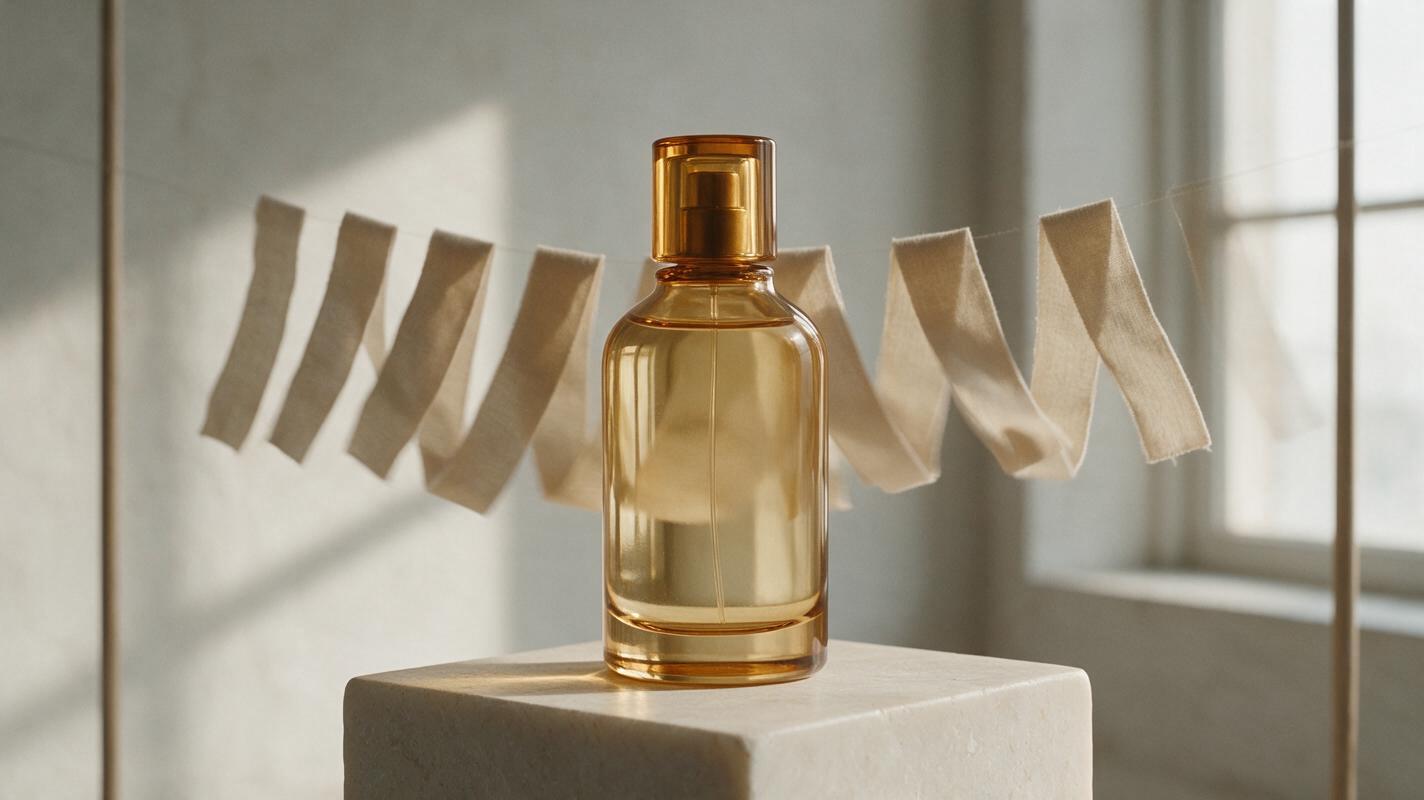
Table of contents
TL;DR: Build the loop around reversible motion
The fastest way to make a seamless AI video loop is to start with one stable image, generate a short image to video clip containing slow reversible motion, and then append a reversed copy of that clip. Remove the repeated frames at both joins, and the result can repeat continuously without a visible jump.
This method avoids asking a video model to recreate its opening frame perfectly at the end, which remains difficult when people, fabric, particles, reflections, or camera movement change throughout a shot.
Why seamless AI video loops usually fail
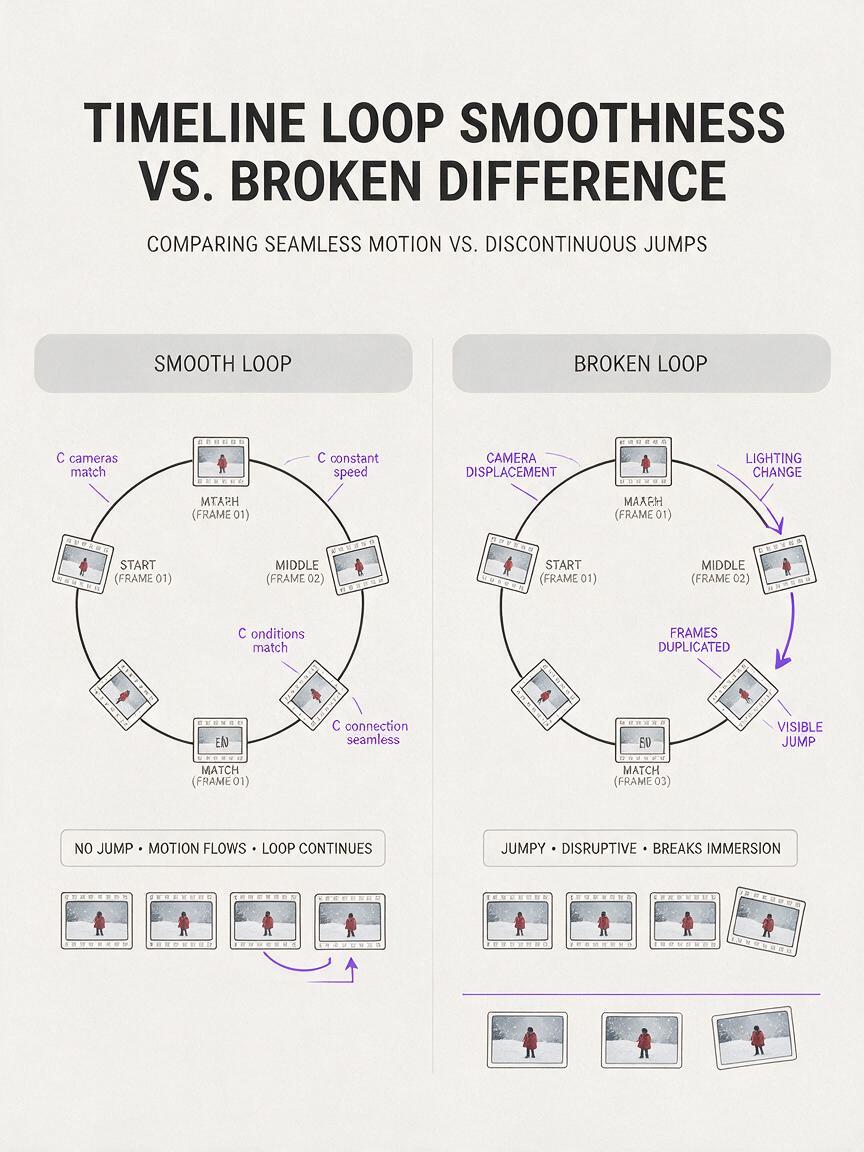
A video can look convincing once and still fail immediately when repeated. The viewer notices the boundary because the final frame does not match the first frame in composition, lighting, subject position, or motion direction.
Common symptoms include:
- Camera discontinuity: the camera pushes forward for the entire clip and then teleports backward when playback restarts.
- Subject displacement: a person, product, or animal ends in a different position from where it began.
- Changing geometry: labels, facial details, furniture, or architectural lines gradually transform.
- Particle resets: smoke, snow, sparks, or water abruptly return to an earlier pattern.
- Lighting jumps: highlights or shadows drift during generation and snap back at the loop point.
- Motion hesitation: the same endpoint frame appears twice, creating a tiny pause at each reversal.
The key is to design for looping before generation. A clip with a person walking across the frame is hard to reverse naturally. A clip with breathing, swaying leaves, rippling fabric, blinking lights, or a gently rotating object is much easier.
Three ways to create an AI video loop
| Approach | Best for | Main trade-off |
|---|---|---|
| Forward-and-reverse loop | Ambient scenes, portraits, products, backgrounds | Motion changes direction halfway through |
| Generated return-to-start motion | Rotations, repeated gestures, mechanical cycles | The last frame may not match exactly |
| Hidden transition loop | Fast camera moves, smoke, darkness, foreground wipes | Requires a carefully placed visual cover |
This tutorial uses the forward-and-reverse method because it is the most repeatable. It does not depend on exact end-frame control, and a failed generation can often be rescued without regenerating the entire shot.
How MagicBoat handles a looping AI video workflow
MagicBoat brings multiple generation models into one account, making it practical to test the same source image and prompt across options such as Seedance, Kling, and Veo when they are available. You can begin with a still image, compare its animation across models, and keep the clip with the most stable geometry rather than rebuilding the project in separate tools.
A useful division of labor is:
- Image generation: prepare a clean anchor frame with Seedream, Flux, GPT Image, or another available image model.
- Image-led animation: preserve the anchor composition while adding controlled movement.
- Text-led testing: use text to video when the exact opening composition is less important than discovering an interesting motion concept.
- Model comparison: run the same restrained prompt through more than one available model and judge stability, not only visual drama.
Looping rule: choose the generation with the smallest unwanted change. A subtle stable clip usually produces a better loop than a spectacular clip with drifting details.
Step 1 — Choose motion that can reverse cleanly
Write the motion idea as a simple physical action. It should remain believable when played backward. Good candidates include a curtain moving in a breeze, a pendant swaying, light moving across a metallic surface, a character breathing, or leaves shifting gently.
Avoid irreversible actions such as breaking glass, pouring a drink, lighting a candle, speaking a sentence, walking into frame, or opening a package. Reversing those actions creates an obvious visual trick.
Use this planning template:
Subject: one ceramic perfume bottle on a stone pedestal
Primary motion: soft fabric moves gently behind it
Secondary motion: narrow highlight drifts across the glass
Camera: locked
Environment: unchanged
Loop strategy: forward clip plus reversed copy
Expected result: a concept with one main movement, one optional supporting movement, and no action that permanently changes the scene.
Step 2 — Build a loop-friendly anchor image
Create or select a still frame with a stable subject silhouette, uncluttered edges, and enough empty space for movement. The anchor image determines identity, object geometry, lighting, and composition more reliably than a long text prompt alone.
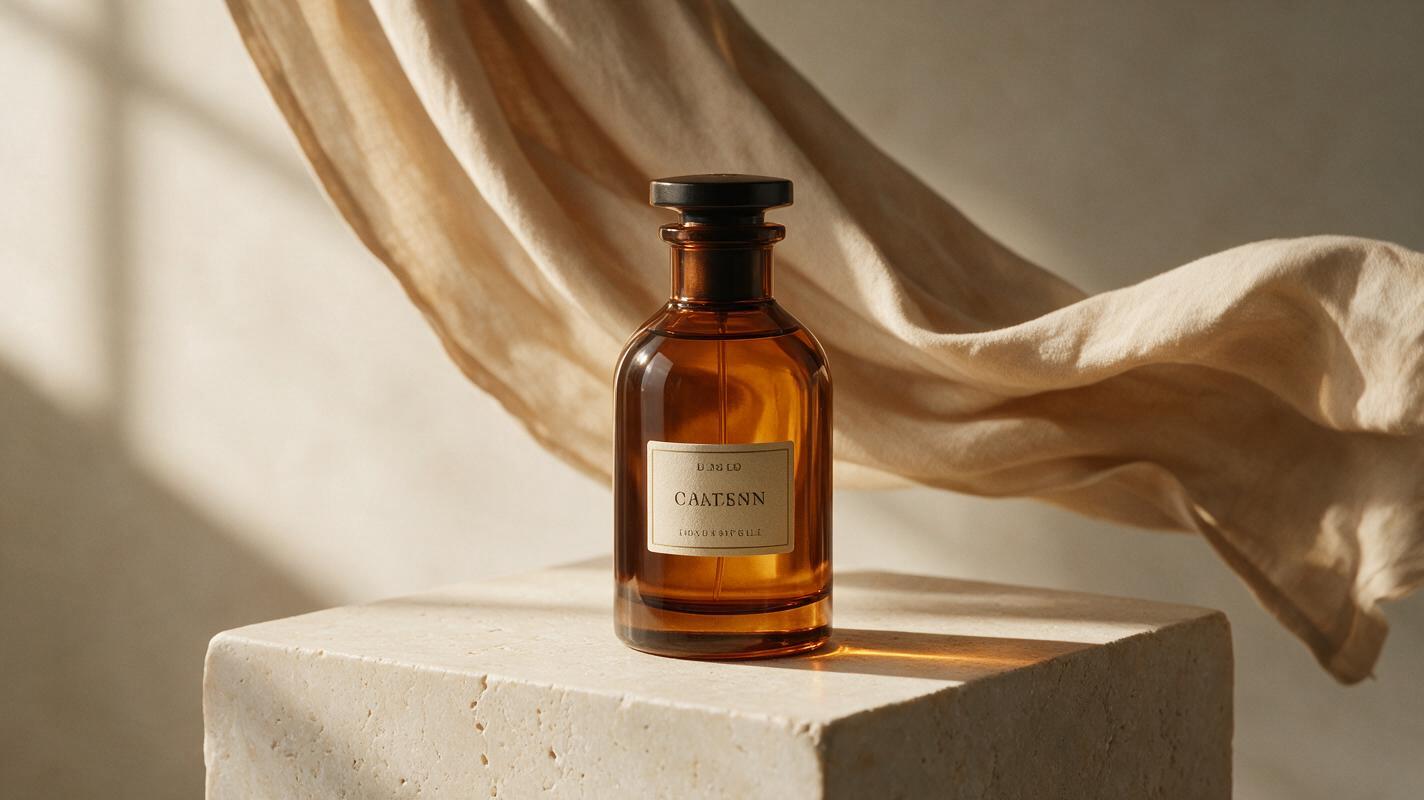
For a product loop, try this reusable image prompt:
Editorial product photograph of a translucent amber perfume bottle centered on a pale limestone pedestal, warm beige fabric hanging in the background, soft window light from camera left, realistic glass reflections, label fully visible, restrained neutral palette, locked frontal composition, no hands, no extra objectsFor a portrait loop, keep the hands outside the frame unless hand movement is essential. Use a chest-up composition, relaxed expression, simple clothing, and a background without text or repeating patterns.
Check the still before animation:
- Is the subject readable at the intended output size?
- Are text, logos, fingers, and facial features already correct?
- Does the moving element have room to sway without crossing the subject?
- Can the frame work as both the opening and closing image?
Expected result: a polished first frame that does not rely on video generation to repair structural problems.
Step 3 — Write a motion-only animation prompt
Do not redescribe every visual detail in the reference image. Concentrate the animation prompt on movement, camera behavior, timing, and what must stay fixed. Excess description can encourage the model to reinterpret the scene.
Use this base prompt:
Locked camera. The background fabric sways slowly left and right in a light indoor breeze. A soft highlight moves subtly across the bottle. The bottle, label, pedestal, framing, and lighting remain stable. Continuous gentle motion, no camera movement, no scene change, no new objects.For Seedance prompts or Kling prompts, the same structure is useful even when model behavior differs:
- State the camera constraint first.
- Describe one primary movement.
- Add one subtle secondary movement only if necessary.
- List the elements that should remain stable.
- Exclude cuts, new objects, and large lighting changes.
Avoid vague phrases such as make it cinematic when stability matters. They may encourage a push-in, focus change, dramatic flare, or other behavior that makes the loop boundary harder to hide.
Expected result: a prompt that animates the existing composition instead of redesigning it.
Step 4 — Generate a short image-to-video clip
Upload the anchor image, choose an available image-led video model, and generate a short clip. Keep the original aspect ratio unless the destination requires a different format. Short generations are easier to inspect and less likely to accumulate identity or geometry drift.
Run at least two prompt variants:
Variant A — minimal motion
Locked camera. The fabric moves almost imperceptibly in a soft breeze. The product remains completely still. Stable light and composition.
Variant B — visible but controlled motion
Locked camera. The fabric completes one slow sway from center toward the left and back toward center. A faint reflection travels across the glass. The product and label remain unchanged.Compare models with the same input and wording where possible. Do not assume the version with the most motion is best. Look for clean edges, consistent lettering, stable reflections, and a natural change of direction.
Expected result: several short candidates whose first frame remains recognizable throughout the shot.
Step 5 — Inspect the clip frame by frame
Review the beginning, midpoint, and final portion before editing the loop. Watch once at normal speed, then scrub slowly.
| Area | Acceptable | Reason to regenerate |
|---|---|---|
| Subject shape | Minor natural movement | Bottle, face, or body proportions change |
| Camera | Locked or barely perceptible drift | Continuous zoom, pan, or orbit |
| Text and labels | Stable and readable | Letters melt, reorder, or disappear |
| Background | Local movement only | Objects appear or structural lines bend |
| Lighting | Small motivated variation | Whole scene changes exposure or color |
Trim unstable frames from the start or end if the useful middle section is clean. For a forward-and-reverse loop, the endpoint does not need to match the opening frame; it only needs to look natural at the moment motion reverses.
Expected result: one clean segment with no cuts and no irreversible action.
Step 6 — Turn the best clip into a mathematically clean loop
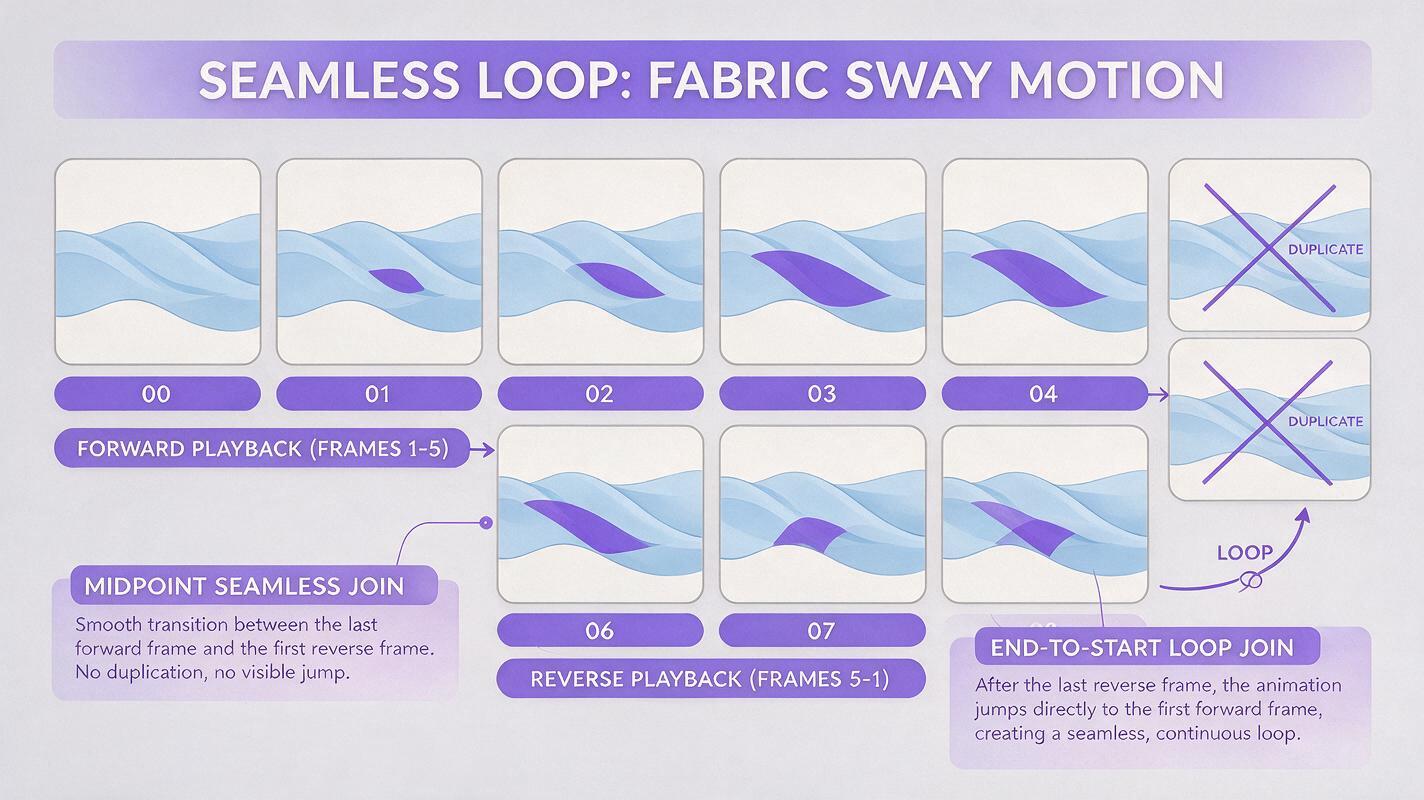
In any editor that supports reversing clips, place the clean segment on the timeline, duplicate it, and reverse the duplicate. Join the forward clip directly to the reversed clip.
The sequence is:
Original frames:  1  2  3  4  5
Reversed copy:    5  4  3  2  1
Remove duplicates: 1  2  3  4  5  4  3  2
Remove the first frame of the reversed copy so frame 5 is not held twice at the midpoint. At the end, remove the repeated opening frame if your editor includes it. This prevents a tiny pause that can make otherwise smooth motion feel mechanical.
If the reversal is too obvious, trim at a point where velocity is low—for example, when fabric reaches the edge of its sway or a pendant pauses before changing direction. Natural movements often slow at their extremes, making those frames ideal turnaround points.
Expected result: a continuous sequence whose last frame flows back into its first frame without a jump or duplicated-frame pause.
Step 7 — Test the loop in its real destination
Export the loop and repeat it several times on a timeline. A single playback is not a valid test. Watch the midpoint reversal and the end-to-start boundary separately.
Also test the actual delivery context:
- Website background: check whether compression damages fine fabric, smoke, or reflections.
- Social post: confirm that platform cropping does not cut off the moving element.
- Presentation display: inspect the loop on a larger screen where geometry drift is easier to notice.
- Vertical story: ensure the subject remains inside the central safe area.
If a jump remains, shorten the source segment rather than adding a long dissolve. Dissolves can create transparent-looking double subjects, doubled labels, or ghosted edges.
Expected result: a loop that survives multiple repetitions, cropping, and normal delivery compression.
Keep the same loop style across a project
For a collection of product cards, album visuals, or environmental backgrounds, consistency comes from reusing motion rules rather than forcing every scene to perform the same exact action.
Create a small specification:
Camera: locked
Clip behavior: forward and reverse
Primary motion speed: slow
Secondary motion: one subtle light or environmental change
Subject movement: none or minimal
Transition: no cut, no dissolve
Color and exposure: stable
Keep composition, movement intensity, and loop duration similar across the series. Each scene can contain different objects while still feeling like part of one visual system.
Alternative: use motion transfer for a repeated performance
Motion transfer is useful when the loop depends on a recognizable body action rather than ambient movement. Record a performer completing a short cycle such as a shoulder sway, head turn, or repeated dance count, ending in approximately the starting pose.
Choose a motion with planted feet, limited hand overlap, and no movement outside the frame. A clean source performance gives the transferred character a better chance of returning to a compatible pose. If the transferred result still drifts, use the forward-and-reverse construction on a shorter section.
Alternative: hide the seam behind a foreground wipe
When motion cannot reverse naturally, cover the transition. A person passing close to the lens, a dark object filling the frame, dense smoke, a rapid whip pan, or a brief defocus can conceal a cut between the end and beginning.
Place the cut where the frame contains the least recognizable detail. Both sides of the transition should have similar color and motion direction. This technique is more flexible than a reversible loop, but it requires stronger control over scene timing.
Where this workflow falls short
- Direction changes can look artificial. Flowing water, falling rain, speech, and walking rarely look natural in reverse.
- Long clips accumulate drift. Details can change even when the camera is locked, so shorter source segments are safer.
- Generated text remains vulnerable. A label that changes during animation will still change when the footage is reversed.
- Hair and fabric may hesitate. Reversal can expose an unnatural pause if the turnaround frame contains fast movement.
- Compression can reveal the seam. Repeated encoding may introduce different artifacts near the join.
If physical direction matters, use a genuinely cyclic action or a hidden-transition loop instead of reversing the footage.
FAQ
Can I ask an AI video model to end on the first frame?
You can describe a return-to-start action, but prompt wording alone does not guarantee pixel-level agreement. The forward-and-reverse method is more dependable when exact endpoint matching is required.
What camera movement works best for a seamless loop?
A locked camera is safest. A small orbit can work if it completes a full cycle, while a continuous push-in or pan usually creates a visible reset.
How much motion should the scene contain?
Use one clear primary motion and, at most, one restrained secondary motion. Multiple independent actions create more opportunities for geometry drift and awkward reversals.
Why does my loop pause in the middle?
The turnaround frame is probably duplicated at the join between the forward and reversed clips. Remove one copy of that frame and check for another duplicated frame at the end-to-start boundary.
Can this method loop a talking character?
Not convincingly in most cases. Reversed lip movement and speech-related gestures are easy to detect. Use a non-speaking idle pose, a repeated reaction, or hide the transition behind another shot.
Should I use Seedance or Kling for the loop?
Test the same anchor and restrained prompt in the available models. Select the output with the strongest structural stability for your particular image; the best choice can vary with the subject, movement, and composition.
Final checklist
- Start with a clean, stable anchor image.
- Choose motion that remains believable in reverse.
- Keep the camera locked whenever possible.
- Describe motion and stability instead of redescribing the image.
- Generate short candidates and inspect them frame by frame.
- Duplicate and reverse the cleanest segment.
- Remove duplicated endpoint frames.
- Test several consecutive repetitions in the final aspect ratio.
Ready to build the first version? Create an ai video from your anchor image, compare the available models, and test this looping prompt now.
Keywords
ai video tutorial, seamless ai video loop, image to video, prompt engineering, Seedance prompts, Kling prompts, ai video workflow