How to Create a Seamless AI Video Loop with Image to Video
Create a seamless AI video loop by starting from a loop-safe anchor image, generating one restrained cyclic action, and trimming the result between two visually compatible frames. This workflow avoids the obvious jump caused by forcing the generated clip’s original first and last frames together.

Table of contents
TL;DR: build the loop around matching states, not clip boundaries
A convincing seamless loop rarely comes from joining the untouched beginning and end of a generated clip. The faster method is to create a loop-safe anchor image, use image to video to generate a simple repeating action, and then trim between two later frames where the subject, camera, lighting, and background return to nearly the same state.
If no compatible frame pair exists, generate a short repair clip from a selected handoff frame instead of asking one prompt to perform a complex action and land perfectly on its starting pose.
Why AI video loops often reveal the edit
An ordinary video clip can end anywhere. A loop has a stricter requirement: the final displayed frame must transition into the first displayed frame without creating a visible discontinuity. Generative video models are not automatically optimizing for that edit point, even when a prompt includes words such as seamless, cyclic, or perfect loop.
The most common failures are easy to recognize:
- Position jumps: a character, animal, vehicle, or object finishes several pixels away from its starting position.
- Camera drift: a subtle push-in accumulates across the clip, so the cut suddenly resets the composition.
- Background mutation: foliage, reflections, smoke, clouds, or small objects change shape and snap back at the loop point.
- Phase mismatch: the action is cyclic, but the last frame catches a different part of the cycle than the first frame.
- Lighting discontinuity: highlights or shadows intensify gradually and then reset in one frame.
- Identity drift: a face or designed object changes slightly during the motion, making the restart noticeable.
Core principle: do not treat the generated file boundaries as the loop boundaries. Search inside the clip for two matching visual states and make those frames the actual beginning and end.
Three ways to create a seamless AI video loop
- Single-clip internal loop: generate several cycles of a restrained motion, identify two matching states inside the clip, and trim between them. This is the simplest and most reliable option.
- Return-to-anchor loop: prompt the subject to move away from a neutral state and naturally return to it. This works for breathing, blinking, swaying, rotating displays, and environmental motion.
- Two-clip bridge loop: create the main action first, then generate a short second clip that returns from the ending state to the opening state. Use this when the first generation is strong but does not close cleanly.
This tutorial begins with the single-clip method, then explains when to use the other two approaches.
How MagicBoat handles a multi-model looping workflow
MagicBoat brings multiple generation options into one account, making it practical to test the same anchor frame and motion brief with models such as Seedance and Kling rather than rebuilding the project elsewhere. You can also use text to video for quick motion exploration before committing to a more controlled reference-image workflow.
| Production task | Useful workflow | What to evaluate |
|---|---|---|
| Explore loop concepts | Text to video | Whether the action reads as a repeatable cycle |
| Preserve composition | Image to video with an anchor frame | Camera stability, subject placement, and background structure |
| Compare motion behavior | Run the same input through Seedance and Kling | Cycle timing, deformation, drift, and usable matching frames |
| Control a specific performance | Motion transfer | Whether the source motion begins and ends in compatible poses |
| Repair residual facial drift | Face swap after motion generation | Identity stability near the edit point |
Model comparison matters because the best-looking individual frame is not necessarily the best looping result. Favor the output that maintains stable geometry and produces repeatable motion phases, even if another version initially appears more dramatic.
Step 1 — Choose an action that can physically repeat
Begin with one action that has a clear cycle. Good candidates include a slow blink, breathing, fabric fluttering, a hanging sign swaying, a record turning, steam curling upward, a mechanical fan rotating, or a character shifting weight and returning to neutral.
Avoid combining unrelated beats such as walking forward, turning around, waving, and sitting down. Those actions describe a sequence with a different final state, not a loop.
Write the action as a compact motion specification:
Subject: a ceramic lucky cat on a wooden shop counter
Primary cycle: the raised paw moves down and returns to its original height
Secondary motion: very slight curtain movement in the background
Camera: completely locked
Lighting: constant warm morning light
Loop condition: identical paw position, body position, framing, and exposure
Expected result: a motion brief with one dominant cycle, one optional low-amplitude secondary motion, and no event that permanently changes the scene.
Step 2 — Design a loop-safe anchor frame
The anchor image should represent a neutral phase of the motion rather than an extreme pose. A wind chime photographed at the far left of its swing, for example, gives the model only one obvious direction to move. A centered position allows motion in either direction and creates more opportunities to return to a similar state.
Use a still-image model such as Seedream, Flux, or GPT Image to establish the scene. Keep the number of independent moving elements low and give the subject clear separation from the background.
Photorealistic medium shot of a small ceramic lucky cat centered on a dark wooden counter in a quiet neighborhood shop, raised paw at its neutral midpoint, symmetrical balanced pose, clean silhouette, softly blurred fabric curtain in the background, warm natural morning light, fixed eye-level camera, realistic ceramic texture, no text, no people, no motion blurInspect the image before animation. Check that:
- The subject is not cropped tightly at a moving joint or edge.
- The background does not contain crowds, turbulent water, or dense moving detail.
- Reflections and shadows have simple, readable shapes.
- The proposed movement has enough empty space around it.
- The neutral pose could plausibly recur without reversing physics.
Expected result: one clean reference image whose composition can remain unchanged while a small part of the scene completes a repeatable motion.
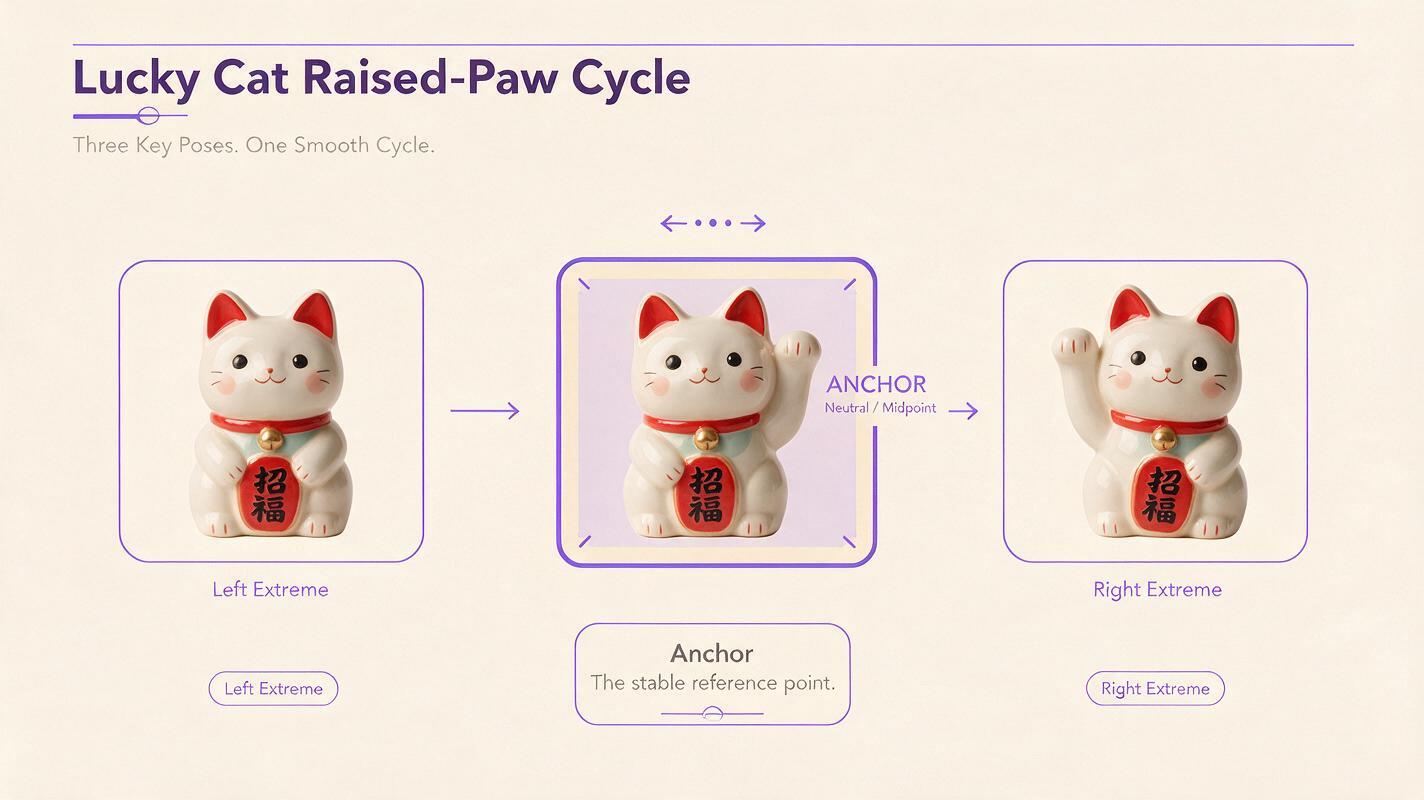
Step 3 — Separate fixed details from moving details
A strong loop prompt explicitly distinguishes what should move from what must remain fixed. If every noun receives a motion instruction, the model may animate the entire frame and remove any chance of finding compatible endpoints.
| Keep fixed | Allow to move |
|---|---|
| Camera position and focal length | The cat’s raised paw |
| Body, head, ears, and facial features | A slight background curtain flutter |
| Counter edges and background layout | Natural shadow response caused by the paw |
| Exposure and color temperature | Small physically connected movement only |
Convert that distinction into a bounded animation prompt:
A locked-camera product-style shot. The ceramic lucky cat remains perfectly stationary except for its raised paw, which lowers gently and returns to the exact neutral midpoint in a smooth, repeatable rhythm. The body, head, face, counter, and background geometry remain unchanged. The curtain moves only slightly. Constant warm light, stable exposure, no zoom, no pan, no reframing, no scene transition, no new objects.Negative phrasing can reduce unwanted behavior, but it cannot replace a clear positive description. State the intended motion first, then list the most damaging forms of drift.
Expected result: a prompt that gives the model one animation job while treating the rest of the image as a continuity constraint.
Step 4 — Generate bounded cyclic motion
Animate the anchor frame with Seedance or Kling and keep the same source image, aspect ratio, prompt, and available generation settings when comparing outputs. Generate enough time for the subject to complete more than one cycle if the available duration permits. The opening second is often less useful because the model may be settling from the static input into motion.
Use this Seedance-style prompt when you want fluid but restrained motion:
Locked-off camera. One gentle mechanical cycle: the raised ceramic paw lowers, pauses briefly, and rises back to the same neutral midpoint. Smooth even speed, stable ceramic geometry, fixed body and face, unchanged counter and shop background, constant lighting. The motion repeats naturally without camera movement or transformation.Use this Kling-style prompt when structural stability is the priority:
Static medium shot from the provided image. Preserve the exact cat design and framing. Animate only the raised paw through one small down-and-back movement, ending in the same position and angle. No head movement, no body movement, no camera motion, no scale change, no lighting shift, no object deformation.Do not add words such as cinematic camera, dynamic shot, or dramatic push-in. Those instructions encourage accumulated movement that will reset visibly when the loop restarts.
Expected result: several candidate clips containing at least one stable motion cycle, even if the original first and last frames do not match.
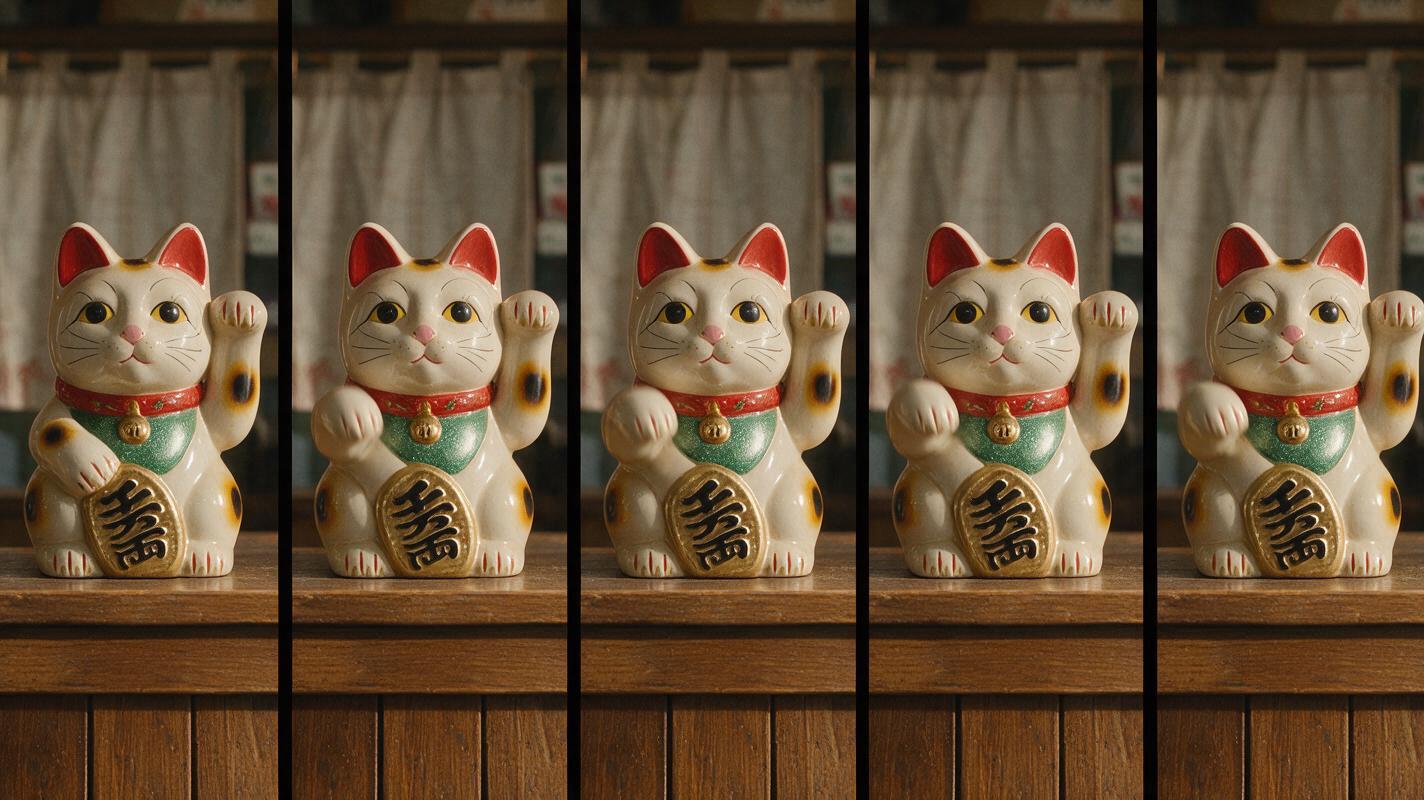
Step 5 — Compare structure before judging style
Review every candidate at normal speed, then inspect it frame by frame. Score technical loop fitness before choosing the most attractive render.
| Check | Pass condition | Reject or repair when |
|---|---|---|
| Camera | Background edges stay aligned | The frame pushes in, pans, tilts, or breathes |
| Subject geometry | The silhouette returns to the same shape | The paw, face, or body changes proportions |
| Motion phase | The action repeats at a readable rhythm | The subject pauses unpredictably or changes direction abruptly |
| Lighting | Brightness and shadow direction remain stable | Exposure ramps or highlights migrate |
| Background | Static details preserve their positions | Objects appear, disappear, or melt together |
A restrained clip with a stable silhouette usually loops better than a visually spectacular clip with camera movement and complex secondary animation.
Expected result: one primary candidate chosen for temporal consistency, plus an alternate candidate in case the first has no usable matching frame pair.
Step 6 — Find the real loop point and trim there
Ignore the exported clip boundaries. Scrub past the initial transition from stillness and locate a clear phase marker, such as the paw reaching its neutral midpoint while moving downward. Then move forward by one complete cycle and find the next frame showing the same position and direction of travel.
Matching position alone is insufficient. A pendulum centered while traveling left is not temporally equivalent to the same pendulum centered while traveling right. The two frames need compatible:
- Subject position and silhouette
- Direction and approximate speed of motion
- Camera framing
- Background state
- Exposure, shadow shape, and color
Place the first edit immediately before the selected starting frame. End the clip immediately before the equivalent frame appears again, because including both duplicate states can create a tiny hold at the seam.
Editing test: duplicate the trimmed clip three or four times on a timeline. The seam should remain difficult to locate even when you know where it is.
If the cut creates a small positional tick, move either edit by one frame. Avoid applying a long dissolve immediately; blending mismatched geometry can create a transparent double image instead of hiding the problem.
Expected result: a trimmed cycle that repeats continuously without relying on the generated file’s original opening or closing frame.
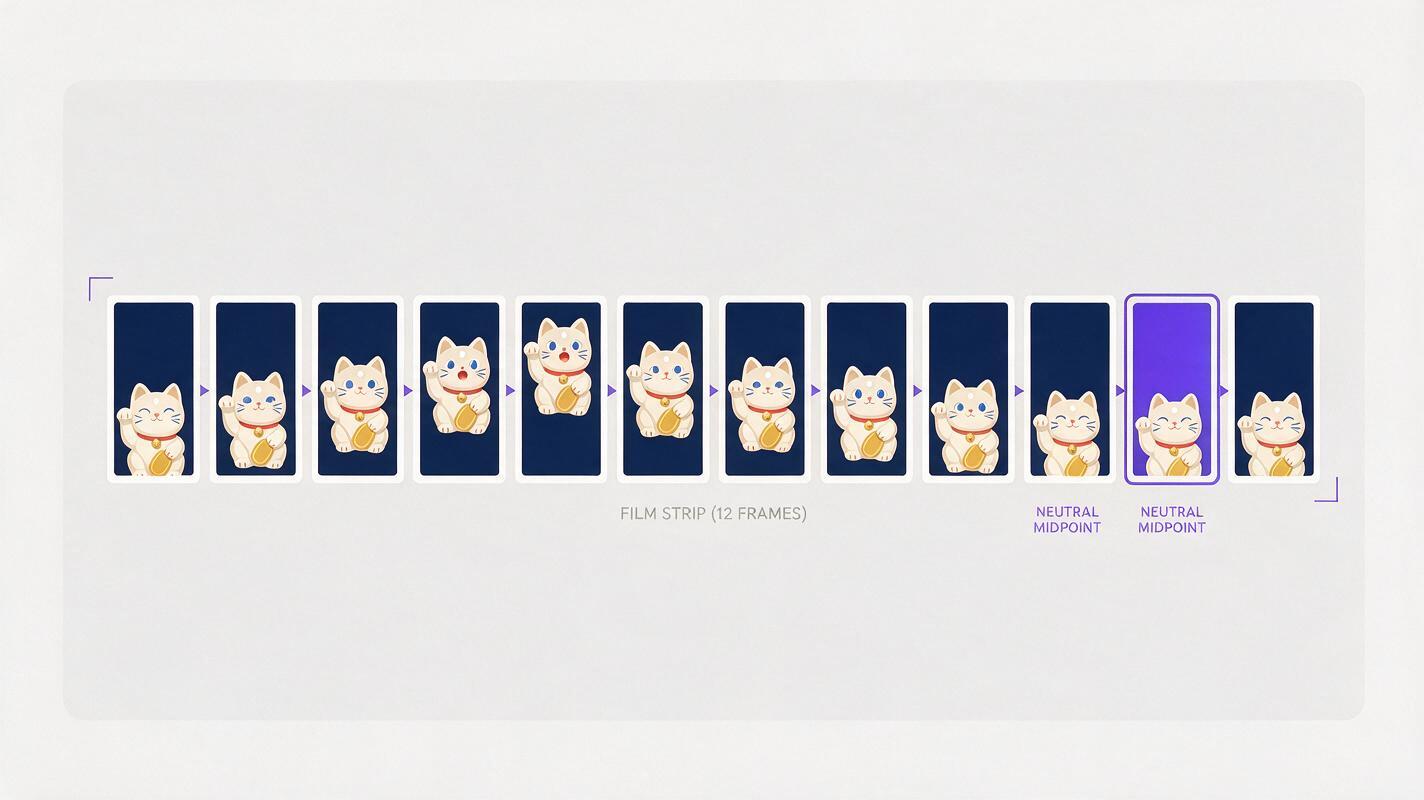
Step 7 — Repair only the seam that remains visible
If the clip is otherwise strong, diagnose the seam before regenerating everything.
- Small timing mismatch: adjust the in-point or out-point by one or two frames.
- Minor brightness shift: apply a localized exposure correction near the seam in your editor.
- Static background drift: stabilize or mask the affected background region if the subject does not overlap it.
- Different ending pose: create a short return-to-anchor bridge rather than forcing a dissolve.
- Structural deformation: regenerate; interpolation cannot reliably repair changing anatomy or object geometry.
For a bridge, export a clean frame near the end of the main motion and use it as the starting reference for a second, restrained generation:
The ceramic paw smoothly returns from its current position to the neutral midpoint shown in the original reference. Preserve the exact cat, counter, background, lighting, and locked camera. One direct settling motion only; no extra cycle, no overshoot, no transformation.Trim the bridge as soon as it reaches a state compatible with the main clip’s opening. The bridge should solve one transition, not introduce another full action.
Expected result: either a clean single-clip loop or a main clip plus a short bridge that closes the motion without changing the scene.
Keep the same loop across projects
Save more than the final video. Preserve the anchor image, motion prompt, selected model, aspect ratio, generation settings, and exact trimmed frame range. This creates a reusable loop package for alternate crops, color grades, social formats, and future revisions.
If you need several loops from the same visual world, retain the fixed scene description and change only the motion module:
FIXED SCENE:
Small ceramic lucky cat on a dark wooden shop counter, warm morning light, fixed eye-level medium shot, identical background and materials.

MOTION MODULE A:
The raised paw completes one gentle down-and-back cycle.

MOTION MODULE B:
The cat remains still while the background curtain completes one slow sway and returns.

MOTION MODULE C:
A narrow band of reflected sunlight moves slightly across the counter and returns, with constant overall exposure.
This modular approach makes comparisons meaningful and prevents accidental redesign of the subject between variations.
Alternative: use motion transfer for a precise repeating performance
Motion transfer is useful when a generated cycle lacks the exact rhythm you need. Record or prepare a source performance that begins and ends in the same neutral pose, with a short stable lead-in and lead-out. Keep the movement readable, centered, and free from occlusion.
This method is especially helpful for a repeating hand gesture, upper-body sway, simple exercise, or stylized dance phrase. It is less suitable when the source performer turns away, crosses limbs heavily, or leaves the frame. A technically closed source motion can still produce an unstable loop if the target character’s clothes, hair, or proportions react unpredictably.
Alternative: use face swap after the motion is stable
If a human face drifts slightly while the body motion and loop seam are already successful, face swap can be a targeted finishing step. Apply it after selecting and trimming the final cycle so you only process frames that will appear in the finished loop.
Use a sharp, front-facing reference with lighting reasonably compatible with the generated footage. Face swap cannot correct a head that changes shape, turns fully away, or becomes occluded; those problems require a stronger source generation.
Where the workflow falls short
- Large camera moves: orbits, zooms, and long tracking shots rarely return to exactly the same perspective without deliberate path control.
- Non-reversible events: breaking glass, pouring liquid out of a container, eating food, or opening a package permanently changes the scene.
- Chaotic simulations: flames, surf, crowds, and dense smoke may contain no truly matching frame pair.
- Complex anatomy: full-body spins and overlapping limbs can drift even when the overall pose returns.
- Long-term accumulation: tiny scale, exposure, or geometry changes become obvious when the loop repeats many times.
For these cases, consider hiding the transition behind an occlusion, a fast foreground wipe, a cut on a flash, or a deliberately designed match frame. Not every action should be forced into an invisible continuous loop.
FAQ
Can I create a seamless loop directly from text to video?
Yes, particularly for concept testing and simple environmental motion. However, an anchor image gives you stronger control over composition, subject design, and the visual state that must recur.
Should I write “perfect seamless loop” in the prompt?
You can include it as a goal, but concrete constraints are more useful. Describe the exact repeating action, specify a locked camera, identify fixed scene elements, and state the pose or state to which the subject returns.
How many motion cycles should I generate?
More than one is helpful because it gives you internal frame pairs after the model has settled into motion. The practical limit depends on the duration options available for the selected model and generation.
Should I add a crossfade at the seam?
Only for very small texture or lighting differences. A crossfade between mismatched silhouettes creates ghosting, so first search for a better frame pair or generate a return bridge.
Why does my loop pause briefly at the cut?
You may have included the same motion state twice: once at the end and again at the beginning. Trim the outgoing clip immediately before the duplicate frame, and check whether the generated motion itself slows at that point.
Which model is best for AI video loops?
There is no universal winner for every subject. Test the same anchor and bounded prompt in Seedance and Kling, then choose the output with the least camera, geometry, and lighting drift rather than the most dramatic movement.
Final checklist
- Choose one action with a physically repeatable cycle.
- Start from a neutral, loop-safe anchor frame.
- Separate fixed scene details from moving details in the prompt.
- Keep the camera and exposure locked.
- Generate enough footage to search for an internal matching frame pair.
- Match both position and direction of travel at the edit.
- Test several repeated copies, not just one transition.
- Use a short return bridge only when trimming cannot close the loop.
- Correct identity after motion and timing are stable.
Ready to test the workflow? Create your first ai video loop free with MagicBoat, compare models using the same anchor image, and trim the strongest result around its true repeating cycle.
Keywords
image to video, seamless AI video loop, AI video tutorial, Seedance prompts, Kling prompts, prompt engineering, AI video workflow