How to Make a Seamless Loop Reel From a Still Image With Kling
Turn a single still image into a subtle looping background for Reels, TikTok, or Shorts. This tutorial shows how to choose a loop-friendly image, prompt Kling for controlled motion, and hide the join in a video editor.
Table of contents
Make a Reel that keeps moving without an obvious restart
A still image can become a useful Reel background, but a visible jump at the end gives away the loop. The fix is to plan for the join before you generate: choose a scene with gentle, repeatable motion, keep the camera still, then edit the resulting clip so its last frame leads naturally back to its first.
This tutorial uses a sunlit curtain as an example. It leaves room for a hook or campaign message while adding enough movement to hold attention. The same approach works for rippling water, shifting shadows, or other quiet scenes that suit a social post.
Step 1 — Choose an image that can return to its starting point
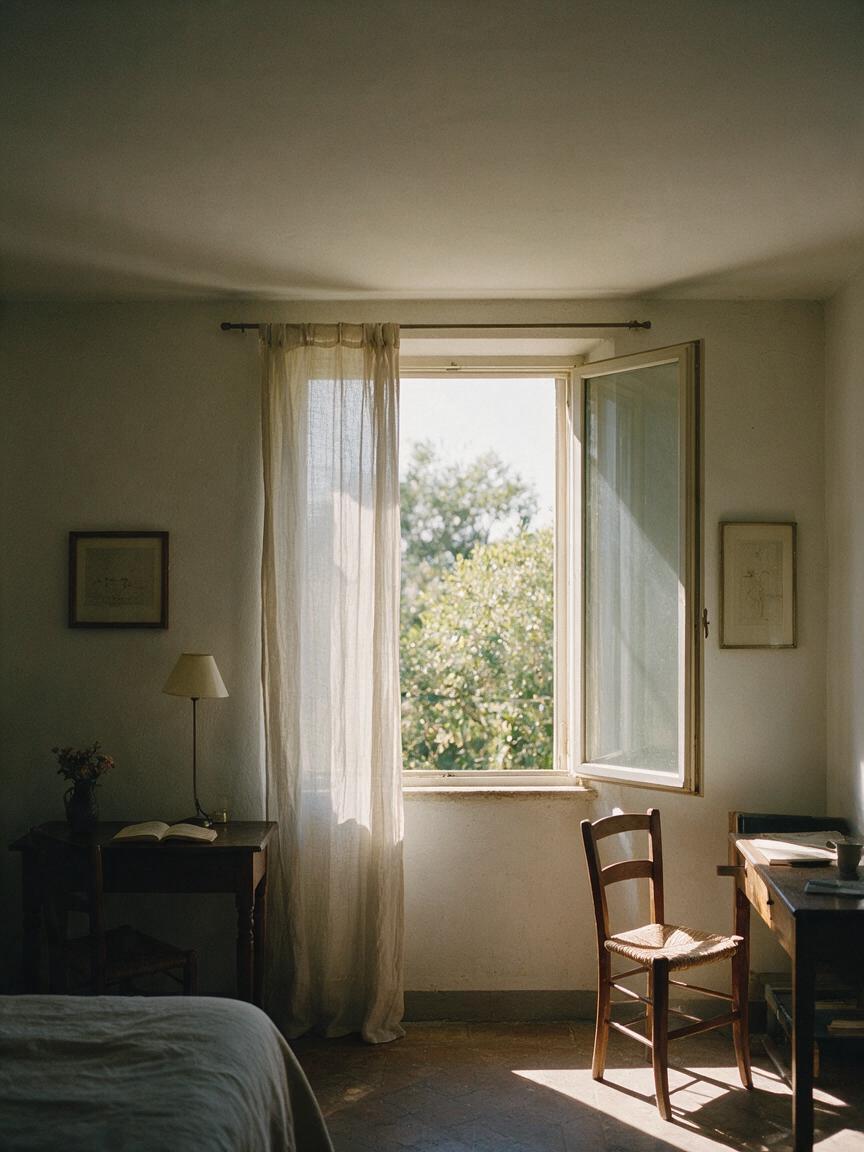
Start with a vertical image, or crop one to 9:16 before generating. Pick a composition with one clear moving element and enough uncluttered space for the text you will add later. In the curtain example, the fabric moves while the window frame and room stay still.
Look for motion that can plausibly travel both ways. A curtain billowing in a light breeze can move outward and settle back. A cup filling with coffee cannot: once it is full, a return to the empty starting frame will look like a reset.
- Good starting image: a sunlit room, a sheer curtain near an open window, steady furnishings, and open space in the upper third.
- Risky starting image: a person crossing the frame, an object being assembled, or any scene whose state changes permanently.
- Leave text out: add the hook, captions, and call to action in your editor so they remain sharp and easy to revise.
If you are making the starting frame from scratch with an AI image generator, ask for a portrait composition with a stationary camera viewpoint and a simple background. Review the result for distorted window frames, awkward fabric edges, or unwanted lettering before animating it.
Step 2 — Prompt Kling for motion you can actually loop
Upload your selected frame to Kling’s image to video workflow. The prompt should describe what moves, what stays fixed, and how the motion ends. Avoid asking for several actions at once. A dramatic camera push, a gust of wind, and a lighting change may make an exciting clip, but they also make the seam harder to hide.
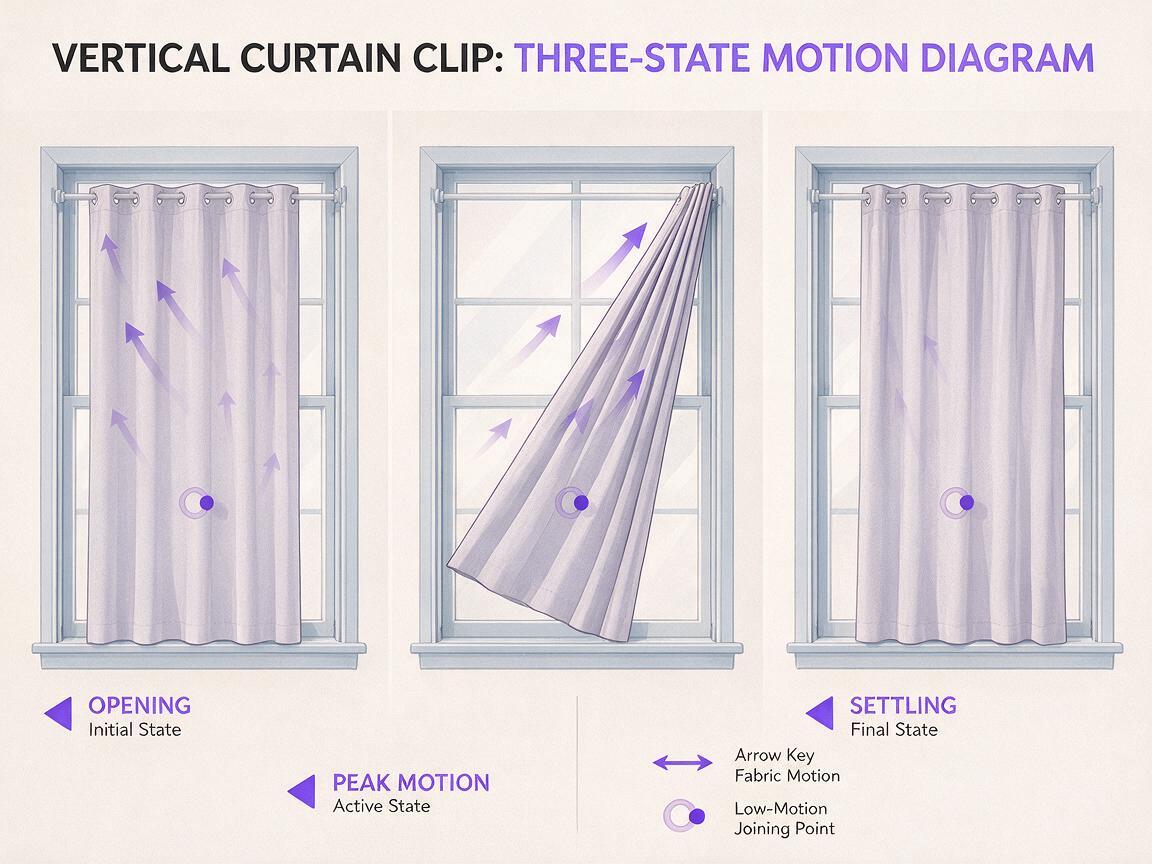
Vertical social video. A sheer curtain beside a sunlit window moves gently outward in a light breeze, then relaxes toward its original position. The window frame, furniture, and camera remain completely still. Natural daylight stays consistent. Subtle, smooth motion; no people, text, logos, zoom, pan, or new objects. Finish in a calm pose close to the opening composition.Treat “finish close to the opening composition” as a direction, not a guarantee. Generated clips still need inspection and trimming. Make a few variations and keep the one with the steadiest background and the least change in lighting.
Prompting tip: Describe the movement you want to see, not just the effect you want to achieve. “Curtain moves outward, then settles back” gives the model a clearer action than “make this loop perfectly.”
Step 3 — Find the best join, not just the last frame
Play each candidate clip and watch three places: the opening frame, the final frame, and any quiet moment when the curtain pauses or changes direction. The generated ending may differ from the start even if you asked for a return. You do not have to use the entire clip.
For each candidate, ask:
- Is the window frame in the same place throughout, or does the whole room drift?
- Does the curtain keep a believable shape, without extra folds suddenly appearing?
- Do brightness and shadows stay reasonably consistent?
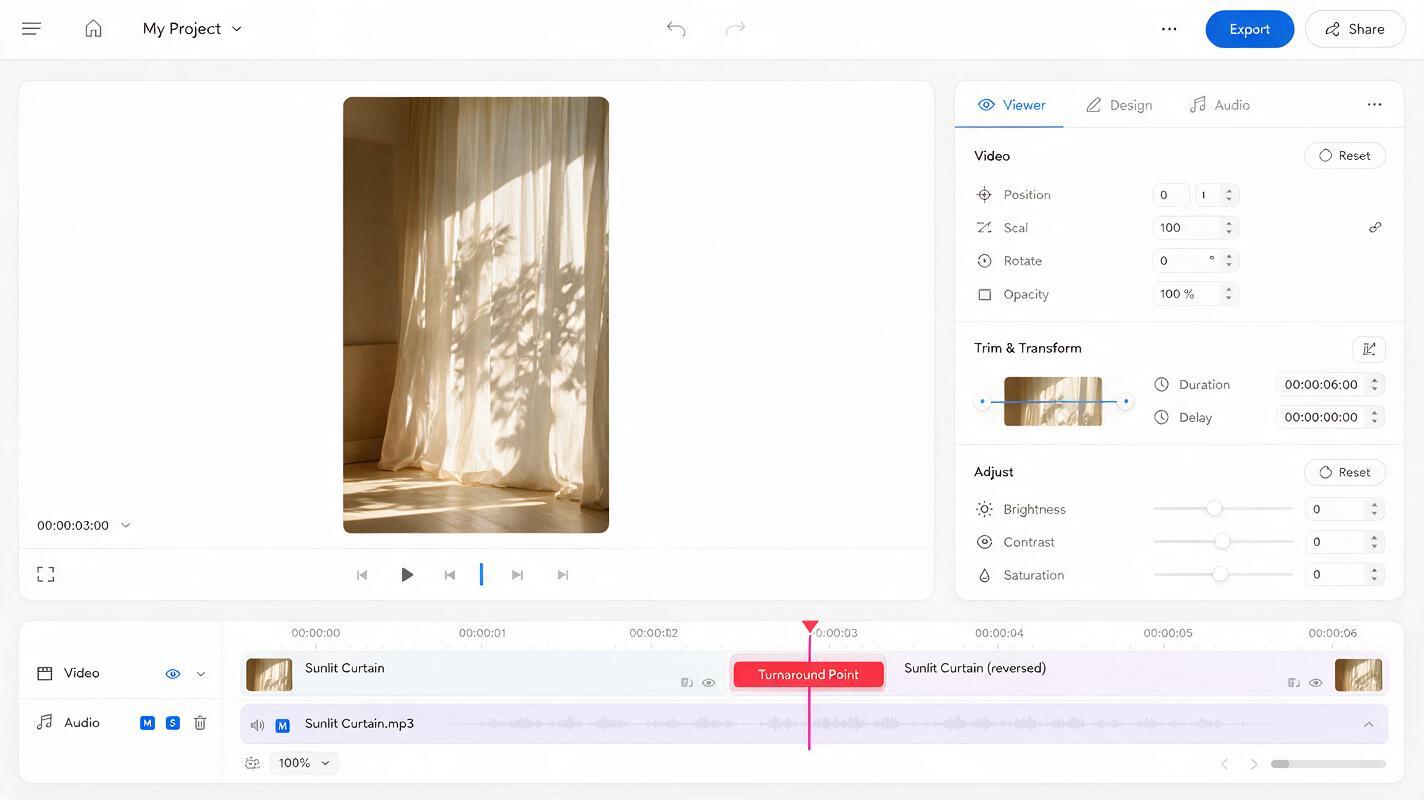
- Is there a low-motion point where a cut or reversal would be hard to notice?
Reject a clip if the fixed background warps. Trimming can solve a timing problem; it cannot reliably repair a changing window frame. If the motion is too forceful, regenerate with a softer breeze and an explicit request for a locked camera.
| What you see | What to try |
|---|---|
| A jump when the clip restarts | Trim to a closer matching pose or use a brief blend at the join. |
| The room appears to sway | Regenerate with a locked camera and simpler motion. |
| The curtain changes shape suddenly | Choose another variation; avoid joining at the shape change. |
| The movement feels too slow | Adjust playback speed modestly in the editor, then check the seam again. |
Step 4 — Build the loop in a vertical video editor
Place your chosen clip on a 9:16 timeline. There are two practical ways to make it repeat; try the simple cut first.
- Trim and repeat: cut the clip so its ending pose closely matches its starting pose. Duplicate it immediately after itself and play across the boundary. Move either trim point a few frames at a time until the jump becomes less noticeable.
- Play forward, then backward: duplicate the clip, reverse the second copy, and join them at a point where the motion naturally slows. This brings the scene back toward its starting pose. Check the turnaround carefully: reversing a fast or one-directional action can look unnatural.
If a small jump remains, try a short crossfade at the join. Keep it brief enough that overlapping curtain shapes do not create a ghosted double image. The best choice is the one that survives several repeats at normal viewing speed—not the one that looks best when inspected frame by frame.
Export a short test and watch it looping on a phone before adding graphics. A seam that is difficult to spot on a desktop timeline can become obvious on a small, bright screen.
Step 5 — Add a hook without covering the motion
Now give the loop a job. It could carry a teaser, introduce a carousel companion post, or provide a calm background for a short tip. Put the main text in the open area you reserved in Step 1, away from interface elements that may cover the edges of a Reel, TikTok, or Short.
For a home décor account, a simple sequence might be:
- Opening hook: “One small change made this room feel lighter.”
- Supporting line: “Watch what soft fabric does to afternoon light.”
- Closing prompt: “Which corner should we style next?”
Keep the text readable long enough for someone to finish it without needing to pause. If the hook appears and disappears, make sure its timing also feels natural on the next repeat. Use licensed audio if you add music, and check that its ending does not create a more noticeable restart than the video.
Test this prompt yourself with one image and two or three motion variations. Compare the finished loops on a phone, then save the strongest one as a reusable background for your next social post.
Final checklist
- The starting image is vertical and has clear space for text.
- One element moves; the camera and background remain stable.
- The chosen clip has no distracting shape or lighting changes.
- The join looks natural after several consecutive plays.
- The hook is legible and stays clear of on-screen controls.
- The final export has been checked on a phone with audio on and off.
Keywords
seamless loop reel, Kling image to video, looping Reel background, vertical video, Reels tutorial, AI video prompt, short-form video