Seedance Prompts for Reel B-Roll That Hides Jump Cuts
Awkward jump cuts can make an otherwise useful talking-head Reel feel choppy. These Seedance prompts create short, purposeful B-roll that covers edits, supports the spoken point, and fits a vertical social post.
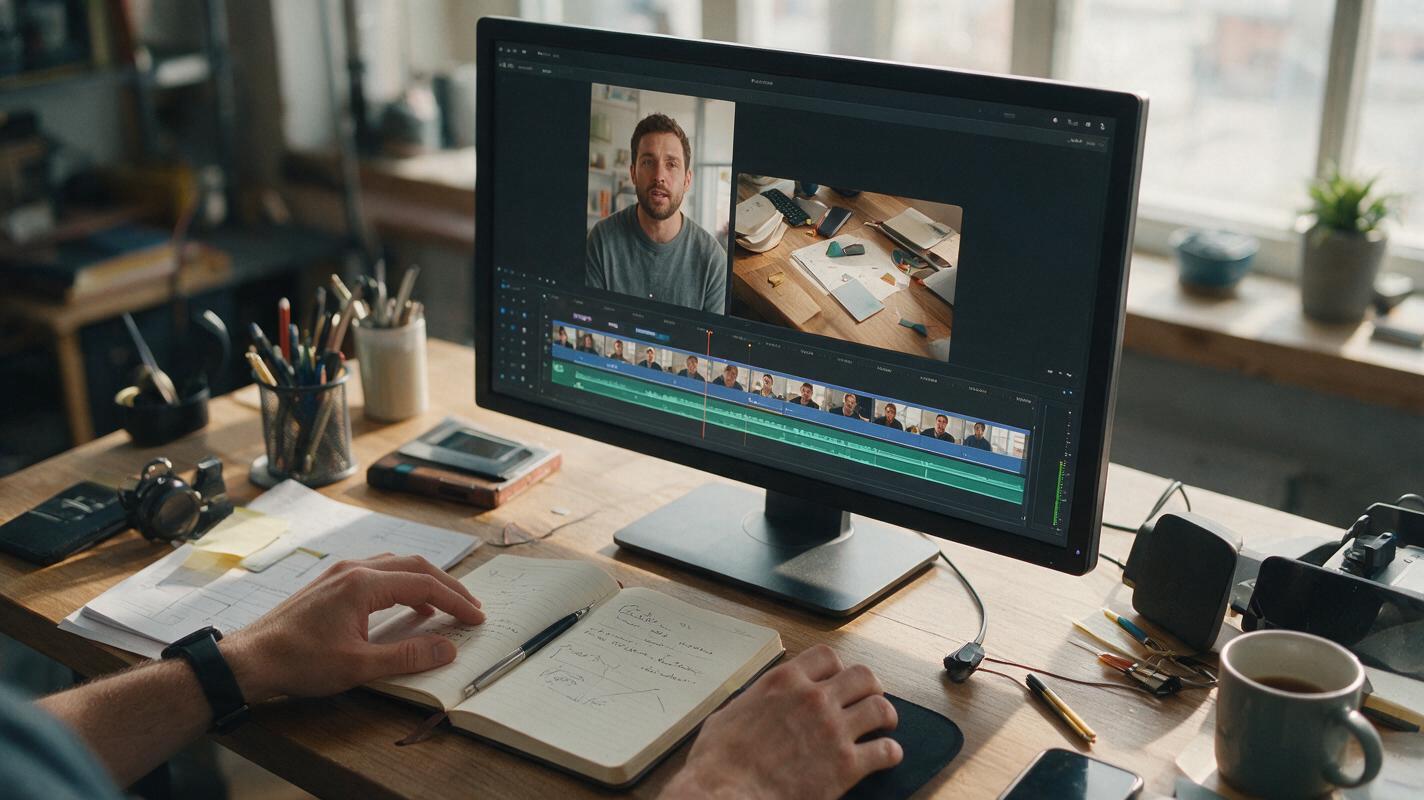
Table of contents
Give the viewer something relevant to watch during the cut
A jump cut is easiest to hide when the replacement shot shows what the speaker is talking about. If you have trimmed pauses from a talking-head Reel but the cuts still feel abrupt, a second of purposeful B-roll can bridge the edit without adding a flashy transition.
Seedance can generate those cutaways from written shot descriptions. The useful question is not “What would look impressive?” but “What could the viewer see at this exact moment?” The prompts below are designed for social teams working with planning tips, process explainers, and campaign updates. They avoid invented product details and leave room for your real footage wherever accuracy matters.
Match the cutaway to the spoken point
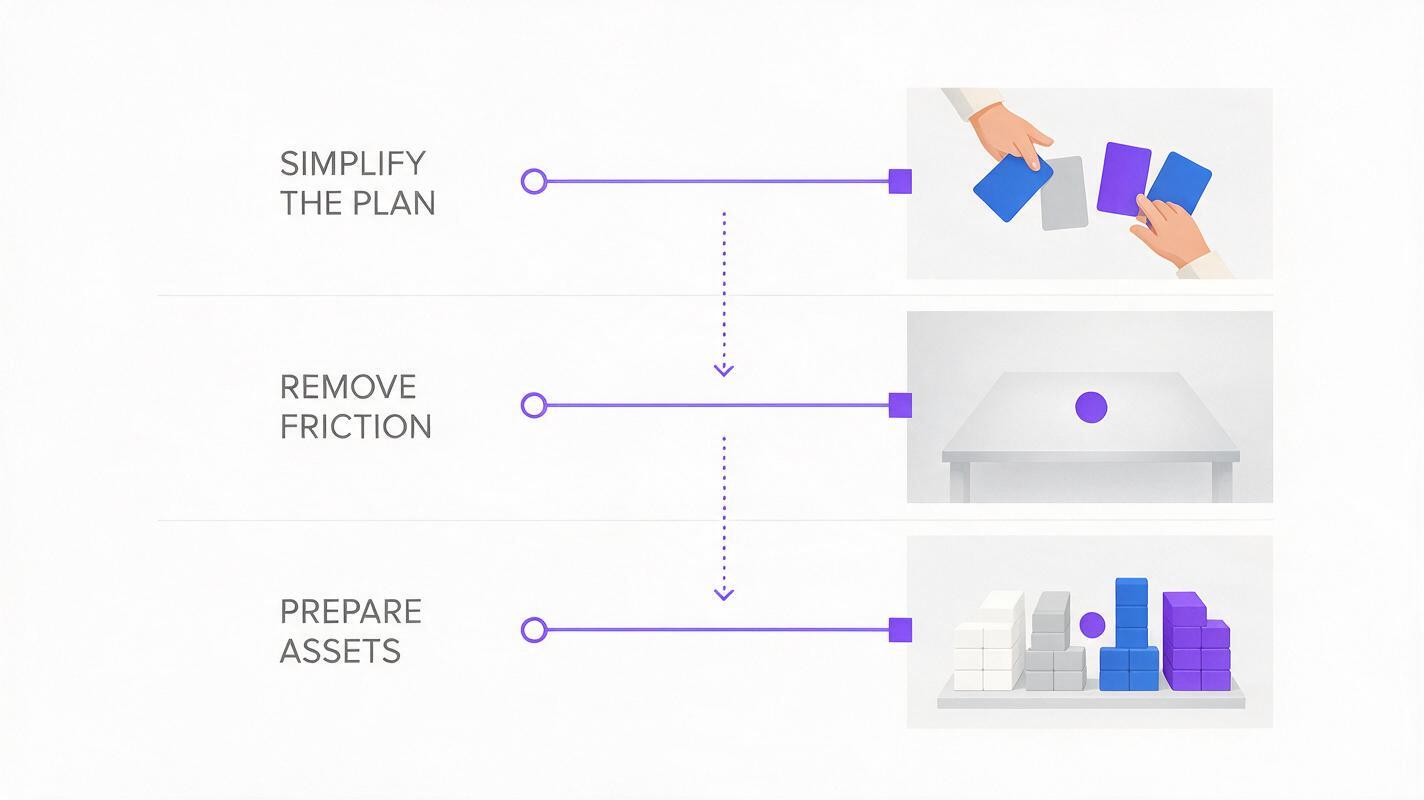
Before generating anything, listen to the sentence on either side of the cut. Pick a visible action that reinforces the idea: sorting cards for prioritization, clearing a desk for simplifying a process, or preparing materials for an upcoming campaign. A generic cinematic shot may conceal the speaker’s changing head position, but it also interrupts the explanation.
Use this quick test when choosing a cutaway:
| Spoken point | Useful B-roll | Less useful B-roll |
|---|---|---|
| “We narrowed the plan to three themes.” | Hands grouping unmarked idea cards into three piles | Random office skyline |
| “Remove anything that slows approval.” | A crowded work surface being simplified | Abstract flashing lights |
| “Now the assets are ready to schedule.” | Neatly arranged, unbranded content materials | A fabricated scheduling dashboard |
Plan for a brief insert rather than an entire AI-generated scene. You can extend or replace the shot later if the spoken sentence genuinely needs more visual explanation.
Prompt for a clean edit over a visual spectacle
For text to video in Seedance, describe one physical action, the framing, and the light. Ask for a stable composition with no captions, logos, or readable screens. If the generation interface offers a vertical format, select it; otherwise, frame the action centrally so you can crop it for a Reel without losing the subject.
Start from this reusable structure, then replace the bracketed details:
Vertical social video B-roll of [one relevant action] in [specific setting]. Medium-close composition with the important action centered and room to crop. Natural [lighting that matches the main footage]. One continuous, believable movement; steady camera; uncluttered background. No dialogue, captions, logos, readable text, or invented product packaging.The prompt is intentionally modest. A hand completing one action is easier to place over a sentence than a shot that introduces several new objects, camera moves, or implied claims.
Seedance prompts for common Reel cutaways
Show a plan becoming simpler
Use this when a speaker moves from a broad problem to a concise recommendation. The changing arrangement gives the viewer a reason to watch while the audio continues.
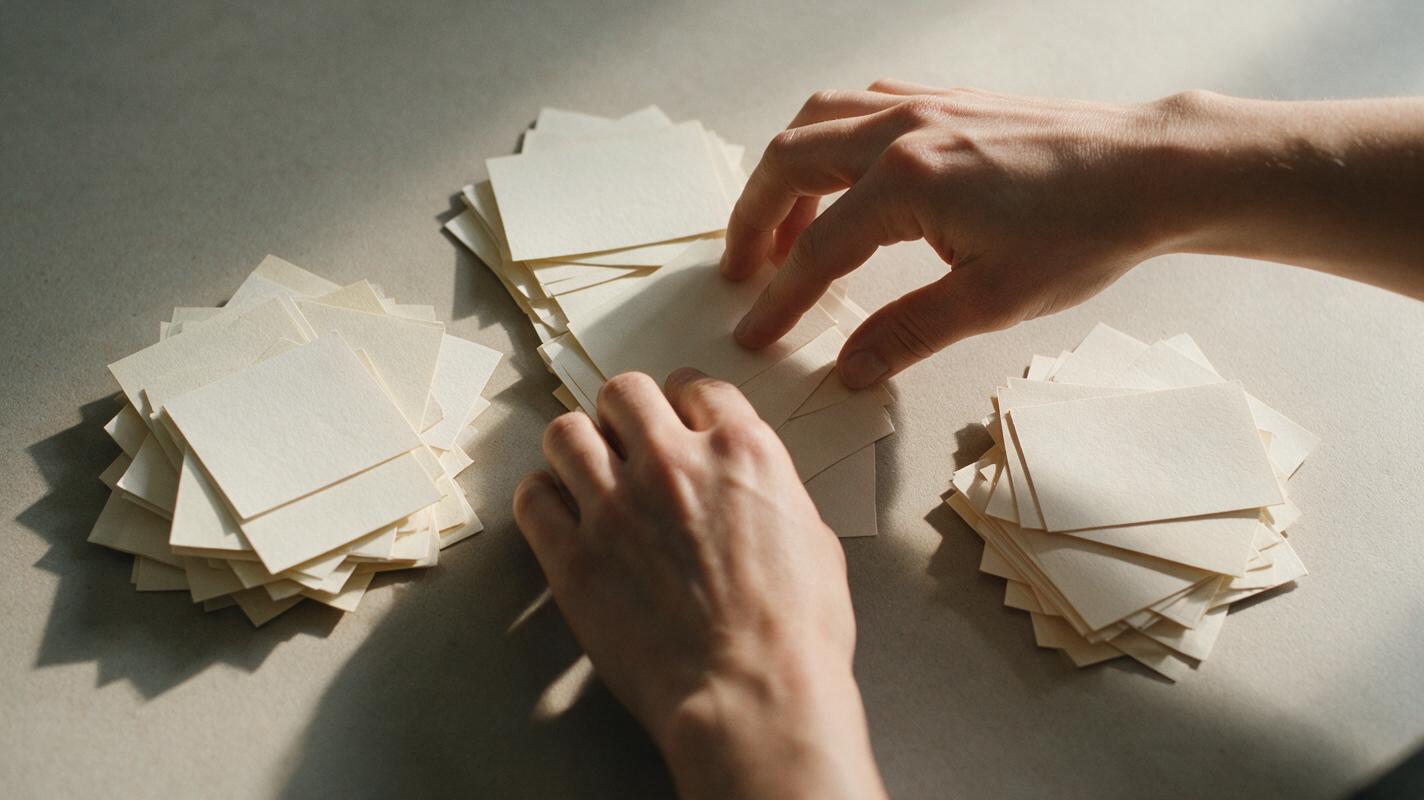
Vertical B-roll for a social strategy explainer: overhead view of a neutral tabletop with several blank paper idea cards. A pair of hands calmly groups the cards into three tidy clusters, then pauses. Warm daylight from one side, realistic paper texture, steady camera, clear central action. No writing on the cards, no logos, no captions, no extra hands.Best cut point: Enter on “three themes” or “simplify the plan.” Leave before the next specific example, so the visual does not overstay its meaning.
Cover a change between two related ideas
A workspace reset works when the speaker contrasts a messy process with a cleaner one. Keep the action plausible; a sudden magical transformation can draw attention to the edit you are trying to hide.
Vertical social video cutaway, medium-close view of a worktable with a notebook, loose blank sheets, and a pen. One hand moves the loose sheets aside and places the notebook neatly in the center. Soft indoor daylight, neutral colors, one continuous natural action, locked camera, realistic proportions. No visible writing, readable screens, brand marks, captions, or abrupt object changes.Place this across the cut between “what was slowing us down” and “what we changed.” If your talking-head footage is cool and dim, adjust the lighting description to match rather than forcing a warm, bright insert into the middle of it.
Illustrate preparation without fabricating a campaign
When a team member says assets are ready, show a neutral preparation action—not generated campaign creative that could be mistaken for approved work.
Vertical B-roll of hands arranging three plain, unbranded printed color swatches and a blank square card on a clean studio table. The hands straighten the materials and move out of frame. Soft diffused daylight, steady close framing, realistic materials, restrained movement. No words, logos, product labels, interface screens, or implied performance results.For an actual campaign reveal, use the approved assets instead. Generated filler should support the explanation, not quietly replace evidence of work your team really completed.
Give the ending a natural landing
Some Reels end on a hard cut because the last spoken phrase was trimmed too tightly. A simple closing action can carry the final words into the end card or caption.
Vertical close-up B-roll of a hand closing a plain notebook on a tidy desk, then resting still for a moment. Gentle natural window light, stable camera, subtle realistic motion, clean space around the notebook. No readable cover text, logos, captions, dramatic zoom, or additional objects appearing.Choose an action that actually relates to the Reel. Closing a notebook suits a recap; it is less appropriate for a hands-on product demonstration. Test this prompt yourself with the setting and light from your footage, then keep only a result that strengthens the edit.
Make the generated shot belong in your footage
Even a relevant cutaway feels pasted in when its color, camera angle, or pace disagrees with the surrounding video. Put the candidate clip between the two talking-head segments and watch the full sentence with sound before deciding whether it works.
- Match the light: Compare warmth, brightness, and shadow direction with the adjacent shots.
- Match the pace: Favor an action that starts promptly. Trim away any idle lead-in before placing it over the cut.
- Protect the vertical crop: Check that hands and the important object remain visible in the actual Reel frame, not just the source preview.
- Keep real information real: Use screen recordings for actual interfaces, approved photography for products, and original footage for claims that require proof.
- Check continuity: Watch for shifting fingers, changing object counts, or items that appear and disappear. Generate another option rather than hoping a fast cut will conceal an obvious error.
If viewers need to read a screen or recognize a specific product, generated B-roll is usually the wrong substitute. Use the real asset and reserve Seedance for illustrative moments.
Cut the clip at the moment it earns its place
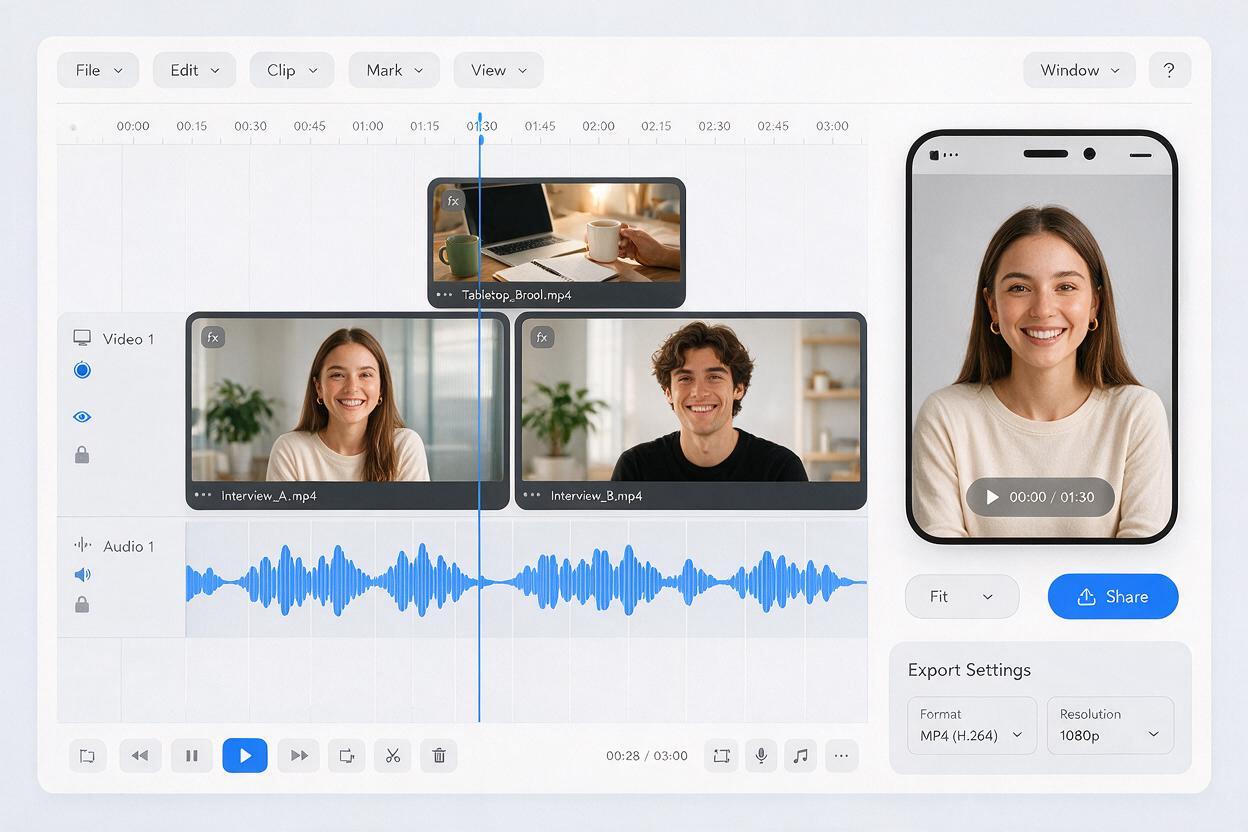
Put the B-roll on a track above the talking-head edit while keeping the speaker’s original audio continuous. Start it just before the visible jump and return to the speaker once the illustrative action is complete. A cutaway does not need its own transition effect; two clean cuts often feel more natural.
Review the result once without sound. Does the action make visual sense? Then review it with sound. Does it illustrate the words being spoken at that moment? Finally, watch it at normal scrolling speed on a phone-sized preview. If the insert calls attention to itself more than the speaker’s point, shorten it or choose a quieter shot.
Final checklist
- Choose a cutaway that matches the sentence, not just the video’s general topic.
- Prompt one believable action with stable framing and crop-safe composition.
- Keep logos, readable text, product details, and unsupported claims out of generated footage.
- Match light and pace to the surrounding talking-head clip.
- Check the final vertical edit for continuity errors and unnecessary screen time.